
Key Takeaways: Fixing 1More SonoFlow Pro Not Recognized Issues
- Most cases of the 1More SonoFlow Pro not recognized by PC come from a simple Bluetooth toggle, low battery, or an outdated driver.
- Removing the headphones from paired devices and re-pairing them solves the issue in the majority of cases.
- Bluetooth driver updates through Device Manager fix recognition problems tied to outdated Windows components.
- Audio output settings inside Windows Sound Control Panel often need a manual switch after pairing.
- Testing the headphones on another device helps confirm whether the problem is with the PC or the headphones themselves.
Plenty of headphone users run into a frustrating moment where the PC simply refuses to detect their headset, and the 1More SonoFlow Pro is no exception. This guide walks through the exact fixes that get the SonoFlow Pro recognized again, without wasting time on unrelated troubleshooting.
Fix 1: Check the Basics Before Anything Else
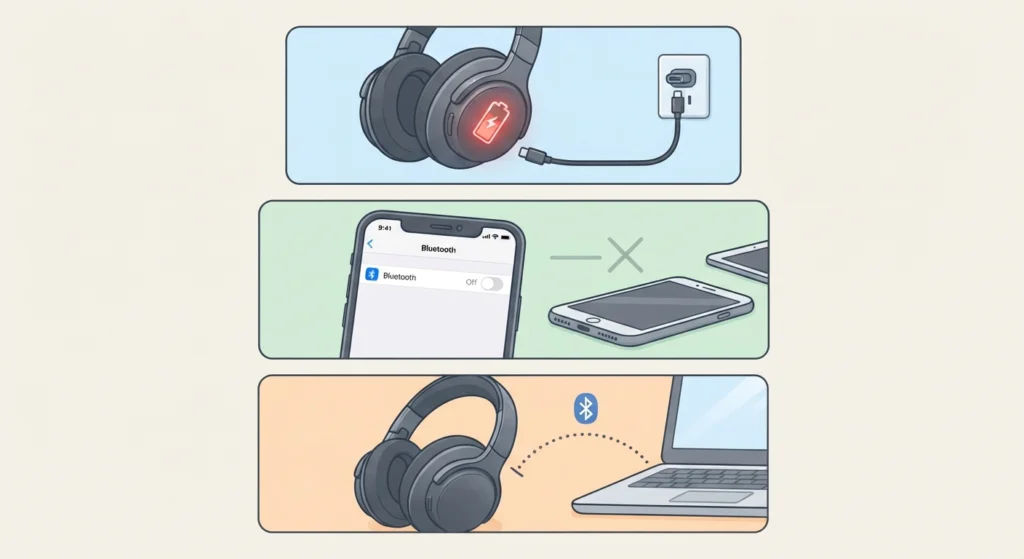
This step gets skipped more often than expected, yet it resolves a surprising number of recognition problems. A headset with a drained battery will not show up in the Bluetooth device list, and neither will one that is still stuck in an old pairing session with a phone or tablet.
- Step 1: Charge the SonoFlow Pro for at least 15 minutes before attempting to pair again.
- Step 2: Turn off Bluetooth on any other device the headphones were previously connected to, since Bluetooth only maintains one active connection at a time.
- Step 3: Keep the headphones within three feet of the PC during the first pairing attempt, since walls and other wireless signals can weaken the connection.
This works best when the headphones are freshly powered on rather than left in standby, since standby mode sometimes causes Windows to see a ghost device instead of an active one.
Fix 2: Restart the Bluetooth Service on Windows
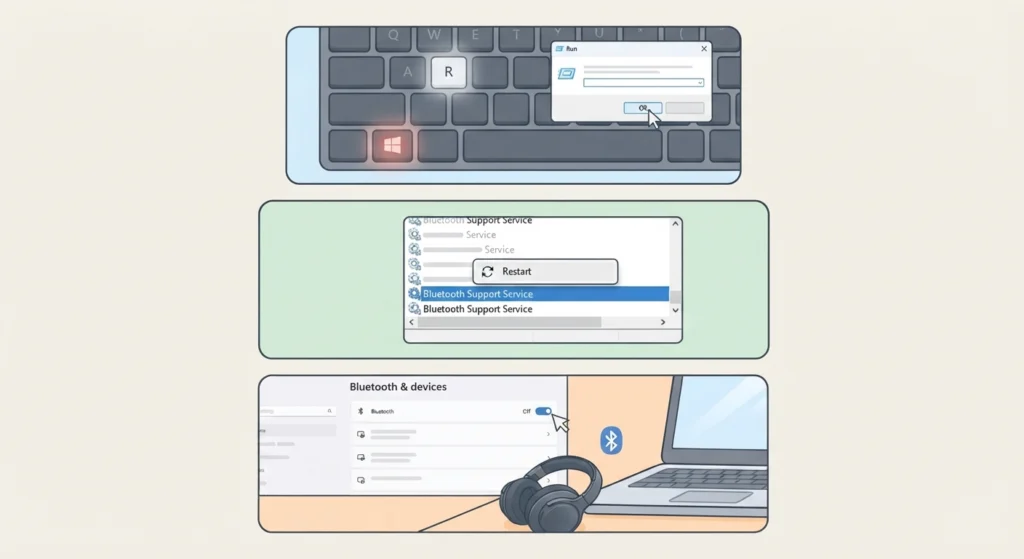
Windows runs Bluetooth through a background service, and that service occasionally freezes without any visible error message. Restarting it clears out the stuck connection attempt.
- Step 1: Press Windows key plus R, type services.msc, and press Enter.
- Step 2: Scroll down to Bluetooth Support Service, right-click it, and select Restart.
- Step 3: Reopen Bluetooth settings and try detecting the SonoFlow Pro again.
Most people find that this single fix clears up detection issues that seemed far more complicated than they actually were.
Fix 3: Remove and Re-Pair the SonoFlow Pro
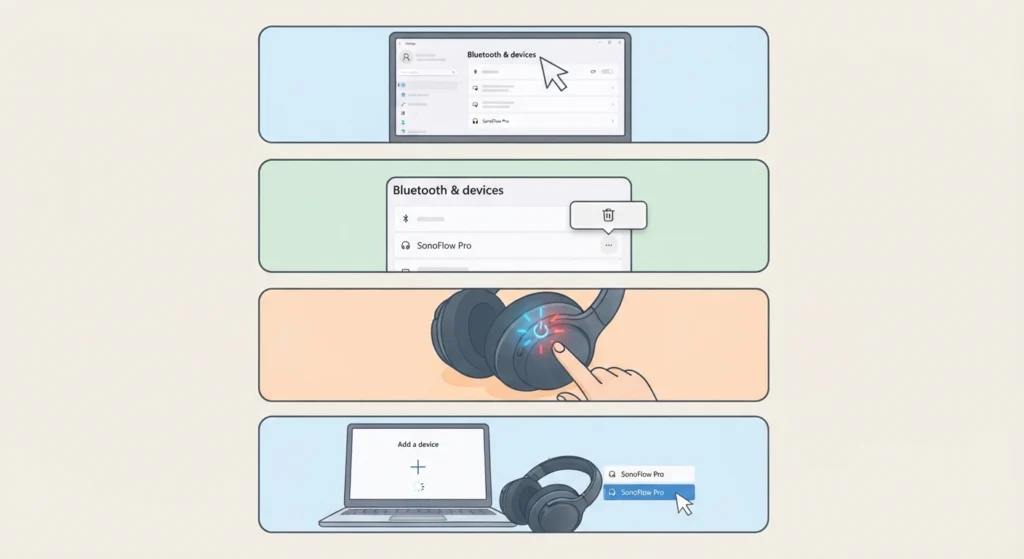
A corrupted pairing profile is one of the leading causes behind a PC that stops recognizing a headset it previously connected to without issue. Removing the old profile forces Windows to build a fresh connection from scratch.
- Step 1: Open Settings, then Bluetooth and Devices.
- Step 2: Find the SonoFlow Pro in the list, click the three-dot menu, and select Remove Device.
- Step 3: Put the headphones into pairing mode by holding the power button until the LED flashes.
- Step 4: Click Add Device on the PC and select the SonoFlow Pro once it appears.
For a full walkthrough on getting stable stereo sound after re-pairing Bluetooth earbuds on Windows, this process applies almost identically to the SonoFlow Pro.
Fix 4: Update the Bluetooth Driver
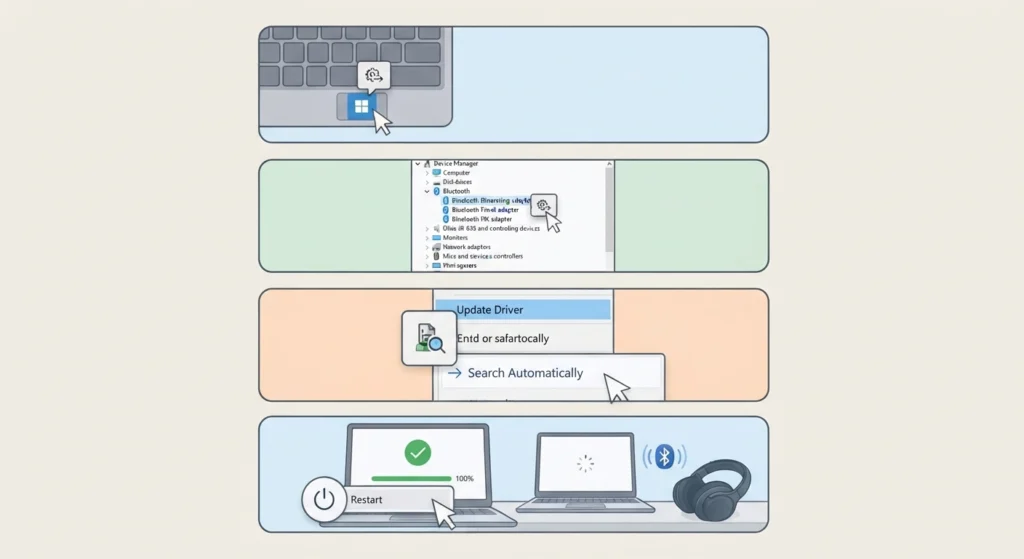
An outdated Bluetooth driver is a common culprit, especially on PCs that have not been updated in a while. Windows sometimes keeps an old driver active even after a general system update.
- Step 1: Right-click the Start button and open Device Manager.
- Step 2: Expand the Bluetooth section and right-click the main Bluetooth adapter.
- Step 3: Select Update Driver, then choose Search Automatically for Drivers.
- Step 4: Restart the PC once the update finishes, then attempt pairing again.
Pro-Tip: If Windows reports that the driver is already up to date but the issue persists, uninstall the driver completely and restart the PC. Windows reinstalls a fresh copy automatically, and that fresh install often resolves what an update alone could not fix.
Fix 5: Adjust the Audio Output Settings
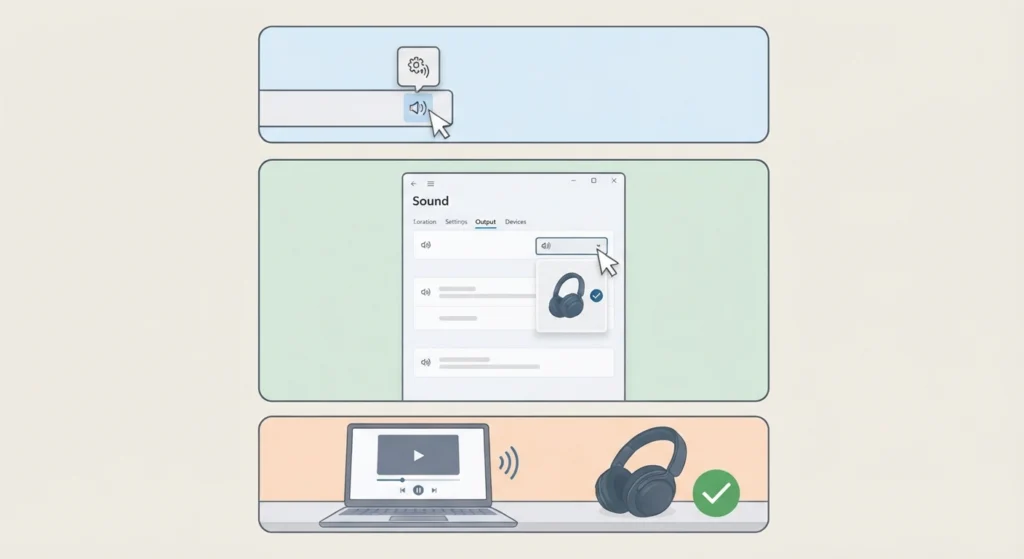
Sometimes the SonoFlow Pro actually connects successfully, but Windows keeps routing sound to the default speakers instead of the headphones. This looks identical to a recognition failure at first glance, which throws a lot of users off.
- Step 1: Right-click the speaker icon in the taskbar and select Sound Settings.
- Step 2: Under Output, select the 1More SonoFlow Pro from the dropdown menu.
- Step 3: Play a test sound to confirm audio routes through the headphones correctly.
A more detailed breakdown of adjusting audio output settings on Windows 11 covers additional playback quirks that sometimes overlap with this exact scenario.
Fix 6: Reset Audio Settings to Default
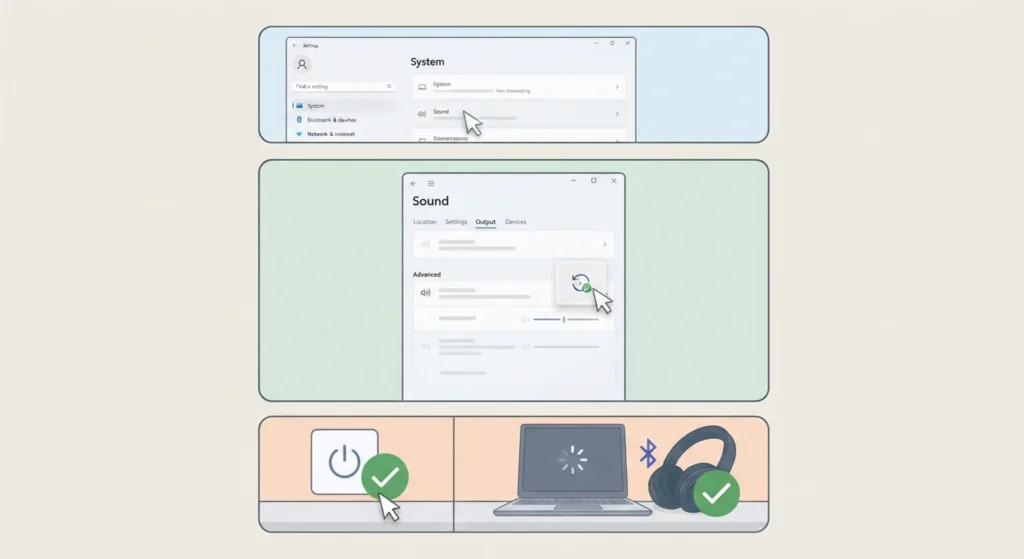
When multiple fixes have been tried without success, resetting the audio settings clears out any conflicting configuration that built up over time. This acts as a clean slate for Windows to detect the headphones properly.
- Step 1: Open Settings, then System, then Sound.
- Step 2: Scroll to the bottom and select Reset under the Advanced section.
- Step 3: Confirm the reset and restart the PC before reconnecting the SonoFlow Pro.
The steps for resetting audio settings on Windows 11 outline this process in more depth for anyone dealing with recurring audio conflicts beyond just this one device.
Fix 7: Confirm the Microphone Is Also Detected
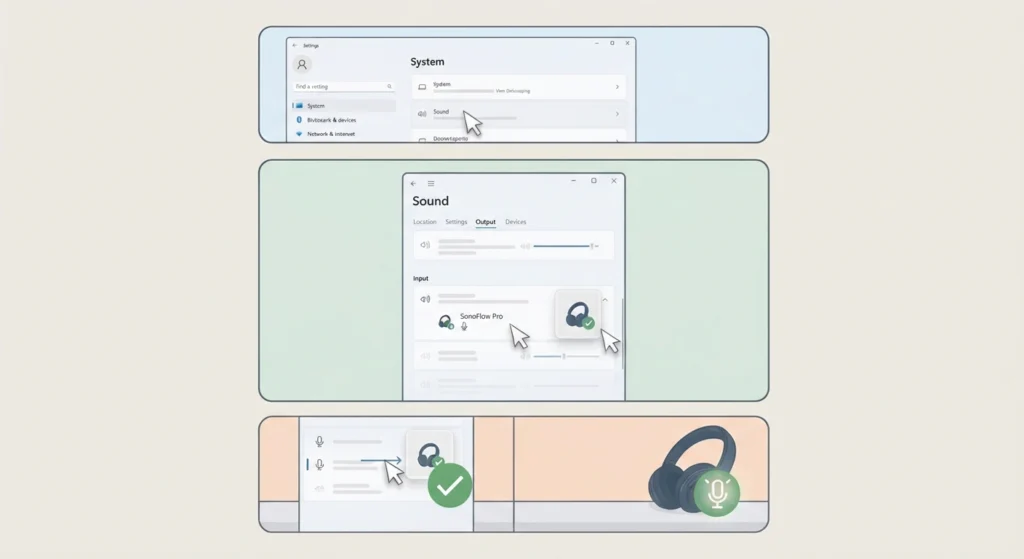
Headsets like the SonoFlow Pro include a built-in microphone, and Windows treats the microphone as a separate input device from the audio output. It is possible for the headphones to play sound while the microphone stays undetected.
- Step 1: Open Settings, then System, then Sound.
- Step 2: Check the Input section for the SonoFlow Pro microphone.
- Step 3: Select it as the default input device if it appears in the list but is not active.
The guide on resolving microphone detection problems on Windows 11 covers this in more detail, and the guide on managing audio input devices on Windows 11 is useful for anyone juggling multiple microphones on the same PC.
Common Problems With 1More SonoFlow Pro Recognition
A few specific patterns come up again and again with this exact issue, and knowing what causes each one saves a lot of guesswork.
- The headphones show as connected in Bluetooth settings but no sound plays, which usually points back to the output device not being selected correctly.
- The PC detects the SonoFlow Pro briefly, then the connection drops within seconds, which often traces back to Bluetooth driver conflicts or signal interference from other wireless devices nearby.
- Windows displays the headphones as an unknown device instead of by name, which typically means the Bluetooth driver needs an update or reinstall.
- The headphones pair without trouble on a phone but never appear on the PC, which points to a PC-side Bluetooth adapter issue rather than a problem with the headphones.
Pro-Tip: If the SonoFlow Pro connects fine with a phone but never with the PC, the Bluetooth adapter on the computer itself is the most likely source of the problem, not the headphones. Testing on a second PC or laptop confirms this quickly.
Tips to Keep the SonoFlow Pro Recognized Consistently
- Keep the headphones charged above 20 percent, since low battery causes some Bluetooth chips to behave unpredictably during the handshake process.
- Disconnect the headphones properly through Windows before switching them to another device instead of just powering them off.
- Keep Windows updated, since Bluetooth stack improvements often ship through routine system updates rather than standalone driver downloads.
- Avoid pairing the SonoFlow Pro to more than one device at the same time, since simultaneous connections are a frequent source of dropped recognition.
Frequently Asked Questions
Why is the 1More SonoFlow Pro not recognized by a Windows PC?
The most common causes include Bluetooth being turned off, a corrupted pairing profile, an outdated Bluetooth driver, or the headphones still being connected to another device.
How to put the 1More SonoFlow Pro into pairing mode?
Hold the power button on the headphones for a few seconds until the LED indicator starts flashing, which signals that pairing mode is active.
Does the 1More SonoFlow Pro work with Windows 11?
Yes, the SonoFlow Pro connects to Windows 11 through standard Bluetooth pairing, and no additional software is required for basic playback and microphone use.
Why does the SonoFlow Pro connect but produce no sound?
This usually happens when Windows keeps the default speakers selected as the output device instead of switching to the headphones after pairing.
How to update Bluetooth drivers on Windows for the SonoFlow Pro?
Open Device Manager, expand the Bluetooth section, right-click the adapter, and choose Update Driver followed by Search Automatically for Drivers.
Can outdated Windows updates cause the SonoFlow Pro not recognized issue?
Yes, an outdated Bluetooth stack from missed system updates is a frequent cause of intermittent or failed device recognition.
Why does the microphone on the SonoFlow Pro not get detected?
The microphone is treated as a separate input device in Windows, so it needs to be manually selected under Sound Settings even after the headphones themselves connect successfully.
How to reset the 1More SonoFlow Pro headphones?
Power off the headphones, then hold the power and volume down buttons together for around eight seconds until the LED flashes rapidly, indicating a factory reset.
Is a USB dongle needed for the SonoFlow Pro to work with a PC?
No, the SonoFlow Pro connects through the PC’s built-in Bluetooth adapter, and a dongle is only necessary if the PC itself lacks Bluetooth hardware.
What if the SonoFlow Pro is recognized on a phone but not on a PC?
This points to an issue with the PC’s Bluetooth adapter or driver rather than the headphones, since the headphones already proved functional on another device.