
Learning how to update JBL headphones firmware through the JBL Headphones app is one of the simplest ways to keep a pair of earbuds or over-ear headphones running smoothly. A firmware update can smooth out Bluetooth hiccups, sharpen call quality, and unlock small feature tweaks that were not there on day one. This guide walks through the exact steps needed to check for and install a new firmware version, using nothing more than a smartphone and the official app.
Quick Summary:
- The JBL Headphones app is the main tool for updating firmware on most JBL earbuds and headphones models.
- An orange dot or notification badge on the device icon usually signals that an update is ready.
- The headphones need to stay powered on, connected, and close to the phone throughout the update.
- Updates typically take a few minutes, though some models take longer during the transfer phase.
- Closing the app or disconnecting Bluetooth mid-update can interrupt the process, so patience matters here.
Step-by-Step Guide to Update JBL Headphones Firmware
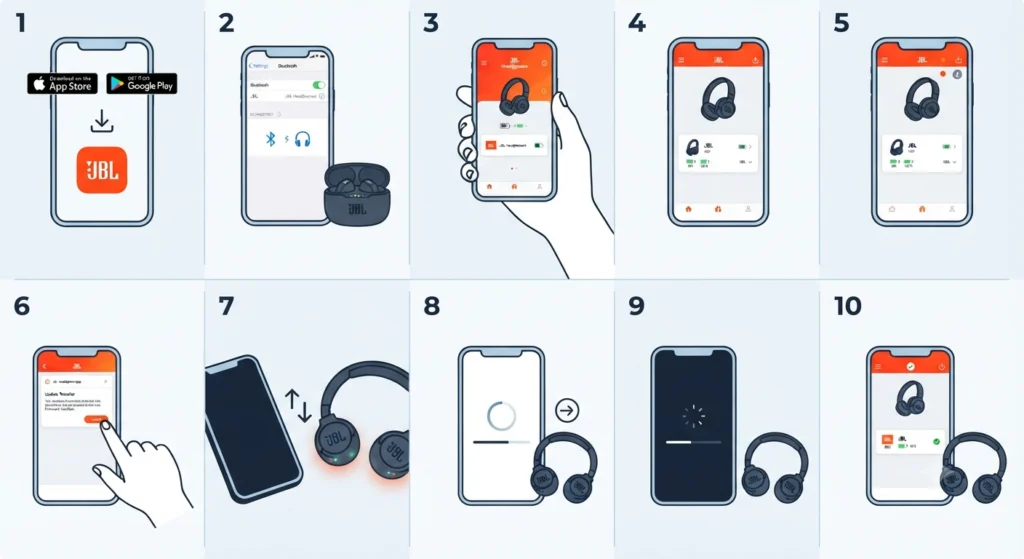
This process applies to most current JBL earbuds and wireless headphones models supported by the JBL Headphones app, including devices from the Tune, Live, Tour, Reflect, and Endurance lines. Before starting, make sure the headphones are charged to at least 50 percent, since a firmware update that loses power halfway through can cause problems.
- Step 1: Download the JBL Headphones app from the Apple App Store or Google Play Store if it is not already installed on the phone or tablet.
- Step 2: Turn on the headphones and pair them with the phone through Bluetooth settings, the same way any other wireless device gets connected.
- Step 3: Open the JBL Headphones app and locate the connected device on the home screen or device list.
- Step 4: Tap on the headphones’ icon or name to open its dedicated device page inside the app.
- Step 5: Look for an orange circle, badge, or a message that says a software update is available near the top of the screen.
- Step 6: Tap the update notification, then select the Install button to begin downloading the new firmware.
- Step 7: Keep the headphones powered on and within a short distance of the phone while the app transfers the firmware file.
- Step 8: Wait for the on-screen message that says the device is restarting, which means the firmware is being applied.
- Step 9: Allow the headphones to reboot on their own without pressing any buttons or turning them off manually.
- Step 10: Once the device information screen reappears in the app showing the updated firmware version, the update is complete.
Pro Tip: Avoid switching between other Bluetooth apps or making phone calls while the update is running. Background interruptions can slow down the transfer or cause the app to lose its connection to the headphones at the worst possible moment.
What to Check Before Starting the Update
A little preparation goes a long way with firmware updates. Most people find that update failures trace back to something simple rather than a real hardware fault.
- Confirm the headphones battery is above 50 percent before beginning.
- Make sure the phone has a stable internet connection, since the app needs to reach JBL’s servers to fetch the firmware file.
- Update the JBL Headphones app itself first, since an outdated app version sometimes fails to detect new firmware.
- Close other Bluetooth-connected apps that might compete for the same wireless connection during the update.
Tips for a Smooth Firmware Update
Firmware updates are usually straightforward, but a few habits make the process even more reliable. This works best when the update is treated like any other important software install, with a bit of patience and the right conditions.
- Keep the headphones within a foot or two of the phone the entire time, since Bluetooth range drops during large file transfers.
- Run updates on a charger or with the case nearby, especially for true wireless earbuds that draw power quickly during the process.
- Avoid running the update while also streaming audio or using another Bluetooth accessory on the same device.
- Once the update finishes, it can help to re-pair the earbuds for stereo sound if the audio does not balance correctly across both ears right away.
If the headphones are also being used with a Windows laptop for calls or media, it is worth adjusting audio output settings afterward, since a firmware update occasionally resets default playback preferences.
Common Problems When Updating JBL Firmware
Most update issues are minor and fixable without contacting support. The key is to identify which stage of the process is stuck before trying a fix.
Fix 1: App Does Not Detect an Available Update
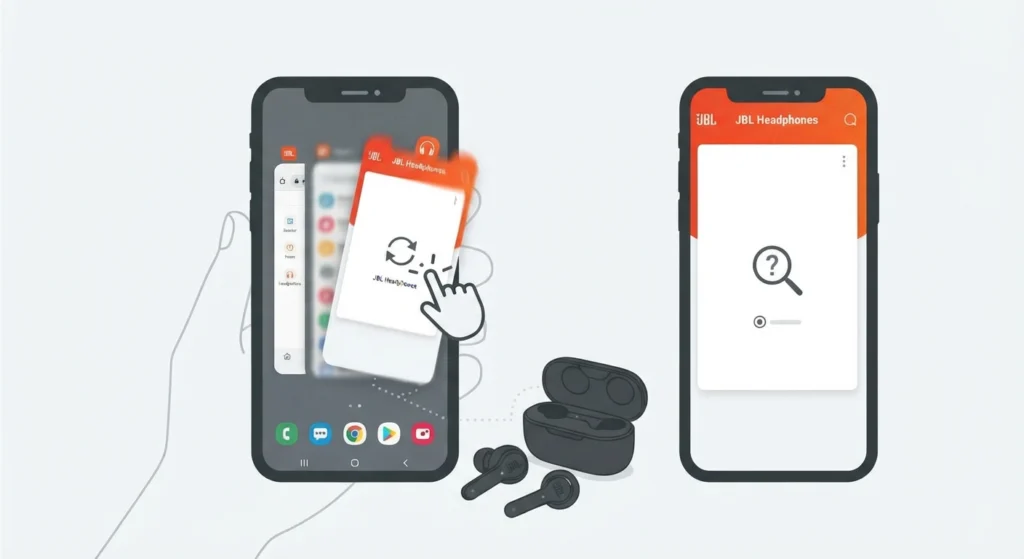
This usually happens when the app cache is outdated or the headphones lost their Bluetooth connection. Force close the app, reconnect the headphones, then reopen the app and check the device page again.
Fix 2: Update Freezes During the Transfer Phase
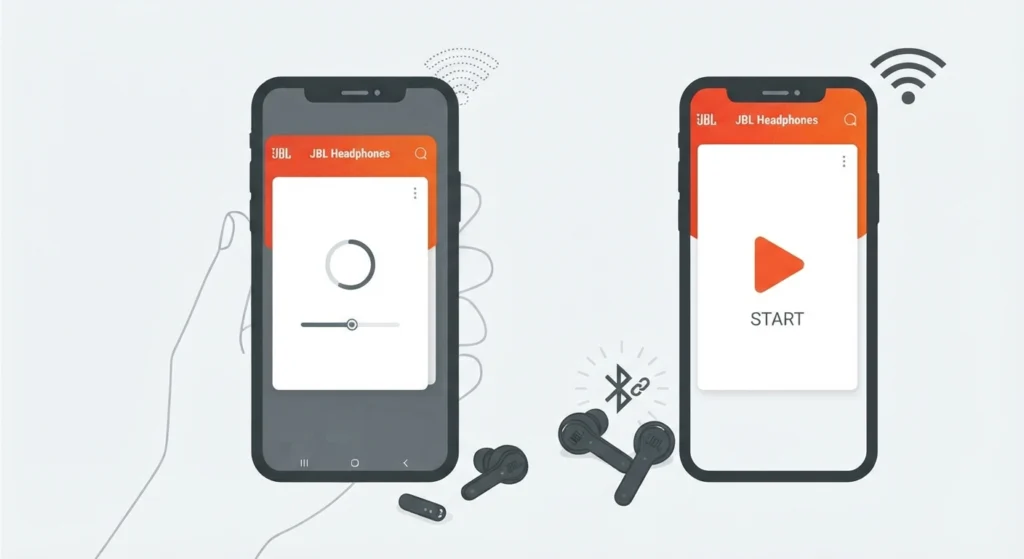
A stalled transfer is often caused by a weak Bluetooth signal or a phone that went to sleep. Wake the phone, move the headphones closer, and restart the update from the beginning rather than waiting indefinitely.
Fix 3: Headphones Will Not Reconnect After the Update
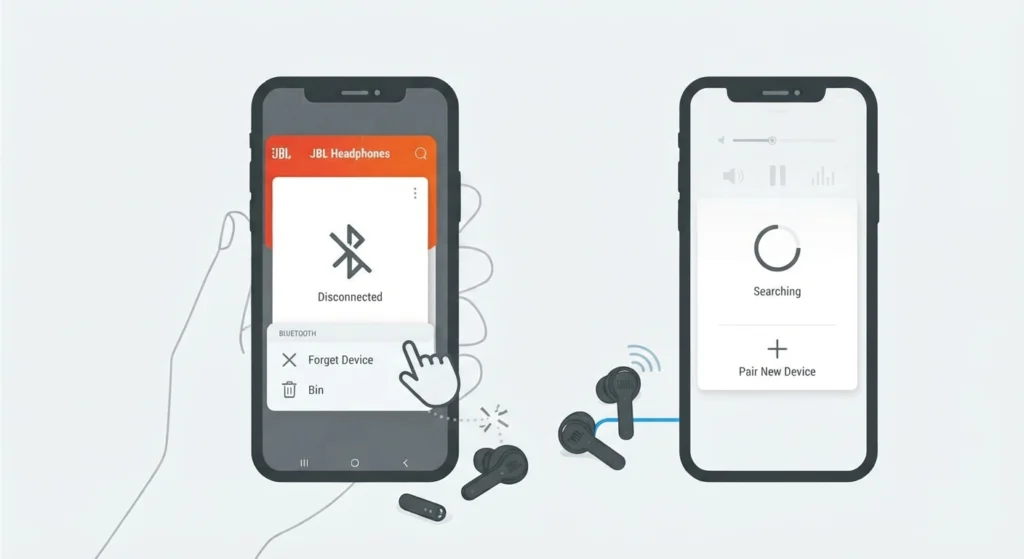
Some models require unpairing and re-pairing after a firmware change. If Bluetooth pairing feels unstable afterward, resetting audio settings on the connected device often resolves the mismatch.
Fix 4: Microphone Stops Working After the Update
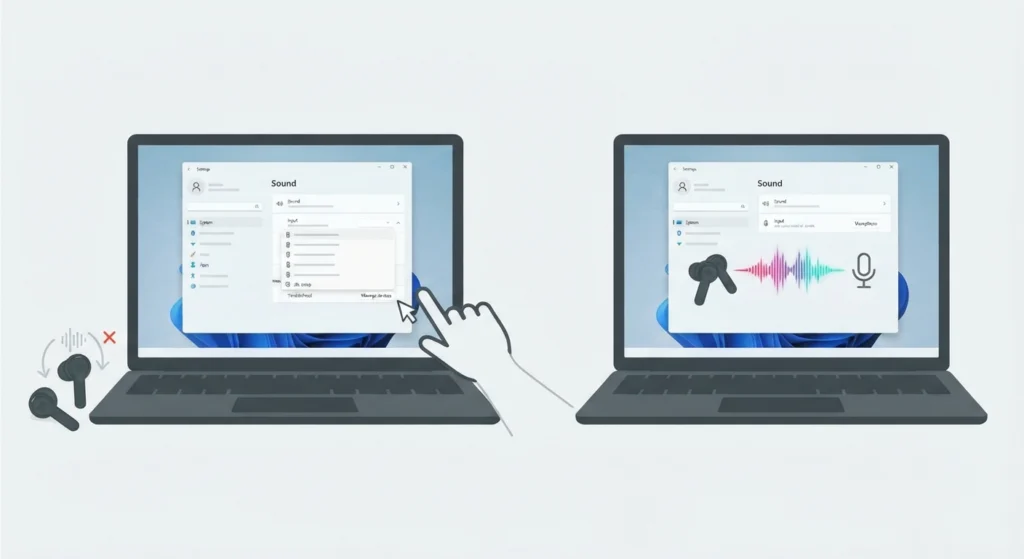
Occasionally a firmware update shifts default input settings on a paired laptop or desktop. On Windows 11, this is usually solved by resolving microphone detection problems through the sound settings panel.
Fix 5: App Shows an Error Instead of Installing
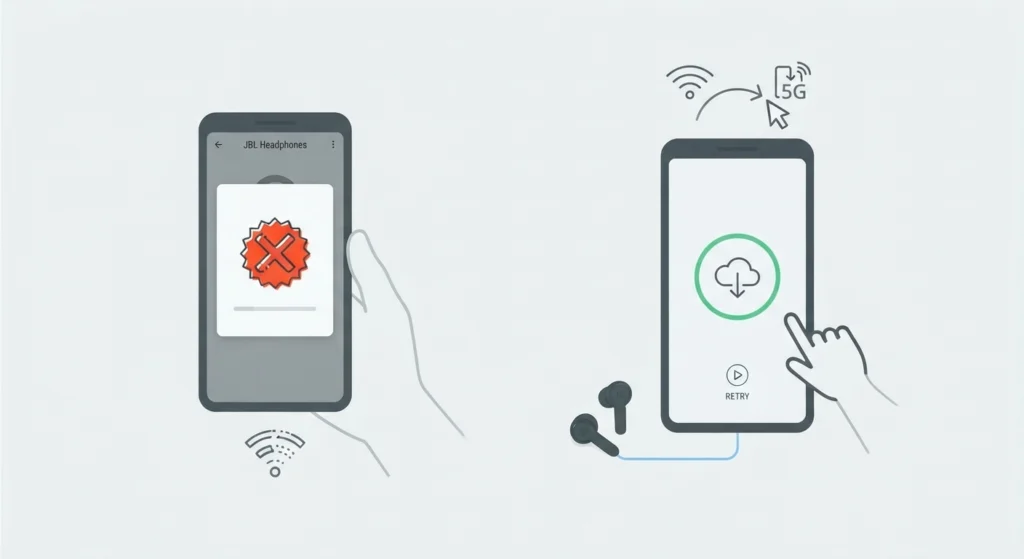
Error messages during install are typically tied to a dropped internet connection. Switching from Wi-Fi to mobile data, or the reverse, and retrying the install usually clears the error.
Frequently Asked Questions
What is the JBL Headphones app used for?
The JBL Headphones app manages Bluetooth headphones and earbuds, offering firmware updates, equalizer settings, touch control customization, and device status information in one place.
How do I know if a firmware update is available for JBL headphones?
Open the app and check the device page. An orange badge or a direct message about a new software version signals that an update is ready to install.
How long does a JBL headphone firmware update take?
Most updates finish within a few minutes, though the exact time depends on the model and file size. Some devices need a longer transfer phase before the actual install begins.
Can JBL firmware be updated without the JBL Headphones app?
For most current earbuds and headphones models, the app is the primary and recommended method. A small number of older or specific models use a separate JBL Firmware Update app instead.
Is it safe to interrupt a JBL firmware update?
No. Turning off the headphones, closing the app, or walking out of Bluetooth range mid-update can corrupt the installation and may require a factory reset to recover.
Do JBL headphones need to be fully charged before updating?
A full charge is not required, but the battery should be above roughly 50 percent to avoid the headphones powering off during the process.
Will updating firmware delete paired Bluetooth devices?
Firmware updates generally keep existing Bluetooth pairings intact, though some models may need a quick re-pair if the connection feels unstable right after the update.
Why is the JBL Headphones app not detecting my headphones?
This is often a Bluetooth connection issue rather than a hardware fault. Reconnecting the headphones through phone settings before reopening the app usually solves it.
How often does JBL release firmware updates?
Update frequency varies by model. Some headphones receive updates within months of release, while others get updates less often once the software is stable.
Can a firmware update fix Bluetooth connectivity issues?
Yes. Many firmware releases specifically target Bluetooth stability, including issues like random disconnects or slow reconnection after standby.