
Setting up the Nothing Ear 2 earbuds for the first time takes only a few minutes once the right sequence is followed, and getting it right from the start prevents most of the common connection headaches new owners run into. This guide walks through every step needed to unbox, charge, pair, and configure the earbuds properly on both Android and iOS devices.
Quick Summary Table
- Total setup time: 5-10 minutes
- Required app: Nothing X (Android and iOS)
- Charging recommendation: at least 15 minutes before first use
- Pairing method: Fast Pair for Android, Bluetooth menu for iOS
- Firmware update: recommended immediately after pairing
Step-by-Step Guide: Setting Up Nothing Ear 2 for the First Time
The setup process for the Nothing Ear 2 follows a logical order: charge, install the app, then pair. Skipping the app installation is the most common reason people run into pairing trouble, so it helps to follow these steps in sequence rather than jumping straight to Bluetooth settings.
Step 1: Charge the Case and Earbuds Before First Use
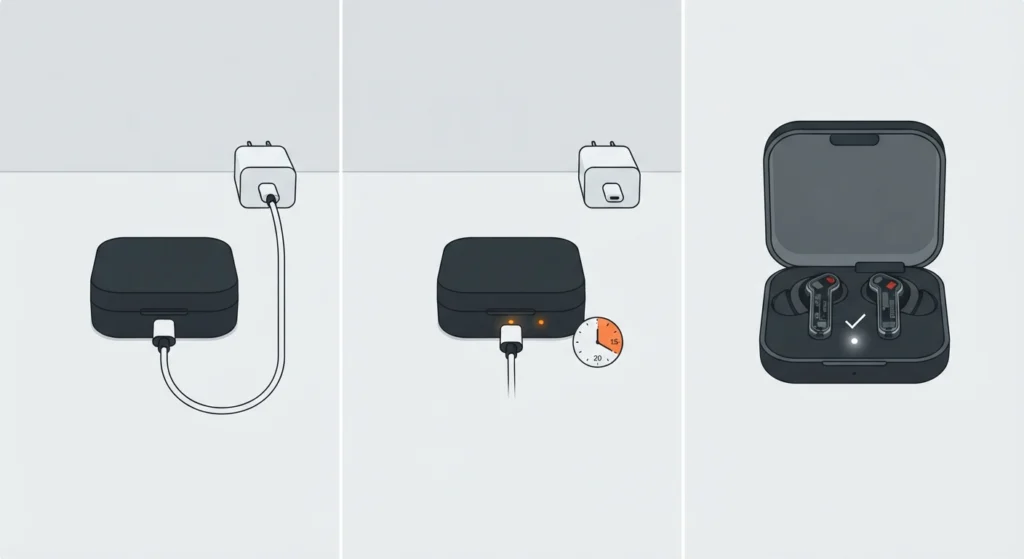
- Step 1: Remove the Nothing Ear 2 case from the box and connect it to a power source using the included USB-C cable.
- Step 2: Leave the case connected for at least 15-20 minutes before opening it for the first time. Most people find that a brand-new case only ships with a partial charge, so this short wait avoids the earbuds shutting off mid-setup.
- Step 3: Open the case lid and check the LED indicator inside. A white light confirms the buds have enough charge to proceed.
Step 2: Download and Install the Nothing X App
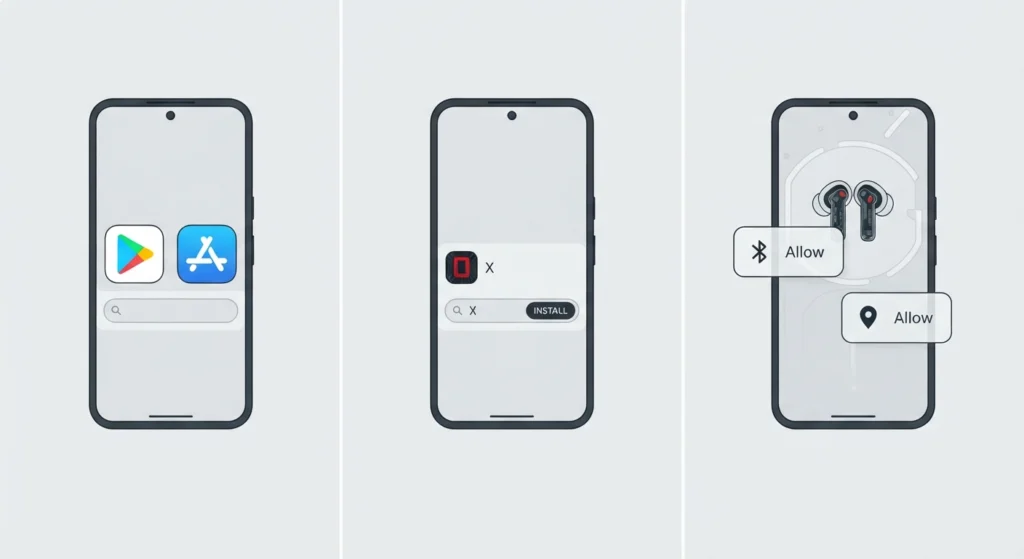
- Step 1: On an Android phone, open the Google Play Store, or on an iPhone, open the App Store.
- Step 2: Search for ‘Nothing X’ and install the official app published by Nothing Technology Limited.
- Step 3: Open the app once installed and allow the requested Bluetooth and location permissions. These permissions are what let the app detect the earbuds during scanning.
This works best when Bluetooth is already switched on before opening the app, since the app relies on the phone’s Bluetooth radio to search for nearby devices.
Step 3: Pair the Nothing Ear 2 on Android
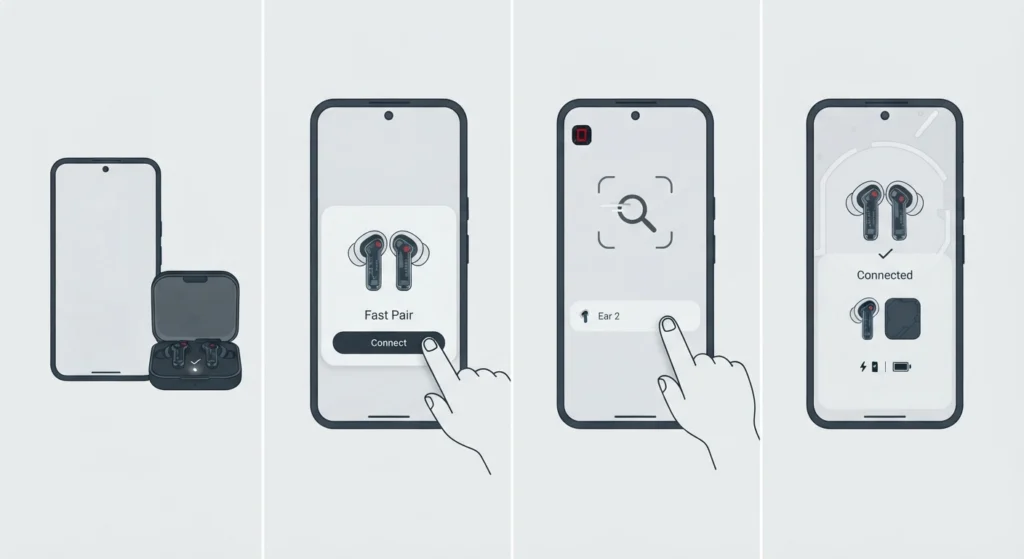
- Step 1: With the earbuds still inside the case, open the case lid near the Android device.
- Step 2: A Fast Pair notification typically appears on screen within a few seconds. Tap it to begin pairing.
- Step 3: If no notification appears, open the Nothing X app, tap ‘Add device’, then hold the case near the phone again and select Ear 2 once it shows up on the scanning screen.
- Step 4: Follow the remaining on-screen prompts inside the app to complete the connection.
Step 4: Pair the Nothing Ear 2 on iPhone
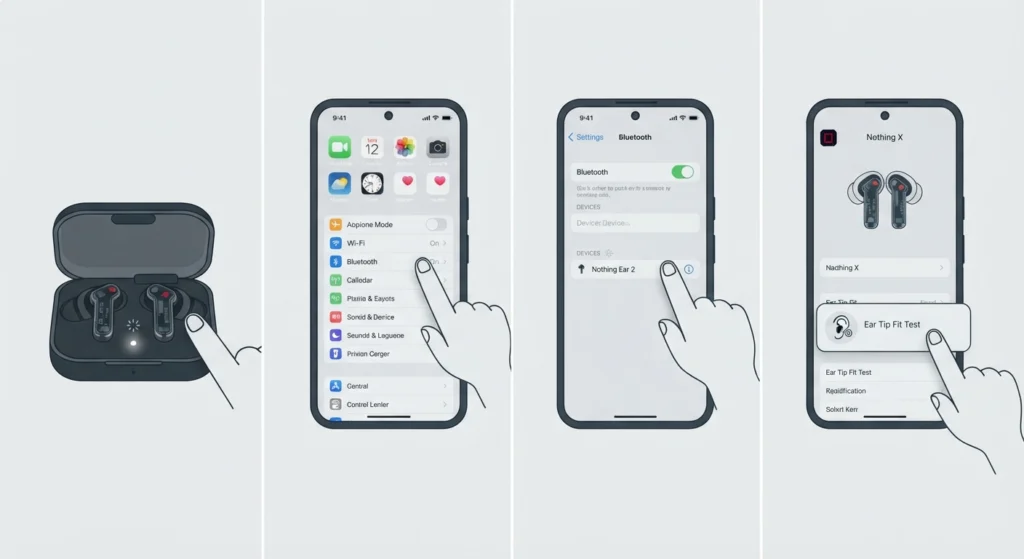
- Step 1: Open the charging case with the earbuds inside and press the setup button on the back of the case until the LED starts flashing white.
- Step 2: Go to the iPhone’s Settings app, then Bluetooth, and select Nothing Ear 2 from the list of available devices.
- Step 3: Open the Nothing X app so it can link with the earbuds and unlock the full settings menu.
- Step 4: Follow the app’s prompts to finish the setup, which typically includes an ear tip fit test.
The key is to keep the case close to the phone throughout the whole pairing process. Moving too far away, even by a few feet, can cause the connection to drop before it finishes.
Once connected, this re-pairing guide for stereo sound on Windows is worth bookmarking in case the earbuds ever need to be reconnected to a laptop later on.
Step 5: Complete the In-App Fit Test and Firmware Update
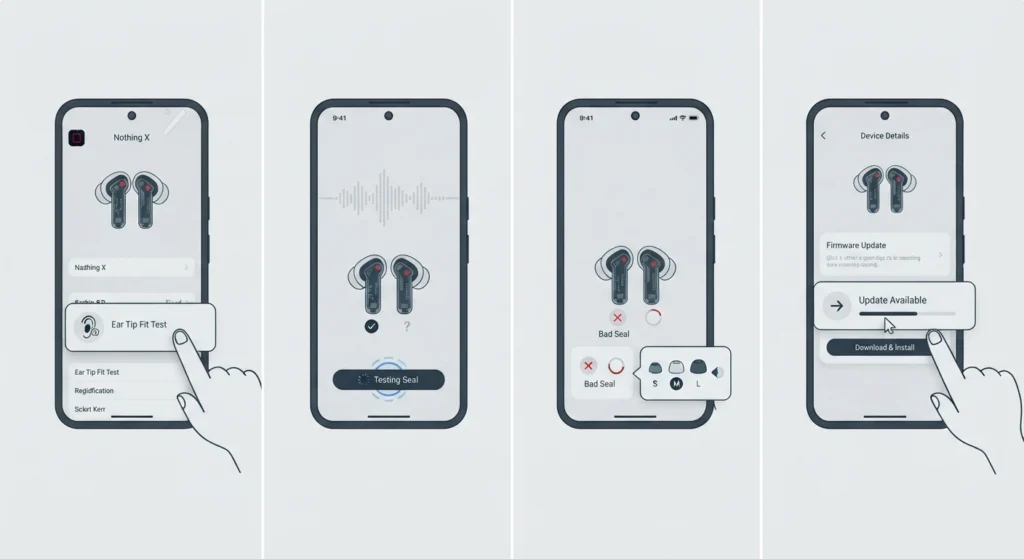
- Step 1: Inside the Nothing X app, locate the Ear Tip Fit Test under the device settings menu.
- Step 2: Run the short audio test, which checks for a proper seal in each ear using the built-in microphones.
- Step 3: If prompted, switch to the M or L ear tips included in the box for a tighter seal, since a poor seal noticeably weakens bass response and noise cancellation.
- Step 4: Check the Device Details section of the app for any available firmware update, and install it before regular use.
Pro-Tip: Always install the latest firmware before using the earbuds day to day. Nothing regularly ships firmware updates that improve Bluetooth stability, noise cancellation tuning, and battery reporting accuracy, and skipping this step is one of the most common reasons people experience random disconnects during the first week of ownership.
Tips for a Smoother First-Time Setup
- Forget any old Nothing earbuds from the phone’s Bluetooth list before pairing a new pair, since leftover pairing profiles can confuse the connection.
- Keep the phone’s Bluetooth turned on for at least a minute after opening the case, since the discovery window can briefly time out.
- Turn off other nearby Bluetooth devices during setup to avoid the phone accidentally connecting to the wrong accessory.
- Use the original charging cable when charging the case for the first time, since third-party cables sometimes deliver slower or inconsistent power.
Common Setup Problems and Fixes
Fix 1: Earbuds Not Appearing in the Bluetooth List
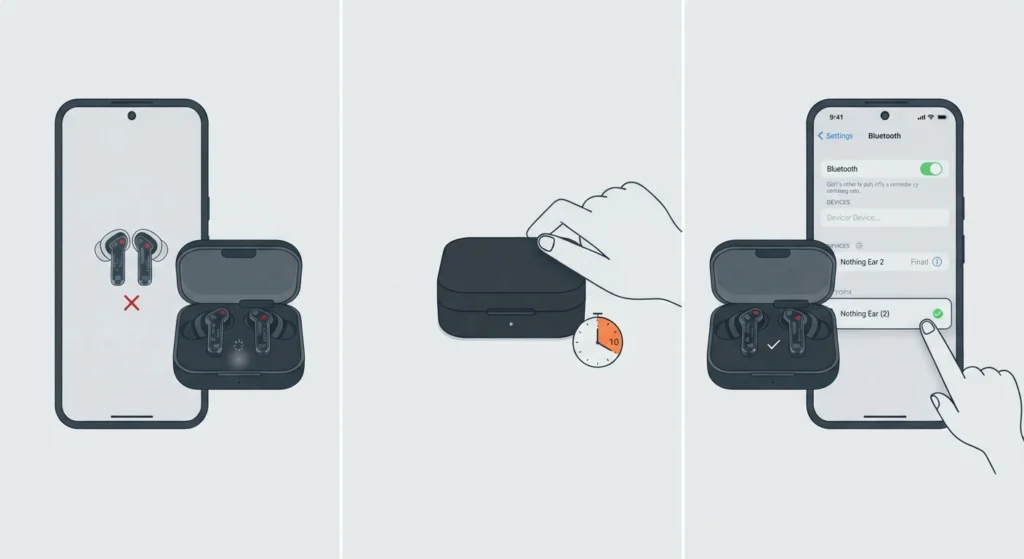
This usually happens when the case lid has been open for too long before scanning starts. Close the case for ten seconds, reopen it near the phone, and try scanning again. On Windows laptops, this guide to managing audio input devices is useful if the earbuds show as connected but the laptop is not sending audio to them.
Fix 2: Nothing X App Fails to Detect the Earbuds
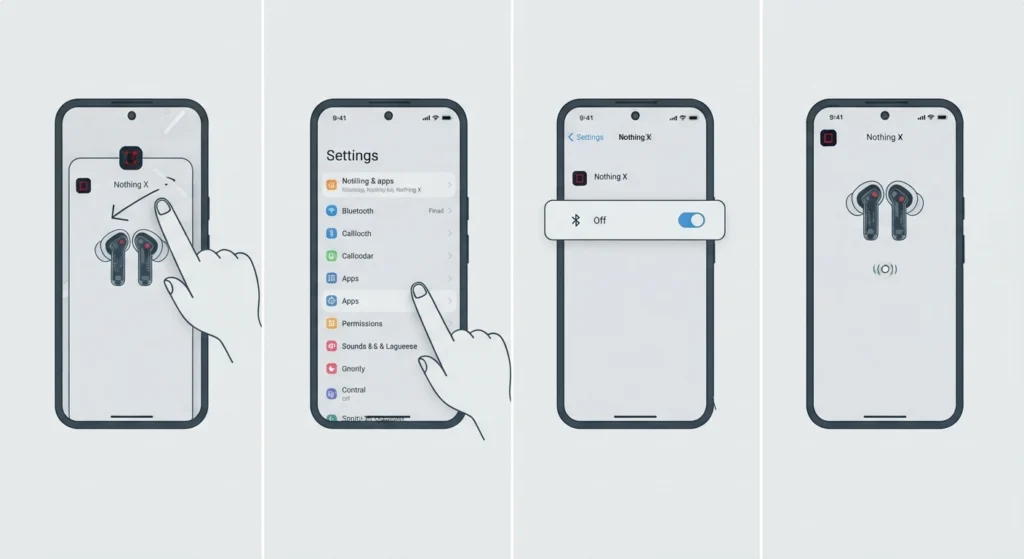
Force-close the app, confirm Bluetooth permissions are enabled in the phone’s system settings, and reopen the app. Most people find that reinstalling the app resolves detection issues caused by a corrupted cache after a recent phone update.
Fix 3: Microphone Not Working During Calls
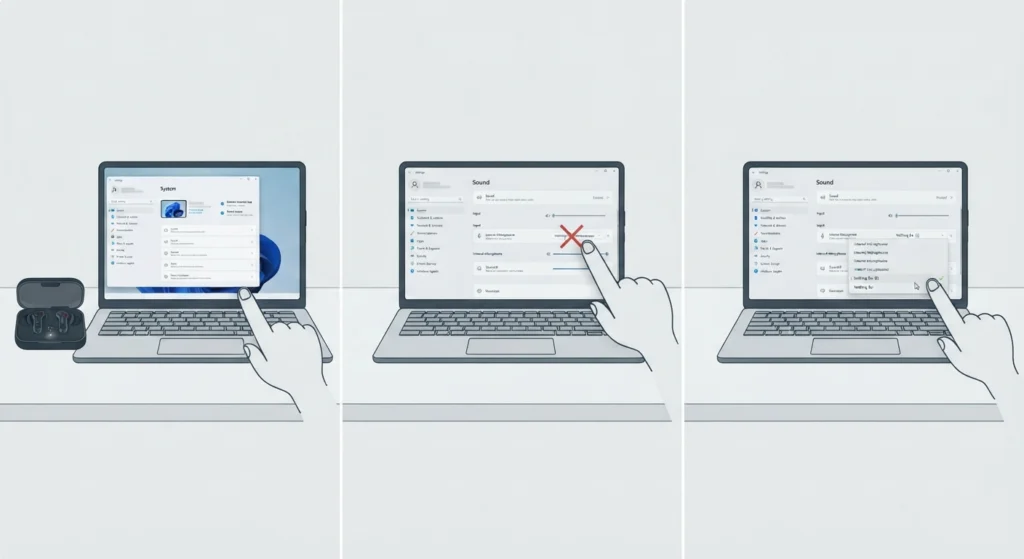
If the microphone isn’t picking up voice on a connected laptop after setup, the issue is often related to the wrong input device being selected in the operating system rather than the earbuds themselves. This microphone detection troubleshooting guide covers the exact steps to fix this on Windows 11.
Frequently Asked Questions
How long does it take to fully charge the Nothing Ear 2 case?
The case typically takes around 1.5 to 2 hours to reach a full charge from empty when connected via USB-C.
Do the Nothing Ear 2 earbuds need the Nothing X app to work?
Basic playback and calls work without the app, but the app is required to access noise cancellation controls, equalizer settings, firmware updates, and the ear tip fit test.
Can the Nothing Ear 2 be paired with an iPhone?
Yes, the Nothing Ear 2 supports iOS devices through standard Bluetooth pairing combined with the Nothing X app for iPhone.
Why is Fast Pair not showing up on Android?
Fast Pair requires Google Play Services to be up to date and location services turned on. If it still doesn’t appear, manual pairing through the Nothing X app works as a reliable alternative.
How many ear tip sizes come with the Nothing Ear 2?
The box includes three ear tip sizes: small, medium, and large, with the medium size pre-installed on the earbuds.
Is a firmware update necessary right after setup?
Yes, installing the latest firmware right after pairing is recommended since it often includes fixes for Bluetooth stability and battery reporting accuracy.
What does the LED light inside the case indicate?
A white light indicates sufficient charge, while a red or flashing light generally signals low battery or a pairing state, depending on the pattern.
Can the Nothing Ear 2 connect to two devices at once?
Yes, the Nothing Ear 2 supports dual connection, allowing it to stay linked to two devices such as a phone and a laptop simultaneously through the Nothing X app settings.
What should be done if the earbuds disconnect randomly after setup?
Forgetting the device from Bluetooth settings and re-pairing usually resolves this, and checking for a pending firmware update is worth doing first since most stability issues get patched over time.
Do the Nothing Ear 2 earbuds work with Windows laptops?
Yes, they connect to Windows laptops through standard Bluetooth pairing, and adjusting the default audio output afterward may be needed using this audio output settings guide for Windows 11.