
Learning how to set up separate audio outputs for headphones and speakers on Windows 11 takes only a couple of minutes. Music can play through the speakers while a video call stays private in the headphones, and each app keeps its own destination.
Key Takeaways
- Windows 11 can send each app to a different output device using the Volume mixer.
- Both the headphones and the speakers must be connected before the setup begins.
- The Default option follows whichever device is chosen in the main Output list.
- Apps that were already open may need a restart to pick up the new output.
Method 1: Assign a Different Output Device to Each App
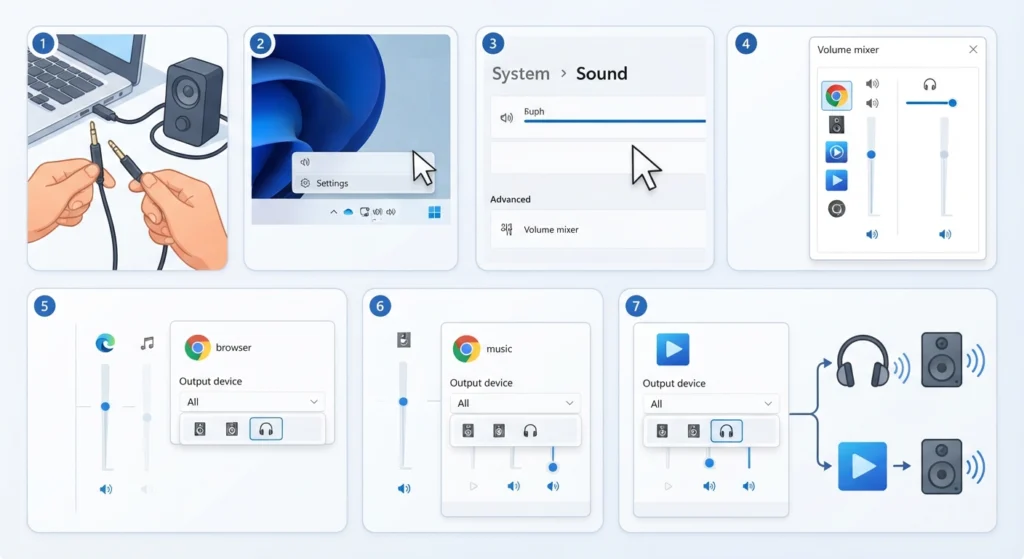
This is the main way to split audio in Windows 11. Each app gets its own output, so a music player can use the speakers while a browser or meeting app uses the headphones. Plug in or connect both devices first, and open the apps that need to be assigned.
- Step 1: Connect the headphones and the speakers to the computer. Wired, USB, and Bluetooth devices all work as long as Windows lists them as output devices.
- Step 2: Right-click the speaker icon in the taskbar and choose Sound settings. The same page is available through Settings, then System, then Sound.
- Step 3: Scroll down to the Advanced section and open Volume mixer.
- Step 4: Find the first app in the Apps list. Apps that are closed or silent may not appear, so start playback first if the app is missing.
- Step 5: Open the Output device dropdown for that app and select the headphones.
- Step 6: Find the second app, open its Output device dropdown, and select the speakers.
- Step 7: Play audio in both apps to confirm that each one comes out of the correct device.
Pro-Tip: Connect both devices before opening the apps. Some apps read the available output devices only when they launch, so closing and reopening an app after changing its output is the quickest way to make the change stick.
Method 2: Change the Default Output Device
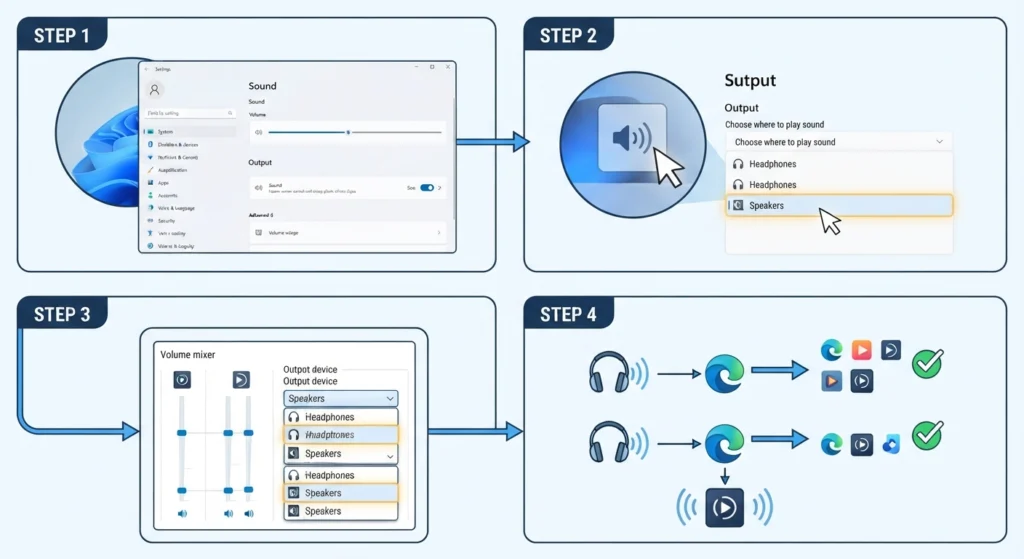
Any app left on the Default setting follows the main output device. Changing this default is useful when most of the audio should go to one device, with only a few apps assigned elsewhere. More options are covered in this guide to adjusting audio output settings in Windows 11.
- Step 1: Open Settings, then System, then Sound.
- Step 2: Under the Output section, select the device that should handle everyday audio, such as the speakers.
- Step 3: Return to Volume mixer and assign the headphones to the specific apps that need private audio.
- Step 4: Test each app once to confirm that the routing works as expected.
Tips for Using Headphones and Speakers Together
- Set the speakers as the default and give only the calls or games to the headphones. Most people find that this needs the fewest changes over time.
- Adjust the volume for each app in Volume mixer, since the sliders control each app separately.
- Connect Bluetooth headphones before opening Volume mixer so they show up in the device list right away.
- If a headset microphone is also in use, review the input device settings so the right microphone stays selected.
- Keep in mind that the setting applies per app. Every tab in the same browser shares one output device.
Pro-Tip: Think of Volume mixer like a switchboard. Each app is a caller, and each output device is a line. Once the lines are connected, the routing stays in place until an app or device is changed.
Common Problems and Fixes
Fix 1: The App Is Missing From Volume Mixer
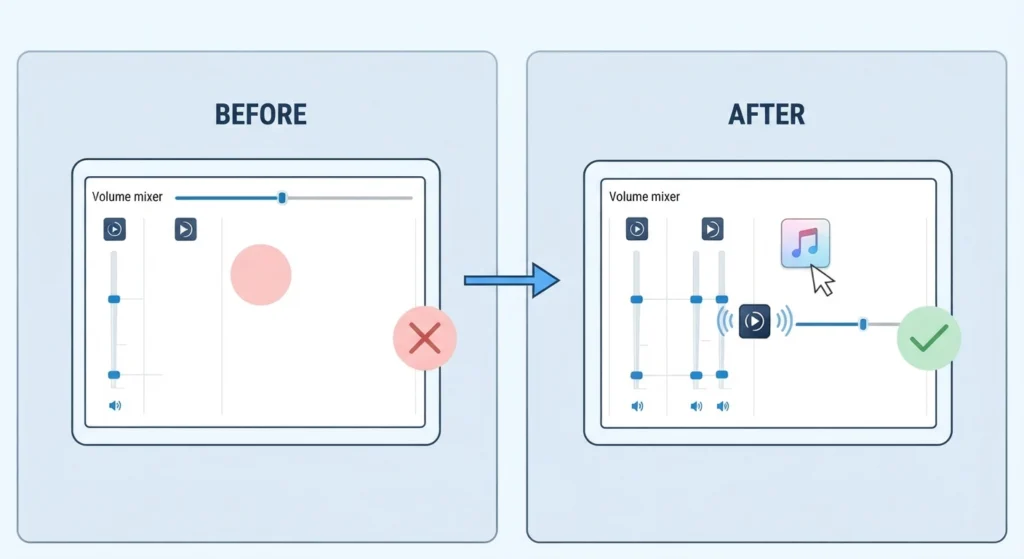
Open the app and start playing audio. Windows lists apps that are running, so a closed app will not appear.
Fix 2: The App Still Plays Through the Old Device
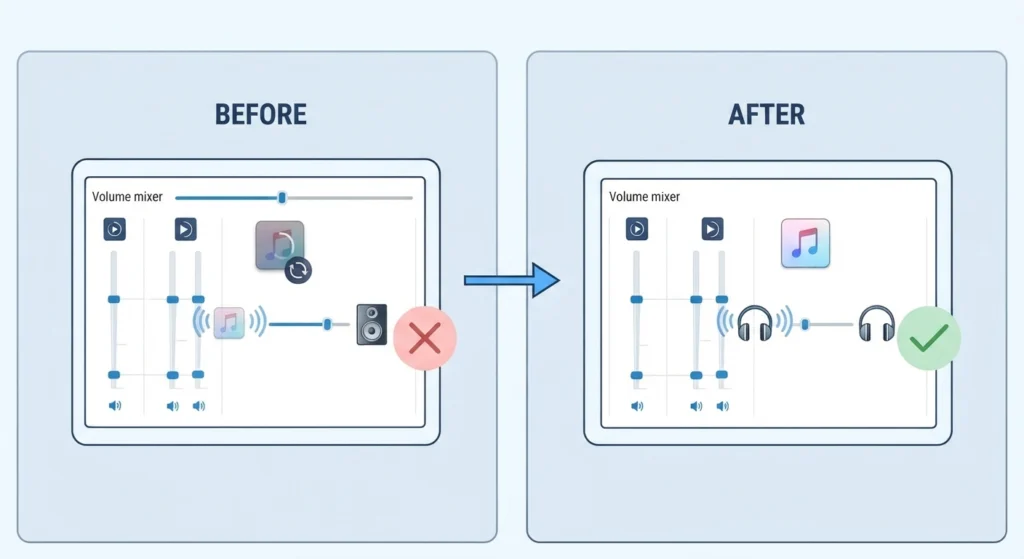
Close the app completely and open it again. Some apps only check the output device when they start.
Fix 3: The Bluetooth Headphones Are Not Listed
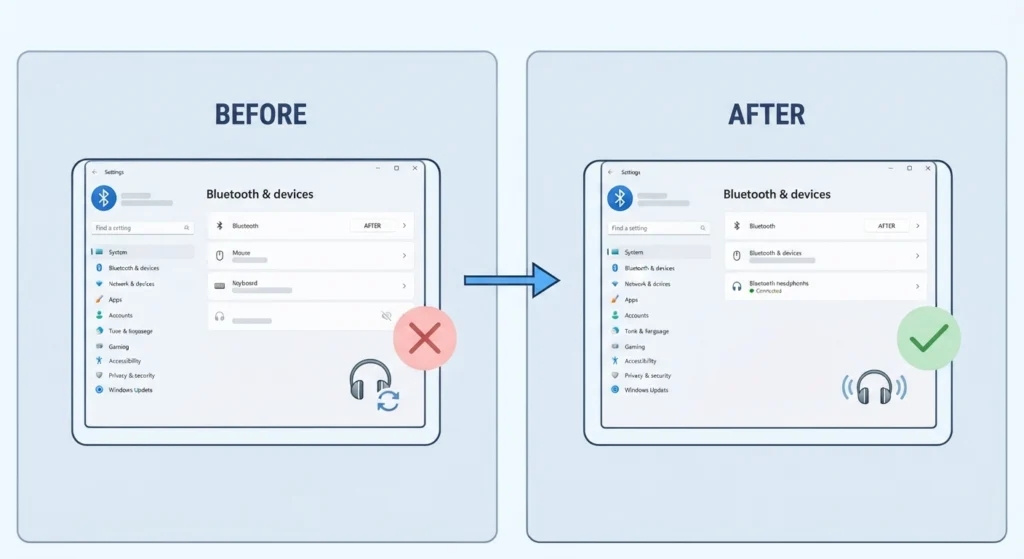
Confirm that the headphones are connected, not just paired. If they still do not appear, follow this guide to re-pair Bluetooth earbuds for stereo sound on Windows.
Fix 4: The Routing Looks Wrong After Several Changes
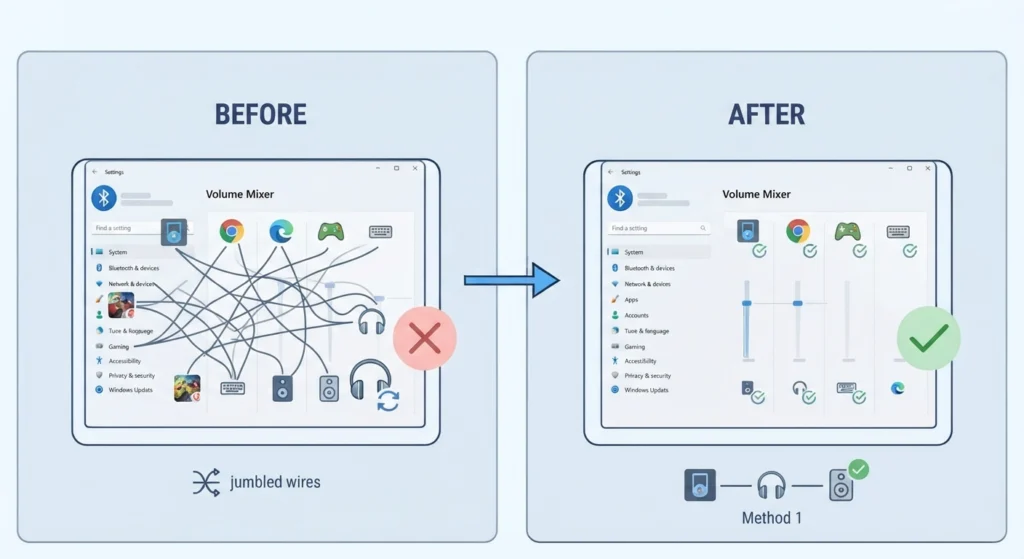
Too many changes can leave the assignments confusing. Follow the steps for resetting audio settings in Windows 11, then repeat Method 1 from the start.
Frequently Asked Questions
Can headphones and speakers play different audio at the same time?
Yes. Windows 11 lets each app use its own output device, so one app can play through the headphones while another plays through the speakers.
Can the same audio play through both headphones and speakers?
The built-in Windows settings focus on sending different apps to different devices. Mirroring one app to two devices at once is not part of the standard Volume mixer options.
Where is Volume mixer in Windows 11?
Open Settings, go to System, then Sound, and scroll down to the Advanced section. Volume mixer is listed there.
Do Bluetooth headphones work with this setup?
Yes. Once the Bluetooth headphones are connected and appear in the output list, they can be assigned to any app like a wired device.
Is extra software needed to split the audio?
No. The Volume mixer built into Windows 11 handles per-app output selection without any extra software.
Why does an app need a restart after the output changes?
Some apps read the available audio devices only at launch. Restarting the app lets it use the newly selected device.
Can each browser tab use a different output device?
No. The setting applies to the whole app, so every tab in one browser uses the same output device. A second browser can be assigned to a different device.
Does Windows 10 offer the same feature?
Yes. Windows 10 has a similar option under Settings, System, Sound, then Advanced sound options, in the App volume and device preferences section.