
Key Takeaways
- Turn on Bluetooth on the device and put the headphones into pairing mode before searching for a connection.
- Most headphones enter pairing mode automatically the first time they are powered on, or after holding the power button for a few seconds.
- Windows, iPhone, and Android all use a similar process: open Bluetooth settings, select the headphones from the list, then confirm the connection.
- A successful pairing usually takes under a minute once the headphones show up in the device list.
- Keeping headphones within a few feet of the device during setup prevents most first-time connection issues.
Pairing Bluetooth headphones for the first time is one of those small tech moments that feels tricky until it is done once, and then becomes second nature. Whether the headphones are brand new earbuds fresh out of the box or an older pair being connected to a new laptop, the process follows a familiar pattern across devices. This guide walks through the exact steps needed to get headphones connected quickly and reliably, without any unnecessary detours.
Step-by-Step Guide to Pairing Bluetooth Headphones
Method 1: Pairing Bluetooth Headphones on Windows 11
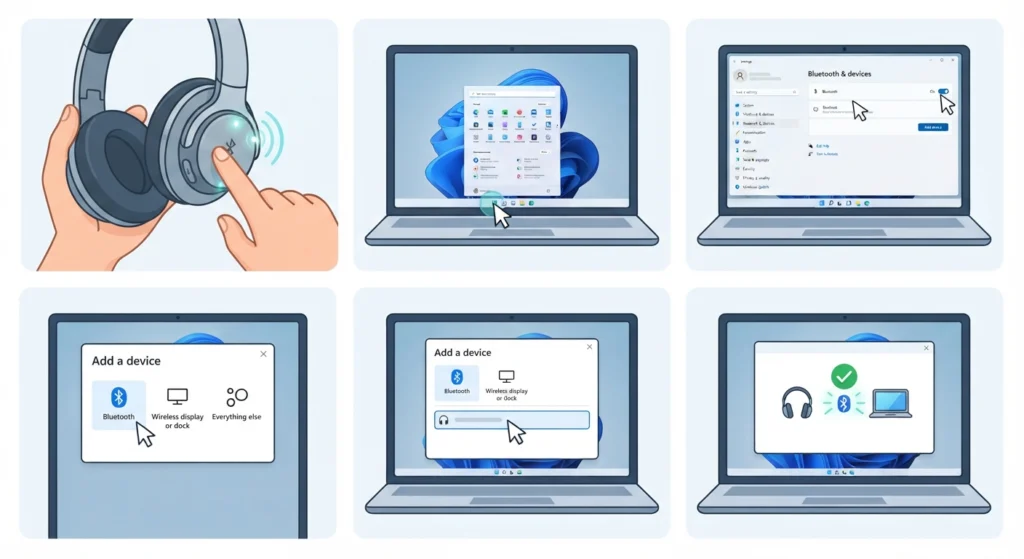
- Step 1: Press and hold the power or Bluetooth button on the headphones until the indicator light starts flashing, which signals pairing mode.
- Step 2: On the Windows 11 computer, click the Start menu, open Settings, then select Bluetooth & devices.
- Step 3: Toggle Bluetooth on if it is not already active, then click Add device.
- Step 4: Choose Bluetooth from the list of options that appears.
- Step 5: Select the headphones once the name shows up in the list of available devices.
- Step 6: Wait for the confirmation message that reads ‘Your device is ready to go,’ which confirms the connection is complete.
Once connected, the sound output does not always switch automatically. This is a common oversight, and it helps to check the audio output settings on Windows 11 to make sure the headphones are set as the default playback device.
Pro-Tip: Windows tends to remember previously paired devices, so if the headphones have been connected to that same laptop before, removing the old pairing first (under Bluetooth & devices) prevents duplicate or ghost entries from cluttering the device list.
Method 2: Pairing Bluetooth Headphones on iPhone
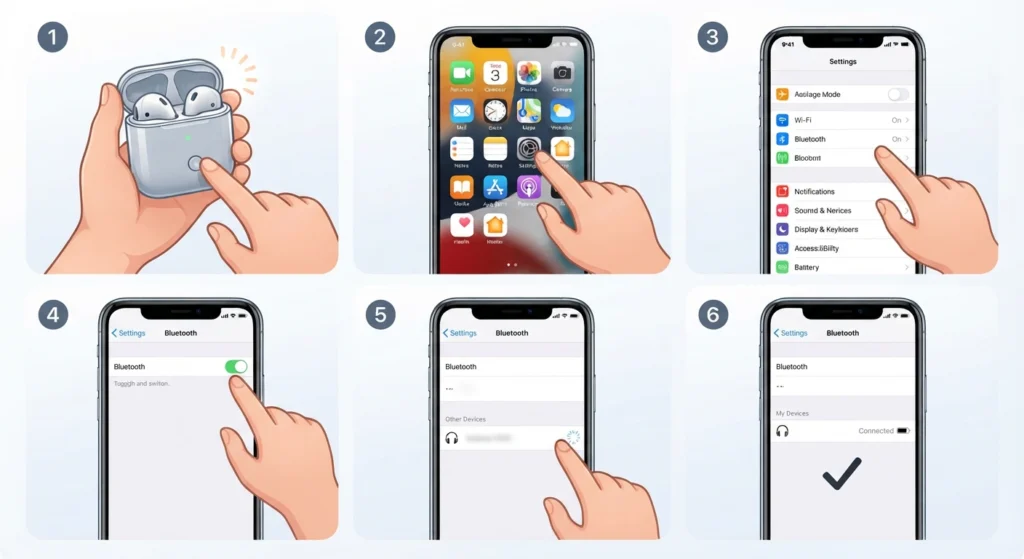
- Step 1: Place the headphones in their charging case or power them on, then activate pairing mode according to the manufacturer instructions, usually by holding the button until a light blinks.
- Step 2: On the iPhone, open Settings and tap Bluetooth.
- Step 3: Turn on the Bluetooth toggle if it is not already switched on.
- Step 4: Look under My Devices or Other Devices for the headphone name.
- Step 5: Tap the headphone name once it appears to start the connection.
- Step 6: Wait for the word ‘Connected’ to appear next to the device name, which confirms pairing is successful.
Apple devices with an H1 or H2 chip, such as AirPods, often skip most of these steps entirely. Opening the charging case near an unlocked iPhone triggers a setup animation on screen, and tapping Connect finishes the process in seconds.
Method 3: Pairing Bluetooth Headphones on Android
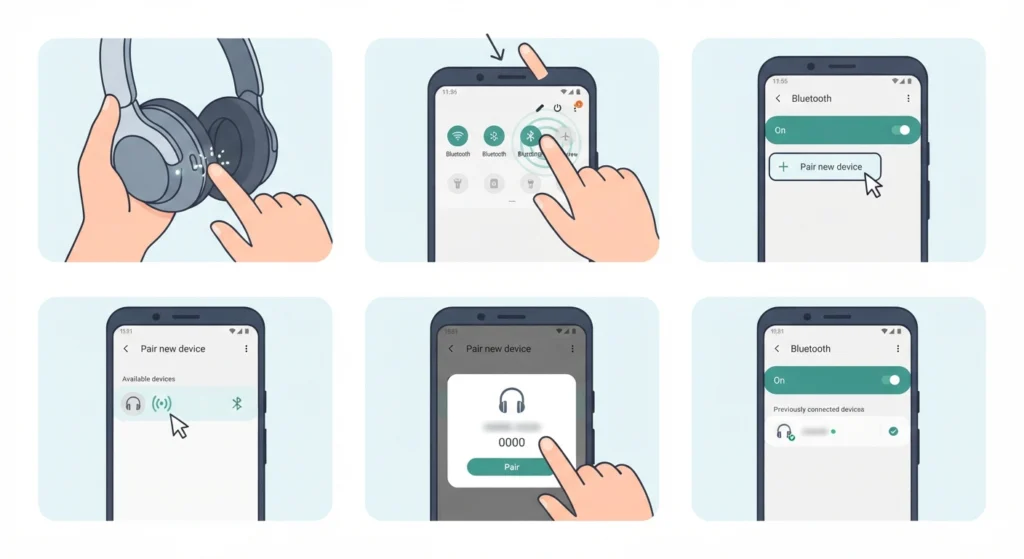
- Step 1: Power on the headphones and hold the pairing button until the LED flashes, indicating discoverable mode.
- Step 2: On the Android phone, swipe down from the top and tap the Bluetooth icon and hold it, or go to Settings, then Connected devices.
- Step 3: Tap Pair new device.
- Step 4: Select the headphones from the list of available devices shown on screen.
- Step 5: Confirm any pairing code prompt if one appears, though most modern headphones skip this step entirely.
- Step 6: Check that the device now appears under Previously connected devices with an active status.
Android’s Bluetooth menu layout varies slightly between manufacturers like Samsung, Google, and OnePlus, but the underlying steps stay the same across nearly every version of the operating system.
Tips for a Smooth First-Time Connection
- Keep the headphones within three to six feet of the device during setup, since a weak signal is one of the most common reasons pairing fails on the first attempt.
- Charge the headphones fully before pairing, as low battery can prevent the pairing mode light from activating properly.
- Close other Bluetooth connections nearby, such as a phone and laptop both searching at the same time, to avoid the headphones connecting to the wrong device.
- Update the device’s operating system beforehand, since outdated Bluetooth drivers or firmware occasionally block new connections.
- Forget any old or duplicate entries for the same headphones before attempting to pair again after a factory reset.
Common Problems When Pairing Bluetooth Headphones
Fix 1: Headphones Do Not Appear in the Device List
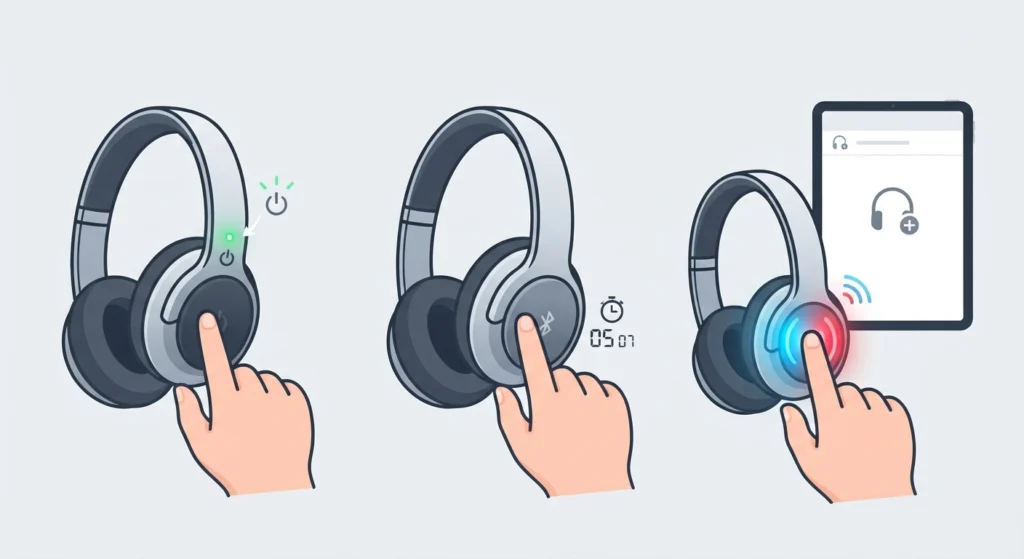
This usually means the headphones are not actually in pairing mode. Powering them off completely, then holding the pairing button for five to seven seconds, resets the discoverable status and usually solves the issue.
Fix 2: Headphones Connect but No Sound Plays
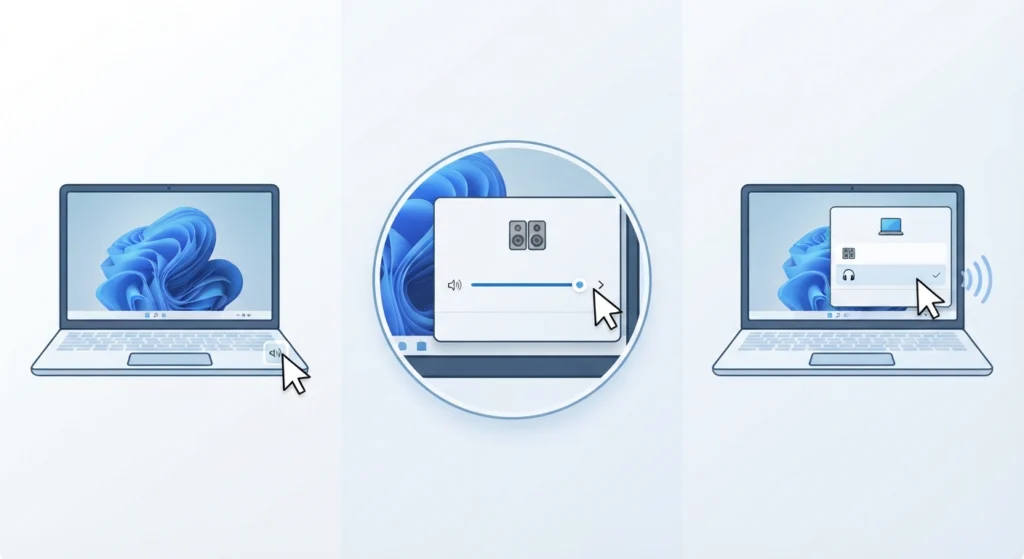
This is typically an output setting problem rather than a pairing problem. On Windows, this is worth checking through resetting the audio settings on Windows 11, since the system sometimes keeps the previous output device selected even after a new one connects.
Fix 3: Microphone Does Not Work After Pairing
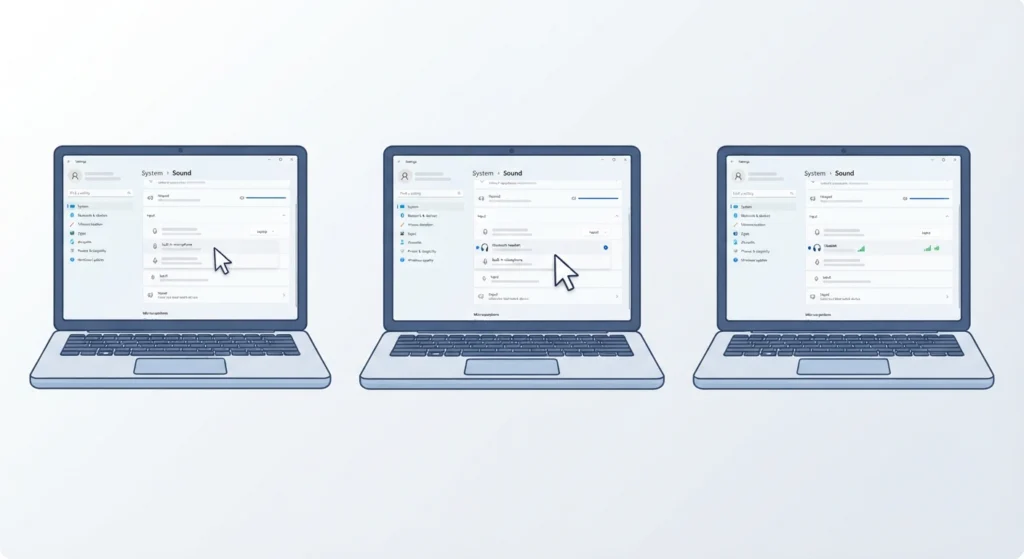
Some headphones pair for audio playback but do not register as the active microphone. On Windows 11, this is often resolved by reviewing microphone detection settings and confirming the headset is selected as the default input device.
Fix 4: Headphones Keep Disconnecting Randomly
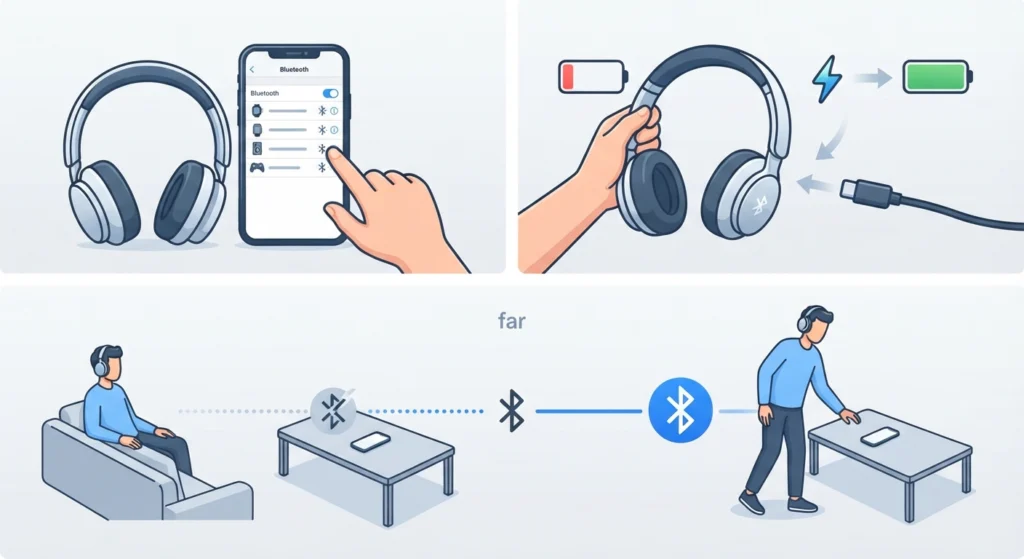
Frequent drops are often caused by interference from other wireless devices, a low battery, or being too far from the paired device. Moving closer and removing other active Bluetooth connections nearby usually fixes this quickly.
Frequently Asked Questions
How long does it take to pair Bluetooth headphones for the first time?
Most headphones pair within thirty seconds to a minute once they are in pairing mode and the device’s Bluetooth is turned on.
Do Bluetooth headphones need a pairing code?
Rarely. Most modern headphones connect automatically without requiring a PIN, though a small number of older models may ask for a default code such as 0000.
Why won’t the headphones show up in the Bluetooth list?
This almost always means the headphones are not currently in pairing mode. Restarting the pairing process by holding the power button again usually resolves it.
Can Bluetooth headphones be paired with two devices at once?
Many newer headphones support multipoint connections, which allow pairing with two devices simultaneously, such as a laptop and a phone. This depends on the specific model, so checking the manufacturer specifications confirms support.
Is it necessary to charge headphones before pairing them for the first time?
Yes. A very low battery can prevent the pairing indicator light from activating, which stops the headphones from becoming discoverable.
Why do headphones keep pairing with the wrong device?
This happens when multiple devices are searching for Bluetooth connections at the same time. Turning off Bluetooth on nearby devices during setup avoids this conflict.
Do Bluetooth headphones work differently on Windows compared to a phone?
The core steps are the same across platforms, though menu names and locations differ slightly. Windows uses the Bluetooth & devices settings panel, while phones use a Bluetooth toggle found in quick settings or the main settings app.
What should be done if headphones were previously paired but stopped connecting?
Removing or forgetting the old pairing entry on the device, then repeating the pairing steps from the beginning, typically resolves this. For stereo sound issues specifically on Windows, reviewing how to re-pair Bluetooth earbuds for stereo sound can help restore full audio quality.
Can Bluetooth headphones be paired without a manual?
Yes, in most cases. The general pairing steps outlined above apply to the large majority of Bluetooth headphones on the market, since manufacturers follow similar Bluetooth standards.
Why does pairing fail even when the headphones are fully charged?
This is often related to Bluetooth interference, outdated device software, or the headphones still being connected to another paired device. Disconnecting from other devices first usually clears the issue.