
When the Nothing Ear (open) mic is not working on calls, the person on the other end hears silence, static, or a muffled voice, even though music sounds perfect. The good news is that this problem almost always comes down to a settings or connection issue, not broken hardware. The fixes below are ordered from fastest to most thorough.
Key Takeaways
- Music and calls use different Bluetooth modes, so a working speaker does not guarantee a working mic.
- The most common cause is the wrong input device selected on the phone or computer.
- Microphone permission for the calling app must be switched on.
- Re-pairing and updating the firmware in the Nothing X app solve most remaining cases.
- A full reset of the earbuds is the last step, not the first.
Step-by-Step Fixes for the Nothing Ear (open) Mic
Fix 1: Switch the Call Audio to the Earbuds
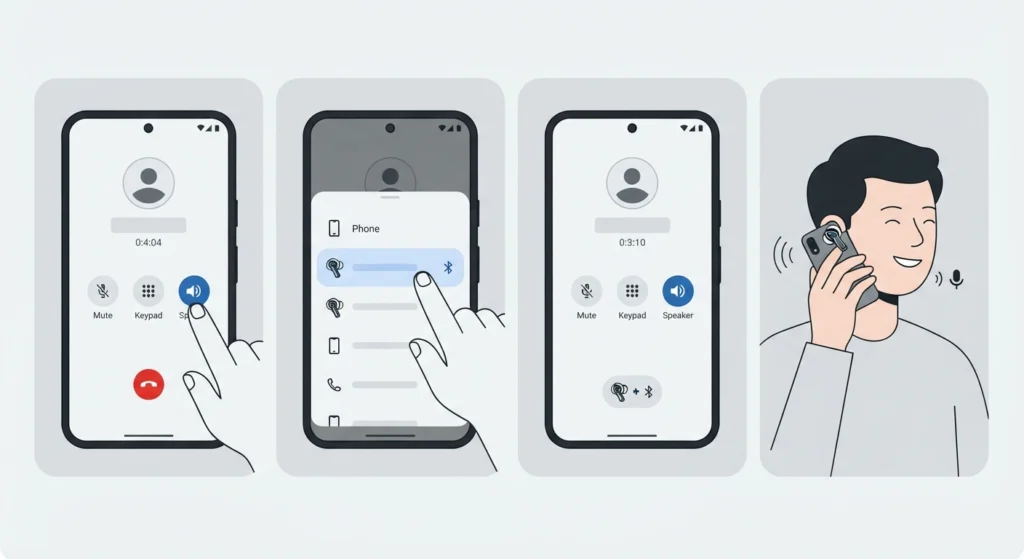
Sometimes the phone keeps the call on its own speaker or built-in mic, even while the earbuds stay connected. Switching the audio route manually takes a few seconds.
- Step 1: Start or answer a call.
- Step 2: Tap the audio output button on the call screen (it may be labeled Audio, Speaker, or show a speaker icon).
- Step 3: Select Nothing Ear (open) from the list.
- Step 4: Ask the other person if your voice is now clear.
Fix 2: Allow Microphone Access for the Calling App
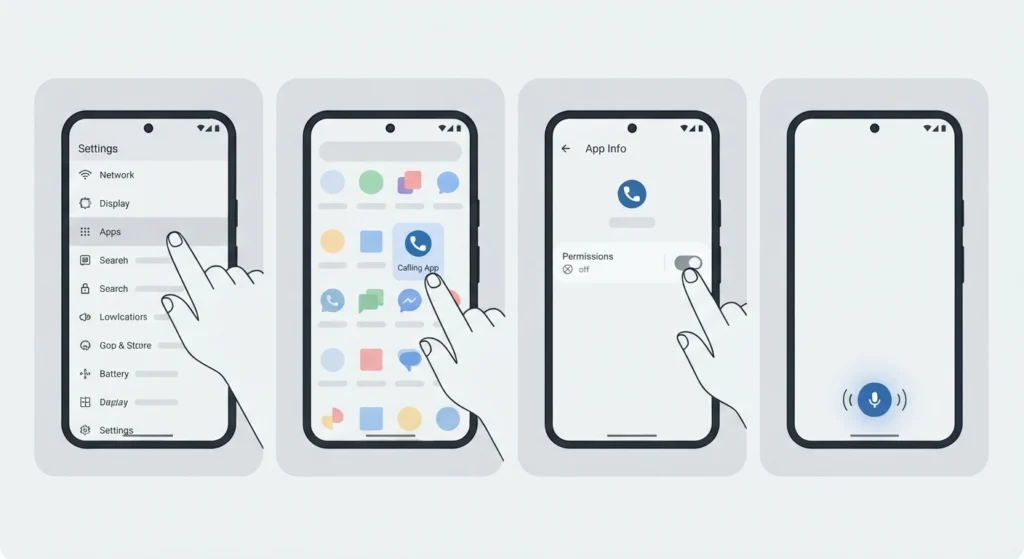
If microphone permission is off, the app cannot pick up any sound, no matter which headset is connected. This often happens after a new app install or a system update.
- Step 1: On Android, open Settings, tap Apps, and select the calling app (WhatsApp, Zoom, Teams, Google Meet, and so on). On iPhone, open Settings and scroll down to the app.
- Step 2: Open Permissions on Android, or Privacy and Security then Microphone on iPhone.
- Step 3: Set the microphone to Allow, or switch the toggle on.
- Step 4: Close the app fully and start a new call.
Pro-Tip: If voice calls work but one particular app does not, the problem is almost always that app’s own permission or input setting, not the earbuds. Checking this first can save a lot of time.
Fix 3: Forget the Earbuds and Pair Them Again
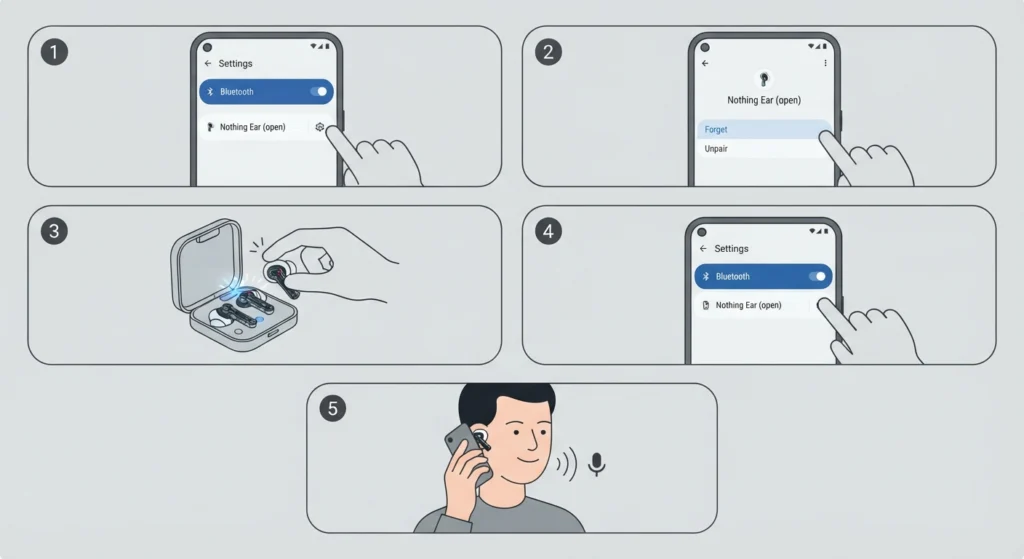
A corrupted Bluetooth pairing can leave the audio working while the call mic fails. Starting fresh clears it out.
- Step 1: Open the Bluetooth settings on the phone and tap the settings icon next to Nothing Ear (open).
- Step 2: Choose Forget or Unpair.
- Step 3: Place both earbuds in the case and open the lid so they enter pairing mode.
- Step 4: Select Nothing Ear (open) in the Bluetooth list and confirm the pairing.
- Step 5: Make a short test call.
Fix 4: Update the Earbud Firmware
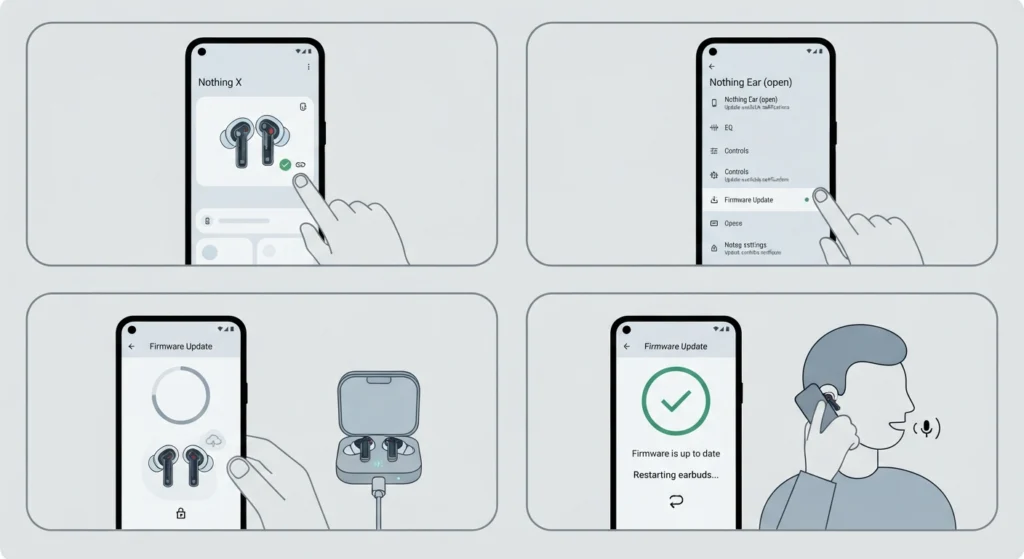
Firmware updates can include bug fixes for connection and call behavior. Running the latest version rules out a known software glitch.
- Step 1: Download and open the Nothing X app and make sure the earbuds are connected.
- Step 2: Open the device settings for Nothing Ear (open) and look for the firmware or software update option.
- Step 3: Keep the earbuds in the case or in range, and let the update finish without closing the app.
- Step 4: Reconnect and test a call.
Fix 5: Set the Earbuds as the Input Device on Windows
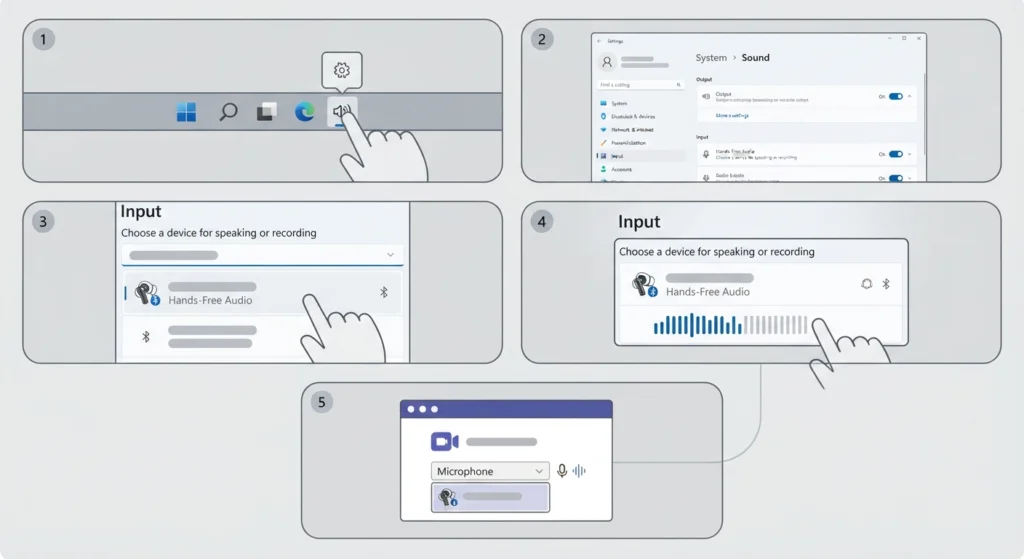
On a Windows PC, the computer often keeps using the laptop mic during Teams or Zoom meetings. The input device has to be chosen manually. A deeper walkthrough is available in this guide on managing audio input devices.
- Step 1: Right-click the speaker icon in the taskbar and open Sound settings.
- Step 2: Scroll to the Input section.
- Step 3: Select the Nothing Ear (open) entry labeled Hands-Free, since the stereo entry only handles playback.
- Step 4: Speak and watch the input level bar move to confirm the mic is live.
- Step 5: Open the meeting app’s audio settings and choose the same device as the microphone.
If Windows does not list the mic at all, this guide on resolving microphone detection problems covers the next move.
Fix 6: Reset the Nothing Ear (open)
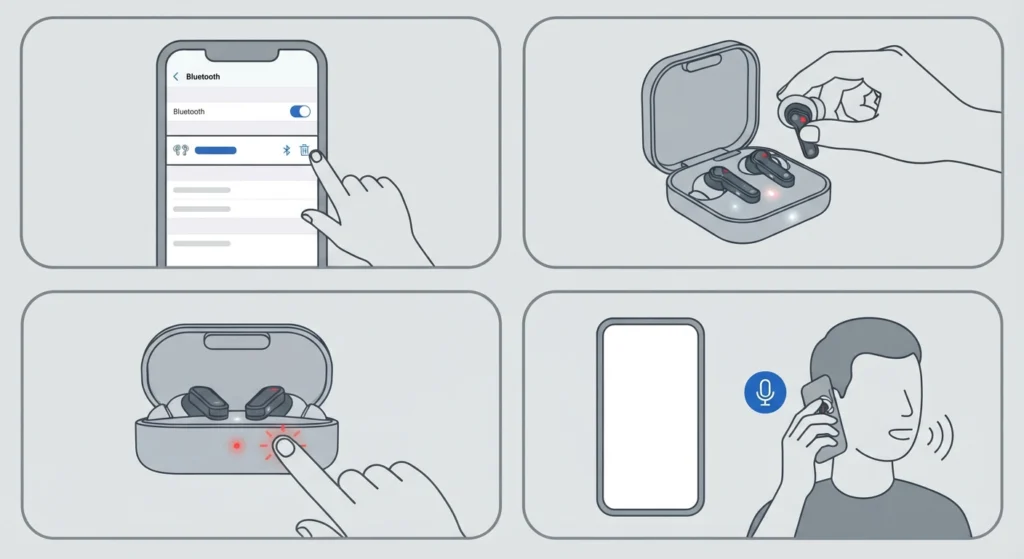
A reset wipes the pairing data stored inside the earbuds and returns them to a clean state. It works best after the earlier fixes have not helped, since all saved pairings will need to be set up again.
- Step 1: Remove Nothing Ear (open) from the Bluetooth list on every device it was paired with.
- Step 2: Put both earbuds in the charging case with the lid open.
- Step 3: Press and hold the button on the case for about 10 seconds, until the LED flashes red.
- Step 4: Pair the earbuds again as new and test a call.
Tips for Clear Calls with Open-Ear Earbuds
- Keep the earbuds positioned the way they were designed to sit, so the mics face the right direction.
- Wipe the mic openings gently with a dry, soft cloth or brush if lint or dirt has built up.
- Step out of strong wind, since moving air can overpower any earbud mic.
- Keep the earbuds reasonably charged, because low battery can affect connection stability.
- Stay close to the phone or PC to avoid weak Bluetooth signal, especially in crowded places.
- Close other apps that may be holding the microphone, such as screen recorders or voice assistants.
Common Problems and Quick Answers
Problem 1: The Other Person Hears Me Only in One App
This points to that app’s permission or input setting. Check the microphone permission in the phone settings and the device selection inside the app.
Problem 2: The Mic Works on Phone but Not on the PC
The PC is likely using the stereo profile or a different input device. Select the Hands-Free entry as the input, as shown in Fix 5. If the Bluetooth link itself seems broken, this guide on how to re-pair Bluetooth earbuds on Windows can help.
Problem 3: Call Audio Sounds Lower in Quality Than Music
This is normal behavior. Bluetooth switches to a different mode during calls to enable the mic, which lowers audio quality compared with music playback.
Problem 4: The Mic Stopped Working After a Windows Update
Audio settings can be changed during updates. Following the steps in this guide on resetting audio settings restores the defaults, after which the input device can be selected again.
Frequently Asked Questions
Why is the Nothing Ear (open) mic not working on calls but music plays fine?
Music and calls use different Bluetooth modes. Playback can work perfectly while the call input is set to the wrong device, blocked by a permission, or affected by a pairing glitch.
Does the Nothing Ear (open) have a microphone?
Yes. The earbuds include built-in microphones for voice calls and for using voice assistants.
How do I test if the earbud mic is working?
Record a short voice note or make a call to a friend and ask how the voice sounds. On a PC, speak while watching the input level bar in the Sound settings.
Do I need the Nothing X app to use the mic?
The mic works through normal Bluetooth without the app. The app is mainly useful for firmware updates and extra settings.
Will resetting the earbuds delete my settings?
A reset removes saved pairings, so the earbuds must be connected again as a new device. Settings in the Nothing X app may also need to be adjusted again.
Why does the PC show two entries for the earbuds?
Windows lists one entry for stereo playback and another for hands-free calling. The microphone is available on the hands-free entry.
Can a low battery cause the mic to stop working?
Very low battery can make the Bluetooth connection unstable, which may cause the mic to cut out or fail. Charging the earbuds fully before a call helps rule this out.
Can wind or noise make the mic sound bad?
Yes. Wind and loud surroundings can reduce voice clarity on any earbud. Moving to a calmer spot usually improves the call right away.
Should the mic be tested on another device?
Pairing the earbuds with a second phone or computer is a quick way to learn whether the problem is the earbuds or the original device’s settings.