
Knowing how to connect headphones to a mixing console is one of the first skills every home recording enthusiast, podcaster, and live sound beginner needs. The process takes only a minute, and the payoff is huge: a private, accurate listen to everything passing through the board.
Key Takeaways
- Most mixing consoles have a headphone output labeled Phones or Headphones, usually a quarter-inch (6.35 mm) stereo jack.
- Headphones with a 3.5 mm plug need a 3.5 mm to 6.35 mm adapter.
- Turn the headphone level knob all the way down before plugging in.
- Raise the level slowly after connecting, then use the PFL or Solo button to listen to individual channels.
How to Connect Headphones to a Mixing Console Step by Step
The method depends on the plug at the end of the headphone cable. Studio headphones often ship with a 3.5 mm plug and a screw-on quarter-inch adapter, so check which one applies before starting.
Method 1: Headphones With a Quarter-Inch Plug
- Step 1: Locate the headphone jack on the console. It sits on the front or top panel, close to the master section, and is labeled Phones or Headphones.
- Step 2: Turn the headphone level knob all the way down (counterclockwise).
- Step 3: Push the quarter-inch stereo plug into the jack until it is fully seated.
- Step 4: Put the headphones on, then slowly turn the headphone level knob up while audio plays through the console.
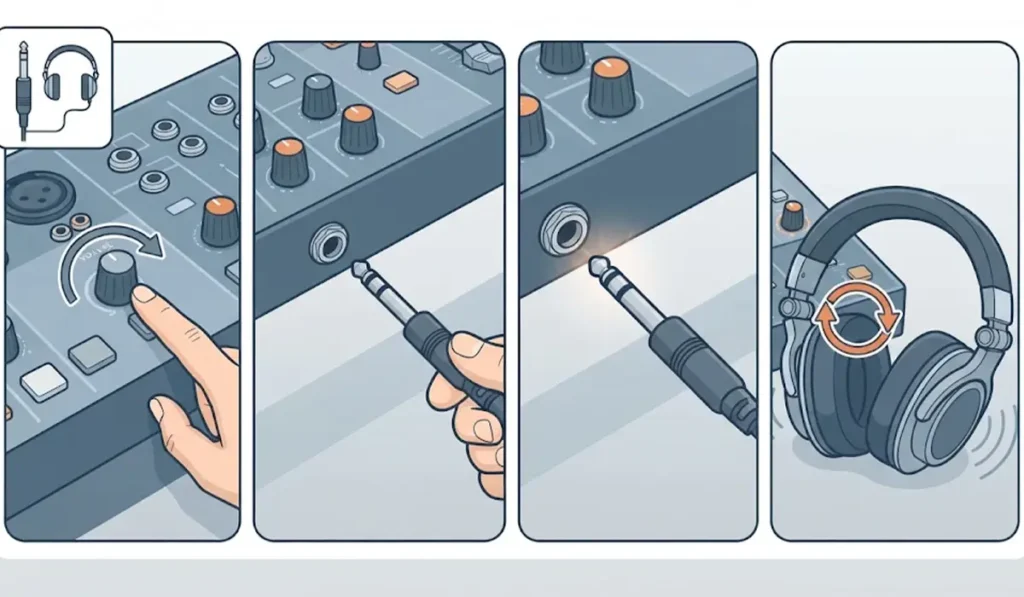
Pro-Tip: Always start with the headphone level at zero. Mixing consoles have powerful headphone amplifiers, and a sudden burst of sound can be painful and harmful to hearing.
Method 2: Headphones With a 3.5 mm Plug and an Adapter
- Step 1: Attach a 3.5 mm to 6.35 mm stereo adapter to the headphone plug. Choose a stereo (TRS) adapter, not a mono one.
- Step 2: Turn the headphone level knob on the console all the way down.
- Step 3: Insert the adapter into the Phones jack until it clicks firmly into place.
- Step 4: Bring the level up gradually until the volume feels comfortable.
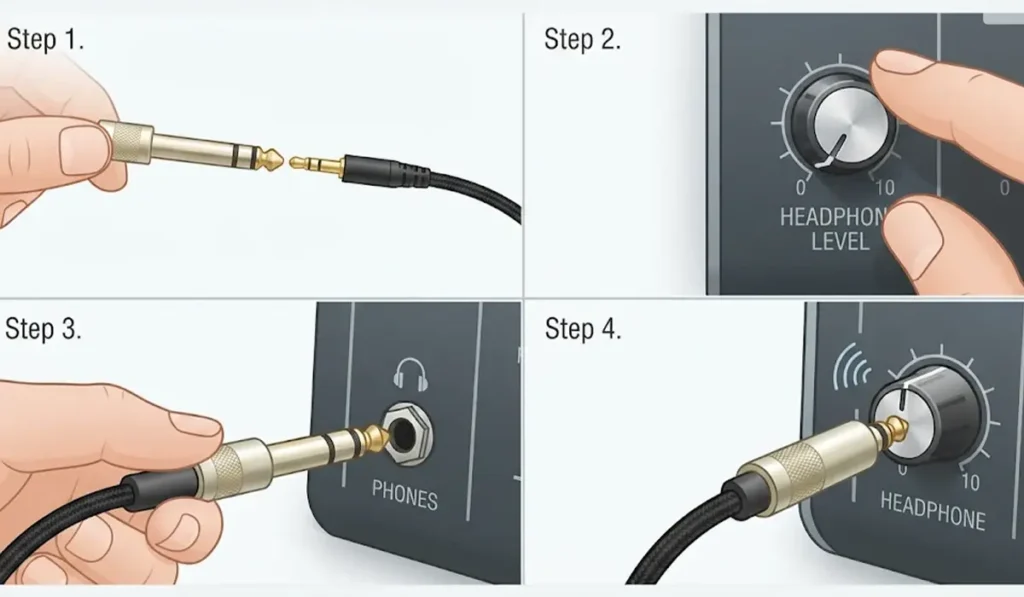
Some compact consoles use a 3.5 mm headphone jack instead. In that case, the headphones plug in directly with no adapter.
How to Monitor the Right Signal Through the Headphones
Once the headphones are plugged in, the next job is choosing what gets sent to them. Most consoles offer a few simple options.
- Step 1: Play audio into a channel, such as a microphone or an instrument.
- Step 2: Press the PFL (pre-fader listen) or Solo button on that channel strip to hear that channel by itself.
- Step 3: Release the button to return to the main mix.
- Step 4: If the console has a monitor source selector, choose Main Mix to hear the full stereo output.
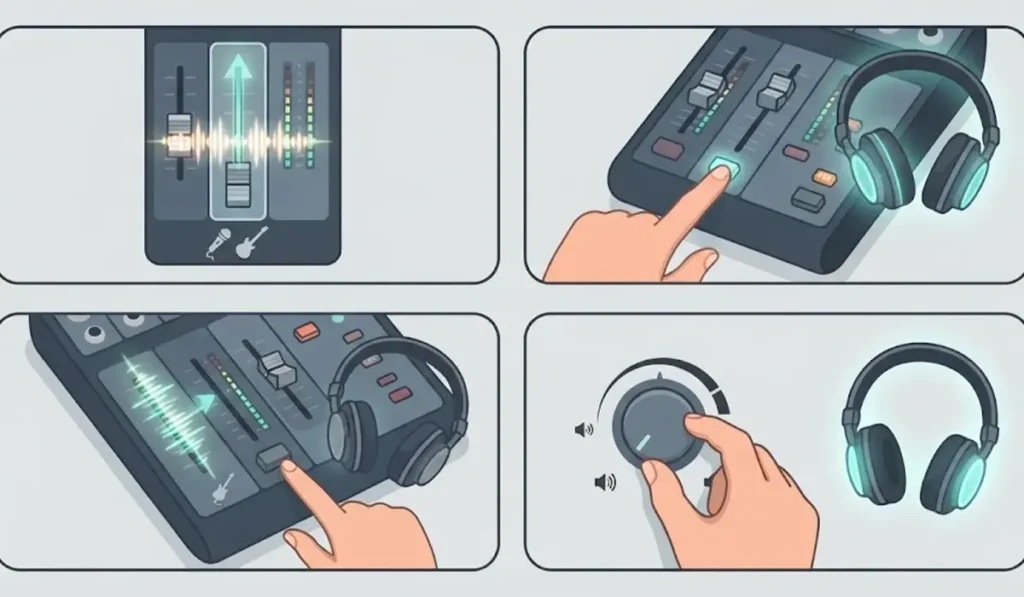
PFL lets a channel be heard even when its fader is pulled down, which is handy for checking a signal before bringing it into the mix.
Tips for a Better Headphone Setup
- Closed-back headphones keep sound from leaking into microphones, which matters during recording.
- Most people find that a moderate listening level is easier to mix with than a loud one. Ears tire quickly, and decisions get worse as fatigue builds.
- Higher-impedance headphones usually need a higher headphone level setting than low-impedance models. Check the impedance printed on the packaging or in the specifications.
- When the console is also linked to a computer through USB, adjusting audio output settings on Windows 11 helps make sure sound is routed the way it should be.
- For consoles used as a USB audio source, managing audio input devices keeps the computer pointed at the correct input.
Pro-Tip: Keep the quarter-inch adapter attached to the headphones permanently if the console is the main setup. Small adapters get lost easily, and a screw-on type stays secure.
Common Problems and Quick Fixes
Fix 1: No Sound in the Headphones
Check that the headphone level knob is turned up and that audio is actually reaching the console. If a PFL or Solo button is active on the wrong channel, the headphones will only play that channel. When the console is connected to a Windows computer and the headphones are not detected, the headphone detection troubleshooting guide can help.
Fix 2: Sound in Only One Ear
The plug is probably not fully seated, or a mono adapter is in use. Push the plug in firmly and swap to a stereo (TRS) adapter if needed.
Fix 3: Volume Too Low
Raise the headphone level knob gradually. If the level is still too low at maximum, the headphones may have a high impedance that suits a dedicated headphone amplifier better.
Fix 4: Hearing a Single Channel Instead of the Full Mix
A PFL or Solo button is likely engaged. Release every active button and the headphones return to the main mix.
Frequently Asked Questions
Where is the headphone jack on a mixing console?
It is usually on the front or top panel, near the master section, and labeled Phones or Headphones. On some models it sits on the side, so check the panel markings or the manual.
What size plug does a mixing console use for headphones?
Most mixing consoles use a quarter-inch (6.35 mm) stereo jack. Some compact models use a 3.5 mm jack, so the label or manual is worth a quick look.
Is an adapter needed to connect headphones to a mixing console?
An adapter is needed when the headphones have a 3.5 mm plug and the console has a quarter-inch jack. A stereo 3.5 mm to 6.35 mm adapter solves it.
Why should the headphone level be turned down before plugging in?
Headphone amplifiers on consoles can be loud. Starting from zero prevents a sudden burst of sound that could be uncomfortable or harm hearing.
What does PFL mean on a mixing console?
PFL stands for pre-fader listen. It sends a channel’s signal to the headphones before the fader, so the channel can be heard no matter where the fader is set. AFL, or after-fader listen, does the same after the fader.
Does the headphone level knob change the main mix volume?
On most consoles, no. The headphone level is separate from the main output level, so adjusting it only affects what is heard in the headphones.
Can two people listen through one mixing console?
Some consoles include two headphone outputs. Consoles with only one can use a headphone splitter or a small headphone amplifier, though the listening level will be shared.
Are Bluetooth headphones a good choice for a mixing console?
Wired headphones are the standard choice. Bluetooth adds delay and audio compression, which makes accurate monitoring harder, and mixing console headphone outputs are built for wired connections.
Should open-back or closed-back headphones be used with a mixing console?
Closed-back headphones are better when microphones are in the room, since they limit sound leakage. Open-back headphones can work well for mixing in a quiet space.