
Key Takeaways
- A Marshall Monitor III stuck on a firmware update is usually caused by weak Bluetooth range, a closed or backgrounded app, or an interrupted download – not a hardware fault.
- The fastest fix is keeping the headphones powered on, close to the phone, and the Marshall Bluetooth app open and unlocked until the update bar finishes.
- Restarting the headphones with a 10-second hold on the control knob clears most freezes during an update.
- Re-pairing the Bluetooth connection resolves stalls caused by a dropped Bluetooth LE link mid-update.
- Factory reset is the last resort and should only be used if the update still will not complete after trying the steps below.
A Marshall Monitor III stuck on a firmware update is a common hiccup that happens right when the update bar in the Marshall Bluetooth app freezes, loops, or refuses to move past a certain percentage. This does not mean the headphones are broken. Most people run into this because the update got interrupted by distance, a locked screen, or a background app switch. The fixes below solve this exact problem, step by step.
Step-by-Step Guide to Fix a Stuck Firmware Update
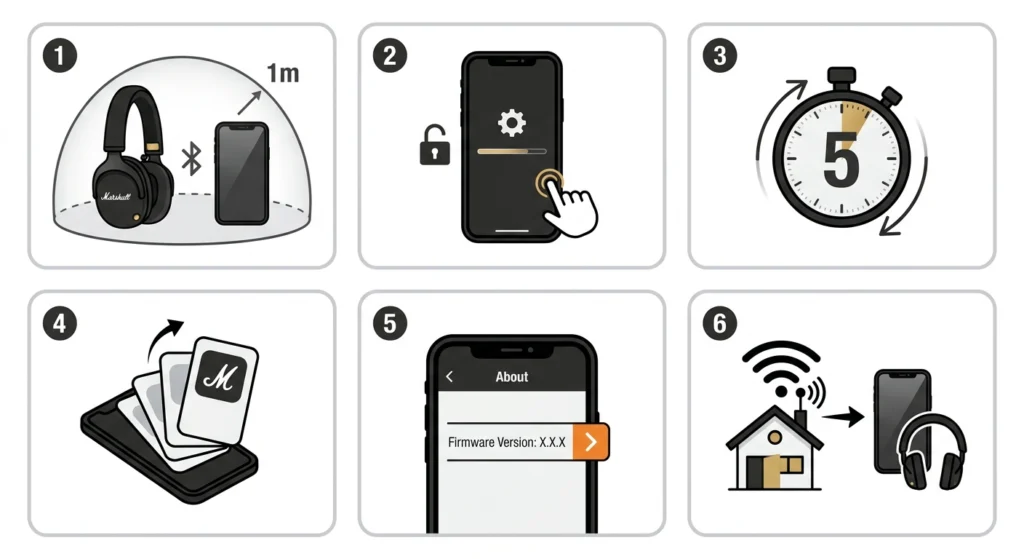
Follow these steps in order. Most cases get resolved by the second or third step.
- Step 1: Keep the Marshall Monitor III powered on and worn or placed within one meter of the phone. Distance is the number one reason a firmware update stalls, since the update transfers over Bluetooth Low Energy, which has a shorter range than regular audio Bluetooth.
- Step 2: Keep the Marshall Bluetooth app open on the screen and the phone unlocked. Do not switch to another app, lock the screen, or start playing audio from another source while the update is running, since this pauses the data transfer.
- Step 3: Wait at least five minutes before assuming the update has failed. A full firmware update can take up to five minutes depending on file size and internet speed, and the progress bar sometimes appears to pause for several seconds while it verifies the download.
- Step 4: If the bar has not moved for more than five minutes, close the Marshall Bluetooth app completely from the app switcher, then reopen it and let it reconnect to the headphones automatically.
- Step 5: Check the ‘About’ section inside the app after reconnecting. If it still shows an available update, tap it again to resume rather than starting from a blank screen.
- Step 6: Confirm the phone has a stable internet connection, since the firmware file downloads through the app before it transfers to the headphones. A weak Wi-Fi or mobile signal can stall the process at the exact same point every time.
Pro Tip: Switch the phone to airplane mode and back on, or toggle Wi-Fi off and on, right before starting the update again. This forces a fresh connection and clears out any half-downloaded firmware data sitting in the background.
Fix 2: Restart the Headphones
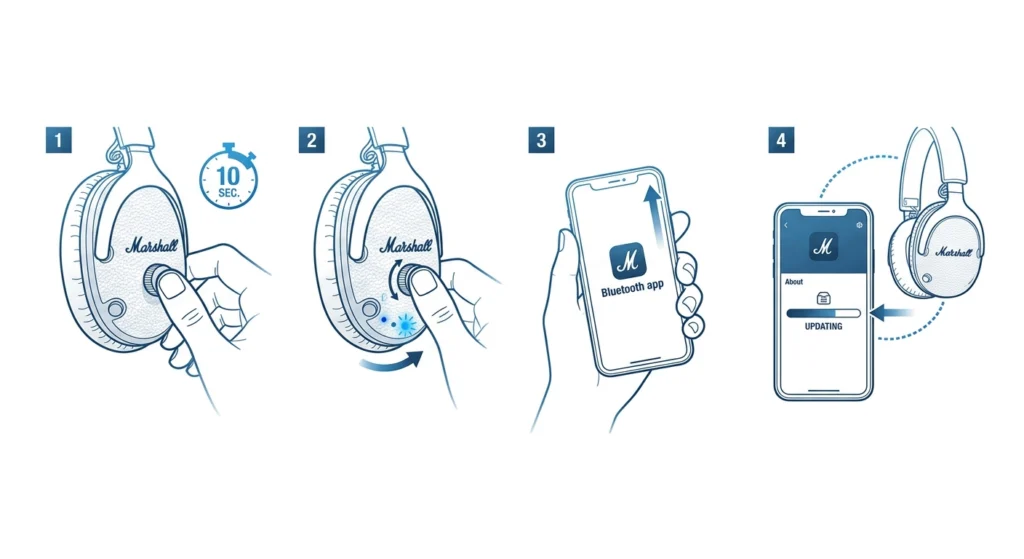
If the update is still frozen after the steps above, a manual restart usually clears it. Press and hold the control knob on the right ear cup for 10 seconds until the headphones power off and back on. Once the light comes back on, reopen the Marshall Bluetooth app and check the ‘About’ section again. The update should resume from where the app left off, since the firmware download is cached rather than restarted from zero.
Fix 3: Re-Pair the Bluetooth Connection
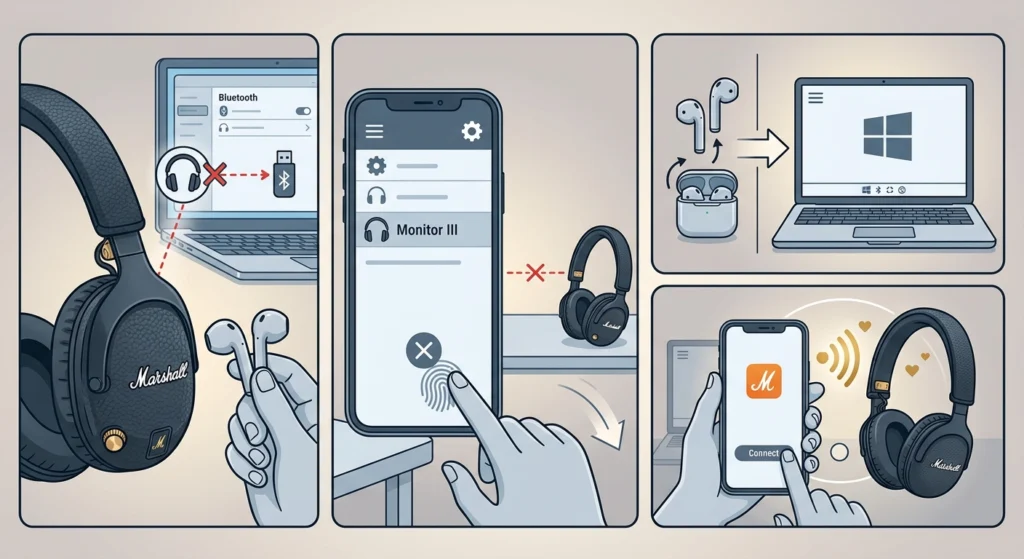
A dropped Bluetooth LE connection mid-update is one of the most common reasons the process freezes on Windows laptops specifically. Forget the Marshall Monitor III from the Bluetooth settings, then follow the same process used when re-pairing Bluetooth earbuds for stereo sound on Windows to rebuild a clean connection. Once paired again, reopen the Marshall Bluetooth app and start the update fresh.
Fix 4: Factory Reset as a Last Resort
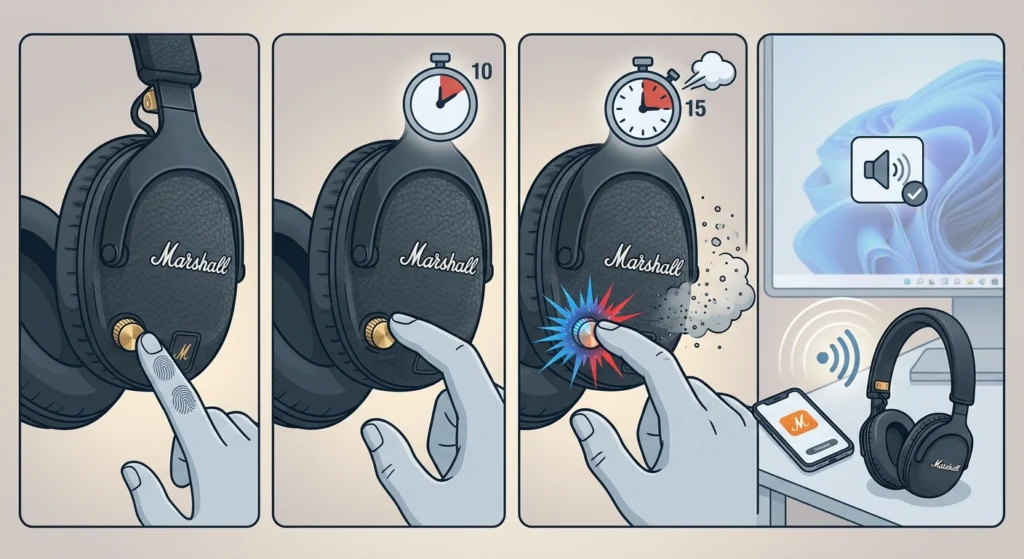
If the update still refuses to complete after trying every step above, a factory reset restores the headphones to their original settings and often clears whatever corrupted data was blocking the process. To do this, hold the control knob for 10 seconds to power off, then hold it again for 15 seconds while the headphones are off until the LED flashes rapidly. Reconnect through the Marshall Bluetooth app afterward and check for the update one more time. If the audio settings also feel off after the reset, the guide for resetting audio settings on Windows 11 covers how to get playback back to normal.
Tips to Avoid This Happening Again
- Always update the firmware in a quiet spot with strong Wi-Fi rather than on the move, since a moving connection is more likely to drop mid-transfer.
- Charge the headphones to at least 30 percent before starting an update. A firmware install that runs out of battery halfway through is far harder to recover from than one interrupted by distance.
- Close other Bluetooth-heavy apps on the phone during the update, since some fitness trackers or smartwatches compete for the same Bluetooth LE bandwidth.
- On a Windows PC, keeping the correct playback device selected afterward matters too. The guide on adjusting audio output settings on Windows 11 is worth bookmarking once the update finishes, since headphones sometimes need to be manually reselected as the default device.
Common Problems During the Update
The update percentage resets to 0 percent
This happens when the Bluetooth LE connection drops entirely rather than just pausing. Restarting the headphones and moving closer to the phone before retrying, as covered in Fix 2, resolves this in most cases.
The app shows ‘Firmware update available’ but nothing happens when tapped
This is usually a temporary app glitch rather than a headphone issue. Force closing the Marshall Bluetooth app, restarting the phone, and reopening the app clears this in almost every reported case.
The headphones will not power on after a stuck update
Plug the headphones into a charger for at least 15 minutes, since an interrupted update can sometimes drain the battery faster than usual. Once charged, hold the control knob for 10 seconds to attempt a restart.
Frequently Asked Questions
Why is the Marshall Monitor III stuck on a firmware update?
It is almost always caused by a weak or interrupted Bluetooth connection between the headphones and the phone, an app running in the background, or a slow internet connection while the firmware downloads.
How long should a Marshall Monitor III firmware update take?
A standard update takes up to five minutes, depending on file size and internet speed. If it runs well past that with no progress at all, it counts as stuck and needs the fixes above.
Can the firmware update damage the Marshall Monitor III?
No. An interrupted or stuck update does not damage the headphones. It only pauses the process, and it can be resumed or retried safely using the steps in this guide.
Should the headphones be worn or off the head during a firmware update?
Either is fine, as long as they stay powered on and within about one meter of the phone. Wearing them is often easier since it keeps the distance consistent.
Does the Marshall Bluetooth app need to stay open during the update?
Yes. The app needs to remain open and the phone unlocked for the entire update. Locking the screen or switching apps pauses or cancels the transfer.
What happens if the battery dies during a firmware update?
The update stops and the headphones may become unresponsive until charged again. Charging for at least 15 minutes and then restarting with the control knob usually brings them back.
How can it be confirmed that the firmware update actually completed?
Open the Marshall Bluetooth app, go to the ‘About’ section, and check the firmware version listed there. If no further update appears as available, the installation was successful.
Is a factory reset safe to use on the Marshall Monitor III?
Yes, a factory reset only clears paired devices and custom settings stored on the headphones. It does not damage the hardware and is a standard recovery step recommended for stuck updates.
Why does the update work fine on one phone but not another?
This is usually a Bluetooth compatibility or interference issue on the specific phone rather than the headphones. Restarting that phone’s Bluetooth or trying a different device nearby often solves it.
Does a stuck firmware update affect the sound quality afterward?
No, as long as the update eventually completes using the steps above, sound quality returns to normal immediately. If audio still sounds off afterward, checking input device settings through the guide on managing audio input devices on Windows 11 can help rule out a settings issue rather than a firmware one.