
Logitech G Pro X 2 not connecting to PC is a frustrating problem, especially right before a gaming session. Luckily, the cause is usually a lost pairing, a busy USB port, or the wrong audio device selected in Windows, and each one has a quick fix.
Quick Summary
- Most connection problems are solved by re-pairing the headset with the Lightspeed wireless adapter.
- A slow first connection is normal, so wait a few seconds before changing anything.
- Keep the headset adapter at least one USB port away from other Logitech receivers.
- Make sure Windows uses the headset as the default audio device after it connects.
- Bluetooth can be re-paired separately if the headset is used without the adapter.
Step-by-Step Guide to Fix the Connection
Work through these methods in order. Most people find that the problem is solved by the second or third one.
Method 1: Restart the Connection and Try Another USB Port
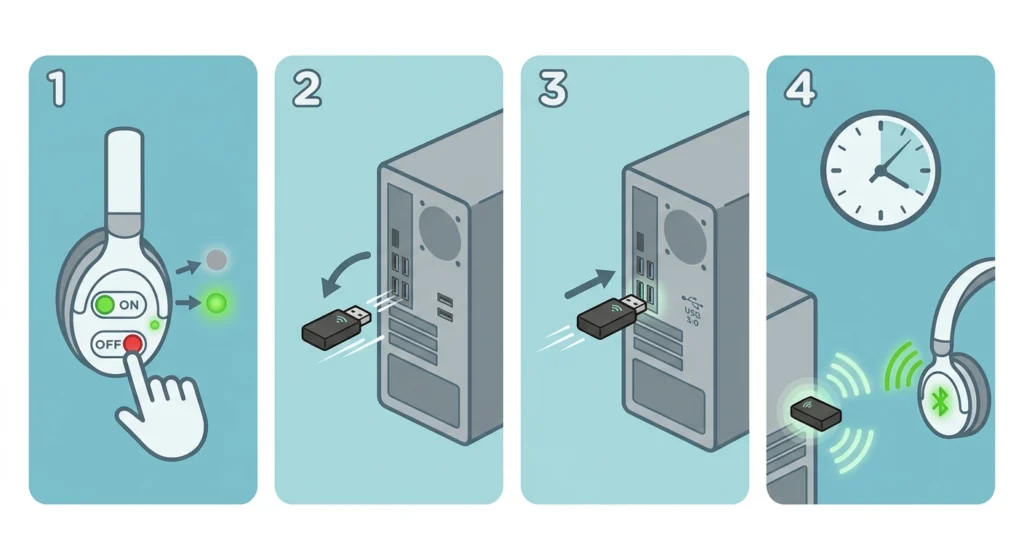
- Step 1: Turn the headset off, then turn it back on.
- Step 2: Unplug the Lightspeed wireless adapter from the PC.
- Step 3: Plug the adapter into a different USB port, ideally one directly on the PC rather than a hub.
- Step 4: Wait 10 to 15 seconds. Logitech states that the adapter and headset take some time to establish a connection, so a short delay is normal.
Method 2: Re-Pair the Headset to the Lightspeed Adapter
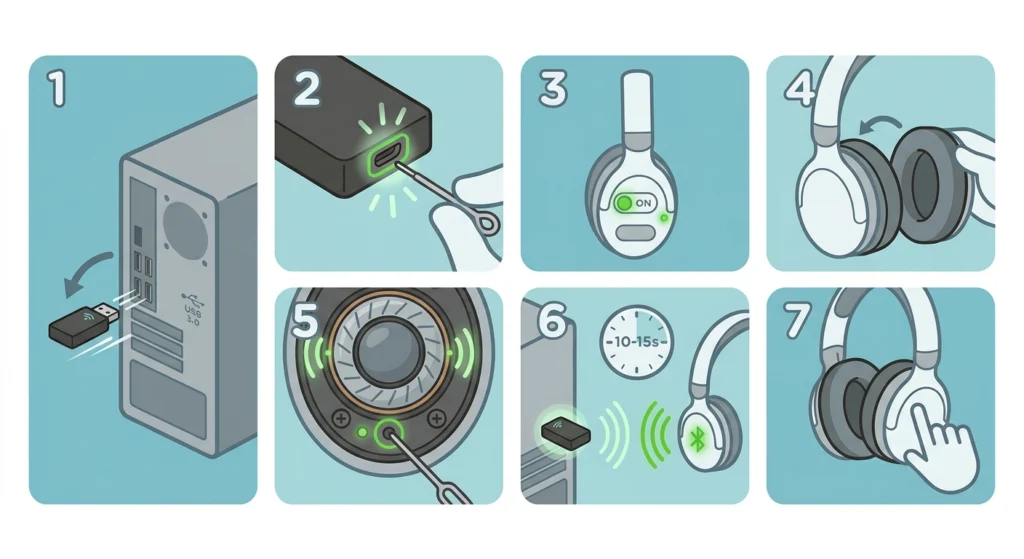
If the headset still will not connect, the pairing between the headset and adapter has likely been lost. This also applies when a replacement adapter is being used. Logitech provides the following process for the Pro X 2.
- Step 1: Plug the Lightspeed wireless adapter into the PC.
- Step 2: Insert a pin into the reset port on the adapter. The light on the adapter starts blinking, which means pairing mode is active.
- Step 3: Turn on the headset.
- Step 4: Remove the left ear pad from the headset.
- Step 5: Insert a pin into the pin-hole located below the speaker driver and between the lower two screws. The headset blinks and plays a chime.
- Step 6: Wait 10 to 15 seconds. Pairing is finished when the blinking stops on both the headset and the adapter and a chime plays in the headset.
- Step 7: Press the left ear pad back into place.
Pro-Tip: Use a straightened paperclip or a SIM ejector pin for both reset points. Press gently. The pin-hole is small, and forcing a pin in can damage the ear cup area.
Method 3: Give the Adapter Some Space
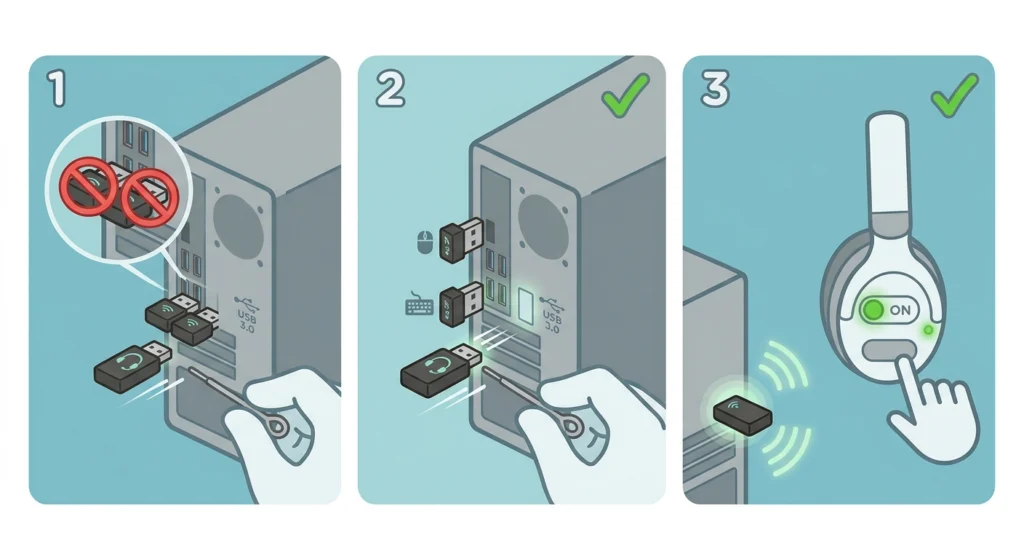
Wireless receivers sitting side by side can compete with each other. Logitech recommends keeping the headset receiver at least one USB port away from the receivers used for a mouse and keyboard.
- Step 1: Unplug the headset adapter.
- Step 2: Plug it into a port that has at least one empty port between it and any other Logitech receiver.
- Step 3: Turn the headset off and on again to reconnect.
Method 4: Set the Headset as the Default Device in Windows
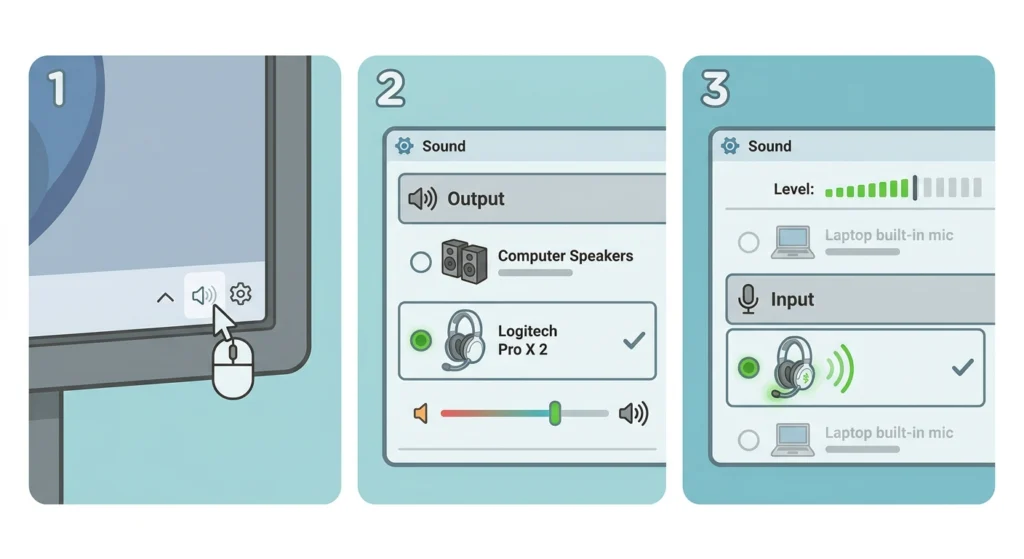
Sometimes the headset connects but stays silent because Windows keeps sending sound to speakers or a monitor. The fix is to pick the headset manually.
- Step 1: Right-click the speaker icon in the taskbar and open the sound settings.
- Step 2: Under output, select the Logitech Pro X 2 entry.
- Step 3: Under input, select the headset microphone if voice chat is needed.
The guide on adjusting audio output settings in Windows 11 covers this screen in more detail, and managing audio input devices helps with the microphone side.
Method 5: Re-Pair Over Bluetooth
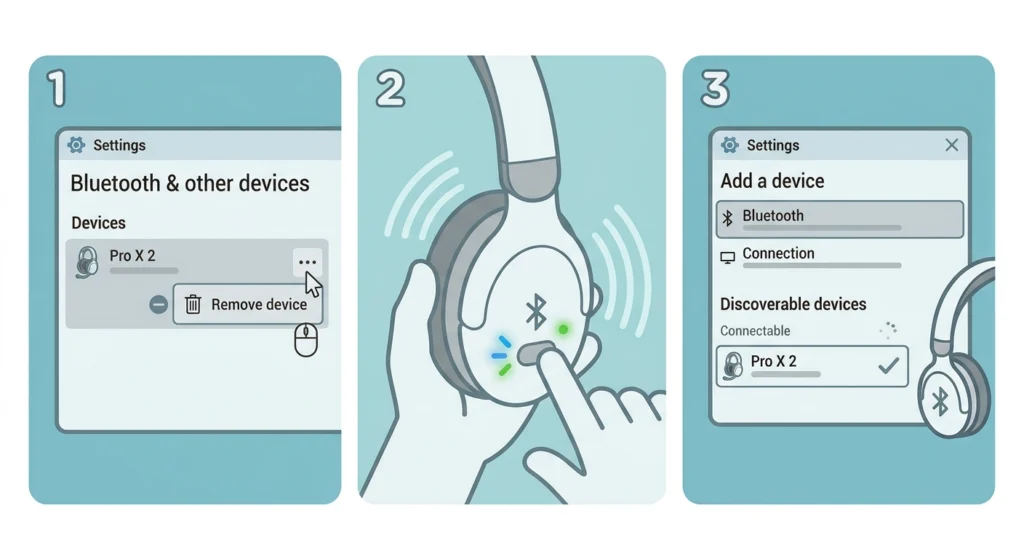
If the headset is being used over Bluetooth instead of the adapter, the old pairing entry in Windows can cause trouble. Removing it and pairing again gives the PC a clean start.
- Step 1: Open Bluetooth and devices in Windows settings.
- Step 2: Select the Pro X 2 entry and choose remove device.
- Step 3: Put the headset in Bluetooth pairing mode, then add it again as a new Bluetooth device.
A full walkthrough is available in this guide to re-pairing Bluetooth audio devices on Windows.
Tips for a Stable Connection
- Plug the adapter into a USB port on the PC itself instead of a hub or a long extension.
- Charge the headset before testing. A very low battery can make a connection look broken.
- Install Logitech G HUB from the official Logitech website so the headset can be recognized and managed on the PC.
- Keep large metal objects away from the adapter when possible.
Pro-Tip: Always wait the full 10 to 15 seconds after plugging in the adapter or finishing a pairing. Many people repeat steps too early, which restarts the process and makes it feel like nothing works.
Common Problems and Quick Answers
Headset Connects but No Sound
Windows is probably sending audio to another device. Select the Pro X 2 as the output device, as shown in Method 4.
Headset Connects but the Microphone Is Not Detected
Choose the headset as the input device in Windows sound settings. If it still does not appear, the guide on resolving microphone detection problems walks through the Windows 11 steps.
Adapter Light Keeps Blinking
A blinking adapter light means it is waiting to pair. Complete the pairing steps in Method 2 and wait until the blinking stops on both devices.
Frequently Asked Questions
Why is the Logitech G Pro X 2 not connecting to my PC?
The most common reasons are a lost pairing between the headset and the Lightspeed adapter, a USB port that is crowded by other receivers, or Windows using a different audio output.
Is it normal for the Pro X 2 to take a while to connect?
Yes. Logitech notes that the Lightspeed adapter and headset take time to establish a connection, so a short wait after turning the headset on is normal.
How long does pairing the headset to the adapter take?
Pairing normally finishes within 10 to 15 seconds. The blinking stops on both the headset and the adapter, and a chime plays in the headset.
How do I put the adapter in pairing mode?
Insert a pin into the reset port on the Lightspeed wireless adapter. The light on the adapter blinks to show that pairing mode has started.
Where is the pairing pin-hole on the headset?
The pin-hole is behind the left ear pad. It sits below the speaker driver and between the lower two screws.
Does a replacement Lightspeed adapter need to be paired?
Yes. A replacement adapter has to be paired with the headset using the same reset and pin-hole process described in Method 2.
Can the adapter be plugged in next to my mouse receiver?
It can, but Logitech recommends keeping at least one USB port between the headset receiver and any mouse or keyboard receiver to avoid interference.
Why does the headset connect but play no sound?
Windows may still be using speakers or a monitor as the default output. Select the Pro X 2 as the output device in the sound settings.
Does Bluetooth work if the adapter is not available?
The Pro X 2 can also connect over Bluetooth. Remove the old entry from Windows and pair the headset again as a new device.
Do I need Logitech G HUB for the headset to connect?
G HUB is not what makes the audio connection work, but it is the official Logitech software for managing the headset and is a useful tool to have installed.