
Setting up Beats Studio Pro for the first time only takes a few minutes, but getting it right from the start makes a real difference in sound quality and comfort. These headphones pack active noise cancellation, spatial audio, and a long battery life into a single package, and the setup process is designed to be quick whether the device being paired is an iPhone, Android phone, or a Windows laptop.
Quick Summary Table
- Charge the headphones for at least 15 minutes before first use
- Press and hold the power button to enter pairing mode
- Enable Bluetooth on the connecting device and select ‘Beats Studio Pro’
- Update firmware through the Beats app for the latest features
- Adjust noise cancellation and transparency modes as needed
- Customize controls and EQ settings inside the Beats app
Step-by-Step Guide to Setting Up Beats Studio Pro
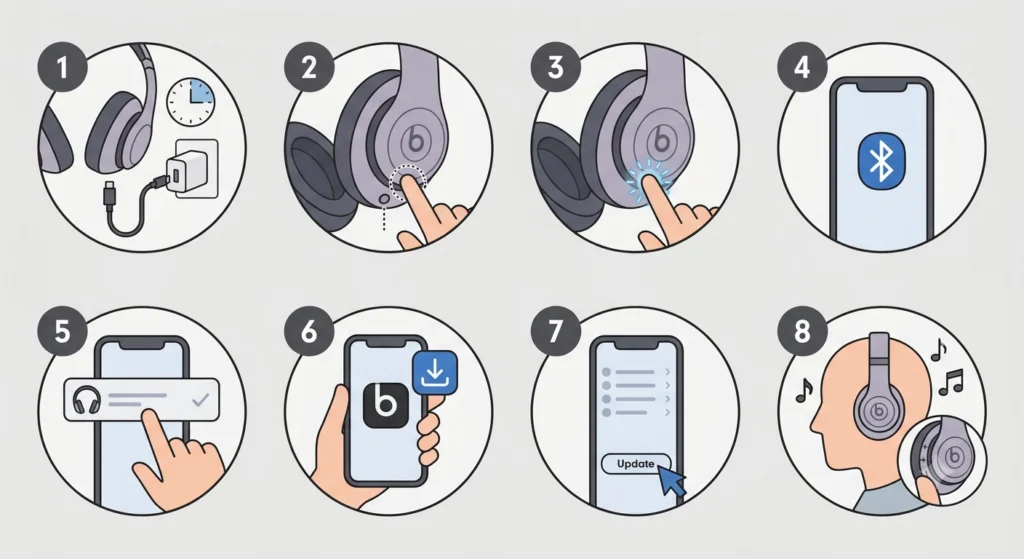
Follow these steps in order for a smooth first-time setup. This sequence works the same way regardless of the brand of phone or computer being used, with a few small differences noted along the way.
- Step 1: Charge the headphones using the included USB-C cable for at least 15 minutes before turning them on for the first time. A full charge is recommended if time allows, since this gives a clearer picture of actual battery performance.
- Step 2: Press the power button located on the right ear cup and hold it for about one second until the LED indicator blinks white. This confirms the headphones are powered on.
- Step 3: Put the headphones into pairing mode by pressing and holding the power button for a few extra seconds until the LED light starts flashing rapidly. On most units, this happens automatically the very first time they are powered on.
- Step 4: Open the Bluetooth settings on the connecting device. On an iPhone, a setup card usually pops up automatically; on Android or Windows, Bluetooth needs to be turned on manually from the settings menu.
- Step 5: Select ‘Beats Studio Pro’ from the list of available devices and confirm the connection. A short tone or vibration usually confirms a successful pair.
- Step 6: Download the Beats app (available for iOS, Android, and Windows) to unlock firmware updates, EQ adjustments, and Find My device support. This step is optional but highly recommended.
- Step 7: Check for a firmware update inside the app right after pairing. Beats regularly improves call quality, battery reporting, and noise cancellation performance through these updates.
- Step 8: Test the sound by playing a song or video, and adjust the volume using the physical buttons on the ear cup. The ‘b’ logo on the left ear cup also functions as a multi-purpose control button.
For anyone setting this up on a Windows 11 machine, the process is nearly identical, though it sometimes helps to re-pair Bluetooth earbuds for proper stereo sound if audio only plays through one side after the initial connection.
Pro-Tip: The first connection between Beats Studio Pro and a device should always happen with both Bluetooth and the device’s location/proximity settings enabled. This allows the headphones to register properly in the Beats app and ensures features like automatic device switching work correctly later on.
Customizing Controls and Sound Settings
Once paired, the headphones offer several customization options worth setting up right away rather than leaving on default settings.
Method 1: Adjusting Noise Cancellation and Transparency Mode
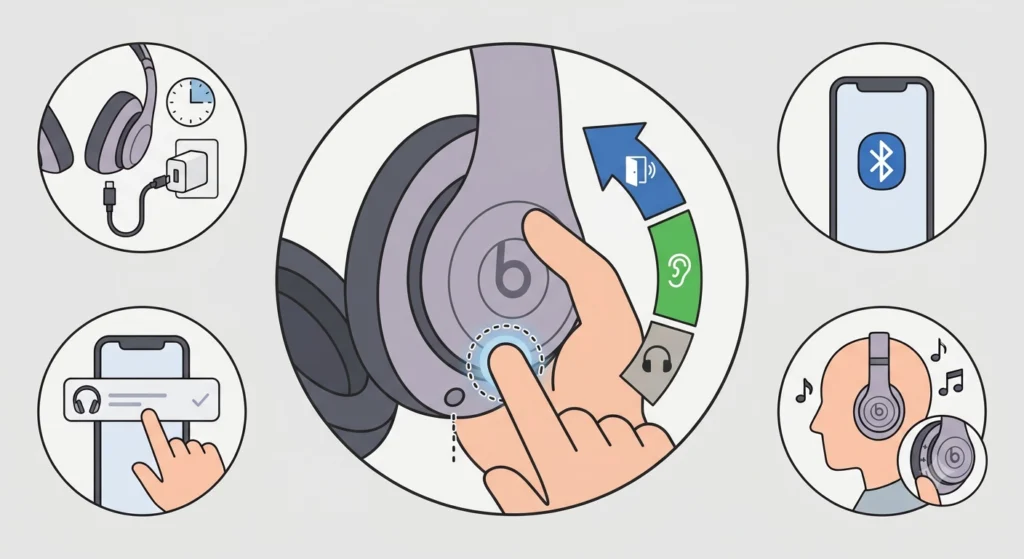
Press and hold the ‘b’ button on the left ear cup to cycle between Active Noise Cancelling, Transparency mode, and Off. This is useful for switching quickly between blocking out background noise on a commute and staying aware of surroundings while walking outside.
Method 2: Customizing EQ and Sound Profile
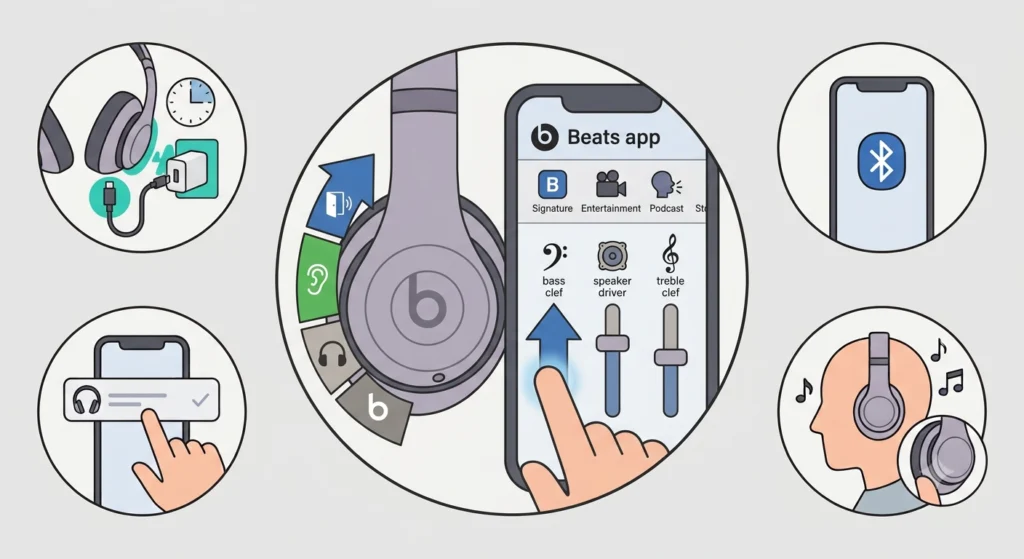
Inside the Beats app, the EQ tab allows manual adjustment of bass, mid, and treble levels. Most people find that the default ‘Beats Signature’ sound works well for most music genres, but switching to ‘Entertainment’ mode adds extra depth for movies and gaming.
Method 3: Setting Up Spatial Audio
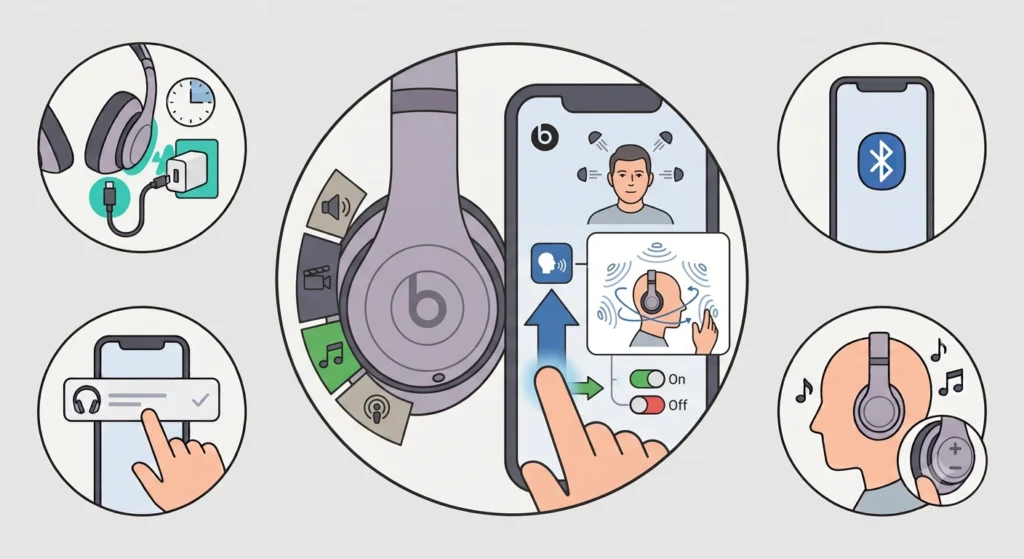
Spatial Audio with dynamic head tracking can be toggled on from the Beats app or directly from the Control Center on compatible Apple devices. This works best when paired with content that actually supports spatial mixing, such as certain movies and Apple Music tracks.
If audio settings need fine-tuning on a Windows device, it often helps to review how to adjust audio output settings so the system recognizes Beats Studio Pro as the default playback device.
Tips for Getting the Best Experience
- Keep the headphones within Bluetooth range (about 30 feet) during the first setup to avoid dropped connections
- Store the headphones in the included case when not in use to protect the ear cushions
- Use the physical buttons for quick adjustments instead of pulling out a phone every time
- Check battery percentage directly from the notification panel on supported devices
- Avoid pairing more than two devices simultaneously to prevent audio switching issues
Common Problems and How to Fix Them
Fix 1: Headphones Not Showing Up in Bluetooth List
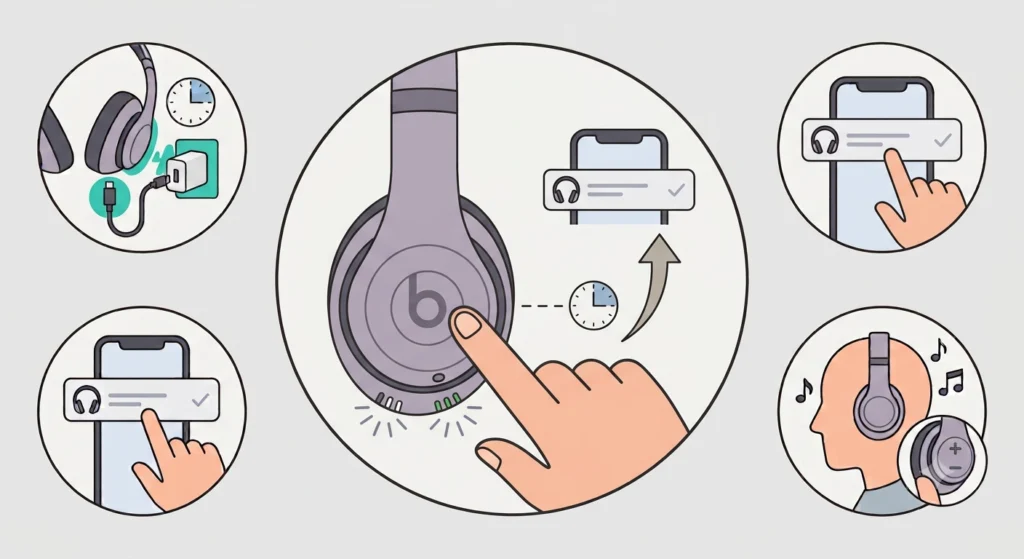
This usually happens when the headphones are not in pairing mode. Holding the power button for a few extra seconds until the LED flashes rapidly typically resolves this.
Fix 2: Microphone Not Working During Calls
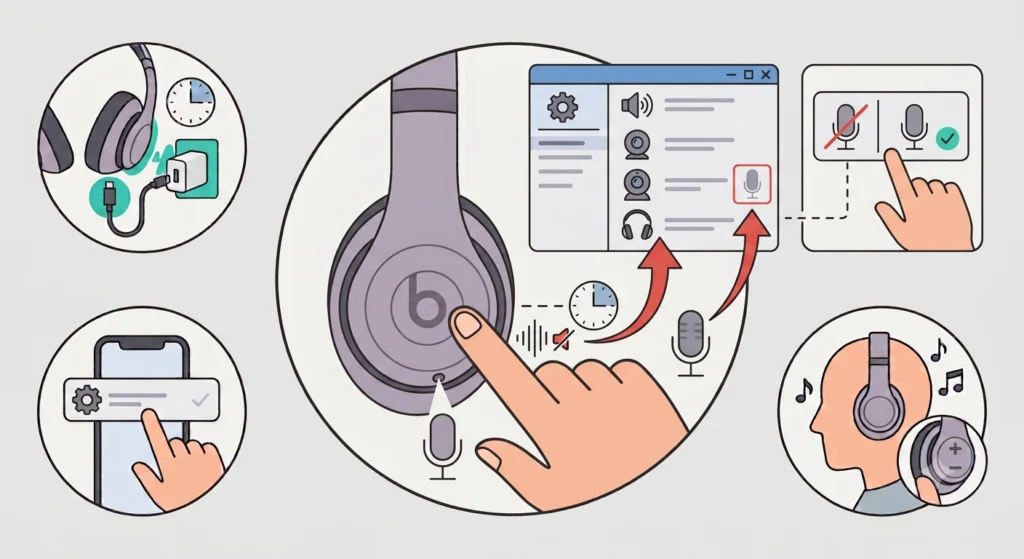
This is a common issue on Windows systems where the wrong input device is selected. Reviewing how to fix microphone detection problems usually solves this within a few minutes.
Fix 3: Sound Cutting Out or Audio Lag
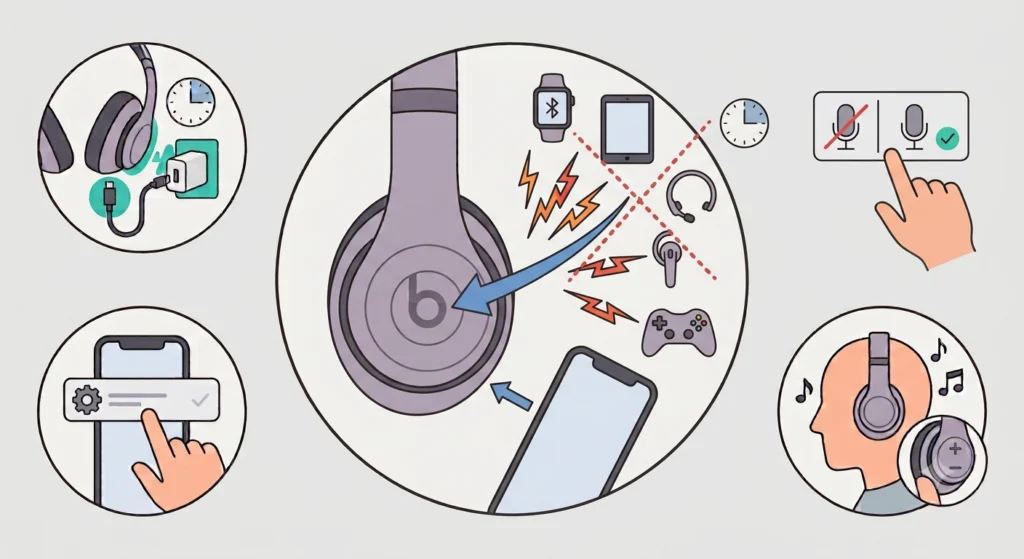
This is often caused by interference from other Bluetooth devices nearby. Moving closer to the connected device or temporarily disabling other Bluetooth accessories tends to fix the issue.
Fix 4: Audio Plays From the Wrong Device
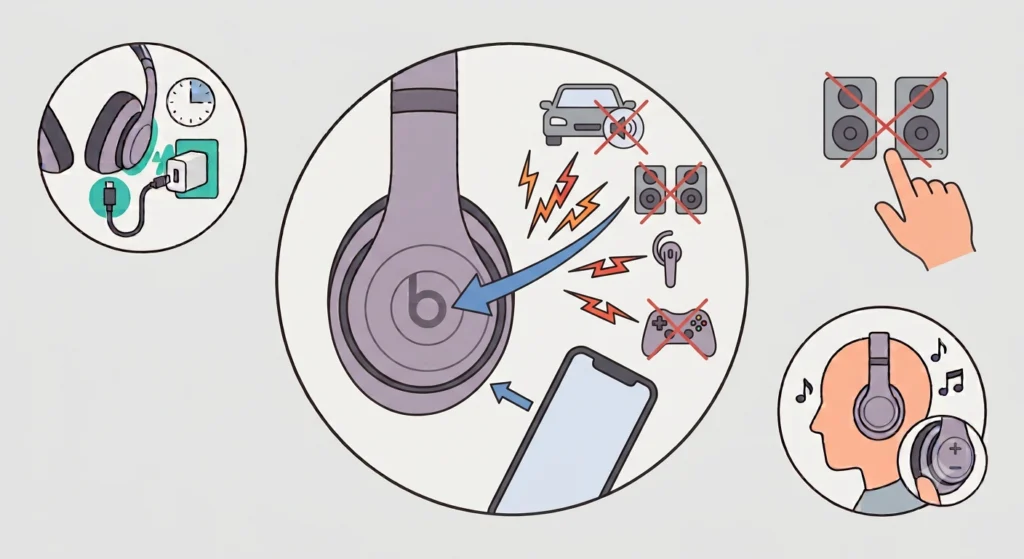
This typically happens when multiple audio devices are paired at once. Checking and managing audio input devices on the system helps make sure Beats Studio Pro stays selected as the active output.
Frequently Asked Questions
How long does it take to fully charge Beats Studio Pro?
A full charge from empty typically takes around two hours using the included USB-C cable.
Does Beats Studio Pro work with both iPhone and Android?
Yes, the headphones support both platforms, though certain features like one-tap setup are exclusive to Apple devices using the H2 chip.
How many devices can be paired at the same time?
Up to two devices can be actively connected at once, with the ability to store more devices in pairing history for quick switching.
Is the Beats app required to use the headphones?
No, the headphones work without the app, but the app unlocks firmware updates, EQ controls, and device finding features.
How long does the battery last on a single charge?
Battery life is rated at up to 24 hours with noise cancellation turned off, and around 20 hours with it active.
Can Beats Studio Pro be used while charging?
Yes, the headphones can be used while plugged in, which is useful during long listening or work sessions.
Why is only one ear working after pairing?
This is usually a stereo balance or pairing glitch. Re-pairing the headphones from the Bluetooth settings typically resolves it.
How is noise cancellation turned on or off?
Pressing and holding the ‘b’ button on the left ear cup cycles through Active Noise Cancelling, Transparency, and Off modes.
Does Beats Studio Pro support Spatial Audio?
Yes, Spatial Audio with dynamic head tracking is supported and can be enabled through the Beats app or Control Center on compatible devices.
What should be done if audio settings stop working correctly on Windows?
Resetting the system’s audio settings often resolves persistent playback issues after troubleshooting steps fail.