
When headphones suddenly go silent, it can feel frustrating – especially in the middle of a call, workout, or late-night gaming session. Fixing headphones with no sound is usually simpler than most people expect. This step-by-step guide covers the most effective, proven methods to get audio back fast, whether using wired or wireless headphones on any device.
Key Takeaways
- Check the physical connection first – a loose plug or cable is the most common cause
- Audio output settings on the device are often the silent culprit
- Bluetooth headphones may need to be re-paired to restore sound
- Driver and firmware issues can be fixed without any technical background
- Most no-sound issues are resolved within a few minutes using the fixes below
Fix 1: Check the Physical Connection
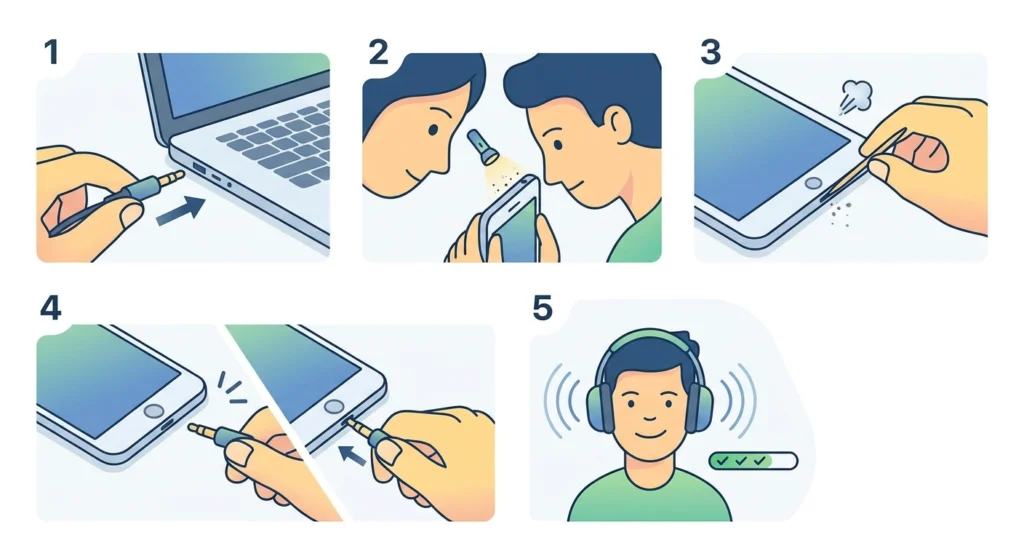
This is the first place to look. A loose 3.5mm jack, a partially plugged cable, or a dirty headphone port can completely cut off audio. It sounds basic, but this solves the problem more often than any other fix.
- Step 1: Unplug the headphones completely from the device.
- Step 2: Inspect the headphone jack for any visible debris, lint, or damage.
- Step 3: Gently clean the port using a dry toothpick or a small puff of compressed air.
- Step 4: Plug the headphones back in firmly until a click or snug fit is felt.
- Step 5: Play audio and test both ears.
If using an adapter (like USB-C to 3.5mm), swap it out for a different one to rule out adapter failure. Adapters are a surprisingly frequent weak link in the audio chain.
Fix 2: Check and Adjust the Volume Settings
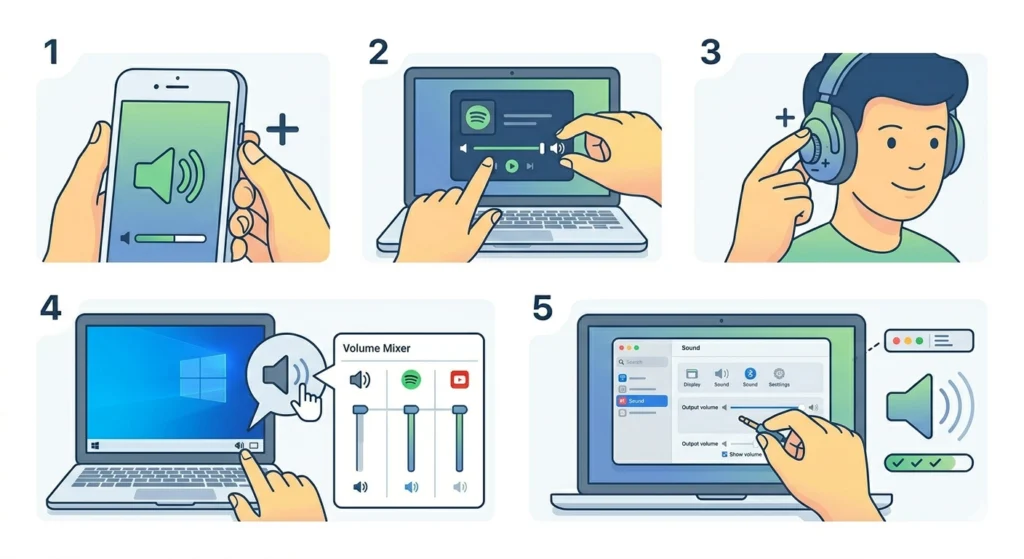
Volume controls exist in multiple places – on the device, within the app, and sometimes on the headphones themselves. Any one of them can be muted or turned all the way down without being obvious.
- Step 1: Press the physical volume-up button on the device and confirm the volume bar increases on screen.
- Step 2: Open the music or video app in use and check the in-app volume slider.
- Step 3: If the headphones have an inline remote or ear cup controls, adjust the volume there too.
- Step 4: On Windows, right-click the speaker icon in the taskbar and select ‘Open Volume Mixer’ to confirm the app volume is not muted.
- Step 5: On Mac, go to System Settings > Sound and drag the output volume slider up.
The key is to check all three volume layers – system, app, and hardware – before moving on.
Fix 3: Select the Correct Audio Output Device
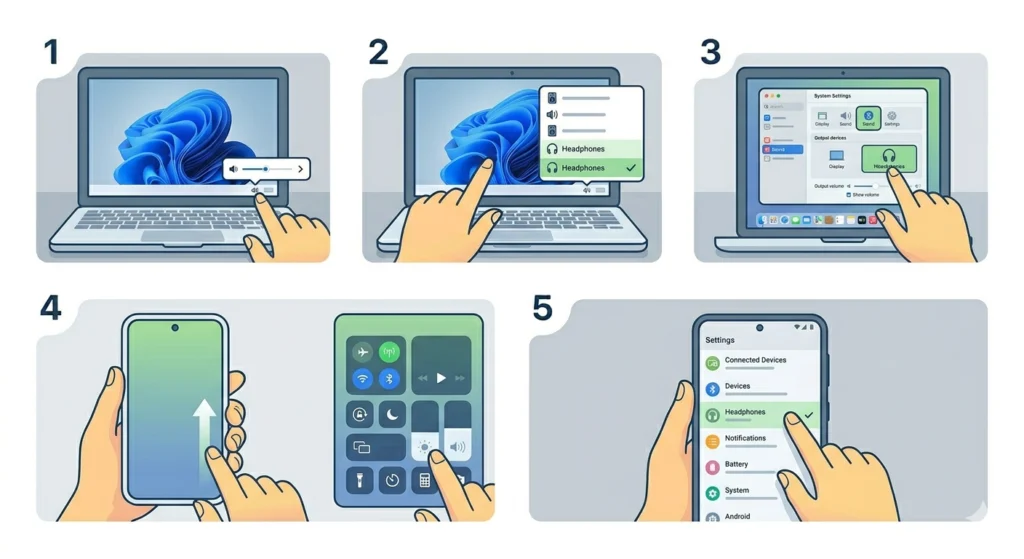
Devices do not always automatically switch audio output to headphones when they are plugged in. The system might still be routing sound to the built-in speakers or a previously connected Bluetooth device.
- Step 1: On Windows 11, click the sound icon in the taskbar, then click the arrow next to the volume slider to see available output devices.
- Step 2: Select the headphones from the list.
- Step 3: On Mac, go to System Settings > Sound > Output and choose the headphones.
- Step 4: On iPhone or iPad, swipe into Control Center and tap the audio output icon (the triangle with circles) to switch to the headphones.
- Step 5: On Android, go to Settings > Connected Devices and confirm the headphones are set as the active audio output.
For a more detailed walkthrough on Windows 11 specifically, the guide on adjusting audio output settings covers every step in depth.
Pro-Tip: On Windows, having multiple audio devices connected at once (like a monitor with speakers, a USB headset, and Bluetooth headphones) can confuse the system. Set the preferred headphones as the ‘Default Device’ in Sound settings so the system always routes audio there automatically.
Fix 4: Re-Pair Bluetooth Headphones
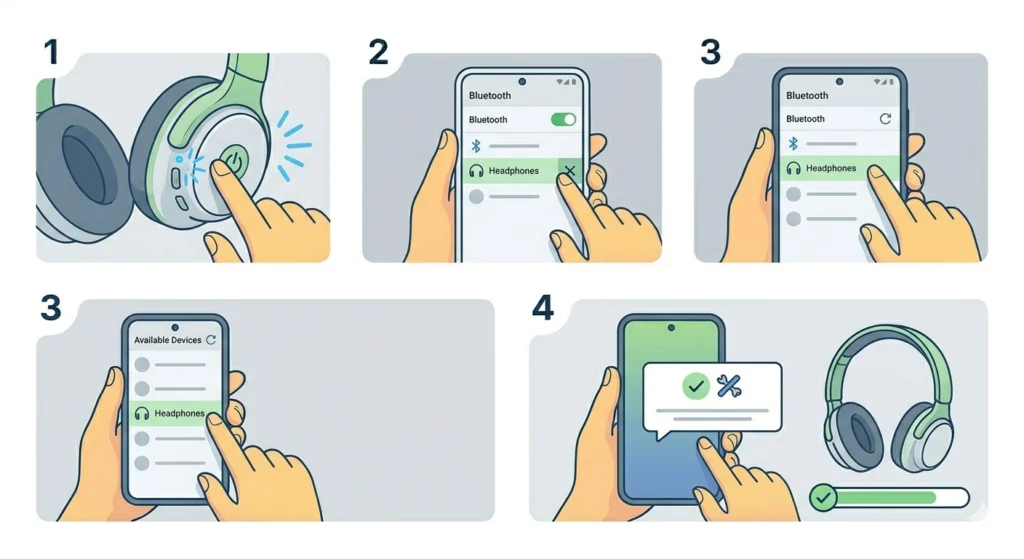
Wireless headphones rely on a stable Bluetooth connection. If the pairing data becomes corrupted or the device connects but audio does not transmit, re-pairing from scratch almost always resolves it.
- Step 1: On the headphones, press and hold the power or pairing button until the LED flashes rapidly – this signals pairing mode.
- Step 2: On the device, go to Bluetooth settings and ‘Forget’ or ‘Remove’ the headphones from the saved device list.
- Step 3: Scan for new Bluetooth devices and select the headphones from the list.
- Step 4: Complete the pairing process and test audio playback.
For Windows users dealing with stereo sound issues after pairing, the detailed guide on how to re-pair Bluetooth earbuds for stereo sound on Windows is worth following.
Fix 5: Update or Reinstall Audio Drivers (Windows)
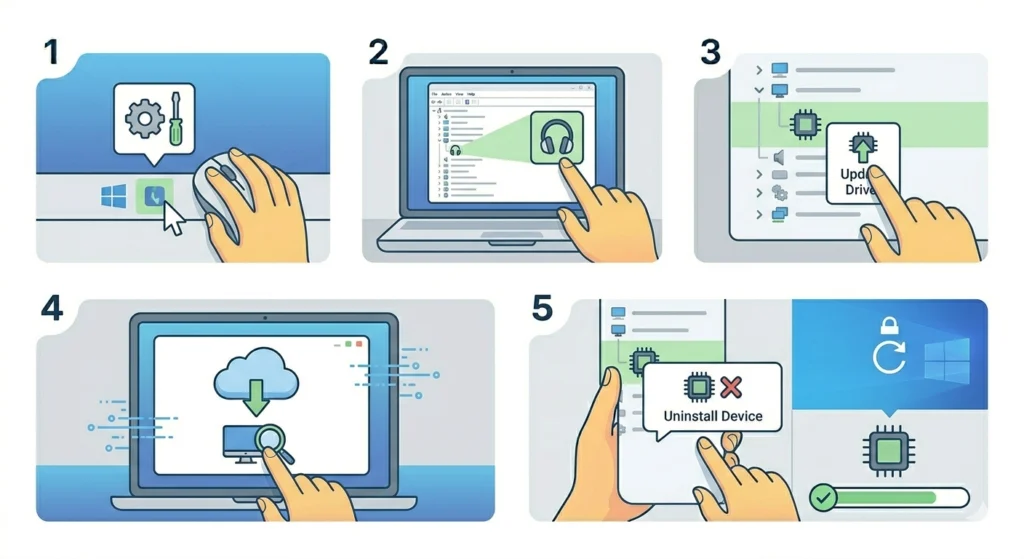
Outdated or corrupted audio drivers are a common reason headphones show as connected but produce no sound on Windows PCs. Reinstalling the driver takes less than five minutes and often resolves the issue immediately.
- Step 1: Right-click the Start button and select ‘Device Manager’.
- Step 2: Expand the ‘Sound, video and game controllers’ section.
- Step 3: Right-click the audio device (usually named after the chipset brand, like Realtek or Intel) and choose ‘Update driver’.
- Step 4: Select ‘Search automatically for drivers’ and let Windows find the latest version.
- Step 5: If no update is found, right-click the device again and choose ‘Uninstall device’, then restart the computer. Windows will reinstall the driver automatically on reboot.
This fix works particularly well when headphones stopped producing sound after a Windows update.
Fix 6: Reset Audio Settings on the Device
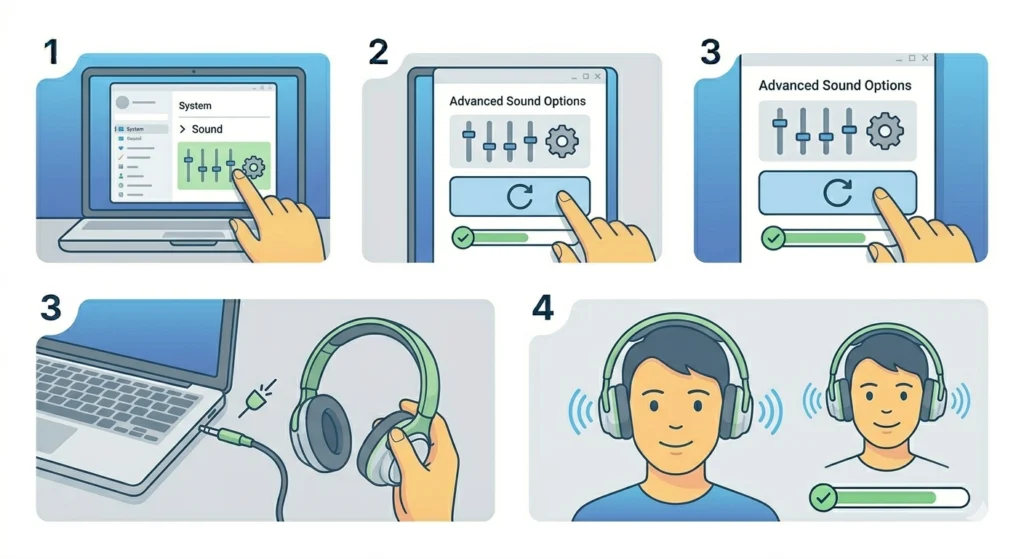
Sometimes audio settings get misconfigured at the system level – enhancements, equalizer presets, or spatial audio features can interfere with output. Resetting audio settings clears all of that without affecting other system preferences.
- Step 1: On Windows, open Settings > System > Sound > Advanced Sound Options.
- Step 2: Under ‘Reset sound settings’, click ‘Reset’.
- Step 3: Disconnect and reconnect the headphones.
- Step 4: Test audio again.
The dedicated guide on resetting audio settings on Windows 11 walks through this in more detail if additional help is needed.
Pro-Tip: On Windows, audio enhancements like ‘Bass Boost’ or ‘Virtual Surround’ can sometimes cause complete audio loss depending on the headphone model. Disabling all enhancements under the headphone’s Properties in Sound settings is a fast and effective fix that many people overlook.
Fix 7: Test the Headphones on Another Device
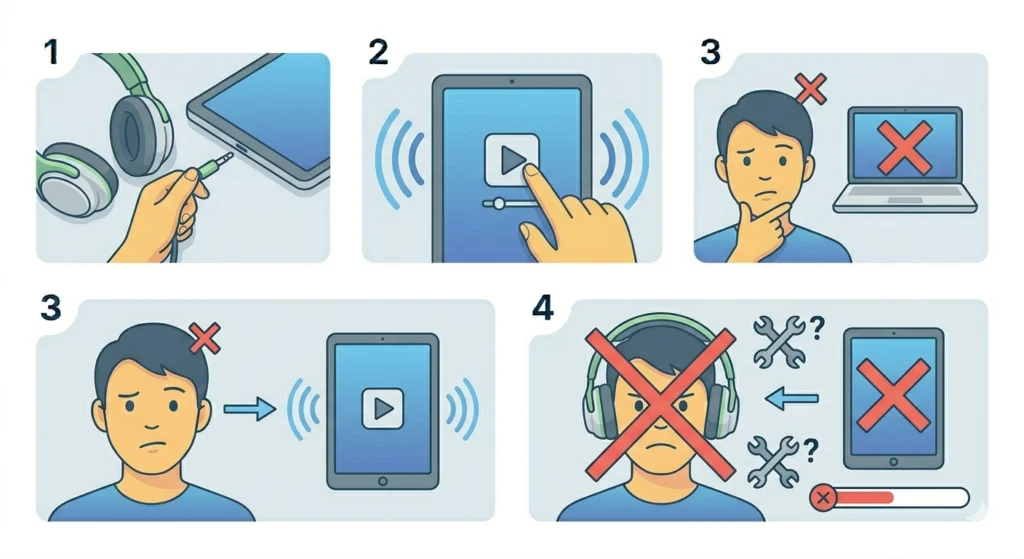
This step quickly tells whether the problem is with the headphones or the original device. It takes less than a minute and removes all the guesswork.
- Step 1: Plug the headphones into a different phone, laptop, or tablet.
- Step 2: Play audio and check if sound comes through.
- Step 3: If sound works on the second device, the issue is with the original device’s settings or hardware port.
- Step 4: If sound still does not work on the second device, the headphones themselves have a hardware problem.
This test splits the problem cleanly. Most people find that the headphones work fine elsewhere, which points directly back to a software or settings issue on the main device.
Tips for Keeping Headphones Working Long-Term
- Always unplug wired headphones by gripping the plug, not the cable – yanking the cable stresses the internal wires near the connector and causes gradual signal loss.
- Store headphones in a case or hang them on a stand to prevent cable tangling and driver damage from pressure.
- Keep audio drivers updated, especially after major operating system upgrades.
- For Bluetooth headphones, keep firmware updated using the manufacturer’s companion app when available.
- Clean headphone ports regularly – lint and debris are silent audio killers that build up over time.
- Avoid running audio at maximum volume for extended periods, as it stresses the headphone drivers over time.
Common Problems and Solutions
Sound Works in One Ear Only
This usually means a damaged cable near the jack or a loose connection inside the ear cup. Test by gently flexing the cable near the plug while playing audio – if sound cuts in and out, the cable is failing internally at that point. For Bluetooth headphones, re-pairing often fixes single-ear audio loss caused by a profile mismatch.
Headphones Connected But No Sound on Windows 11
Windows 11 sometimes routes audio to the wrong output device automatically. Open the Volume Mixer, confirm the correct device is selected, and check the audio input device settings to ensure nothing is misconfigured at the system level.
Bluetooth Headphones Connect But Produce Static or No Audio
This often points to a codec mismatch or a low battery. Charge the headphones fully, then re-pair. If static persists, move closer to the source device to eliminate interference from walls, other wireless devices, or microwave ovens nearby.
No Sound After a Windows Update
Driver rollbacks are the fastest fix. In Device Manager, right-click the audio device, choose ‘Properties’, go to the ‘Driver’ tab, and select ‘Roll Back Driver’ if the option is available. If not, uninstall and reinstall the driver manually.
Headphones Not Detected at All
Try a different USB or audio port on the device. If the port itself is damaged, the headphones will never register. Also check if the device requires a specific driver to recognise the headphones – this is common with USB DAC headphones and gaming headsets.
Frequently Asked Questions
Why do headphones suddenly have no sound?
The most common reasons include a loose cable connection, a muted or low volume setting, the wrong audio output device selected on the system, or a corrupted audio driver. Bluetooth headphones can also lose audio due to pairing data corruption or firmware bugs.
How do you fix headphones with no sound without spending anything?
All the fixes in this guide are free. Checking the cable connection, adjusting audio output settings, updating drivers, and re-pairing Bluetooth headphones cost nothing and resolve the vast majority of no-sound issues.
Can a software issue cause headphones to stop working?
Yes. Audio driver corruption, incorrect output device selection, muted volume at the system or app level, and even certain Windows updates can all cause headphones to produce no sound despite being physically connected and functioning.
How do you know if the headphones are broken or if it is the device?
Plug the headphones into a different device. If they work on the second device, the headphones are fine and the issue is with the original device. If they produce no sound on multiple devices, the headphones have a hardware fault.
Why does only one ear of the headphones work?
Single-ear audio loss is most often caused by a damaged cable near the headphone jack, a faulty solder joint inside the ear cup, or a mono audio setting on the device. Flex the cable gently while audio plays – if sound fluctuates, the cable is the problem.
Do Bluetooth headphones need to be re-paired to fix audio issues?
Not always, but re-pairing is one of the most effective fixes when Bluetooth headphones connect but produce no audio. Removing the saved pairing from both the headphones and the device, then pairing fresh, resolves most wireless audio problems.
Why do headphones have no sound on Windows 11 specifically?
Windows 11 frequently assigns audio output to the wrong device, especially after updates or when multiple audio devices are connected. Selecting the correct output device in the Sound settings, or setting the headphones as the default device, usually fixes this immediately.
What should you do if headphones are not detected by the computer?
Try a different USB or audio port, check Device Manager for driver errors, and confirm the headphones are compatible with the operating system. For USB headphones, installing the manufacturer’s driver software may be required before the device registers correctly.
Can low battery cause Bluetooth headphones to produce no sound?
Yes. When Bluetooth headphone batteries drop very low, the headphones may maintain a connection but fail to transmit audio properly. Charging them fully before testing is always a good first step for wireless audio issues.
How do you reset headphone audio settings on Windows 11?
Go to Settings > System > Sound > Advanced Sound Options and click ‘Reset’ under the sound settings option. This clears any misconfigured enhancements or audio profiles without affecting other system settings. More detail is available in the guide on resetting audio settings on Windows 11.