
Muffled sound from headphones is one of the most frustrating audio issues – especially when everything seems physically fine. The audio feels distant, muddy, or like someone stuffed cotton into the drivers. Thankfully, most causes are fixable without buying new gear. This guide walks through the most direct, proven solutions to fix muffled sound from headphones, whether wired or wireless.
Quick Summary
- Dirty ear cushions or blocked drivers are the most common physical cause
- Audio enhancement settings on Windows or Mac often muffle sound artificially
- Equalizer settings, sample rate mismatches, and driver issues are frequent culprits
- Bluetooth codec mismatch can drastically reduce wireless audio quality
- Most fixes take under 5 minutes and require no tools
Fix Muffled Sound from Headphones Step-by-Step
Fix 1: Clean the Ear Cushions and Speaker Grilles
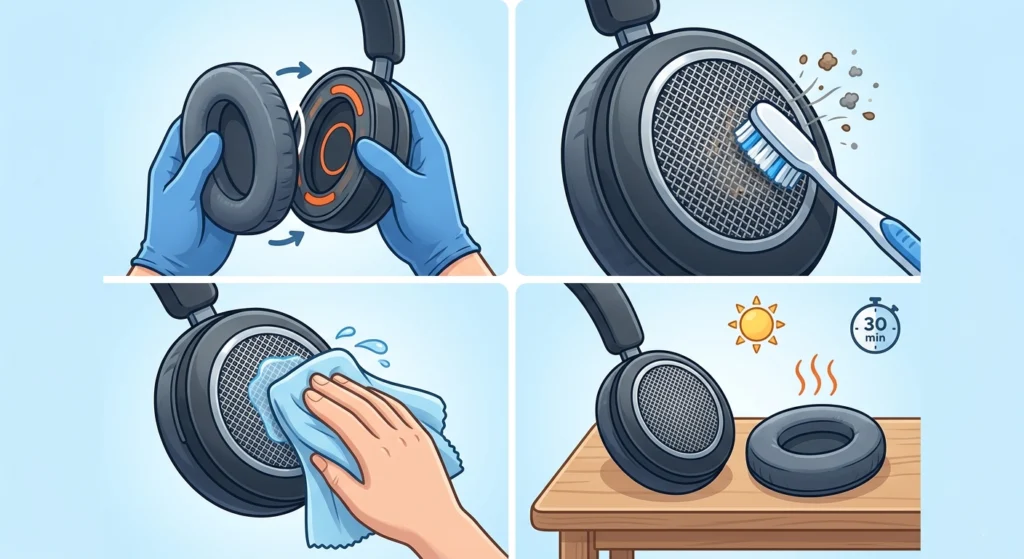
Dust, earwax, and debris build up over time inside the ear cushions and on the speaker grille mesh. Even a thin layer of grime can noticeably muffle audio output. This is the first thing to check before touching any software setting.
- Step 1: Remove the ear cushions if they are detachable
- Step 2: Use a dry, soft-bristle brush or a clean toothbrush to gently loosen debris from the speaker grille
- Step 3: Wipe down the grille with a slightly damp microfiber cloth – avoid soaking it
- Step 4: Let everything dry completely before reassembling and testing
This works best when the headphones are used frequently or stored in dusty environments. Most people find that a quick clean alone restores noticeably cleaner sound.
Fix 2: Disable Audio Enhancements on Windows
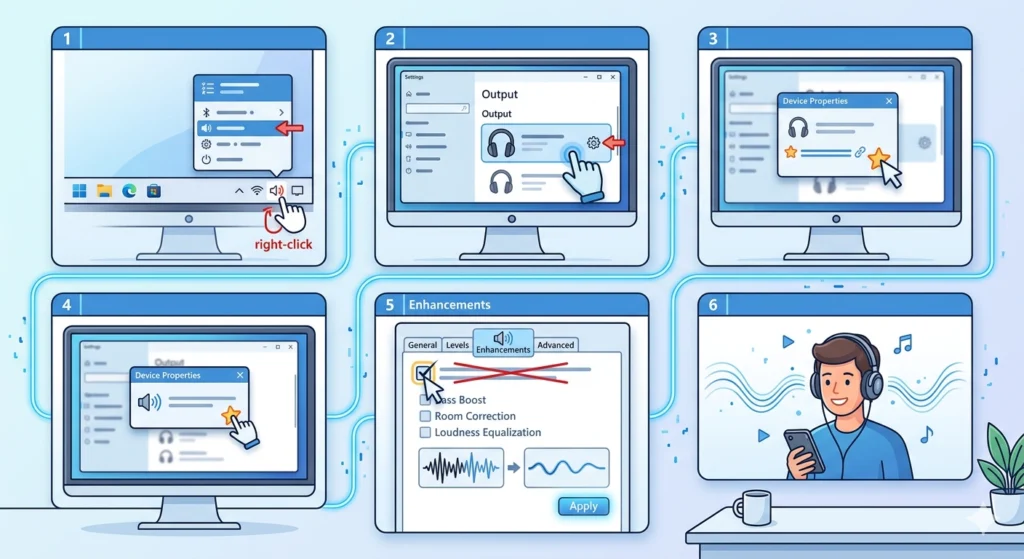
Windows applies sound processing effects by default, including ‘Bass Boost’, ‘Room Correction’, and ‘Loudness Equalization’. These can interact poorly with certain headphone drivers and introduce a muffled or hollow sound quality.
- Step 1: Right-click the speaker icon in the taskbar and select ‘Open Sound settings’
- Step 2: Under ‘Output’, click on the active headphone device, then select ‘Device properties’
- Step 3: Click ‘Additional device properties’
- Step 4: Go to the ‘Enhancements’ tab
- Step 5: Check ‘Disable all enhancements’ and click ‘Apply’
- Step 6: Test audio immediately
For a deeper look at adjusting audio output settings on Windows 11, that guide covers additional configuration options that can affect headphone clarity.
Pro-Tip: Even if the Enhancements tab shows no active effects, toggling ‘Disable all enhancements’ on and off can reset hidden processing that Windows applies silently in the background.
Fix 3: Fix the Sample Rate and Bit Depth
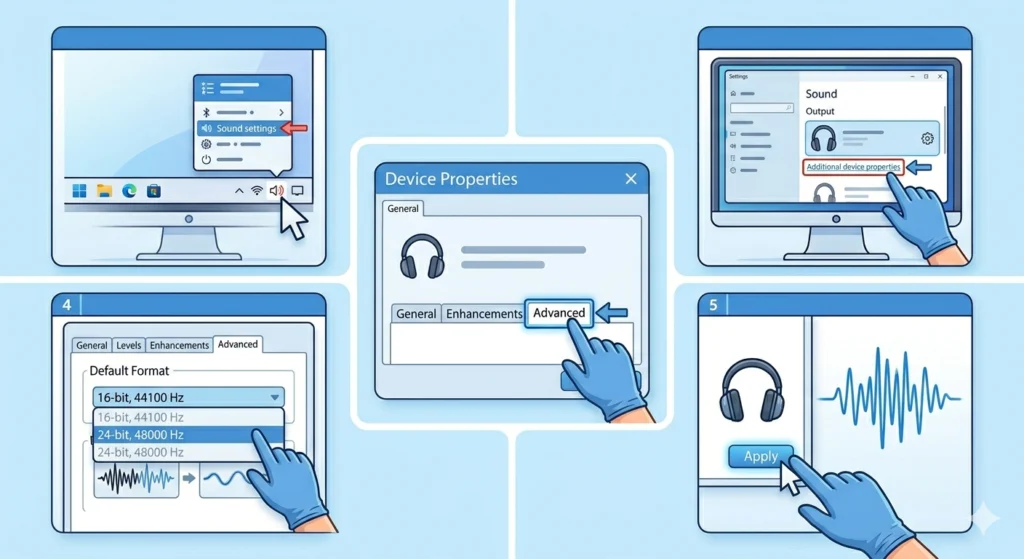
A sample rate mismatch between the headphone output and the audio source creates a processed, low-resolution sound. Windows sometimes defaults to a low sample rate like 44100 Hz at 16-bit, which can sound noticeably flat compared to higher settings.
- Step 1: Right-click the speaker icon and go to ‘Sound settings’
- Step 2: Select the headphone device and open ‘Additional device properties’
- Step 3: Click the ‘Advanced’ tab
- Step 4: Under ‘Default Format’, choose ’24-bit, 48000 Hz (Studio Quality)’ or higher
- Step 5: Click ‘Apply’ and test
The key is to match or exceed the sample rate of the audio being played. Streaming platforms and most media files use 44100 Hz or 48000 Hz, so setting this to 48000 Hz or 96000 Hz covers the majority of use cases.
Fix 4: Check and Reset the Equalizer
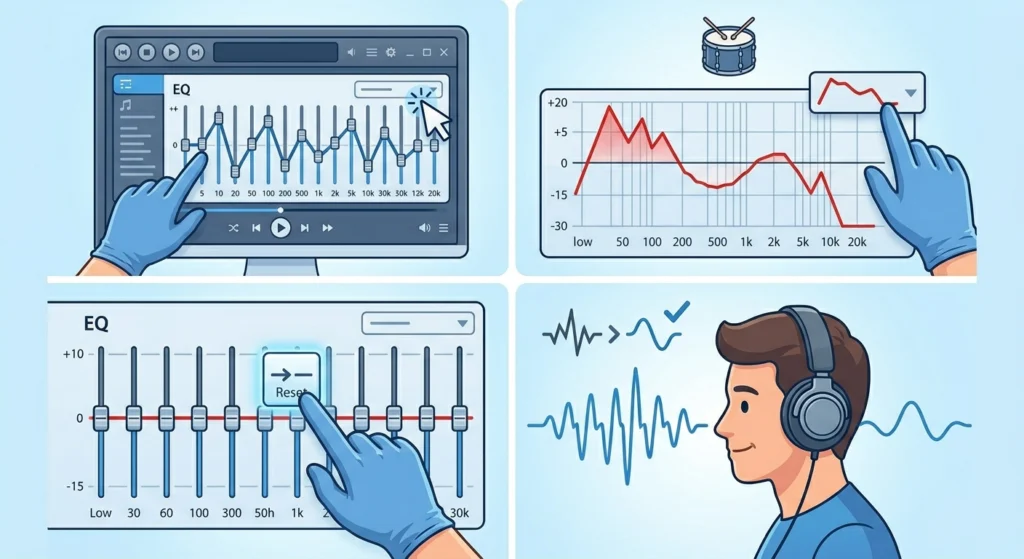
A misconfigured equalizer is a surprisingly common cause of muffled headphone audio. If the high frequencies (4kHz and above) are pulled down while low-mid frequencies are boosted, the result sounds exactly like muffled audio – even on high-quality headphones.
- Step 1: Open the equalizer in the media player, audio software, or system sound settings
- Step 2: Check if a preset is active – look for ‘Bass Boost’, ‘Acoustic’, ‘Club’, or any preset that reduces treble
- Step 3: Reset the equalizer to ‘Flat’ or ‘Default’
- Step 4: Play audio and compare
If using third-party software like Equalizer APO or Boom 3D, temporarily disabling the application entirely is the fastest way to confirm if EQ settings are the culprit.
Fix 5: Update or Reinstall the Audio Driver
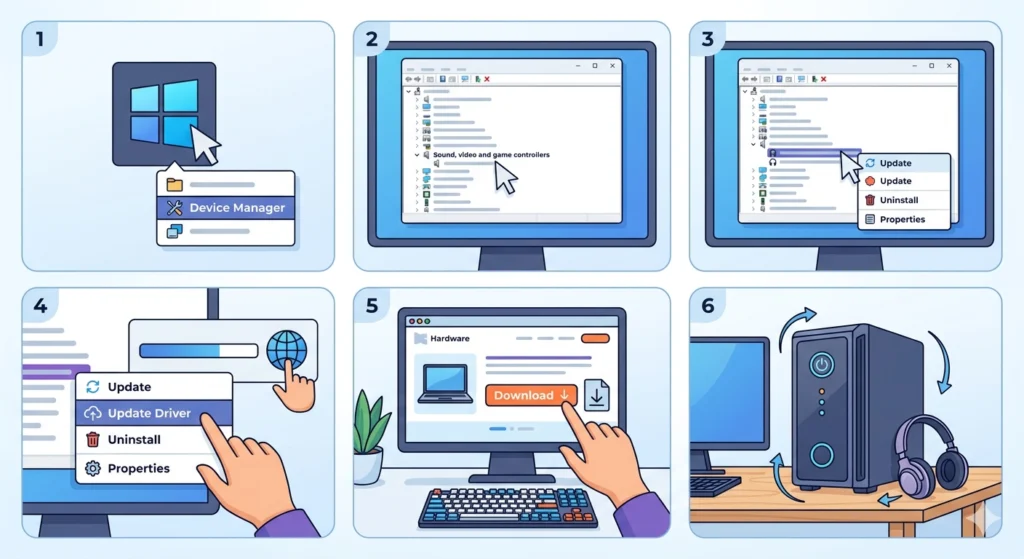
Outdated or corrupted audio drivers cause a range of playback issues, including distortion and muffled output. This is especially relevant after a major Windows update, which sometimes replaces custom drivers with generic ones.
- Step 1: Right-click the Start menu and open ‘Device Manager’
- Step 2: Expand ‘Sound, video and game controllers’
- Step 3: Right-click the audio device associated with the headphones
- Step 4: Select ‘Update driver’, then ‘Search automatically for drivers’
- Step 5: If no update is found, visit the manufacturer’s website and manually download the latest driver
- Step 6: Restart the computer after installation
For USB headphones or DAC-connected headphones, also check the manufacturer’s utility software – brands like SteelSeries, HyperX, and Logitech use companion apps that include their own audio processing layers.
Fix 6: Fix Bluetooth Codec Settings for Wireless Headphones
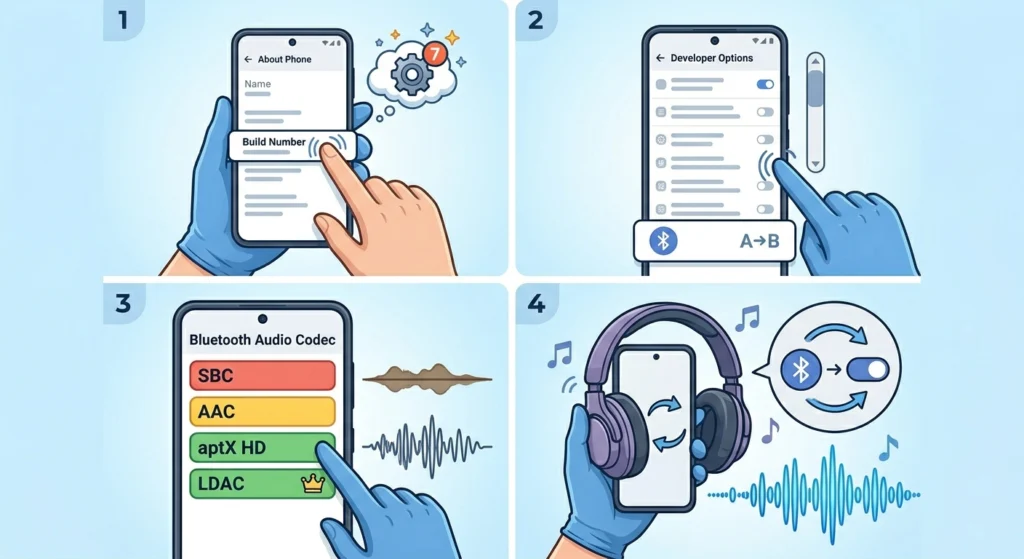
Wireless headphones that sound muffled are often transmitting audio on a low-quality Bluetooth codec. When a device defaults to SBC instead of AAC, aptX, or LDAC, the audio is significantly compressed – producing that familiar muddy, flat sound.
- Step 1: On Android, enable Developer Options (go to ‘About Phone’ and tap ‘Build Number’ seven times)
- Step 2: Open Developer Options and scroll to ‘Bluetooth Audio Codec’
- Step 3: Select a higher-quality codec – LDAC, aptX HD, or AAC depending on what both the phone and headphones support
- Step 4: Disconnect and reconnect the headphones for the change to take effect
On Windows, re-pairing Bluetooth earbuds for stereo sound can also resolve muffled or mono-sounding wireless audio caused by incorrect profile selection.
Pro-Tip: If the headphones support LDAC (Sony, some Jabra and Sennheiser models), enabling it at ‘990kbps (Prioritize Sound Quality)’ delivers near-lossless audio wirelessly – a dramatic difference from the default SBC connection.
Fix 7: Check the Headphone Jack and Cable
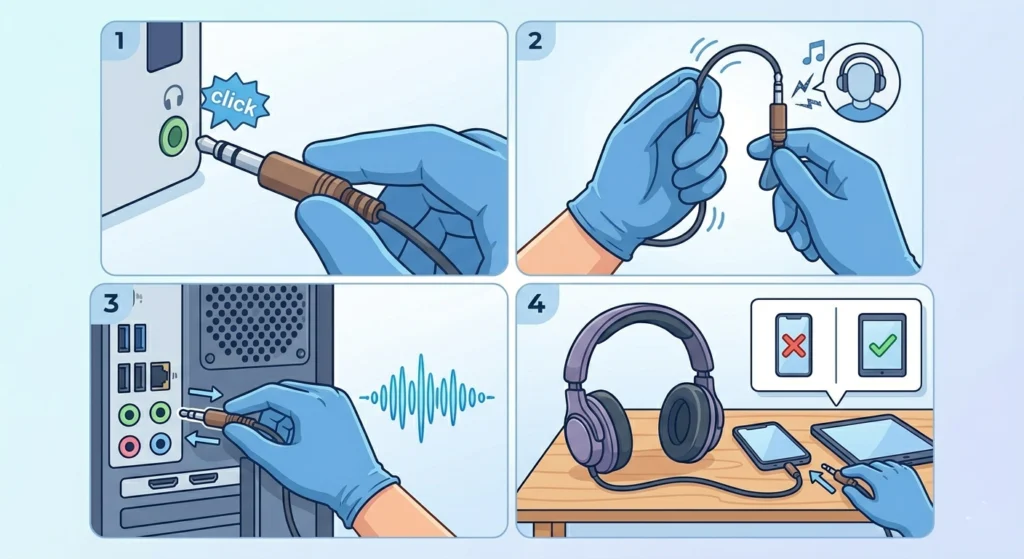
For wired headphones, a partially inserted jack or a damaged cable is often the cause of muffled audio. A 3.5mm plug that is not fully seated makes only partial contact with the audio contacts, cutting off high-frequency response entirely.
- Step 1: Firmly press the headphone jack all the way into the port – there should be a clear click or resistance when fully seated
- Step 2: Gently wiggle the cable near the jack while audio plays – if the sound changes, the cable is damaged
- Step 3: Try a different audio port if available (front panel vs rear panel on a desktop)
- Step 4: If possible, test the headphones on a different device to isolate whether the issue is the cable or the source
Replacing a detachable cable is a quick, inexpensive fix. Many mid-range to high-end headphones (like the Audio-Technica ATH-M50x or Beyerdynamic DT 770) use standard detachable cables that are easy to swap.
Fix 8: Reset Audio Settings to Default
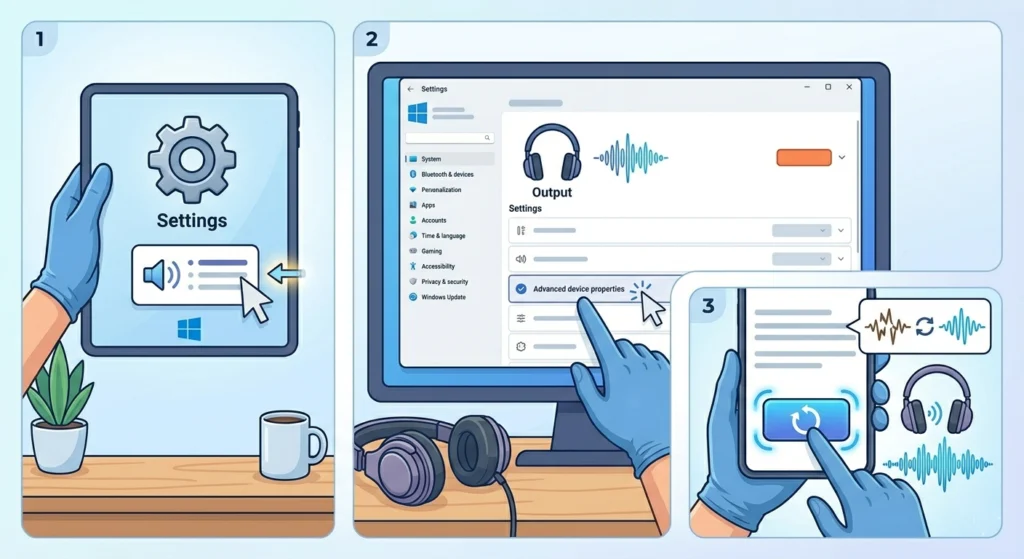
Sometimes the fastest solution is resetting all audio configuration back to factory defaults. This clears any conflicting settings introduced by apps, drivers, or manual adjustments.
- Step 1: Open Windows Sound settings
- Step 2: Locate the headphone device under ‘Output’
- Step 3: Click on the device and scroll to find the reset option
A full guide on resetting audio settings on Windows 11 walks through each option in detail, including how to clear per-app audio preferences that can override system settings.
Tips for Preventing Muffled Sound
- Store headphones in a case or pouch to prevent dust buildup on the grilles
- Clean the ear cushions with a dry cloth every few weeks, especially if used during workouts
- Avoid maximum volume levels for extended periods – driver distortion from overdriving can cause permanent muffled audio
- Keep audio drivers updated, especially after major OS updates
- When setting up a new device, always verify the audio format and sample rate match the intended use
- For Bluetooth headphones, always check which codec is active after pairing on a new device
Common Problems and Quick Solutions
Muffled Only in One Ear
This usually points to a hardware issue – either a damaged driver, a faulty solder joint in the cable, or debris blocking one driver. Check the cable first by wiggling it near the headphone housing. If that changes the sound, the cable or connection point is the issue.
Sounds Clear at Low Volume But Muffled at High Volume
This is a sign of driver distortion or clipping. The drivers may be damaged, or the audio output level is being pushed beyond what the headphones are rated for. Reduce the volume to 70-80% and use amplification at the source level instead.
Muffled After a Windows Update
Windows updates frequently replace manufacturer audio drivers with generic Microsoft ones. Reinstalling the original driver from the manufacturer’s website – not through Windows Update – usually resolves this immediately.
Bluetooth Headphones Sound Fine on Phone but Muffled on PC
The PC is likely connecting via HFP (Hands-Free Profile) instead of A2DP (stereo audio profile). This happens when a microphone app or communication software has taken control of the headset. Closing those apps and checking audio input device settings on Windows 11 typically resolves this.
Muffled After Getting Headphones Wet
Moisture inside the drivers will muffle audio until it evaporates. Place the headphones in a dry, warm area – never use direct heat. Allow at least 24-48 hours before testing. Silica gel packets placed near (not touching) the headphones can speed up drying.
Frequently Asked Questions
Why do headphones sound muffled all of a sudden?
Sudden muffled audio is usually caused by a software change – a Windows update that replaced the driver, an audio app enabling a new effect, or a Bluetooth profile switch. Start by disabling audio enhancements and checking the driver version before assuming hardware failure.
Can dirty headphones cause muffled sound?
Yes, absolutely. Earwax and dust accumulate on the speaker grille mesh and physically block the acoustic output. This is one of the most common causes for in-ear monitors and on-ear headphones used daily. Regular cleaning prevents and often fixes this issue entirely.
Does low battery cause muffled Bluetooth headphone sound?
Yes. When a Bluetooth headphone battery is critically low, many devices reduce processing power and switch to a lower-quality audio codec to conserve energy. This results in noticeably flatter, more muffled audio. Charging the headphones to full typically restores quality.
Why do headphones sound muffled on a new phone or laptop?
The new device may be using a different audio codec, a lower sample rate, or has audio enhancement features enabled by default. Check the sound settings, disable enhancements, and if using Bluetooth, verify which codec is active in developer or advanced audio settings.
Can an equalizer fix muffled headphones?
If the muffled sound is caused by software settings or a headphone that naturally lacks high-frequency response, boosting the 4kHz to 10kHz range in an equalizer can improve clarity significantly. However, if the cause is physical damage or a hardware fault, an EQ adjustment only partially masks the problem.
Why do headphones sound muffled when connected via USB?
USB headphones rely on their own built-in DAC (digital-to-analog converter) and driver. If the driver is outdated or conflicting with another audio device, audio quality suffers. Reinstalling the USB headphone driver or trying a different USB port usually resolves this.
Is muffled sound a sign of damaged headphones?
Not always. While physical driver damage can cause muffled audio, software issues, dirty grilles, incorrect settings, and poor codec selection are far more common causes. Work through software and physical cleaning fixes first before concluding the hardware is damaged.
Why do headphones sound muffled when recording or on calls?
Communication apps like Zoom, Teams, and Discord activate the HFP Bluetooth profile instead of A2DP, which dramatically reduces audio quality. They also enable their own noise suppression and microphone enhancement algorithms that affect playback. Disabling app-level audio processing or adjusting microphone detection settings typically resolves this.
Can the headphone jack cause muffled sound?
Yes. A dirty or oxidized 3.5mm headphone jack creates poor contact between the plug and the socket, attenuating certain frequency ranges. Cleaning the jack with a cotton swab lightly dampened with isopropyl alcohol can restore full contact and fix the muffled audio.
Do headphone drivers wear out and become muffled over time?
Driver degradation is real but gradual. The voice coil or diaphragm can weaken after years of heavy use or overdriving at high volumes. This kind of wear produces a subtle loss of clarity and detail over time rather than sudden muffled audio. Sudden changes almost always point to software or physical obstruction rather than gradual driver aging.