
Headphones that keep cutting out mid-song or during a call are one of the most frustrating audio problems out there. Whether it is a wired pair or a Bluetooth set, the fix usually comes down to a handful of common causes – and most of them are solvable in minutes without any special tools. This guide walks through every proven fix, step by step, so the audio stays smooth and uninterrupted.
Quick Summary Table
| Problem Type | Most Likely Cause | Quick Fix |
|---|---|---|
| Wired headphones cut out | Damaged cable or dirty jack | Clean the jack, wiggle-test the cable |
| Bluetooth cuts out | Interference or low battery | Charge fully, move away from Wi-Fi routers |
| Cuts out on one side | Loose internal wire or driver issue | Check balance settings, re-seat the cable |
| Cuts out on PC/Windows | Driver or audio settings issue | Update drivers, check audio output settings |
| Cuts out after a few minutes | Power management or auto-sleep | Disable USB selective suspend, update firmware |
Fix 1: Clean the Headphone Jack and Plug
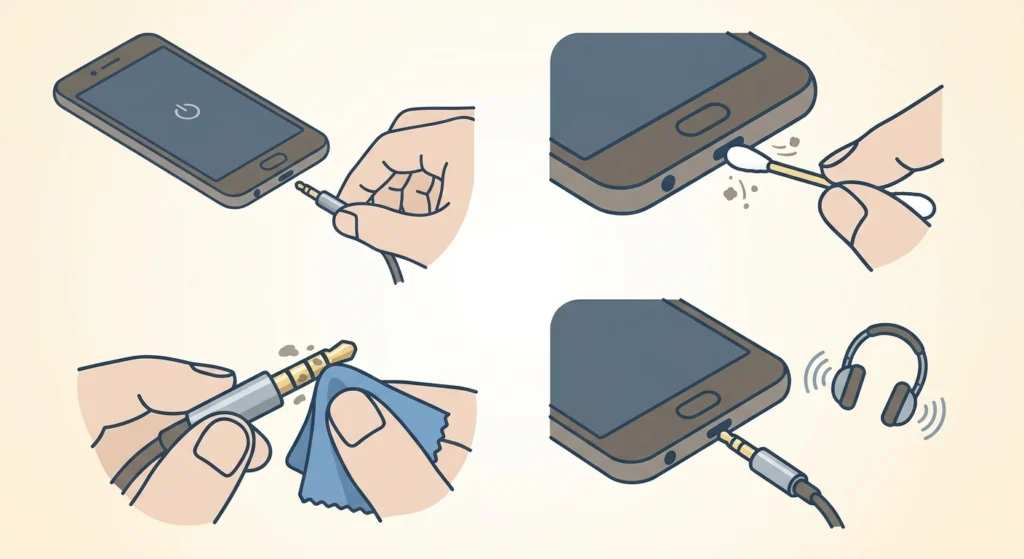
A dirty or corroded 3.5mm jack is one of the most overlooked reasons wired headphones cut out. Lint, dust, and pocket debris build up inside the port over time, creating a poor connection between the plug and the socket. The good news is this takes under two minutes to fix.
- Step 1: Turn off the device and remove the headphone plug from the port.
- Step 2: Take a dry cotton swab or a soft, lint-free cloth and gently clean the inside of the headphone jack. Avoid anything wet.
- Step 3: Inspect the headphone plug itself. If there is visible grime or oxidation on the metal contact bands, clean them with a dry cloth.
- Step 4: Re-insert the plug firmly and test the audio.
Most people find this alone resolves the cutting-out problem, especially on older phones or laptops that get heavy daily use.
Fix 2: Check and Replace the Headphone Cable
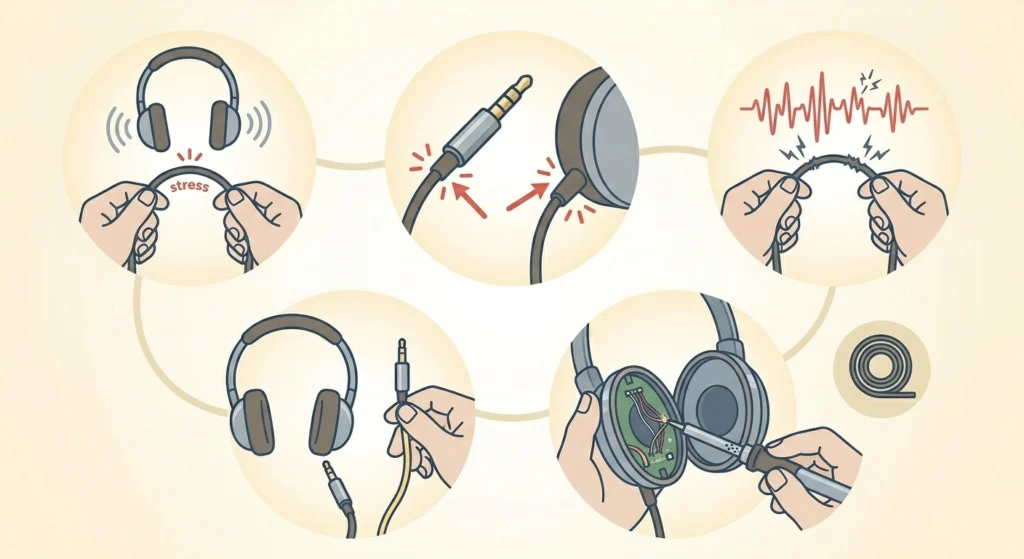
Cables are the most physically stressed part of any wired headphone. Repeated bending, especially near the plug or the ear cup joints, causes internal wire breaks that create intermittent audio dropouts. The cable might look fine on the outside while the copper strands inside are already broken.
- Step 1: With music playing, slowly flex the cable along its entire length while listening for changes in the audio.
- Step 2: Pay extra attention near the 3.5mm plug and where the cable enters each ear cup – these are the highest-stress points.
- Step 3: If the audio cuts out or crackles when bending a specific section, that is where the break is.
- Step 4: If the headphones have a detachable cable, swap it with a known-good replacement cable and test again.
- Step 5: For headphones with a fixed cable, the damaged section can sometimes be repaired with soldering, or a replacement cable can be sourced from the manufacturer.
Pro-Tip: When storing headphones, always coil the cable loosely in a figure-eight pattern rather than wrapping it tightly around the headphones. Tight wrapping is the number one cause of internal wire fractures near the plug.
Fix 3: Fix Bluetooth Signal Interference and Range Issues
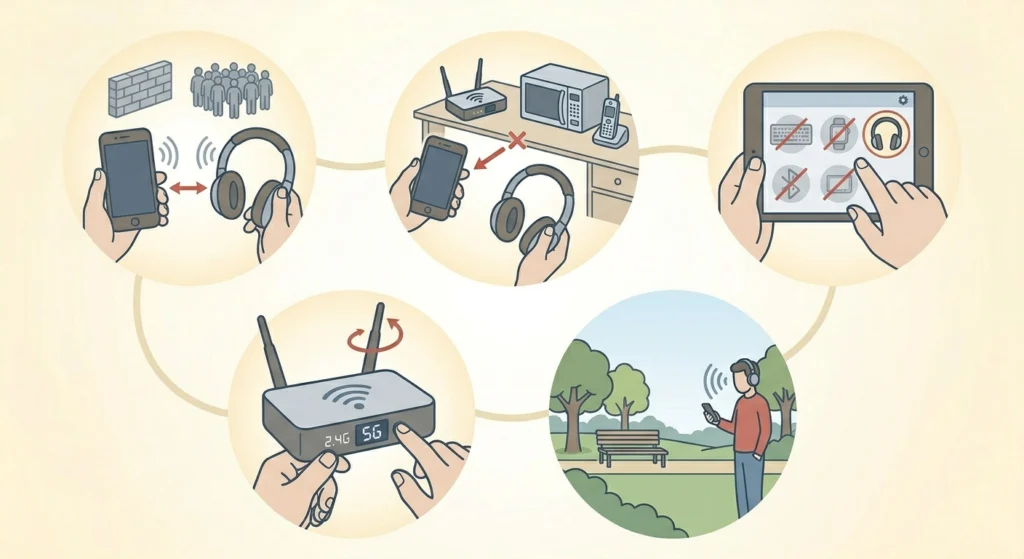
Bluetooth headphones cutting out is almost always a wireless signal problem. The 2.4GHz band that Bluetooth uses is also shared by Wi-Fi routers, microwaves, and other wireless devices – all of which can cause dropouts, especially in busy environments.
- Step 1: Move the source device (phone, laptop, or tablet) closer to the headphones. Bluetooth range drops fast through walls and crowds.
- Step 2: Move away from Wi-Fi routers, microwaves, and cordless phone bases. Even a metre or two of distance makes a difference.
- Step 3: Turn off other Bluetooth devices nearby that are paired to the same source device – they can compete for the connection.
- Step 4: If on Wi-Fi, try switching the router to the 5GHz band to reduce 2.4GHz congestion.
- Step 5: Test outdoors or in an open space to confirm whether the environment is causing the interference.
Fix 4: Re-Pair the Bluetooth Connection
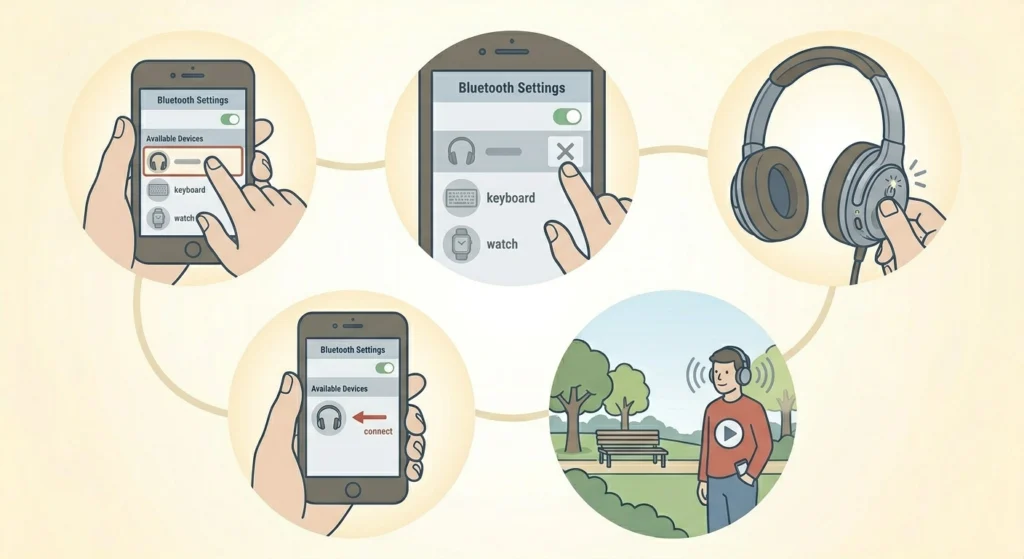
Corrupted pairing data is a surprisingly common cause of Bluetooth audio cutting out. This often happens after a firmware update on either the headphones or the source device, or if the headphones were paired to too many devices at once. A fresh pairing usually clears this up completely. For a detailed walkthrough, the guide on how to re-pair Bluetooth earbuds for stereo sound on Windows covers the process in full.
- Step 1: On the source device, go to Bluetooth settings and find the headphones in the paired device list.
- Step 2: Select ‘Forget’ or ‘Unpair’ to remove the existing connection.
- Step 3: Put the headphones into pairing mode (usually by holding the power or pairing button for a few seconds until the LED flashes).
- Step 4: Search for the headphones on the source device and pair fresh.
- Step 5: Test playback for at least five minutes to confirm the dropouts are gone.
Fix 5: Charge the Headphones Fully
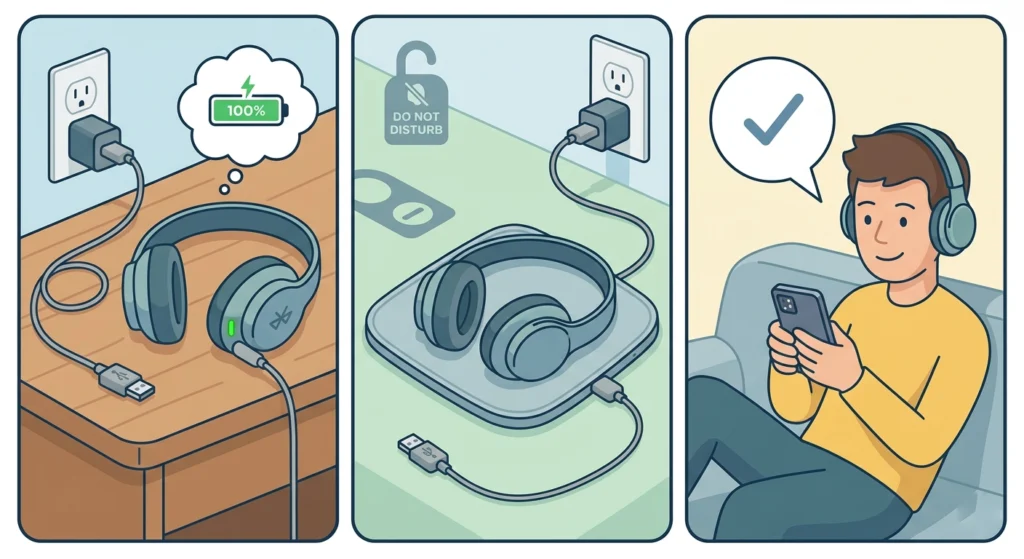
Low battery is one of the sneakiest reasons Bluetooth headphones cut out. As the battery drops below a certain level, the wireless radio draws less power to compensate, which weakens the signal and causes dropouts – even if the battery indicator shows some charge remaining.
- Step 1: Charge the headphones to 100% using the original or manufacturer-approved cable and charger.
- Step 2: Let them charge uninterrupted rather than using them while charging, as this can cause fluctuations.
- Step 3: Test the audio immediately after a full charge and compare the dropout frequency.
If the battery drains unusually fast or the headphones still cut out even at full charge, the battery may need replacement – this is common in headphones that are two or more years old with heavy daily use.
Fix 6: Update or Reinstall Audio Drivers on PC
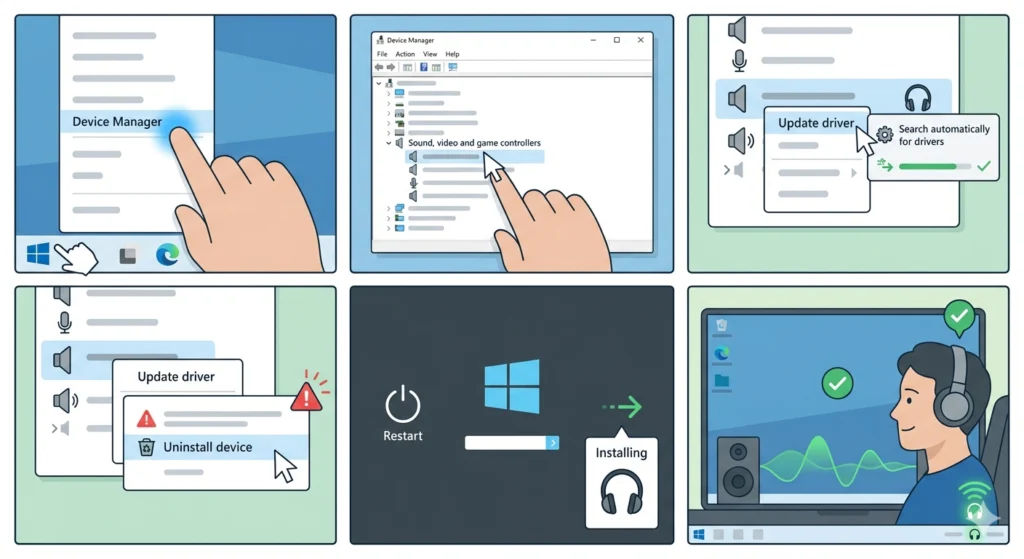
On Windows, outdated or corrupted audio drivers are a frequent cause of headphones cutting out. This applies to both wired and Bluetooth headphones connected to a PC. If the issue started after a Windows update, a driver rollback or reinstall usually fixes it quickly. Checking the audio output settings on Windows 11 is a smart first step before going deeper into driver issues.
- Step 1: Right-click the Start button and select ‘Device Manager’.
- Step 2: Expand ‘Sound, video and game controllers’ and find the audio device or headphone entry.
- Step 3: Right-click it and select ‘Update driver’, then choose ‘Search automatically for drivers’.
- Step 4: If no update is found, right-click the device again and select ‘Uninstall device’.
- Step 5: Restart the PC – Windows will automatically reinstall the audio driver on boot.
- Step 6: Test the headphones after the driver reinstallation completes.
Pro-Tip: For Bluetooth headphones specifically, also check the Bluetooth adapter driver under ‘Bluetooth’ in Device Manager and update it separately. A stale Bluetooth driver is just as likely to cause dropouts as the audio driver.
Fix 7: Disable Audio Enhancements and Exclusive Mode
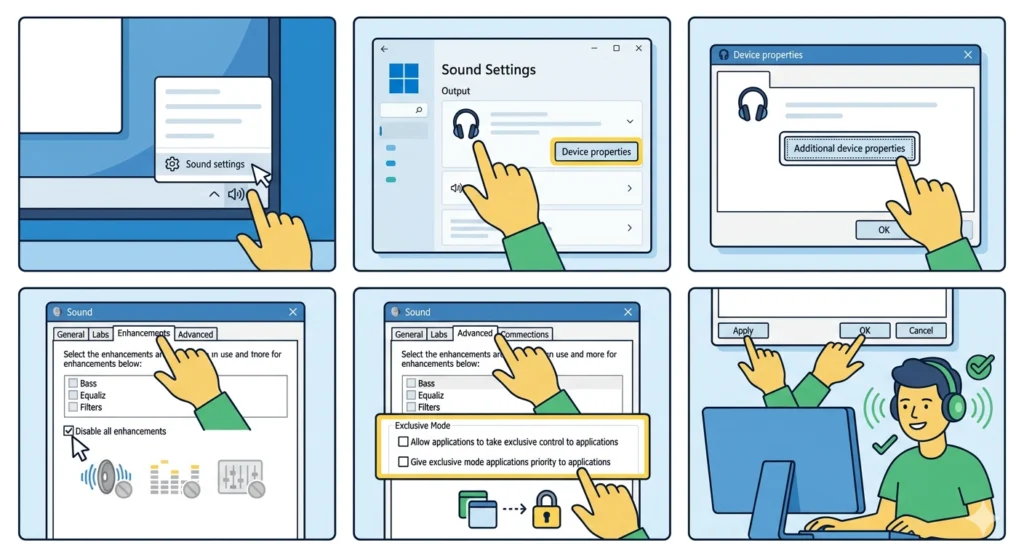
Windows audio enhancements – features like ‘Bass Boost’, ‘Room Correction’, and ‘Loudness Equalization’ – can conflict with certain headphone drivers and cause stuttering or cutting out. Exclusive Mode, which allows one application to take full control of the audio device, also causes dropouts when multiple apps try to use the headphones at once.
- Step 1: Right-click the speaker icon in the taskbar and select ‘Sound settings’ or ‘Open Sound settings’.
- Step 2: Click on the headphones listed under output devices, then select ‘Device properties’.
- Step 3: Click ‘Additional device properties’ to open the old-style Sound panel.
- Step 4: Go to the ‘Enhancements’ tab and check ‘Disable all enhancements’.
- Step 5: Go to the ‘Advanced’ tab and uncheck both ‘Allow applications to take exclusive control of this device’ options.
- Step 6: Click ‘Apply’ and ‘OK’, then test the headphones.
Fix 8: Disable Power Management for USB and Bluetooth Devices
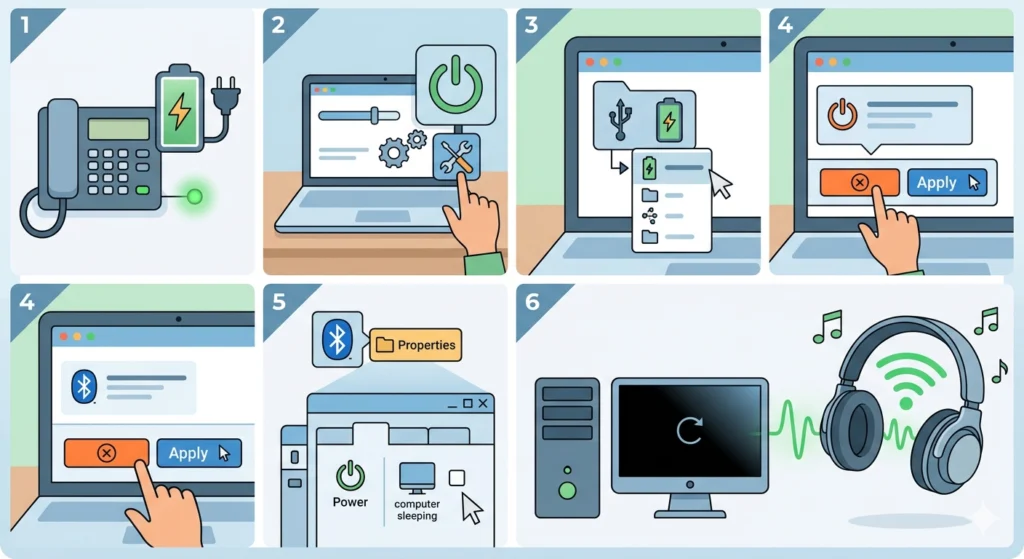
Windows has an aggressive power-saving feature called ‘USB Selective Suspend’ that cuts power to USB ports and Bluetooth adapters when it thinks they are idle. This is a very common cause of headphones cutting out after a few minutes of inactivity, or when transitioning between songs or pausing playback.
- Step 1: Open ‘Control Panel’ and go to ‘Power Options’.
- Step 2: Click ‘Change plan settings’ next to the current power plan, then ‘Change advanced power settings’.
- Step 3: Find ‘USB settings’ and expand it, then expand ‘USB selective suspend setting’.
- Step 4: Set it to ‘Disabled’ and click ‘Apply’.
- Step 5: Also go to Device Manager, find the Bluetooth adapter, right-click it, select ‘Properties’, go to the ‘Power Management’ tab, and uncheck ‘Allow the computer to turn off this device to save power’.
- Step 6: Restart the PC and test.
Fix 9: Reset the Headphones to Factory Settings
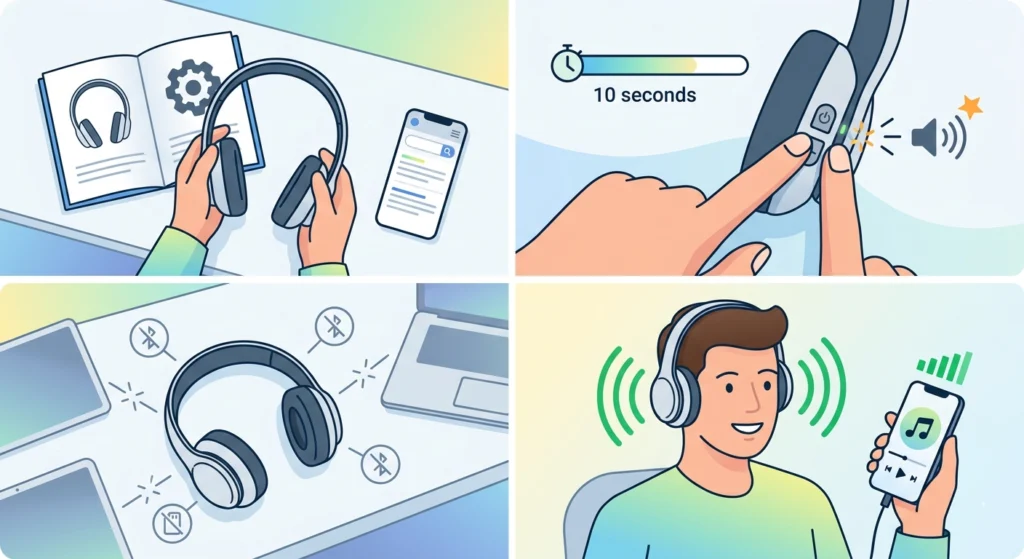
When none of the above fixes work for Bluetooth headphones, a factory reset clears all stored pairing data, equalizer settings, and firmware glitches that accumulate over time. The key is to follow the specific reset procedure for the headphone model, as it varies by brand.
- Step 1: Look up the exact reset procedure for the headphone model in the user manual or the manufacturer’s support page.
- Step 2: Most headphones reset by holding two buttons simultaneously (often the power button and volume down) for 5-10 seconds until an LED flashes or a voice prompt plays.
- Step 3: After the reset, the headphones will be in factory state with all pairings cleared.
- Step 4: Re-pair to the source device fresh and test for dropouts.
Tips for Preventing Headphones From Cutting Out
- Store wired headphones by coiling the cable loosely – never wrap it tightly around the device.
- Keep Bluetooth headphones charged above 20% to maintain strong signal output.
- Keep the source device within 5-10 metres and in line-of-sight when using Bluetooth.
- Clean the headphone jack and plug every few months with a dry swab to prevent contact issues.
- Update headphone firmware regularly through the manufacturer’s app when updates are available.
- Avoid keeping headphones near strong magnets, which can interfere with drivers and wireless components.
- Use the headphones with the device they are primarily paired to – managing audio input devices properly on Windows can prevent conflicts when switching between multiple output sources.
Common Problems and Troubleshooting
Headphones Only Cut Out on One Side
This usually points to a damaged cable near the affected ear cup, a bad solder joint inside the headphone, or an audio balance setting pushed to one side. Check the balance in sound settings first, then do the flex test on the cable near the ear cup. If the headphones are Bluetooth, also check if the issue is a mono audio mode being triggered accidentally.
Headphones Cut Out When Moving
Movement-related cutouts on wired headphones almost always mean a near-broken cable, especially near the plug. For Bluetooth headphones, the body blocking the signal between the source device and the headphones causes this – keep the phone in a front pocket rather than a back pocket for a stronger line-of-sight signal.
Headphones Cut Out Every Few Seconds
Rapid, rhythmic dropouts on Bluetooth headphones usually indicate heavy radio interference or the headphones are on the edge of their range. Moving closer to the source device or switching to a less congested environment almost always solves this. On wired headphones, a dirty jack causes this pattern – clean it first.
Headphones Cut Out After Windows Update
Windows updates frequently overwrite or corrupt audio drivers. After an update, go to Device Manager and reinstall the audio and Bluetooth drivers as described in Fix 6. Also check that the audio output device has not been reset to a default device – resetting audio settings on Windows 11 to a clean state can resolve conflicts introduced by the update.
Headphones Cut Out When Other Apps Are Open
This is the Exclusive Mode issue described in Fix 7. Disable it in the Advanced tab of the device properties. Also check if any communication apps like Teams, Discord, or Zoom have taken exclusive control of the audio device – closing them while testing confirms whether they are the cause.
Frequently Asked Questions
Why do headphones keep cutting out randomly?
Random cutouts are most commonly caused by a damaged cable on wired headphones or Bluetooth interference on wireless ones. Low battery, corrupted audio drivers on PC, and dirty headphone jacks are also frequent causes. Working through the fixes in order – starting with the most physical causes – usually identifies the problem quickly.
Can a low battery really cause Bluetooth headphones to cut out?
Yes, absolutely. When the battery drops below around 15-20%, many Bluetooth headphones reduce the power sent to the wireless radio to extend runtime. This weakens the signal and makes dropouts much more frequent, even if the connection indicator still shows as connected. A full charge usually resolves this immediately.
How do you fix headphones that cut out when you move?
For wired headphones, the flex test on the cable will find a near-broken wire – usually near the plug or ear cup. For Bluetooth headphones, keep the source device in a front pocket and reduce obstructions between the headphones and the device. The human body absorbs Bluetooth signals significantly, so even a 90-degree turn can cause a dropout if the device is pocketed at the back.
Why do headphones cut out on one side only?
One-sided cutouts typically mean a cable break near the affected ear cup, a bad solder joint inside the driver housing, or a balance setting skewed to one channel. Check the sound settings balance first, then flex the cable at the ear cup entry point with audio playing to confirm a cable fault.
How do you fix Bluetooth headphones that keep disconnecting?
Start by forgetting and re-pairing the headphones fresh. Then charge them fully, move the source device closer, and eliminate nearby interference sources like routers and microwaves. If the problem persists, perform a factory reset on the headphones and pair again. On Windows, also check that power management is not shutting down the Bluetooth adapter.
Can a dirty headphone jack cause audio to cut out?
Yes, and more often than most people expect. Lint, oil from skin contact, and oxidation on the metal contacts all degrade the electrical connection, causing intermittent audio dropouts. A quick clean with a dry cotton swab fixes this in seconds and should be the first thing checked on older or heavily used devices.
Why do headphones cut out on PC but work fine on a phone?
This almost always points to a software issue on the PC rather than the headphones themselves. Outdated or corrupted audio drivers, Windows audio enhancements conflicting with the headphone profile, and Exclusive Mode issues are the main suspects. Since the headphones work on another device, the hardware is fine – the fix is on the PC side.
How do you stop headphones from cutting out during calls?
Call applications like Teams, Zoom, and Discord often switch to a lower-quality audio codec during calls, which can trigger dropouts if the Bluetooth connection is marginal. Keep the phone or laptop close, disable audio enhancements in Windows sound settings, and make sure no other apps are competing for the audio device. Disabling Exclusive Mode in the Advanced tab of the device properties also helps significantly.
Is it worth repairing headphones that cut out, or should they just be replaced?
If the headphones are high-quality or higher-priced, repair is almost always worth it. A cable replacement costs very little and fixes the most common wired dropout cause. Bluetooth headphones with a battery issue can often have the battery replaced by a repair shop. The decision changes only if the internal drivers are damaged, which is rare and usually caused by physical impact.
Why do headphones cut out more in some places than others?
This is a Bluetooth interference issue. Offices, apartments, and public spaces are full of competing 2.4GHz signals from Wi-Fi routers, other Bluetooth devices, and microwaves. The more devices in the area, the more congested the spectrum. Outdoors or in open spaces with fewer wireless devices, the same headphones will hold a much stronger, more stable connection.