
A headphone jack that stopped working is one of the most frustrating audio problems – especially when it happens right before something important. Whether the sound cuts out randomly, only plays from one side, or produces no audio at all, the good news is that most headphone jack issues are fixable without replacing the device. This step-by-step guide covers the most reliable solutions, from quick physical fixes to software-level repairs.
Quick Summary: What to Try First
| Fix | Best For | Difficulty |
|---|---|---|
| Clean the headphone jack port | No sound or crackling audio | Easy |
| Re-insert the headphone plug | Loose connection, one-sided audio | Easy |
| Check audio output settings | Device not recognizing headphones | Easy |
| Update or reinstall audio drivers | Jack detected but no sound | Moderate |
| Reset audio settings | Software conflict after update | Moderate |
| Inspect and resolder the jack | Physical damage or internal break | Advanced |
Fix 1: Clean the Headphone Jack Port
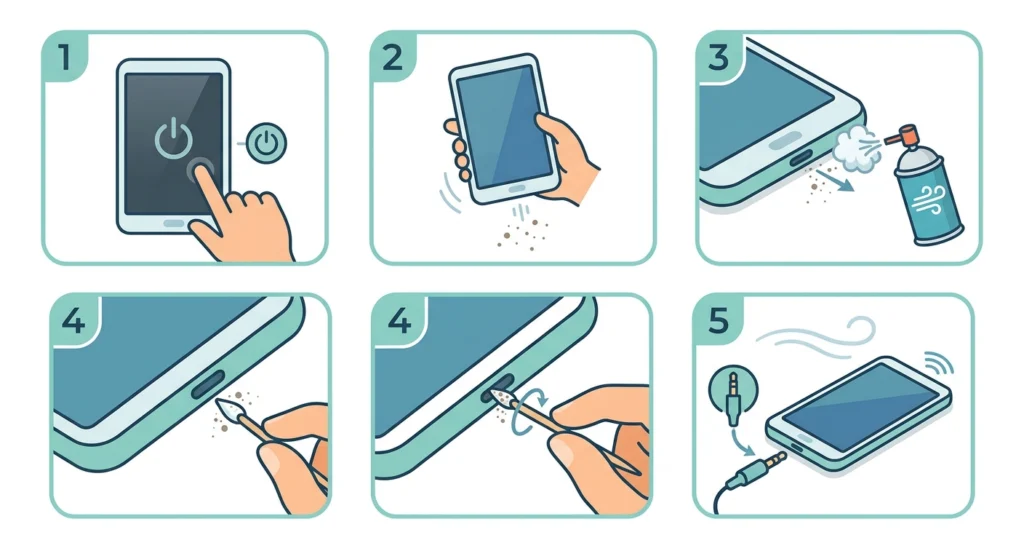
Before touching any settings, start with the physical port itself. Dust, lint, and debris are the most common culprits behind a headphone jack that suddenly stops working – and this fix takes under two minutes.
- Step 1: Power off the device completely before cleaning.
- Step 2: Hold the device with the jack port facing downward and gently tap to loosen debris.
- Step 3: Use a can of compressed air to blow short bursts into the port. Keep the nozzle slightly away from the opening to avoid moisture buildup.
- Step 4: For stubborn buildup, wrap a toothpick with a tiny amount of dry cotton and gently rotate it inside the port. Never use metal tools.
- Step 5: Let the port air dry for a few minutes, then reconnect the headphones and test.
This works best when the audio problem appeared gradually or after carrying the device in a pocket or bag. Most people find that a good cleaning resolves intermittent crackling or one-sided audio right away.
Fix 2: Re-Insert the Headphone Plug Properly
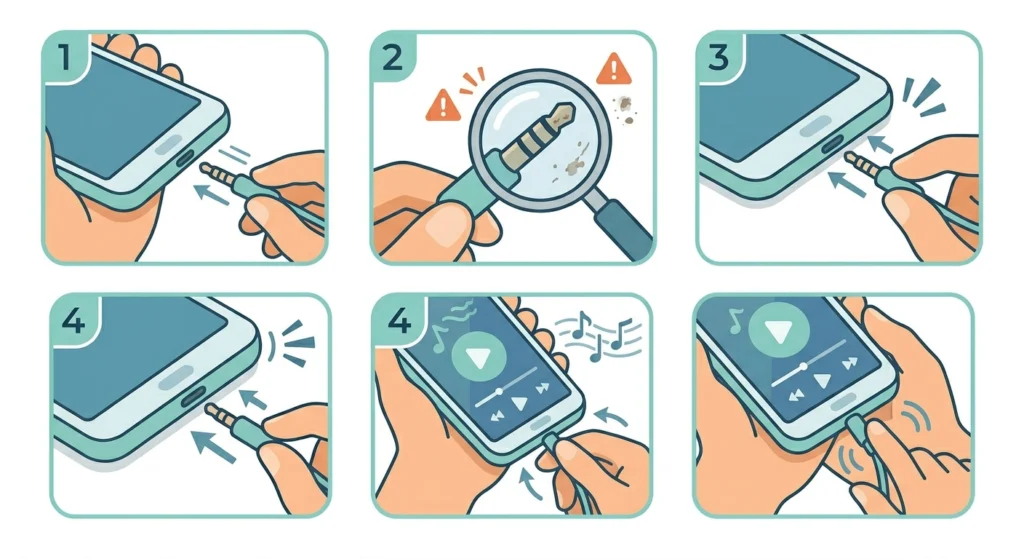
A partially inserted plug is one of the easiest things to overlook. The key is making sure the plug clicks or seats fully into the jack – especially with 3.5mm TRRS connectors that include a microphone, since they have an extra ring that needs to align correctly.
- Step 1: Remove the headphone plug completely from the jack.
- Step 2: Inspect the plug tip for visible damage, corrosion, or bent contacts.
- Step 3: Reinsert the plug slowly and firmly until it stops. There should be a slight resistance followed by a secure seat.
- Step 4: Gently wiggle the plug while music is playing to check for intermittent connection. If audio cuts in and out when moved, the jack or plug may need further repair.
Fix 3: Check and Change the Audio Output Settings
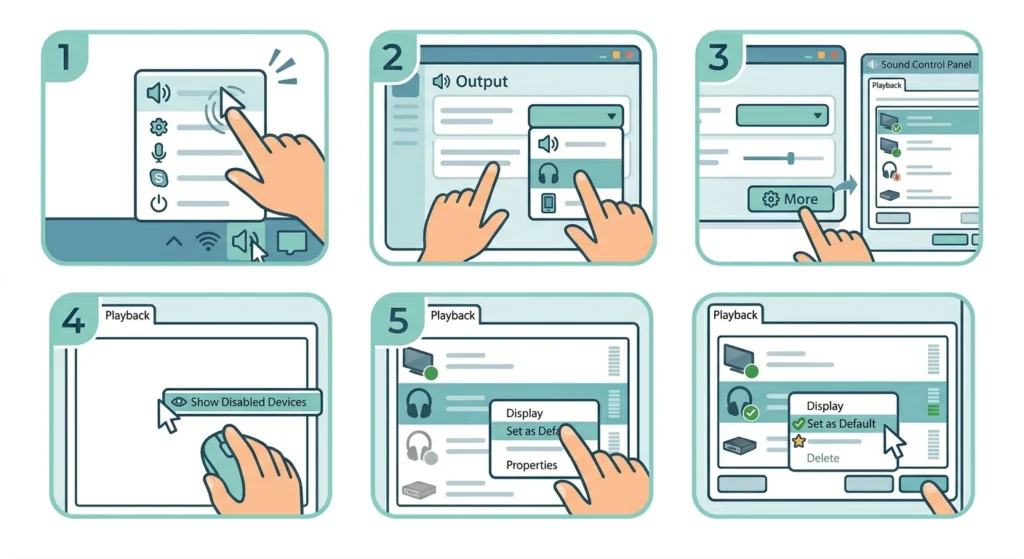
Sometimes the device is simply routing audio to the wrong output. This is a common software-side reason why a headphone jack appears to stop working – the hardware is fine, but the system does not know where to send the sound.
On Windows 11, adjusting audio output settings is straightforward through the Sound control panel. Here is how to do it:
- Step 1: Right-click the speaker icon in the system tray and select ‘Sound settings’.
- Step 2: Under the ‘Output’ section, click the dropdown and select the headphone or headset option.
- Step 3: If the headphone option is not listed, click ‘More sound settings’ and check the ‘Playback’ tab for any disabled devices.
- Step 4: Right-click inside the Playback tab and enable ‘Show Disabled Devices’ to reveal hidden entries.
- Step 5: Right-click the headphone entry and select ‘Enable’, then ‘Set as Default Device’.
On smartphones, go to Settings, then Sound or Audio, and confirm the output is not locked to speaker or Bluetooth mode.
Fix 4: Update or Reinstall the Audio Driver
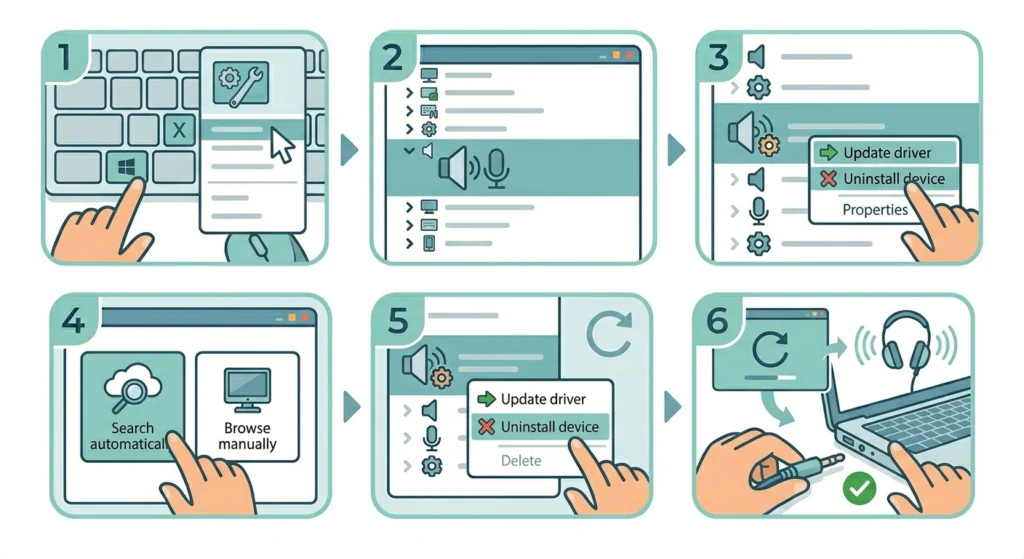
An outdated, corrupt, or conflicting audio driver is a common software reason a headphone jack stops functioning after a Windows update or system change. Reinstalling the driver essentially gives the audio system a clean start.
- Step 1: Press Windows + X and select ‘Device Manager’.
- Step 2: Expand the ‘Sound, video and game controllers’ section.
- Step 3: Right-click the audio device (such as Realtek High Definition Audio) and select ‘Update driver’.
- Step 4: Choose ‘Search automatically for drivers’ and let Windows find and install the latest version.
- Step 5: If that does not work, right-click the driver again and select ‘Uninstall device’. Restart the computer – Windows will reinstall the driver automatically on reboot.
- Step 6: Reconnect the headphones and test audio through the jack.
For a more thorough reset after driver issues, resetting audio settings in Windows 11 can clear conflicts that a simple driver update might not resolve.
Pro Tip: If the headphone jack works in one app but not another, check the app-specific volume mixer settings. Right-click the speaker icon, select ‘Open Volume Mixer’, and make sure the app is not muted or redirected to a different output.
Fix 5: Manage Audio Input Devices for Headsets with Microphones
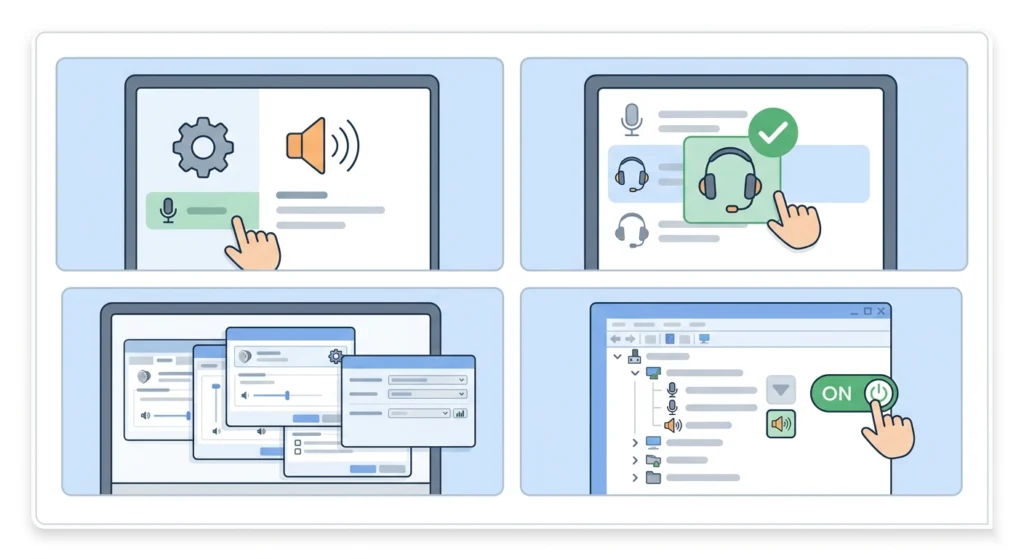
Headsets that use a 3.5mm TRRS connector (which includes a microphone) sometimes stop working because the system treats the microphone input and headphone output as separate devices. If the audio only works partially – for example, sound comes through but the mic is silent, or vice versa – this is likely the cause.
- Step 1: Open Sound settings and navigate to the ‘Input’ section.
- Step 2: Check if the headset microphone is listed and selected as the default input.
- Step 3: For a more detailed view, use the guide on managing audio input devices in Windows 11 to configure input routing correctly.
- Step 4: If the mic does not appear, check Device Manager under ‘Audio inputs and outputs’ and enable it from there.
Fix 6: Inspect and Repair the Headphone Jack Physically
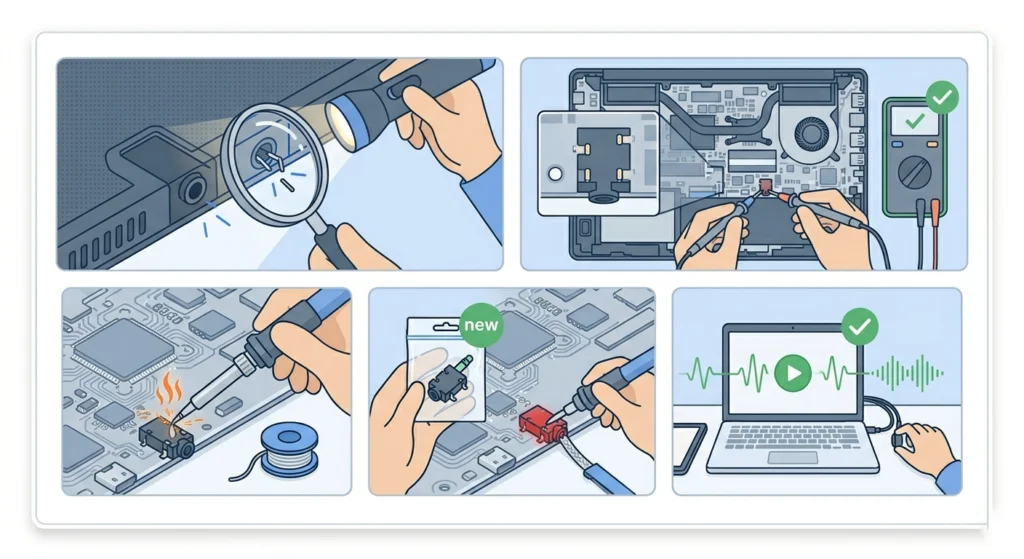
If none of the software fixes work and the port still does not respond, the jack itself may have a physical fault – a bent contact pin, a broken solder joint, or a cracked port housing. This happens most often with devices that have been dropped or had the cable yanked forcefully.
- Step 1: Use a flashlight and magnifying glass to look inside the port for any visibly bent metal contacts or debris that compressed air could not remove.
- Step 2: For laptops and phones with exposed mainboards (for the experienced), carefully check the solder joints on the back of the jack with a multimeter to confirm continuity.
- Step 3: If a solder joint is cracked, use a fine-tip soldering iron to reflow the joint. Apply fresh solder if needed, keeping heat exposure brief to protect nearby components.
- Step 4: If the jack housing itself is damaged, order a compatible replacement jack and desolder the old one before installing the new component.
- Step 5: Reassemble and test before closing the device.
Pro Tip: Before attempting any soldering repair, check the device warranty status. Physical repairs on a device still under warranty may void coverage. For high-value devices, professional repair is usually the safer option if unsure about soldering.
Tips for Keeping a Headphone Jack Working Long-Term
- Always remove headphone plugs by gripping the connector body, not the cable. Pulling on the cable repeatedly is one of the main reasons internal jack connections break over time.
- Store devices without cables plugged in whenever possible. Constant pressure on the jack contact points causes gradual wear.
- Clean the port every few months with compressed air, especially for devices used in dusty or pocket environments.
- Use headphones with a right-angle or L-shaped connector when the device sits in a pocket – this reduces lateral pressure on the jack.
- Avoid using a 3.5mm adapter for extended periods. Adapters add weight and leverage to the port, increasing stress on the internal solder joints.
Common Headphone Jack Problems and Solutions
- No sound at all after plugging in: Start with cleaning the port, then check output settings to confirm the device recognizes the jack as the active output.
- Sound only from one ear: Usually caused by a partially inserted plug, a damaged TRRS connector, or a worn jack contact. Try a different pair of headphones to isolate whether the issue is the cable or the port.
- Crackling or static noise: Most often a dirty port or loose connection. Clean thoroughly and check that the plug seats fully.
- Headphones detected but no volume: A software issue – check output selection, app volume mixer, and consider resetting audio settings.
- Mic not working but audio is fine: The input device may not be set as default. Review input device settings to route the mic correctly.
- Jack works with some headphones but not others: The problematic headphones likely use a CTIA-standard TRRS connector while the device expects OMTP, or vice versa. Use a TRRS adapter to convert between standards.
- Jack stopped working after a Windows update: Audio driver conflict is the most likely cause. Uninstall and reinstall the audio driver, or perform a full audio settings reset.
Frequently Asked Questions
Why did the headphone jack suddenly stop working?
The most common causes are physical debris blocking the port, a software or driver issue after an OS update, a loose or damaged internal solder joint, or the audio output being routed to a different device in settings. Starting with a port cleaning and output setting check resolves most sudden failures.
Can a broken headphone jack be fixed at home?
Yes, in many cases. Cleaning, driver updates, and settings adjustments are all home-friendly fixes. Physical soldering repairs are also doable for those with some electronics experience, though professional repair is recommended for high-end or warranty-covered devices.
How do you know if the headphone jack is physically damaged?
Signs of physical damage include visible bent pins inside the port, a plug that feels loose or moves inside the socket, audio that cuts in and out when the plug is wiggled, and the port giving no response even after a clean reinstall of audio drivers.
Does cleaning the headphone jack really work?
Absolutely – and it is often the most underrated fix. Lint and dust compress into the port over time and can prevent the plug from making full contact with the internal connectors. A compressed air blast followed by a dry cotton swab often brings a ‘dead’ jack back to life instantly.
Why does sound only come from one ear on wired headphones?
This is usually caused by an incompletely inserted plug, a worn contact on one side of the jack, or a break in the headphone cable close to the connector. Try fully reinserting the plug, then test with a different pair of headphones to determine whether the issue is the cable or the port.
Will resetting audio settings delete anything?
No. Resetting audio settings in Windows 11 restores default volume levels and output configurations but does not remove files, installed programs, or personal data. It is a safe step to take when audio behavior becomes unpredictable after a system update.
Can a headphone jack wear out over time?
Yes. Most 3.5mm jacks are rated for between 5,000 and 10,000 insertion cycles. Frequent plugging and unplugging, combined with lateral stress from cables, gradually wears the metal contacts inside. When the jack fails from wear, replacement is the permanent solution.
What should be done if the headphone jack works but the microphone does not?
This is a separate audio input issue. Make sure the headset microphone is enabled and set as the default input device in Windows Sound settings. Reviewing the steps for managing audio input devices can help route the mic correctly without affecting the headphone audio output.
Is it worth repairing a broken headphone jack on a smartphone?
It depends on the device value and repair cost. Most smartphone headphone jack replacements are straightforward repairs that cost between $20 and $60 at a repair shop. For recent or high-value phones, repair is usually worthwhile. For older budget devices, a USB-C or Lightning audio adapter may be a faster alternative.
Why does the headphone jack work on some devices but not others?
Different headphones use different TRRS wiring standards – CTIA (used by most modern devices) and OMTP (used by some older Android phones). A headset built for one standard may produce no audio or partial audio on a device using the other. A simple TRRS adapter resolves this incompatibility without any hardware changes.