
Low volume on headphones is one of the most frustrating audio issues – especially when everything looks fine on the surface. The volume slider is maxed out, yet the sound still feels faint or distant. Before assuming the headphones are broken, there are several proven fixes that restore full audio output in just a few minutes. This guide walks through each solution clearly and directly.
Quick Summary
- Check and raise volume levels on both the device and the headphones
- Disable Loudness Equalization or audio enhancements in Windows settings
- Clean the headphone jack or charging port to remove debris
- Update or reinstall the audio driver on Windows
- Adjust the Communications tab to stop Windows from auto-lowering volume
- Reset audio settings if all else fails
- Check app-specific volume levels in the Volume Mixer
Fix 1: Check All Volume Controls
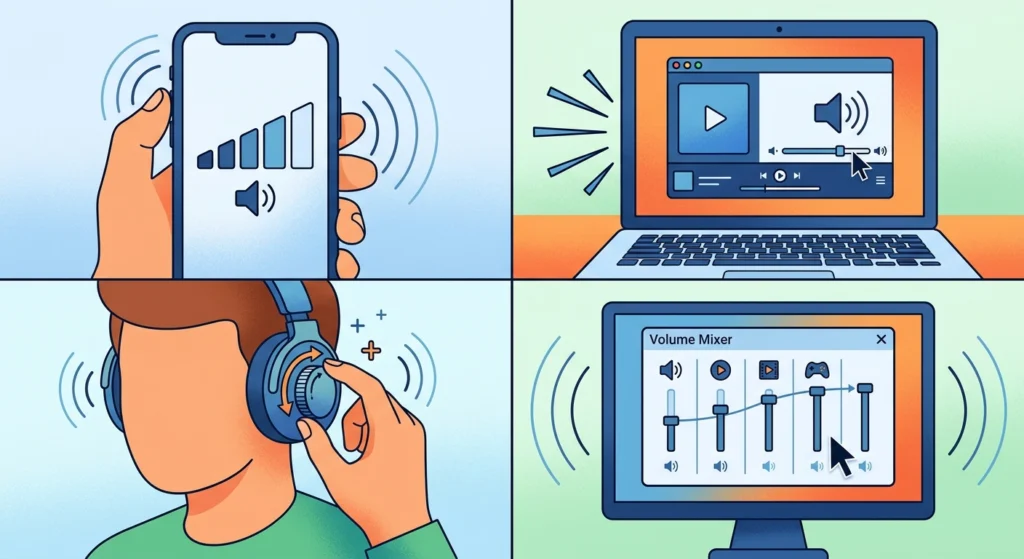
This sounds obvious, but the actual cause is often a volume setting that got lowered in the wrong place. There are usually multiple independent volume controls at play – the device system volume, the app volume, and the headphones themselves (if they have inline controls or buttons).
- Step 1: Press the volume up button on the device to make sure the system volume is at maximum.
- Step 2: Open the app playing the audio (YouTube, Spotify, video player) and check its internal volume slider.
- Step 3: If using headphones with an inline remote or rotary dial, make sure that physical control is fully turned up.
- Step 4: On Windows, right-click the speaker icon in the taskbar and select ‘Open Volume Mixer’ to confirm no individual app is set too low.
Most people find that one of these volume points is quietly sitting at 30-50% without realizing it.
Fix 2: Turn Off Audio Enhancements in Windows
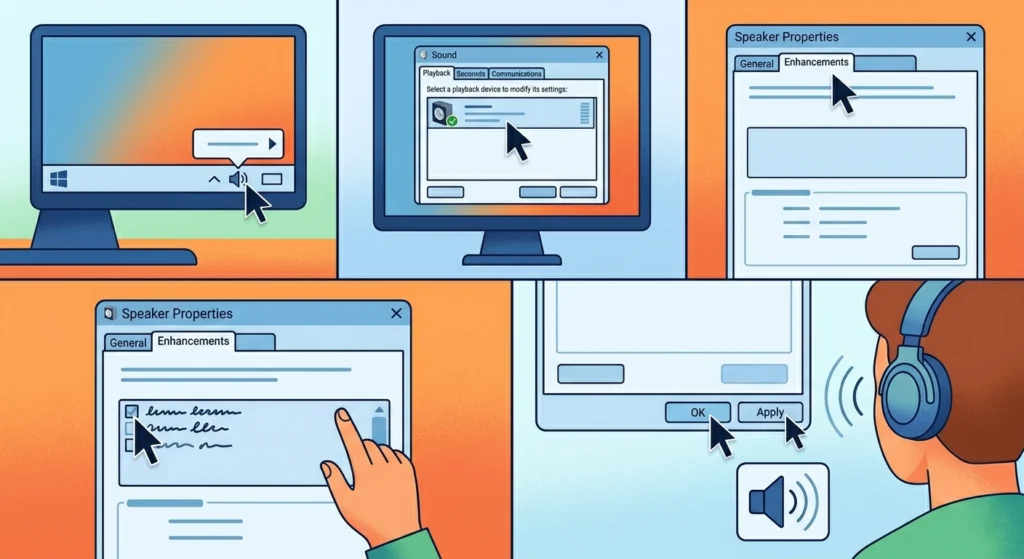
Windows has built-in audio enhancements that are supposed to improve sound quality, but they frequently interfere with output volume – especially the ‘Loudness Equalization’ feature. When active, this setting compresses the audio signal and can make headphones sound noticeably quieter.
- Step 1: Right-click the speaker icon in the taskbar and choose ‘Sounds’.
- Step 2: Go to the ‘Playback’ tab and double-click the headphones or audio output device.
- Step 3: Click the ‘Enhancements’ tab (or ‘Advanced’ on some systems).
- Step 4: Uncheck ‘Loudness Equalization’ and any other active enhancements.
- Step 5: Click ‘Apply’ then ‘OK’ and test the volume again.
This fix alone resolves the issue for a large number of users on Windows 10 and Windows 11. For a broader look at adjusting audio output settings on Windows 11, that guide covers additional playback configuration options worth reviewing.
Pro-Tip: If the ‘Enhancements’ tab is missing, the audio driver may not support it – or it may be labeled differently. Check the ‘Advanced’ tab and look for a ‘Signal Enhancements’ checkbox to disable instead.
Fix 3: Adjust the Communications Tab Settings
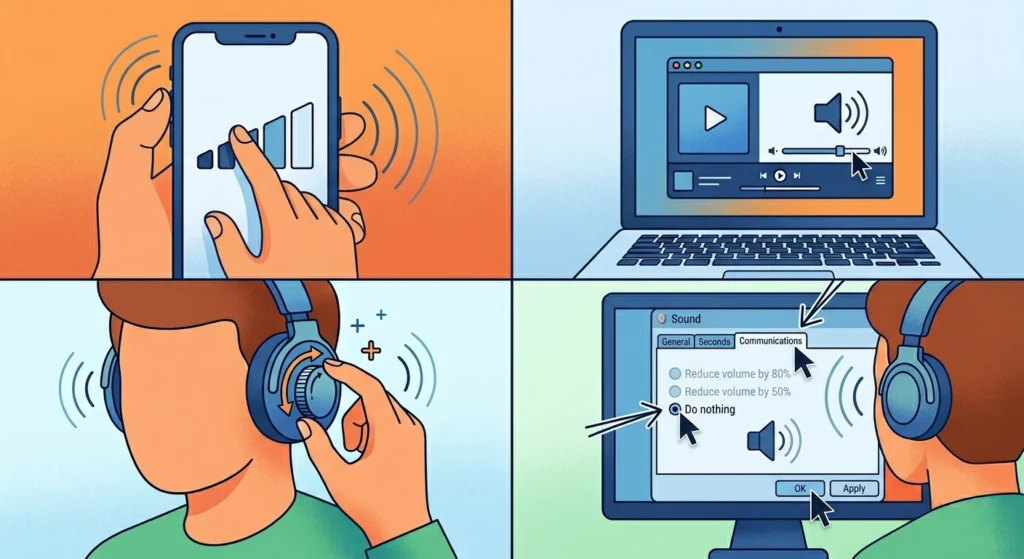
There is a lesser-known Windows setting that automatically lowers system volume by up to 80% when it detects a phone call or communication activity. If headphones are plugged in during a call, video meeting, or even a browser notification, Windows can trigger this reduction – and sometimes it gets stuck.
- Step 1: Right-click the speaker icon and select ‘Sounds’.
- Step 2: Click the ‘Communications’ tab at the top.
- Step 3: Select ‘Do nothing’ to prevent Windows from adjusting volumes automatically.
- Step 4: Click ‘Apply’ and then ‘OK’.
The key is to prevent Windows from treating every audio interaction as a communication event. This is a common culprit in office environments where headsets are used for both calls and media.
Fix 4: Clean the Headphone Jack or Port
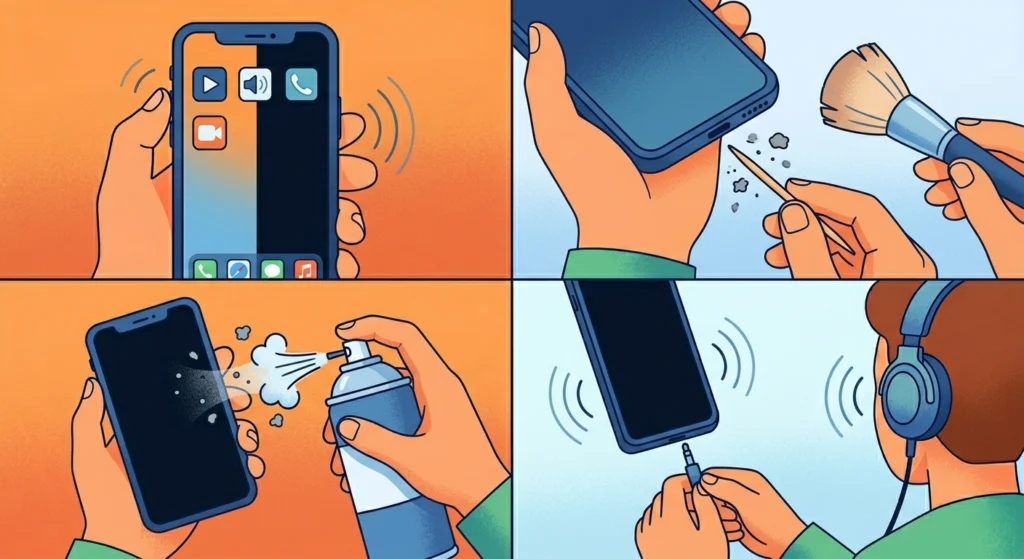
Physical debris inside the audio jack or USB-C/Lightning port can block the connection between the headphones and the device. When the connection is partially obstructed, the signal degrades – resulting in lower volume and sometimes audio only in one ear.
- Step 1: Power off the device before cleaning.
- Step 2: Use a dry, soft-bristled brush or a wooden toothpick to gently loosen debris inside the port. Avoid metal tools that can scratch the contacts.
- Step 3: Use compressed air (held upright to avoid moisture) to blow out any remaining dust or lint.
- Step 4: Plug the headphones back in firmly and test the volume.
This works best on devices carried in pockets or bags regularly – lint buildup is more common than most people expect and is a surprisingly frequent cause of reduced audio output.
Fix 5: Update or Reinstall the Audio Driver
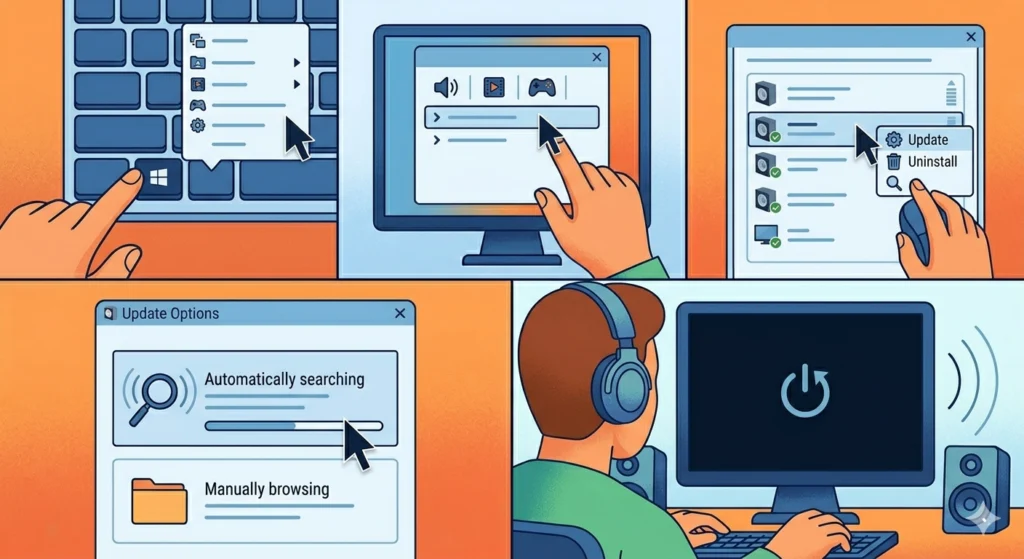
Outdated or corrupted audio drivers are a reliable cause of volume problems on Windows. The driver handles all communication between the operating system and the audio hardware – when it breaks down, volume levels can drop, distort, or behave inconsistently.
- Step 1: Press Windows + X and select ‘Device Manager’.
- Step 2: Expand the ‘Sound, video and game controllers’ section.
- Step 3: Right-click the audio device and select ‘Update driver’.
- Step 4: Choose ‘Search automatically for drivers’ and let Windows find an update.
- Step 5: If no update is found, right-click again and select ‘Uninstall device’, then restart the computer. Windows will reinstall the driver automatically on reboot.
After reinstalling, test with the headphones connected. Volume should return to normal levels if the driver was the issue.
Fix 6: Check the App-Specific Volume in Volume Mixer
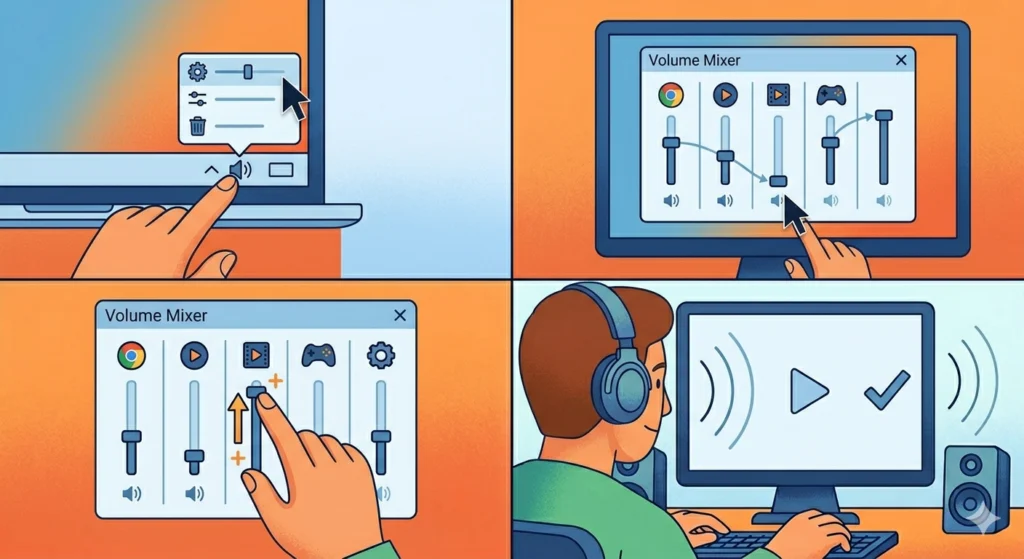
Windows allows individual apps to have their own volume levels, separate from the system volume. An app volume lowered to 20% will sound very quiet even when the main volume slider is at 100%.
- Step 1: Right-click the speaker icon in the taskbar and click ‘Open Volume Mixer’.
- Step 2: Look for the application currently playing audio.
- Step 3: Drag its slider all the way to the top.
- Step 4: Play audio again to confirm the volume increase.
For a complete walkthrough of managing audio input devices on Windows 11, including output troubleshooting, that resource offers detailed step-by-step guidance.
Fix 7: Reset All Audio Settings to Default
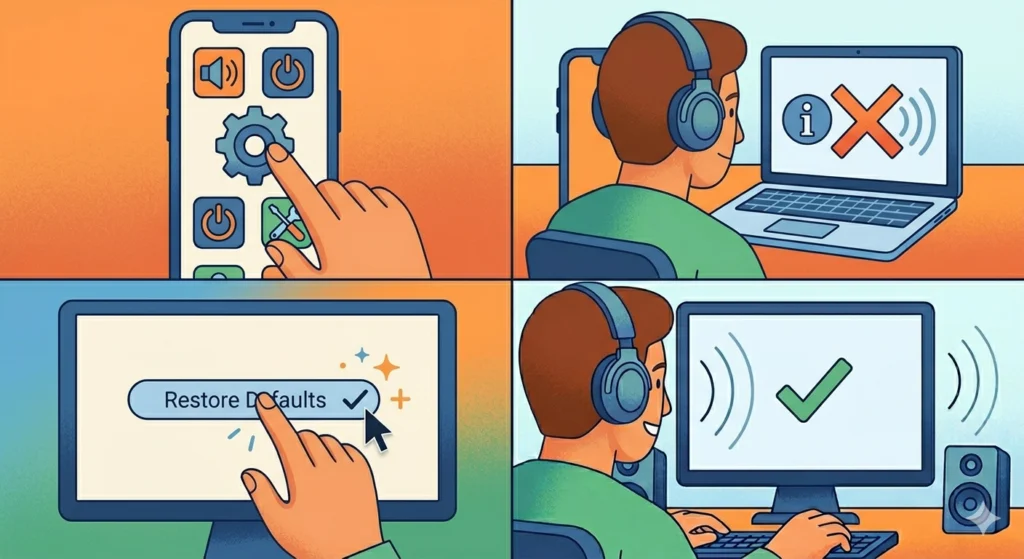
When multiple fixes have been attempted and the problem persists, resetting all audio configurations back to default is the cleanest way to eliminate any setting conflict or misconfiguration. This clears custom equalizer adjustments, enhancement profiles, and device-specific audio tweaks.
- Step 1: Open ‘Settings’ on Windows and go to ‘System’, then ‘Sound’.
- Step 2: Scroll down and click on the output device (headphones).
- Step 3: Look for a ‘Reset’ or ‘Restore defaults’ option and confirm.
- Step 4: Alternatively, follow the full process outlined in this guide on resetting audio settings on Windows 11 for a thorough reset.
Pro-Tip: Before doing a full reset, take note of any custom equalizer or enhancement settings currently applied. Resetting will wipe those configurations and they will need to be reconfigured from scratch if needed.
Tips for Keeping Headphone Volume Consistent
- Avoid setting system volume above 85% for extended periods – some devices introduce distortion or signal clipping at maximum, which paradoxically makes audio sound weaker
- Keep headphone jacks and ports clean, especially on devices used outdoors or stored in bags
- Use the same audio output device consistently – switching between Bluetooth and wired can sometimes reset volume preferences on certain apps
- Check for Windows audio updates after major OS updates – feature updates can reset sound settings or revert driver changes
- On Bluetooth headphones, check if the headset firmware has an update available through the manufacturer’s companion app
Common Problems and Quick Fixes
- Volume is low only in one ear: The headphone jack may not be fully inserted, or the audio balance setting is off. Go to Sound Settings and check the ‘Balance’ slider under the output device properties.
- Volume drops during video calls: The Communications tab setting (Fix 3 above) is almost always responsible. Set it to ‘Do nothing’.
- Sound is low on one app but fine on others: That app has its own volume lowered in the Volume Mixer. Open it and raise the slider for that specific application.
- Bluetooth headphones are quieter than wired: Bluetooth audio codecs sometimes limit output. Check if the headphones support aptX or AAC and ensure the paired device uses a compatible codec.
- Low volume after a Windows update: Updates sometimes reset audio enhancements or revert driver settings. Re-apply Fix 2 and check the driver version in Device Manager.
- Volume is fine but sounds muffled: Loudness Equalization or a bass boost enhancement may be active. Disable all enhancements in the Playback device properties.
Frequently Asked Questions
Why is the volume on the headphones so low even at 100%?
When volume is at maximum but still sounds faint, the most common causes are active audio enhancements like Loudness Equalization compressing the signal, app-specific volume set too low in the Volume Mixer, or a partially obstructed headphone jack. Work through the fixes above starting with Fix 2 and the Volume Mixer check.
Does the headphone jack affect volume?
Yes. A dirty or damaged headphone jack can reduce the electrical signal passing through it, resulting in noticeably lower volume output. Lint and debris are the most common culprits on portable devices. Cleaning the port often restores full volume without any software changes.
Why does my volume automatically go down on Windows?
Windows has a Communications setting that lowers audio by 50-80% when it detects phone call or communication activity. This can trigger during video calls, browser-based meetings, or even certain notifications. Fixing this requires going to Sound Settings – Communications tab and selecting ‘Do nothing’.
Can a bad audio driver cause low volume?
Absolutely. A corrupted or outdated audio driver can cause a range of volume problems including reduced output, inconsistent levels, and audio that works fine in some apps but not others. Updating or reinstalling the driver through Device Manager is a reliable fix for driver-related volume issues.
How do you fix low volume on Bluetooth headphones specifically?
For Bluetooth headphones, start by checking the volume on both the headphones themselves and the connected device – they have separate volume scales. Also check the Bluetooth codec being used, as lower-quality codecs can limit audio output. If the problem persists, unpairing and re-pairing the headphones often resets the connection and restores normal volume levels.
Why is the volume low on one ear only?
This usually points to either an audio balance setting that is shifted to one side, a loose or damaged headphone jack, or a fault in the headphone cable near the connector. Check the balance slider in Sound Settings first before assuming hardware damage.
Does Loudness Equalization actually reduce volume?
It can, yes. Loudness Equalization is designed to normalize audio levels across different content types, which means it actively reduces louder sounds to bring them closer to quieter ones. This compression effect makes overall playback volume feel lower, particularly with music or video content that has dynamic range. Disabling it often results in an immediate volume improvement.
Why does volume go down during calls but is fine for music?
This is almost always the Windows Communications setting reducing audio when communication activity is detected. The setting is designed to let users hear phone calls more clearly by lowering background sounds, but it applies to all audio output during that activity. Setting it to ‘Do nothing’ resolves this entirely.
Can equalizer settings lower headphone volume?
Yes. If the equalizer has most frequency bands pulled down significantly, the overall perceived volume drops even if the system volume is high. This is common when using third-party equalizer software or the built-in Windows audio enhancements. Resetting the equalizer to flat or default settings restores normal volume output.
Should headphones be set as the default audio device in Windows?
Yes – if headphones are not set as the default playback device, audio may route to another output (like built-in speakers) at lower levels, or Windows may split audio across devices inconsistently. Right-clicking the speaker icon, going to ‘Sounds’, selecting the headphones in the Playback tab, and clicking ‘Set as Default’ ensures all audio is properly directed to the headphones at full volume.