
Knowing how to fix headphones that only play through one app saves a lot of frustration, especially when music sounds perfect in one program while a browser, game, or video call stays silent. The cause is usually simple: Windows 11 can assign a different output device to each app, or one app may be holding the headphones in exclusive control.
Key Takeaways
- Windows 11 lets each app use its own output device, so one app can send sound to the speakers while another uses the headphones.
- Checking the Volume mixer output for the silent app solves most cases within a minute.
- Turning off exclusive mode stops one app from blocking all the others.
- Restarting the Windows Audio service refreshes the audio routing without a full reboot.
Step-by-Step Guide to Fix Headphones That Only Play Through One App
Fix 1: Change the Output Device for the Silent App
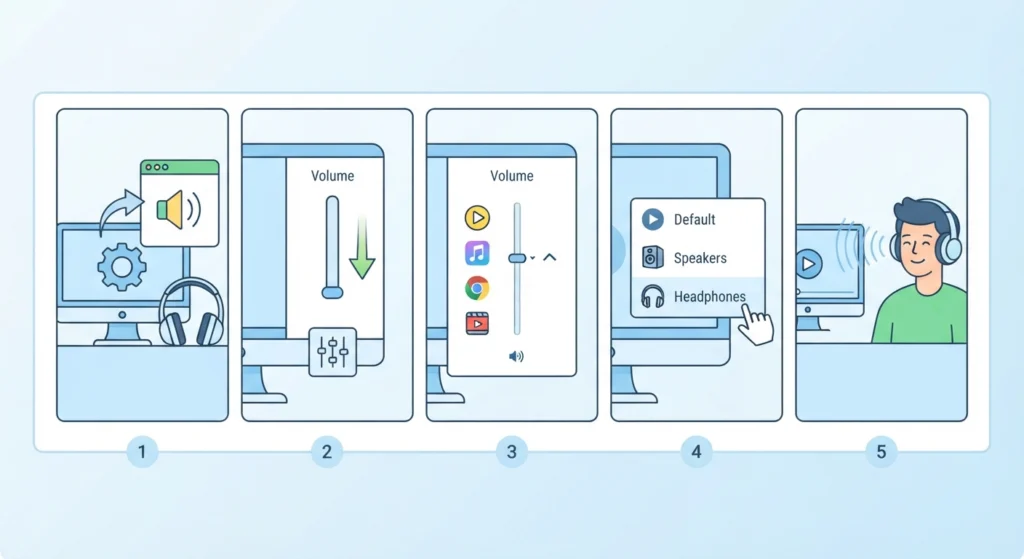
This is the most common cause. Think of it like a hotel with several elevators. Each app picks its own, and sometimes an app keeps riding the wrong one.
- Step 1: Open Settings, then go to System and select Sound.
- Step 2: Scroll down and open Volume mixer.
- Step 3: Find the app that has no sound through the headphones and expand its entry.
- Step 4: Open the Output device dropdown for that app and choose the headphones instead of Default or the speakers.
- Step 5: Play audio in the app again to confirm the sound now reaches the headphones.
Pro-Tip: Apps remember the device they were last assigned. If headphones were connected after the app was opened, close the app completely and reopen it after changing the output. Many apps only read the audio device when they start.
Fix 2: Reset App Sound Preferences to Default
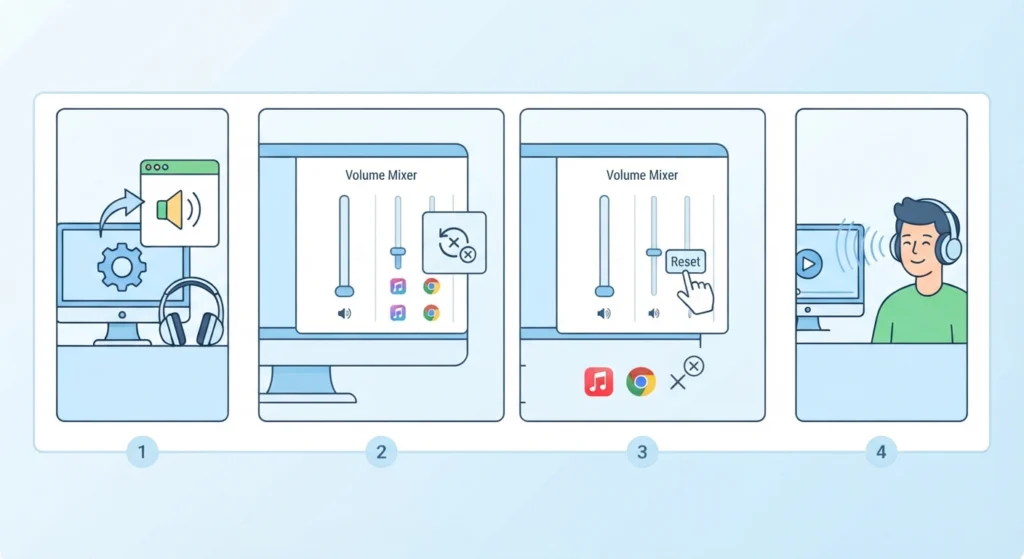
If several apps behave differently, old per-app settings may be the problem. A reset clears them all at once.
- Step 1: Open Settings, then System, then Sound, and open Volume mixer.
- Step 2: Look for the option to reset sound devices and volumes for all apps to the recommended defaults.
- Step 3: Select Reset and close any open audio apps.
- Step 4: Reopen the apps and test the sound. For a broader cleanup, this guide on resetting audio settings walks through it in more detail.
Fix 3: Set the Headphones as the Default Output Device
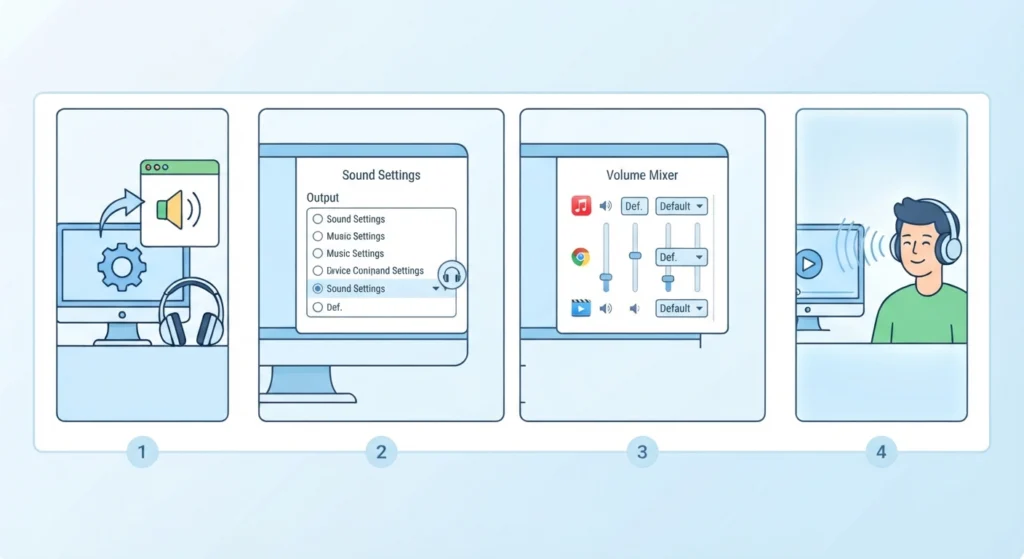
When the headphones are the default device, any app set to Default follows them automatically.
- Step 1: Open Settings, then System, then Sound.
- Step 2: Under Output, select the headphones from the list.
- Step 3: Return to Volume mixer and make sure each app output is set to Default.
- Step 4: For a closer look at every option on that screen, see this guide to adjusting audio output settings.
Fix 4: Turn Off Exclusive Mode
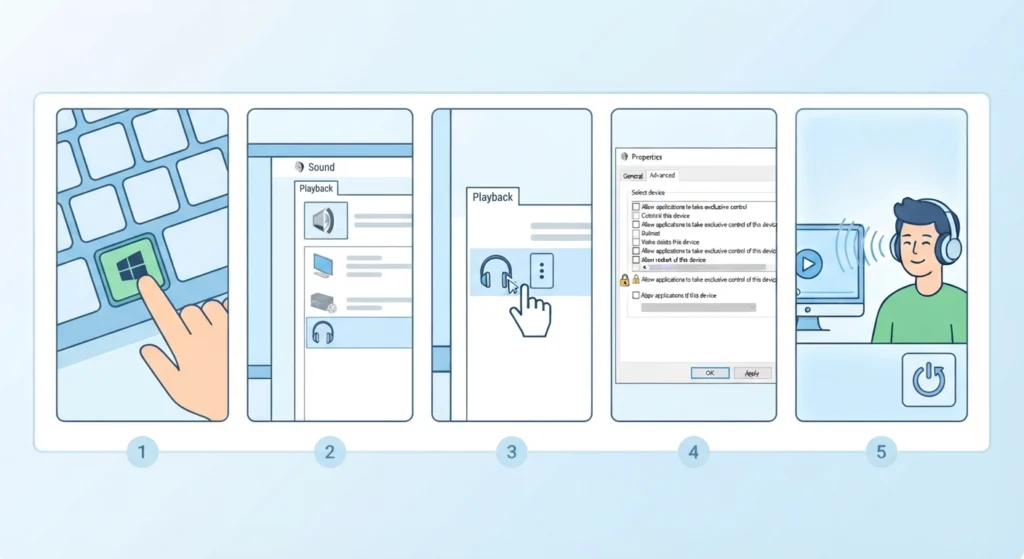
Some apps, especially music players and recording software, can take full control of the headphones. While that happens, other apps stay silent.
- Step 1: Press the Windows key, type Control Panel, and open it.
- Step 2: Open Sound, then select the Playback tab.
- Step 3: Right-click the headphones and choose Properties.
- Step 4: Open the Advanced tab and uncheck Allow applications to take exclusive control of this device.
- Step 5: Select Apply, then OK, and restart the app that had the problem.
Pro-Tip: If a single app still blocks the others after this change, open that app’s own audio settings and look for a similar exclusive or low-latency option. Turn it off there too.
Fix 5: Restart the Windows Audio Service
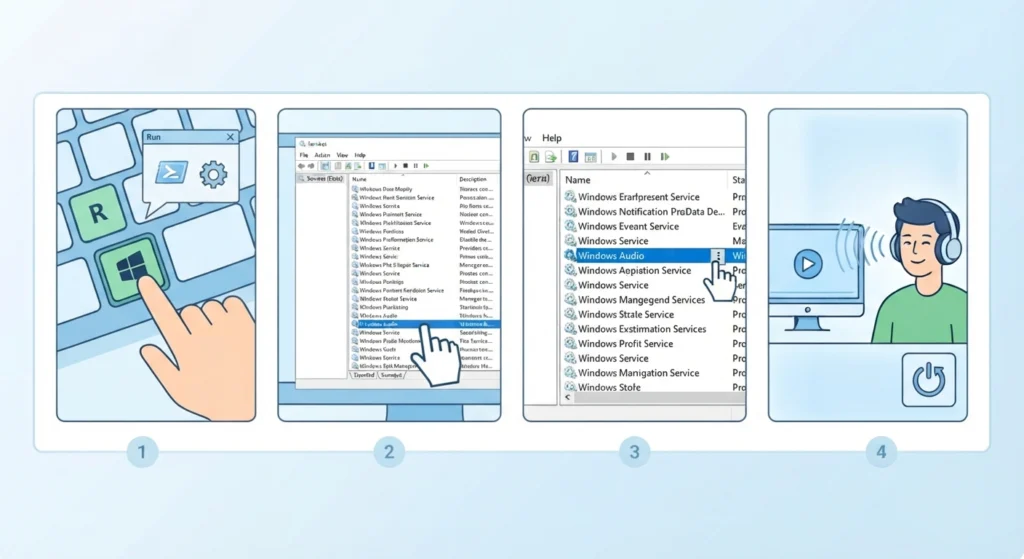
This refreshes how Windows hands out audio to apps, much like restarting a router clears a stuck connection.
- Step 1: Press Windows key + R, type services.msc, and press Enter.
- Step 2: Scroll down and find Windows Audio.
- Step 3: Right-click it and choose Restart.
- Step 4: Reopen the silent app and test the headphones again.
Fix 6: Re-Pair Bluetooth Headphones
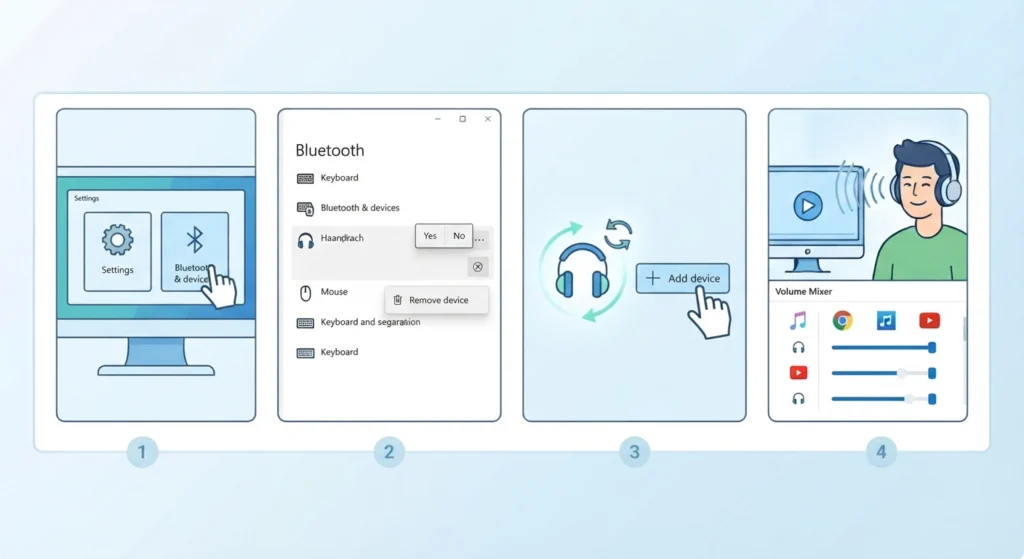
For wireless headphones, a corrupted pairing can leave some apps unable to use the device correctly.
- Step 1: Open Settings, then Bluetooth and devices.
- Step 2: Select the headphones, choose Remove device, and confirm.
- Step 3: Put the headphones into pairing mode and add them again. The guide on how to re-pair Bluetooth earbuds for stereo sound on Windows covers this process in detail.
- Step 4: Check the Volume mixer once more to confirm each app uses the headphones.
Helpful Tips to Keep Every App Working
- Connect the headphones before opening audio apps so they detect the device from the start.
- Keep the headphones as the default device in Sound settings instead of picking them app by app.
- Check the app’s own audio or playback settings, since some programs have a separate output selection inside them.
- Restart browsers fully after changing sound settings, because open tabs may keep using the old device.
Common Problems After Applying the Fixes
The Output Option Is Missing for an App
Apps only appear in the Volume mixer after they have played sound. Start playback in the app, then check the mixer again.
Sound Returns to the Speakers After a Restart
The app may be reading its own saved device. Open the app’s audio settings and select the headphones there, or set it to use the system default.
The Headphones Work but the Microphone Does Not
That is a separate input issue. This guide on resolving microphone detection problems covers the steps.
Frequently Asked Questions
Why do headphones only work in one app?
Windows 11 lets every app use its own output device. If an app is set to the speakers or another device, it will not play through the headphones even though other apps do.
Where do you find the per-app output setting in Windows 11?
Open Settings, go to System, select Sound, and open Volume mixer. Expand an app to see its output device dropdown.
Does this problem damage the headphones?
No. It is a software routing issue, not a hardware fault. If the headphones work in at least one app, the hardware is functioning.
What is exclusive mode and why does it matter?
Exclusive mode lets one app take full control of an audio device. While it has control, other apps may be unable to play sound through the same headphones.
Will changing the default device fix every app?
It fixes every app that is set to Default. Apps with a manually chosen output in the Volume mixer keep that choice until it is changed.
Why does the app work after reopening it?
Many apps read the available audio devices only at launch. Reopening the app lets it detect the headphones and use the current settings.
Do wireless and wired headphones need different fixes?
The routing and exclusive mode fixes apply to both. Re-pairing is only needed for Bluetooth headphones.
Is restarting the Windows Audio service safe?
Yes. It is a standard Windows service, and restarting it only refreshes audio handling. Sound may drop for a second or two while it restarts.
Why does a browser play sound while a desktop app stays silent?
The browser and the desktop app are treated as separate apps with their own output settings. Each can be assigned a different device in the Volume mixer.