
Learning how to fix Bluetooth headphones that drop to low quality on calls starts with one simple fact: the headphones are not broken. The moment a call starts and the microphone turns on, Bluetooth switches to a different audio mode, and that mode sounds noticeably worse. The good news is that the switch can be controlled.
Key Takeaways:
- The quality drop happens because Bluetooth moves from a stereo music mode (A2DP) to a hands-free call mode (HFP) as soon as the headphone microphone is used.
- The most reliable fix on Windows 11 is to use a different microphone, so the headphones stay in stereo mode.
- Disabling the Hands-Free device or the Bluetooth Handsfree Service also stops the switch.
- Updating drivers and resetting audio settings clears leftover glitches.
- Expect a trade-off: if the headphone microphone is not used, a separate microphone is needed.
Step-by-Step Fixes for Low Quality Bluetooth Audio on Calls
Each method below works on its own. Start with Method 1, since it solves the problem for most people without turning anything off.
Method 1: Use a Different Microphone for Calls
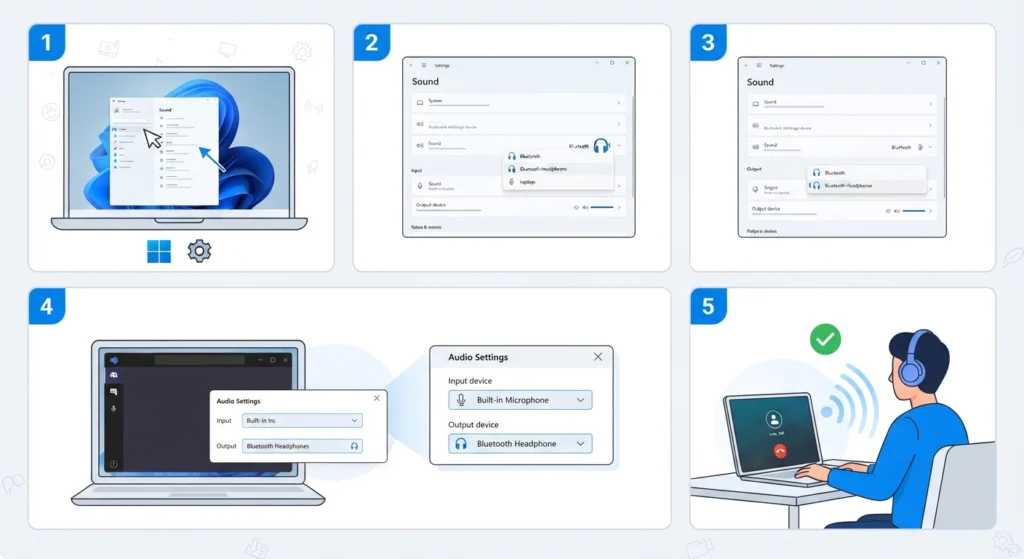
Bluetooth only drops to call quality when the headphone microphone is active. Pointing the call app to another microphone, such as the laptop mic or a USB mic, keeps the headphones in high quality stereo. This works best when a quiet room makes the built-in mic good enough.
- Step 1: Open Settings on Windows 11 and go to System, then Sound.
- Step 2: Under Input, select the built-in microphone or a USB microphone instead of the Bluetooth headset. The guide on managing audio input devices covers this screen in more detail.
- Step 3: Under Output, keep the Bluetooth headphones selected.
- Step 4: Open the call app, such as Teams, Zoom, or Discord, and check its audio settings. Set the microphone to the same device chosen in Step 2 and the speaker to the Bluetooth headphones.
- Step 5: Make a short test call and listen for the sound staying full and clear.
Pro-Tip: Apps often keep their own microphone setting, separate from Windows. If the sound still drops, the app is probably still using the headphone mic, so check the setting inside the app itself.
Method 2: Disable the Hands-Free Device in Sound Settings
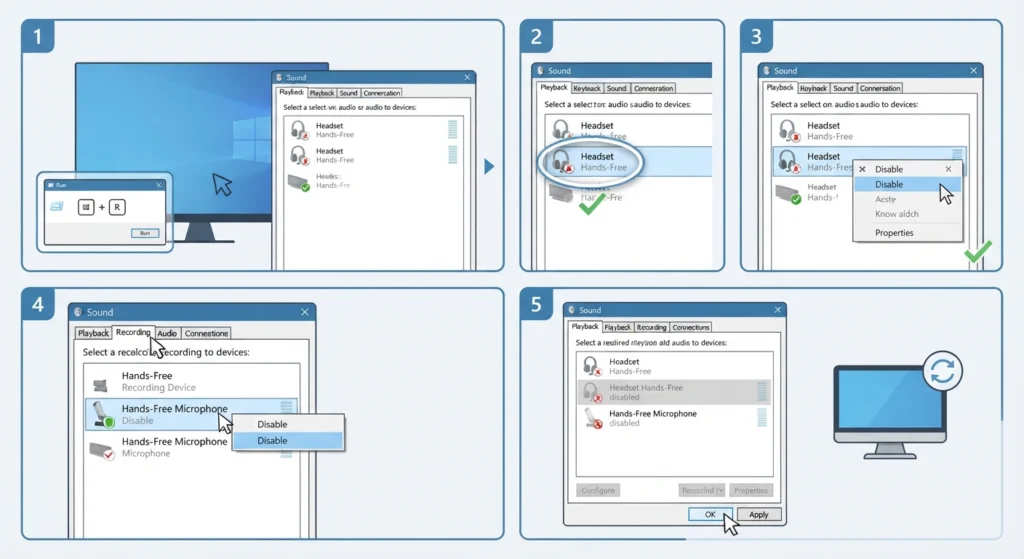
Windows lists many Bluetooth headphones twice: once as Stereo and once as Hands-Free. Disabling the Hands-Free entry stops Windows from switching to the lower quality call mode. Think of it like closing a side door so everything uses the main entrance.
- Step 1: Press the Windows key and R together, type mmsys.cpl, and press Enter.
- Step 2: On the Playback tab, find the entry named Headset Hands-Free for the headphones.
- Step 3: Right-click it and choose Disable.
- Step 4: Open the Recording tab, right-click the Hands-Free microphone entry, and choose Disable as well.
- Step 5: Click OK and restart the call app. If the output needs to be switched back to the stereo entry, adjusting audio output settings shows how.
Method 3: Turn Off the Bluetooth Handsfree Service
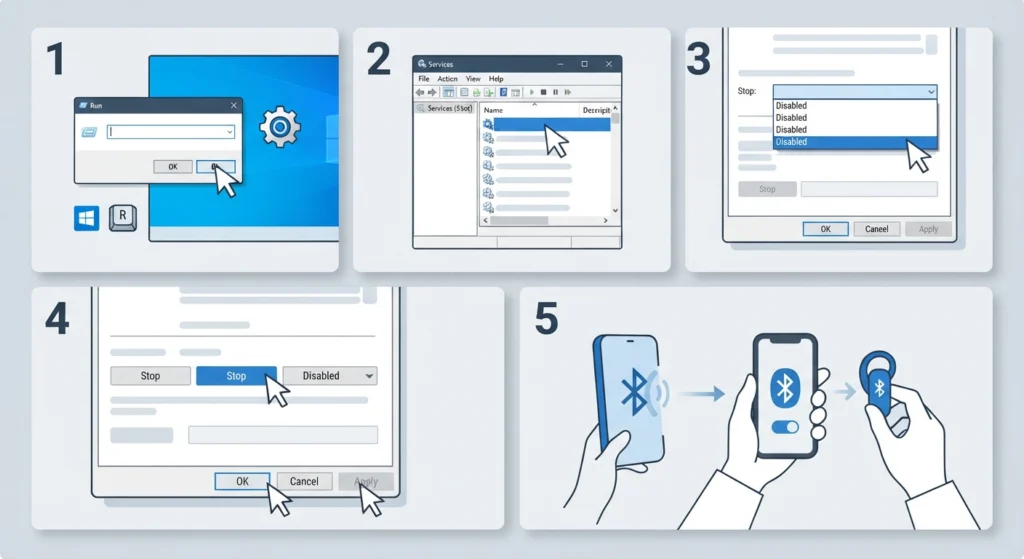
This is the stronger version of Method 2. It stops Windows from using the hands-free profile with any Bluetooth headset. Most people find that it works best when a separate microphone is already in place.
- Step 1: Press the Windows key and R together, type services.msc, and press Enter.
- Step 2: Scroll down and double-click Bluetooth Handsfree Service.
- Step 3: Click Stop, then change Startup type to Disabled.
- Step 4: Click Apply, then OK.
- Step 5: Turn Bluetooth off and on again, then reconnect the headphones.
Pro-Tip: To undo this later, return to the same window, set Startup type to Manual or Automatic, and click Start. Without that service, the headphone microphone will not work on this PC.
Method 4: Update the Bluetooth Driver and Headphone Firmware
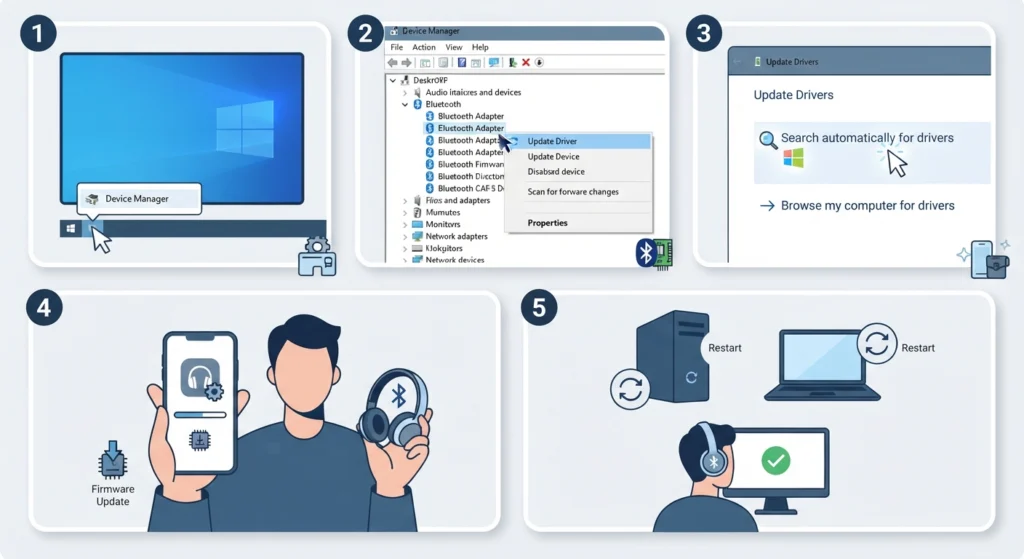
Old drivers sometimes handle the profile switch badly, which causes crackling, delays, or very thin sound. Updating them takes only a few minutes.
- Step 1: Right-click the Start button and open Device Manager.
- Step 2: Expand Bluetooth, right-click the Bluetooth adapter, and choose Update driver.
- Step 3: Select Search automatically for drivers and let Windows finish.
- Step 4: Open the headphone maker’s app and install any available firmware update.
- Step 5: Restart the PC and test a call again.
Method 5: Reset Audio Settings and Re-Pair the Headphones
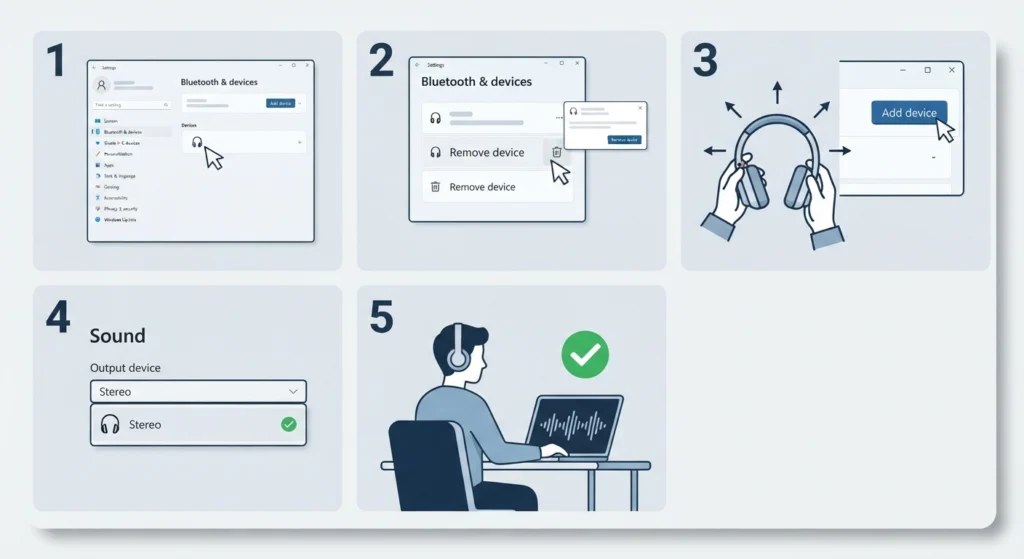
When settings have been changed many times, old choices can pile up and cause odd behavior. A clean start often clears them out. Following the steps in resetting audio settings returns Windows audio to its defaults.
- Step 1: Go to Settings, then Bluetooth and devices, and select the headphones.
- Step 2: Choose Remove device and confirm.
- Step 3: Put the headphones in pairing mode and add them again from Add device.
- Step 4: Check that the stereo output is selected, using the guide to re-pair Bluetooth earbuds for stereo sound on Windows if needed.
- Step 5: Join a test call and compare the sound.
Why Bluetooth Headphones Sound Worse on Calls
Bluetooth uses two main audio modes. Music uses A2DP, which has plenty of bandwidth for stereo. Calls use the Hands-Free Profile, which has to carry sound in both directions at once and has far less room. The result is mono audio with a thin, muffled tone. Standard hands-free calls use narrowband or wideband speech codecs, and both are much lower quality than normal music streaming. Better music codecs such as aptX or LDAC apply to playback, not to the standard hands-free call mode.
Tips for Keeping Call Audio Clear
- Use a USB headset or a small USB microphone for work calls and keep the Bluetooth headphones for listening.
- Keep the PC and headphones within a few meters of each other, with nothing thick in between.
- Close apps that grab the microphone in the background, since they can trigger the call mode at the wrong time.
- Keep the headphone battery above a low level, because weak batteries can affect connection stability.
- Test the setup before an important meeting rather than during it.
Common Problems After Applying the Fixes
The Headphone Microphone No Longer Works
This is expected after Method 2 or Method 3, because the hands-free feature was turned off on purpose. Select another microphone in Windows and in the call app.
The Call App Still Uses the Headphone Microphone
Open the audio settings inside the app and choose the microphone manually. Some apps ignore the Windows default.
The Headphones Disappear From the Output List
Turn Bluetooth off and on, then reconnect the headphones. If they still do not appear, repeat Method 5.
Frequently Asked Questions
Why do Bluetooth headphones sound bad during calls?
Bluetooth switches from the stereo music mode to the Hands-Free Profile when the microphone is used. That mode has less bandwidth, so the sound becomes mono and muffled.
Is the low call quality a sign that the headphones are defective?
No. Almost all Bluetooth headphones behave this way because it comes from how the standard call mode works, not from a hardware fault.
Will a newer Bluetooth version fix the problem?
A newer version alone does not change the call mode. Improvements depend on both the headphones and the device supporting newer audio technology.
Do aptX or LDAC improve call quality?
Those codecs are built for music playback. Standard hands-free calls use a different, lower quality mode, so they do not help during a call.
Can a separate microphone really keep the sound in stereo?
Yes. When the headphone microphone is not used, Windows has no reason to switch to the call mode, so the headphones stay in high quality stereo.
Is it safe to disable the Bluetooth Handsfree Service?
Yes, it can be re-enabled at any time from the Services window. The only effect is that the Bluetooth headset microphone will not work while it is off.
Does this fix work for every call app?
It works for Teams, Zoom, Discord, and similar apps, as long as the app is set to use the same microphone chosen in Windows.
Why does the sound drop only on some calls?
The drop happens whenever the app activates the headphone microphone. If an app is set to another microphone, the headphones stay in stereo.
Should the headphones be re-paired after changing settings?
It is a good idea after disabling services or resetting audio settings, since a fresh connection makes sure the new settings are applied.
Can updating the driver alone solve the issue?
Sometimes it clears crackling and dropouts, but it cannot remove the built-in quality limit of the call mode. Using another microphone is the dependable fix.