
Headphones that sound underwater or phasey usually point to a seal problem, a software setting, or a pairing glitch rather than a broken driver. This guide walks through the exact fixes that resolve the muffled, hollow, swirling sound most people run into, starting with the simplest checks first.
Key Takeaways
- Underwater sound is often caused by a loose ear tip seal, not a damaged speaker
- Phasey or swirling audio is commonly linked to spatial sound and audio enhancement settings
- Bluetooth earbuds can sound muffled after a bad pairing or firmware mismatch between the left and right unit
- Moisture trapped in the speaker mesh can genuinely make audio sound like it is underwater
- Most fixes take under five minutes and do not require replacing the headphones
Fix 1: Reseat or Replace the Ear Tips for a Proper Seal
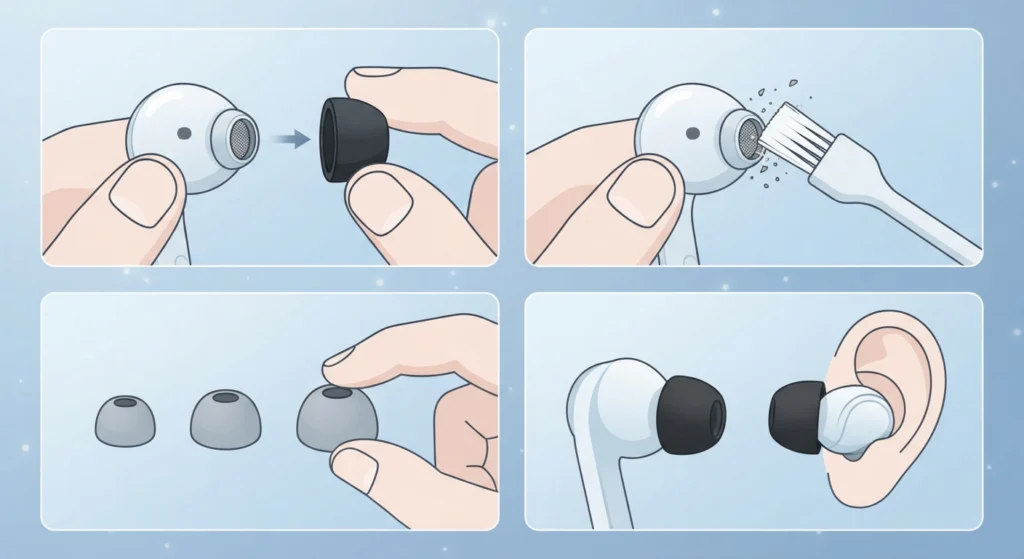
For earbuds and in-ear headphones, this is the single most common cause of underwater sound. A loose or improperly seated tip lets air escape, which kills bass response and makes vocals sound like they are coming through a wall of water. This happens more often than people expect, especially after cleaning the earbuds or switching tip sizes.
- Step 1: Remove the ear tips and check the mesh underneath for wax or debris buildup
- Step 2: Clean the mesh gently with a soft, dry brush or a dry cotton swab
- Step 3: Try a different tip size, since a tip that is too small will never form a full seal
- Step 4: Reinsert the earbud and rotate it slightly until the seal feels snug and stable
Pro-Tip: Before assuming the headphones are faulty, always test with a different tip size first. A seal issue can mimic driver damage almost perfectly, and swapping tips resolves it in most cases without spending a single peso on a repair.
Fix 2: Turn Off Audio Enhancements and Spatial Sound (Windows 11)
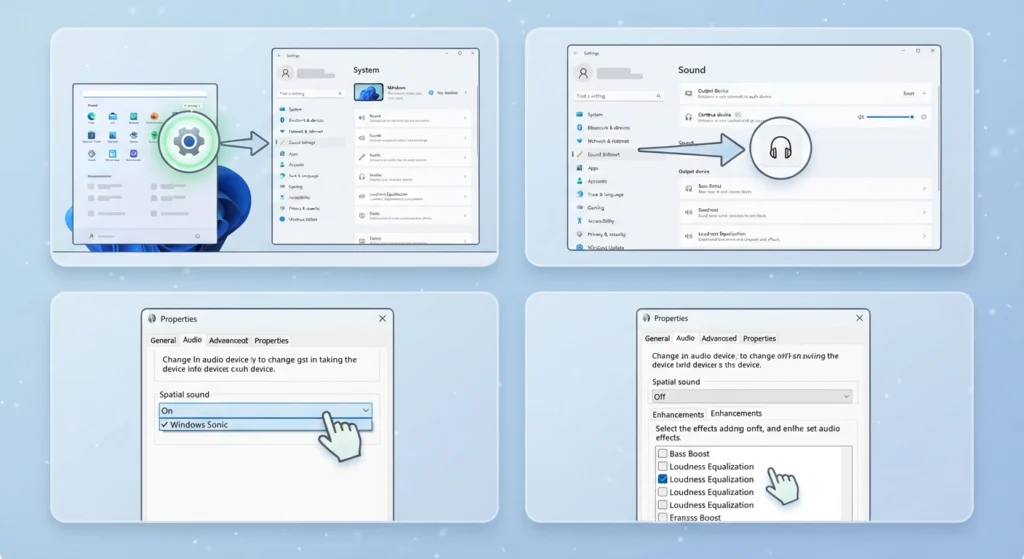
Windows enhancement features like spatial sound, virtual surround, and loudness equalization can introduce phase cancellation, which is what creates that swirly, phasey effect. This is especially common after a Windows update resets audio preferences back to default.
- Step 1: Open Settings, then go to System and select Sound
- Step 2: Choose the connected output device and open its Properties
- Step 3: Locate the Spatial sound dropdown and set it to Off
- Step 4: Open the Enhancements tab, if available, and disable any active effects
Anyone unfamiliar with where these controls live can walk through the full process for adjusting the audio output settings to confirm every enhancement is switched off correctly.
Fix 3: Reset the Audio Settings Back to Default
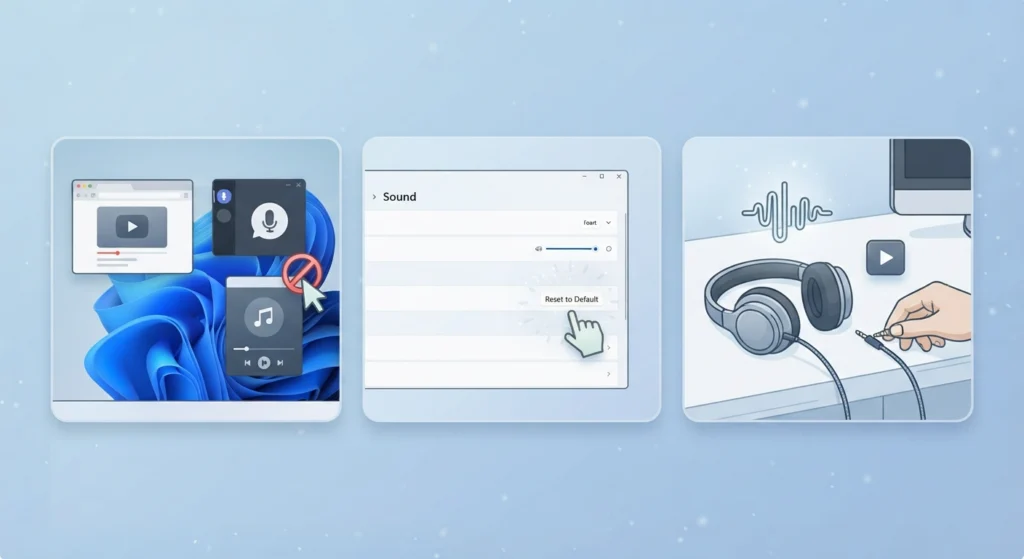
A corrupted audio configuration, often left behind by a third-party app or a driver update, can cause the same phasey distortion described above even after enhancements are disabled. Resetting the audio settings clears out those leftover conflicts in one pass.
- Step 1: Close any apps currently using audio, including browsers and call software
- Step 2: Follow the steps for resetting the audio settings to restore the default configuration
- Step 3: Reconnect the headphones and play a familiar track to compare the sound
Fix 4: Re-Pair Bluetooth Earbuds for Correct Stereo Sound
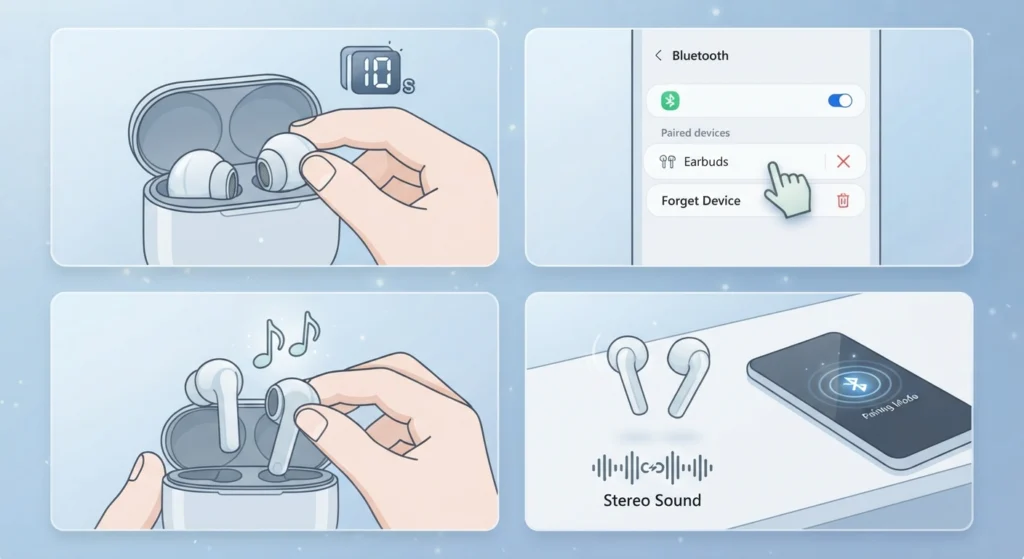
True wireless earbuds sometimes connect with one side in mono or with a delayed handshake between the left and right unit, which produces a muffled, underwater quality rather than clean stereo separation. This tends to happen after a firmware update or when one earbud runs low on battery mid-session.
- Step 1: Place both earbuds back in the case and close the lid for ten seconds
- Step 2: Forget the device from the Bluetooth menu on the connected computer or phone
- Step 3: Take both earbuds out at the same time and confirm they chime together
- Step 4: Follow the process to re-pair the earbuds for stereo sound and reconnect from scratch
Fix 5: Check the Balance and Mono Audio Toggle
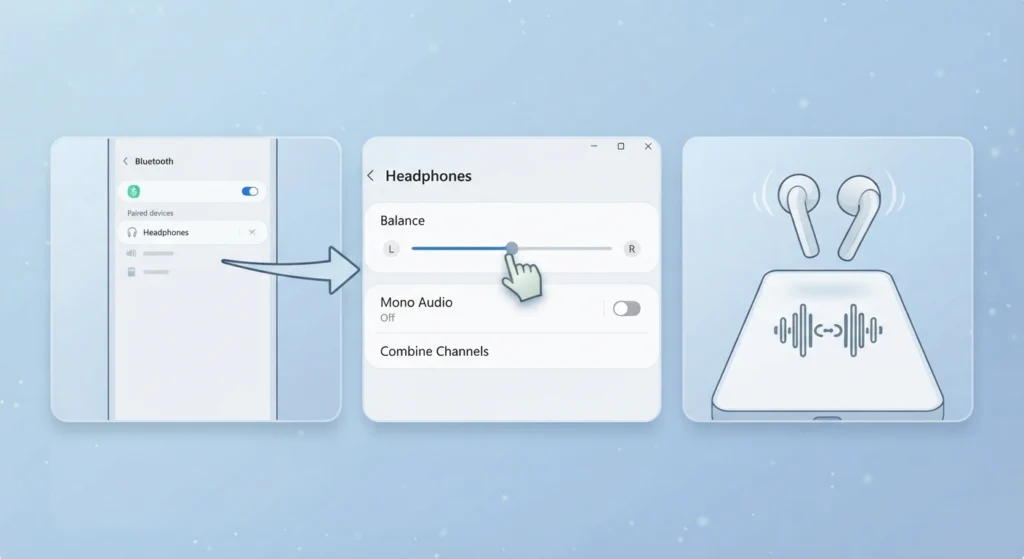
When the left and right channels are nearly identical or slightly out of phase, the audio sums together and cancels out certain frequencies. This is a technical explanation for a very audible problem, and it is often traced back to an accidental mono audio setting.
- Step 1: Open the Sound settings and select the connected headphones
- Step 2: Check that the left and right balance slider sits at the center
- Step 3: Turn off any ‘Mono audio’ or ‘Combine channels’ toggle if one is active
Fix 6: Dry Out Moisture Trapped in the Speaker Mesh
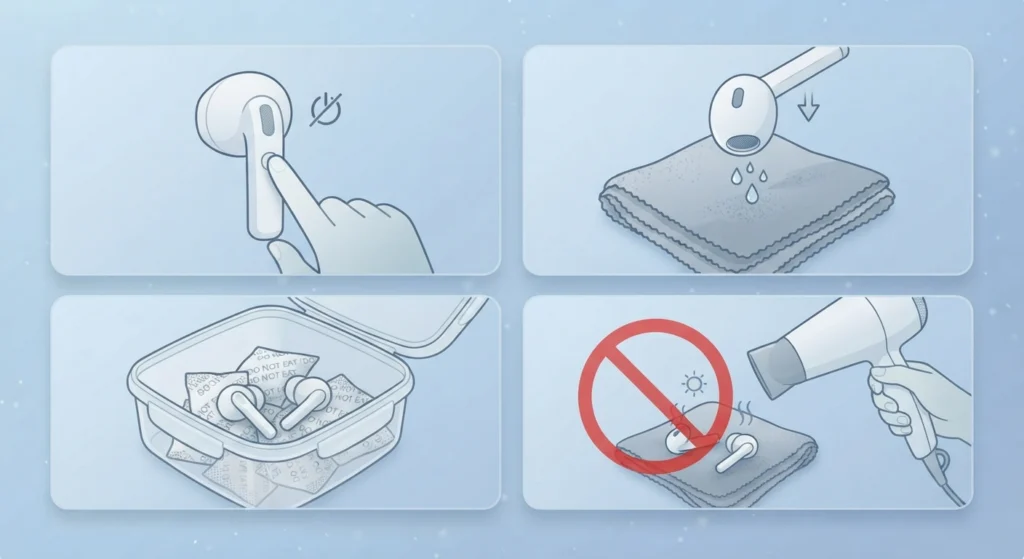
Sometimes the underwater sound is literal. Sweat during a workout or a light splash of rain can seep into the speaker mesh and physically muffle the sound until it dries out completely.
- Step 1: Power off the headphones or earbuds immediately
- Step 2: Gently tap the earbud face-down on a dry cloth to release trapped moisture
- Step 3: Place the earbuds in a container with silica gel packets overnight
- Step 4: Avoid using a hair dryer or any direct heat source, since heat can damage the internal components
Pro-Tip: Patience matters more than speed here. Rushing this step with heat or compressed air often pushes moisture deeper into the driver instead of out of it, turning a temporary problem into permanent damage.
Fix 7: Update or Reinstall the Audio Drivers
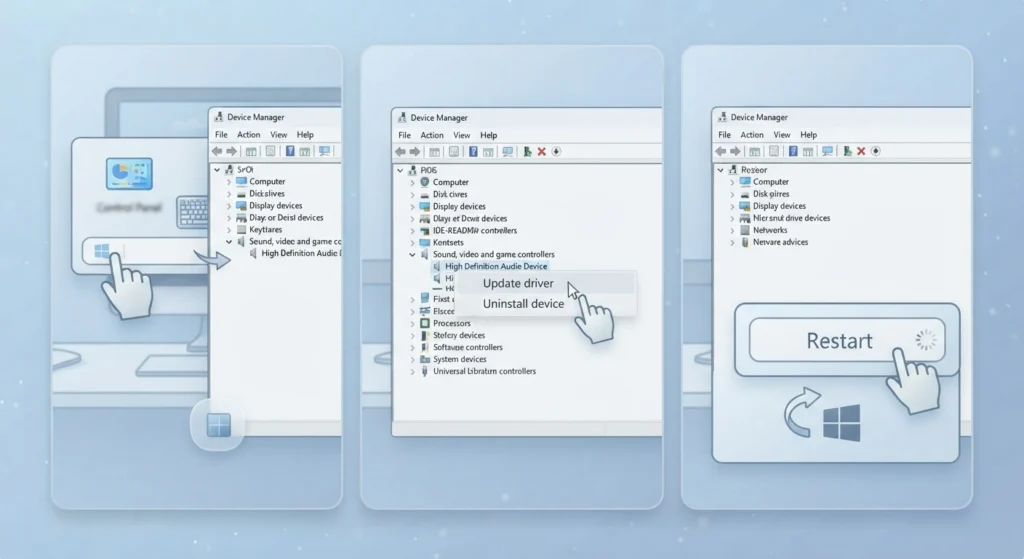
On desktop and laptop computers, an outdated or corrupted audio driver can introduce the same phase distortion described in the earlier fixes, even when the headphones themselves are working perfectly.
- Step 1: Open Device Manager and expand the Sound, video and game controllers section
- Step 2: Right-click the audio driver and select Update driver
- Step 3: If the issue continues, uninstall the driver and restart the computer to let Windows reinstall it automatically
Helpful Tips to Prevent Underwater or Phasey Sound
- Stick to one Bluetooth codec at a time instead of switching frequently, since codec mismatches can introduce audio artifacts
- Keep earbud firmware updated through the manufacturer app, since outdated firmware is a common cause of channel imbalance
- Store earbuds in their case when not in use to keep moisture and debris away from the mesh
- Avoid stacking multiple equalizer apps at once, since overlapping EQ settings can cause the same phase cancellation described above
Common Problems and Quick Troubleshooting
Only one earbud sounds underwater while the other sounds normal: this almost always points to a seal or battery mismatch rather than a software issue, so start with Fix 1 and Fix 4 first.
Sound is fine on a phone but phasey on a computer: this points directly to Windows audio enhancements, so Fix 2 and Fix 3 should resolve it.
Phasey sound only happens inside specific apps like video calls or games: this usually means the app has its own audio enhancement setting separate from Windows, so check that app’s audio preferences alongside managing the audio input devices connected to it.
Frequently Asked Questions
Why do headphones suddenly sound underwater for no clear reason?
A sudden change usually traces back to a loosened ear tip seal, a Windows update that reset audio enhancements, or a Bluetooth reconnection that did not pair both channels correctly.
Can a phasey sound damage headphones permanently?
No, a phasey or underwater sound caused by settings or a loose seal does not damage the hardware. It only becomes a permanent issue if the cause is actual water damage that is left untreated.
Is underwater sound always a sign of water damage?
Not always. Water damage is one possible cause, but a poor ear tip seal or an active spatial sound setting produces a nearly identical effect without any moisture being involved.
Why does only one earbud sound muffled or underwater?
This is typically a seal or battery sync issue rather than a full hardware fault. Re-seating the tip or re-pairing both earbuds together usually clears it up.
Does spatial sound cause phasey audio on every device?
Spatial sound and similar virtual surround effects can cause phase cancellation on many devices, particularly with stereo headphones that were not designed with those effects in mind.
How long does it take for moisture to dry out of earbuds?
With silica gel and proper airflow, most moisture clears within 24 to 48 hours. Using heat to speed up the process is not recommended, since it risks damaging the internal components.
Why does Bluetooth audio sound worse than wired audio?
Bluetooth relies on a compressed codec to transmit audio, and a lower-quality codec connection can introduce a slightly muffled or underwater quality compared to a direct wired connection.
Should audio drivers be updated regularly to avoid this issue?
Yes, keeping audio drivers current helps prevent conflicts that lead to phase distortion, particularly after major operating system updates.
What is the fastest fix to try first?
Reseating or swapping the ear tips resolves the majority of underwater sound complaints and takes less than a minute to test.
Can third-party equalizer apps cause phasey sound?
Yes, running more than one equalizer or enhancement app at the same time can cause overlapping audio processing, which often results in a phasey or hollow sound.