
Key Takeaways
- A failed reset usually leaves headphones stuck in pairing mode, unresponsive, or disconnected from every paired device.
- Draining the battery fully before charging again often clears a stuck reset cycle.
- Forgetting the device from Bluetooth settings and re-pairing from scratch solves most connection failures.
- Firmware updates through the manufacturer’s app fix resets that get interrupted midway.
- Persistent issues after several attempts usually point to a hardware fault that needs manufacturer support.
Fixing headphones after a failed reset is a common headache for anyone who has tried to restore earbuds or over-ear headphones to factory settings only to end up with a device that won’t connect, won’t charge properly, or refuses to respond at all. This guide walks through the exact steps needed to bring the headphones back to working order, without any unnecessary detours.
Step-by-Step Guide to Fix Headphones After a Failed Reset
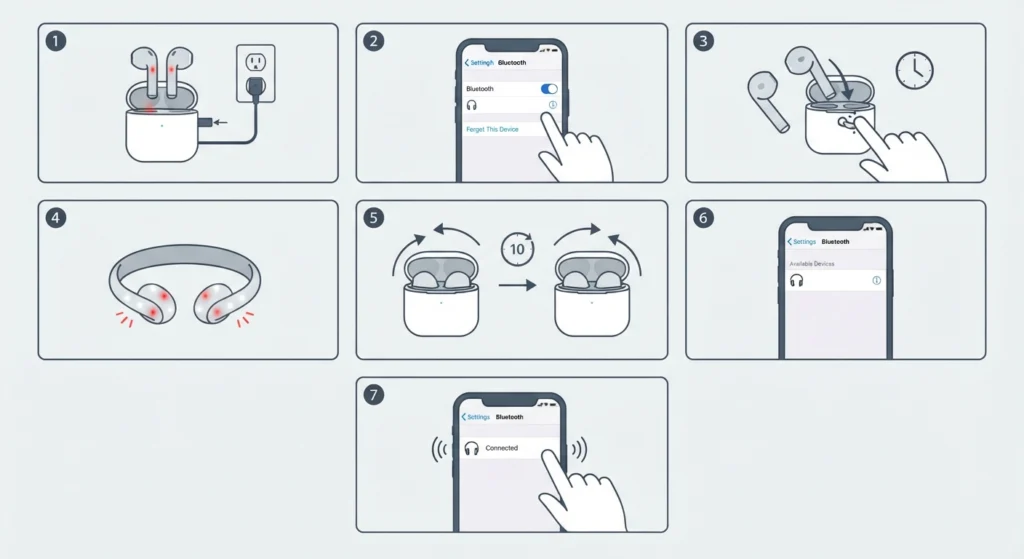
Most failed resets happen because the reset process gets interrupted – a button released too early, a case that closes mid-process, or a phone that loses Bluetooth range at the wrong moment. The steps below follow the order that resolves the issue for the vast majority of headphone models.
- Step 1: Place the headphones back in their charging case or connect them to a power source, then leave them charging for at least 15 minutes, even if the battery indicator shows a full charge. A failed reset sometimes confuses the internal battery reading.
- Step 2: Remove the headphones from the Bluetooth device list on every phone, tablet, or laptop they were ever paired with. Skipping this step is the most common reason a second reset attempt fails again.
- Step 3: With the headphones out of the case, press and hold the reset button (or both touch sensors, depending on the model) for the exact duration listed in the manufacturer’s manual – usually between 7 and 15 seconds.
- Step 4: Watch for the LED confirmation pattern. Most brands flash red and white alternately, or blink white three times, to confirm a successful reset. If no light appears at all, move to the next step instead of repeating the hold.
- Step 5: Close the charging case for 10 seconds, then reopen it. This small pause lets the internal chip fully restart before a new pairing attempt.
- Step 6: Open Bluetooth settings on the connecting device and search for new devices. The headphones should appear as a new, unpaired entry rather than showing up under previously connected devices.
- Step 7: Select the headphones from the list and confirm pairing. Audio should route automatically once the connection completes; if it doesn’t, checking and adjusting the audio output settings usually clears that up on Windows 11.
Pro-Tip: Never remove headphones from the charging case while the reset button is still held down. Doing so cuts power mid-reset, which is the single most common cause of a reset that appears to fail even though the steps were followed correctly.
Method 2: Fixing a Reset That Fails on Windows Devices
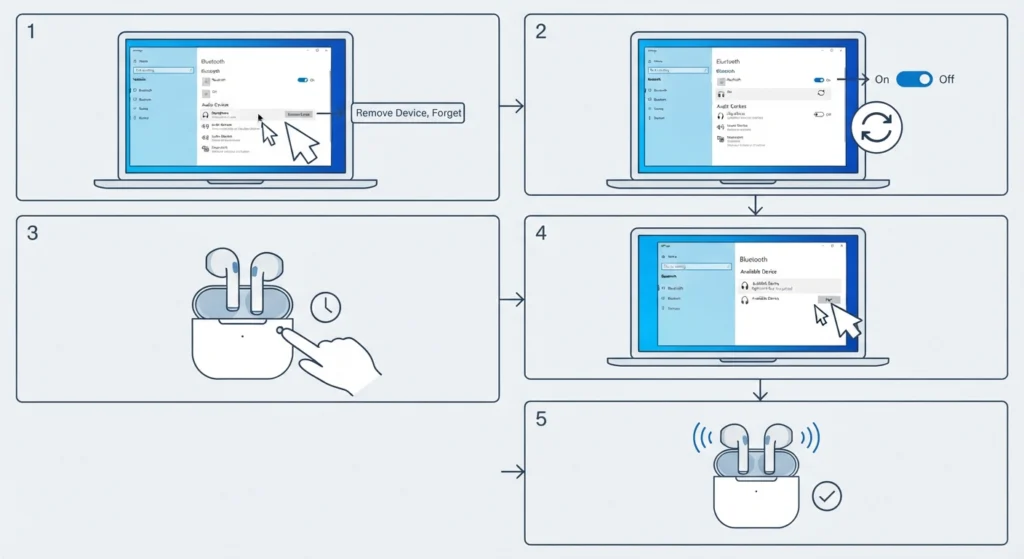
Windows machines add an extra layer of complexity because the operating system caches old pairing profiles. This is where a reset can look successful on the headphones but still fail to reconnect properly on the computer side.
- Step 1: Open Windows Settings and navigate to Bluetooth and Devices, then remove the headphones entirely from the list, not just disconnect them.
- Step 2: Restart the Bluetooth adapter by turning it off and back on from the same settings page, or through Device Manager if the toggle doesn’t respond.
- Step 3: Perform the physical reset on the headphones again, following the timing from the manufacturer’s guide.
- Step 4: Add the headphones back as a new Bluetooth device once the LED shows pairing mode.
- Step 5: If audio plays but sounds mono or unbalanced afterward, the guide on re-pairing Bluetooth earbuds for stereo sound covers the exact fix for that specific glitch.
Tips to Prevent Reset Failures in the Future
- Always charge headphones to at least 50 percent before attempting a factory reset – low battery is a frequent cause of interrupted resets.
- Keep the charging case lid open throughout the entire reset process instead of closing and reopening it repeatedly.
- Update the firmware through the manufacturer’s companion app before resetting, since outdated firmware sometimes ignores reset commands entirely.
- Reset one earbud at a time only if the manufacturer’s instructions specifically call for it – most true wireless models require both earbuds in the case together.
Pro-Tip: Writing down the exact LED pattern the headphones show at each stage makes it much easier to describe the problem to manufacturer support if the issue continues, and it often speeds up warranty claims considerably.
Common Problems After a Failed Reset
Headphones Won’t Enter Pairing Mode
This usually means the reset button was released too early. Recharging fully and repeating the hold for the full recommended duration resolves it in most cases.
One Earbud Resets but the Other Doesn’t
This points to a case charging contact issue rather than a software problem. Cleaning the metal contacts inside the case with a dry cloth often fixes the imbalance.
Headphones Connect but Produce No Sound
Once paired, checking whether the correct playback device is selected solves this quickly. Resetting audio settings on Windows 11 clears any leftover configuration from the previous pairing.
Microphone Stops Working After Reset
The reset sometimes resets input permissions along with the connection. Reviewing the steps for resolving microphone detection problems addresses this without needing another full reset.
Frequently Asked Questions
Why did the headphone reset fail the first time?
Most first-attempt failures happen because the reset button wasn’t held long enough, the battery was too low, or the case closed before the process finished.
How long should the reset button be held down?
Most headphone models require 7 to 15 seconds, though checking the specific manufacturer manual is the most reliable way to confirm the exact timing.
Can a failed reset damage the headphones permanently?
A failed reset rarely causes permanent damage. It typically leaves the headphones in a confused pairing state rather than causing hardware failure.
Why do the headphones show a light but still won’t pair?
This usually indicates the device list on the phone or laptop still has an old pairing profile. Removing the headphones from that list before searching again fixes it.
Is it normal for only one earbud to reset properly?
It happens fairly often and is usually linked to a charging contact issue in the case rather than a fault with the earbud itself.
Does a factory reset delete paired device history?
Yes, a successful factory reset clears all previously paired devices, which is why headphones need to be added as new devices afterward.
What should be done if the headphones still won’t reset after multiple tries?
After three or four careful attempts following the correct timing and charging steps, contacting manufacturer support is the next reasonable step, since this often points to a hardware issue.
Do wired headphones need a reset at all?
No, factory resets apply only to wireless headphones with internal chips and Bluetooth connectivity. Wired headphones have no reset function.
Can outdated firmware cause a reset to fail?
Yes, outdated firmware sometimes prevents the reset command from registering correctly, which is why updating through the companion app beforehand helps.
Should Bluetooth be turned off during the reset process?
Turning off Bluetooth on the connecting device isn’t required, but removing the headphones from the paired device list first prevents most reconnection conflicts.