
Headphone balance being off in Windows is a common annoyance, especially when audio suddenly leans harder to the left or right speaker for no clear reason. This guide walks through the exact settings to check and adjust so sound comes through evenly on both sides again.
Key Takeaways
- Windows 11 has a built-in Volume Balance slider inside the Sound settings page.
- Older systems can fix balance through the classic Control Panel Levels tab.
- Bluetooth headphones sometimes need re-pairing to restore correct stereo balance.
- Third-party audio apps like Realtek or Dolby Access can override Windows balance settings.
- A quick balance test with a stereo test tone confirms whether the fix actually worked.
Most people notice this issue right after a Windows update, a driver change, or when switching between wired and Bluetooth headphones. The good news is that fixing it usually takes just a few clicks once the correct menu is located. Here’s how to sort it out step by step.
Step-by-Step Guide to Fix Headphone Balance in Windows
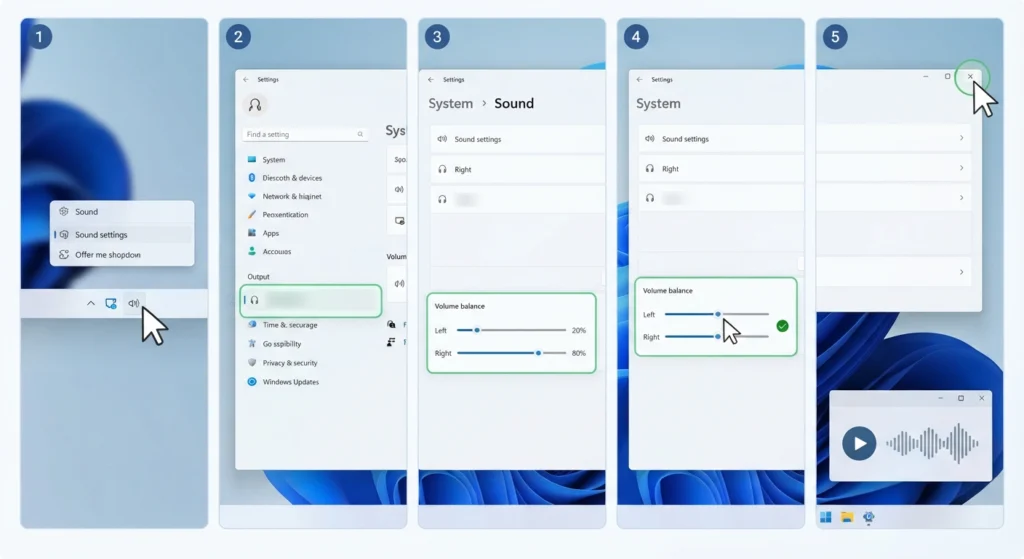
This method works on Windows 11 and uses the native Volume Balance sliders built directly into the Sound settings page. No extra software is needed for this fix.
- Step 1: Right-click the speaker icon on the taskbar and select ‘Sound settings’.
- Step 2: Under the Output section, click on the connected headphones or headset.
- Step 3: Scroll down to the ‘Volume balance’ section, where two sliders labeled Left and Right appear.
- Step 4: Drag both sliders back to the center, or adjust one side slightly until sound feels even in both ears.
- Step 5: Play any audio or video to confirm the balance sounds correct, then close the settings window.
Pro-Tip: Wear the headphones normally while testing rather than holding them, since ear positioning can make one side sound quieter even when the balance is technically centered.
Method 2: Fixing Balance Through the Classic Control Panel
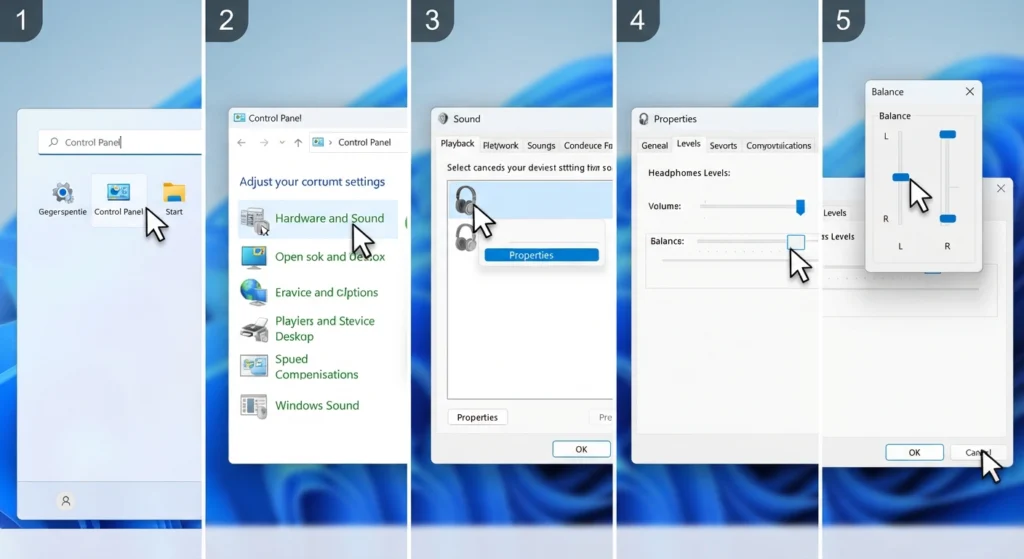
Some devices, especially those running an older Windows 11 build or Windows 10, don’t show the Volume Balance sliders inside the Settings app. In that case, the classic Control Panel still handles this reliably.
- Step 1: Press the Windows key, type ‘Control Panel’, and open it.
- Step 2: Go to Hardware and Sound, then click Sound.
- Step 3: On the Playback tab, right-click the headphones and select Properties.
- Step 4: Open the Levels tab and click the Balance button next to the volume slider.
- Step 5: Set the L (Left) and R (Right) values to match, usually both at 100, then click OK to save.
This route feels a bit more old-school, but it’s still the most dependable fix for laptops and desktops that haven’t fully switched over to the newer Sound settings layout.
Method 3: Checking Bluetooth Headphone Balance
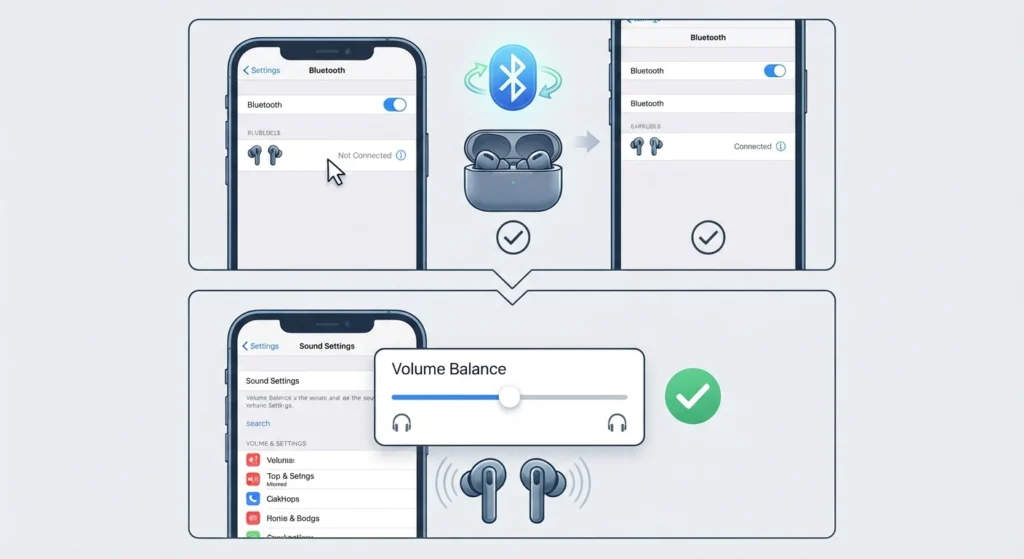
Bluetooth headphones sometimes drift out of balance after a firmware update or a weak connection drop. If the imbalance started right after connecting a new pair, it’s worth confirming the pairing itself is solid by following the steps to re-pair Bluetooth earbuds for stereo sound before touching any sliders again.
Once re-paired, revisit the Volume Balance sliders in Sound settings and confirm both channels are centered. Bluetooth devices occasionally reset their balance values after reconnecting, so this step is easy to overlook.
Method 4: Ruling Out Third-Party Audio Software
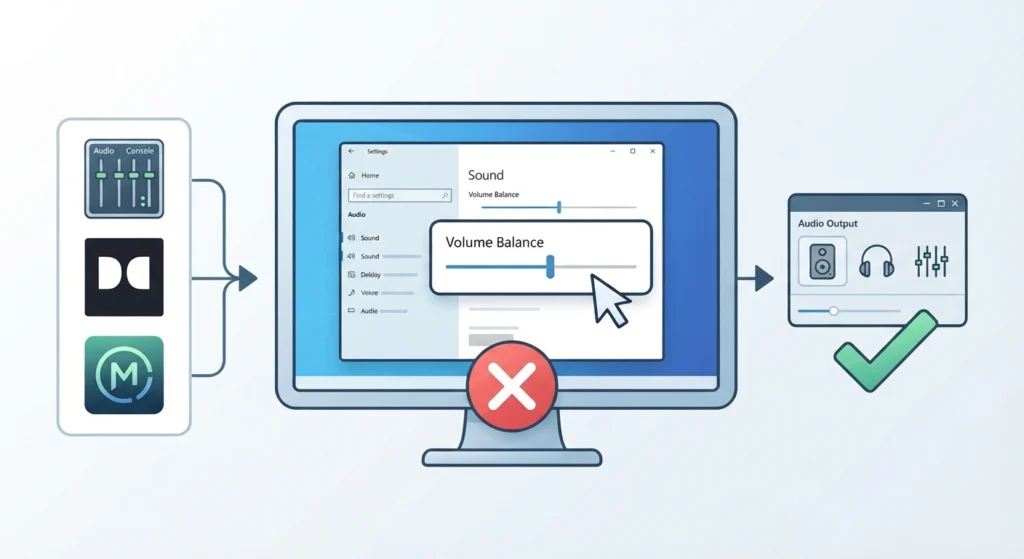
Programs like Realtek Audio Console, Dolby Access, or manufacturer-specific sound apps sometimes apply their own balance or equalizer settings that override Windows. If balance still feels off after the steps above, open any installed audio enhancement app and check for a separate balance or stereo width control there.
When several audio issues appear at once, such as balance, volume levels, and output device switching all acting strange together, it sometimes makes more sense to review the broader audio output settings rather than chasing balance alone.
Tips for Keeping Headphone Balance Correct
- Test balance using a stereo test track rather than music, since music mixing can trick the ear into thinking one side is louder.
- Check the physical volume wheel or inline remote on wired headphones, since a stuck wheel can mimic a software balance issue.
- Update headphone or headset drivers periodically, as outdated drivers occasionally reset audio channel settings.
- Avoid stacking multiple audio enhancement apps at once, since conflicting settings often cause channel imbalance.
Common Problems With Headphone Balance in Windows
Balance Resets After Restarting the PC
This usually happens when an audio enhancement app reapplies its own default profile on startup. Disabling auto-launch for that app, or setting its balance to match Windows, usually stops the reset from happening.
Balance Slider Missing From Settings
If the Volume Balance option doesn’t appear under the output device, the Control Panel method covered above will still work as a reliable backup.
Balance Fine in Windows but Off Inside a Specific App
Some apps, particularly browsers and streaming platforms, have their own internal volume or channel settings separate from Windows. Checking that app’s audio settings menu directly usually resolves this.
Balance Feels Uneven Only With Certain Headphones
This points to a hardware issue with that specific pair rather than a Windows setting. Testing a second pair of headphones on the same port confirms whether the problem follows the device or the PC.
If audio input issues appear alongside balance problems, such as a microphone that only picks up on one side, it helps to look into resolving microphone detection problems separately, since input and output channels are controlled through different settings.
For persistent cases where nothing above resolves the issue, resetting audio settings back to default clears out any conflicting configuration that built up over time.
Frequently Asked Questions
Why does headphone balance shift to one side in Windows?
This typically happens due to a misaligned balance slider, a third-party audio app overriding default settings, or a driver glitch after a Windows update.
How to reset headphone balance to center in Windows 11?
Open Sound settings, select the headphones under Output, and drag both Left and Right sliders under Volume Balance to the same position.
Can a driver update fix headphone balance issues?
Yes, outdated or corrupted audio drivers can cause one channel to play louder or quieter than the other, and updating the driver often resolves it.
Does Bluetooth affect stereo balance?
Bluetooth headphones can experience balance drift after weak connections or firmware updates, so re-pairing the device often restores correct balance.
Why is the balance slider greyed out in Sound settings?
This usually means the audio driver doesn’t fully support the newer Windows balance controls, in which case the Control Panel Levels tab should be used instead.
Is a headphone balance issue caused by hardware or software?
It can be either. Software causes include incorrect balance settings or conflicting apps, while hardware causes include a damaged cable, jack, or headphone driver unit.
Does resetting Windows audio settings fix balance issues?
In many cases, yes, especially when multiple audio settings have been changed over time and are conflicting with each other.
Can third-party apps change audio balance without notice?
Yes, some audio enhancement software applies its own equalizer or balance profile automatically, which can override the balance set in Windows.
How can headphone balance be tested accurately?
Playing a stereo test tone or a track with clearly separated left and right channels makes it easy to hear whether both sides are truly even.
Does headphone balance reset every time the PC restarts?
Only if an app or driver is reapplying default settings on startup. Disabling that app’s auto-start or adjusting its default profile usually stops this from recurring.