
Earbuds that only play in one ear are one of the most frustrating audio problems – especially when it happens right before a workout, a commute, or a long listening session. The good news is that most cases are fixable without any special tools or technical background. This step-by-step guide covers the most effective solutions, from the simplest checks to more targeted fixes, so the right earbud or the left one starts working again as quickly as possible.
Quick Summary Table
| Fix | Best For | Difficulty |
|---|---|---|
| Check audio balance settings | All devices | Easy |
| Clean the earbud mesh | Wired and wireless | Easy |
| Re-pair Bluetooth earbuds | Wireless earbuds | Easy |
| Reset the earbuds | Wireless earbuds | Easy |
| Check and reseat the audio jack | Wired earbuds | Easy |
| Update audio drivers | Windows PC users | Medium |
| Inspect for wire damage | Wired earbuds | Medium |
Fix 1: Check the Audio Balance Settings
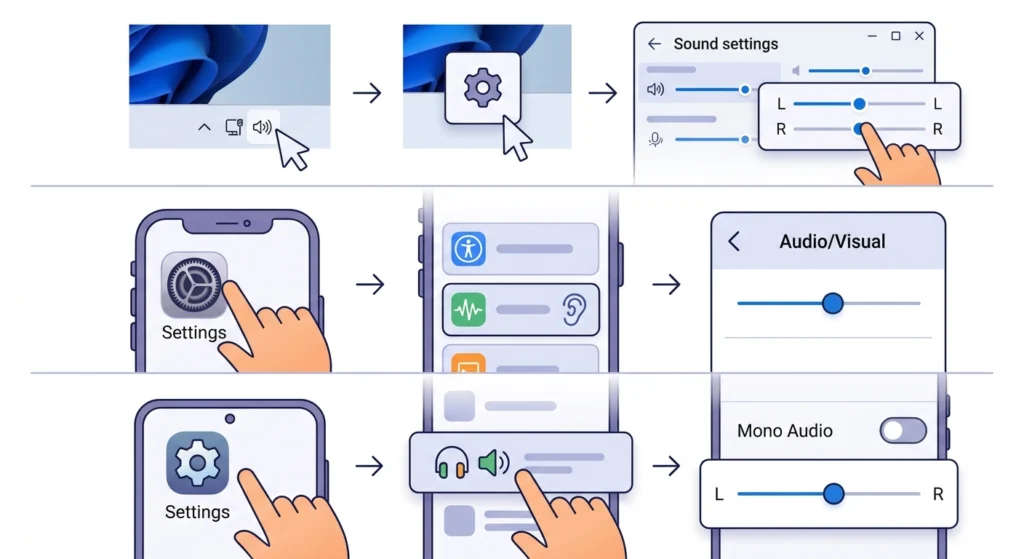
Before touching the earbuds themselves, always start with the device settings. A misconfigured audio balance is one of the most overlooked causes of one-sided sound – and it takes less than a minute to check.
On Windows 11
- Step 1: Right-click the speaker icon in the taskbar and select ‘Sound settings’.
- Step 2: Scroll down and click ‘More sound settings’.
- Step 3: Go to the ‘Playback’ tab, select the earbuds, and click ‘Properties’.
- Step 4: Click the ‘Levels’ tab, then ‘Balance’, and make sure both L and R sliders are set equally – typically at 100.
If the audio balance was off, fixing it here will solve the problem instantly. For deeper audio configuration on Windows, checking the audio output settings on Windows 11 is a great next reference.
On iPhone or iPad
- Step 1: Open ‘Settings’ and tap ‘Accessibility’.
- Step 2: Scroll to ‘Audio and Visual’.
- Step 3: Check the ‘Balance’ slider under the ‘Audio’ section and center it.
On Android
- Step 1: Go to ‘Settings’, then ‘Accessibility’ (or ‘Sound and Vibration’ depending on the device).
- Step 2: Look for ‘Audio Balance’ or ‘Mono Audio’ and make sure it is centered or disabled.
Fix 2: Clean the Earbud Mesh or Speaker Grille
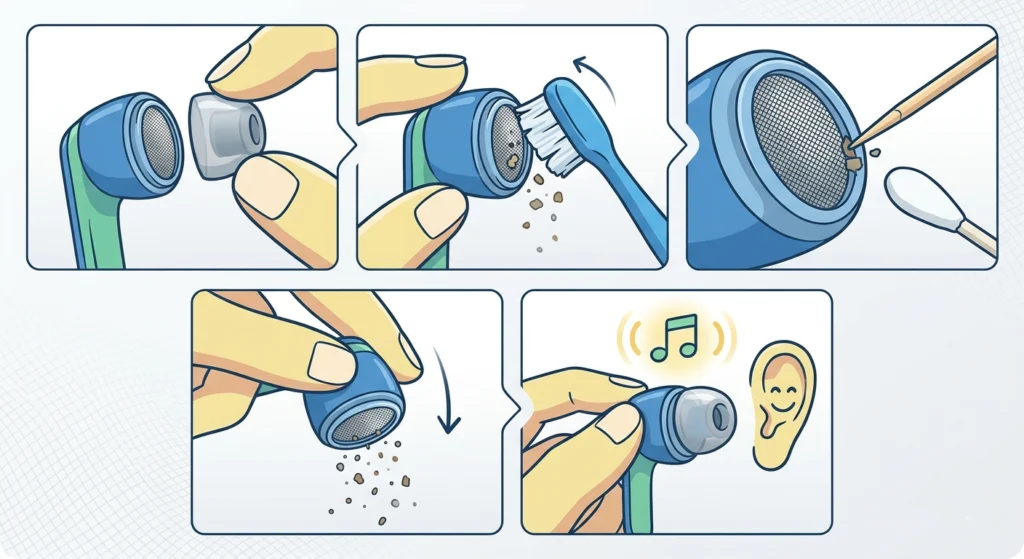
Earwax, dust, and debris build up inside the mesh cover over time and physically block sound from one side. This is especially common with in-ear earbuds worn regularly.
- Step 1: Remove the silicone ear tip if the earbuds have one.
- Step 2: Use a dry, soft-bristled brush (a clean toothbrush works well) to gently brush across the mesh in a single direction.
- Step 3: Use a toothpick or a thin, dry cotton swab to carefully dislodge any visible buildup around the edges.
- Step 4: Hold the earbud mesh-side down and tap lightly to let debris fall out.
- Step 5: Reattach the ear tip and test the sound.
Pro-Tip: Never use water or liquid cleaners directly on the mesh. Even a small amount of moisture inside the driver can cause permanent damage. Stick to dry cleaning tools only, and if the earbud supports it, use a light blast of compressed air held a few inches away.
Fix 3: Re-Pair the Bluetooth Earbuds
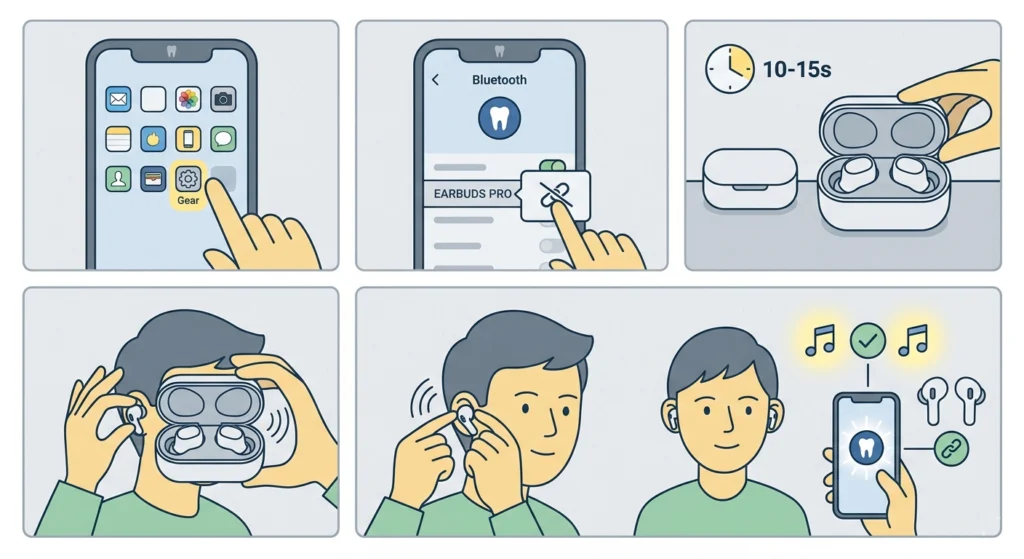
Wireless earbuds sometimes lose proper stereo sync during the pairing process or after a software glitch. One earbud gets out of sync with the other, causing it to go silent or play at very low volume. Re-pairing usually resolves this quickly.
- Step 1: Go to the Bluetooth settings on the device.
- Step 2: Find the earbuds in the paired devices list and select ‘Forget’ or ‘Unpair’.
- Step 3: Place both earbuds back in the charging case and close the lid for 10-15 seconds.
- Step 4: Open the case and put both earbuds in the ears.
- Step 5: Re-pair the earbuds from the Bluetooth menu as if connecting for the first time.
For Windows users dealing with stereo pairing problems specifically, this guide on how to re-pair Bluetooth earbuds for stereo sound on Windows walks through the process in more detail.
Fix 4: Reset the Earbuds to Factory Settings
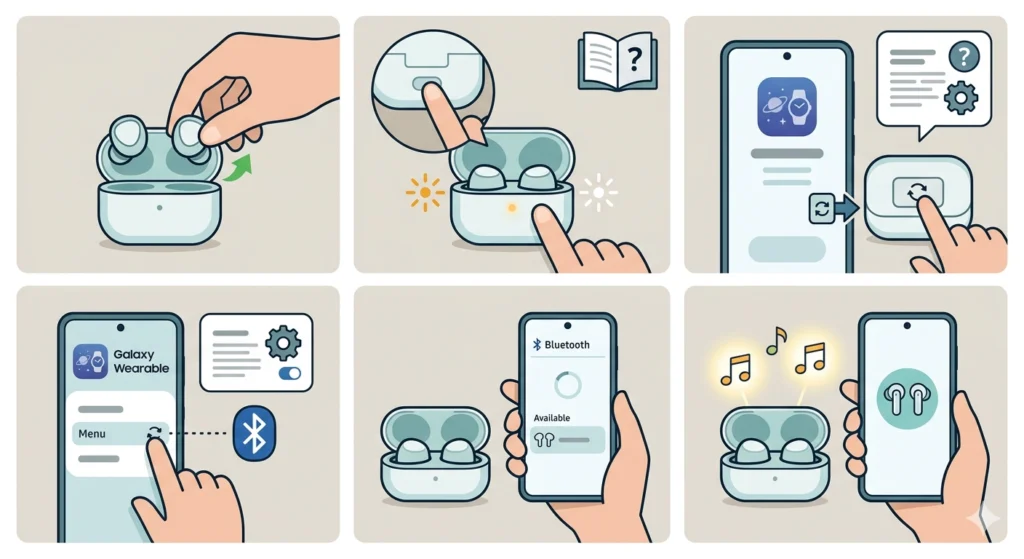
A full reset clears any internal software bugs or misconfigurations stored on the earbuds themselves. The key is that most earbuds have a specific reset sequence – usually a button hold or a tap pattern – that varies by brand.
- Step 1: Place both earbuds in the charging case.
- Step 2: Check the brand’s manual or website for the specific reset method. Most require holding the button on the case or the earbuds for 10-15 seconds until an LED flashes.
- Step 3: For AirPods: hold the setup button on the back of the case until the status light flashes amber, then white.
- Step 4: For Samsung Galaxy Buds: open the Galaxy Wearable app, go to ‘About Earbuds’, and tap ‘Reset’.
- Step 5: Re-pair the earbuds with the device after the reset completes.
Pro-Tip: Resetting earbuds removes all stored pairing data. After the reset, always pair them fresh from the Bluetooth menu rather than selecting them from a previously connected devices list. This ensures a clean stereo connection from the start.
Fix 5: Check and Reseat the Audio Jack (Wired Earbuds)
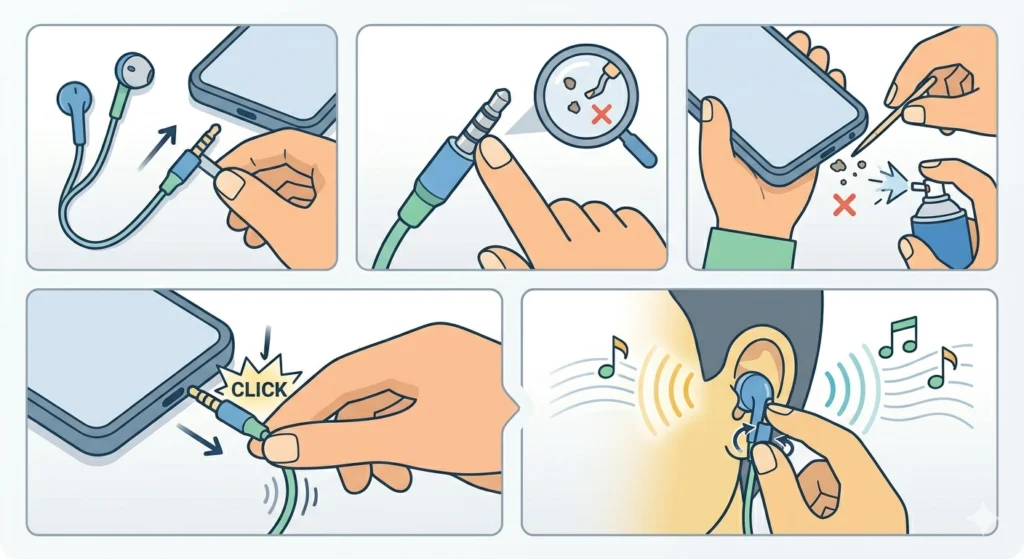
For wired earbuds, a loose or dirty headphone jack is the most common culprit. The connection needs to be fully seated and free of lint or debris to carry a stereo signal properly.
- Step 1: Unplug the earbuds from the device.
- Step 2: Inspect the 3.5mm jack on the earbuds for any bent metal or visible debris.
- Step 3: Look inside the headphone port on the device and use a toothpick or compressed air to clear out any pocket lint.
- Step 4: Plug the earbuds back in firmly until a click is felt, and give them a slight wiggle to make sure the connection is secure.
- Step 5: Play audio and slowly rotate the jack while listening – if the sound cuts in and out during rotation, the jack or the port may be worn.
Fix 6: Update or Reinstall Audio Drivers (Windows)
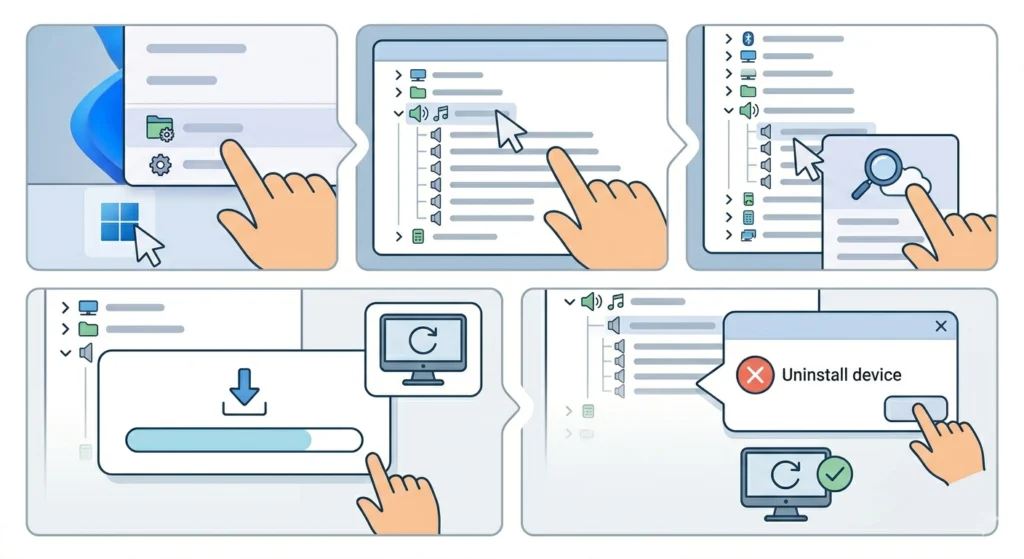
Outdated or corrupted audio drivers on Windows can cause one earbud channel to drop out entirely, even when the physical connection is fine. This is more common after a Windows update or a recent driver change.
- Step 1: Right-click the Start button and select ‘Device Manager’.
- Step 2: Expand the ‘Sound, video and game controllers’ section.
- Step 3: Right-click the audio device and select ‘Update driver’, then choose ‘Search automatically for drivers’.
- Step 4: If an update is found, install it and restart the computer.
- Step 5: If updating does not help, right-click the device again and select ‘Uninstall device’, then restart – Windows will reinstall a fresh driver automatically.
Managing which audio devices Windows recognizes can also help narrow down driver conflicts. The guide to managing audio input devices on Windows 11 is a useful companion for this step.
Fix 7: Inspect the Cable for Damage (Wired Earbuds)
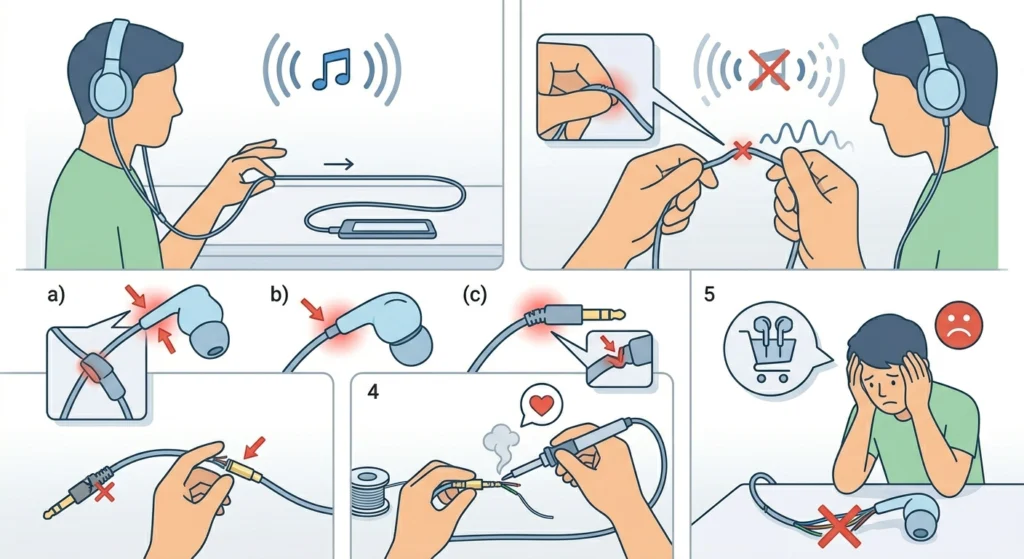
Physical cable damage is the most permanent cause of one-sided sound on wired earbuds. The most vulnerable spots are near the jack, near the earpiece housing, and anywhere the cable has been repeatedly bent or kinked.
- Step 1: Run two fingers slowly along the full length of the cable while audio is playing.
- Step 2: Apply light pressure at different points – if the sound flickers or cuts in when a specific spot is pressed, that is the damaged section.
- Step 3: Check the area where the cable meets the plug and where it enters each earpiece – these are the highest-stress points.
- Step 4: If a damaged spot is found near the plug, a replacement 3.5mm plug can be soldered on with basic tools and a solder kit.
- Step 5: For damage inside the cable body itself, the most practical option is to replace the earbuds, as internal wire repairs are difficult to make durable.
Tips for Keeping Earbuds Working Properly
- Store earbuds in a case – loose earbuds in bags or pockets suffer from cable stress and connector damage faster than any other cause.
- Clean the mesh every two weeks if worn daily, especially after workouts.
- Avoid wrapping wired earbuds tightly around devices – this stresses the cable at specific bend points over time.
- Keep the charging case contacts clean on wireless earbuds – dirty contacts can cause charging imbalances that affect one earbud’s battery and connectivity.
- Check mono audio settings regularly, especially after OS updates, as accessibility toggles sometimes reset or change automatically.
- When using earbuds with multiple devices, always disconnect cleanly from one before pairing to another – this prevents partial connection states that cause one-sided audio.
Common Problems and Troubleshooting
One Earbud Is Much Quieter Than the Other
This usually points to an audio balance issue or partial mesh blockage rather than a fully dead driver. Check the balance settings first, then clean the quieter earbud’s mesh before assuming hardware failure.
Sound Only Works When the Cable Is Held at a Certain Angle
This is a classic sign of a partially broken cable – typically near the plug or where the cable enters the earpiece. The connection is intermittent because the wire strands are partially severed but still touching under tension.
One Earbud Stops Working After Charging
Wireless earbuds that lose one channel after charging often have dirty case contacts or an imbalanced charge. Clean the gold contact points on both the earbud and the case with a dry cotton swab, then charge fully before testing.
Only One Ear Works on Calls but Both Work for Music
This is usually a microphone or call audio routing setting on the device. Check the audio settings for ‘call audio routing’ or ‘Bluetooth call audio’ and ensure both channels are enabled. On Windows, verifying the audio settings reset procedure on Windows 11 can clear any routing misconfigurations.
Earbuds Work on One Device but Not Another
This points to a device-specific setting or pairing issue rather than a hardware fault. Check the audio balance and mono settings on the problematic device, and try re-pairing the earbuds to that device fresh.
Frequently Asked Questions
Why is only one earbud working?
The most common reasons are a misconfigured audio balance setting, earwax blockage in the mesh, a Bluetooth pairing sync issue for wireless earbuds, or cable damage near the plug for wired earbuds. Starting with the audio balance check takes less than a minute and fixes the problem in many cases.
How do you fix wireless earbuds when only one side works?
Start by re-pairing the earbuds – forget the device from Bluetooth settings, put both earbuds in the case, then pair them fresh. If that does not work, perform a factory reset on the earbuds using the brand-specific reset method, then pair again.
Can earwax really cause one earbud to stop working?
Yes – earwax and debris can fully block the speaker mesh on one side, reducing sound to near zero. This is especially common with in-ear earbuds worn during exercise. Cleaning the mesh with a dry brush and tapping out debris often restores full sound immediately.
Is it fixable if the cable is damaged?
It depends on where the damage is. Damage near the plug is often fixable by replacing the 3.5mm jack, which requires basic soldering skills and inexpensive parts. Damage inside the cable body or near the earpiece housing is much harder to repair durably, and replacement is usually the more practical option.
How do you check if the issue is the earbuds or the device?
Plug or connect the earbuds to a different device and test. If both ears work on the second device, the issue is in the original device’s settings or Bluetooth configuration. If the same earbud is still silent, the problem is with the earbuds themselves.
Why does one earbud work during music but not during calls?
This is typically an audio routing setting that separates music playback from call audio. Check the device’s Bluetooth or call settings for a ‘call audio’ or ‘hands-free audio’ option and make sure it is configured to use both channels.
Do software updates cause one earbud to stop working?
Yes, this happens occasionally. OS updates can reset accessibility settings like mono audio or audio balance, and can also cause Bluetooth driver conflicts. After any major device update, checking the audio balance and re-pairing wireless earbuds is a good quick check.
Can a factory reset damage earbuds?
No – a factory reset simply restores the earbuds to their original software state. It does not affect the hardware. The only thing lost is stored pairing data, which is easily rebuilt by re-pairing the earbuds to each device again.
Why do my earbuds work fine for a while and then one side cuts out?
Intermittent one-sided audio in wireless earbuds is often caused by a weak Bluetooth signal, low battery on one earbud, or loose charging contacts causing uneven charging. For wired earbuds, a partially broken cable that shifts position with movement is the usual cause.
What is the most common fix for AirPods only playing in one ear?
The most common fix is resetting the AirPods. Place both in the case, hold the setup button on the back until the light flashes amber and then white, then re-pair them. Also check that the audio balance in iPhone Accessibility settings is centered, as it sometimes shifts without obvious input.