
Key Takeaways
- Fixing bluetooth interference in a crowded apartment usually comes down to reducing 2.4GHz signal overlap from routers, smart devices, and other bluetooth gadgets nearby.
- Moving the connected devices closer together, with fewer walls or appliances in between, often solves dropouts within minutes.
- Switching the home router to the 5GHz band frees up space on the frequency that bluetooth also depends on.
- Updating firmware and re-pairing devices clears out most random cutouts and lag.
- Disconnecting unused bluetooth devices reduces background chatter that competes for the same channel.
Fixing bluetooth interference in a crowded apartment starts with understanding why so many signals compete for the same narrow frequency band. Apartment buildings pack dozens of Wi-Fi routers, smart plugs, baby monitors, and bluetooth speakers into a small radius, and most of that traffic sits on or near the 2.4GHz band. That congestion is exactly what causes choppy audio, delayed taps, or a paired device that disconnects for no obvious reason. The steps below walk through the fix in the order that solves the problem fastest, without wasting time on settings that rarely matter.
Step-by-Step Guide to Fix Bluetooth Interference in a Crowded Apartment
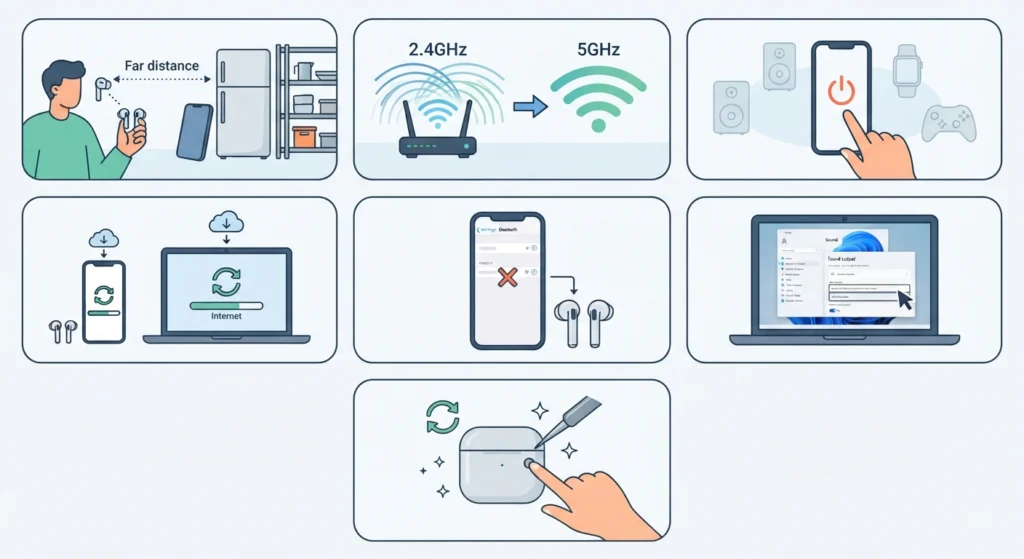
- Step 1: Bring the bluetooth device and the paired device within about 10 feet of each other, and remove large obstacles such as refrigerators, metal shelving, or thick walls from between them.
- Step 2: Log into the home router and switch the Wi-Fi network to the 5GHz band, or change the 2.4GHz channel to one with less overlap from neighboring networks.
- Step 3: Turn off or disconnect any bluetooth device that is not actively in use, since every paired accessory adds extra signal traffic on the same frequency.
- Step 4: Update the firmware on the earbuds or headphones through the manufacturer app, and update the bluetooth driver on the connected phone, laptop, or desktop.
- Step 5: Forget the current pairing and re-pair the bluetooth earbuds from scratch, especially after moving apartments or adding new electronics to the room.
- Step 6: On Windows 11, review and adjust the audio output settings so the system is not defaulting to a lower-quality codec that struggles under interference.
- Step 7: If crackling or lag continues after the changes above, reset the audio settings to clear out any corrupted configuration left behind by previous pairings.
Fix 1: Reduce Signal Congestion From Neighboring Networks
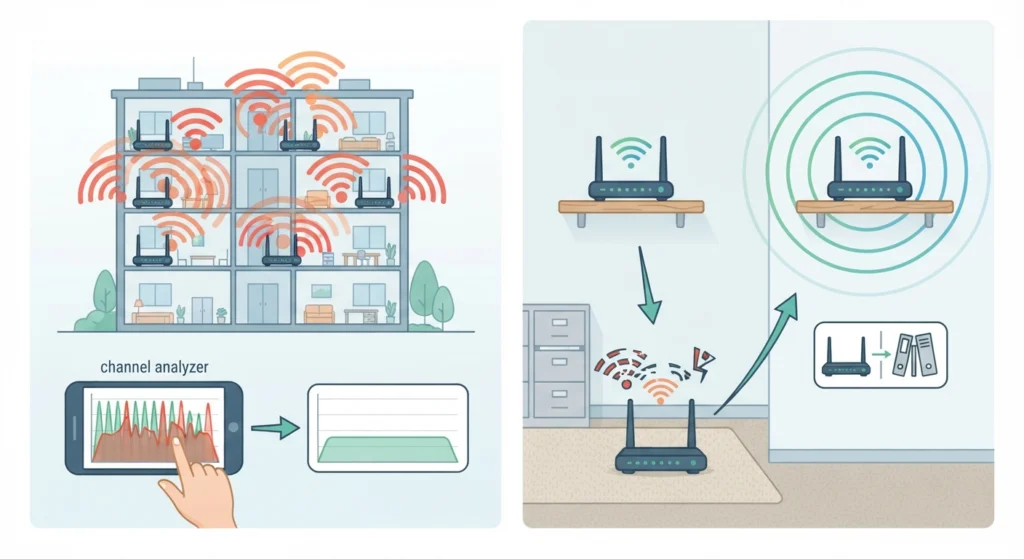
Shared walls in apartment buildings mean the 2.4GHz band is often stacked with ten or more networks broadcasting at once. A Wi-Fi analyzer app, available for free on most phones, shows which channels are already crowded so a less busy one can be chosen instead. Keeping the router off the floor and away from metal furniture also helps, since metal reflects and scatters signal in ways that make dropouts worse.
Pro-Tip: Bluetooth and 2.4GHz Wi-Fi share the same frequency range, so moving the router to the 5GHz band does more to fix bluetooth interference than most people expect, even though bluetooth itself is not a Wi-Fi signal.
Fix 2: Manage Bluetooth Device Load and Pairing
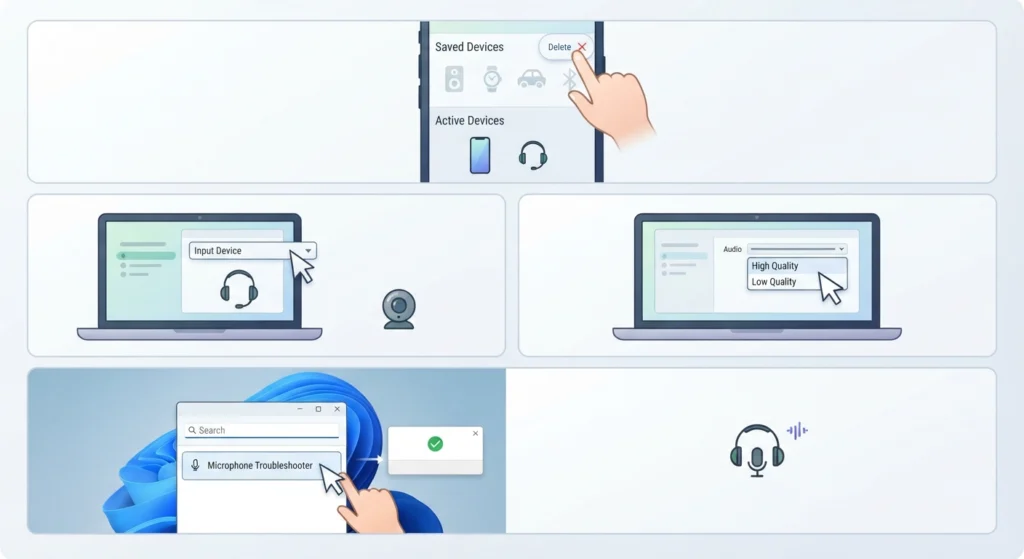
Every bluetooth device saved on a phone or computer stays in the background, occasionally checking in even when not connected. Clearing out old pairings that are no longer used keeps that traffic to a minimum. For anyone using a headset with a built-in microphone, checking how the system is managing audio input devices can prevent the kind of conflicts that show up as call quality issues rather than music dropouts. If the microphone stops being recognized after a fix like this, resolving microphone detection problems on Windows 11 usually brings it back without a full reinstall.
Tips to Keep Bluetooth Connections Stable in Apartments
- Keep the paired device on the same side of the body as the earbuds or headphones, since a phone in a back pocket can block the signal path.
- Avoid charging the phone right next to the router during use, as some chargers add electrical noise on nearby frequencies.
- Restart the router every few weeks, since a long uptime can cause it to settle on a busier channel over time.
- Check for bluetooth 5.0 or newer on new device purchases, since newer versions handle crowded environments noticeably better than older ones.
Pro-Tip: Most people find that interference gets worse in the evening, when neighbors are streaming video and using smart home devices at the same time, so testing a fix during peak hours gives a more accurate picture of whether it actually worked.
Common Problems When Fixing Bluetooth Interference
- Audio still cuts out after switching Wi-Fi channels – this usually points to a different bluetooth device nearby rather than the router, so checking for other active pairings in the area is the next step.
- One earbud disconnects while the other stays connected – this is often a battery or firmware mismatch between the two earbuds rather than interference, so a full re-pair after both are fully charged is worth trying.
- Pairing fails repeatedly in the same spot – moving to a different room for the initial pairing, then returning to the original spot afterward, often works around a temporary interference spike.
- Sound quality drops but does not fully disconnect – this points to a codec or bandwidth issue more than raw interference, and adjusting the audio output settings is the more direct fix in that case.
Frequently Asked Questions
Why is bluetooth so unreliable in apartment buildings specifically?
Apartment buildings concentrate dozens of Wi-Fi routers and bluetooth devices into a small area, and most of that traffic shares the same 2.4GHz frequency band that bluetooth uses, which creates far more congestion than a standalone house would have.
Does switching the router to 5GHz actually help bluetooth?
Yes. Moving Wi-Fi traffic to the 5GHz band clears space on the 2.4GHz band, which is the frequency bluetooth relies on, so there is less competing traffic for bluetooth devices to work around.
How far apart can bluetooth devices be before interference gets worse?
Most bluetooth connections perform best within about 10 feet with a clear line of sight. Distance beyond that, combined with walls or metal objects, is one of the fastest ways to trigger dropouts in a crowded building.
Can microwave ovens cause bluetooth interference?
Yes. Microwave ovens operate on the 2.4GHz band and can cause noticeable interference while running, so keeping bluetooth devices away from an active microwave during use helps avoid temporary dropouts.
Does updating firmware really fix bluetooth dropouts?
In many cases, yes. Manufacturers release firmware updates specifically to improve how a device handles crowded signal environments, so outdated firmware is a common and often overlooked cause of persistent interference.
Should old bluetooth pairings be deleted from a phone or laptop?
Removing pairings that are no longer used is a good habit, since each saved device continues to check in periodically in the background, and fewer active pairings reduce overall signal traffic.
Is bluetooth 5.0 better at handling interference than older versions?
Yes. Bluetooth 5.0 and newer versions include improved frequency-hopping and error correction, which makes them noticeably more resistant to interference in crowded environments compared to bluetooth 4.x devices.
Why does one earbud disconnect more often than the other?
This is usually caused by a battery imbalance or a minor firmware mismatch between the two earbuds rather than interference alone, and a full re-pair after charging both earbuds fully often resolves it.
Can a USB bluetooth adapter reduce interference on a desktop computer?
Yes, especially if the current adapter is built into the motherboard and sits close to other components. A USB extension cable that moves the adapter away from the case and any metal shielding can noticeably improve reception.