
DT 700 Pro X mic not working is a common search because the Beyerdynamic DT 700 Pro X ships as a closed-back studio headphone without a built-in microphone. That single fact changes the entire troubleshooting approach, since the real culprit is almost always the separate input device – an audio interface, USB mic, or webcam mic – being used alongside these headphones for monitoring during calls, streams, or recording sessions.
Key Takeaways
- The DT 700 Pro X does not include a built-in microphone, so mic issues come from a separate input device connected to the same system.
- Windows 11 default input settings are the most frequent cause of a mic that suddenly stops working.
- Loose cables, unseated adapters, or a muted gain knob on an audio interface can silence a mic even when it shows as connected.
- Resetting audio settings or updating drivers resolves detection problems in most cases.
- App-level microphone permissions in Windows 11 can block input even when the hardware itself is functioning correctly.
Fix 1: Set the Correct Input Device as Default
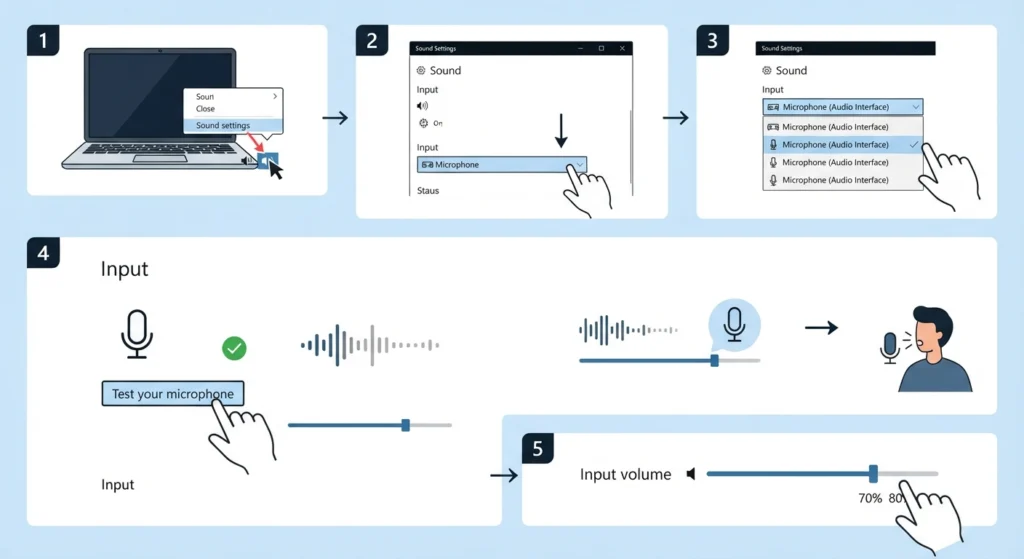
This is the first place to check, since Windows sometimes switches the default input device automatically after a system update or a new device gets plugged in. Most people find that the headphones are working fine and the actual input device – the interface or mic used while wearing the DT 700 Pro X – simply lost its default status.
- Step 1: Right-click the speaker icon on the taskbar and select Sound settings.
- Step 2: Scroll to the Input section and check which device is listed as the default.
- Step 3: Select the correct microphone or audio interface from the dropdown list.
- Step 4: Click the Test button and speak normally to confirm the input level bar responds.
- Step 5: Set the input volume between 70 and 80 percent to avoid a weak or clipped signal.
A full walkthrough of this process, including how to handle multiple connected devices, is covered in this guide on managing audio input devices in Windows 11.
Fix 2: Update or Reinstall the Audio Driver
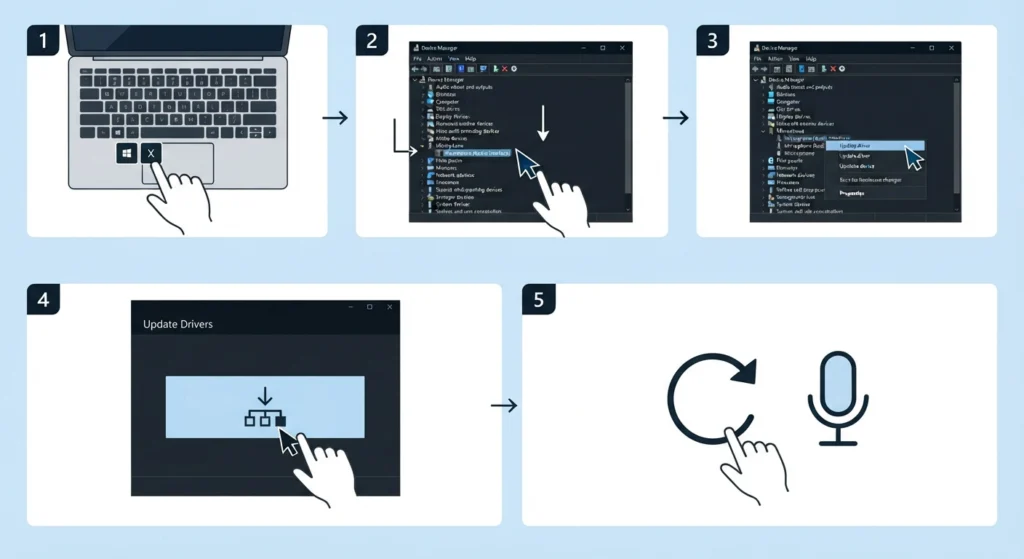
An outdated or corrupted driver is one of the sneakier causes, since the device often still appears in Windows without actually passing signal through correctly.
- Step 1: Press Windows + X and open Device Manager.
- Step 2: Expand Audio inputs and outputs, or Sound, video and game controllers.
- Step 3: Right-click the relevant input device and select Update driver.
- Step 4: Choose Search automatically for drivers and allow Windows to install any available update.
- Step 5: Restart the computer once the update finishes, then retest the microphone.
Pro-Tip: If the driver update finds nothing new, try uninstalling the device instead and restarting the computer. Windows usually reinstalls a fresh copy of the driver automatically, which clears out corrupted files that a simple update cannot fix.
Fix 3: Inspect the Cable, Adapter, and Jack Connection
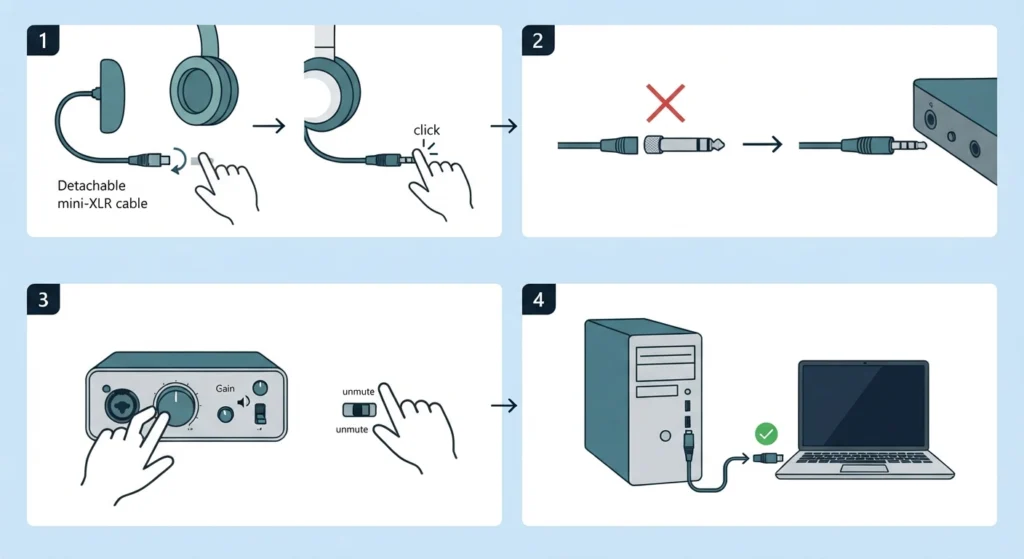
Physical connections get overlooked far too often. The DT 700 Pro X uses a detachable mini-XLR cable on the headphone side, and the separate microphone or interface has its own cable, jack, and sometimes a 3.5mm-to-6.3mm adapter. A loose connection anywhere in that chain can cause the mic to cut out or fail to register at all.
- Step 1: Unplug the microphone cable fully, then reinsert it until it clicks or seats firmly.
- Step 2: If an adapter is in use, remove it and plug the cable directly into a different port to rule out a faulty adapter.
- Step 3: Check that any physical mute switch or gain knob on the interface is not turned all the way down.
- Step 4: Try a different USB or audio port on the computer to rule out a damaged port.
Fix 4: Reset Windows Audio Settings
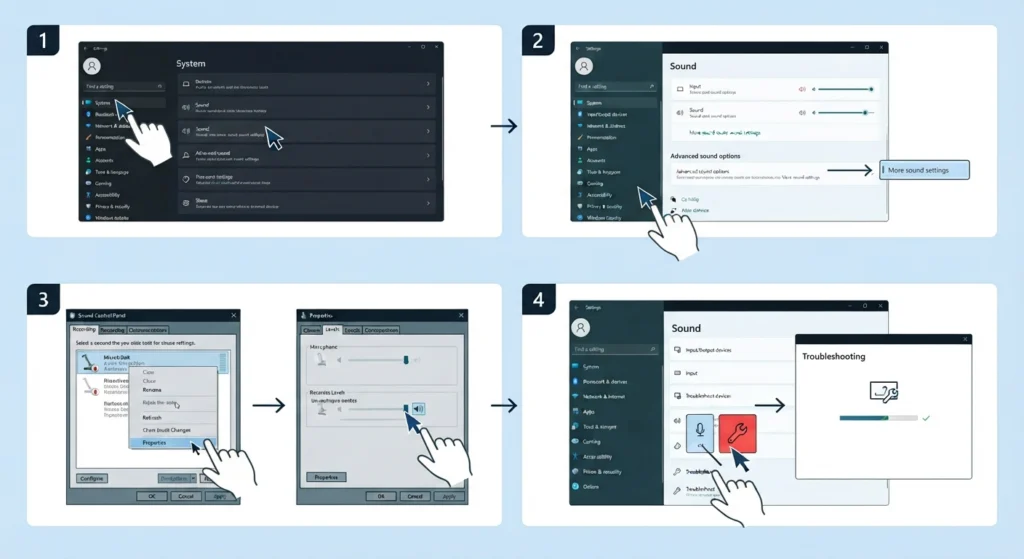
Sometimes the cleanest fix is a full reset of the audio configuration, especially after a Windows update introduces a conflict between drivers and system settings.
- Step 1: Open Settings, then go to System and select Sound.
- Step 2: Scroll down and open Advanced sound options, then More sound settings.
- Step 3: Right-click the input device, choose Properties, and check the Levels tab for muted or zeroed sliders.
- Step 4: Run the built-in audio troubleshooter from the Sound settings page and follow the prompts.
For a complete reset process, including how to restore settings back to system defaults without losing custom EQ profiles, this guide on resetting audio settings covers each step in detail.
Fix 5: Allow Microphone Access for Apps
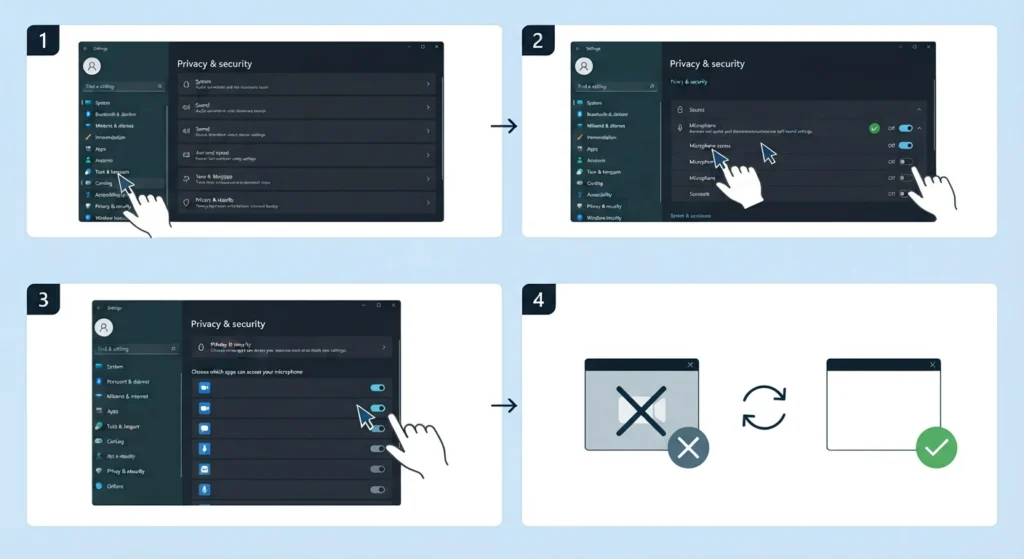
This step gets missed constantly. Windows 11 blocks microphone access on a per-app basis by default, so a mic can work perfectly in one program and stay silent in another simply because permission was never granted.
- Step 1: Open Settings, then go to Privacy & security and select Microphone.
- Step 2: Confirm that Microphone access is turned on at the top of the page.
- Step 3: Scroll down and toggle on access for the specific app being used, such as a video call or recording program.
- Step 4: Close and reopen the app for the permission change to take effect.
A deeper look at detection issues specific to Windows 11, including edge cases where the device shows as connected but stays greyed out, is available in this guide on resolving microphone detection problems.
Tips for Reliable Mic Performance With the DT 700 Pro X
- Keep the audio driver and Windows updated on a regular schedule rather than waiting for a problem to appear.
- Use a dedicated audio interface rather than a built-in laptop mic when recording, since interfaces tend to hold their settings more consistently across restarts.
- Check output levels alongside input levels, since a monitoring mix that sounds wrong can sometimes be mistaken for a mic problem when it is actually an output configuration issue – a full walkthrough of that process is available in this guide on adjusting audio output settings.
- Label input devices with clear names in Windows if more than one microphone or interface gets connected regularly, since generic names like Microphone 2 get confusing fast.
- Test the microphone before every important call or recording session rather than assuming it still works the same way it did last time.
Common Problems and Troubleshooting
Microphone Shows Connected but No Sound Comes Through
This usually points to the wrong input device being selected at the app level, even though Windows has the correct default set system-wide. Check the audio settings inside the specific app being used, since many programs like video call software or recording tools have their own separate device selector.
Mic Works in Some Apps but Not Others
This pattern almost always traces back to app-level microphone permissions rather than a hardware fault. Revisiting the privacy settings and confirming access for the affected app resolves this in most cases.
Microphone Cuts In and Out Randomly
Intermittent dropouts are typically caused by a loose cable connection, a failing USB port, or power-saving settings that suspend USB devices to save battery on a laptop. Disabling USB power management for the audio device in Device Manager often solves this.
Audio Is Detected but Extremely Quiet
Low input volume, an unboosted gain knob on an interface, or a distance issue between the mic and the sound source are the most common reasons. Adjusting the input level in Sound settings and repositioning the microphone usually clears this up.
Frequently Asked Questions
Does the DT 700 Pro X have a built-in microphone?
No, the DT 700 Pro X is a closed-back studio headphone designed for listening and monitoring only. Any microphone used alongside it, such as an audio interface or USB mic, is a separate device.
Why did the microphone stop working after a Windows update?
Windows updates occasionally reset the default input device or reinstall a generic driver in place of the correct one. Checking the default device in Sound settings and updating the driver typically resolves this.
Can the DT 700 Pro X be used for calls and streaming?
Yes, the DT 700 Pro X works well for monitoring audio during calls and streams, but a separate microphone is required to capture voice since the headphones themselves do not include one.
Why is the input device not showing up in Sound settings at all?
This usually means the driver failed to install correctly or the device is connected to a faulty port. Reconnecting the device, trying a different port, and reinstalling the driver through Device Manager typically brings it back.
What should happen if the microphone works in one app but not another?
Check the microphone permissions for that specific app under Privacy and security in Windows settings, and confirm the correct input device is selected inside the app’s own audio settings.
Is a separate audio interface necessary when using the DT 700 Pro X?
An audio interface is not strictly required, since a USB microphone or a laptop’s built-in mic can work as well, but an interface generally provides more consistent gain control and a cleaner signal for recording.
Why does the mic sound quiet or distorted after fixing detection?
This is typically a gain staging issue rather than a detection problem. Lowering the input level if it sounds distorted, or raising it moderately if it sounds too quiet, usually restores clean audio.
How can the microphone be tested before an important recording?
Use the Test button inside Windows Sound settings, or record a short clip inside the app being used, to confirm both detection and audio quality before starting the actual session.
Does updating the audio driver delete existing sound settings?
No, updating a driver typically preserves system level sound settings. Custom levels inside individual apps may still need to be reconfirmed after a major driver update.
Can outdated USB ports affect microphone performance?
Yes, older or damaged USB ports can cause intermittent dropouts or fail to provide enough power for certain interfaces. Testing with a different port helps rule this out as the cause.