
CMF Buds Pro 2 not showing up in the Nothing X app is one of those annoyances that can happen straight out of the box or months into daily use, and the fix is almost always simpler than it first appears. This guide walks through the exact steps that resolve the issue, without wasting time on unrelated background information.
Key Takeaways
- Most connection issues are solved by restarting Bluetooth and re-entering pairing mode correctly.
- Forgetting the device on the phone and re-pairing inside the Nothing X app fixes a large share of cases.
- An outdated app or outdated firmware is a common hidden cause of the buds not being detected.
- A factory reset clears stuck pairing data when nothing else works.
- Dirty charging contacts or a low case battery can prevent the buds from even powering on properly.
Step-by-Step Guide to Fix CMF Buds Pro 2 Not Showing Up in the App
Method 1: Restart Bluetooth and Refresh the Connection
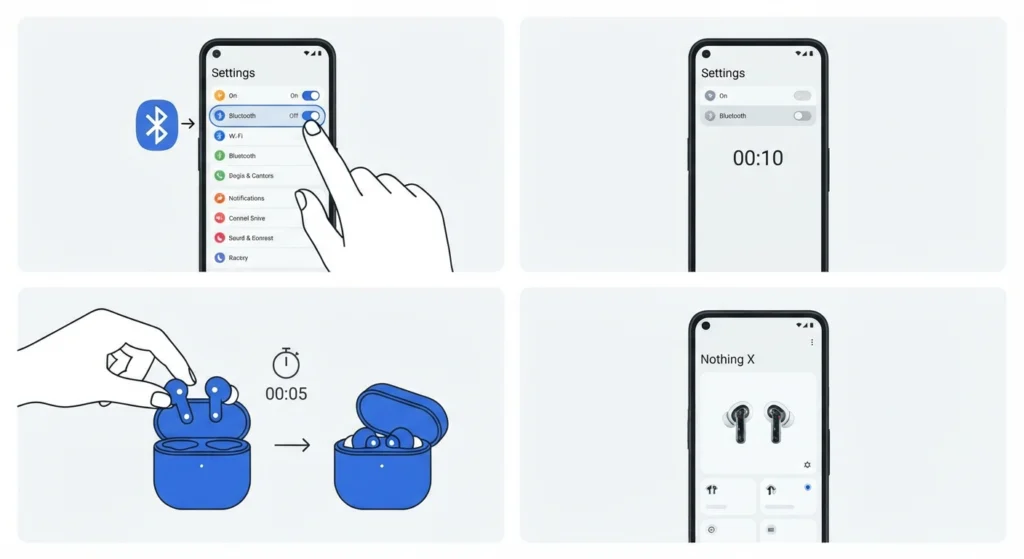
A stuck Bluetooth radio on the phone is the most common reason the app fails to detect the buds, and this is worth trying first since it takes less than a minute.
- Step 1: Open the phone’s Bluetooth settings and turn Bluetooth off.
- Step 2: Wait about ten seconds, then turn Bluetooth back on.
- Step 3: Place the buds back in the case, close the lid for five seconds, then open it again to wake them up.
- Step 4: Open the Nothing X app and check if the buds now appear on the home screen.
Method 2: Put the Buds Into Proper Pairing Mode
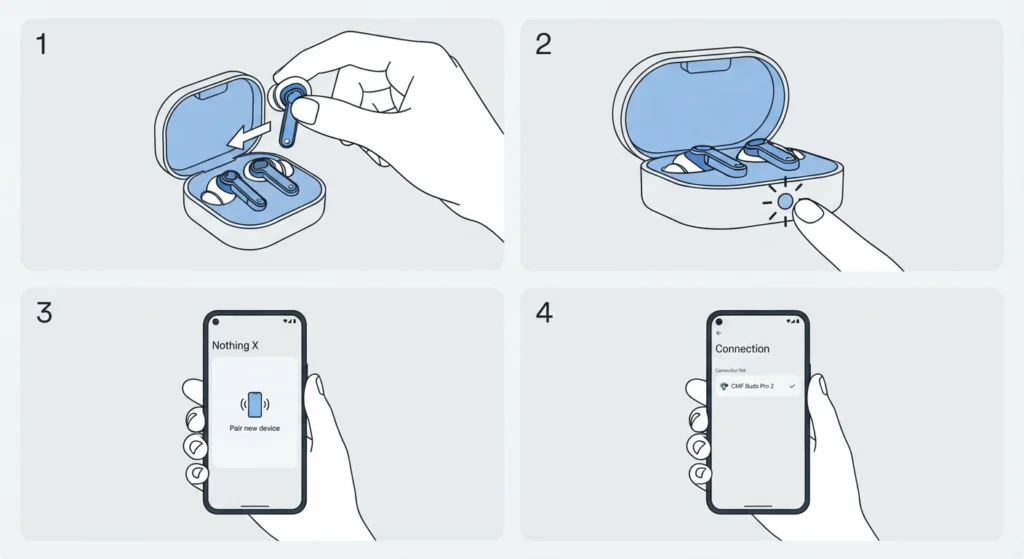
Sometimes the buds are simply not in the correct mode for the app to find them, which looks identical to a connection failure but has a completely different fix.
- Step 1: Keep both earbuds inside the open charging case.
- Step 2: Press and hold the function button on the case until the LED light starts blinking.
- Step 3: Open the Nothing X app and tap ‘Pair new device’.
- Step 4: Select CMF Buds Pro 2 from the list once it appears.
Pro Tip: The button needs a firm, continuous press. A quick tap will not trigger pairing mode, which is why many people assume the buds are broken when they are only sitting idle.
Method 3: Forget the Device and Re-Pair in Nothing X
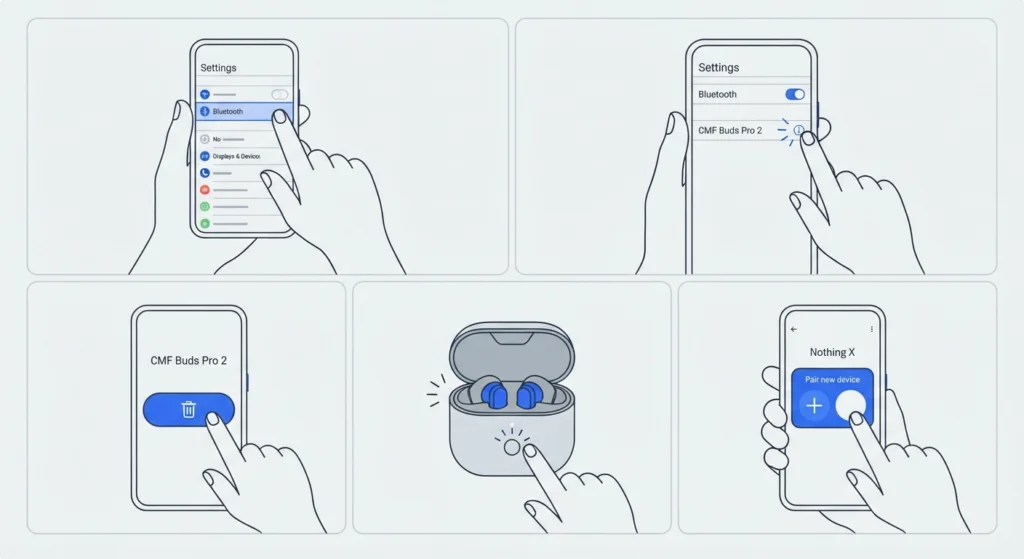
When the buds show up in the phone’s Bluetooth list but never appear inside the app itself, a leftover pairing record is usually the culprit.
- Step 1: Go to the phone’s Settings, then Bluetooth.
- Step 2: Find CMF Buds Pro 2 in the list and tap the info icon next to it.
- Step 3: Select ‘Forget This Device’ or ‘Unpair’, depending on the phone.
- Step 4: With the buds in the open case, hold the function button until the light blinks.
- Step 5: Open Nothing X, tap ‘Pair new device’, and complete the pairing process again.
This same forget-and-repair approach works for anyone dealing with dropped stereo sound, and the process for re-pairing Bluetooth earbuds for stereo sound on Windows follows a very similar pattern.
Method 4: Update Nothing X App and Firmware
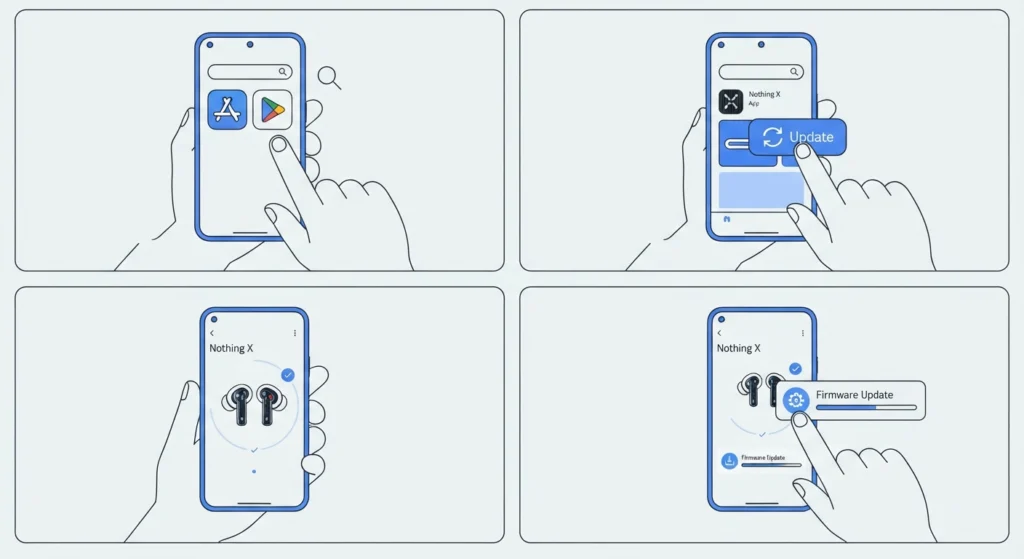
An outdated app version is one of the most overlooked causes of device detection problems, especially after a phone’s operating system has recently updated.
- Step 1: Open the App Store or Google Play Store.
- Step 2: Search for Nothing X and install any pending update.
- Step 3: Reopen the app and reconnect the buds.
- Step 4: Once connected, tap the settings icon in the device page and select ‘Firmware Update’ to install the latest buds firmware.
Method 5: Factory Reset the CMF Buds Pro 2
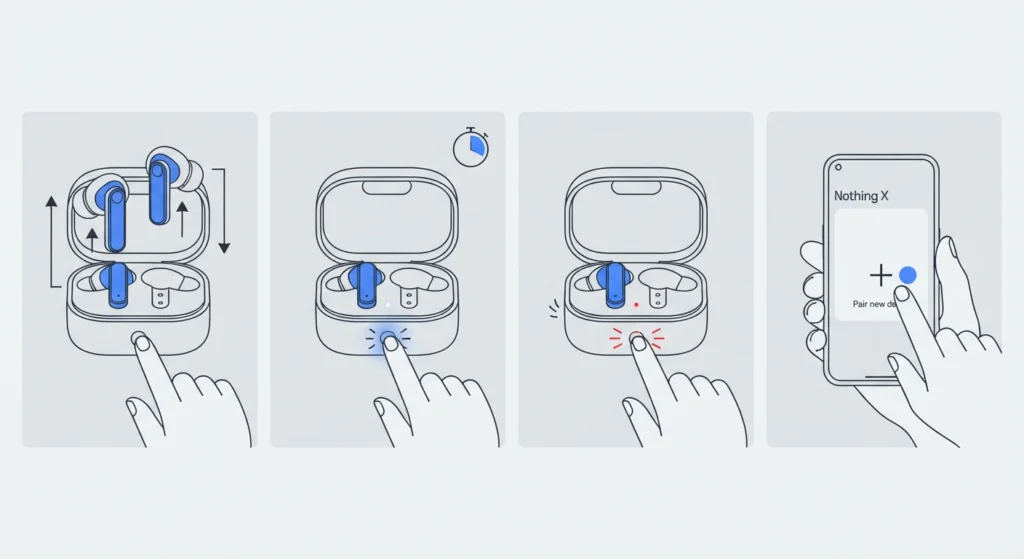
A factory reset clears out corrupted pairing data that smaller fixes cannot touch, and it works well when the buds connect briefly but then vanish from the app again.
- Step 1: Place both earbuds in the charging case with the lid open.
- Step 2: Press and hold the function button for about ten seconds.
- Step 3: Watch for the LED to flash red three times, confirming the reset.
- Step 4: Open Nothing X and pair the buds as if setting them up for the first time.
Method 6: Check Case Charging Contacts and Battery
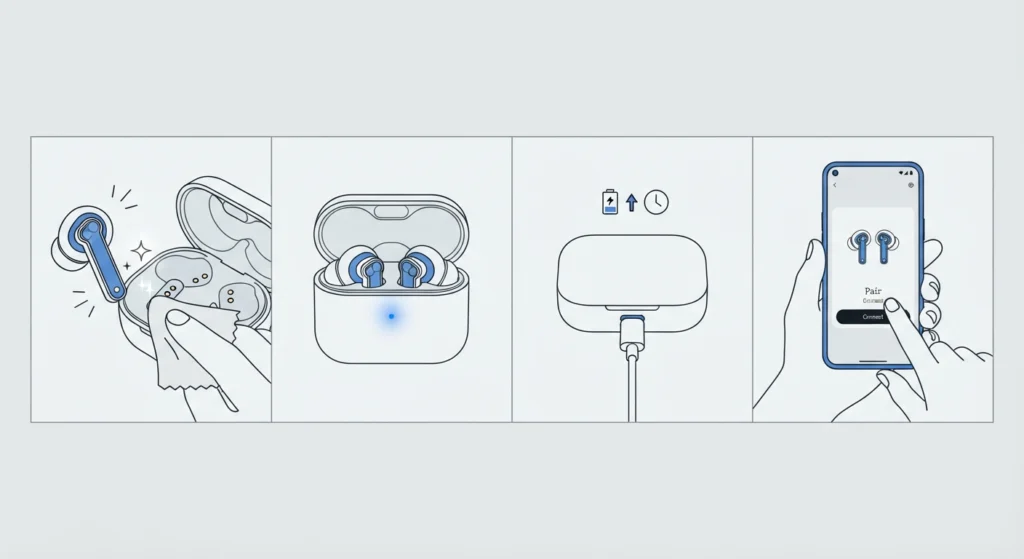
Low battery or dirty contacts can stop the buds from powering on fully, which then prevents the app from detecting anything at all.
- Step 1: Wipe the metal charging contacts on both the buds and the case with a dry, soft cloth.
- Step 2: Place the buds in the case and confirm the LED turns on when the lid is opened.
- Step 3: Charge the case for at least fifteen minutes using the original cable.
- Step 4: Try pairing again through the Nothing X app.
Tips to Keep CMF Buds Pro 2 Connected to the App
- Keep only one Bluetooth audio device active at a time to avoid the phone switching connections unexpectedly.
- Avoid pairing the buds while a call is active, since call audio takes priority over the low-power Bluetooth link the app relies on.
- On a laptop, check that the correct playback device is selected, since adjusting audio output settings on Windows 11 often resolves cases where the buds connect but the app or system does not recognize them properly.
- Restart the phone occasionally, since background Bluetooth caches can build up over weeks of use and cause detection delays.
Pro Tip: Keeping the Nothing X app running in the background rather than force-closing it after every use actually reduces reconnection issues, since the app maintains a lighter, more stable link with the buds.
Common Problems With CMF Buds Pro 2 Not Appearing in the App
- Only one earbud shows in the app: Place both buds in the case together for at least thirty seconds so they resync with each other before reopening the lid.
- App shows ‘searching’ indefinitely: Close the app fully, disable and re-enable Bluetooth, then reopen the app.
- Buds connect to the phone but not the app: This usually points to a pairing record mismatch, which Method 3 above resolves.
- App crashes on launch: Clear the app cache from phone storage settings, or reinstall Nothing X entirely.
- Buds work on one device but not another: Managing multiple paired devices correctly matters here, and the same logic used when managing audio input devices on Windows 11 applies to keeping earbud connections consistent across devices.
Frequently Asked Questions
Why are CMF Buds Pro 2 not showing up in the Nothing X app?
This typically happens because the buds are not in pairing mode, the app needs an update, or an old pairing record on the phone is conflicting with a new connection attempt.
How long should the function button be held to reset CMF Buds Pro 2?
The button should be held for about ten seconds until the LED flashes red three times, confirming a successful factory reset.
Does forgetting the Bluetooth device delete buds settings?
Forgetting the device only removes the pairing record on the phone. Custom settings inside the app, such as equalizer presets, are not affected once the buds are re-paired.
Can outdated firmware cause the buds to disappear from the app?
Yes. Firmware that has fallen behind the app version can cause communication errors, which often show up as the buds simply not appearing in the device list.
Why does only one earbud show up in the app?
This usually means the two buds have gone out of sync with each other. Placing both in the case together for about thirty seconds before reopening it typically resolves this.
Is it normal for the app to fail to connect during a phone call?
Yes. Phone calls take priority over the low-power Bluetooth connection the app uses, so the buds may appear disconnected in the app until the call ends.
What should be done if a factory reset does not fix the issue?
Reinstall the Nothing X app completely, restart the phone, and pair the buds again from scratch. This clears both app-side and phone-side pairing data at once.
Can dirty charging contacts affect app detection?
Yes. Dirty or damp contacts can prevent the buds from charging or powering on fully, which then stops the app from detecting them at all.
Do CMF Buds Pro 2 work with both Android and iOS?
Yes. The Nothing X app is available for both Android and iOS, and the pairing steps are nearly identical across both platforms.
How can microphone issues be separated from app detection issues?
If the buds show up correctly in the app but the microphone does not work in calls or recordings, the issue is usually unrelated to pairing, and steps for resolving microphone detection problems on Windows 11 would be the more relevant fix.