
A Cleer Arc 3 that won’t reset is one of the most frustrating hiccups an earbud owner can run into, especially right before a call or a workout. Most of the time, this happens because the earbuds are not seated properly in the case, the app is outdated, or the battery is too low to complete the process. This guide walks through every working method to reset the Cleer Arc 3, in the exact order that tends to solve the problem fastest.
Key Takeaways
- The fastest fix is resetting through the Cleer+ App under Settings, then More Settings, then Factory Reset.
- If the app method fails, the charging case touchscreen has a dedicated Auxiliary reset menu for the earbuds.
- The charging case itself can also be reset separately from the earbuds.
- A manual touch-and-hold reset works as a backup when the app or case menu is unresponsive.
- Low battery and improper seating in the case are the two most common reasons a reset fails to complete.
Method 1: Reset Cleer Arc 3 Using the Cleer+ App
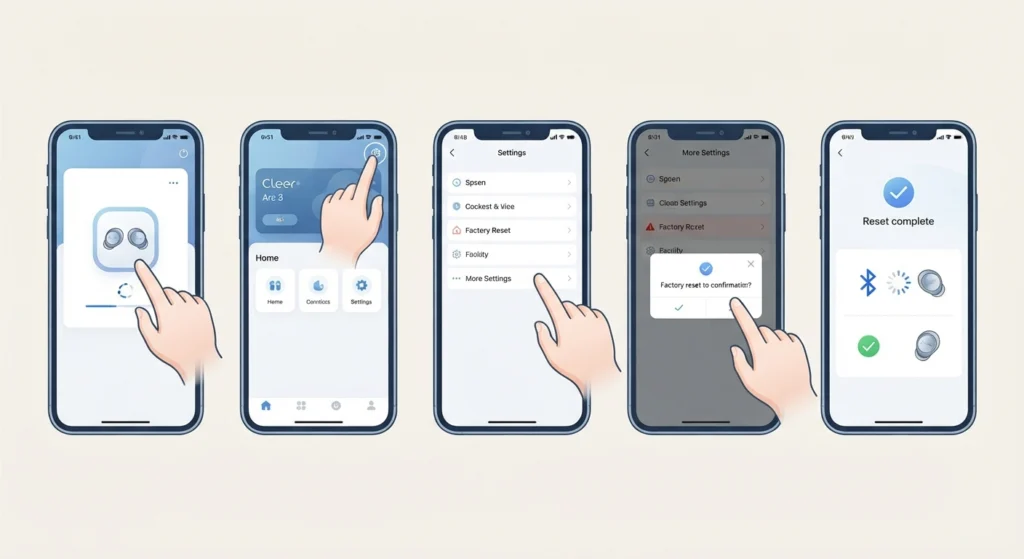
This is the method most users try first, and it works in the majority of cases as long as the earbuds are already connected to the app.
- Step 1: Open the Cleer+ App on the paired phone or tablet.
- Step 2: Tap Settings from the main screen.
- Step 3: Select More Settings.
- Step 4: Tap Factory Reset and confirm the action when prompted.
- Step 5: Wait for the app to confirm the reset, then reconnect the earbuds via bluetooth settings.
Pro Tip: Make sure the Cleer+ App is updated to the latest version before attempting a reset. An outdated app is one of the quiet reasons the Factory Reset button appears greyed out or simply does nothing when tapped.
Method 2: Reset the Earbuds Using the Charging Case
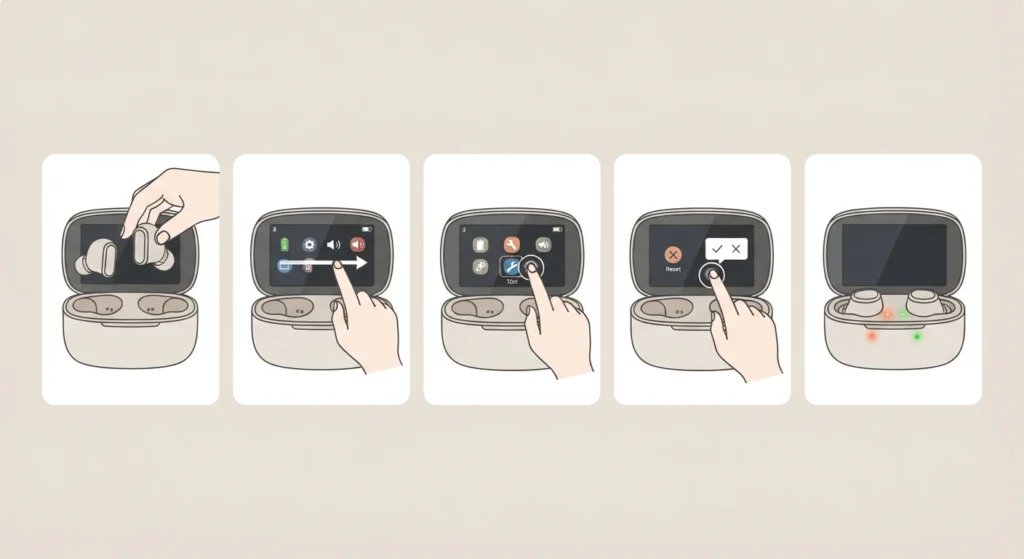
When the app is not detecting the earbuds at all, the charging case touchscreen becomes the more reliable option since it does not depend on a bluetooth connection.
- Step 1: Place both earbuds into the charging case without closing the lid.
- Step 2: Slide left or right on the case’s touch interface until the menu changes.
- Step 3: Tap Auxiliary on the interface.
- Step 4: Select Reset Earbud and confirm the prompt.
- Step 5: Leave the earbuds in the case for a few seconds until the indicator lights confirm the reset finished.
Method 3: Reset the Cleer Arc 3 Charging Case
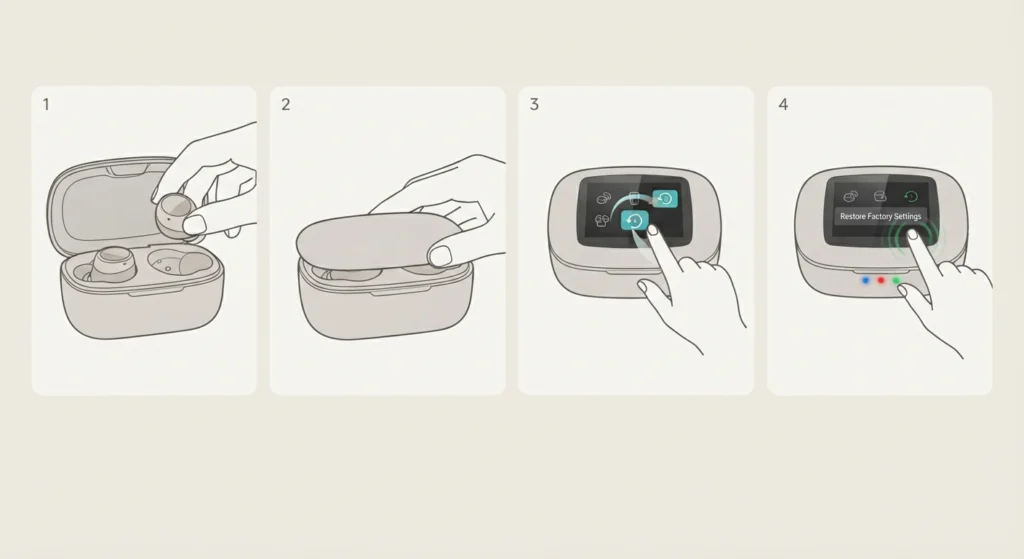
Sometimes the earbuds reset fine, but the case itself keeps causing pairing issues. This method clears the case separately from the earbuds.
- Step 1: Put both earbuds back into the charging case.
- Step 2: Close the lid of the case fully.
- Step 3: Slide left or right on the touch interface to locate Reset Charging Case.
- Step 4: Tap Restore Factory Settings and wait for the confirmation cue.
Method 4: Manual Touch Reset for Cleer Arc 3 Earbuds
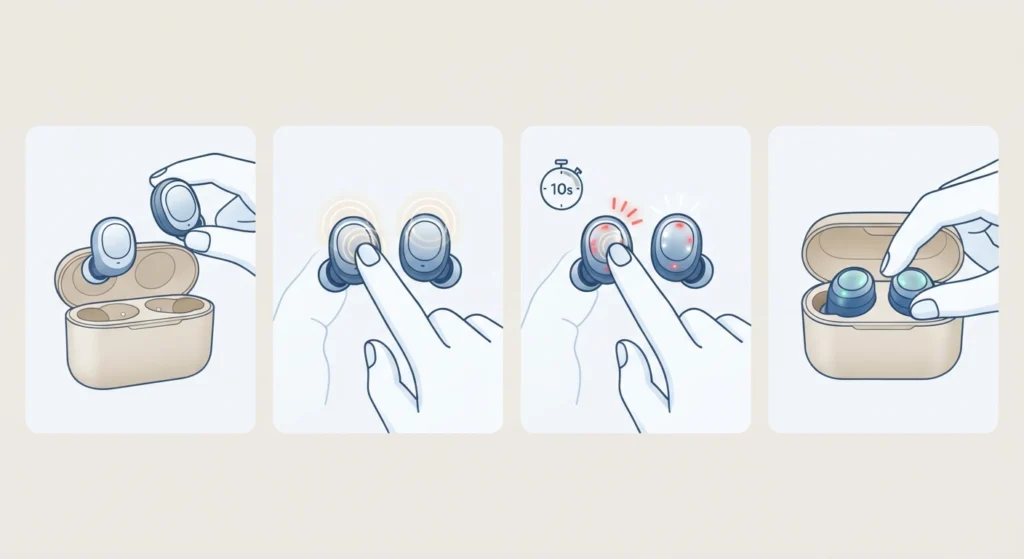
This method works as a backup when neither the app nor the case touchscreen is cooperating, which usually points to a firmware glitch rather than a hardware fault.
- Step 1: Take both earbuds out of the case.
- Step 2: Press and hold the touch area on both earbuds at the same time.
- Step 3: Continue holding for about 10 seconds until the LED indicators flash red and white alternately.
- Step 4: Release and place the earbuds back into the case to let the reset settle.
Pro Tip: A reset only sticks if the earbuds have enough charge to complete the process. Charging both earbuds for at least ten minutes before attempting any of the methods above prevents the reset from getting stuck halfway.
Tips to Make the Reset Stick
- Forget the Cleer Arc 3 from the phone’s bluetooth list before reconnecting after a reset.
- Keep the case lid open during the earbud reset so the touch interface stays active and responsive.
- On a Windows laptop, it also helps to re-pair the earbuds correctly for stereo sound right after the reset, since a fresh pairing sometimes defaults to mono audio.
- If sound settings feel off after reconnecting, running through the steps for resetting audio settings on Windows 11 clears out any leftover configuration from the old pairing.
Common Problems When Cleer Arc 3 Won’t Reset
- The earbuds show no LED response at all, which almost always means the battery has dropped too low to trigger the reset sequence.
- The case touchscreen freezes on the same menu, which usually clears up after removing both earbuds, waiting ten seconds, and placing them back in.
- The app finds the earbuds but Factory Reset does nothing, which typically points to an app update that has not finished installing.
- The earbuds reset but audio still sounds distorted afterward, in which case reviewing adjusting audio output settings on Windows 11 resolves most leftover playback issues.
- The microphone stops registering after the reset, a case where resolving microphone detection problems on Windows 11 walks through the fix in detail.
Frequently Asked Questions
Why does the Cleer Arc 3 refuse to reset through the app?
This usually happens when the Cleer+ App has a pending update or when the earbuds lost connection to the phone right before the reset was triggered. Updating the app and reconnecting the earbuds first solves this in most cases.
How long should the touch-and-hold reset take?
The manual reset takes about 10 seconds of continuous holding on both earbuds. The LED indicators flashing red and white alternately confirms the reset has gone through.
Does resetting the Cleer Arc 3 erase paired devices?
Yes, a factory reset clears all previously paired devices from the earbuds’ memory. Reconnecting to any phone or laptop afterward requires pairing from scratch.
Can the charging case be reset without resetting the earbuds?
Yes, Method 3 above resets only the charging case through its Reset Charging Case option, leaving the earbud settings untouched.
What if only one earbud responds during the reset?
Remove both earbuds from the case, place them back in together, and repeat the reset method. A single unresponsive earbud is often just a charging contact issue inside the case.
Is a low battery the main reason resets fail?
It is one of the most common reasons. A reset needs enough power to complete the full cycle, so a battery below 10 percent frequently causes the process to stop midway.
Do all Cleer Arc 3 versions reset the same way?
The core methods stay consistent across the Arc 3 lineup, though menu wording on the case touchscreen can vary slightly between the Gaming, Music, and Max AI versions.
How can it be confirmed that the reset actually worked?
The earbuds will show a fresh pairing prompt and will not appear in the phone’s saved bluetooth devices list. This is the clearest sign the reset completed successfully.
What should be done if none of these methods work?
Charging both earbuds and the case fully for at least 30 minutes before trying again resolves the vast majority of remaining cases, since incomplete charging is the most overlooked cause.