
Beats Solo 4 mic not working right when a call starts is frustrating, especially when the music plays perfectly. The good news is that this problem is almost always caused by a setting, a connection glitch, or a blocked microphone opening, not a broken headphone. This guide walks through each fix in order, from the quickest to the most thorough.
Key Takeaways
- Most mic problems are solved by reconnecting the headphones or allowing microphone access for the app in use.
- On Windows and Mac, the Beats Solo 4 must be selected as the input device, not just the output device.
- Dust or debris over the mic openings can muffle or silence a voice.
- A reset is the last software step, and it does not delete anything from a phone or computer.
Step-by-Step Guide to Fix Beats Solo 4 Mic Not Working
Work through the fixes below in order. After each one, make a quick test call or voice recording to check whether the mic is back.
Fix 1: Restart the Connection
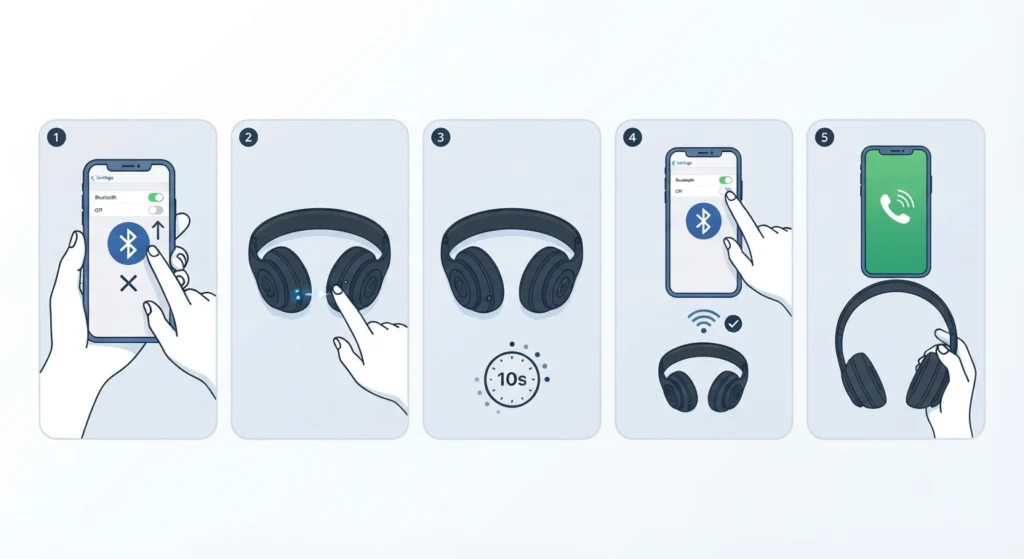
A stale Bluetooth link is the most common cause. Think of it like a phone call that has gone quiet on one side – hanging up and calling again usually clears it.
- Step 1: Turn off Bluetooth on the phone, tablet, or computer.
- Step 2: Power off the Beats Solo 4 by holding the power button until the light goes off.
- Step 3: Wait about 10 seconds, then turn the headphones back on.
- Step 4: Turn Bluetooth back on and let the headphones reconnect.
- Step 5: Make a test call or record a voice memo.
Fix 2: Allow Microphone Access for the App
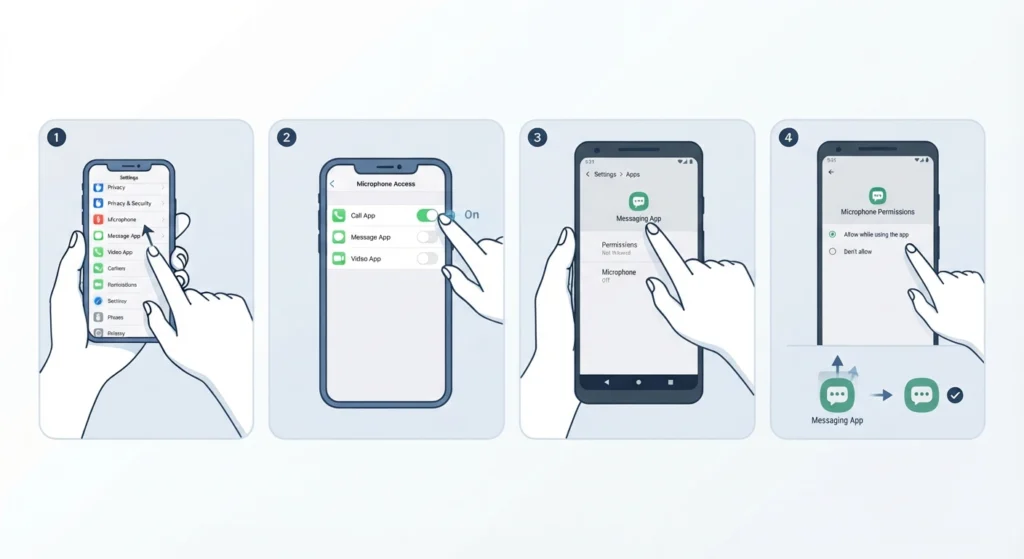
Sometimes the headphones are fine and the app simply has no permission to use a microphone. This is a very common reason a mic works in one app but not another.
- Step 1: On iPhone or iPad, open Settings and tap Privacy and Security, then Microphone.
- Step 2: Switch on the toggle for the app that is not picking up sound (for example a video call or messaging app).
- Step 3: On Android, open Settings, tap Apps, choose the app, then tap Permissions and set Microphone to Allow while using the app.
- Step 4: Close the app fully and open it again before testing.
Pro-Tip: If a call app has no sound from the mic but the voice recorder works fine, the problem is the app permission, not the headphones. That saves a lot of unnecessary resetting.
Fix 3: Select the Beats Solo 4 as the Input Device
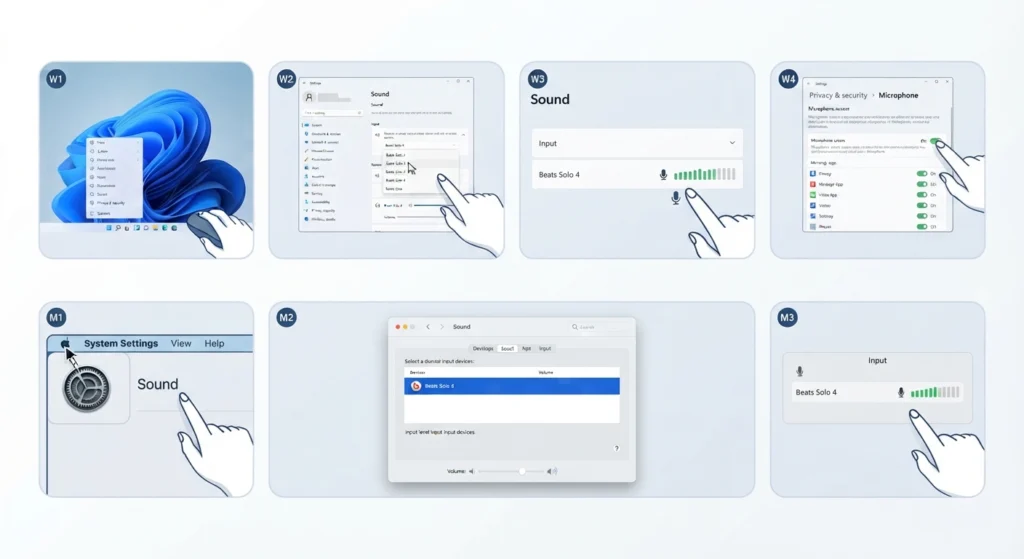
Computers often play sound through the headphones while still listening to the built-in laptop mic. The input has to be switched manually.
On Windows 11:
- Step 1: Open Settings, then go to System and select Sound.
- Step 2: Under Input, choose the Beats Solo 4 headset.
- Step 3: Speak and watch the input volume bar move. If it moves, the mic is working.
- Step 4: Go to Privacy and security, then Microphone, and make sure microphone access and app access are turned on.
For deeper Windows help, this guide on resolving microphone detection problems and this one on managing audio input devices cover the same settings in more detail.
On Mac:
- Step 1: Open System Settings and click Sound.
- Step 2: Open the Input tab and select the Beats Solo 4.
- Step 3: Speak and check that the input level meter reacts.
Video call apps such as Zoom or Teams also have their own microphone menu in audio settings, so the Beats Solo 4 may need to be chosen there too.
Fix 4: Clean the Microphone Openings
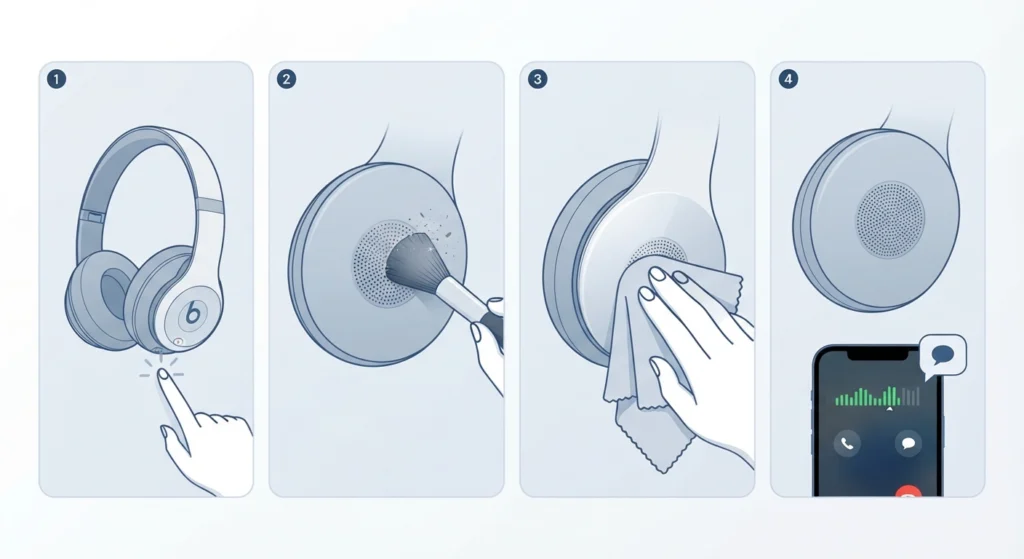
Pocket lint, dust, and skin oils can gather over the tiny microphone openings on the earcups. A muffled or very quiet voice on calls is the usual sign.
- Step 1: Turn the headphones off.
- Step 2: Gently brush the openings with a clean, dry, soft brush.
- Step 3: Wipe the surrounding area with a dry microfiber cloth.
- Step 4: Test the mic again.
Avoid liquids, compressed air at close range, and sharp objects like pins. These can push debris deeper or damage the mic.
Fix 5: Update the Headphone Firmware
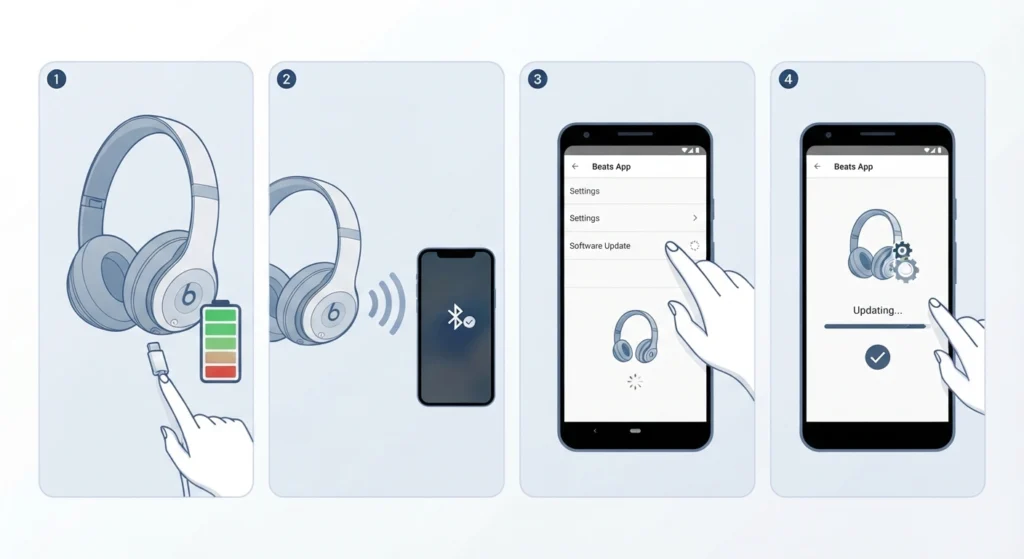
Firmware updates can fix connection and microphone bugs. Beats firmware updates are delivered through a paired iPhone or iPad automatically when the headphones are connected and nearby. On Android, the Beats app can be used to check for an update.
- Step 1: Charge the headphones so the battery is not low.
- Step 2: Connect them to the phone and keep them close to the device.
- Step 3: On Android, open the Beats app and check the headphone details for an available update.
- Step 4: Leave the headphones connected until the update finishes.
Fix 6: Reset the Beats Solo 4
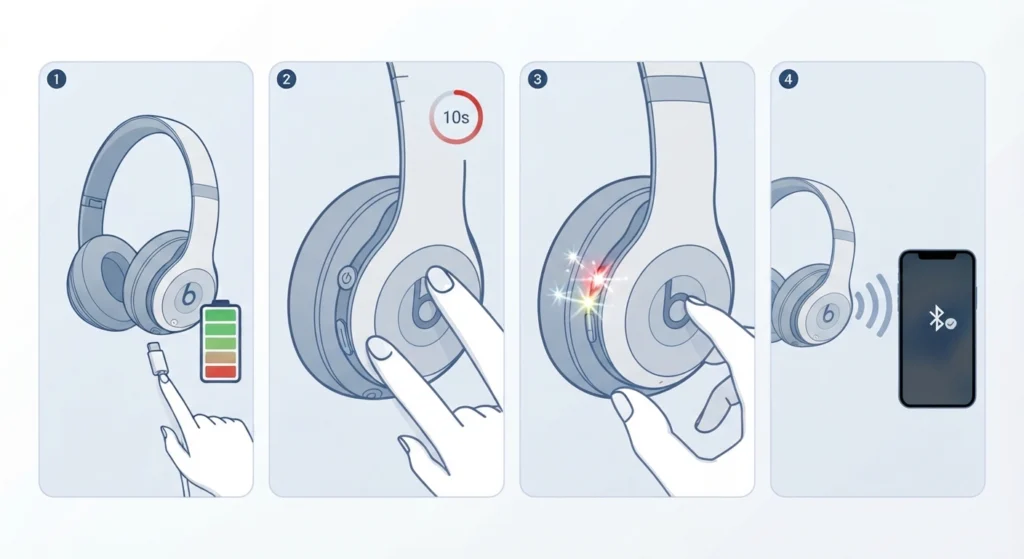
When the settings look right and the mic is still silent, a reset clears any stored glitch inside the headphones.
- Step 1: Make sure the headphones are charged.
- Step 2: Press and hold the power button and the volume down button together for 10 seconds.
- Step 3: Release both buttons when the LED light flashes.
- Step 4: Pair the headphones again with the device.
Pro-Tip: A reset removes the pairing information, so the headphones need to be set up again on every device. Also remove the old Beats Solo 4 entry from the Bluetooth list first, otherwise the device may try to reuse a broken connection.
Fix 7: Forget the Device and Pair Again
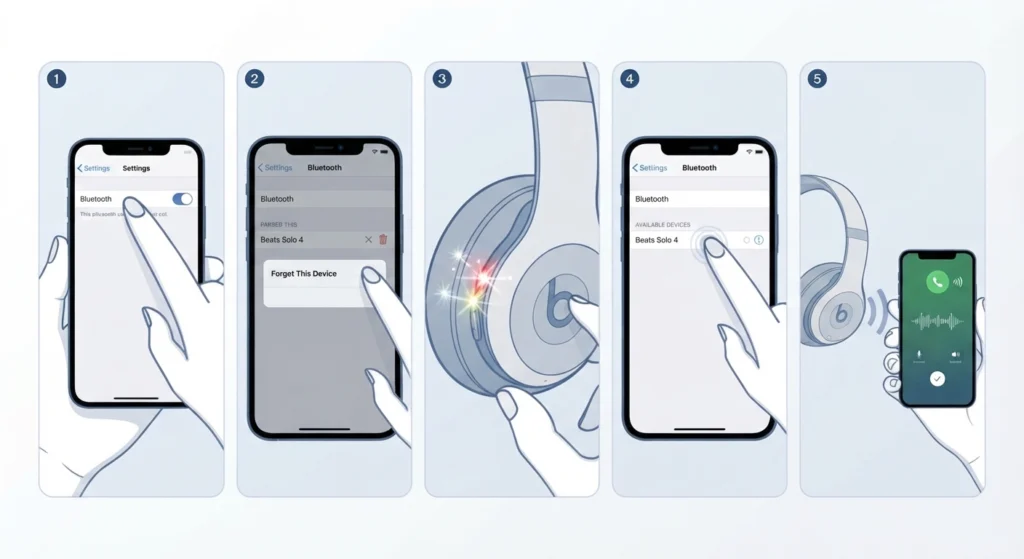
A fresh pairing gives the headphones and the device a clean start.
- Step 1: Open the Bluetooth settings on the device.
- Step 2: Select the Beats Solo 4 and choose Forget This Device (or Remove Device on Windows).
- Step 3: Hold the power button on the headphones until the LED flashes to enter pairing mode.
- Step 4: Select the Beats Solo 4 from the list of available devices.
- Step 5: Test the mic in a call or voice recording.
Windows users can also follow this guide to re-pair Bluetooth headphones on Windows if the connection behaves oddly after pairing.
Tips to Keep the Mic Working Properly
- Keep the headphones updated by connecting them to a phone every so often.
- Wipe the earcups and mic openings with a dry cloth now and then.
- Store the headphones in the case so lint and dust stay out.
- Keep only the devices actually in use paired, since old entries can cause the headphones to connect to the wrong one.
- Restart the headphones before an important call, just as a quick habit.
Common Problems and Quick Solutions
Mic Works on Phone but Not on Computer
This points to the input device setting. Choose the Beats Solo 4 as the input in Sound settings, and review the resetting audio settings guide if Windows still ignores it.
Other People Hear a Very Quiet Voice
Clean the mic openings first. After that, check the input volume in the device sound settings and raise it if needed.
Mic Works in One App Only
Check the microphone permission for the app that fails, and select the Beats Solo 4 in that app’s own audio settings.
Mic Cuts Out During Calls
Move closer to the connected device and remove other Bluetooth connections that are not needed. Then restart the headphones.
Frequently Asked Questions
Why is the Beats Solo 4 mic not working on calls?
The most common causes are a Bluetooth connection glitch, missing microphone permission for the app, or the wrong input device selected on a computer.
Does the Beats Solo 4 have a built-in microphone?
Yes. The Beats Solo 4 has built-in microphones for calls and for voice assistant use.
How can the Beats Solo 4 be reset?
Press and hold the power button and the volume down button together for 10 seconds until the LED flashes, then pair the headphones again.
Will resetting the Beats Solo 4 delete music or data?
No. The headphones do not store music. A reset only removes pairing information and returns settings to default.
Why does the mic work on a phone but not on a laptop?
The laptop is probably still using its built-in microphone. Open the sound settings and choose the Beats Solo 4 as the input device.
Can dirt block the Beats Solo 4 microphone?
Yes. Lint, dust, and oils can cover the tiny microphone openings and make a voice sound muffled or silent. A dry soft brush usually clears it.
Is the Beats app required to use the microphone?
No. The microphone works after normal Bluetooth pairing. The Beats app on Android is mainly useful for checking firmware and headphone settings.
How can the Beats Solo 4 firmware be updated?
Connect the headphones to an iPhone or iPad and keep them nearby, and updates are delivered automatically. On Android, the Beats app can be used to check for updates.
Why does the mic stop working in only one app?
That app likely lacks microphone permission or is set to a different input device. Check the app permissions and its audio settings.
What should be done if nothing fixes the mic problem?
If every fix has been tried and the mic still does not work, contact Apple Support or Beats Support to have the headphones checked for a hardware fault.