
Key Takeaways
- Audio and video out of sync on wireless headphones usually happens because of Bluetooth codec delay, outdated firmware, or background interference.
- Switching to a low-latency codec or a Game Mode setting fixes most syncing issues within minutes.
- Re-pairing the headphones and updating Bluetooth drivers solves the problem in the majority of cases.
- A wired connection remains the most reliable fix when Bluetooth lag keeps returning.
- Simple habits like closing unused Bluetooth apps and keeping firmware updated prevent the issue from coming back.
Audio and video being out of sync on wireless headphones is one of the most common frustrations during movie nights, gaming sessions, or video calls. Most people notice it as a slight delay between lip movement and sound, and it usually points to a Bluetooth transmission lag rather than a broken device. The fixes below are listed in the order that solves the problem fastest for most setups.
Method 1: Switch to a Low-Latency Bluetooth Codec
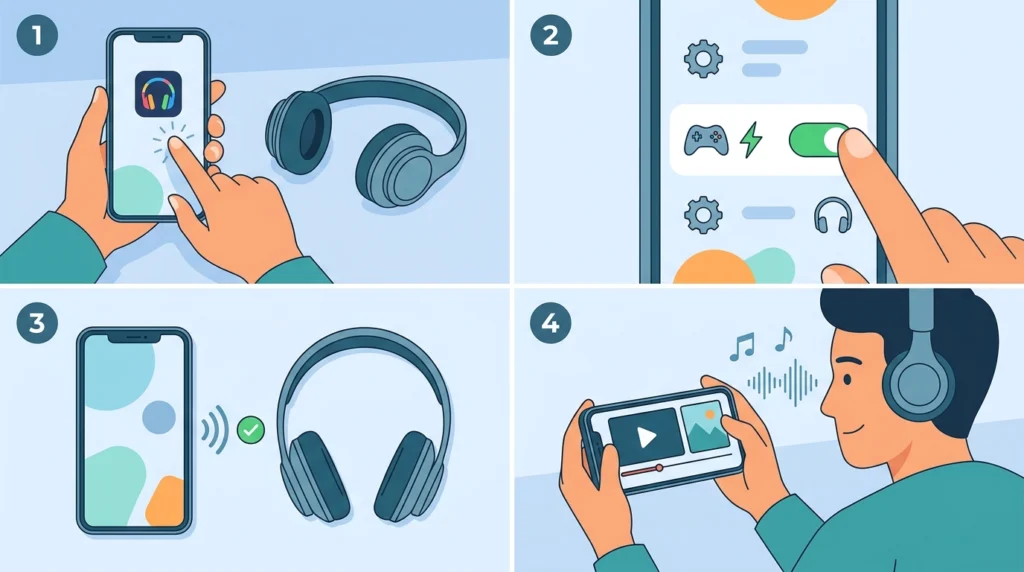
Bluetooth headphones use different audio codecs, and some are built for sound quality rather than speed. Codecs like SBC or AAC tend to introduce more delay compared to aptX Low Latency or Samsung Scalable Codec, which are designed specifically to keep audio and video aligned.
- Step 1: Open the companion app for the headphones, if one is available, since most brands include a codec or connection settings menu.
- Step 2: Look for a setting labeled ‘Low Latency,’ ‘Game Mode,’ or ‘Codec Selection.’
- Step 3: Select the low-latency option and reconnect the headphones to the device being used.
- Step 4: Play a video to confirm the delay has been reduced.
Pro-Tip: Gaming-focused wireless headphones almost always include a dedicated Low Latency or Game Mode toggle, and turning it on solves sync issues faster than any other method on this list.
Method 2: Re-Pair the Wireless Headphones
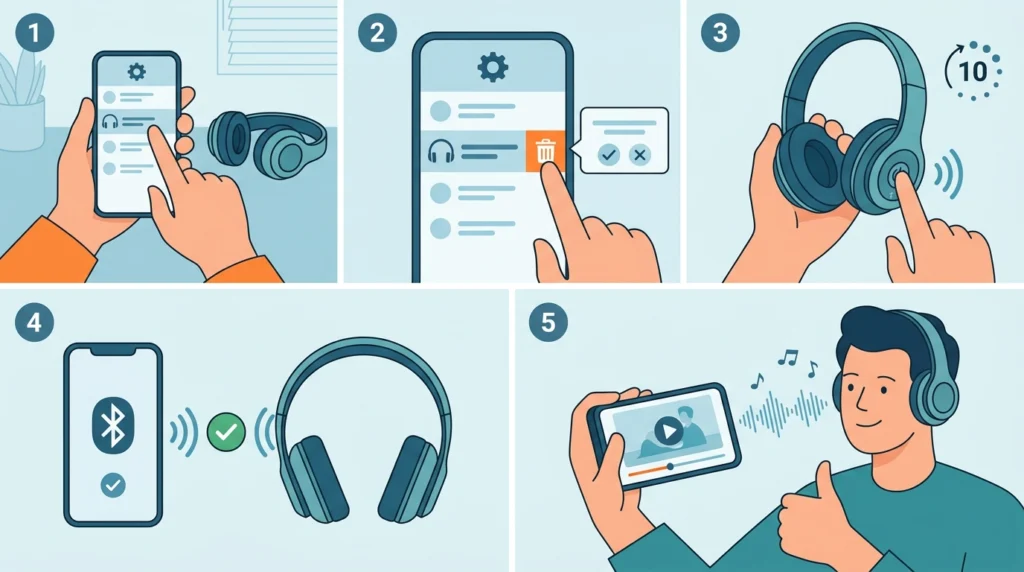
A weak or outdated Bluetooth pairing is one of the most frequent reasons behind delayed audio. Removing the connection and setting it up again often clears out a corrupted pairing profile that was silently causing the lag.
- Step 1: Open Bluetooth settings on the device and select the headphones from the list.
- Step 2: Choose ‘Remove’ or ‘Forget Device’ to fully clear the existing connection.
- Step 3: Turn the headphones off, wait about ten seconds, then switch them back on in pairing mode.
- Step 4: Reconnect the headphones by following this guide on re-pairing wireless earbuds for stable stereo sound, which walks through the process in detail.
- Step 5: Test playback again to check whether the delay is gone.
Method 3: Adjust Audio Output Settings on Windows 11
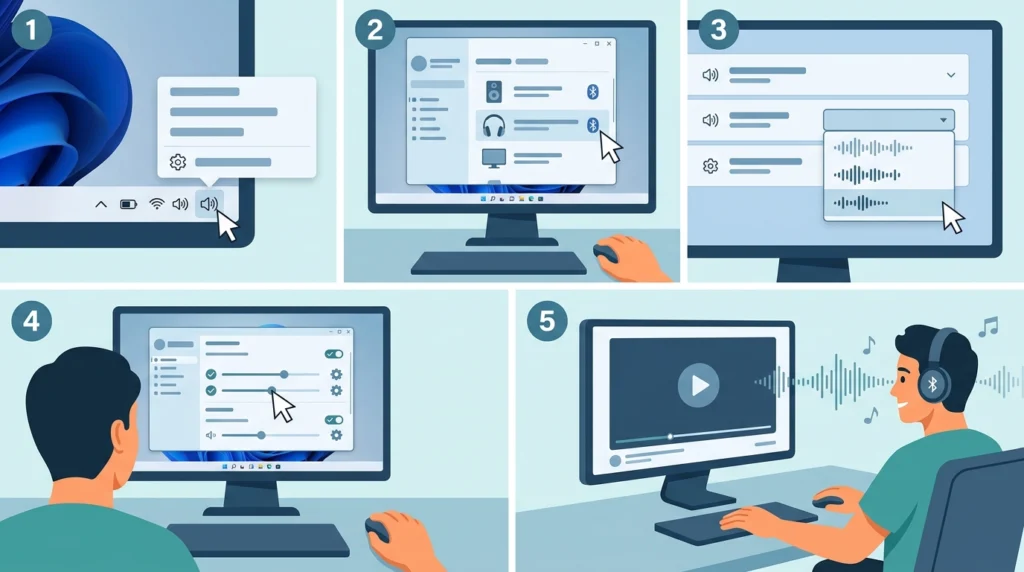
Sometimes the sync issue is not the headphones at all, but how the operating system is handling the audio output. Windows 11 occasionally defaults to a format that increases processing time before sound reaches the headphones.
- Step 1: Right-click the speaker icon in the taskbar and select ‘Sound settings.’
- Step 2: Choose the wireless headphones under output devices.
- Step 3: Open the device properties and check the format settings, since a lower sample rate frequently reduces lag.
- Step 4: For a full walkthrough, this guide on adjusting audio output settings on Windows 11 covers each setting step by step.
- Step 5: Restart the video or app being used to confirm the fix worked.
Method 4: Update Headphone Firmware and Bluetooth Drivers
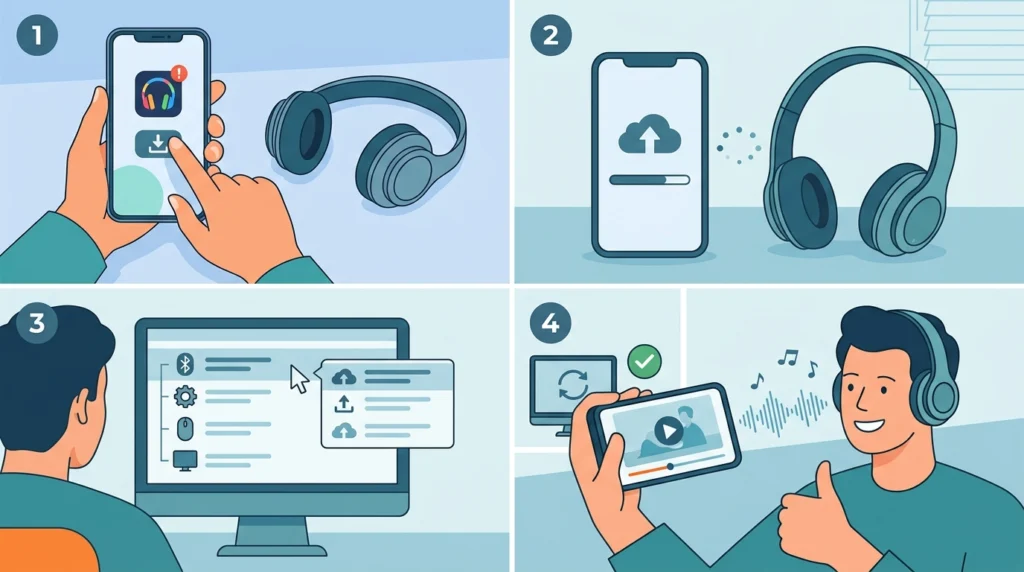
Outdated firmware is a quiet cause of sync drift that many people overlook. Manufacturers regularly release updates that specifically improve audio-to-video timing, so this step is worth checking even if the headphones seem to work fine otherwise.
- Step 1: Open the manufacturer’s companion app and check for a firmware update option.
- Step 2: Install any available update and keep the headphones close to the device during the process.
- Step 3: On the computer, open Device Manager and update the Bluetooth adapter driver as well.
- Step 4: Restart the device after both updates are complete, then test video playback again.
Pro-Tip: Firmware updates fix more sync issues than people expect, since manufacturers tune the Bluetooth timing with nearly every release. Checking for updates once a month prevents the lag from creeping back in.
Method 5: Reset Audio Settings
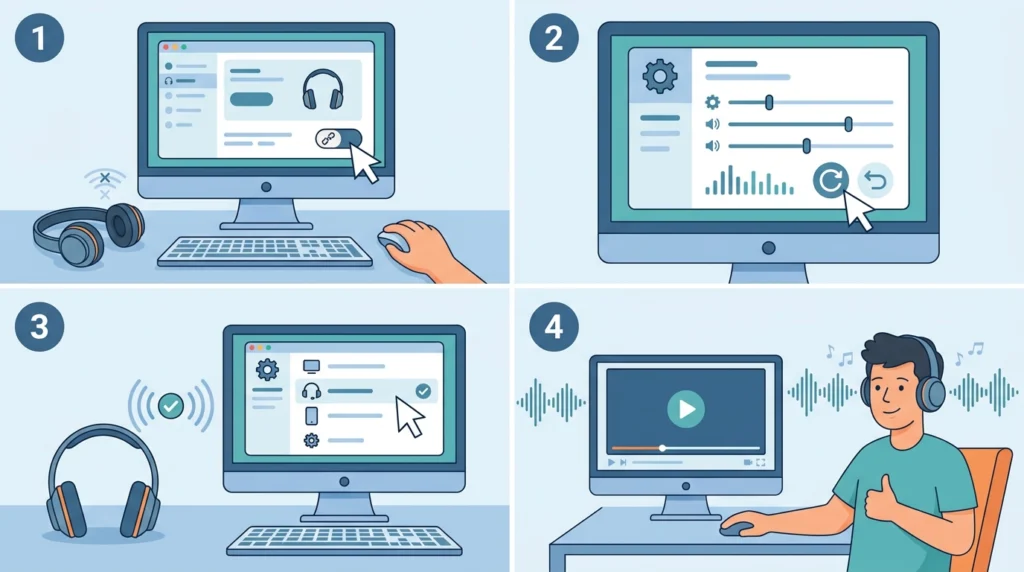
When multiple fixes have been tried and the delay still shows up, resetting the audio settings back to default often clears whatever configuration conflict is causing it.
- Step 1: Disconnect the wireless headphones from the device completely.
- Step 2: Follow this guide on resetting audio settings on Windows 11 to restore the sound configuration to its default state.
- Step 3: Reconnect the headphones and select them as the default output device.
- Step 4: Play a video to verify the audio and video are aligned again.
Method 6: Use a Wired Connection for Perfect Sync
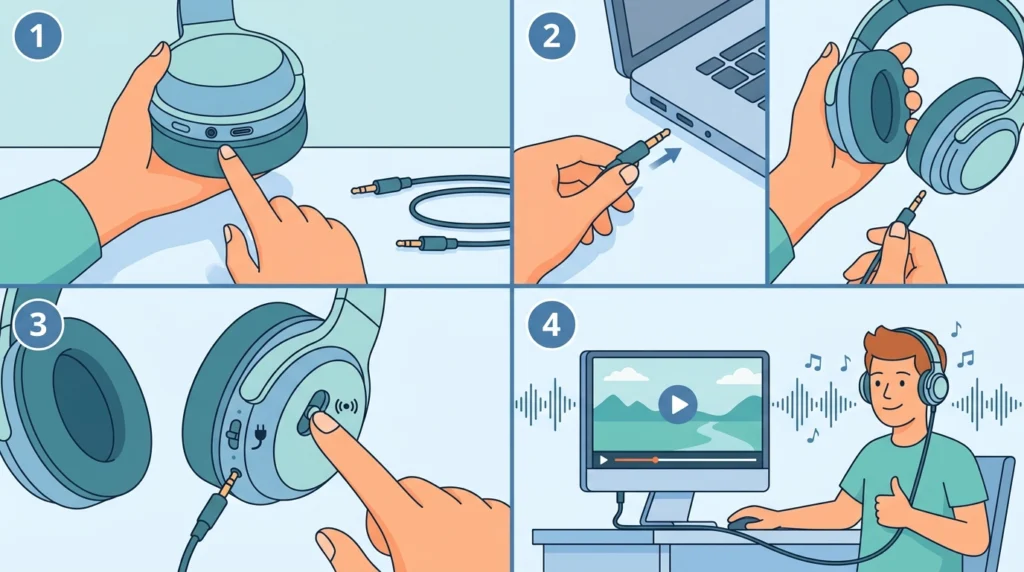
Wireless technology, no matter how advanced, still introduces a small amount of processing delay. When perfect sync matters most, such as during video editing or professional playback, a wired connection removes that delay entirely.
- Step 1: Check whether the headphones support a 3.5mm cable or USB-C wired mode.
- Step 2: Connect the cable directly to the device’s audio port.
- Step 3: Switch the headphones to wired mode if they have a physical or app-based switch.
- Step 4: Play the video to confirm the audio now matches perfectly.
Tips to Prevent Audio and Video Sync Issues
- Keep the headphones within a close range of the connected device, since distance adds strain on the Bluetooth signal.
- Close other Bluetooth-connected devices that are not in use, as multiple active connections can compete for bandwidth.
- Charge the headphones regularly, since low battery levels are known to affect Bluetooth transmission speed.
- Avoid streaming video while other heavy Bluetooth or Wi-Fi tasks are running in the background.
Common Problems and Troubleshooting
- Audio lags only in certain apps: this usually means the app itself has a playback buffer issue rather than the headphones, so checking for an app update helps.
- Sync issue returns after a restart: this points to a Bluetooth driver conflict, and reinstalling the driver through Device Manager typically resolves it.
- Mic delay during calls alongside video lag: this is often a device detection issue, and this guide on managing audio input devices on Windows 11 helps sort out which device is prioritized.
- Sync drifts gradually the longer the video plays: this is a sign of clock drift between the Bluetooth source and receiver, and switching to a low-latency codec usually stabilizes it.
Frequently Asked Questions
Why does audio lag behind video on wireless headphones?
Bluetooth audio takes a small amount of time to process and transmit, and that processing gap is what creates the delay between what is seen and what is heard.
Does every pair of wireless headphones have this delay?
Every Bluetooth device has some level of delay, but the amount varies depending on the codec used, with low-latency codecs producing a delay that is barely noticeable.
Can a software update actually fix sync issues?
Yes, firmware and driver updates frequently include timing improvements specifically meant to reduce the gap between audio and video.
Is Bluetooth 5.0 or higher better for sync accuracy?
Newer Bluetooth versions generally offer faster data transmission, which helps reduce the delay, though the codec still plays the larger role in overall sync performance.
Why does the sync issue only happen during video calls?
Video calling apps often prioritize microphone input, which can shift how audio output is processed and create a noticeable mismatch with video.
Will a wired connection always fix the delay completely?
A wired connection removes Bluetooth transmission delay entirely, so it is the most reliable fix when the issue needs to be eliminated completely.
Does distance from the connected device affect sync?
Yes, moving too far from the paired device weakens the Bluetooth signal, which can increase both delay and the chance of audio cutting out.
Can low battery cause audio and video to go out of sync?
Low battery levels can affect how efficiently the headphones process the Bluetooth signal, and this sometimes shows up as inconsistent audio timing.
Is this issue more common on certain streaming platforms?
Some platforms handle audio buffering differently, so the same headphones may sync perfectly on one app and lag slightly on another.
How often should headphone firmware be checked for updates?
Checking for firmware updates once a month is a reasonable habit, since most manufacturers release timing and connectivity improvements on a regular basis.