
Key Takeaways
- Audeze Maxwell mic not working is usually caused by a loose boom mic connection, outdated firmware, or the wrong default recording device in Windows.
- Most fixes take less than five minutes and do not require contacting support.
- Updating firmware through Audeze HQ resolves the majority of mic dropout and detection issues.
- Windows privacy settings and app-level microphone permissions are a common hidden cause.
- A factory reset should only be used as a last resort after other fixes have been tried.
Audeze Maxwell mic not working is a common complaint among gamers and streamers who rely on this headset for clear voice chat. The issue usually comes from a simple connection, driver, or settings problem rather than a hardware fault, and most people find that the mic starts working again after just one or two adjustments below.
Step-by-Step Fixes for Audeze Maxwell Mic Not Working
Work through these fixes in order. Each one addresses a different possible cause, starting with the quickest checks first.
Fix 1: Check the Boom Mic Connection
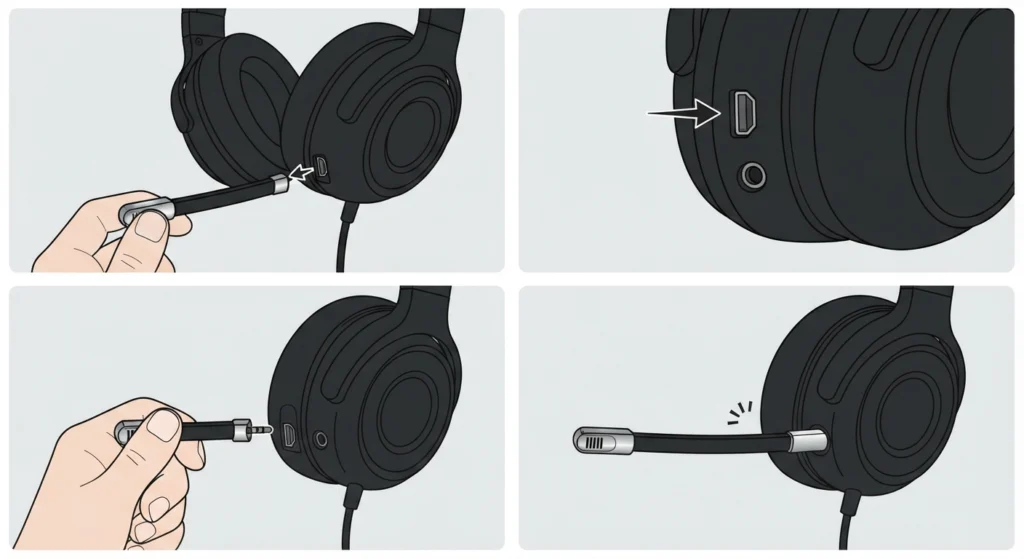
The boom mic on the Maxwell plugs into a dedicated D-shaped port on the left ear cup. This port looks similar to the aux input, and it is easy to mix the two up.
- Step 1: Remove the boom mic fully from the headset.
- Step 2: Locate the D-shaped port, which sits above the round 3.5mm aux port on the left cup.
- Step 3: Insert the boom mic firmly until it clicks into place.
- Step 4: Test the mic in a call or recording app to confirm it picks up sound.
Fix 2: Confirm the Mic Mute Switch Is Off
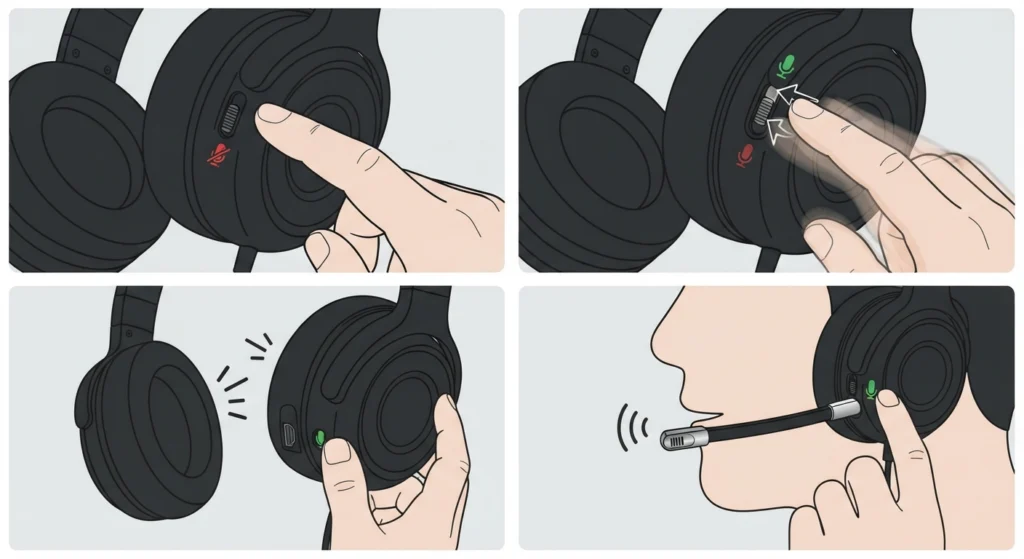
The Maxwell has a physical mute slider on the ear cup, and it is easy to bump this by accident when adjusting the headset.
- Step 1: Locate the slider switch near the boom mic port.
- Step 2: Slide it to the unmuted position.
- Step 3: Listen for the audio cue that confirms the mic is active.
- Step 4: Speak into the mic and check sidetone or a test recording for sound.
Fix 3: Update Firmware Through Audeze HQ
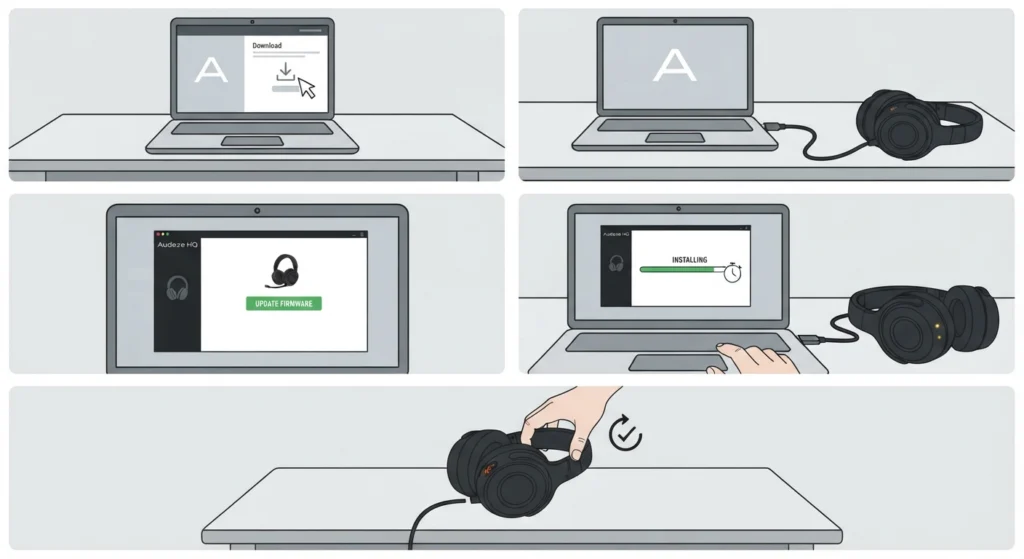
Outdated firmware is one of the most frequent reasons behind mic detection problems, and Audeze regularly releases updates that fix exactly this kind of bug.
- Step 1: Download and install the Audeze HQ app on a Windows or Mac computer.
- Step 2: Connect the Maxwell using the included USB cable.
- Step 3: Open Audeze HQ and check for available firmware updates.
- Step 4: Install the update and wait until the app confirms completion before disconnecting.
- Step 5: Restart the headset and test the mic again.
The key is to let the update finish completely without unplugging early, since an interrupted firmware update can cause further mic and connection issues.
Fix 4: Set Maxwell as the Default Recording Device
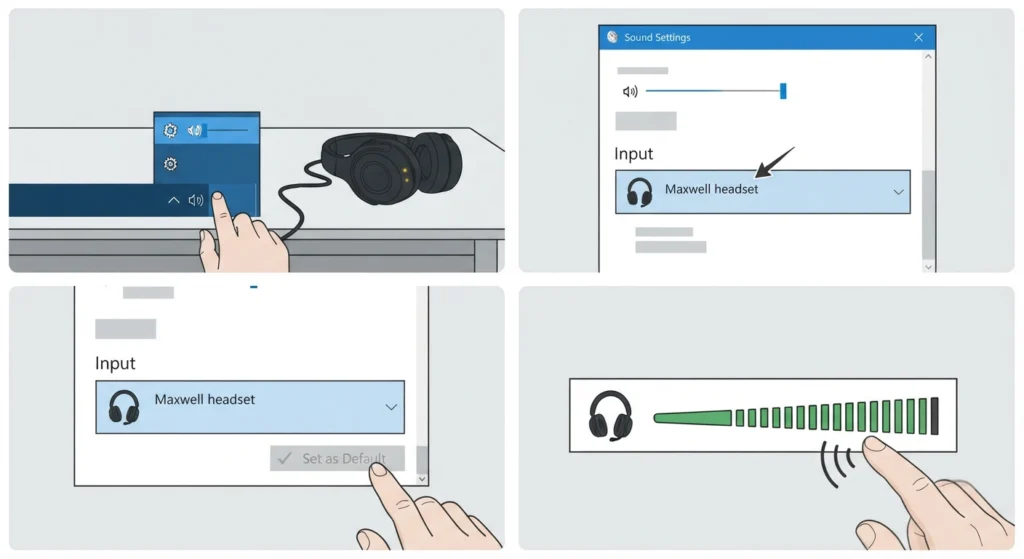
Windows sometimes defaults to a different microphone, especially after plugging in another USB device.
- Step 1: Right-click the speaker icon in the Windows taskbar and open Sound settings.
- Step 2: Scroll to the Input section and select Audeze Maxwell from the device list.
- Step 3: Click Set as Default if it is not already selected.
- Step 4: Speak and confirm the input level bar responds.
For a closer look at handling this kind of device switching, the guide on managing audio input devices covers the full input selection process on Windows 11.
Fix 5: Check Windows Microphone Privacy Permissions
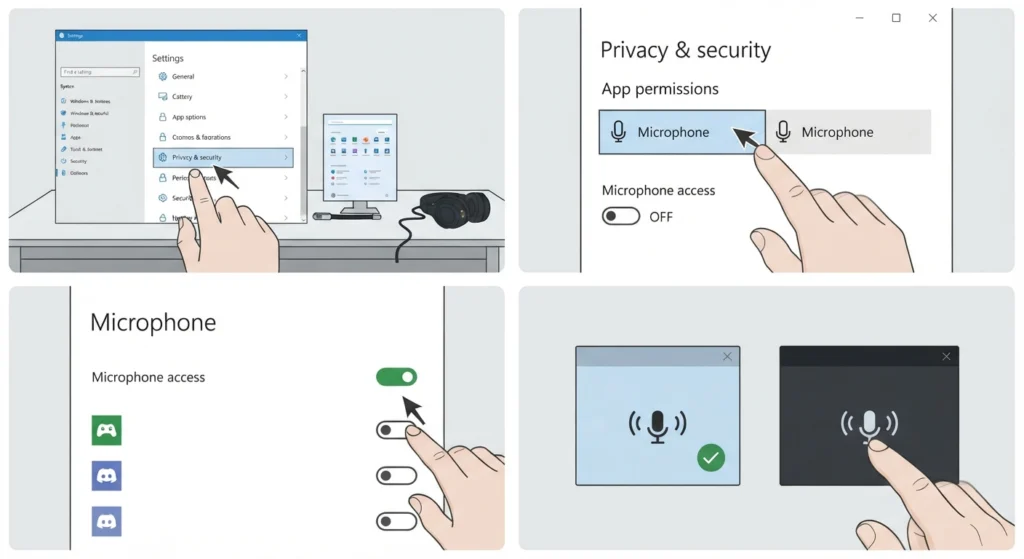
Windows 11 blocks microphone access on a per-app basis, and this setting is a common reason the Maxwell mic appears connected but produces no sound in specific apps.
- Step 1: Open Windows Settings and go to Privacy and Security.
- Step 2: Select Microphone under App Permissions.
- Step 3: Turn on microphone access for the system and toggle it on for each app that needs it, such as Discord or a game client.
- Step 4: Restart the affected app and test the mic.
If the headset still is not recognized after this, the walkthrough on resolving microphone detection problems goes deeper into device driver checks specific to Windows 11.
Fix 6: Try a Different USB Port or the Wireless Dongle
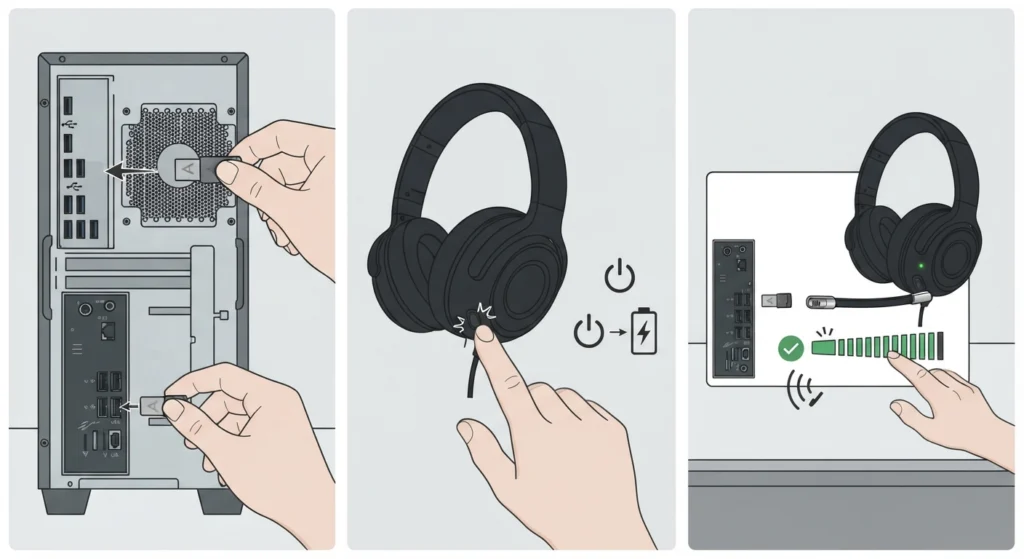
A worn USB port or a loose dongle connection can cause the mic to cut out even when audio playback works fine.
- Step 1: Unplug the wireless dongle and plug it into a different USB port, ideally directly on the motherboard rather than a front panel hub.
- Step 2: Power the Maxwell off and back on to force a fresh pairing.
- Step 3: Test the mic once the dongle reconnects.
Pro-Tip: USB 3.0 ports located near other wireless devices, such as a router or a second dongle, can cause interference that affects mic stability. Moving the dongle to a rear USB 2.0 port often resolves intermittent mic dropouts.
Fix 7: Disable Microphone Enhancements
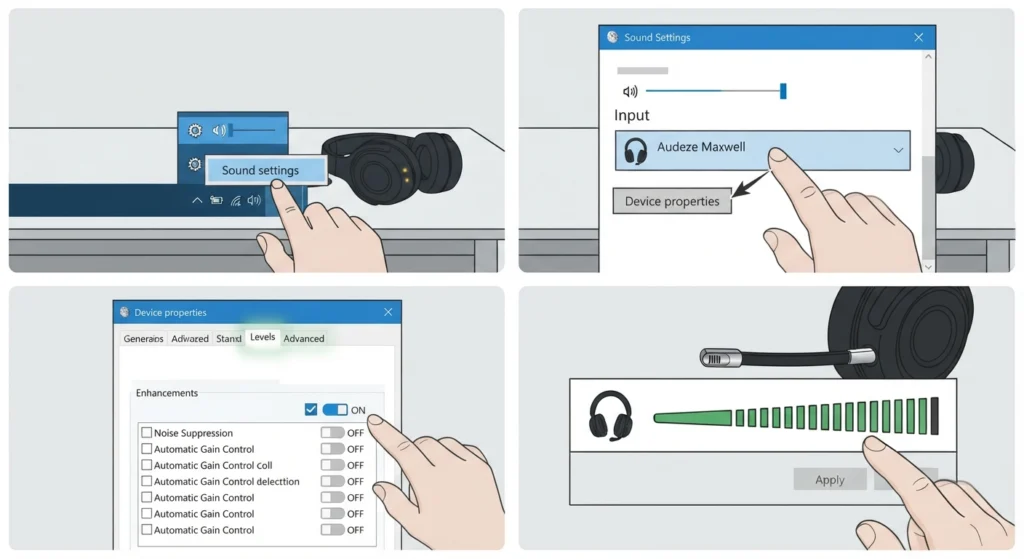
Windows applies enhancements like noise suppression and automatic gain control by default, and these sometimes conflict with the Maxwell’s own AI noise filtering, resulting in a mic that sounds muted or distorted.
- Step 1: Right-click the speaker icon and open Sound settings.
- Step 2: Select Audeze Maxwell under Input and open its device properties.
- Step 3: Open the Levels and Advanced tabs and turn off any listed enhancements.
- Step 4: Apply changes and test the mic again.
Fix 8: Reset Audio Settings to Default
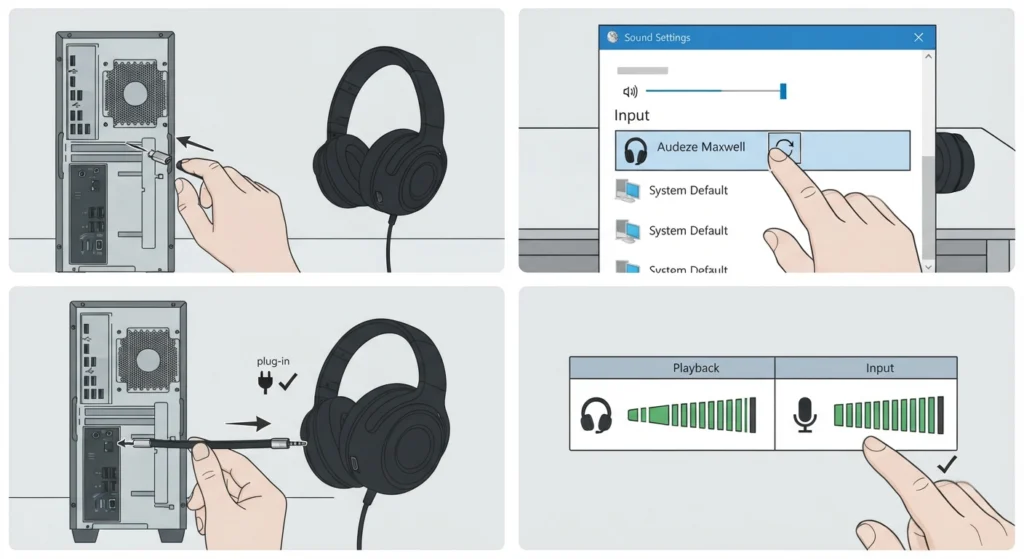
When multiple audio changes have piled up over time, resetting the audio configuration back to default clears out conflicting settings without wiping firmware.
- Step 1: Fully disconnect the Maxwell from the computer.
- Step 2: Reset the system sound settings, following the process in the guide on resetting audio settings.
- Step 3: Reconnect the Maxwell and set it again as the default input and output device.
- Step 4: Test both playback and mic function.
Fix 9: Factory Reset the Headset
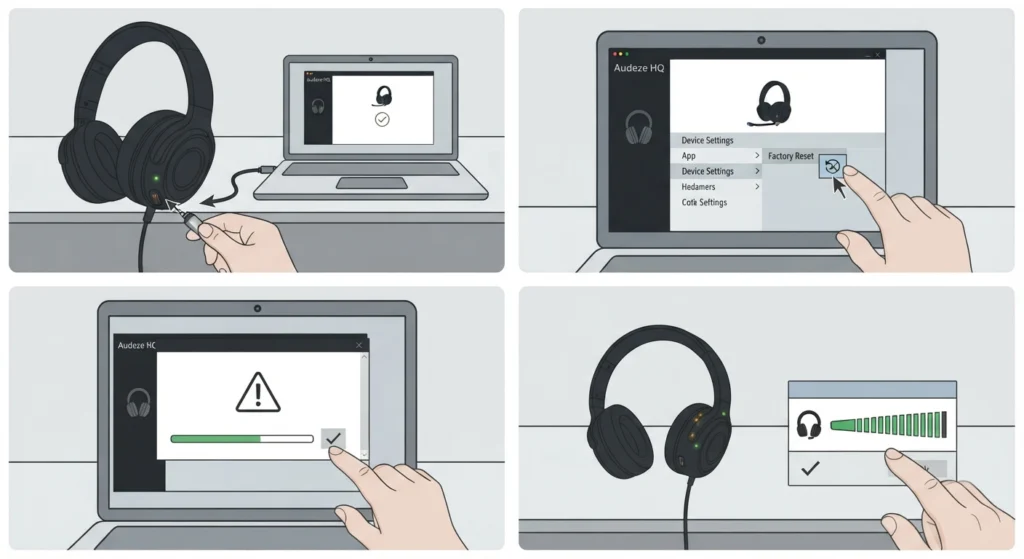
This step is best used only after the fixes above have been tried, since a factory reset clears saved settings and pairing data.
- Step 1: Power on the Maxwell and connect it to Audeze HQ.
- Step 2: Open the device settings menu and select factory reset.
- Step 3: Confirm the reset and wait for the headset to restart.
- Step 4: Re-pair the headset and test the mic before restoring any custom EQ or sidetone settings.
Tips for Keeping the Maxwell Mic Working Reliably
- Keep Audeze HQ installed and check for firmware updates once a month, since Audeze pushes fixes for mic and connectivity bugs fairly often.
- Store the boom mic attached to the headset rather than removing it repeatedly, as frequent plugging and unplugging wears down the port connector over time.
- Avoid running two audio management apps at once, such as Audeze HQ alongside another headset software suite, since conflicting drivers can silently disable the mic input.
- If switching between Bluetooth and the wireless dongle often, review the guide on re-pairing Bluetooth audio devices to avoid connection conflicts between the two modes.
Common Problems With the Audeze Maxwell Mic
Mic Works in Audeze HQ But Not in Games or Apps
This usually points to an app-specific input selection rather than a hardware fault. Most games and voice apps have their own audio input menu separate from Windows settings, so the Maxwell needs to be selected there as well.
Mic Sound Is Muffled or Distorted
This often traces back to enhancement settings or a sidetone level set too high. Lowering sidetone and disabling Windows mic enhancements, as covered in Fix 7, usually clears this up.
Mic Cuts Out Randomly During Long Sessions
Intermittent cutouts are frequently linked to USB interference or a dongle placed too far from the headset. Testing a different port, as outlined in Fix 6, resolves this in most cases.
Frequently Asked Questions
Why is the Audeze Maxwell mic not detected on Windows 11?
This is typically caused by the wrong default input device being selected, an app missing microphone permission, or outdated firmware. Checking Sound settings and updating through Audeze HQ resolves this in most cases.
Does the boom mic need to be plugged in for the mic to work?
Yes. The Maxwell uses a detachable boom mic, and it must be firmly connected to the D-shaped port for voice input to register at all.
Why does the mic work in Audeze HQ but not in Discord?
Discord has its own input device selection separate from Windows. Opening Discord’s voice settings and manually selecting the Audeze Maxwell as the input device usually fixes this.
How often should Maxwell firmware be updated?
Checking for updates through Audeze HQ once a month is a reasonable habit, since firmware releases often include mic stability and connectivity fixes.
Can a factory reset fix mic issues permanently?
A factory reset can resolve mic problems caused by corrupted settings, but it should be used after simpler fixes have been tried, since it also clears custom EQ and pairing data.
Why does the mic sound too quiet even at full volume?
Low mic volume is often related to sidetone or gain settings inside Audeze HQ rather than a hardware fault. Adjusting the mic gain slider in the app usually restores normal volume.
Does using the wireless dongle affect mic performance compared to Bluetooth?
The wireless dongle generally provides more stable mic performance than Bluetooth, since Bluetooth audio profiles can limit microphone quality on some systems.
Is the mute switch the same as disabling the mic in software?
No. The physical mute switch cuts the mic at the hardware level, while software mute settings only apply within a specific app. Both should be checked when the mic appears unresponsive.
Why does the mic stop working after a Windows update?
Windows updates sometimes reset default audio device selections or reinstall generic drivers. Reselecting the Maxwell as the default input device usually resolves this after an update.
Can interference from other USB devices cause mic problems?
Yes. USB 3.0 ports located near other wireless devices can interfere with the dongle signal, leading to mic dropouts. Switching to a different port often solves this.