
An Audio-Technica ATH-M50xBT2 making a crackling sound is usually a connection problem, not a hardware failure. Pops and static tend to appear when the Bluetooth link gets crowded, confused, or pushed too hard. This guide walks through each fix in the order that saves the most time.
Key Takeaways
- Most crackling comes from Bluetooth interference, a second connected device, or the LDAC codec setting on a phone.
- A factory-style Bluetooth reset on the ATH-M50xBT2 takes about 6 seconds and often clears stubborn static.
- Testing with the included cable quickly shows whether the problem is wireless or something else.
- Start with Fix 1 and work down. Stop as soon as the sound is clean.
Step-by-Step Fixes for the ATH-M50xBT2 Crackling Sound
Fix 1: Remove Bluetooth Interference
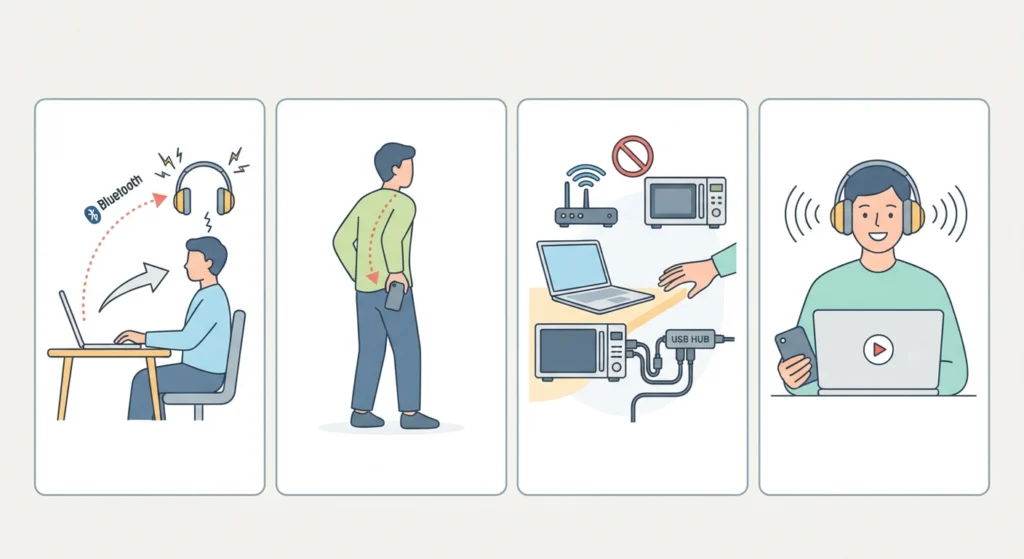
Think of Bluetooth like a conversation in a busy cafe. The more noise around it, the more words get lost. Those lost pieces of audio are what sound like crackles.
- Step 1: Move the source device (phone or computer) closer to the headphones, ideally within a few feet and with nothing blocking the path.
- Step 2: Take the phone out of a back pocket or bag. A body in the way weakens the signal more than most people expect.
- Step 3: Move away from Wi-Fi routers, microwave ovens, and USB 3.0 hubs plugged in near the computer’s Bluetooth adapter.
- Step 4: Play audio for a few minutes to see if the crackling returns.
Fix 2: Disconnect the Second Bluetooth Device
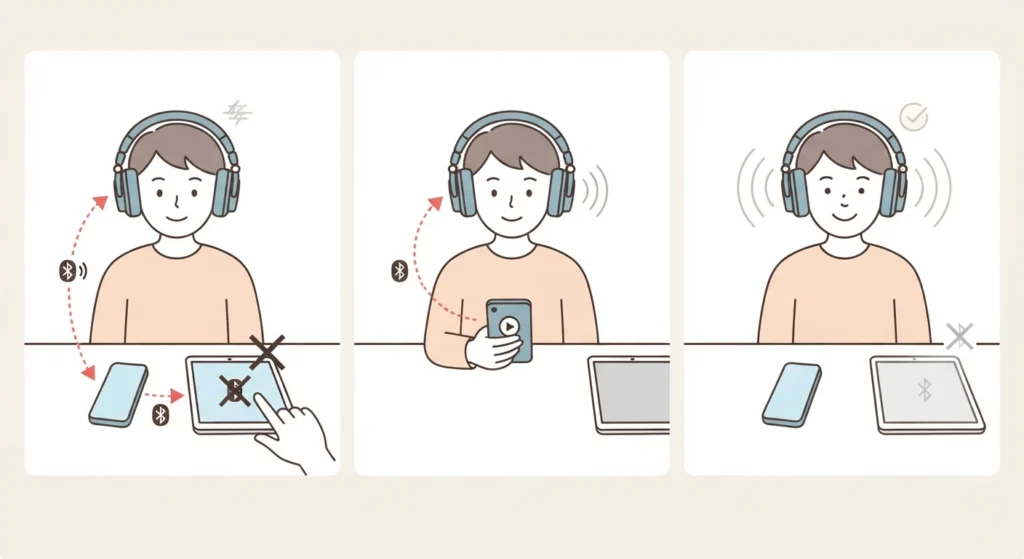
The ATH-M50xBT2 supports multipoint pairing, which means two devices can stay connected at once. That is handy, but a second device sending its own signals can interrupt playback.
- Step 1: Turn off Bluetooth on the device that is not being used for music, such as a tablet or laptop sitting nearby.
- Step 2: Restart playback on the main device.
- Step 3: If the crackling is gone, keep the second device disconnected while listening, or reconnect it only when needed.
Pro-Tip: Crackling that shows up only when a phone notification arrives or a second device wakes up is a strong sign that multipoint is the cause. Disconnecting one device is the quickest way to confirm it.
Fix 3: Lower the LDAC Quality on Android
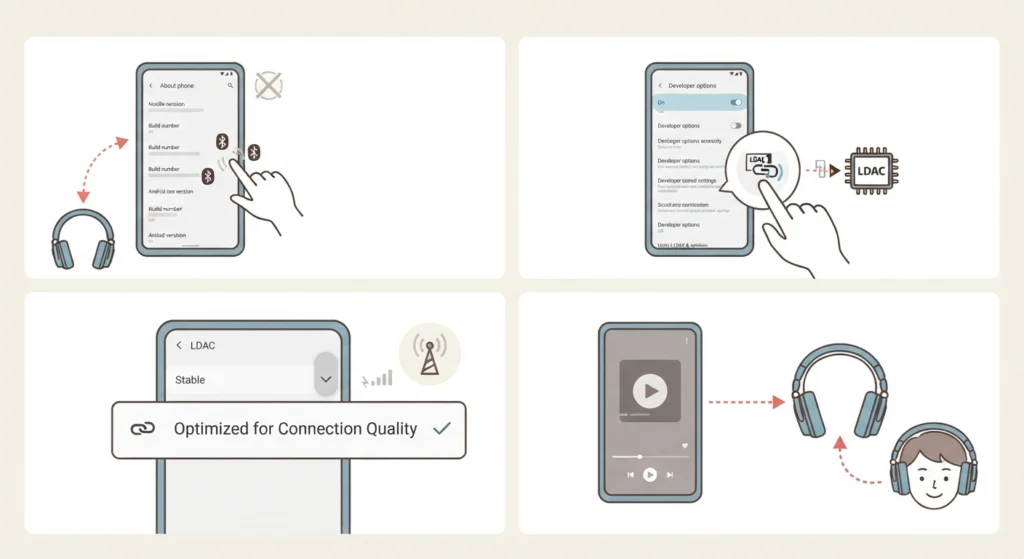
The ATH-M50xBT2 supports SBC, AAC, and LDAC. LDAC sends a lot of data, and a busy connection can struggle to keep up. Android lets the playback quality be set to favor a stable link over maximum detail.
- Step 1: Turn on Developer options on the Android phone if it is not already enabled (tap Build number seven times in the About phone section).
- Step 2: Open Developer options and find the setting named Bluetooth Audio LDAC Codec: Playback Quality.
- Step 3: Choose the option labeled Optimized for Connection Quality.
- Step 4: Reconnect the headphones and play a song.
Pro-Tip: Menu names can differ slightly between phone brands, but the LDAC playback quality setting is found in the same Developer options area. Sound quality in this mode is still very good for everyday listening, and a steady connection usually beats a perfect-on-paper one.
Fix 4: Reset the Headphones and Pair Again
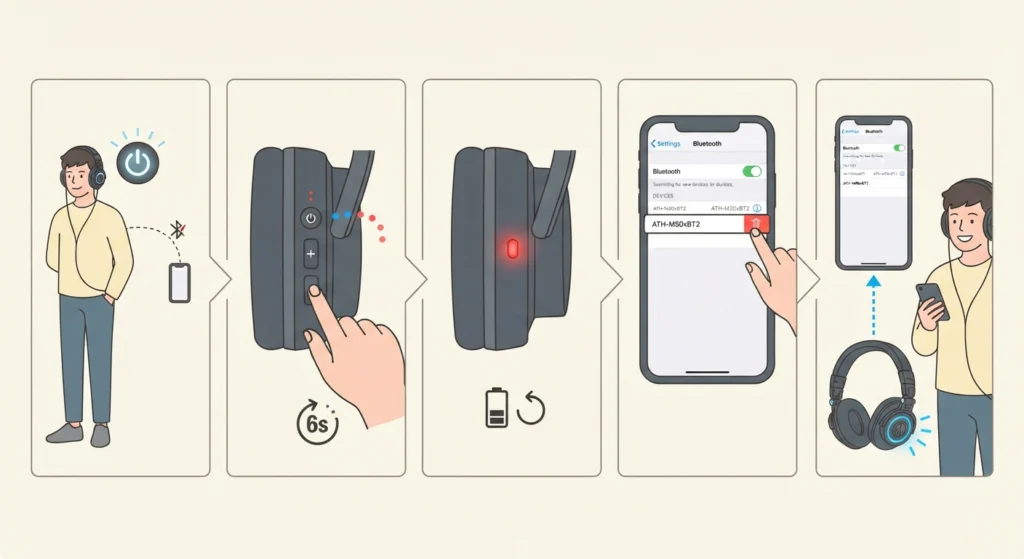
Audio-Technica publishes a specific Bluetooth reset procedure for this model. It clears the pairing data that can sometimes get corrupted and cause static.
- Step 1: Turn the headphones on while they are not connected to any Bluetooth device.
- Step 2: Press and hold the power/control button and both volume buttons (+ and -) at the same time for about 6 seconds.
- Step 3: Release when the indicator lamp lights red. The headphones restart and the reset is complete.
- Step 4: On the phone or computer, remove the ATH-M50xBT2 from the list of registered Bluetooth devices.
- Step 5: Put the headphones in pairing mode and pair them again as a fresh device.
Windows users who end up with thin or one-sided sound after pairing can follow this guide to re-pair Bluetooth audio devices for proper stereo sound.
Fix 5: Reset Audio Settings on Windows 11
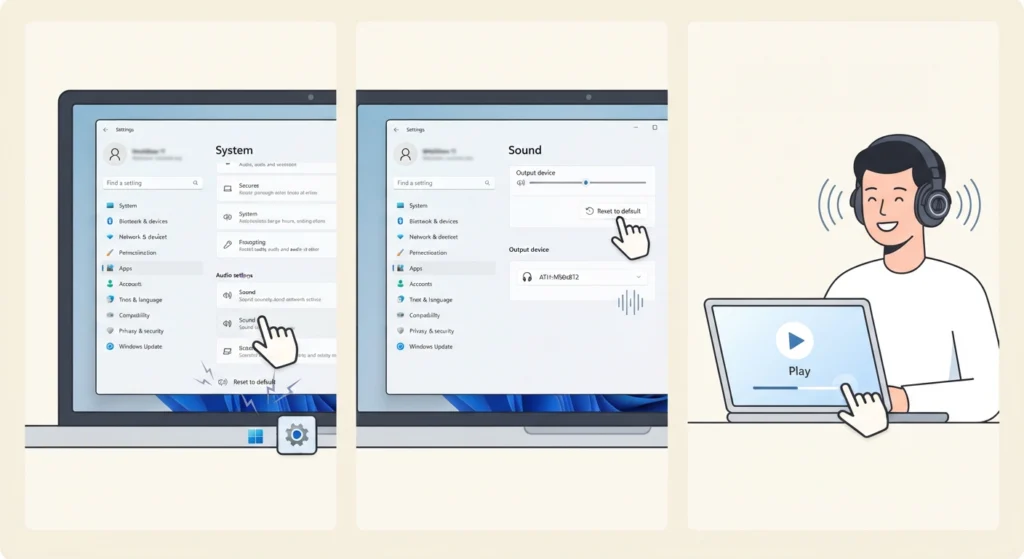
If the crackling only happens on a Windows 11 computer and not on a phone, the audio settings on the PC are the likely cause. Odd sample rates or leftover enhancements can create pops that have nothing to do with the headphones.
- Step 1: Follow the guide on resetting audio settings in Windows 11 to return everything to default.
- Step 2: Open the guide on adjusting audio output settings and confirm the ATH-M50xBT2 is selected as the output device.
- Step 3: Play audio again and listen for the crackle.
Fix 6: Test With the Included Cable
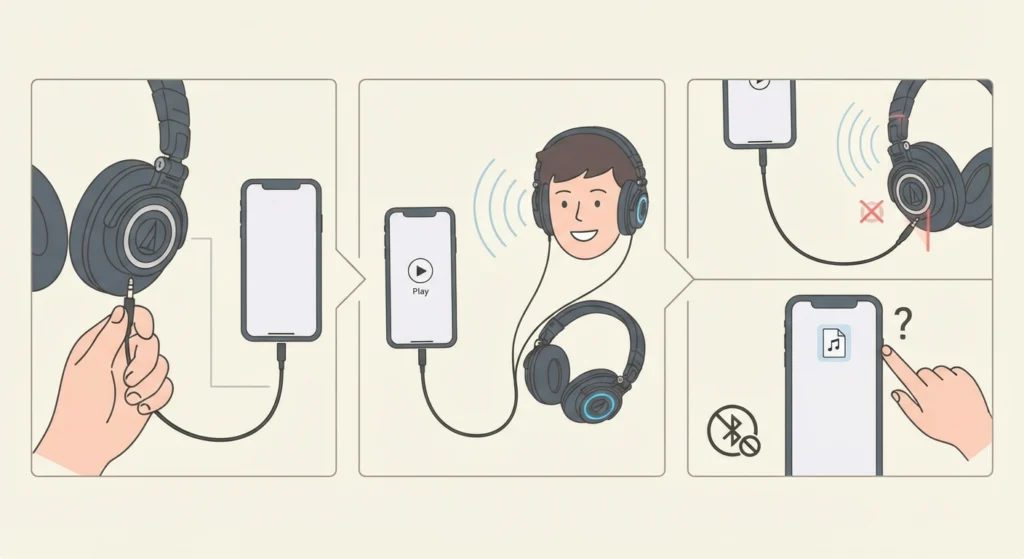
The ATH-M50xBT2 ships with a 1.2 m cord alongside the USB-C charging cable. A wired test is a clean way to separate a wireless issue from everything else.
- Step 1: Plug the cord into the headphones and into the audio source.
- Step 2: Play the same track that was crackling over Bluetooth.
- Step 3: If the sound is clean, the problem sits in the wireless connection, so repeat Fix 1 through Fix 4. If the crackle remains, the source device or the audio file itself is worth checking.
Tips to Keep the Crackling Away
- Keep the headphones and source device in the same room with a clear line of sight whenever possible.
- Limit connections to the devices that are actually in use.
- Keep the phone or computer updated, since Bluetooth stability often improves with system updates.
- Use SBC or AAC instead of LDAC in busy places like trains, malls, or crowded offices.
- Charge the headphones with the USB-C cable before long listening sessions so the battery is never running very low.
Common Problems After Trying These Fixes
Crackling Only Happens With One App
The cause is usually the app or the file, not the headphones. Try the same song in another player to confirm.
Crackling Only Happens on a Computer
Check the computer’s Bluetooth adapter and audio settings. Computers with Bluetooth built into the same card as Wi-Fi can be more prone to interference, so moving closer to the machine often helps. For microphone problems on the same setup, this guide on resolving microphone detection problems covers the next step.
Crackling Continues Even on the Cable
If the static remains while wired, contact Audio-Technica support, since the headphones may need to be checked.
Frequently Asked Questions
Why is my ATH-M50xBT2 crackling over Bluetooth?
The most common reasons are wireless interference, a second device connected through multipoint, and a demanding codec setting such as LDAC on a busy connection.
Does LDAC cause crackling on the ATH-M50xBT2?
LDAC uses a higher data rate, so a weak or crowded connection can struggle with it. On Android, switching LDAC playback quality to Optimized for Connection Quality usually helps.
How do I reset the ATH-M50xBT2?
With the headphones on and not connected to a device, hold the power/control button and both volume buttons for about 6 seconds until the lamp lights red. The headphones then restart.
Do I need to re-pair after resetting?
Yes. Remove the headphones from the Bluetooth device list on the phone or computer, then pair them again.
Can multipoint connection cause static?
It can. When two devices are connected at once, switching or notifications from the second device may interrupt audio. Disconnecting one device is an easy test.
Does the crackling mean the headphones are broken?
Usually not. If the sound is clean over the included cable, the headphones are working and the issue is in the wireless connection.
Which Bluetooth codecs does the ATH-M50xBT2 support?
The headphones support SBC, AAC, and LDAC.
Can Wi-Fi routers affect Bluetooth headphones?
Yes. Bluetooth shares a busy radio band with many household devices, so moving away from routers and other electronics can reduce static.
Will a different phone or computer fix the crackling?
Testing on a second device is a useful check. If the headphones sound clean there, the original source device or its settings are the cause.
When should Audio-Technica support be contacted?
If the crackling continues after a reset and also appears while using the cable, support is the right next step.