
Advanced Noise Cancellation on Jabra Elite 10 is one of the standout features that separates these earbuds from the rest of the crowd, and getting it set up correctly makes a noticeable difference during commutes, flights, or busy office days. This guide walks through every method available, from button presses to app-based fine-tuning, so the earbuds perform exactly the way they were designed to.
Quick Summary: Key Takeaways
- Advanced ANC on the Jabra Elite 10 can be switched on by pressing the left earbud button when not on a call.
- The Jabra Sound+ app unlocks deeper control, including turning ANC off completely and adjusting HearThrough levels.
- Advanced ANC adapts automatically to ear shape, fit, and environment, meaning no manual strength adjustment is needed.
- ANC mode uses more battery than HearThrough or Off, so expect up to 6 hours of playback with ANC active.
- MyControls inside the app allows the button function to be reassigned if the default setup does not fit daily habits.
Step-by-Step: How to Turn On Advanced Noise Cancellation on Jabra Elite 10
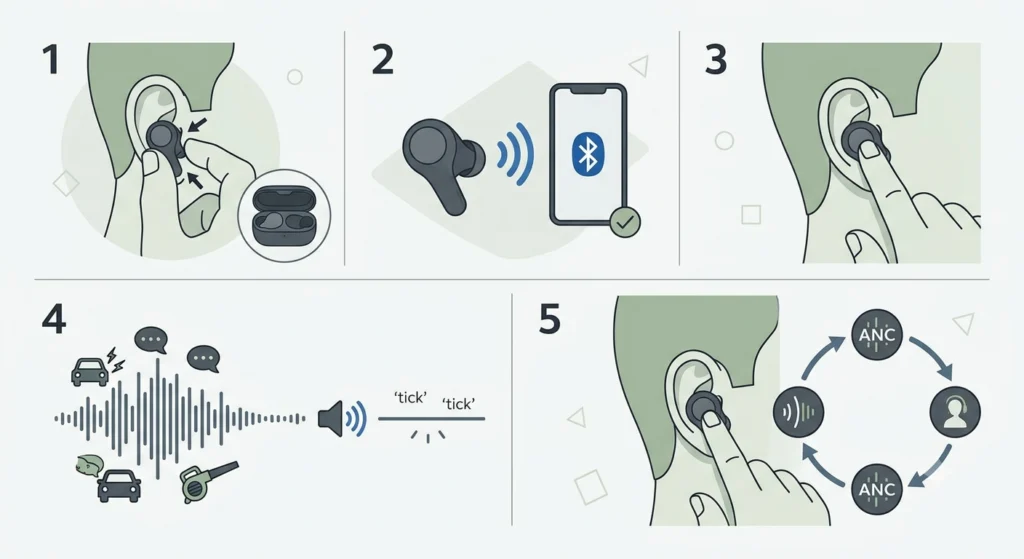
Setting up ANC on the Jabra Elite 10 takes less than a minute once the earbuds are paired and worn correctly. Most people find that doing this once, right after unboxing, saves a lot of guesswork later.
- Step 1: Remove both earbuds from the charging case and place them in the ears, making sure the EarGels create a snug seal. A loose fit weakens noise cancellation significantly, so this step matters more than it seems.
- Step 2: Confirm the earbuds are connected to the paired phone or laptop via Bluetooth. A quick voice prompt or chime usually confirms a successful connection.
- Step 3: While not on a call, press the left earbud button once. This toggles the sound mode and switches it directly into Active Noise Cancellation.
- Step 4: Listen for the voice or tone confirmation indicating ANC is now active. The change in ambient sound should be noticeable within a second or two.
- Step 5: Pressing the left button again cycles to HearThrough mode, and pressing once more returns to ANC, creating a simple loop between the two.
This works best when both earbuds are worn at the same time, since Advanced ANC relies on sensors in each earbud to read the surrounding environment and adjust accordingly.
Pro-Tip: Why Fit Affects ANC Performance
The seal created by the EarGel size has a direct impact on how well Advanced ANC performs. Jabra includes multiple EarGel sizes in the box for this exact reason. A gap between the ear canal and the gel lets outside noise leak in, making ANC feel weaker than it actually is. Testing each size while ANC is switched on, then picking the one that blocks the most sound naturally, solves this issue almost instantly.
Method 1: Activating ANC Through the Jabra Sound+ App
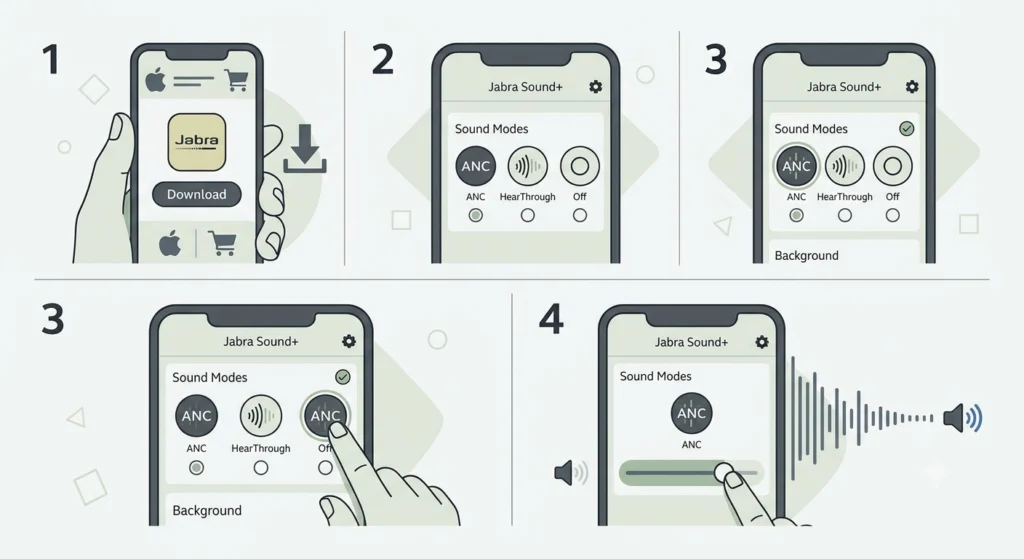
The Jabra Sound+ app gives far more control than the earbud buttons alone, and it is worth setting up even for people who only use button controls day to day.
- Step 1: Download the Jabra Sound+ app from the device’s app store and open it with the Elite 10 connected.
- Step 2: On the home screen, locate the Sound Modes section, which displays ANC, HearThrough, and Off as selectable options.
- Step 3: Tap Active Noise Cancellation to switch it on immediately from the app, without needing to touch the earbuds.
- Step 4: Use the slider, if available for the current firmware version, to fine-tune how strongly ANC filters background sound.
The app mirrors whatever mode is active on the earbuds in real time, so switching between the app and physical buttons never causes a conflict.
Method 2: Including Off as a Third Sound Mode Option
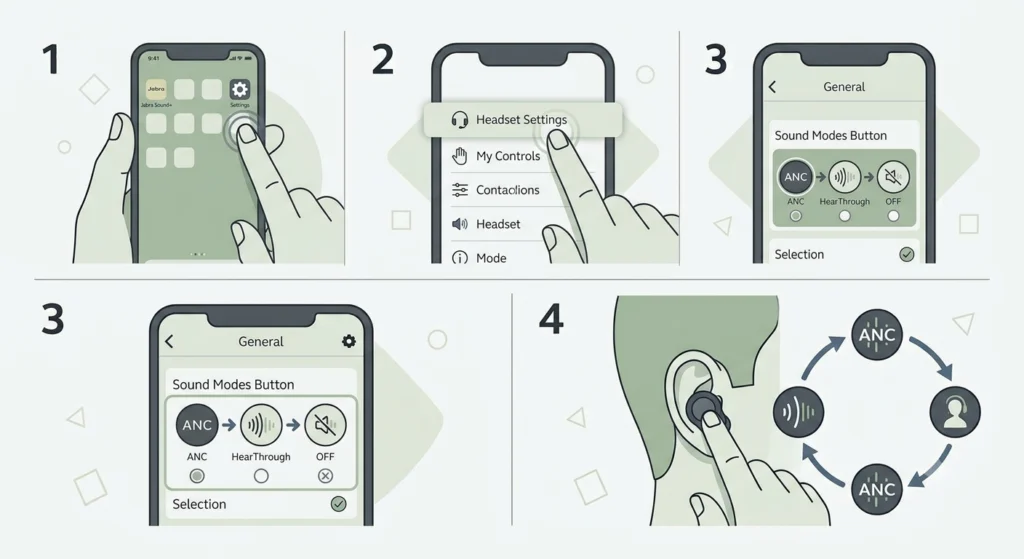
By default, the left button only cycles between ANC and HearThrough. Adding a third Off option is useful for situations like quiet libraries or noise-free home offices where neither mode is necessary.
- Step 1: Open the Jabra Sound+ app and tap the Settings icon.
- Step 2: Go to Headset Settings, then select General.
- Step 3: Choose the option labeled HearThrough, ANC and Off.
- Step 4: Confirm the selection, then test the left button again to see all three modes cycling in sequence.
Method 3: Customizing Controls With MyControls
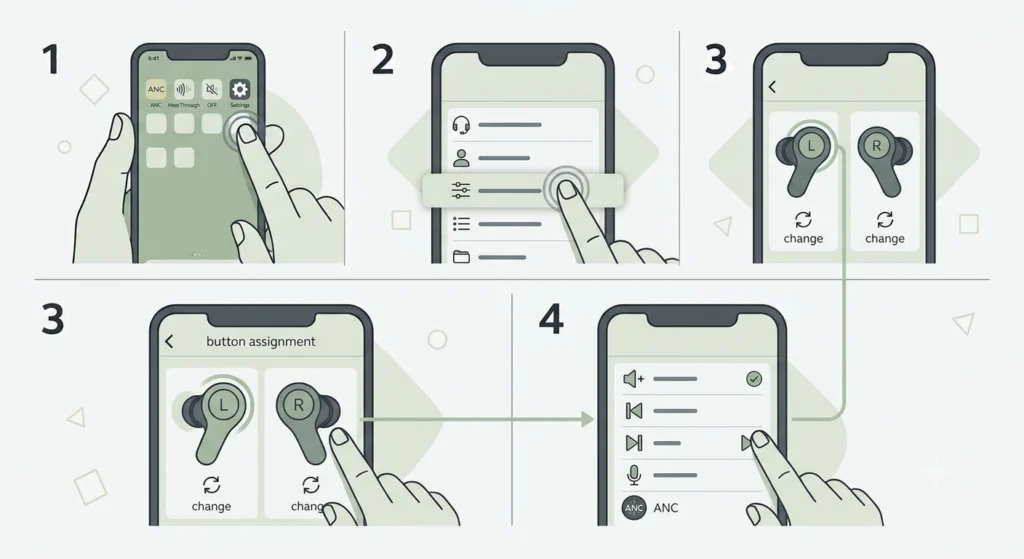
Not everyone wants the left button dedicated to sound modes. MyControls inside the Sound+ app allows that function to be reassigned to something else entirely, while keeping Advanced ANC accessible through the app screen instead.
- Step 1: Open Jabra Sound+ and tap the Settings icon.
- Step 2: Select MyControls from the personalization menu.
- Step 3: Choose the left or right earbud button to reassign.
- Step 4: Pick a new function from the list, or leave ANC switching as the default if it already works well.
This is particularly handy for anyone who answers calls frequently and prefers a dedicated mute or assistant shortcut instead of sound-mode cycling.
Tips for Getting the Best Out of Advanced ANC
- Keep the firmware updated through Jabra Sound+, since noise cancellation algorithms occasionally receive performance improvements through updates.
- Clean the microphone mesh on each earbud regularly, as dust or earwax buildup can interfere with how ANC reads ambient sound.
- Use ANC during flights or train rides for the most noticeable benefit, since low-frequency drone noise is exactly what Advanced ANC is tuned to reduce.
- Switch to HearThrough in situations requiring awareness of surroundings, such as walking near traffic or waiting for an announcement.
- Pair the earbuds correctly with a Windows laptop for desk use, and anyone running into stereo or connection hiccups can re-pair the Bluetooth earbuds for proper stereo sound before testing ANC again.
Common Problems With Advanced ANC and How to Fix Them
Fix 1: ANC Feels Weaker Than Expected
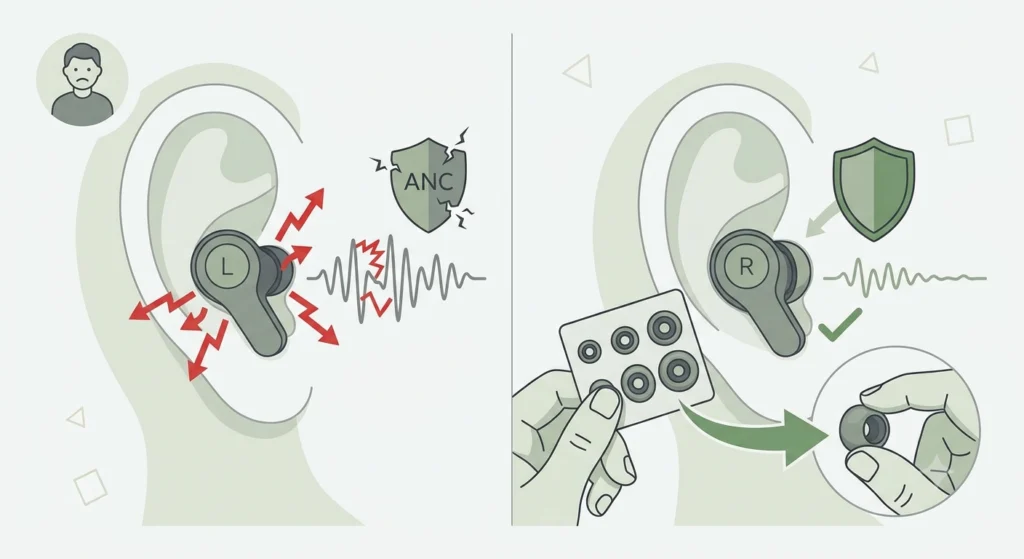
This usually comes down to an incorrect EarGel size rather than a software issue. Trying a larger or smaller gel size, then reinserting the earbuds with a firm seal, typically restores full ANC strength.
Fix 2: Left Button Is Not Switching Modes
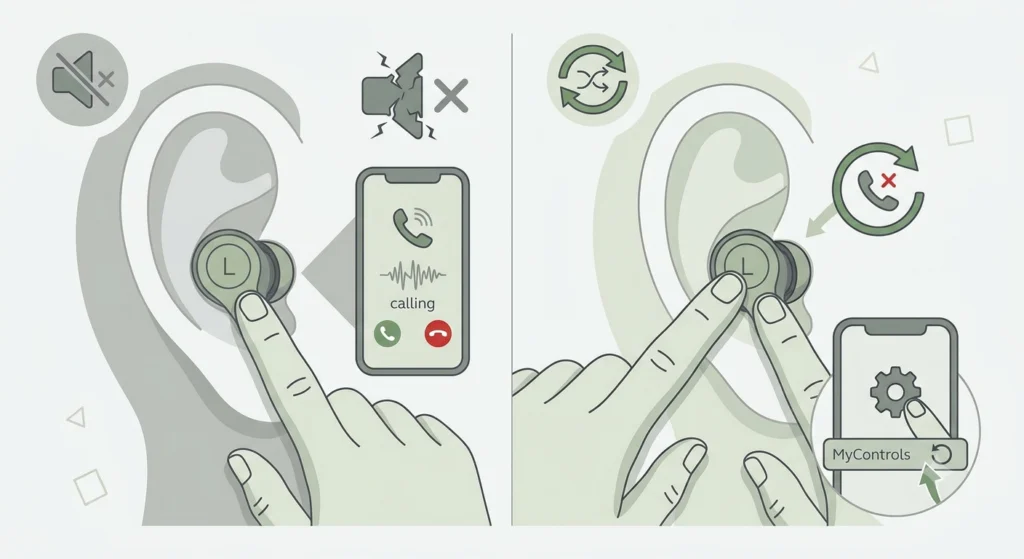
If the button feels unresponsive, the most likely cause is an active call or a recent MyControls reassignment. Ending any ongoing call and checking the MyControls menu in Sound+ usually clears this up.
Fix 3: ANC Works on Phone but Not on Windows Laptop
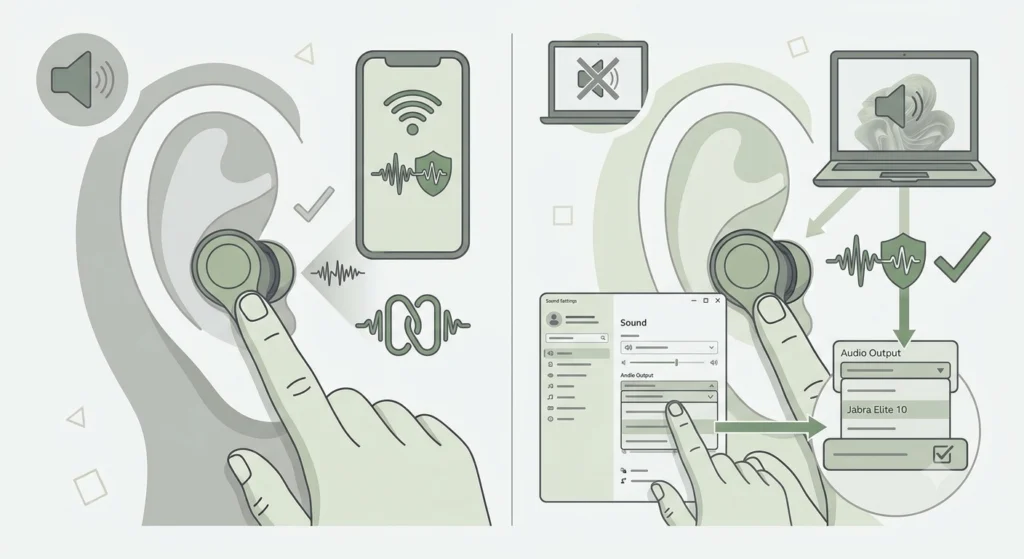
This is often related to audio device settings on the laptop rather than the earbuds themselves. Reviewing how to adjust audio output settings on Windows 11 usually resolves inconsistent ANC behavior tied to the connected device.
Fix 4: Microphone Sounds Muffled While ANC Is On
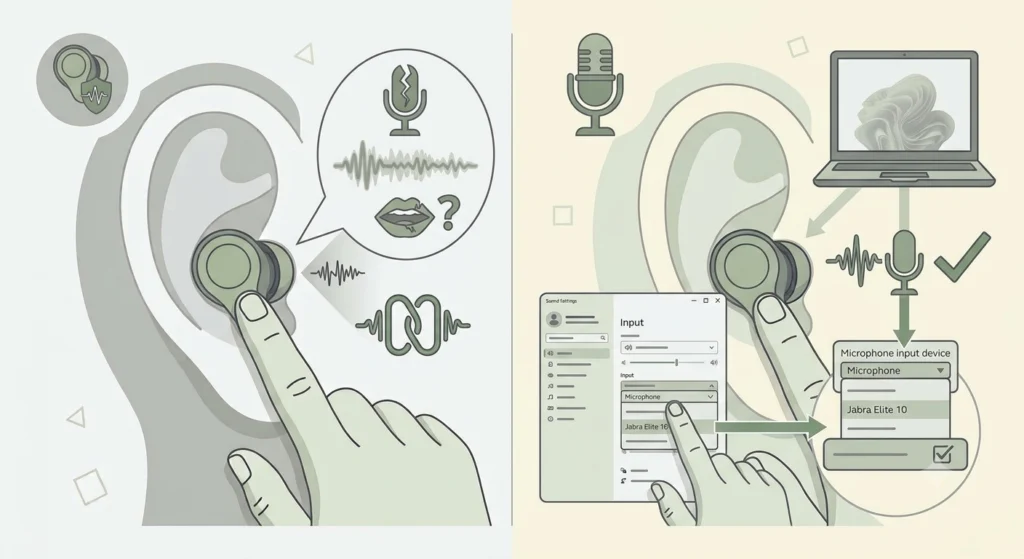
Since the Elite 10 uses six microphones for both ANC and calls, a detection conflict can occasionally affect call clarity. Checking the steps for resolving microphone detection problems on Windows 11 helps separate an earbud issue from a system-level one.
Fix 5: Earbuds Default to the Wrong Mode After Reconnecting
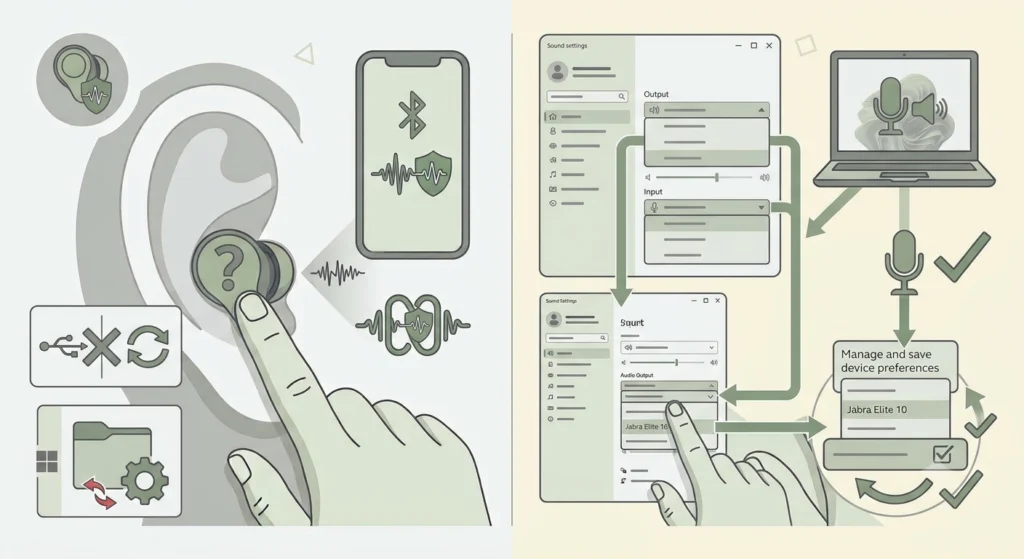
Some Windows setups reset audio input and output preferences after a reconnect. Looking into managing audio input devices on Windows 11 often fixes this default-mode mismatch quickly.
Frequently Asked Questions
What is Advanced ANC on the Jabra Elite 10?
Advanced ANC is a noise cancellation technology that automatically reduces surrounding noise while adapting to ear shape, fit, and environment, whether quiet, loud, or windy.
How is Advanced Noise Cancellation turned on?
Pressing the left earbud button while not on a call switches the sound mode directly into Active Noise Cancellation.
Can ANC be turned off completely?
Yes. Adding the Off option through Headset Settings in the Jabra Sound+ app allows ANC to be turned off alongside HearThrough.
Does Advanced ANC reduce battery life?
Yes. Battery life with ANC active is up to 6 hours per charge, compared to up to 8 hours with ANC and HearThrough both switched off.
Why does ANC feel different depending on the earbud fit?
Advanced ANC relies on a proper seal to read and cancel ambient sound accurately, so an incorrect EarGel size reduces its effectiveness noticeably.
Is the Jabra Sound+ app required to use ANC?
The app is not required for basic ANC switching, since the left button handles that by default, but the app is needed to customize modes, adjust settings, or update firmware.
Can the ANC button function be changed to something else?
Yes. MyControls inside the Jabra Sound+ app allows the left or right button function to be reassigned to a different action entirely.
Does wind affect Advanced ANC performance?
The earbuds automatically adjust ANC behavior in windy environments to maintain a stable listening experience.
Why does only one earbud seem to apply ANC?
Advanced ANC is designed for both earbuds working together, so wearing only one earbud will not provide the same level of noise cancellation as wearing both.
Does using ANC affect call quality?
ANC and call audio rely on separate but related microphone systems, and proper fit plus updated firmware usually keep both performing well simultaneously.