
A static or hissing noise on the 1More SonoFlow Pro usually points to a pairing glitch, an outdated firmware version, or a driver conflict on the connected device. The good news is that this issue is fixable in most cases without a trip to a repair shop, and the steps below walk through exactly how to clear it up.
Key Takeaways
- Static or hissing noise is often caused by Bluetooth interference, low battery, or outdated firmware.
- Restarting the headset and re-pairing it resolves the issue in a large number of cases.
- Updating firmware through the 1More Music app fixes noise caused by software bugs.
- Windows audio enhancements and exclusive mode settings can also trigger crackling or hissing sounds.
- A factory reset is the last resort if the noise continues after trying the fixes below.
Fix 1: Restart the Headphones and Reset the Bluetooth Connection
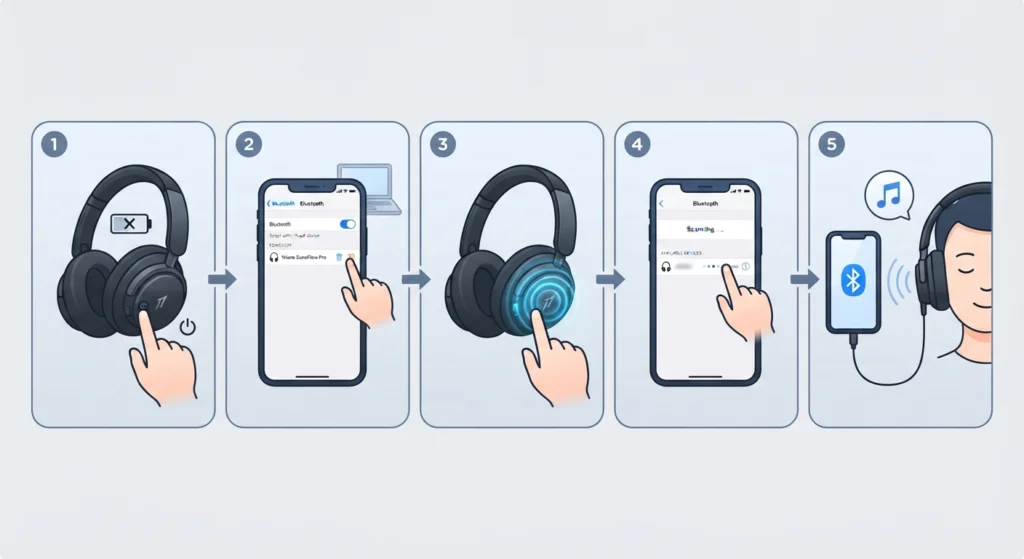
This is the fastest fix and it solves the problem more often than people expect. A quick restart clears out any temporary glitch in the Bluetooth radio that causes the static sound.
- Step 1: Power off the 1More SonoFlow Pro completely using the power button.
- Step 2: On the connected phone, laptop, or tablet, open Bluetooth settings and forget or remove the SonoFlow Pro from the paired devices list.
- Step 3: Turn the headphones back on and hold the power button until the LED flashes to enter pairing mode.
- Step 4: Search for the device again and pair it from scratch.
- Step 5: Play audio for a minute or two to check whether the hissing has stopped.
Anyone setting this up on a Windows 11 laptop should also take a moment to re-pair the headphones for proper stereo sound, since a mono or single-channel connection can sometimes be mistaken for static in one ear.
Fix 2: Update the Firmware Through the 1More Music App
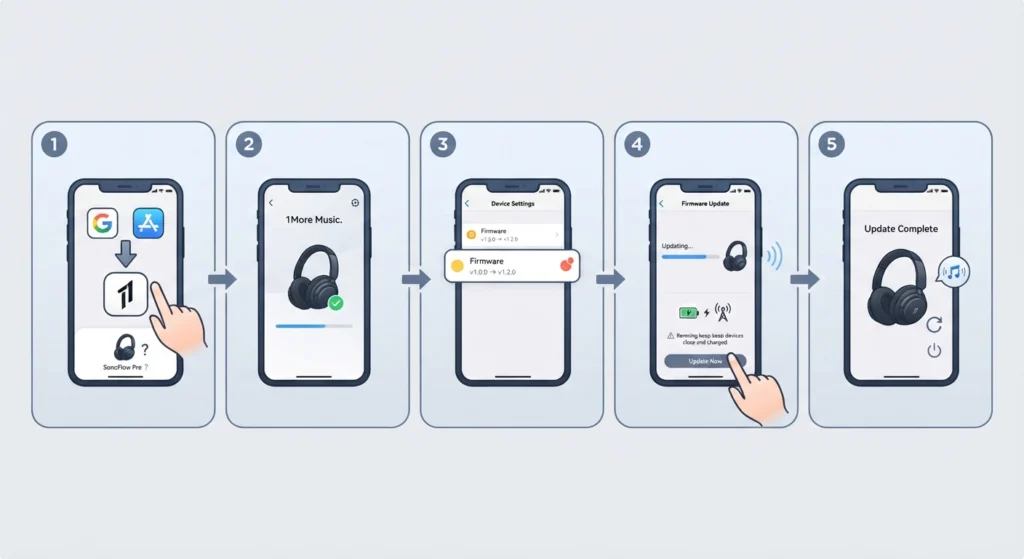
Outdated firmware is one of the most common reasons for static noise on wireless headphones, and the SonoFlow Pro is no exception. 1More regularly pushes firmware updates that fix audio processing bugs, including static and popping sounds during playback.
- Step 1: Download the 1More Music app from the Google Play Store or Apple App Store.
- Step 2: Open the app and connect the SonoFlow Pro through Bluetooth.
- Step 3: Go to the device settings page inside the app and check for a firmware update notification.
- Step 4: Tap update and keep the headphones within range and charged until the process finishes.
- Step 5: Restart the headphones once the update completes and test the sound again.
Pro Tip: Never turn off the headphones or walk away from the paired device while a firmware update is running. An interrupted update is one of the few things that can actually cause more serious audio problems, including permanent distortion.
Fix 3: Charge the Battery Fully
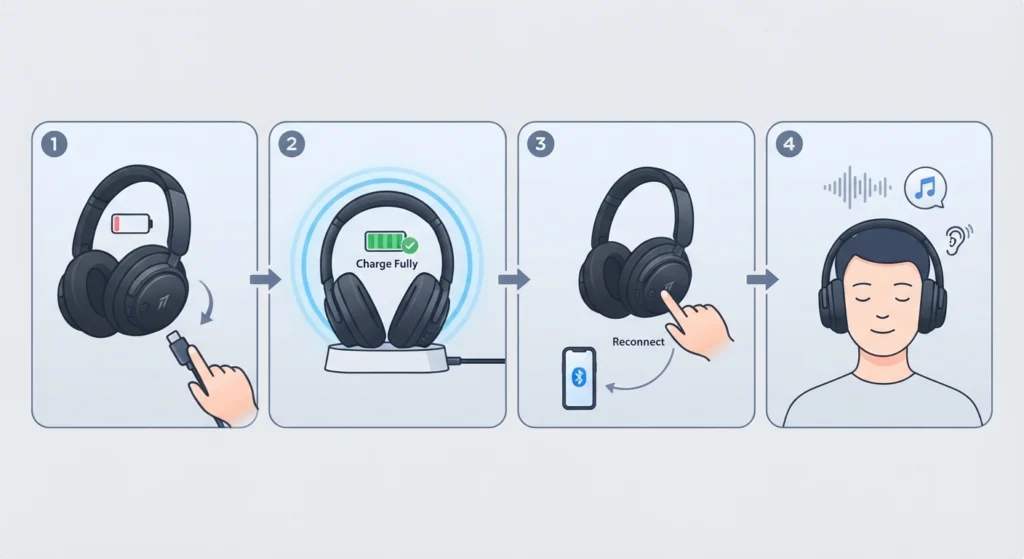
Low battery is a sneaky cause of hissing noise that most people overlook. As the battery drains, the internal amplifier can struggle to maintain a clean signal, and that shows up as a faint static or crackling sound, especially at higher volumes.
- Step 1: Place the SonoFlow Pro on its charging cable or dock.
- Step 2: Allow it to charge fully rather than stopping at a partial charge.
- Step 3: Disconnect, power the headphones back on, and reconnect to the source device.
- Step 4: Play familiar audio and listen closely for any remaining noise.
Fix 4: Turn Off Audio Enhancements on Windows
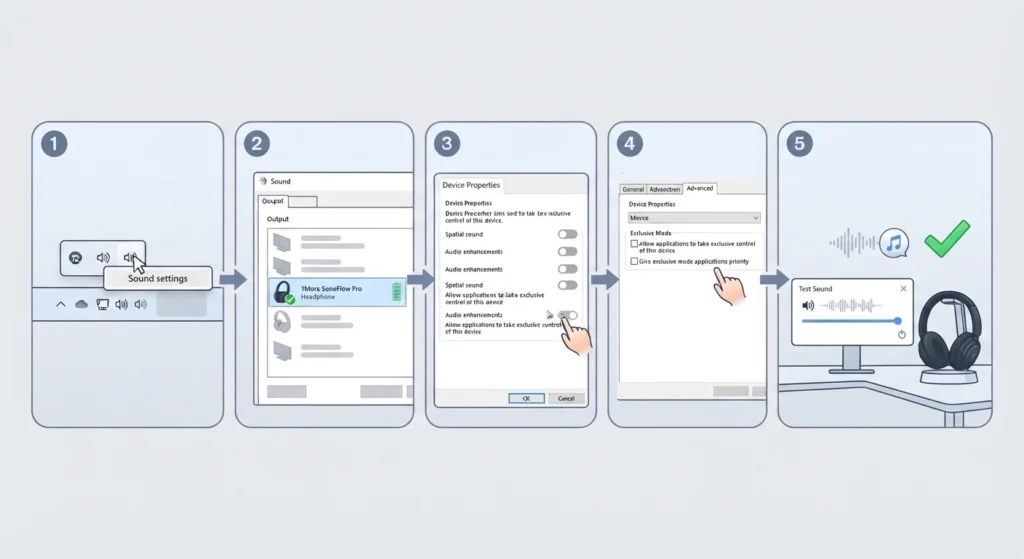
Windows applies its own audio processing on top of whatever the headphones are doing, and features like loudness equalization or spatial sound sometimes clash with the SonoFlow Pro’s own signal processing. That clash often sounds exactly like static or hissing.
- Step 1: Right-click the speaker icon in the taskbar and select Sound settings.
- Step 2: Choose the 1More SonoFlow Pro under the output device list.
- Step 3: Open the device properties and disable any audio enhancements or spatial sound options.
- Step 4: Uncheck exclusive mode options if they appear under the advanced tab.
- Step 5: Apply the changes and play a test sound to confirm the noise is gone.
For a full walkthrough with screenshots, the guide on adjusting audio output settings on Windows 11 covers each of these menus in more detail.
Fix 5: Move Closer to the Source Device and Reduce Interference
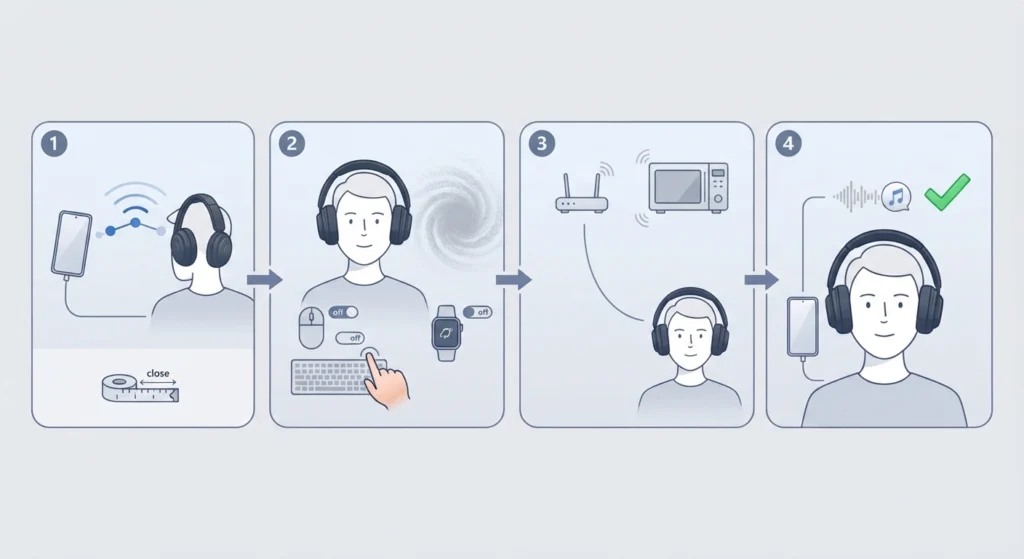
Bluetooth operates on the same frequency band as many home routers, microwaves, and other wireless devices. When too many signals compete in the same space, the connection can stutter, and that stutter is often heard as static or a faint hiss rather than a dropped connection.
- Step 1: Move within a few feet of the phone, laptop, or tablet during playback.
- Step 2: Turn off other Bluetooth accessories nearby, such as a mouse, keyboard, or smartwatch, one at a time.
- Step 3: Step away from routers or microwaves if the setup is close to one.
- Step 4: Test playback again once interference sources are reduced.
Fix 6: Clean the Ear Cup Mesh and Driver Vents
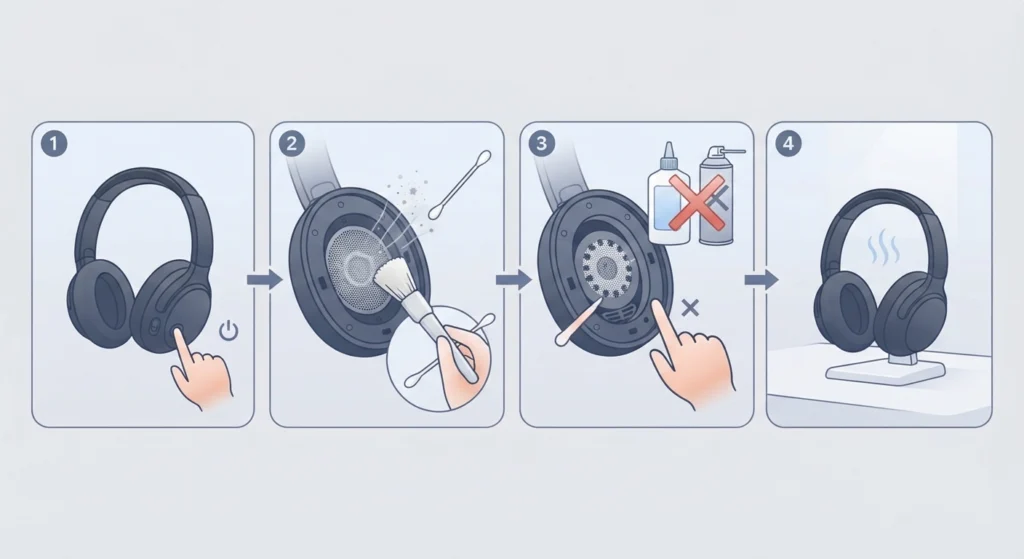
Dust, earwax, or lint buildup on the driver mesh can physically muffle and distort sound in a way that mimics static, particularly on over-ear or on-ear models like the SonoFlow Pro that get used daily during commutes or workouts.
- Step 1: Power off the headphones before cleaning.
- Step 2: Use a soft, dry brush or a clean, dry cotton swab to gently clear the mesh grille.
- Step 3: Avoid using liquids or compressed air directly into the driver vents.
- Step 4: Let any moisture from regular use fully air-dry before the next listening session.
Fix 7: Reset the Headphones to Factory Settings
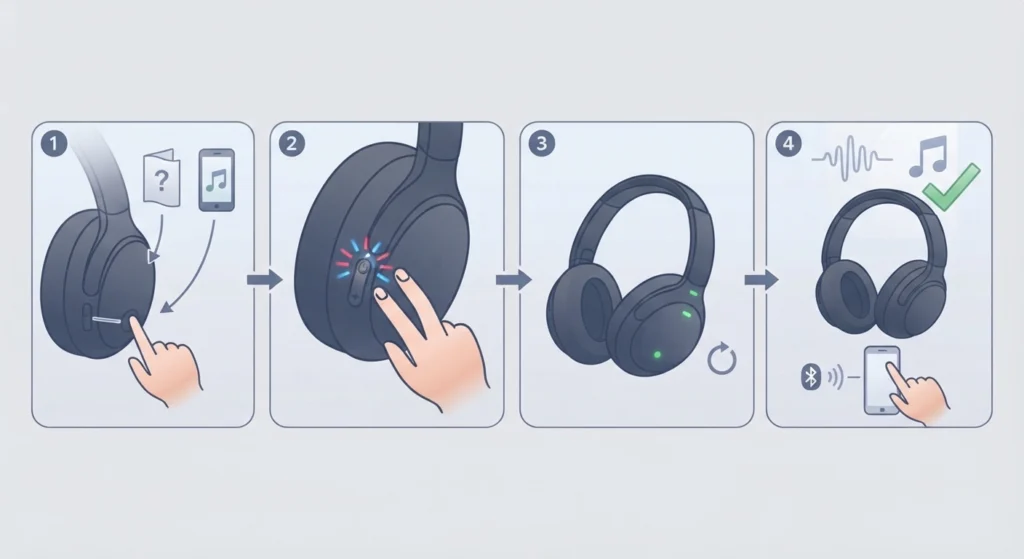
When none of the fixes above clear the noise, a factory reset wipes any corrupted pairing data or settings that might be causing the problem. This should be treated as a last step since it also removes saved device pairings.
- Step 1: Check the user manual or the 1More Music app for the exact reset button combination for the SonoFlow Pro.
- Step 2: Hold the specified buttons until the LED indicator flashes in the reset pattern.
- Step 3: Release the buttons and wait for the headphones to power cycle.
- Step 4: Pair the headphones again as a new device and test playback.
Pro Tip: Before resetting, try resetting the audio settings on Windows 11 instead, since a driver-level reset on the computer side fixes the same symptom far more often than people assume, and it does not erase any pairing history on the headphones themselves.
Tips to Prevent Static or Hissing Noise Going Forward
- Keep the firmware updated by checking the 1More Music app every few weeks.
- Charge the headphones before the battery drops below 20 percent rather than letting it run flat.
- Avoid pairing the SonoFlow Pro to more than one active device at the same time.
- Store the headphones in a dry case away from direct heat or moisture.
- Keep the paired device’s Bluetooth drivers updated, since outdated drivers cause many of the same symptoms as a hardware fault.
Common Problems That Trigger This Noise
Most static or hissing complaints on the SonoFlow Pro trace back to one of the following:
- A weak or outdated Bluetooth driver on the connected computer, which can often be corrected by managing audio input and output devices on Windows 11.
- Background apps applying their own audio effects on top of the system output.
- A firmware version that predates a known audio processing fix.
- Physical debris on the driver mesh reducing sound clarity.
- Signal interference from other 2.4GHz devices sharing the same room.
Frequently Asked Questions
Why does the 1More SonoFlow Pro make a hissing noise?
The most common causes are a weak Bluetooth connection, low battery, outdated firmware, or Windows audio enhancements interfering with the signal. Working through the fixes above in order usually isolates the exact cause.
Is static noise a sign of a hardware defect?
Not always. Most cases trace back to software or connection issues rather than a damaged driver. A hardware defect is more likely only if the noise persists after a full reset and firmware update, and after testing on a completely different device.
Does low battery really cause static sound?
Yes. As battery voltage drops, the internal amplifier can lose the ability to output a clean signal, which often sounds like static or crackling, especially at higher volume levels.
How often should the SonoFlow Pro firmware be updated?
Checking for updates through the 1More Music app once every few weeks is a reasonable habit, since firmware updates are released periodically to fix bugs like this one.
Can Bluetooth interference from other devices cause this issue?
Yes. Routers, microwaves, and other Bluetooth accessories operating nearby can all compete for the same frequency band, which sometimes shows up as static rather than a full disconnection.
Does active noise cancellation cause a faint hissing sound?
A very low-level hiss during ANC operation is normal on most noise-cancelling headphones, including the SonoFlow Pro, and is different from the louder static or crackling noise covered in this guide.
How can crackling sound be fixed specifically on Windows 11?
Disabling audio enhancements, turning off exclusive mode, and updating the Bluetooth driver under Device Manager resolves this in most cases. The steps in Fix 4 above cover this process in detail.
Will a factory reset delete saved pairings?
Yes, a factory reset clears all previously paired devices, so each device will need to be paired again afterward.
Can moisture or sweat cause static noise?
Yes. Moisture buildup from workouts or humid conditions can affect the driver and connector contacts, which sometimes produces a static-like sound until the headphones fully dry out.
What should be done if the noise continues after trying every fix?
If the static or hissing persists after a firmware update, factory reset, and testing on a different device, the headphones may need to go through 1More’s official warranty or repair process.