
1More Fit SE auto-pause not working is a common complaint among owners of these open-ear earbuds, especially after a firmware update or a fresh pairing session. Music keeps playing even after the earbuds are removed, or playback fails to resume once they are placed back on. The fixes below address the exact settings and hardware checks that solve this problem.
Key Takeaways
- Auto-pause on the 1More Fit SE depends on a sensor built into the earhook, so a poor fit or dirty contact often breaks the feature.
- Outdated firmware is one of the leading causes of auto-pause failing to trigger.
- The 1More app controls the smart pause setting and should be checked first.
- A fresh Bluetooth pairing usually resolves auto-pause issues tied to connection glitches.
- A factory reset is the most reliable fix when none of the smaller adjustments work.
Fix 1: Update the Firmware Through the 1More App
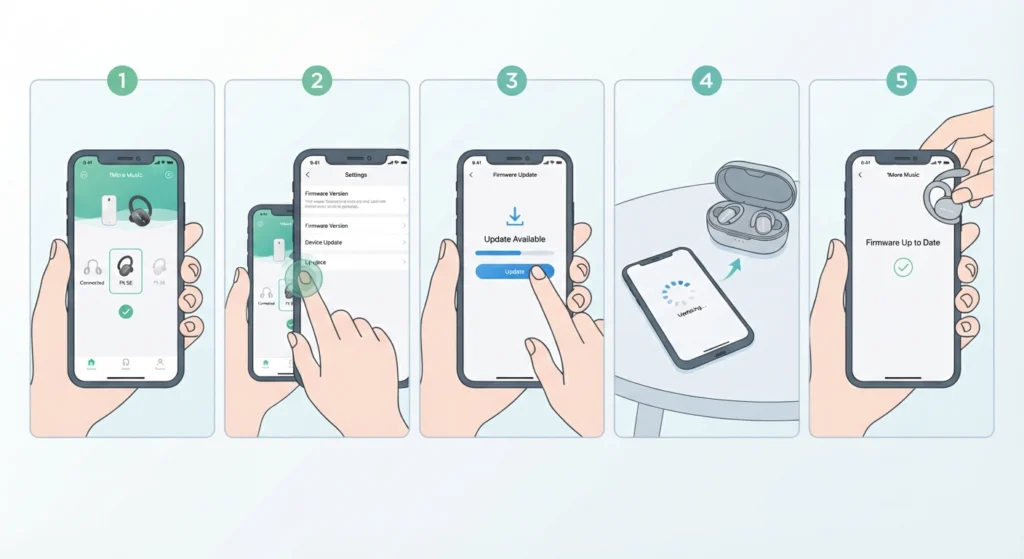
Firmware bugs are the single most common reason auto-pause stops responding on the Fit SE. 1More regularly pushes updates that specifically patch sensor and playback behavior, so this is the right place to start before touching any other setting.
- Step 1: Open the 1More app on the paired phone and make sure the Fit SE earbuds are connected and shown on the home screen.
- Step 2: Tap the earbud icon or device card to open the settings page for the Fit SE.
- Step 3: Look for a firmware or software update notification and tap to install it.
- Step 4: Keep the earbuds in the charging case and close to the phone until the update finishes.
- Step 5: Restart the earbuds by placing them back in the case for ten seconds, then taking them out again.
Most people find that a single firmware update resolves auto-pause issues that appeared right after a previous update, since these bugs are usually already known and fixed on the manufacturer’s side.
Fix 2: Turn On Smart Pause in the App Settings
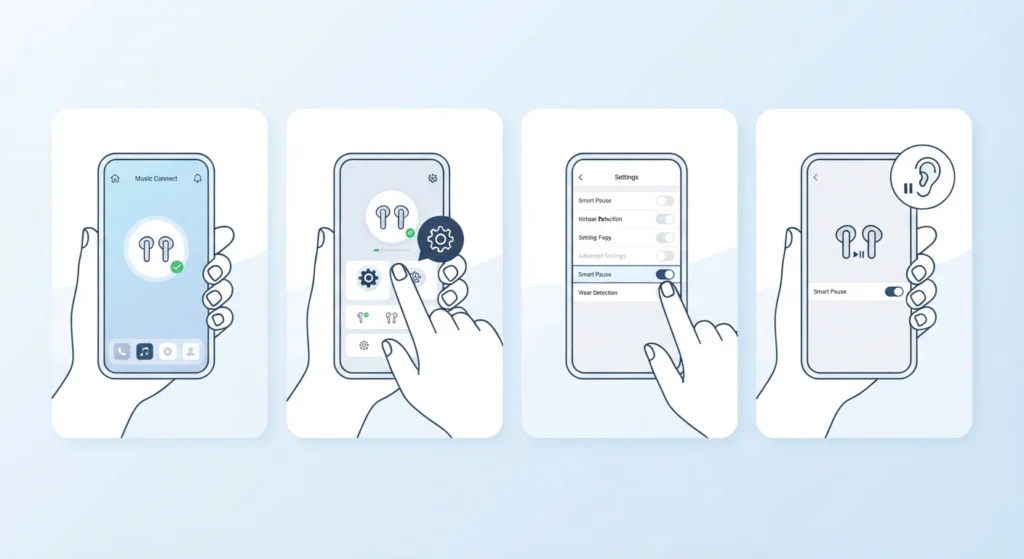
The auto-pause function on the Fit SE is tied to a toggle inside the companion app rather than a physical switch on the earbuds. If this setting was turned off accidentally, or reset during a firmware update, playback will never pause automatically no matter how the earbuds are worn.
- Step 1: Open the 1More app and select the Fit SE from the connected devices list.
- Step 2: Go to the settings or preferences section for the earbuds.
- Step 3: Find the smart pause or wear detection option and confirm it is switched on.
- Step 4: Close the app fully and reopen it to confirm the setting has saved.
This works best when the app has been granted background permissions on the phone, since some mobile operating systems close apps in the background and quietly revert unsaved toggle changes.
Fix 3: Clean the Sensor Area on the Earhook
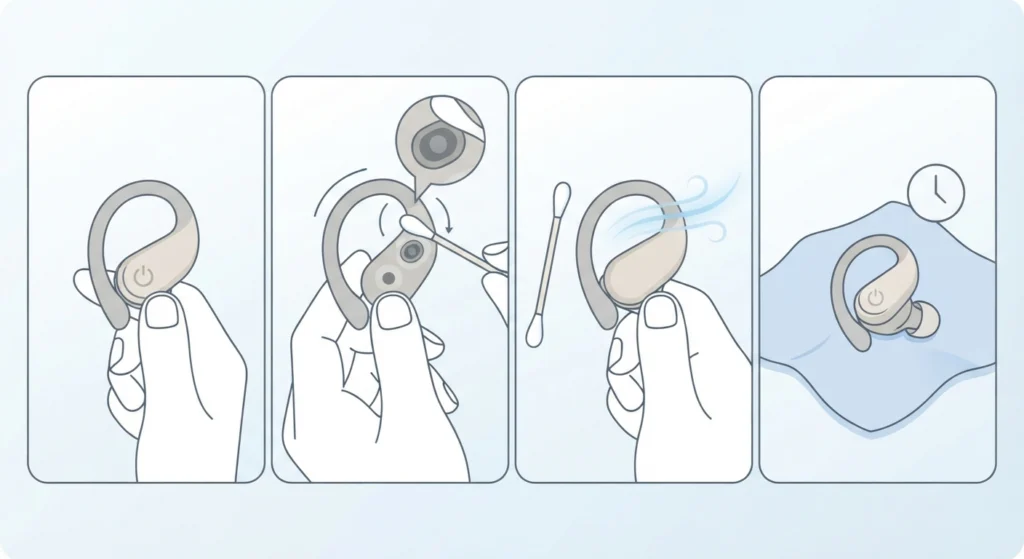
The Fit SE uses a small sensor built into the earhook to detect whether it is being worn. Sweat, earwax, hair product, or dust sitting over that sensor is enough to stop it from reading correctly, which means the earbuds either never pause or pause at random moments.
- Step 1: Remove the earbuds from the ears and power them off.
- Step 2: Use a dry, soft cloth or a cotton swab to gently wipe the inner curve of the earhook where it touches the ear.
- Step 3: Avoid liquids or alcohol-based cleaners directly on the sensor, since moisture trapped inside can cause further sensor errors.
- Step 4: Let the earhook air-dry for a couple of minutes before wearing the earbuds again.
Pro-Tip: Sweat buildup from workouts is the most frequent cause of sensor confusion on open-ear designs like the Fit SE, so wiping the earhook down after every gym session prevents this issue from returning.
Fix 4: Adjust the Fit of the Earhook
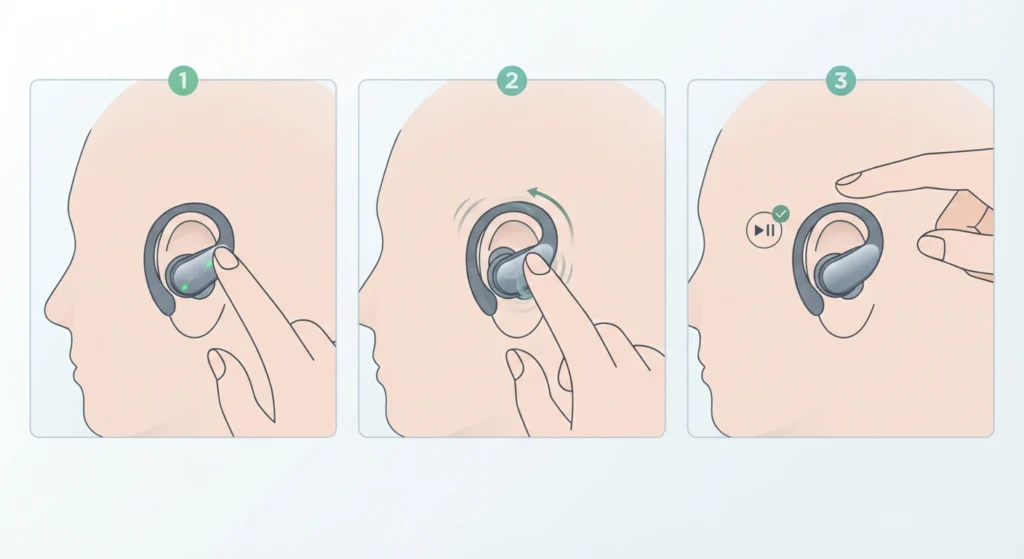
Because the Fit SE sits around the ear rather than sealing inside the canal, the sensor relies on consistent skin contact to register that the earbud is being worn. A loose fit means the sensor loses contact intermittently, which can look exactly like the auto-pause feature has stopped working.
- Step 1: Reposition the earhook so the sensor pad sits flush against the skin behind the ear.
- Step 2: Adjust the angle slightly until the earbud feels snug without pressing uncomfortably.
- Step 3: Test playback by removing and reinserting one earbud to confirm the pause and resume response.
Fix 5: Re-pair the Bluetooth Connection
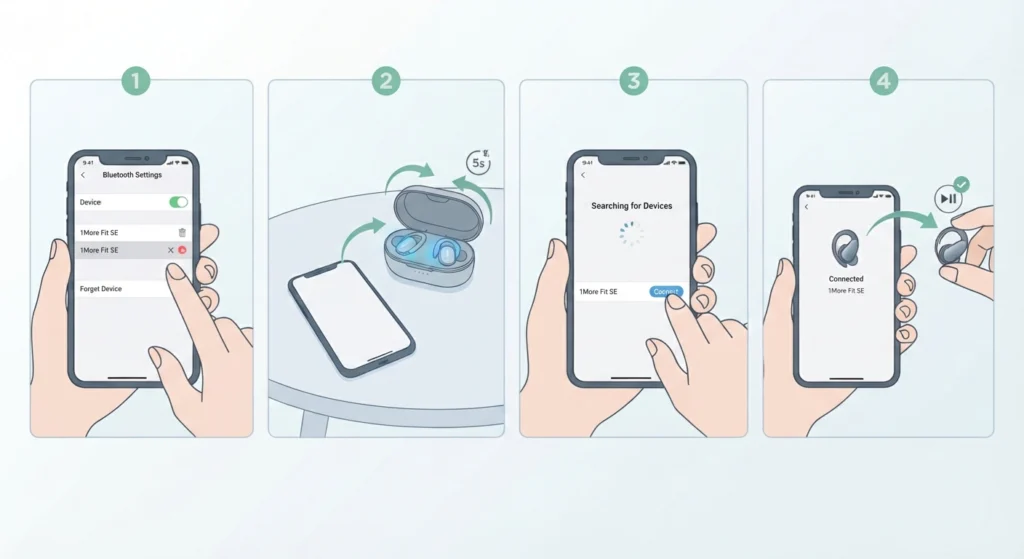
A weak or corrupted Bluetooth pairing can interfere with the signal that tells the phone to pause playback, even when the sensor itself is working correctly. Forgetting the device and pairing it again from scratch usually clears this up.
- Step 1: Open Bluetooth settings on the connected device and forget or remove the Fit SE from the paired list.
- Step 2: Place the earbuds back in the case, close the lid for five seconds, then reopen it to trigger pairing mode.
- Step 3: Search for new devices on the phone or computer and select the Fit SE from the list.
- Step 4: Confirm the connection and test auto-pause by removing an earbud during playback.
For a full walkthrough on getting stereo sound back after pairing on a Windows machine, this guide on re-pairing Bluetooth earbuds for stereo sound covers the process in more detail.
Fix 6: Reset the Fit SE to Factory Settings
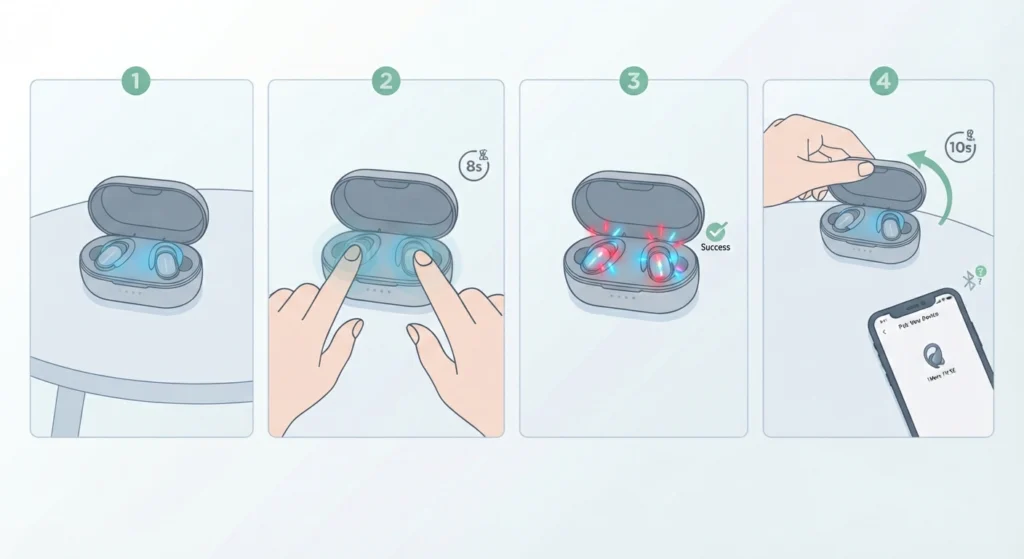
When none of the steps above bring back the auto-pause function, a factory reset clears out any corrupted settings that built up over time and restores the earbuds to their original behavior.
- Step 1: Place both earbuds in the charging case without closing the lid.
- Step 2: Press and hold the touch panel on both earbuds at the same time for around eight seconds.
- Step 3: Watch for the LED indicator to flash, confirming the reset has completed.
- Step 4: Close the case lid, wait ten seconds, then reopen it and pair the earbuds again as new devices.
Pro-Tip: Always re-pair the earbuds as a brand new device after a factory reset rather than reconnecting through an old saved profile, since old profiles can carry over the same corrupted settings that caused the problem in the first place.
Fix 7: Check Audio Settings When Using the Fit SE on Windows 11
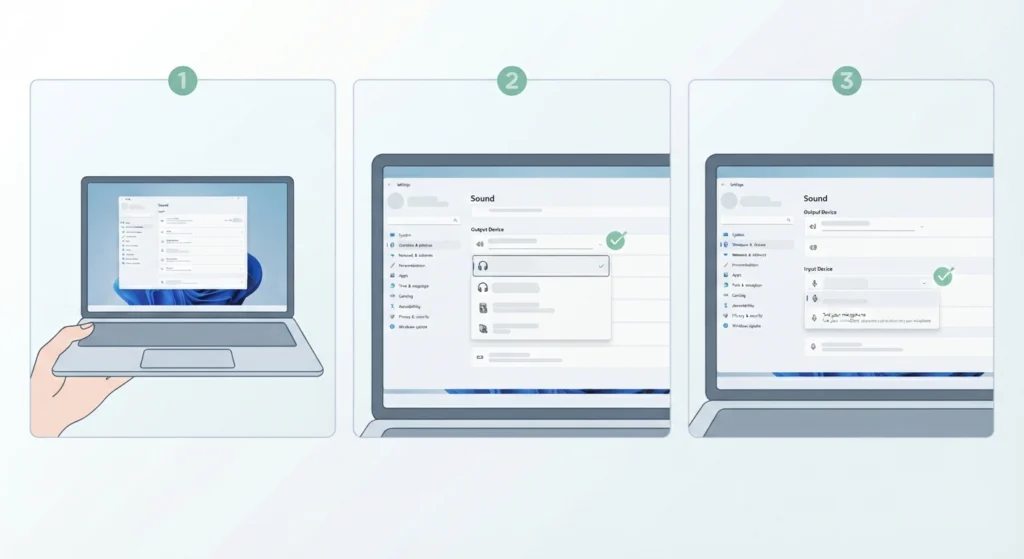
Auto-pause behavior can also be affected by how Windows 11 manages the connected audio device rather than the earbuds themselves. This is worth checking when the Fit SE is paired to a laptop or desktop instead of a phone.
- Step 1: Open Windows Settings and go to the Sound section.
- Step 2: Confirm the Fit SE is set as the default output device rather than a secondary or muted device.
- Step 3: Review the input device settings if calls or voice apps seem to interrupt the auto-pause behavior.
Detailed instructions on getting these settings right are available in this guide on adjusting audio output settings and this one covering managing audio input devices on Windows 11.
Tips to Keep Auto-Pause Working Reliably
- Wipe down the earhook sensor after workouts or humid weather to prevent moisture buildup.
- Keep the 1More app updated so new firmware releases install automatically instead of getting missed.
- Store the earbuds in the case when not in use rather than leaving them loose in a bag, since dust exposure affects sensor accuracy over time.
- Avoid switching between multiple paired devices too quickly, since rapid switching can interfere with the pause signal.
Common Problems With Auto-Pause on the 1More Fit SE
A few specific situations tend to trigger auto-pause complaints more than others, and knowing the cause makes the fix much faster.
- Playback pauses correctly but never resumes: this usually points to a Bluetooth signal delay rather than a sensor fault, and re-pairing the connection resolves it.
- Auto-pause only fails on one earbud: this is almost always a dirty or misaligned sensor on that specific earbud, so cleaning and refitting it solves the issue.
- The feature worked before a firmware update and stopped afterward: this points directly to a settings reset during the update, so the smart pause toggle in the app needs to be checked again.
- Auto-pause works on a phone but not on a laptop: this is a device-level Bluetooth limitation rather than an earbud fault, since not all Windows Bluetooth drivers support the wear-detection signal the same way phones do.
If audio settings on the computer seem to be part of the problem after checking the above, this guide on resetting audio settings on Windows 11 walks through clearing out conflicting configurations.
Frequently Asked Questions
Why did auto-pause stop working after updating the 1More app?
App updates occasionally reset device-specific toggles, including smart pause. Reopening the app and checking the settings page for the Fit SE usually shows the toggle switched back off.
Does the 1More Fit SE use in-ear detection like sealed earbuds?
The Fit SE is an open-ear design, so it relies on a contact sensor built into the earhook rather than an in-canal infrared sensor. This makes fit and sensor cleanliness more important than on sealed earbuds.
Can auto-pause be turned off intentionally?
Yes, the smart pause toggle inside the 1More app can be switched off for anyone who prefers manual control over play and pause.
Why does only one earbud trigger auto-pause?
This typically happens when one earhook sensor is dirty, misaligned, or fits more loosely than the other. Cleaning and adjusting that specific earbud usually fixes the imbalance.
Does a factory reset delete paired device history?
Yes, a factory reset clears all previously paired devices, so the earbuds need to be paired again as new devices afterward.
Is auto-pause supported when the Fit SE is connected to a computer?
It depends on the Bluetooth driver on the computer. Some Windows Bluetooth implementations do not forward the wear-detection signal the same way a phone does, which can make the feature appear broken when it is actually a driver limitation.
How often should the 1More app be checked for firmware updates?
Checking every few weeks, or right after noticing any unusual behavior from the earbuds, is a reasonable habit that catches most sensor and connectivity bugs early.
Why does playback resume late instead of instantly?
A slight delay between reinserting the earbud and playback resuming is normal and depends on Bluetooth signal strength. A delay of several seconds or more usually indicates a connection issue rather than a sensor issue.
Can moisture from sweat permanently damage the sensor?
Light sweat exposure will not cause permanent damage as long as the earhook is dried and cleaned regularly. Prolonged exposure without cleaning can lead to more persistent sensor errors over time.
What should be tried first when auto-pause suddenly stops working?
Checking the smart pause toggle in the 1More app and cleaning the earhook sensor are the two fastest checks, and together they resolve the majority of cases before a reset becomes necessary.