
Updating Bose headphone firmware through the Bose Music app keeps headphones running smoothly, fixes small glitches, and unlocks features that were not available at the time of purchase. Most people find that the entire process takes less than fifteen minutes once the headphones are charged and the app is open.
Quick Summary Table
- Tool needed: Bose Music app (now also labeled the Bose app on newer installs)
- Battery required: At least 50 percent, ideally fully charged
- Connection needed: Stable Wi-Fi or mobile data plus Bluetooth pairing
- Average update time: 5 to 20 minutes depending on the model
- Where to check: Gear icon in the app, then Technical Info under Support
- Works on: Most QuietComfort, SoundLink, and Sport Bose headphone models
Step-by-Step Guide to Update Bose Headphone Firmware
Method 1: Update Firmware Directly Through the Bose Music App
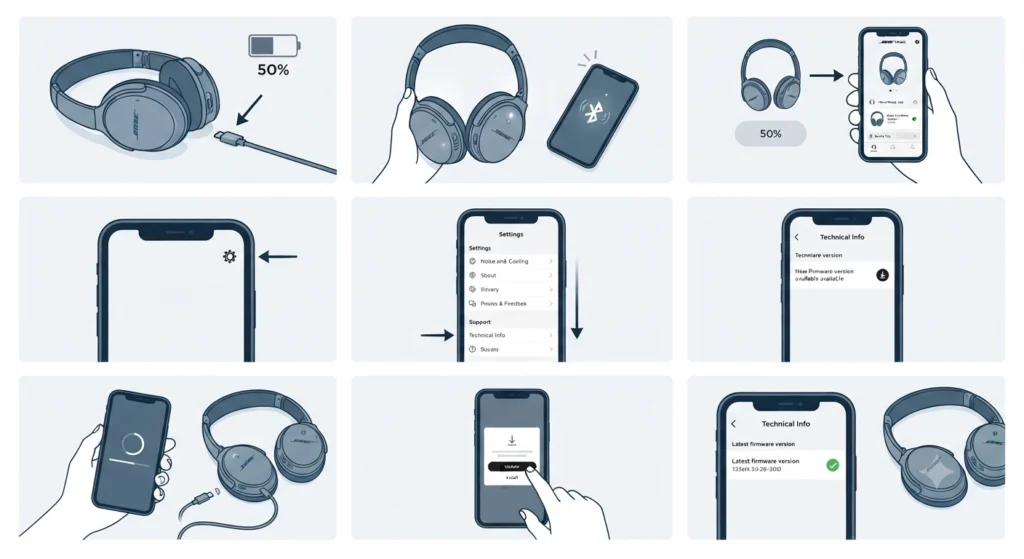
This is the most common way to update Bose headphones, and it works for the majority of current models, including QuietComfort and SoundLink headphones.
- Step 1: Charge the headphones to at least 50 percent before starting. A low battery during the transfer can interrupt the update.
- Step 2: Turn on the headphones and place them in pairing mode if this is the first connection to the app.
- Step 3: Open the Bose Music app on a phone or tablet and connect to the headphones from the device tray.
- Step 4: Tap the gear icon in the upper right corner of the app to open Settings.
- Step 5: Scroll down to the Support section and select Technical Info to view the current firmware version.
- Step 6: If a newer firmware version is available, the app displays an update icon or a prompt on the device image. Tap it to begin the download.
- Step 7: Keep the app open and the headphones nearby while the update downloads and transfers. A progress indicator shows how far along the process is.
- Step 8: Once the transfer finishes, tap Update or Install and wait for the headphones to restart on their own.
- Step 9: Reopen Technical Info to confirm the firmware version now matches the latest release.
This works best when the phone stays unlocked and close to the headphones the entire time, since Bluetooth range and screen lock settings can pause background transfers.
Method 2: Update Firmware Using the Bose Updater on a Computer
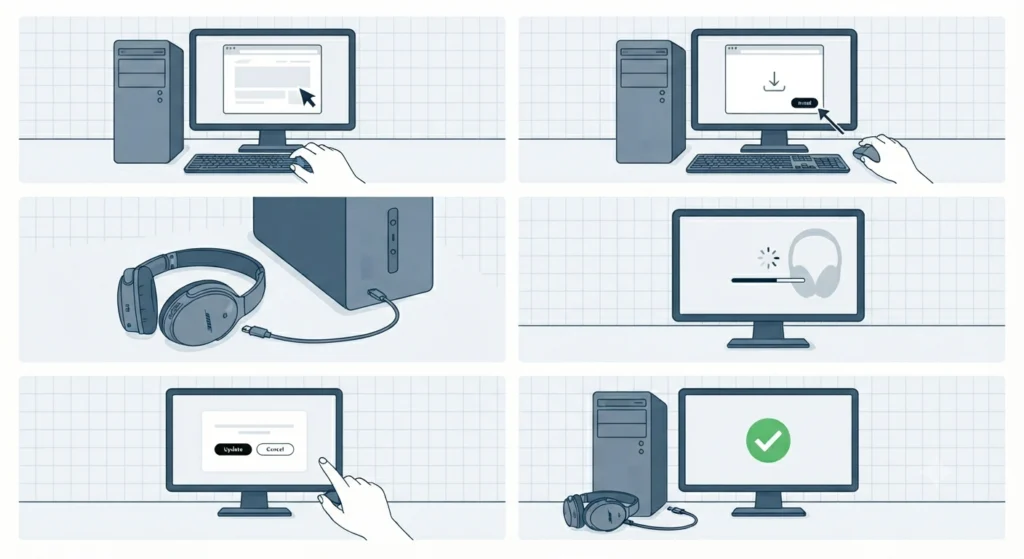
Some models, along with charging cases that pair with true wireless earbuds, can only be updated through a wired connection rather than the mobile app.
- Step 1: On a computer, go to the official Bose Updater site at btu.bose.com.
- Step 2: Download and install the Bose Updater application if it is not already installed.
- Step 3: Connect the headphones or charging case to the computer using a USB cable.
- Step 4: Wait for the Bose Updater to detect the connected product automatically.
- Step 5: If an update is available, follow the on-screen instructions to begin the upgrade.
- Step 6: Keep the cable connected and avoid closing the browser or unplugging the device until a checkmark confirms completion.
The key is to never disconnect the USB cable mid-update. An interrupted wired transfer is one of the few situations that can leave a device temporarily unresponsive.
Pro-Tip
Pro-Tip: Turn on Background Update inside the Bose Music app settings if the option appears for the connected model. With this toggled on, the app downloads and prepares new firmware automatically the next time the headphones connect, so there is rarely a need to check manually.
Tips for a Smooth Firmware Update
- Always charge headphones close to full before starting, since a sudden shutdown mid-update can cause problems.
- Stay on a stable Wi-Fi connection rather than spotty mobile data when downloading larger firmware files.
- Close other Bluetooth-heavy apps during the update so the connection between phone and headphones stays steady.
- Avoid switching the phone to another app or letting the screen lock while the transfer is in progress.
- Check Technical Info after every update to confirm the new version actually installed.
Pro-Tip
Pro-Tip: If the headphones recently struggled to reconnect after an update, reviewing how to re-pair Bluetooth earbuds for stereo sound on Windows can resolve the connection without needing a full factory reset.
Common Problems When Updating Bose Headphone Firmware
- Update stuck at the same percentage: Move the phone closer to the headphones and confirm the app is still in the foreground rather than minimized.
- App does not show an available update: Force-close the Bose Music app, reopen it, and reconnect the headphones from the device tray.
- Headphones disconnect mid-update: Restart both the app and the headphones, then begin the update again from Technical Info.
- Update fails repeatedly on mobile: Switch to the wired Bose Updater on a computer for a more stable connection.
- Sound cuts out after the update finishes: Adjusting general audio output settings on the connected device often resolves this, and a walkthrough for adjusting audio output settings on Windows 11 covers the exact menus to check.
- Microphone stops working after a firmware change: This is sometimes a Windows detection issue rather than a headphone fault, and the guide on resolving microphone detection problems on Windows 11 walks through the fix.
Frequently Asked Questions
How long does a Bose headphone firmware update usually take?
Most updates finish within 5 to 20 minutes, though larger updates on certain models can take up to 30 minutes depending on connection speed and battery level.
Can firmware be updated without the Bose Music app?
Yes. Many models can also be updated using the Bose Updater application on a computer through a wired USB connection, which is sometimes faster than the mobile app.
Does updating firmware delete saved settings or pairing history?
Most firmware updates do not erase presets or pairing lists, though it is still a good habit to note any custom settings beforehand in case a reset occurs.
Is it safe to use the headphones while the firmware update is downloading?
It is best to avoid using the headphones for audio playback while a transfer is in progress, since interrupting the connection can stall or fail the update.
What happens if the firmware update gets interrupted?
Restarting the app and the headphones, then retrying the update from Technical Info, resolves most interrupted transfers. If the headphones become unresponsive afterward, the wired Bose Updater is the more reliable backup method.
How can the current firmware version be checked before updating?
Open the Bose Music app, tap the gear icon, scroll to the Support section, and select Technical Info. The current firmware version is listed at the top.
Why does the app sometimes fail to detect an available update?
This usually happens when the app was not fully closed and reopened after the last session. Force-closing the app and reconnecting the headphones typically resolves the detection issue.
Can a charging case for true wireless earbuds be updated from the app?
No. Charging cases generally require a wired connection through the Bose Updater on a computer, since the app can only update the earbuds themselves.
Does a low battery affect the firmware update process?
Yes. A battery below 50 percent increases the risk of the headphones powering off mid-update, which can interrupt the transfer and require a retry.
How often does Bose release new firmware for headphones?
Bose releases firmware periodically rather than on a fixed schedule, so checking for updates every few months through the Technical Info menu is a reasonable habit.