
Getting the Soundpeats Air 4 earbuds paired with an Android phone takes only a couple of minutes once the right sequence is known. This guide walks through every stage needed to set up Soundpeats Air 4 earbuds on Android, from removing the insulating film for the first time to confirming a stable connection.
Key Takeaways
- Pairing mode activates by holding the charging case button for 3 seconds until the light flashes white.
- Android users connect through Settings, Connected devices, then Pair new device.
- The Soundpeats app unlocks EQ presets, firmware updates, and touch control customization.
- Air 4 supports multipoint pairing, so switching between two Android devices does not require re-pairing each time.
- A reset only becomes necessary if the earbuds stop responding or refuse to connect to a new phone.
Step-by-Step Guide to Pair Soundpeats Air 4 with Android
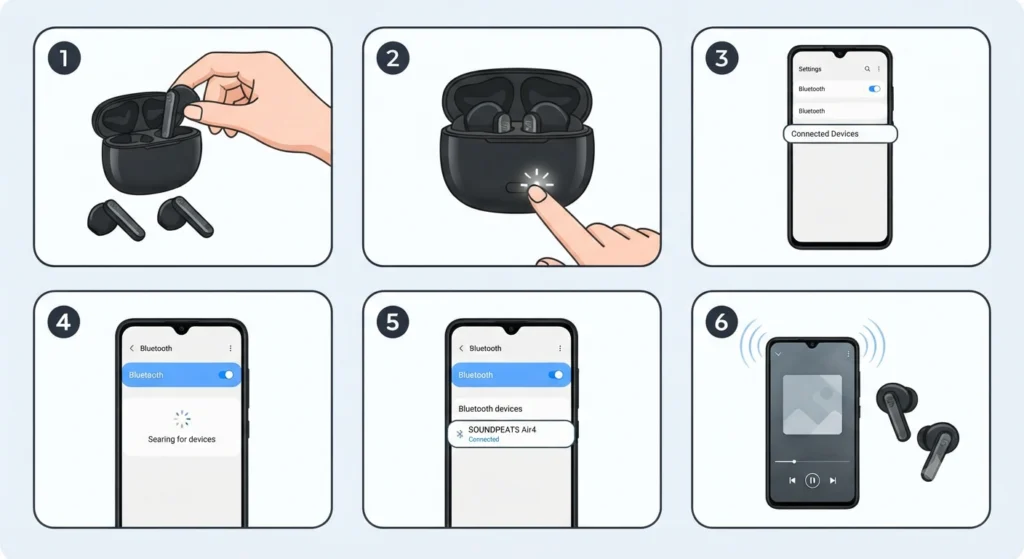
These steps apply whether this is the very first setup or a repeat pairing on a different Android phone. Following the order below prevents the most common mistake, which is trying to select the earbuds from Bluetooth settings before pairing mode has actually been triggered.
- Step 1: Open the charging case lid and take both earbuds out. If this is the first time using them, peel off the thin insulating film covering the charging pins on each earbud, then place them back into the case.
- Step 2: With the case lid still open, press and hold the button on the charging case for 3 seconds. The indicator light inside the case flashes white, which confirms pairing mode is active.
- Step 3: On the Android phone, open Settings, then tap Connected Devices or Bluetooth, depending on the device brand and Android version.
- Step 4: Turn Bluetooth on and tap Pair New Device, then wait a few seconds for nearby devices to populate the list.
- Step 5: Select ‘SOUNDPEATS Air4’ from the list of available devices to complete the connection.
- Step 6: Play a short audio clip or song to confirm both earbuds are producing sound and the connection is stable.
Most people find that the phone remembers the earbuds after this first pairing, so future connections happen automatically as soon as the earbuds come out of the case and Bluetooth is already on.
Installing the Soundpeats App for Extra Control
The Soundpeats companion app adds a layer of customization that basic Bluetooth pairing does not offer. Downloading it from the Google Play Store gives access to equalizer presets, touch control remapping, and firmware update notifications, which keeps the earbuds performing at their best over time.
Pro Tip: Firmware updates through the app often resolve minor connection hiccups before they turn into a bigger problem, so checking for an update right after the first pairing is worth the extra minute.
Connecting Air 4 to Two Android Devices at Once
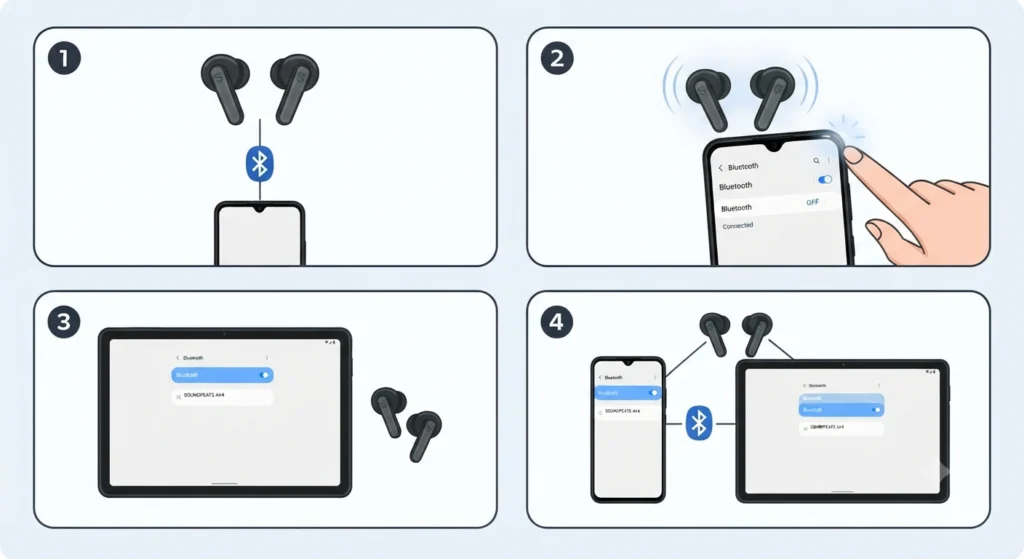
Air 4 supports multipoint connectivity, meaning it can stay linked to two devices at the same time, such as an Android phone and a tablet. This works best when the pairing order below is followed exactly.
- Step 1: Turn on both earbuds and connect them to the first Android device (Device A) using the steps above.
- Step 2: Turn off Bluetooth on Device A, which returns the earbuds to pairing mode automatically.
- Step 3: Connect the earbuds to the second device (Device B) through its Bluetooth settings.
- Step 4: Turn Bluetooth back on for Device A. The earbuds link to both devices going forward without needing to repeat the whole process.
Tips for a Smoother Connection
A few small habits make a noticeable difference in how reliably the Air 4 earbuds behave day to day. The key is to keep interference and battery issues out of the picture before they cause a dropped connection.
- Keep the earbuds within a few meters of the phone, since walls, bags, and pockets weaken the Bluetooth signal.
- Close unused apps running in the background, as too many active apps can add strain on the Bluetooth connection.
- Wipe the charging contacts with a dry microfiber cloth occasionally to keep charging and syncing consistent.
- Keep hands dry when using touch controls, since moisture on the earbud surface can make taps register inconsistently.
Anyone who also uses these earbuds with a Windows 11 laptop and notices audio routing to the wrong output can look into adjusting the audio output settings to point sound back to the correct device.
Common Problems and Troubleshooting
Even a solid pairing process runs into the occasional snag. The fixes below cover the situations people run into most often after the initial setup.
Fix 1: Earbuds Do Not Appear in the Bluetooth List
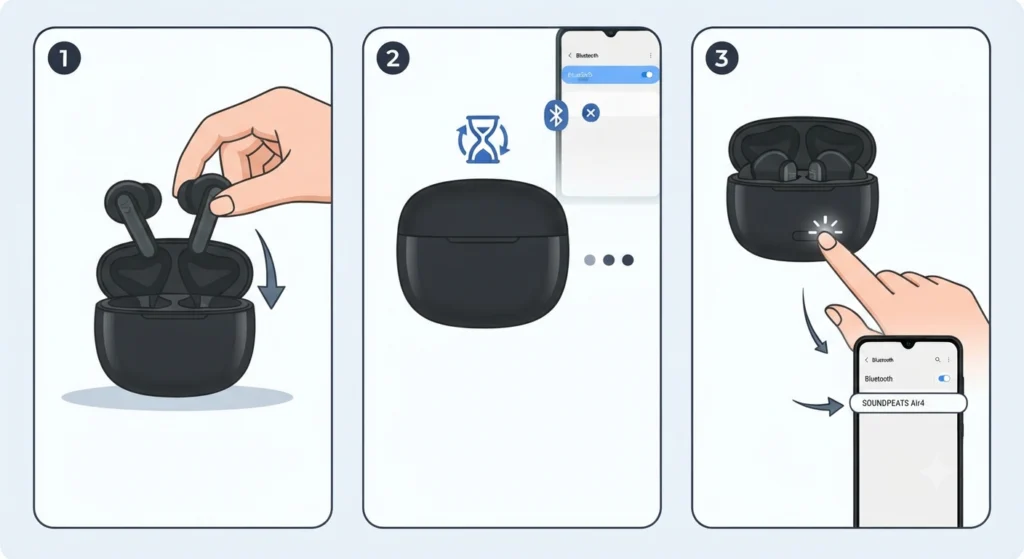
Place both earbuds back in the case, close the lid for a few seconds, then reopen it and repeat the pairing steps from the beginning. This resets the pairing mode and usually makes the earbuds visible again.
Fix 2: Connected but No Sound
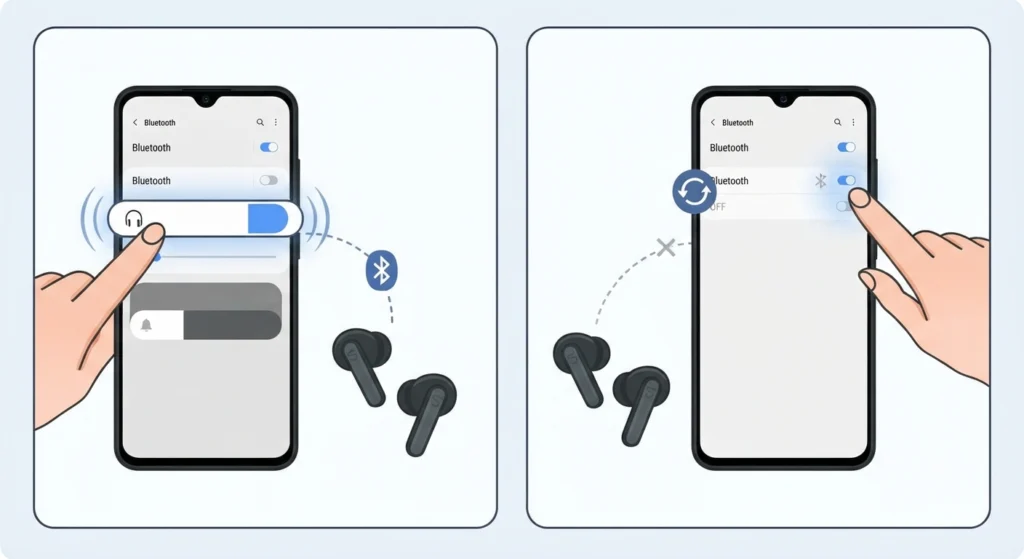
Check the phone’s media volume separately from the ringer volume, since Android sometimes keeps these independent. Restarting Bluetooth on the phone also clears up a stuck audio route.
Fix 3: One Earbud Not Working
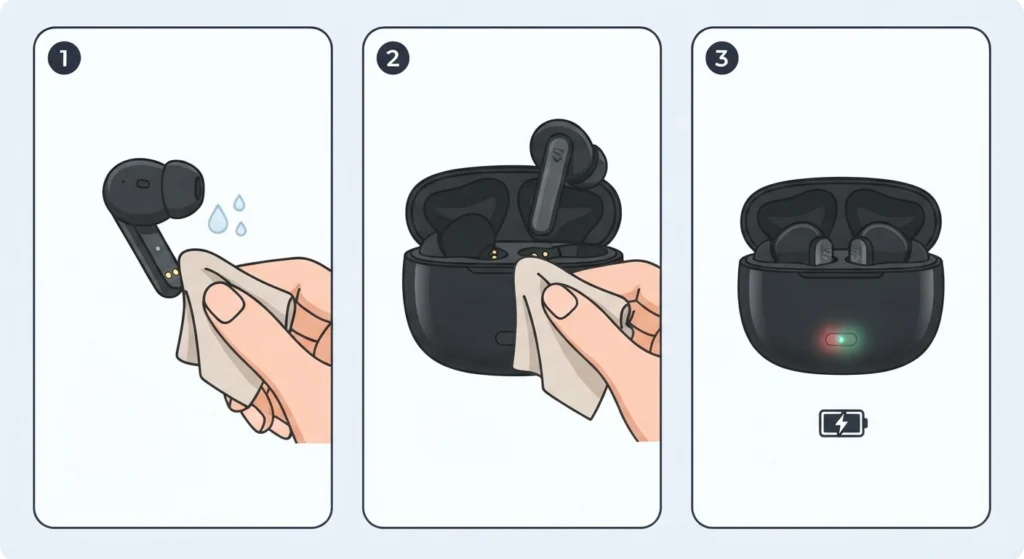
Clean the charging contacts on both the earbud and the case with a lightly dampened microfiber cloth, then place both earbuds back in the case for a fresh charge cycle before testing again.
Fix 4: Earbuds Keep Disconnecting
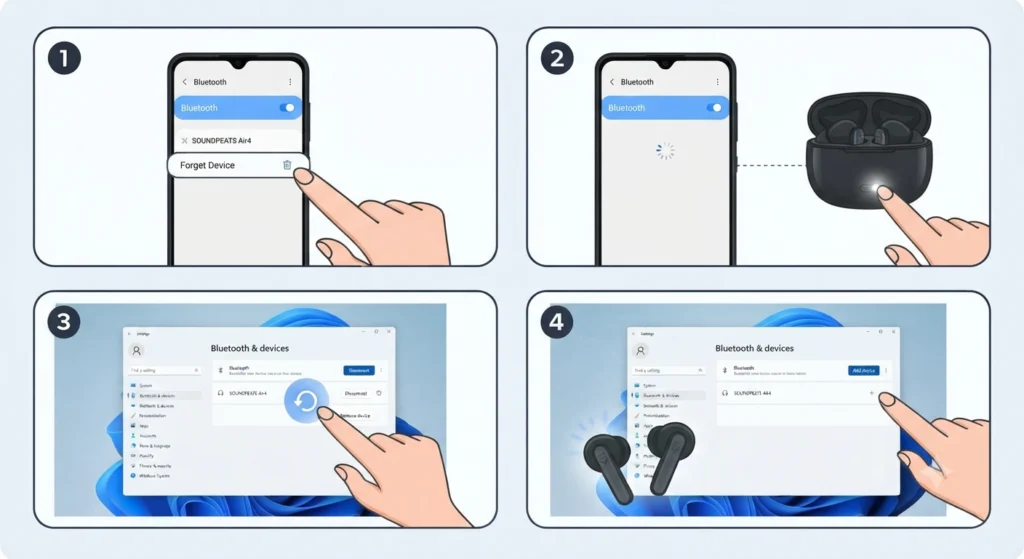
Forget the device from the phone’s Bluetooth settings, then pair again from scratch. This clears any corrupted pairing data that can cause repeated dropouts. Those who split time between an Android phone and a Windows 11 PC can also review resetting the audio settings on the PC side if the same instability shows up there.
Pro Tip: A full reset, done by holding the case button for 10 seconds until the light flashes white twice, clears out old pairing records entirely and is the most reliable fix when nothing else works.
Frequently Asked Questions
How long does it take to pair Soundpeats Air 4 with an Android phone?
The entire process, from opening the case to hearing audio through the earbuds, usually takes under two minutes once pairing mode is active.
Do the Soundpeats Air 4 earbuds work with all Android phones?
Yes, they connect to any Android device running standard Bluetooth, since pairing relies on the phone’s built-in Bluetooth settings rather than a specific Android version.
Why is the charging case light not flashing during pairing mode?
This usually means the case needs a charge, or the button was not held long enough. Holding it for the full 3 seconds is necessary to trigger the white flash.
Can Soundpeats Air 4 connect to two Android phones at the same time?
Yes, multipoint pairing lets the earbuds stay linked to two devices at once, and switching audio between them does not require unpairing.
Is the Soundpeats app required to use the earbuds?
No, basic playback and calls work through standard Bluetooth pairing alone. The app is optional and mainly adds EQ settings and firmware updates.
What should be done if only one earbud connects?
Clean the charging contacts, place both earbuds back in the case for a few minutes, then take them out together and reconnect.
How is a full reset performed on Soundpeats Air 4?
Place both earbuds in the case, then hold the case button for 10 seconds with the lid open until the indicator flashes white twice, confirming the reset.
Why do the earbuds keep disconnecting from an Android phone?
This is often caused by leftover pairing data. Forgetting the device in Bluetooth settings and pairing again from scratch usually solves it.
Does removing the insulating film matter for pairing?
Yes, the film blocks the charging contacts, which prevents the earbuds from charging and can stop them from entering pairing mode correctly.
Can these earbuds also switch between an Android phone and a Windows 11 laptop?
Yes, though switching devices means re-pairing on the laptop side. Anyone syncing between the two regularly may find it useful to review re-pairing Bluetooth earbuds for stereo sound for a smoother transition.