
Resetting JBL Tour One M2 to factory settings is the fastest way to fix pairing glitches, clear old device connections, or simply start fresh before selling the headphones. This guide walks through the exact steps needed to complete the reset in under a minute, without guesswork or extra tools.
Quick Summary:
- The reset is done using the physical volume buttons on the headphones – no app required
- Hold Volume Up and Volume Down together for more than 8 seconds
- All Bluetooth pairings and custom settings get erased during the process
- The headphones need to be re-paired with every device afterward
- The entire process takes less than 60 seconds when done correctly
Step-by-Step Guide to Reset JBL Tour One M2
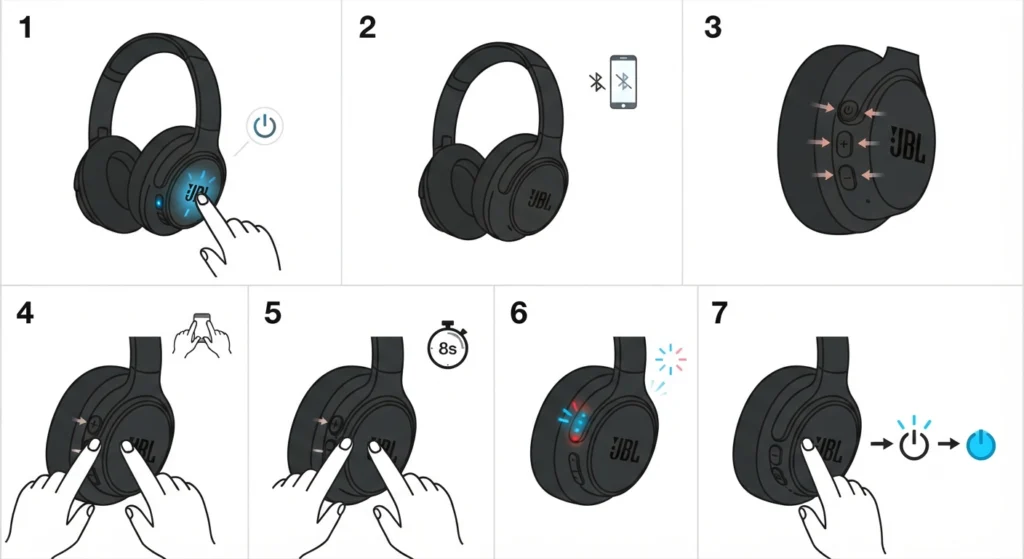
The reset process on the Tour One M2 relies entirely on the volume controls built into the ear cup. Nothing else is needed – no cables, no app, no computer. Most users find that once the button combination is understood, this becomes a two-minute task at most.
- Step 1: Turn on the JBL Tour One M2 headphones using the power button on the right ear cup
- Step 2: Disconnect the headphones from any device currently paired via Bluetooth or the connected cable
- Step 3: Locate the Volume Up and Volume Down buttons, usually positioned on the right ear cup near the power button
- Step 4: Press and hold both the Volume Up and Volume Down buttons at the same time
- Step 5: Keep holding both buttons for more than 8 seconds without releasing either one
- Step 6: Wait for the LED indicator to blink, signaling that the reset has been completed
- Step 7: Release the buttons once the LED confirms the reset, then power the headphones off and back on
Pro-Tip: Battery level matters more than people expect. A headphone running on low power sometimes fails to register the button combination properly, which can look like a broken reset when it’s really just a charging issue. Charging the Tour One M2 to at least 30 percent before starting avoids this altogether.
Reconnecting the Headphones After a Reset
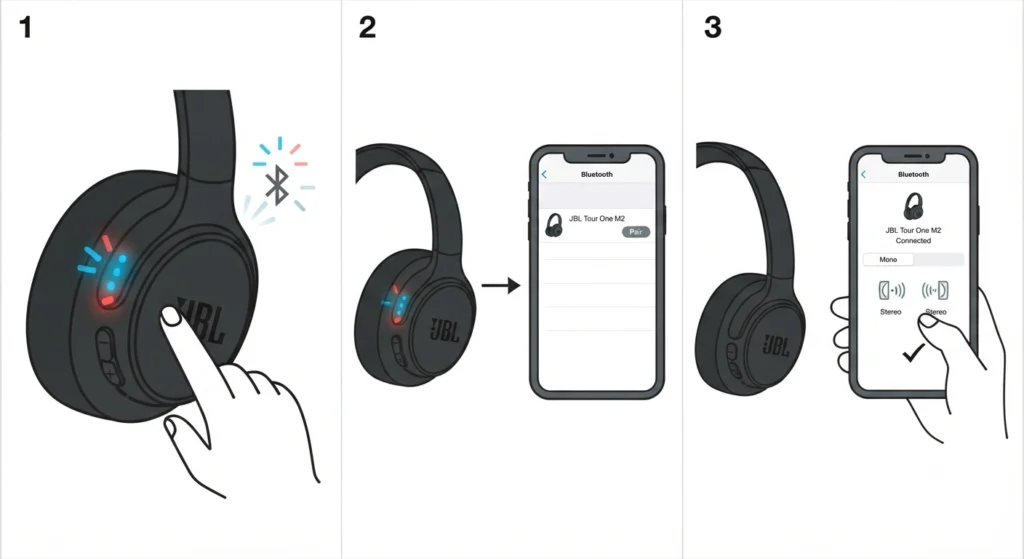
Once the factory reset finishes, the Tour One M2 clears every previously saved connection. That means the headphones need to be treated like a brand-new device on the next pairing attempt. Placing the headphones into pairing mode and searching for them from the Bluetooth menu on a phone, laptop, or desktop is the next move. For anyone connecting to a Windows machine, following a dedicated guide on re-pairing Bluetooth headphones for proper stereo sound helps avoid the common mono-audio glitch that sometimes shows up right after a fresh pairing.
Tips for a Smooth Factory Reset
- Always disconnect from every paired device before starting the reset, since an active connection can interrupt the process
- Hold the buttons firmly and avoid releasing early – letting go before the 8-second mark often means starting over
- Keep the headphones close to the connecting device once pairing mode activates, since distance can weaken the initial handshake
- Update the JBL Headphones app beforehand if firmware updates are pending, since outdated firmware occasionally causes inconsistent button response
Pro-Tip: Doing the reset while the headphones sit on a hard, flat surface rather than holding them in hand reduces accidental button slips, especially since the Volume Up and Volume Down buttons sit close together on the ear cup.
Common Problems When Resetting JBL Tour One M2
A few hiccups tend to show up during this process, and most of them trace back to timing or power rather than a defective unit.
- LED not blinking after holding the buttons: this usually means the buttons were released too early, or the headphones were still connected to a device when the attempt started
- Headphones not powering back on after reset: leaving the headphones off for 10 to 15 seconds before pressing the power button again typically resolves this
- Bluetooth not detecting the headphones after reset: forgetting the old device entry from the Bluetooth settings list first, then searching again, solves this in most cases. A closer look at managing audio input devices on Windows 11 can help sort out lingering device conflicts on a PC
- Audio sounding distorted or unbalanced right after reconnecting: adjusting the playback device settings often fixes this, and a walkthrough on adjusting audio output settings covers this in more depth
Frequently Asked Questions
How long does resetting JBL Tour One M2 take?
The entire process, from holding the buttons to seeing the LED confirmation, takes less than a minute. Re-pairing afterward adds another minute or two depending on the connecting device.
Will a factory reset delete saved EQ settings?
Yes. A factory reset clears custom EQ profiles, ambient sound preferences, and any personalized settings made through the JBL Headphones app, returning everything to the default configuration.
Does resetting fix persistent Bluetooth connection problems?
In most cases, yes. A factory reset clears out corrupted pairing data that often causes dropped connections or failed handshakes, giving the headphones a clean slate to reconnect from.
Can JBL Tour One M2 be reset while powered off?
No. The headphones need to be powered on for the button combination to register. Attempting the reset while off will not trigger any response from the LED or the headphones themselves.
What does the LED indicator show during a reset?
The LED blinks to confirm the reset has been accepted. This blinking pattern is the main visual cue that the process worked correctly.
Is a factory reset different from simply turning the headphones off and on?
Yes, these are two very different actions. Turning the headphones off and on only restarts the device without changing any settings. A factory reset erases paired devices and restores every setting to its original state.
Do the headphones need to be charged before resetting?
A sufficient charge is recommended. Low battery levels sometimes prevent the button combination from registering properly, which can be mistaken for a failed reset.
How to reconnect JBL Tour One M2 after a reset?
After the reset, place the headphones into pairing mode and select them from the Bluetooth menu on the connecting device, just as with a brand new pair of headphones.
Does resetting remove firmware updates?
No. A factory reset only clears settings and paired device data. Firmware updates already installed on the headphones remain intact.
Can the reset be done through the JBL Headphones app instead of the buttons?
No. The factory reset on the Tour One M2 is performed only through the physical Volume Up and Volume Down buttons on the headphones themselves, not through the app.