
A Powerbeats Pro 2 refusing to reset is one of the most common frustrations owners run into, especially right before trying to re-pair the buds with a new phone. The good news is that the fix usually comes down to timing, charge level, and how the earbuds are seated in the case.
Key Takeaways
- The system button sits inside the case, between the two charging slots.
- The button needs to be held for a full 15 seconds until the LED flashes red, then alternates red and white.
- Low case battery and loosely seated earbuds are the two biggest reasons a reset fails to register.
- Letting go of the button too early leaves the LED stuck on a solid red or a single white flash.
- A completed reset removes the Powerbeats Pro 2 from every paired device until re-pairing is done again.
Fix 1: Run the Standard Reset Correctly
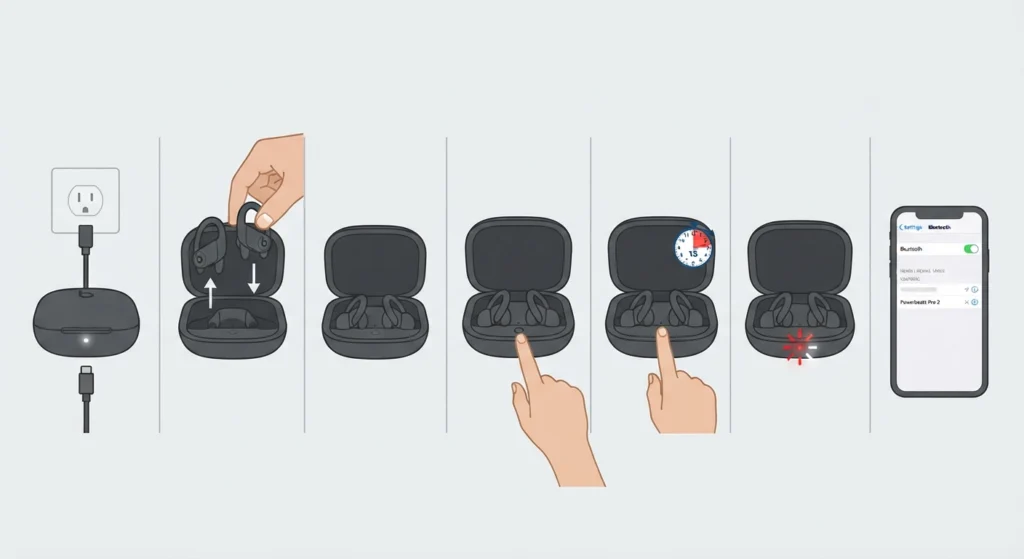
Most reset failures happen because a step gets skipped or rushed. Working through this sequence carefully solves the issue for the vast majority of Powerbeats Pro 2 owners.
- Step 1: Charge the case for a few minutes if the battery indicator looks low. A weak case battery can dim or disable the LED, which makes the reset look like it failed even when it did not.
- Step 2: Place both earbuds into the case and press down gently until the magnets pull them into position. A loose bud is one of the most overlooked reasons the reset never registers.
- Step 3: Leave the case lid open. The reset will not trigger with the case closed.
- Step 4: Locate the small round system button on the inside of the case, positioned between the two charging slots.
- Step 5: Press and hold the system button for a full 15 seconds. Watch the front LED closely.
- Step 6: Release the button once the LED flashes red and then starts alternating between red and white. That alternating pattern is the confirmation the reset went through.
- Step 7: Open Bluetooth settings on a phone and confirm the Powerbeats Pro 2 no longer show as connected.
Pro-Tip: The timing on this button hold is forgiving. Holding for 17 or 18 seconds instead of exactly 15 will not cause any harm, but letting go before the alternating red-and-white flash appears is the single biggest reason people think the reset is broken when it simply never finished.
Fix 2: Forget the Device Before Resetting
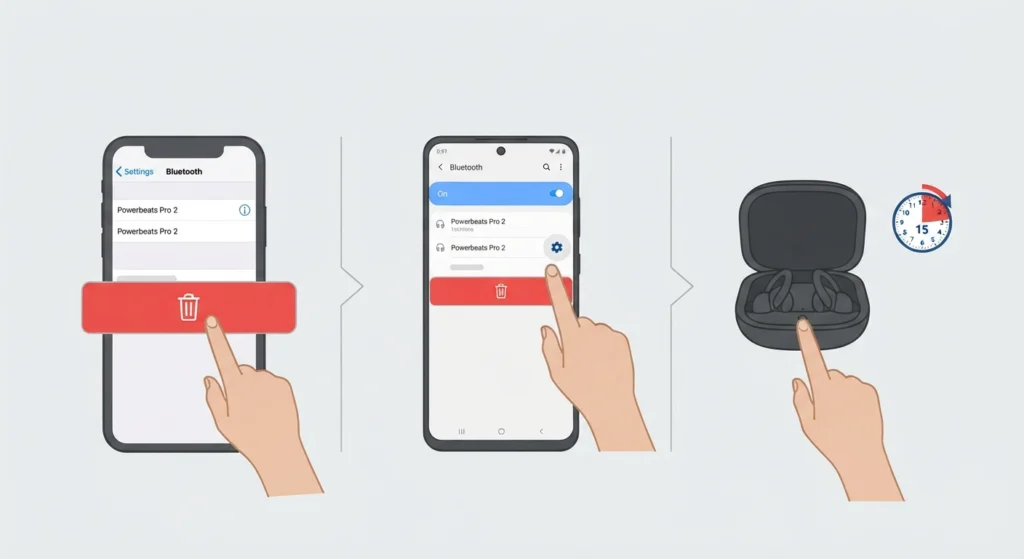
If the Powerbeats Pro 2 are actively connected to a phone, the reset sometimes appears to do nothing because the device keeps trying to reconnect in the background. Clearing the pairing first removes that interference.
- Step 1: On iPhone, open Settings, tap Bluetooth, select the info icon next to the Powerbeats Pro 2, then tap Forget This Device.
- Step 2: On Android, open Bluetooth settings, tap the gear icon beside the Powerbeats Pro 2, and choose Unpair.
- Step 3: With the pairing cleared, repeat the button hold from Fix 1 with the case lid open.
Once the reset is confirmed and the buds show up in pairing mode again, bringing the open case near an unlocked iPhone should trigger a setup card within a few seconds. On Android, the Beats app handles this step and also pulls the latest firmware, which is worth installing before pairing since firmware bugs occasionally cause pairing hiccups after a reset. Anyone setting the buds up on a laptop instead of a phone can follow this guide to re-pair Bluetooth earbuds for stereo sound on Windows once the Powerbeats Pro 2 are back in discoverable mode.
Fix 3: Reseat the Earbuds and Try Again
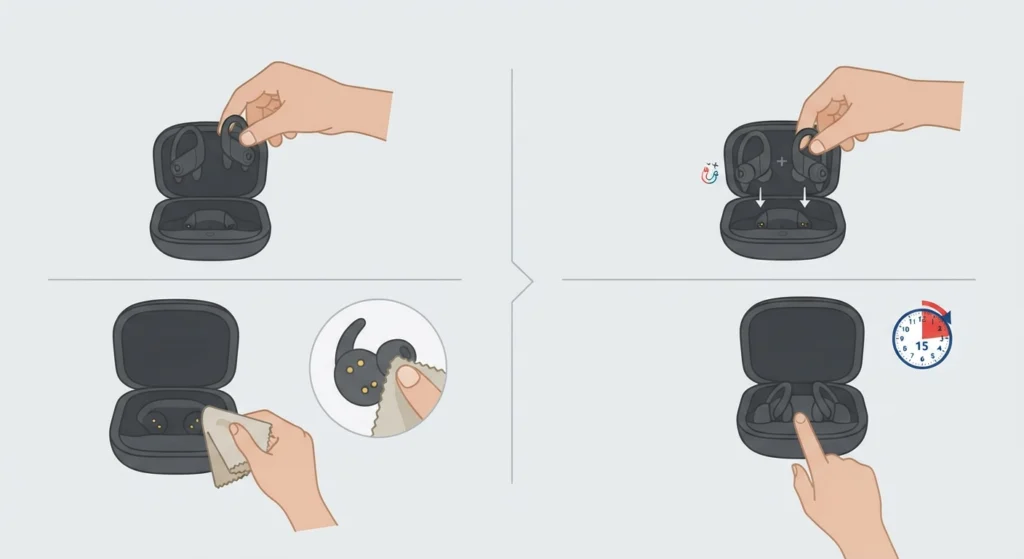
A bud that looks seated but is not fully clicked into the magnetic contacts will block the reset from registering, even while the case itself has plenty of charge. This is easy to miss because the earbuds can look properly placed at a glance.
- Step 1: Remove both earbuds from the case completely.
- Step 2: Wipe the charging pins on both the case and the earbuds with a dry cloth. Grime buildup on these contacts can interfere with how the case reads the buds.
- Step 3: Place the earbuds back in, pressing down slightly until a light click or magnetic pull is felt on each side.
- Step 4: Wait about ten seconds, then repeat the 15-second button hold with the lid open.
Tips for a Smooth Reset
- Keep the case above roughly 20 percent charge before attempting a reset, since a near-dead case can suppress the LED entirely.
- Perform the reset somewhere well lit but not in direct sunlight, since the LED color can be harder to read outdoors.
- Turn off Bluetooth on any other nearby Apple devices signed into the same Apple ID during setup, since one of them can occasionally intercept the pairing card meant for the primary phone.
- After a successful reset, check audio playback right away. If sound only comes through one side or output settings look off, this guide on resetting audio settings on Windows 11 covers how to clear out leftover audio profile conflicts.
Common Problems After a Reset
A handful of related issues tend to show up around the same time as a stubborn reset. None of these require repeating the reset itself, but they are worth ruling out.
- Case lid sensor not detecting the open lid: Occasionally the sensor near the hinge fails to register that the case has been opened, which can make it seem like the reset never started. Closing the lid firmly and reopening it usually clears this, and wiping the small sensor window with a dry cloth helps if it keeps happening.
- One earbud not charging after reset: This is almost always a dirty contact issue rather than anything related to the reset itself. Cleaning the charging pins with a dry cotton swab and reseating the bud typically resolves it.
- Buds not appearing in the pairing list on a Windows laptop: Windows sometimes needs its Bluetooth cache cleared before a freshly reset device will show up. Reviewing how to manage audio input devices on Windows 11 can help clear out stale entries that block the new pairing.
- Heart rate readings look inconsistent after re-pairing: This is a fit issue rather than a reset issue. Personalized health settings live in the Beats app or Apple Health, not on the earbuds themselves, so they return automatically once re-paired and the app is reopened.
Frequently Asked Questions
Why does the Powerbeats Pro 2 refuse to reset?
The most common causes are a low case battery, earbuds that are not fully seated against the magnetic contacts, or releasing the system button before the full 15-second hold completes.
How long does the system button need to be held to reset the Powerbeats Pro 2?
A full 15 seconds is required. The LED will flash red first and then begin alternating between red and white once the reset has actually completed.
What does the LED pattern mean during a reset?
A solid red light or a single white flash means the reset has not finished yet. Alternating red and white confirms the reset went through successfully.
Do both earbuds need to be inside the case to reset?
Yes. Both buds should be seated in the case with the lid open before pressing the system button, since the reset is tied to the case’s internal contacts recognizing both earbuds.
Can the Powerbeats Pro 2 be reset while still connected to a phone?
It can be attempted, but forgetting the device from the phone’s Bluetooth settings first tends to produce a more reliable result, since an active connection can interfere with the reset registering.
What happens to saved settings after a factory reset?
Bluetooth pairings and on-device settings like in-ear detection revert to their defaults. Personalized settings such as heart rate configuration are stored in the Beats app or Apple Health rather than on the buds, so those return automatically after re-pairing.
Is resetting the same as unpairing?
No. Unpairing only removes the connection from one specific device’s Bluetooth list. A factory reset clears the earbuds’ memory of every paired device at once and puts them back into pairing mode.
Why does the LED only show one flash instead of alternating colors?
This usually means the button was released too early. The hold needs to continue until the alternating red-and-white pattern actually starts, not just until the first flash appears.
Can a firmware issue cause the reset to fail?
It is possible, though less common than a charge or seating issue. Opening the Beats app after a successful reset and checking for a firmware update can prevent recurring pairing problems.
How does resetting on Android differ from resetting on iPhone?
The button-hold process is identical on both platforms. The difference is in re-pairing afterward: iPhone shows an automatic setup card when the case is opened nearby, while Android relies on the Beats app to detect and pair the buds.