
Key Takeaways
- Auto-pause depends on the Automatic Ear Detection setting, so check that first.
- Dirty sensors and a loose fit are the most common physical causes.
- Updating and resetting the earbuds fixes most remaining cases.
- Most fixes take under two minutes each.
Powerbeats Pro 2 auto-pause not working is frustrating, especially when music keeps playing after an earbud comes out. The good news is that this feature is controlled by one setting and a few sensors, so the fix is usually quick. The steps below start with the easiest and move toward the more thorough options.
Step-by-Step Guide to Restore Auto-Pause
Fix 1: Turn On Automatic Ear Detection (iPhone or iPad)
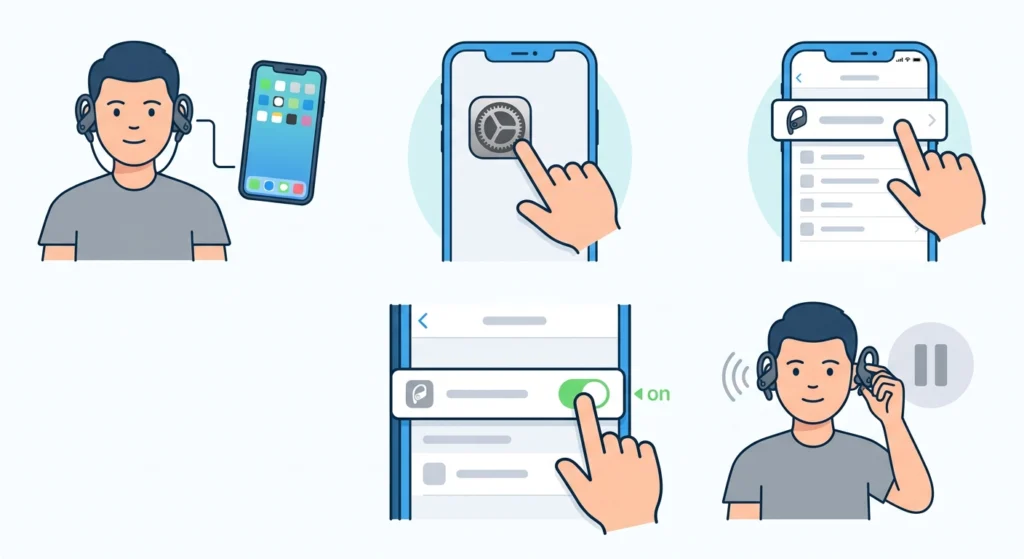
Auto-pause only works when ear detection is switched on. It is easy to turn off by accident, so check it first.
- Step 1: Place the Powerbeats Pro 2 in your ears so they connect to the iPhone or iPad.
- Step 2: Open the Settings app.
- Step 3: Tap Powerbeats Pro 2, which appears near the top of Settings while the earbuds are connected.
- Step 4: Find Automatic Ear Detection and switch the toggle on.
- Step 5: Play a song, remove one earbud, and check that the music pauses.
Fix 2: Check Ear Detection in the Beats App (Android)
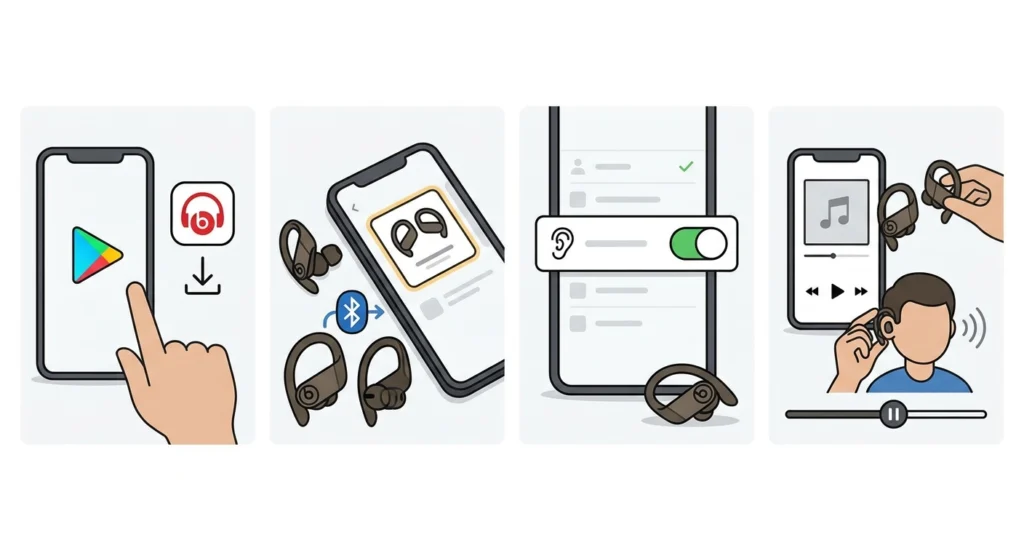
Android users manage earbud settings through the Beats app instead of system settings.
- Step 1: Install or open the Beats app from Google Play.
- Step 2: Connect the Powerbeats Pro 2 and select them in the app.
- Step 3: Look for the ear detection option in the settings list and make sure it is on.
- Step 4: Test by playing audio and taking one earbud out.
Fix 3: Clean the Earbud Sensors
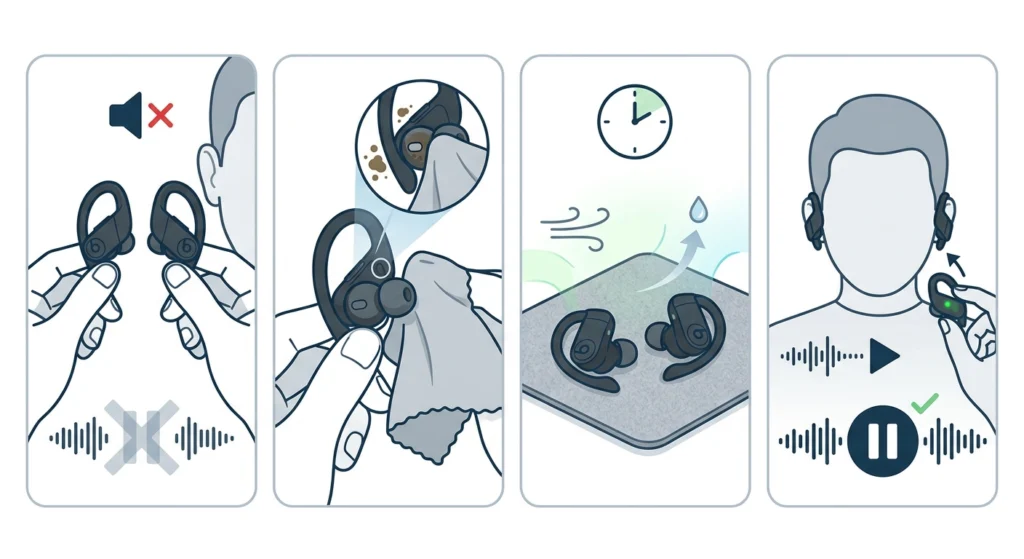
Powerbeats Pro 2 rely on sensors on the inner side of each earbud to tell when they are in the ear. Earwax, sweat, or skin oils can block them, which is common after workouts. Think of it like a dirty phone camera lens – the sensor is working, but it cannot see clearly.
- Step 1: Take both earbuds out and turn off any playing audio.
- Step 2: Wipe the sensor area and ear tips gently with a dry, soft, lint-free cloth.
- Step 3: Let the earbuds dry fully if they are sweaty.
- Step 4: Put them back in and test auto-pause again.
Fix 4: Adjust the Fit and Ear Tips
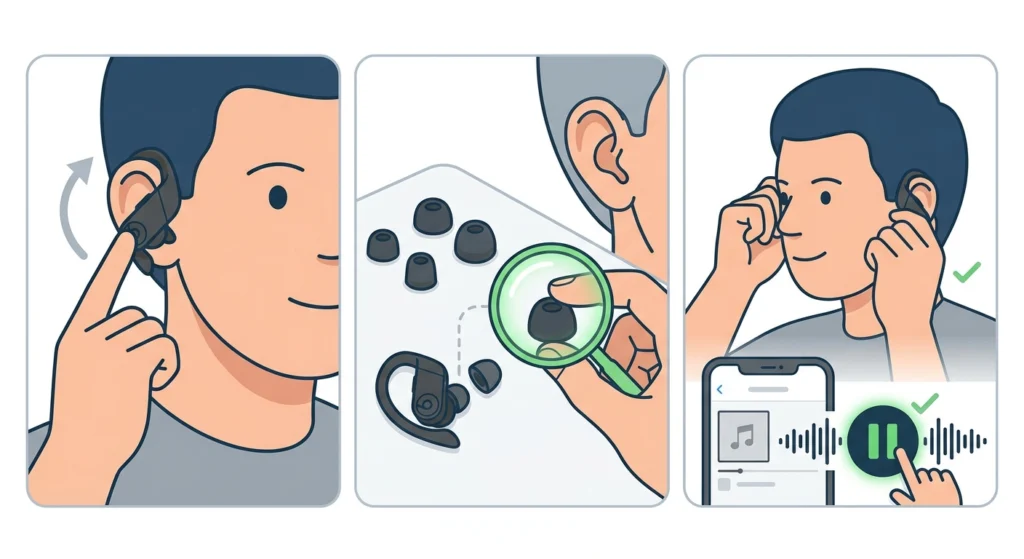
If the earbuds sit loosely, the sensors may not register contact properly. This works best when the ear hook rests comfortably over the top of the ear and the tip seals gently inside the ear canal.
- Step 1: Insert the earbud and rotate it slightly until it feels stable.
- Step 2: Try a different size from the included ear tips if the fit feels loose.
- Step 3: Test auto-pause once the earbuds feel secure.
Fix 5: Update the Earbud Firmware
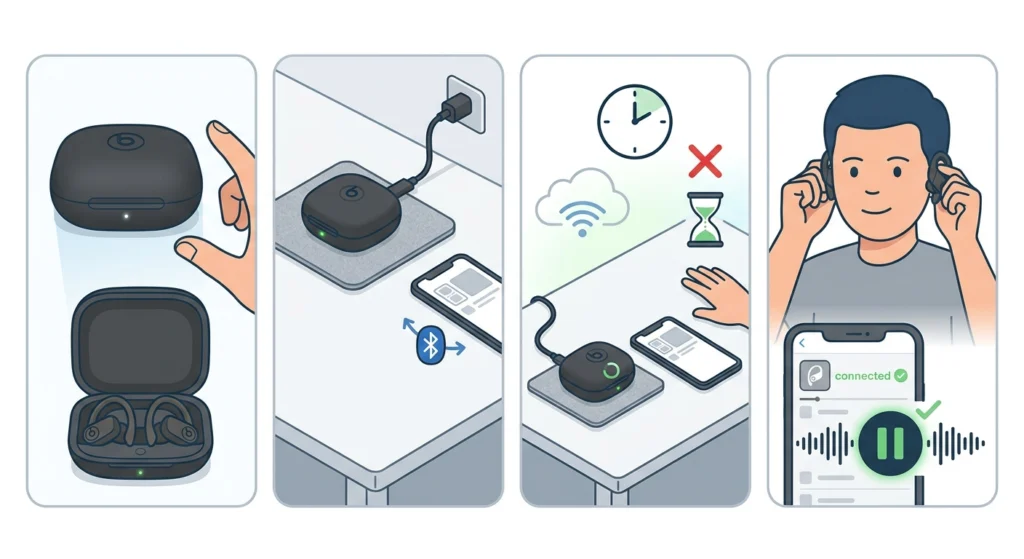
Firmware updates can improve how features like ear detection behave. The update installs automatically in the background, so the key is giving it the right conditions.
- Step 1: Put both earbuds in the charging case and close the lid.
- Step 2: Keep the case charged and close to the connected iPhone or Android phone.
- Step 3: Make sure the phone is online and leave everything alone for a while.
- Step 4: Reconnect the earbuds and test auto-pause again.
Fix 6: Reset and Re-Pair the Powerbeats Pro 2
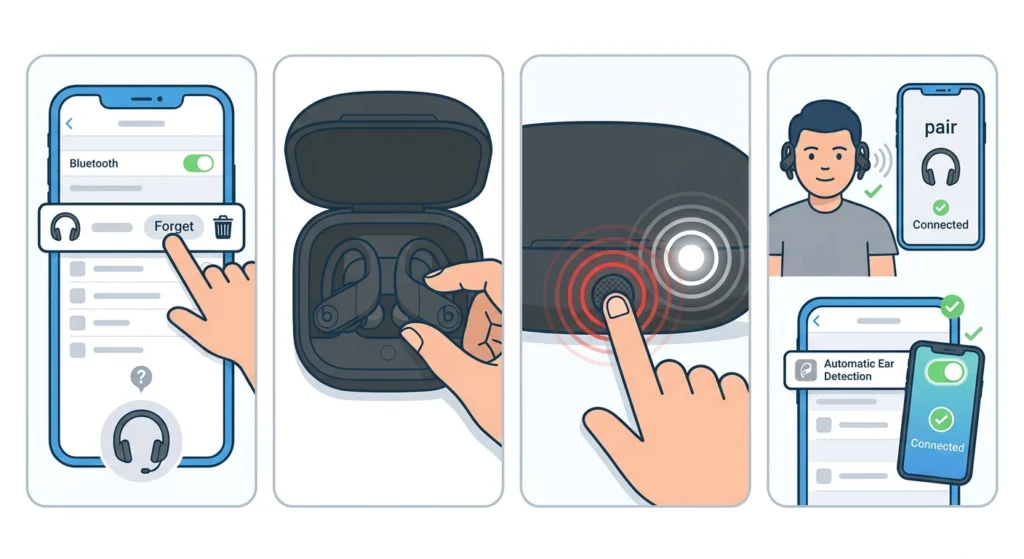
When nothing else works, a reset clears the connection data and often brings ear detection back.
- Step 1: Remove the Powerbeats Pro 2 from the phone’s Bluetooth list by choosing Forget This Device.
- Step 2: Place both earbuds in the case and keep the lid open.
- Step 3: Press and hold the system button on the case until the LED flashes red and then white.
- Step 4: Reconnect the earbuds to the phone and confirm Automatic Ear Detection is on.
Tips to Keep Auto-Pause Working
A few small habits help the feature stay reliable day to day.
- Wipe the sensors after sweaty workouts, since buildup is the most common slow-burning cause.
- Re-check the ear detection toggle after resetting or re-pairing the earbuds, because it is a setting that can switch off unnoticed.
- Keep the earbuds’ firmware current by storing them in the charging case near a connected phone.
Pro-Tip: If auto-pause works with one earbud but not the other, the cause is almost always a dirty sensor or poor fit on that single side. Clean and re-seat the problem earbud before trying a reset.
Common Problems After Fixing Auto-Pause
Music Pauses but Does Not Resume
Some apps do not restart playback on their own after an earbud goes back in. Tap play manually, or check whether the app itself has a playback setting that is interfering.
Auto-Pause Works on Phone but Not on a Windows PC
Ear detection is a feature tied to the connected device and its supported software, so behavior on a computer can differ. For Windows users, a quick re-pair of the Bluetooth earbuds can sort out connection quirks, and a look at the audio output settings in Windows 11 helps confirm the right device is selected.
Sound Stays Odd After a Reset
If audio on a Windows 11 computer still behaves strangely after pairing, resetting audio settings on the computer can clear leftover configuration.
Frequently Asked Questions
Why is auto-pause not working on my Powerbeats Pro 2?
The most common reasons are Automatic Ear Detection being switched off, dirty sensors, or a loose fit. Checking the setting and cleaning the earbuds solves most cases.
Where is the Automatic Ear Detection setting on iPhone?
Connect the earbuds, open Settings, tap Powerbeats Pro 2, and look for the Automatic Ear Detection toggle.
Does auto-pause work on Android?
Ear detection can be managed through the Beats app on Android. Open the app, select the earbuds, and check the ear detection option in the settings.
Can dirty earbuds stop auto-pause from working?
Yes. Earwax, sweat, and oils can cover the sensors that detect the ear, so a gentle wipe with a dry, soft cloth often restores the feature.
Does ear tip size affect auto-pause?
It can. A loose fit may prevent the sensors from registering contact, so trying a different size from the included ear tips is worthwhile.
How do I reset the Powerbeats Pro 2?
Place both earbuds in the case with the lid open, then press and hold the system button until the LED flashes red and then white. Re-pair the earbuds afterward.
Do the earbuds update automatically?
Firmware updates install automatically in the background when the earbuds are in the charging case, near a connected phone with an internet connection.
Will music resume automatically when the earbud goes back in?
That depends on the app and device. If playback does not restart, tap play manually.
Should the earbuds be re-paired after turning ear detection on?
Re-pairing is only needed if switching the setting on does not work. Try the toggle first, then move on to a reset if auto-pause still fails.