
One side of headphones not working is one of the most frustrating audio issues anyone can deal with – especially when it happens in the middle of a song, a call, or a gaming session. The good news is that most of the time, the problem is something fixable without needing a replacement. This guide walks through every proven fix, from the simplest checks to deeper software and hardware solutions.
Quick Summary
- Check audio balance settings first – this is the most overlooked cause
- Test with another device to rule out source issues
- Clean the headphone jack or charging port for debris buildup
- Reset Bluetooth headphones to factory defaults if one earcup is silent
- Adjust stereo output settings in Windows or macOS if software is the culprit
- Re-pair wireless earbuds to restore stereo sync
- Inspect the cable and 3.5mm plug for physical damage on wired models
Fix 1: Check the Audio Balance Setting
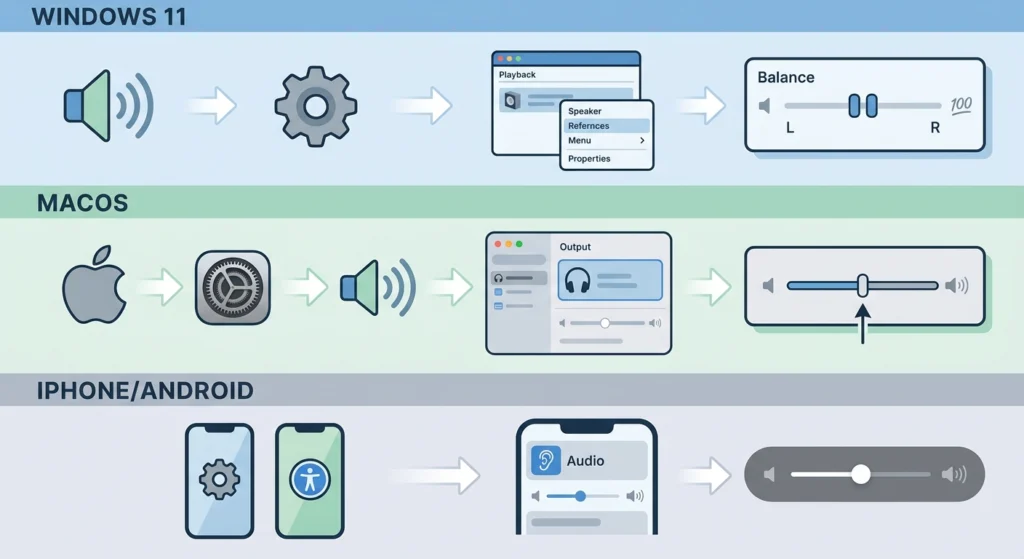
Before anything else, check the audio balance. This setting controls how much sound goes to the left versus right channel, and it gets accidentally shifted more often than people realize – especially on mobile devices and laptops.
On Windows 11:
- Step 1: Right-click the speaker icon in the taskbar and select ‘Sound settings’
- Step 2: Scroll down and click ‘More sound settings’
- Step 3: Under the ‘Playback’ tab, right-click the active headphone device and choose ‘Properties’
- Step 4: Go to the ‘Levels’ tab and click ‘Balance’
- Step 5: Make sure both L and R values are equal, typically set to 100
On macOS:
- Step 1: Open ‘System Settings’ and go to ‘Sound’
- Step 2: Click ‘Output’ and select your headphones
- Step 3: Look for the ‘Balance’ slider and center it
On iPhone or Android:
- Step 1: Go to ‘Settings’ then ‘Accessibility’
- Step 2: Find ‘Audio and Visual’ or ‘Hearing’ settings
- Step 3: Center the balance slider if it has shifted to one side
This fix alone resolves the problem for a large number of users. It takes under a minute and costs nothing.
Fix 2: Test With a Different Device
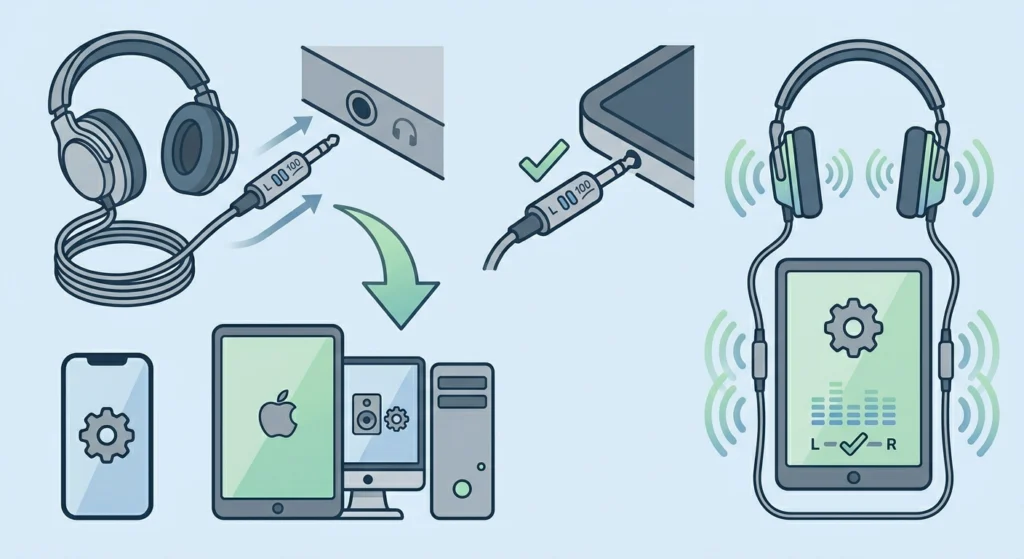
Before diving deep into software or hardware fixes, plug the headphones into a completely different device. This step instantly narrows down whether the issue is with the headphones themselves or with the original audio source.
- Step 1: Unplug from the current device
- Step 2: Connect to a phone, tablet, or another computer
- Step 3: Play audio and check if both sides work
If both sides work on the new device, the issue is with the original source – likely a software setting, a faulty port, or a misconfigured audio output setting on that machine. If one side is still silent, the headphones themselves need attention.
Fix 3: Clean the Headphone Jack or Port
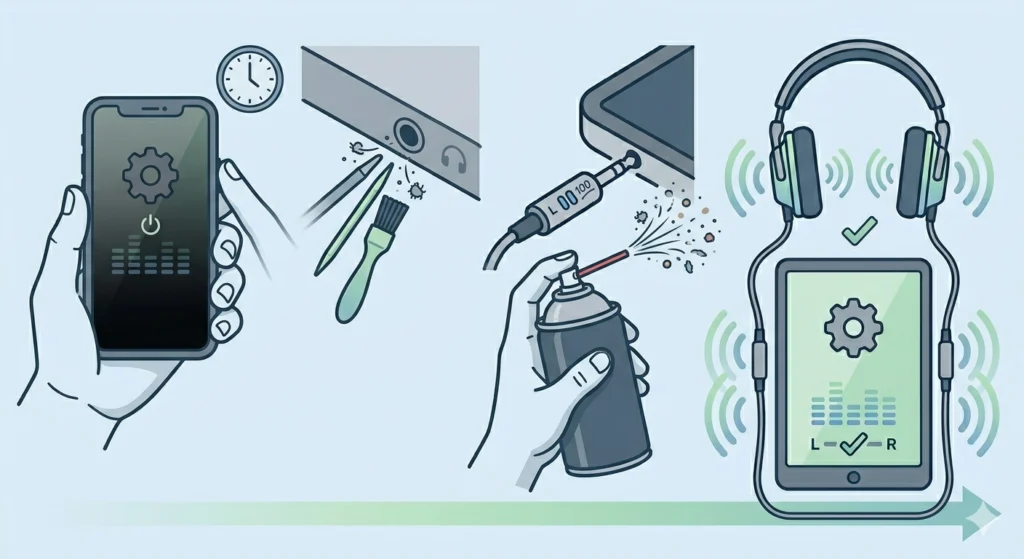
Lint, dust, and debris inside the 3.5mm jack or USB-C port can block a full connection, which often causes one channel to cut out entirely. This is especially common with headphones that spend time in bags or pockets.
- Step 1: Power off the device completely
- Step 2: Use a dry toothpick or a small, non-metallic tool to gently loosen any debris inside the port
- Step 3: Use a can of compressed air to blow out any remaining particles
- Step 4: Reconnect the headphones and test
Avoid using metal objects or anything that could damage the internal contacts. A few seconds of careful cleaning can restore a full stereo signal instantly.
Fix 4: Inspect and Wiggle the Cable (Wired Headphones)
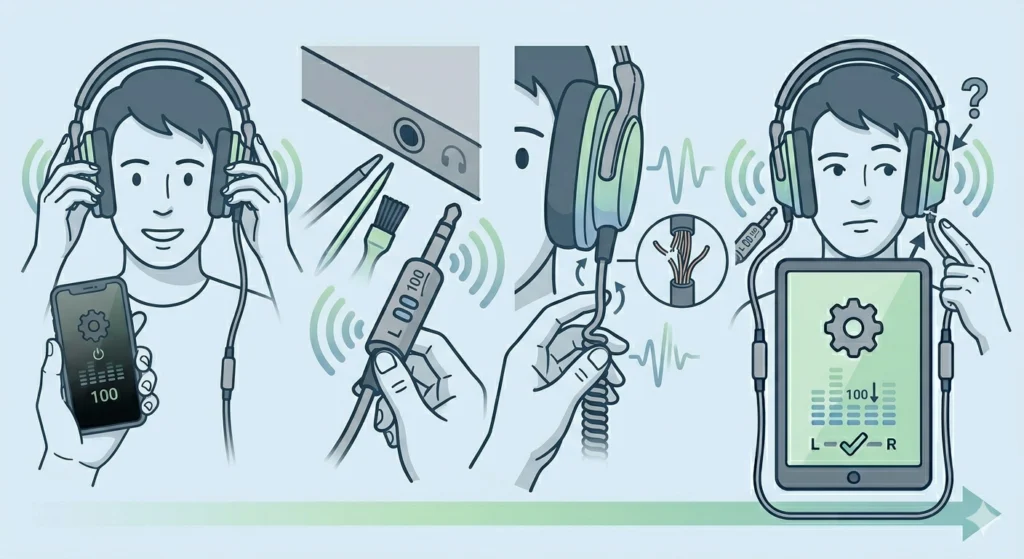
For wired headphones, the cable is the most common point of failure. Over time, the wire near the plug or the earcup connection point develops internal breaks from bending and stress. These breaks are not always visible from the outside.
- Step 1: Put on the headphones and play audio
- Step 2: Slowly wiggle the cable near the 3.5mm plug while listening
- Step 3: Also wiggle the cable near where it enters each earcup
- Step 4: Note if sound returns or cuts in and out at a specific point
If sound returns when the cable is held at a certain angle, the wire is damaged internally at that spot. At that point, the cable may need to be replaced – many over-ear headphones have detachable cables that are inexpensive to swap out.
Pro-Tip: When storing wired headphones, always coil the cable loosely and never wrap it tightly around the device. Tight wrapping creates stress points at the base of the plug, which is where most internal wire breaks happen over time.
Fix 5: Reset Bluetooth Headphones to Factory Settings
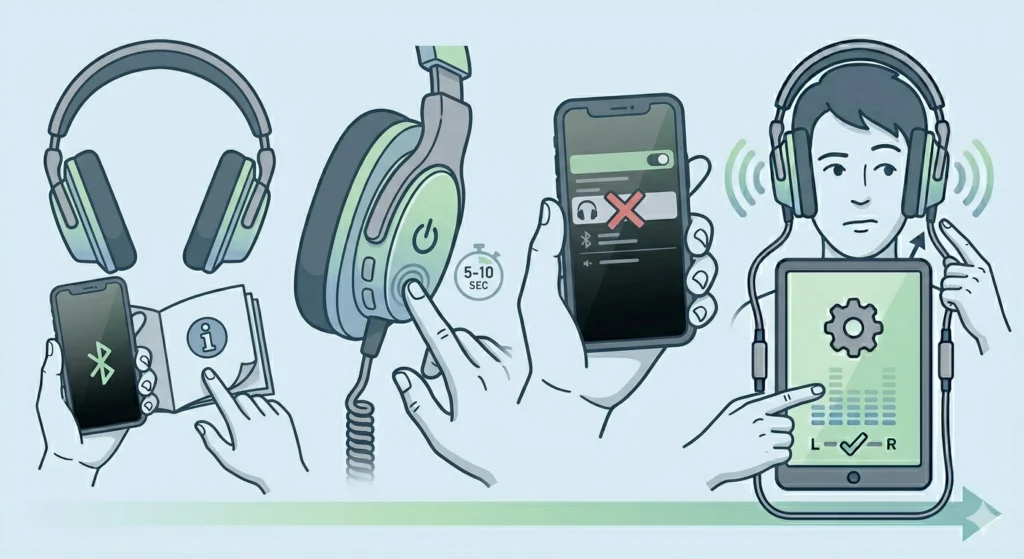
Wireless and Bluetooth headphones can develop sync issues where one earcup loses its audio channel due to a corrupted pairing or firmware glitch. A factory reset clears this completely.
- Step 1: Check the manual or manufacturer’s website for the specific reset method for the headphone model
- Step 2: Most models require holding the power button or a combination of buttons for 5-10 seconds
- Step 3: Wait for the LED indicator to flash or hear a reset tone
- Step 4: Delete the headphones from the Bluetooth device list on the phone or computer
- Step 5: Re-pair from scratch and test audio in both ears
This fix is particularly effective for true wireless earbuds (TWS) where left and right earbuds pair independently. If only one earbud is playing, the re-pairing process for stereo sound can restore proper stereo output quickly.
Fix 6: Update or Reinstall Audio Drivers (Windows)
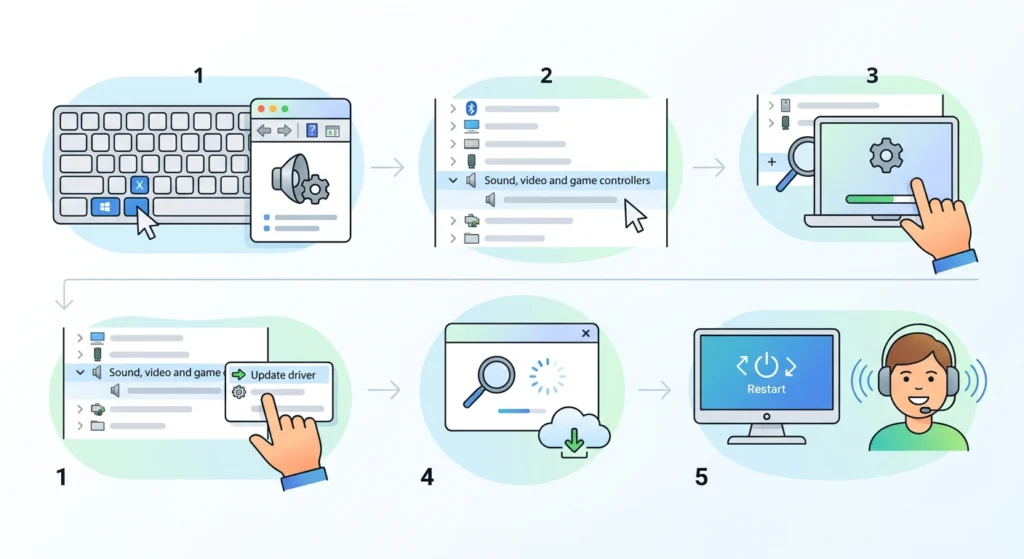
Outdated or corrupted audio drivers can cause one channel to stop outputting sound entirely, even when the hardware is perfectly fine. This is more common after Windows updates.
- Step 1: Press Windows + X and open ‘Device Manager’
- Step 2: Expand ‘Sound, video and game controllers’
- Step 3: Right-click the audio device and select ‘Update driver’
- Step 4: Choose ‘Search automatically for drivers’ and let it complete
- Step 5: Restart the computer and test
If updating does not help, try uninstalling the driver and restarting – Windows will automatically reinstall a clean version on boot.
Fix 7: Adjust Audio Output Settings in Windows 11

Sometimes the system routes audio to the wrong output format, which can suppress one channel. Checking the audio format and spatial sound settings often resolves this.
- Step 1: Right-click the speaker icon and open ‘Sound settings’
- Step 2: Click ‘More sound settings’ and go to the ‘Playback’ tab
- Step 3: Right-click headphones and select ‘Properties’
- Step 4: Go to the ‘Advanced’ tab and change the format to ‘2 channel, 16 bit, 44100 Hz (CD Quality)’
- Step 5: Under the ‘Spatial sound’ tab, make sure it is set to ‘Off’ to avoid processing conflicts
For a more detailed walkthrough, the guide on adjusting audio output settings on Windows 11 covers every option in the sound properties panel.
Pro-Tip: Spatial audio features like Windows Sonic or Dolby Atmos can sometimes cause one channel to drop or sound unbalanced when the headphone model is not fully compatible. Disabling spatial sound entirely is always worth testing before assuming the headphones are broken.
Fix 8: Reset Audio Settings to Default
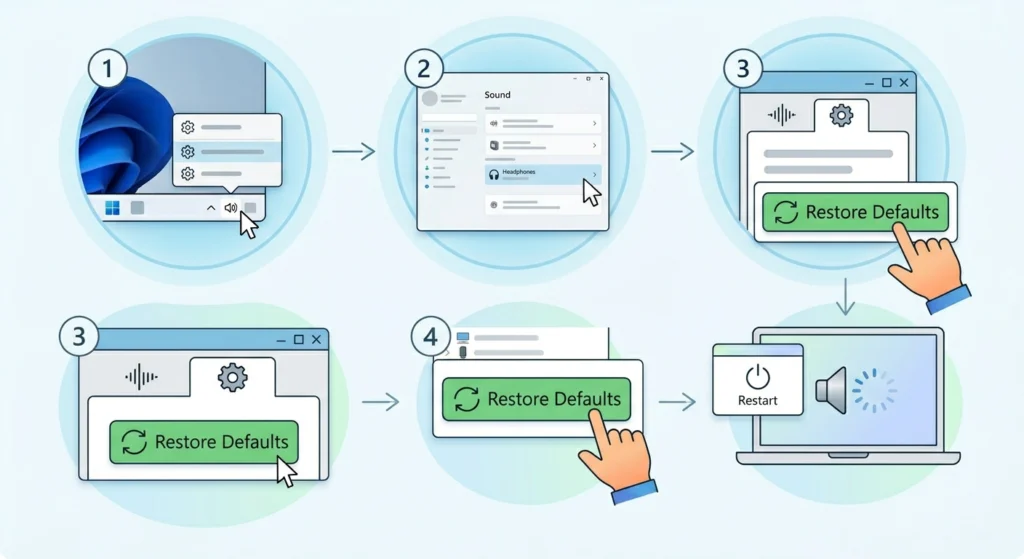
If multiple tweaks have been made to the audio settings over time, resetting everything back to default clears any conflicting configurations that could be causing one side to go silent.
- Step 1: Open ‘Sound settings’ in Windows 11
- Step 2: Navigate to the headphone output device properties
- Step 3: Look for a ‘Restore Defaults’ button in the ‘Enhancements’ or ‘Advanced’ tab
- Step 4: Click it, apply, and restart the audio service
A full guide on resetting audio settings on Windows 11 walks through every step in detail, including how to restart the Windows Audio service from the Services panel.
Tips for Keeping Headphones Working Properly
- Store headphones in a case when not in use to protect the cable and drivers
- Never yank the cable out by pulling on the wire – always grip the plug itself
- Keep headphone earcups and mesh grilles clean using a soft, dry cloth
- For Bluetooth headphones, keep firmware updated through the manufacturer’s app
- Avoid exposing headphones to extreme moisture or heat, which can damage internal wiring and driver components
- Periodically check audio balance settings, especially after OS updates
- When using a splitter or adapter, test without it to rule it out as the source of mono audio
Common Problems and Quick Fixes
- Only one earbud works out of the case: The earbuds are not synced. Place both in the case, close and reopen, then reconnect.
- One side cuts in and out: Almost always a damaged cable or loose plug. Wiggle test the cable at multiple points to find the break.
- One side is quieter but not silent: Check the audio balance setting – it has likely shifted slightly off-center.
- One side works on phone but not on PC: The issue is with the PC audio settings or driver. Check the output device configuration and balance in Windows settings.
- Sound disappears after Windows update: Update or rollback the audio driver. Windows updates sometimes overwrite manufacturer drivers with generic ones that behave differently.
- Headphone works but only in mono: The app or media player may have a mono audio mode enabled. Check the app’s accessibility or audio settings.
Frequently Asked Questions
Why is only one side of my headphones working?
The most common causes are an off-center audio balance setting, a damaged cable with an internal wire break, a Bluetooth sync issue between earcups, or a software/driver problem on the connected device. Working through each fix systematically will identify the exact cause.
Can a damaged headphone jack cause one side to stop working?
Yes. If the 3.5mm jack is bent, dirty, or has worn-out internal contacts, it may only make partial contact with the plug. This can cut off one audio channel completely. Cleaning the port or testing with a different cable are the first steps to diagnose this.
How do you fix one earbud that has stopped working on wireless earbuds?
Start by placing both earbuds back in the charging case and letting them reset. Then delete the pairing from the phone or computer and re-pair them fresh. If one earbud still does not work, a factory reset using the manufacturer’s button combination is the next step.
Does the audio balance setting affect both apps and system sounds?
Yes. The system-level audio balance setting in Windows or macOS affects all output uniformly, including music, video, games, and calls. If the balance is shifted, everything will be louder on one side regardless of the app being used.
Can a software update cause one headphone side to go silent?
Absolutely. OS updates sometimes overwrite or conflict with audio drivers, change default audio format settings, or reset hardware-specific configurations. Updating or reinstalling the audio driver and checking output settings after an update often resolves this.
Is it worth repairing headphones with a broken cable?
It depends on the model. High-end over-ear headphones with detachable cables are very worth repairing since replacement cables cost very little. In-ear headphones with fixed cables are harder to repair, though soldering the break at the plug is possible for those with some DIY comfort. Budget earbuds are often more practical to replace.
How can you tell if the headphone driver (speaker) itself is blown?
A blown driver usually produces distorted, crackly, or buzzy audio rather than complete silence. If one side is completely silent with no static at all, the issue is more likely a cable break, connection problem, or software setting rather than a blown driver.
Why does one side of my headphones work on mobile but not on a laptop?
This points to a device-specific issue on the laptop – either a misconfigured audio output setting, an audio driver problem, or a faulty headphone jack on the laptop itself. Checking the audio balance and output format in the laptop’s sound settings is the best starting point.
Can third-party audio enhancement software cause one channel to drop?
Yes. Software like equalizers, surround sound processors, or manufacturer companion apps can sometimes conflict with the system audio and cause one channel to suppress or cut out. Disabling these apps temporarily to test is a reliable way to rule them out.
What should be done if none of the fixes restore sound to one side?
If every software fix has been attempted and the problem persists across multiple devices, the headphone itself likely has a hardware fault – either a broken internal wire, a damaged driver, or a failed circuit board on wireless models. At that point, contacting the manufacturer for warranty service or seeking a professional repair shop is the best path forward.