
Dealing with Marshall Motif II ANC sound cutting out in the middle of a song, a call, or a podcast is frustrating, but the fix is usually quick. This guide walks through the most effective solutions in the order they are best tried, from simple connection checks to a full factory reset.
Key Takeaways
- Most dropouts come from a weak Bluetooth link, a low battery, or a clash between connected devices.
- Marshall confirms that the earbuds connect to two devices at once, and a third device pushes one of the inactive ones out.
- Re-pairing with the case button (until the light turns dark blue) solves many stubborn cases.
- A factory reset (case button held for 10 seconds until the LED turns purple) is the last-resort fix.
- Keeping the Marshall Bluetooth app and the earbud firmware up to date helps prevent repeat problems.
Step-by-Step Fixes for Marshall Motif II ANC Sound Cutting Out
Work through these fixes in order. Test the earbuds with music for a few minutes after each one, so it is clear which fix did the job.
Fix 1: Check Distance and Interference
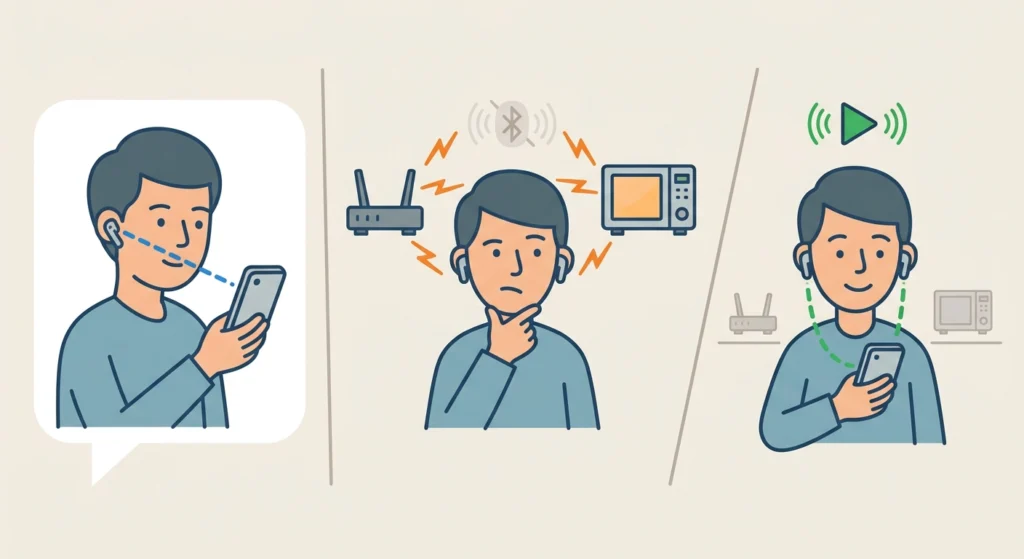
Bluetooth earbuds share the busy 2.4 GHz band with Wi-Fi routers, microwaves, and many other gadgets. Think of it like trying to hold a conversation in a crowded cafe. The signal is still there, but it gets drowned out.
- Step 1: Keep the phone or computer close to the earbuds, ideally in the same pocket or on the same side of the body.
- Step 2: Move away from routers, microwaves, and other wireless devices for a minute.
- Step 3: Play audio again and listen for any further dropouts.
Fix 2: Charge the Earbuds and the Case
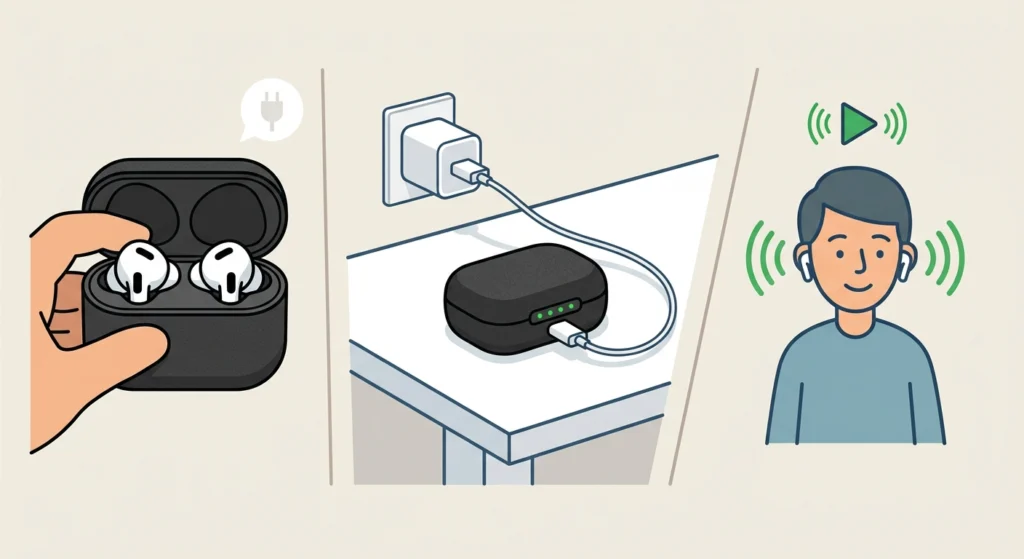
Low battery can make the connection unstable. This works best when the earbuds are given a proper charge instead of a quick top-up.
- Step 1: Place both earbuds in the charging case and close the lid.
- Step 2: Charge the case until it is full.
- Step 3: Take the earbuds out and test the sound again.
Fix 3: Reduce the Number of Connected Devices
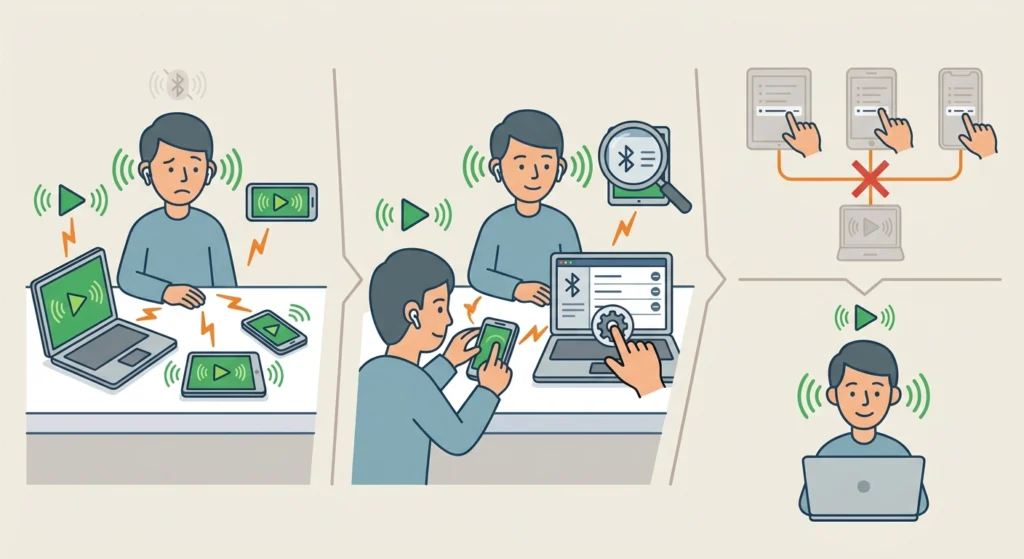
The Motif II ANC can stay connected to two devices at the same time. According to Marshall, connecting a third device causes one of the inactive devices to be dropped. Audio can also jump around when two devices try to play sound at once.
- Step 1: Pause the music or video on every device except the one being listened to.
- Step 2: Open the Bluetooth settings on any nearby phone, tablet, or laptop that is not needed.
- Step 3: Disconnect the earbuds from those extra devices.
- Step 4: Play audio on the main device and check if the cutting out has stopped.
Pro-Tip: Always pause playback on one device before starting audio on another. Marshall specifically advises this when using two connected devices, and it prevents many random dropouts.
Fix 4: Remove the Earbuds and Pair Them Again
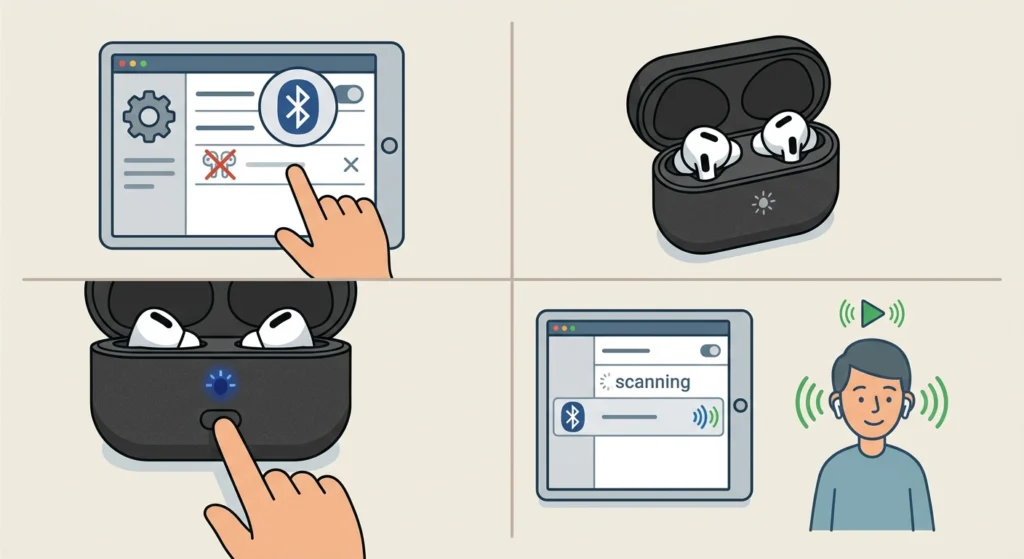
A corrupted pairing record is a common reason for choppy sound. Deleting the old connection and creating a fresh one often clears it up.
- Step 1: Open the Bluetooth settings on the phone or computer and remove Motif II A.N.C from the list of saved devices.
- Step 2: Put both earbuds in the case and keep the lid open.
- Step 3: Press and hold the button on the case until the light turns dark blue.
- Step 4: Turn on Bluetooth on the audio device and select Motif II A.N.C from the list. The Marshall Bluetooth pairing sound should be heard when it connects.
Fix 5: Update the Firmware
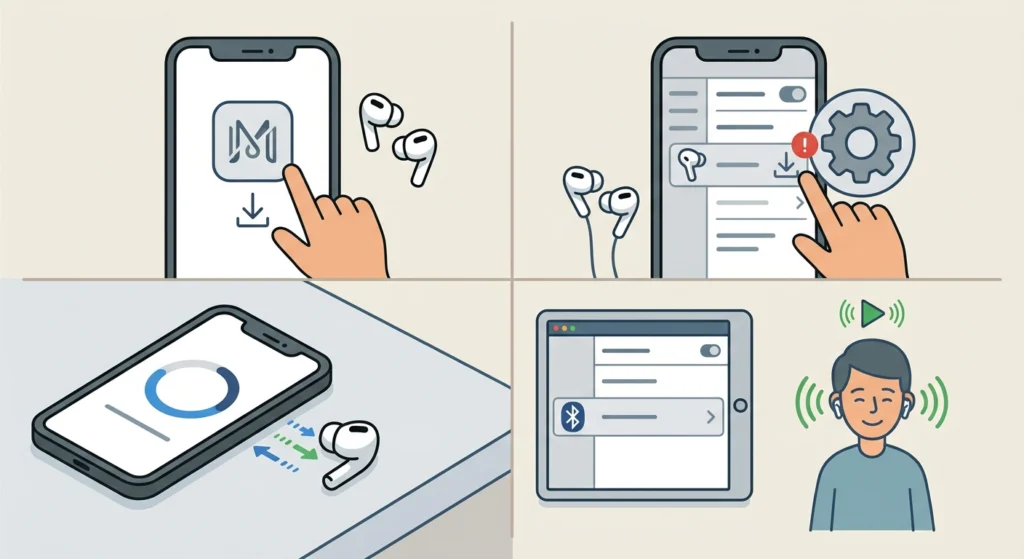
Firmware updates can improve connection stability, so running outdated software is worth ruling out.
- Step 1: Download the Marshall Bluetooth app on the phone and connect the earbuds.
- Step 2: Check the app for an available firmware update.
- Step 3: If an update appears, keep the earbuds close to the phone and follow the on-screen prompts until it finishes.
- Step 4: Test the sound again once the update is complete.
Fix 6: Perform a Factory Reset
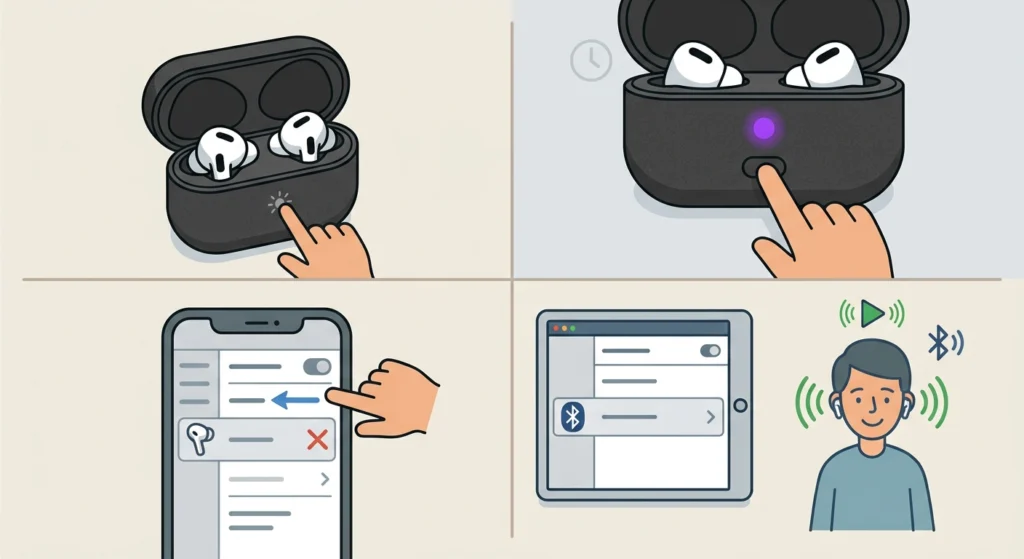
If the earbuds still act erratically, a factory reset restores the original settings. Marshall recommends this when the earbuds become erratic or unresponsive. Keep in mind that the earbuds will need to be set up again afterward.
- Step 1: Place the earbuds in the case and keep the lid open.
- Step 2: Press and hold the button on the case for 10 seconds, until the LED turns purple.
- Step 3: Remove Motif II A.N.C from the Bluetooth list on the phone or computer.
- Step 4: Pair the earbuds again using the pairing steps in Fix 4.
Pro-Tip: Skipping the removal of the old device from the Bluetooth list is the most common reason a reset seems not to work. The old entry can clash with the fresh pairing, so always delete it first.
Fix 7: Check Windows Audio Settings
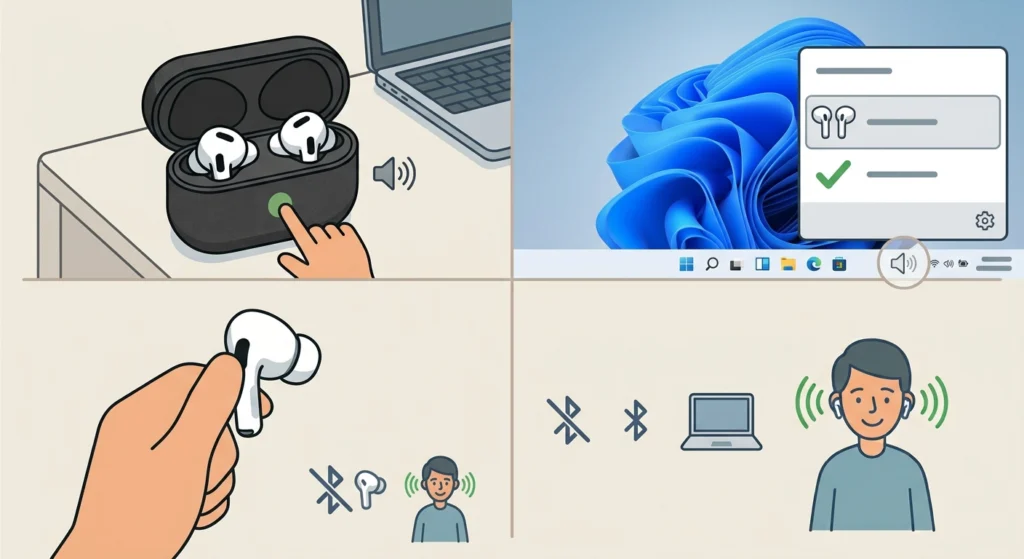
On a Windows PC, the sound can cut out because of the wrong output device or odd audio settings, even when the earbuds are healthy. Most people find that a quick review of the output device settings solves it.
- Step 1: Confirm the earbuds are selected as the sound output by following the steps in this guide on adjusting audio output settings.
- Step 2: If the sound is still uneven, try resetting audio settings on Windows 11.
- Step 3: If the pairing looks broken, follow the steps to re-pair Bluetooth earbuds for stereo sound on Windows.
Tips to Keep the Sound Stable
- Keep the earbuds and the case charged, since low battery can weaken the connection.
- Store the earbuds in the case when not in use so they stay ready and charged.
- Remove old devices from the Bluetooth list now and then, especially if more than two devices have been paired.
- Check the Marshall Bluetooth app from time to time for new firmware.
- Avoid crowded wireless areas when possible, since heavy interference makes dropouts more likely.
Common Problems After Fixing the Cutting Out
Sound Cuts Out Only on One Device
When the earbuds work well with one device but not another, the cause is usually that device. Remove the earbuds from its Bluetooth list and pair them again using Fix 4.
Earbuds Do Not Appear in the Bluetooth List
Put the earbuds in the case with the lid open, then hold the case button until the light turns dark blue. After that, select Motif II A.N.C from the Bluetooth list. If it still does not show, perform the factory reset in Fix 6.
Audio Jumps Between Two Devices
This usually happens when both connected devices try to play sound. Pause the audio on the device that is not in use, as explained in Fix 3.
Frequently Asked Questions
Why does the sound keep cutting out on my Marshall Motif II ANC?
The most common reasons are a weak Bluetooth connection, low battery, interference, or a conflict between multiple connected devices. Working through the fixes above in order usually finds the cause.
How do I factory reset the Marshall Motif II ANC?
Place the earbuds in the case with the lid open. Press and hold the button on the case for 10 seconds, until the LED turns purple. Then remove the earbuds from the Bluetooth list on the audio device and pair again.
How do I put the Motif II ANC in pairing mode?
Put the earbuds in the case with the lid open. Press and hold the button on the case until the light turns dark blue, then select Motif II A.N.C from the Bluetooth list.
Can the Motif II ANC connect to two devices at once?
Yes. The earbuds can be connected to two devices at the same time. A third device will cause one of the inactive devices to be dropped.
Will a factory reset delete my firmware update?
A factory reset restores the earbuds to their original settings, and the earbuds need to be set up again afterward. It is designed to fix erratic behavior, so it is safe to use when other fixes have not worked.
Does low battery cause the sound to cut out?
It can. A weak battery may lead to an unstable connection, so charging both the earbuds and the case fully is a smart first step.
How do I update the firmware on the Motif II ANC?
Connect the earbuds to the Marshall Bluetooth app on the phone and check for an available update. Keep the earbuds close to the phone during the update and follow the on-screen prompts.
Can Wi-Fi routers or other devices cause dropouts?
Yes. Bluetooth shares the 2.4 GHz band with Wi-Fi and many other devices, so interference can interrupt the sound. Moving closer to the audio device or away from busy wireless areas often helps.
Why does the sound cut out only on my Windows computer?
The cause may be a wrong output device or audio settings on the PC. Check the output selection, reset the audio settings, or re-pair the earbuds as described in Fix 7.
Should I remove the earbuds from the Bluetooth list before re-pairing?
Yes. Removing the old entry first prevents a clash with the new pairing and gives the best chance of a clean connection.