
Marshall Major V headphones sounding quieter on one side usually points to a settings issue, a dirty ear cushion, or a loose cable connection rather than a damaged speaker. This guide walks through the exact fixes that solve the problem in most cases, starting with the quickest checks first.
Key Takeaways
- Most volume imbalance comes from a shifted balance setting, not a broken driver.
- Bluetooth pairing glitches can send an uneven signal to one ear cup.
- Dust or wax buildup inside the cushions can muffle sound on one side only.
- A loose or worn audio cable is a common cause during wired listening.
- Resetting the audio settings on the connected device fixes the issue in many cases within minutes.
Fix 1: Check the Left and Right Balance Setting
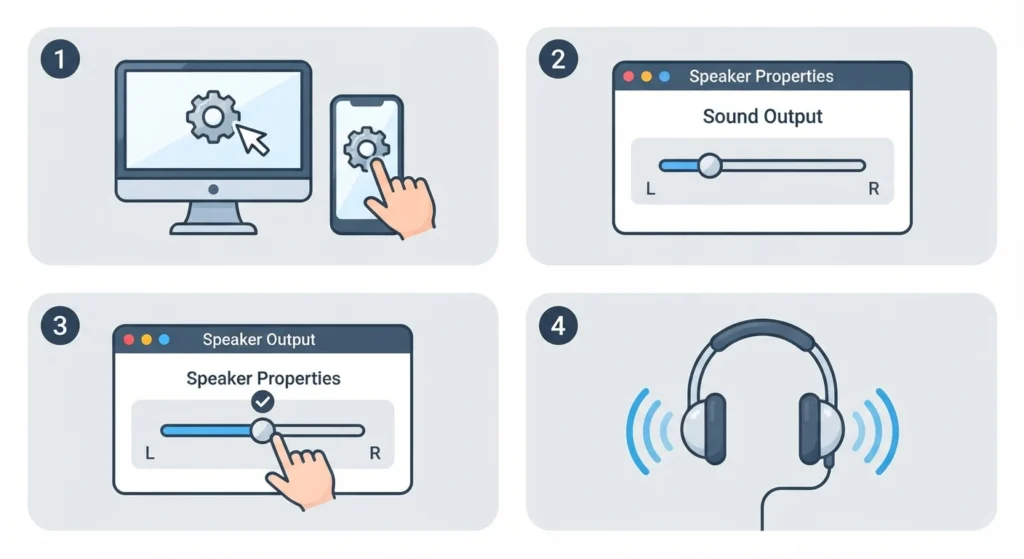
A shifted balance slider is the single most common reason one ear cup sounds quieter than the other, and it can happen without anyone touching it directly, especially after a system update.
- Step 1: Open the Sound settings on the computer or phone connected to the Major V.
- Step 2: Locate the left and right balance slider inside the playback device properties.
- Step 3: Drag the slider back to the exact center position and save the change.
- Step 4: Play a song or a mono test tone to confirm both sides now sound equal.
Windows 11 users can find a full breakdown of this menu in this guide on adjusting audio output settings, since accessibility features sometimes shift this slider on their own.
Pro-Tip: Turn off Mono Audio in the accessibility settings before adjusting the balance slider. Mono Audio forces both channels to play identically, which can hide a real hardware problem instead of fixing it.
Fix 2: Re-Pair the Headphones to Reset the Bluetooth Connection
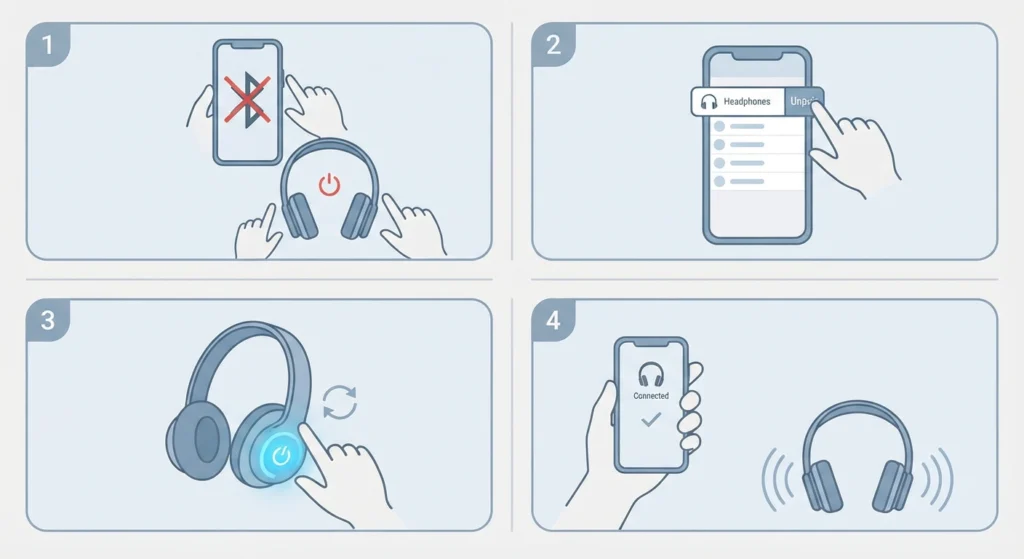
A weak or corrupted Bluetooth pairing profile often sends a slightly different audio signal to each ear cup. Removing the pairing and reconnecting from scratch usually clears this up within a couple of minutes.
- Step 1: Turn off Bluetooth on the connected device and power down the Major V completely.
- Step 2: Forget or remove the Major V from the saved Bluetooth device list.
- Step 3: Put the headphones back into pairing mode and reconnect as a new device.
- Step 4: Play audio and confirm both ear cups now output sound at the same level.
A more detailed walkthrough of this process is covered in this guide on re-pairing Bluetooth headphones for stereo sound, which applies the same logic used here.
Fix 3: Clean the Ear Cushions and Speaker Grilles
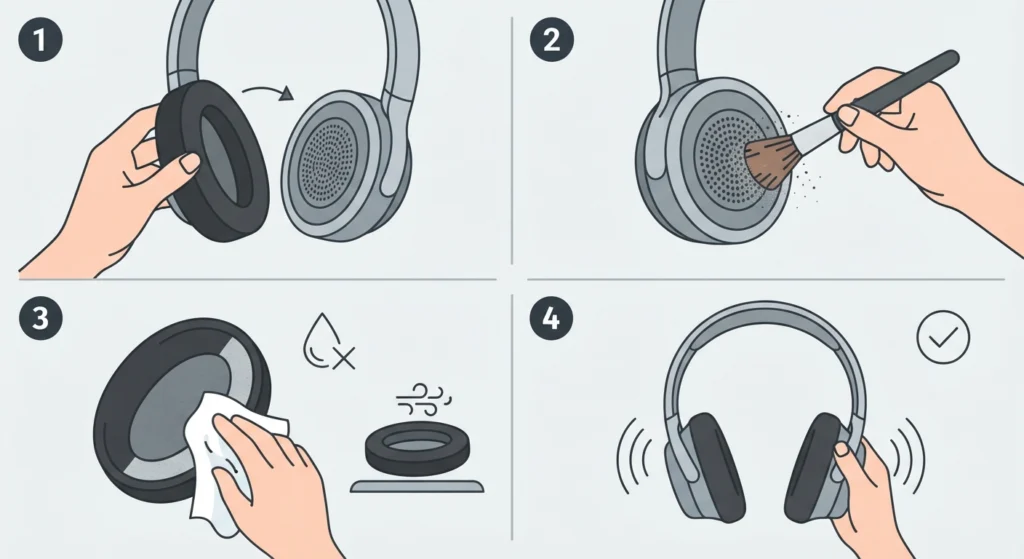
Dust, lint, and skin oils build up inside the ear cushions over time, and this buildup often blocks sound unevenly since one side tends to collect more debris than the other.
- Step 1: Gently remove the ear cushions if the Major V model allows it.
- Step 2: Use a dry, soft-bristled brush to clear dust from the speaker grille.
- Step 3: Wipe the cushion foam with a slightly damp cloth and let it air dry fully.
- Step 4: Reattach the cushions and test playback again once everything is completely dry.
Pro-Tip: Never spray liquid directly onto the speaker grille. Moisture trapped behind the mesh can damage the driver and turn a minor imbalance into permanent hearing loss on that side.
Fix 4: Inspect the Audio Cable and 3.5mm Jack
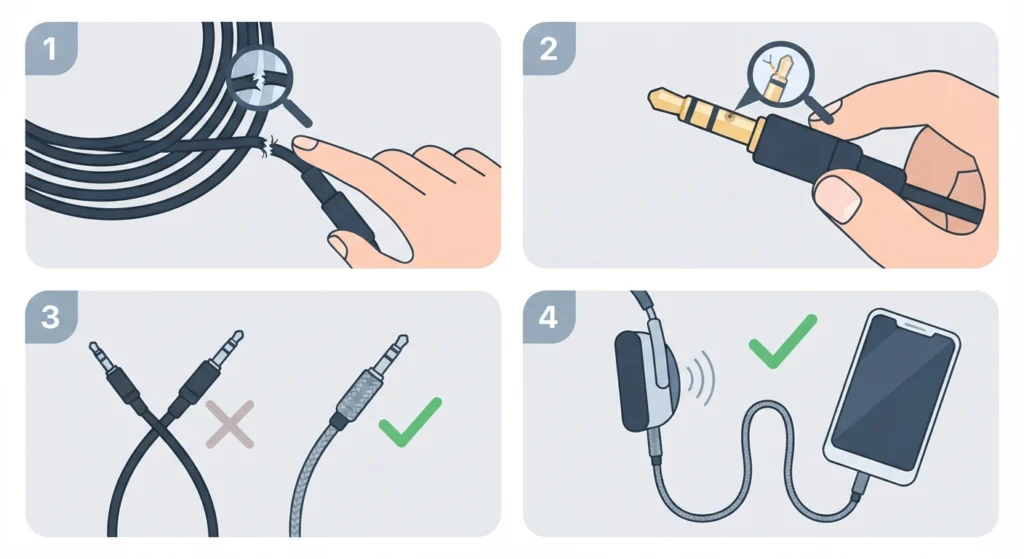
Anyone using the Major V in wired mode should rule out the cable before assuming a driver issue, since a bent pin or worn connector is a frequent cause of one-sided sound drops.
- Step 1: Check the cable along its length for kinks, fraying, or exposed wiring.
- Step 2: Inspect the 3.5mm jack tip for bent pins or visible corrosion.
- Step 3: Try a different compatible audio cable if one is available.
- Step 4: Insert the cable firmly into both the headphones and the source device, then test again.
Fix 5: Reset the Audio Settings on the Connected Device
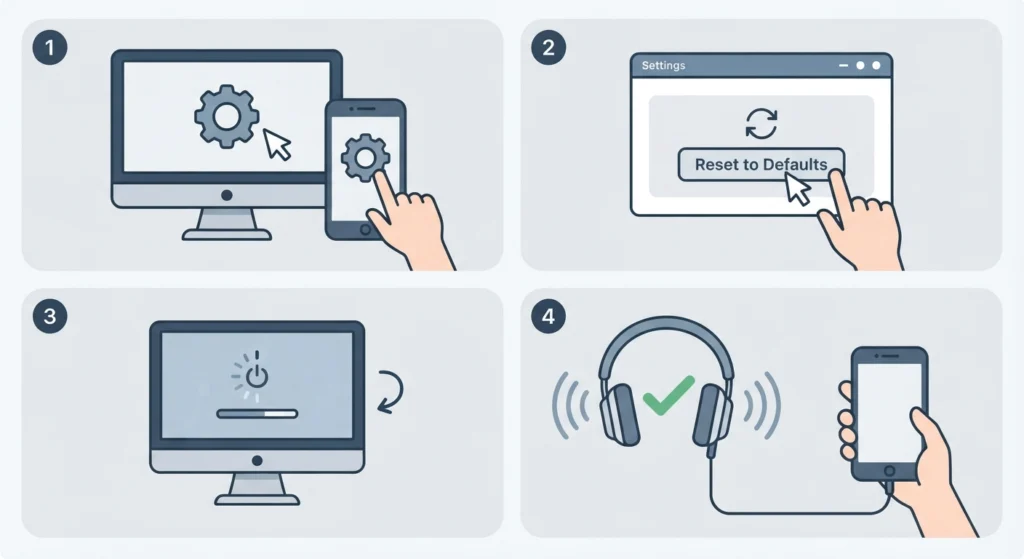
Sometimes the operating system itself holds onto an outdated audio profile, which keeps sending uneven output even after the headphones are reconnected. Resetting the audio settings clears that stored profile.
- Step 1: Open the Sound control panel on the connected device.
- Step 2: Select the option to restore audio settings to default.
- Step 3: Restart the device to apply the changes fully.
- Step 4: Reconnect the Major V and play audio to confirm balanced sound.
Step-by-step instructions for this exact process are available in this guide on resetting audio settings, which is especially useful when the balance issue keeps returning after every restart.
Fix 6: Update Bluetooth and Audio Drivers
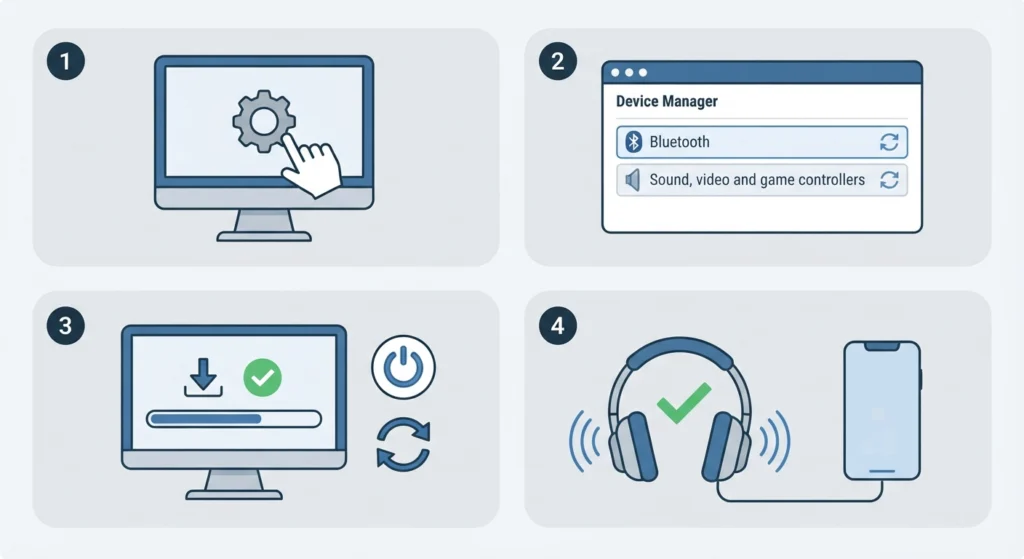
Outdated drivers occasionally mismanage stereo channels, sending less power to one side than the other. Updating them closes that gap.
- Step 1: Open Device Manager on the connected computer.
- Step 2: Expand the Bluetooth and Sound sections and check for available updates.
- Step 3: Install any pending driver updates and restart the computer.
- Step 4: Reconnect the Major V and test playback once the system restarts.
Tips to Keep Both Sides Sounding Even
- Store the headphones in a case to keep dust away from the ear cushions.
- Avoid yanking the cable from the jack, since this stresses the internal wiring over time.
- Check the balance slider after every major system update.
- Clean the ear cushions on a regular schedule rather than waiting for a problem to appear.
- Keep the headphone firmware current if the Marshall app offers an update option.
Common Causes Behind the Uneven Sound
Most cases trace back to one of a few recurring causes rather than a single hidden defect.
- A shifted software balance setting after a system or app update.
- Dust, lint, or wax buildup inside one ear cushion.
- A worn or slightly bent audio cable connector.
- A corrupted Bluetooth pairing profile.
- An outdated audio or Bluetooth driver on the connected device.
Frequently Asked Questions
Why is the Marshall Major V quieter on one side only over Bluetooth?
This usually points to a corrupted pairing profile rather than a hardware fault. Forgetting the device and re-pairing from scratch resolves this in most cases.
Does the imbalance happen with wired mode too, or just wireless?
It can happen in either mode. Wired imbalance is more often tied to the cable or jack, while wireless imbalance is more often tied to Bluetooth pairing or balance settings.
Can dust really cause one ear cup to sound quieter?
Yes. Dust and lint trapped against the speaker grille physically block part of the sound path, which reduces volume on that side without affecting the driver itself.
Is cleaning the ear cushions safe to do without professional help?
Yes, as long as only a dry brush and a slightly damp cloth are used. Avoid soaking the cushions or spraying liquid directly onto the speaker grille.
Why does the balance setting keep resetting after every restart?
This typically happens when the operating system stores an outdated audio profile. Resetting the audio settings to default usually stops the setting from reverting.
Could an outdated driver really cause a volume imbalance?
Yes. An outdated Bluetooth or audio driver can mismanage how much signal reaches each channel, which shows up as one side sounding weaker than the other.
How long does it take to notice if a fix actually worked?
Most fixes show results immediately during playback. If the imbalance persists after trying two or three of the fixes above, move on to the next one on the list.
Should both cables and cushions be checked even if the cause seems obvious?
Yes. Multiple small issues can overlap, so checking each cause in order prevents missing a secondary factor that keeps the imbalance from fully going away.
Does using a different audio source help identify the cause?
Yes. Testing the Major V with a different phone or computer helps determine whether the issue is tied to one specific device’s settings or to the headphones themselves.
When does the imbalance point to something beyond a quick fix?
If both sides still sound uneven after checking the balance setting, re-pairing, cleaning the cushions, and testing the cable, the issue may need a closer inspection through Marshall’s official support channels.