
JLab Go Air Pop not pairing to a phone is a common issue that usually comes down to a stuck Bluetooth connection, a low battery, or a memory glitch inside the earbuds themselves. The good news is that this problem is almost always fixable within a few minutes using the right sequence of steps. Below is a direct, no-fluff guide to get those earbuds connected again.
Key Takeaways:
- Resetting the earbuds resolves most pairing failures
- Removing the old Bluetooth connection from the phone prevents conflicts
- Low battery is one of the most overlooked causes of failed pairing
- Keeping other Bluetooth devices turned off nearby reduces signal interference
- Updating phone software fixes pairing issues tied to outdated Bluetooth drivers
Method 1: Reset the JLab Go Air Pop Earbuds
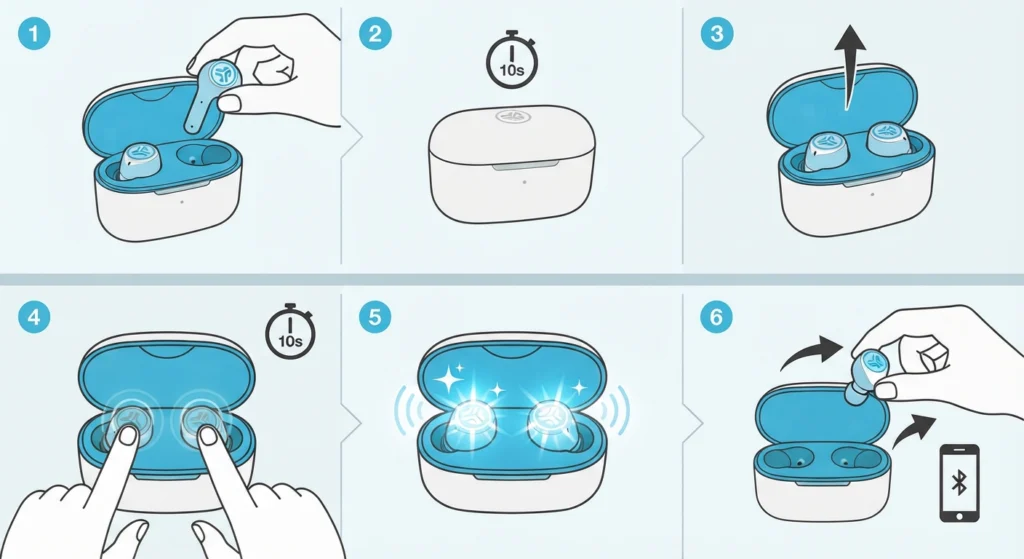
A factory reset clears out any corrupted pairing data stored on the earbuds, which is often the root cause of a failed connection.
- Step 1: Place both earbuds into the charging case
- Step 2: Close the lid and wait for about 10 seconds
- Step 3: Open the lid again with the earbuds still inside
- Step 4: Press and hold the touch sensors on both earbuds at the same time for around 10 seconds
- Step 5: Watch for the LED lights to flash, indicating the reset has completed
- Step 6: Take the earbuds out of the case and try pairing them again
Pro-Tip: Skipping the reset and jumping straight to re-pairing is the most common mistake people make. This works best when the reset is done first, since it clears any leftover connection data that keeps causing the failure.
Method 2: Forget and Re-Pair the Device on the Phone
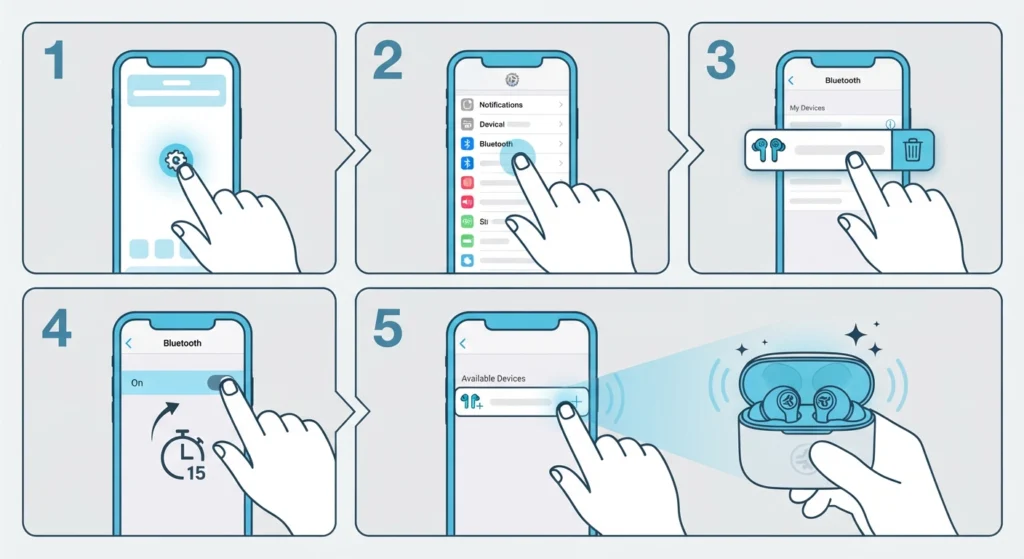
Sometimes the phone itself is holding onto an old, broken connection profile for the earbuds. Removing that profile forces a clean, fresh pairing attempt.
- Step 1: Open the Bluetooth settings menu on the phone
- Step 2: Locate JLab Go Air Pop in the list of paired devices
- Step 3: Select the option to forget or unpair the device
- Step 4: Turn Bluetooth off, wait 15 seconds, then turn it back on
- Step 5: Put the earbuds into pairing mode and select them again from the available devices list
Anyone who regularly switches earbuds between multiple phones or laptops will recognize this problem. Bluetooth profiles can pile up quietly in the background, and eventually one of them causes a conflict. Clearing it out is often all it takes to get pairing to work smoothly again.
Method 3: Charge the Earbuds Fully Before Pairing
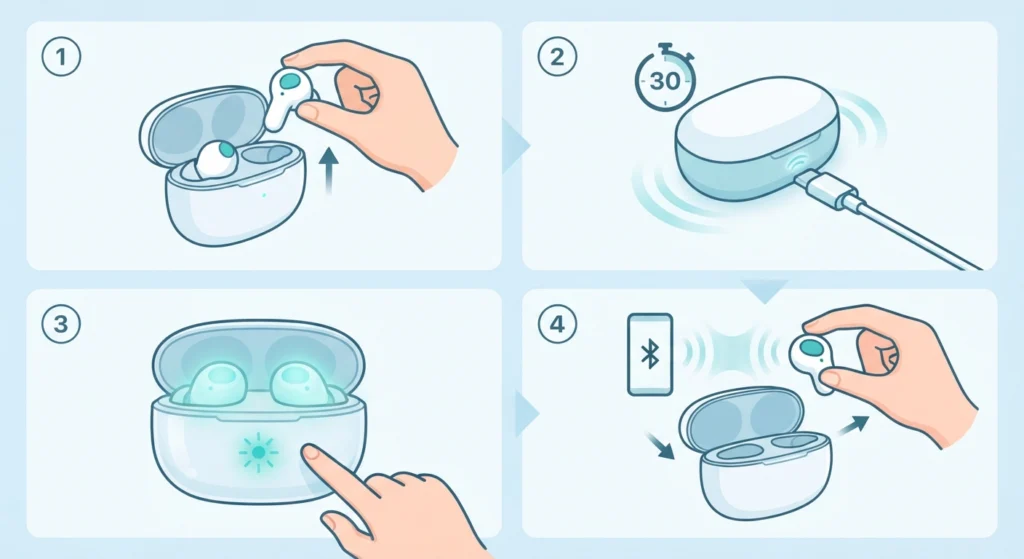
Low battery is one of those causes that gets overlooked constantly, yet it is behind a surprising number of pairing failures. When the battery drops too low, the earbuds may power the Bluetooth radio down before a connection can even be established.
- Step 1: Place the earbuds in the case and connect the case to a charger
- Step 2: Allow at least 30 minutes of charging time before attempting to pair again
- Step 3: Check the LED indicator to confirm the earbuds are charging properly
- Step 4: Remove the earbuds from the case once charged and try pairing
Method 4: Turn Off Bluetooth on Other Nearby Devices
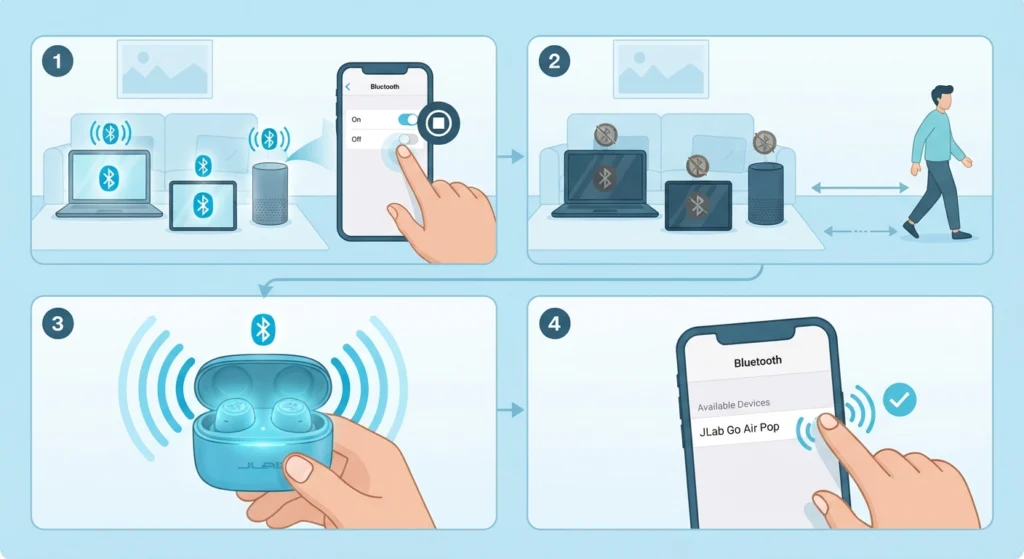
Bluetooth signals can get crowded fast, especially in a house full of smart speakers, laptops, and other earbuds all competing for the same frequency. That congestion sometimes prevents a new device from completing the handshake needed to pair.
- Step 1: Turn off Bluetooth on any nearby laptops, tablets, or speakers
- Step 2: Move at least a few feet away from other electronics
- Step 3: Put the JLab Go Air Pop into pairing mode
- Step 4: Attempt the connection again from the phone’s Bluetooth menu
Method 5: Update the Phone’s Bluetooth Software
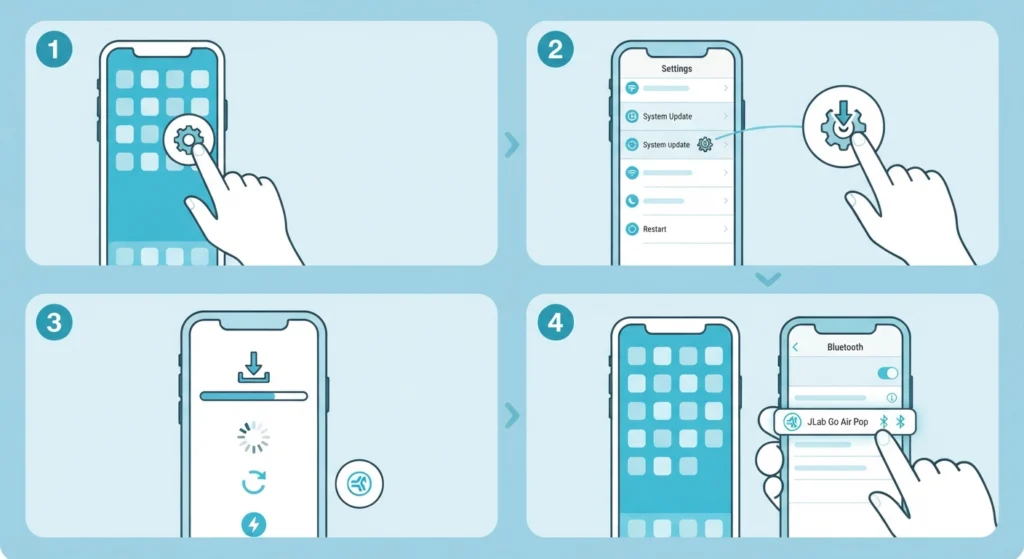
Outdated system software can carry small bugs that interfere with Bluetooth pairing, particularly on phones that have not been updated in a while.
- Step 1: Open the settings app on the phone
- Step 2: Navigate to the software update section
- Step 3: Install any pending updates and restart the phone
- Step 4: Attempt to pair the JLab Go Air Pop once the phone restarts
For anyone running Windows 11 rather than a phone, similar Bluetooth conflicts can show up on desktop as well. Adjusting the audio output settings on the system often resolves connection oddities that mirror what happens with mobile pairing.
Tips for Keeping the Connection Stable
- Keep the earbuds within three feet of the phone during the initial pairing process
- Avoid pairing the earbuds to more than one device at the same time
- Clean the charging contacts on both the earbuds and the case regularly, since dirt buildup can affect charging and, in turn, battery-related pairing issues
- Store the earbuds in the case when not in use to keep the battery topped up
Pro-Tip: Most people find that pairing issues return after a while simply because the earbuds were connected to a new device without properly disconnecting from the old one. Managing which devices stay linked helps the connection stay consistent over time, similar to how re-pairing Bluetooth earbuds for stereo sound on a Windows machine requires clearing old profiles first.
Common Problems and Troubleshooting
Even after following the methods above, a few specific situations tend to trip people up. Here is what typically causes them.
- Earbuds show as connected but no sound plays – this usually points to an audio output setting on the phone or computer that needs adjusting
- Only one earbud pairs while the other stays silent – place both earbuds back in the case together for a few seconds to resync them before trying again
- Pairing mode won’t activate – the earbuds may need a longer press on the touch sensor, closer to 10 full seconds rather than a quick tap
- Connection drops shortly after pairing – this is often tied to battery level or interference from other Bluetooth devices nearby
On Windows systems specifically, similar connection drops are frequently linked to input device conflicts, and resolving microphone detection problems can clear up related audio glitches that sometimes get mistaken for a pairing failure.
Frequently Asked Questions
Why is JLab Go Air Pop not pairing to a new phone?
This usually happens because the earbuds are still holding a connection to a previously paired device. Resetting the earbuds and forgetting the old pairing on the new phone typically resolves this.
How long should the touch sensors be held to reset JLab Go Air Pop?
The touch sensors should be held for approximately 10 seconds while the earbuds sit inside the open case. The LED indicator will flash once the reset is complete.
Can a low battery cause pairing problems?
Yes. A battery that has dropped too low can prevent the Bluetooth radio from staying active long enough to complete the pairing handshake with a phone.
Why does only one earbud connect instead of both?
This typically means the earbuds have lost sync with each other. Placing both earbuds back in the case for several seconds usually restores the connection between them before pairing again.
Does JLab Go Air Pop work with both Android and iPhone?
Yes, the earbuds use standard Bluetooth pairing, which is compatible with both Android and iOS devices.
Why does the connection keep dropping after pairing succeeds?
Interference from other Bluetooth devices nearby or a low battery level are the two most common reasons for a connection that pairs successfully but does not hold.
Is it necessary to forget the device before every pairing attempt?
Not every time. Forgetting the device is mainly needed when the earbuds have previously been connected to another phone or when the connection has become unstable.
How can interference from other devices be reduced during pairing?
Turning off Bluetooth on nearby laptops, speakers, or tablets and staying within a few feet of the phone during pairing helps reduce signal competition.
What does a flashing LED mean during the reset process?
A flashing LED confirms that the reset command has been received and the earbuds have cleared their previous pairing data.
Should the phone’s Bluetooth be restarted before trying to pair again?
Yes. Turning Bluetooth off and back on clears any temporary glitch on the phone’s side and gives the pairing process a clean start.