
Knowing how to connect two pairs of wireless earbuds to one laptop turns a solo movie into a shared one, whether that means a long flight, a late-night study session, or a quiet evening with a partner. Windows only plays sound through one Bluetooth output at a time by default, so a small extra step is needed. The two methods below make it work.
Key Takeaways
- Windows 11 sends audio to one Bluetooth device at a time unless a transmitter or audio-routing software is added.
- Method 1 uses a dual-link Bluetooth transmitter and is the simplest option.
- Method 2 uses the free Voicemeeter Banana app to send sound to both earbuds through the laptop’s own Bluetooth.
- Both pairs of earbuds should be charged and placed close to the laptop before starting.
Method 1: Connect Two Pairs of Wireless Earbuds With a Dual-Link Bluetooth Transmitter
A dual-link Bluetooth transmitter is a small plug-in adapter that sends one audio signal to two Bluetooth devices at once. Look for the words ‘dual-link’ or ‘two devices’ on the product box. It works with almost any laptop that has a USB port or a headphone jack.
- Step 1: Turn off Bluetooth on the laptop and on any phone the earbuds were used with recently. This stops the earbuds from reconnecting to those devices instead of the transmitter.
- Step 2: Plug the transmitter into a USB port or the 3.5 mm headphone jack on the laptop.
- Step 3: If the transmitter has a mode switch, set it to transmit mode, often marked TX.
- Step 4: If the laptop lists the transmitter as an audio device, open Settings, then System, then Sound, and select the transmitter under Output. The guide on adjusting audio output settings in Windows 11 shows where this menu lives.
- Step 5: Open the case of the first pair of earbuds and hold the pairing button until the light starts flashing. Put the transmitter into pairing mode by following its manual, which usually means holding its button for a few seconds.
- Step 6: Wait until the transmitter light shows a successful connection, then repeat the same pairing process with the second pair of earbuds. Some models need dual-link mode switched on first, so check the manual for that setting.
- Step 7: Play a video or song on the laptop. Both pairs of earbuds should now play the same audio.
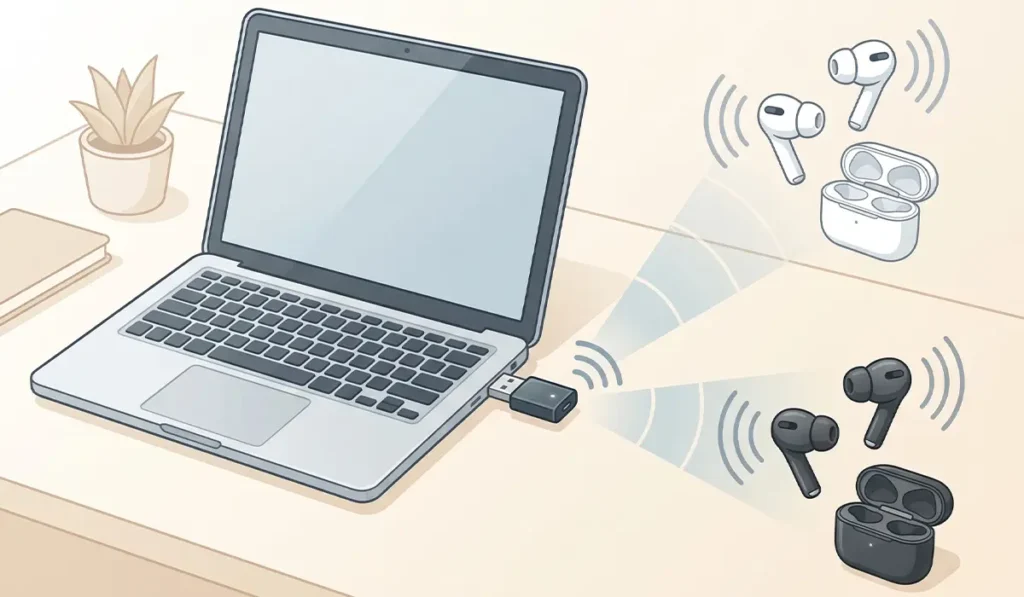
Pro-Tip: Pair the earbuds with the transmitter one at a time and wait for the first connection to settle before starting the second. Putting both into pairing mode together is the most common reason a dual-link transmitter connects only one pair.
Method 2: Connect Two Earbuds to One Laptop Using Voicemeeter Banana
This method uses the laptop’s built-in Bluetooth and a free audio mixer app for Windows called Voicemeeter Banana. The app takes the laptop’s sound and sends a copy to each pair of earbuds. It works on Windows 10 and Windows 11.
- Step 1: Open Settings, then Bluetooth & devices, then Add device, and choose Bluetooth. Pair the first earbuds, then repeat for the second pair. Both should show as connected.
- Step 2: Download Voicemeeter Banana from the official VB-Audio website, run the installer, and restart the laptop when asked.
- Step 3: Open Voicemeeter Banana. In the top right corner, click the A1 button and pick the first earbuds from the list. Choose the entry labeled Headphones, not the one labeled Headset or Hands-Free, because the hands-free entry is a low-quality call mode.
- Step 4: Click the A2 button and pick the second earbuds from the list, again choosing the Headphones entry.
- Step 5: Open Settings, then System, then Sound, and set the output to ‘Voicemeeter Input’. This sends all laptop audio through the app.
- Step 6: Back in Voicemeeter Banana, find the first input strip labeled Voicemeeter VAIO. Make sure the A1 and A2 buttons on that strip are lit.
- Step 7: Play any video or song. Sound should now arrive in both pairs of earbuds at the same time.
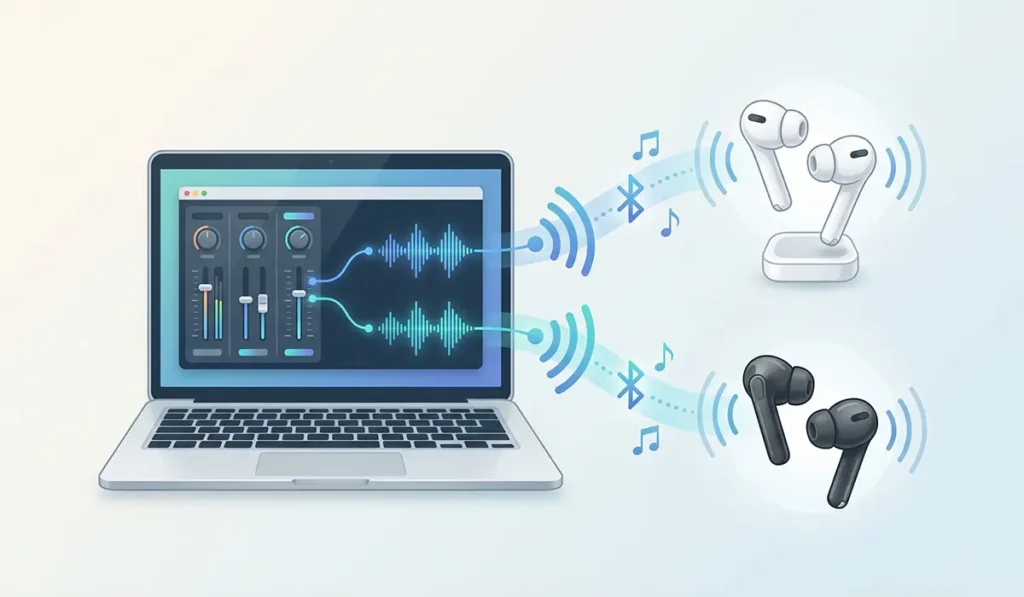
Pro-Tip: Each Bluetooth connection has its own small delay, so two different earbuds models can sound slightly out of step with each other. Using two pairs of the same model keeps the timing much closer.
Tips for Better Results
- Charge both pairs of earbuds fully before starting, since a low battery can cause dropouts.
- Keep the laptop within a few meters of both pairs, because two active connections rely on a strong signal.
- Close other Bluetooth devices, such as a mouse or a speaker, that are not needed during the session.
- Set each pair of earbuds to a comfortable volume using its own controls, then adjust the laptop volume last.
- Keep Windows and the Bluetooth driver updated so the connections stay stable.
Common Problems and Fixes
Fix 1: One Pair Has No Sound
Check that the earbuds are still showing as connected. With Voicemeeter Banana, confirm that A2 has the correct earbuds selected and that the A1 and A2 buttons are lit on the Voicemeeter VAIO strip. With a transmitter, repeat the pairing for the silent pair.
Fix 2: Sound Is Thin or Mono
This usually means the hands-free entry was selected instead of the Headphones entry. Switch to the Headphones entry in Voicemeeter Banana. If the sound stays flat, follow the guide to re-pair Bluetooth earbuds for stereo sound on Windows.
Fix 3: Second Pair Will Not Pair With the Transmitter
The earbuds are probably reconnecting to a phone or the laptop. Turn off Bluetooth on those devices, return the earbuds to their case, and start the pairing process again.
Fix 4: Windows Sound Settings Look Wrong After Setup
If the wrong output keeps getting selected, the guide on resetting audio settings in Windows 11 clears the settings so the output can be chosen again from scratch.
Frequently Asked Questions
Can Windows 11 send audio to two Bluetooth earbuds at the same time by default?
No. Windows plays sound through one default output device at a time. A dual-link Bluetooth transmitter or audio-routing software such as Voicemeeter Banana is needed to reach two pairs of earbuds together.
Does this work on Windows 10?
Yes. A dual-link transmitter works with any laptop, and Voicemeeter Banana runs on both Windows 10 and Windows 11.
Do both pairs of earbuds need to be the same brand?
No. Different brands can work together, but two pairs of the same model usually stay better in sync because they have the same built-in delay.
Which method is easier?
The dual-link Bluetooth transmitter is easier because it needs no software. Voicemeeter Banana takes a few more steps but needs no extra hardware.
Is Voicemeeter Banana free?
It is offered as donationware, which means it can be downloaded and used with payment being optional.
Do both earbuds need to be paired with the laptop first?
For Method 2, yes, because both must show as connected devices in Windows. For Method 1, the earbuds pair with the transmitter instead of the laptop.
Does the laptop need built-in Bluetooth?
Not for Method 1, since the transmitter plugs into a USB port or headphone jack and handles the Bluetooth connection itself. Method 2 needs Bluetooth on the laptop, which a USB Bluetooth adapter can provide.
Can two people watch a movie together using this setup?
Yes, that is one of the most popular uses. A slight difference in delay between the two connections can occur, which is why matching earbuds models help.
Does this work on a Mac?
Yes, but through a different tool. macOS includes a Multi-Output Device option in the Audio MIDI Setup app that can send sound to two connected audio devices.