
If Windows is not detecting your headphones, first determine whether the device is actually missing or whether Windows can see it but is sending sound somewhere else. That distinction matters because a missing device points to jack detection, drivers, Device Manager, USB, or Bluetooth, while a visible device with no sound is usually an output or playback problem.
This guide focuses specifically on troubleshooting headphone detection in Windows. It covers wired 3.5mm headphones, USB and USB-C headsets, and Bluetooth headphones on Windows 11, with Windows 10 notes where the same controls still apply.
Quick Answer: Headphones Not Detected in Windows
If your headphones do not appear under Settings → System → Sound → Output, start by checking hidden playback devices and Device Manager. If the audio device is missing from Device Manager too, scan for hardware changes and install the correct audio driver from your PC or motherboard manufacturer. If the headphones appear under Output, Windows is already detecting them and you should check the selected output device instead.
Identify the Problem Before You Change Anything
Use this table to separate a real detection problem from a playback problem. This prevents you from reinstalling drivers when Windows already sees the headphones.
| What you see | What it usually means | Start here |
|---|---|---|
| Headphones are completely missing from Sound settings | Windows is not exposing the playback device | Show disabled devices, then check Device Manager |
| Headphones appear under Output but speakers still play | Detection is working; the wrong output is selected | Select the headphones as the output device |
| Headphones appear but there is no sound | Detection is working; playback, enhancements, or the app may be the issue | See the detected-but-no-sound section |
| Windows says the jack is not plugged in | Jack sensing or the OEM audio driver may not be working correctly | Check the OEM driver and jack-detection software |
| No audio device appears in Device Manager | The controller or driver may not be loading | Show hidden devices, scan for hardware changes, then install the OEM driver |
| USB headset is missing | USB detection, port, driver, hub, or dock issue | Use the USB section |
| Bluetooth headphones do not appear while pairing | Pairing mode, another connected device, or Bluetooth itself is the issue | Use the Bluetooth section |
Do These Checks Before Changing Windows Settings
- Test the headphones on another device. Plug wired headphones into a phone, tablet, another PC, or another compatible device. For Bluetooth headphones, pair them with another device. If they fail everywhere, troubleshoot the headphones themselves before changing Windows.
- Reconnect them firmly. Remove the plug or USB connector, wait a few seconds, and reconnect it. On a desktop, confirm that a 3.5mm plug is in the correct headphone or combo jack rather than the microphone input.
- Try another port. If your desktop has both front and rear audio ports, test the rear motherboard jack. For USB headsets, try another direct USB port before using a hub or dock.
- Check the plug type. A headset with a four-section TRRS plug carries headphones and microphone on one connector. PCs with separate headphone and microphone jacks may need the correct headset splitter for both functions.
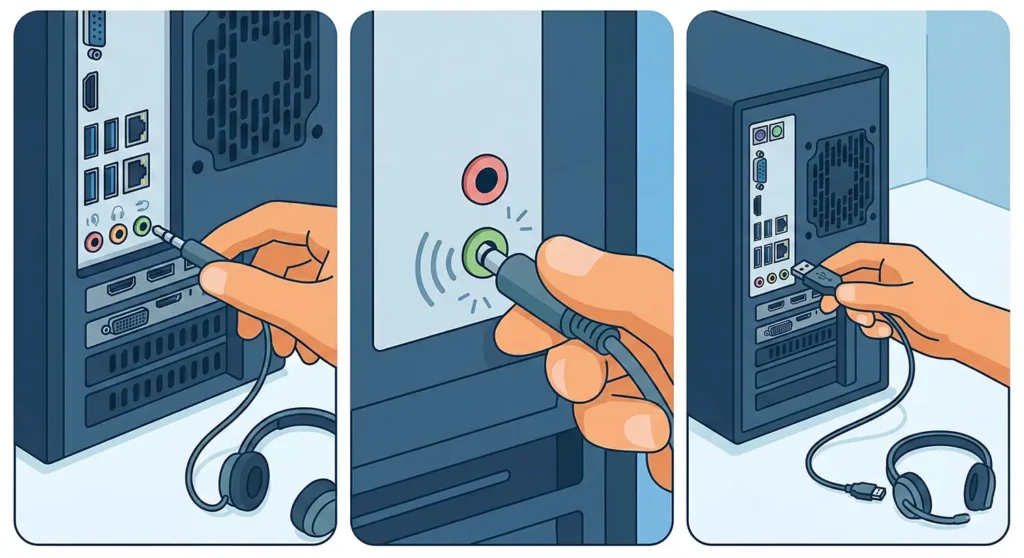
If the cable only works when bent or held in a certain position, the problem is likely physical rather than Windows detection. See our guide on headphones that only work when the cable is bent.
Fix 1: Show Disabled or Disconnected Headphones
A playback device can be present in Windows but hidden from the normal output list because it is disabled or disconnected. Check the classic Sound panel before making deeper driver changes.
- Press Win + R.
- Type
mmsys.cpland press Enter. - Open the Playback tab.
- Right-click an empty area in the device list and enable Show Disabled Devices and Show Disconnected Devices.
- If your headphones appear greyed out, right-click them and choose Enable.
- If they are the device you want to use, right-click them again and choose Set as Default Device.
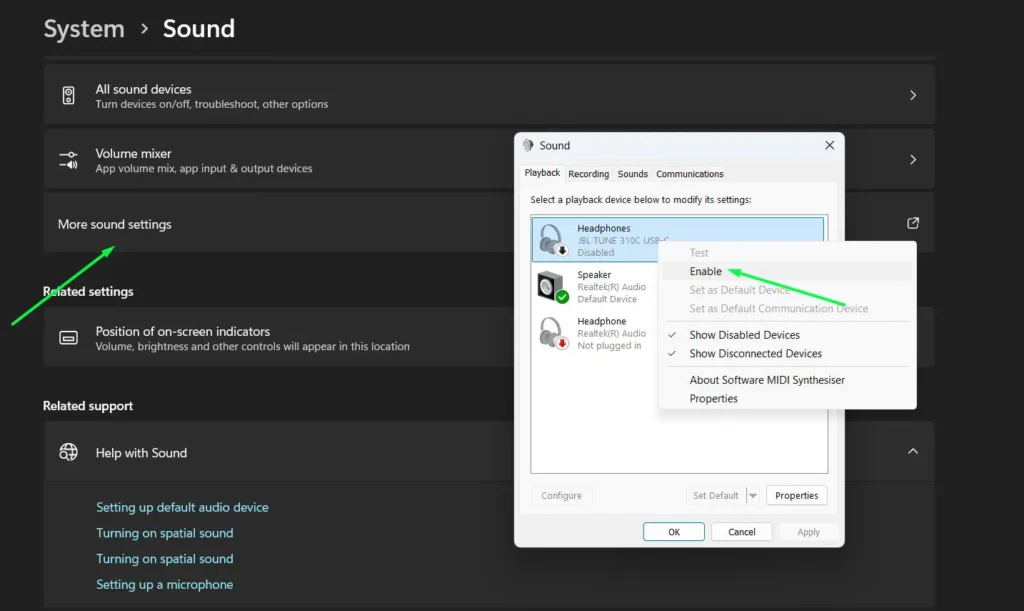
If the headphones now appear: Windows can detect them. Test audio before continuing. If they are still completely absent, move to Device Manager.
Fix 2: Check Device Manager and Scan for Hardware Changes
Device Manager is the most useful place to check a true detection problem. If Windows cannot see the audio controller or endpoint here, changing the default output will not solve it.
- Right-click the Start button → Device Manager.
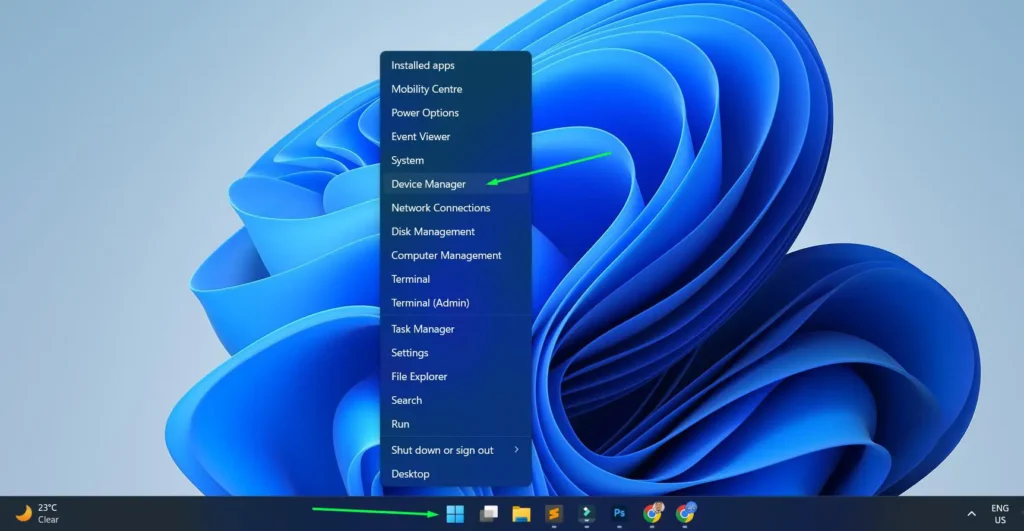
- Expand Sound, video and game controllers.
- Also expand Audio inputs and outputs.
- If an audio device is disabled, right-click it and choose Enable device.
- If the device is missing, select View → Show hidden devices.
- Select Action → Scan for hardware changes.
- If an audio device has a yellow warning icon, open Properties and note the message under Device status before reinstalling anything.
If the controller reappears after the scan, restart the PC and check Settings → System → Sound again. If the audio controller is listed but the headphones still do not appear, the next priority is the driver supplied for your exact PC, motherboard, or sound device.
Fix 3: Install or Reinstall the Correct Audio Driver
Missing, corrupted, disabled, or incompatible audio drivers can prevent Windows from exposing a headphone output. For laptops and prebuilt desktops, prefer the audio package from the computer manufacturer for your exact model. For a custom desktop, use the motherboard manufacturer’s support page unless you have a separate sound card or USB audio device.
Check for an Updated Driver
- In Device Manager, right-click the audio device and choose Update driver.
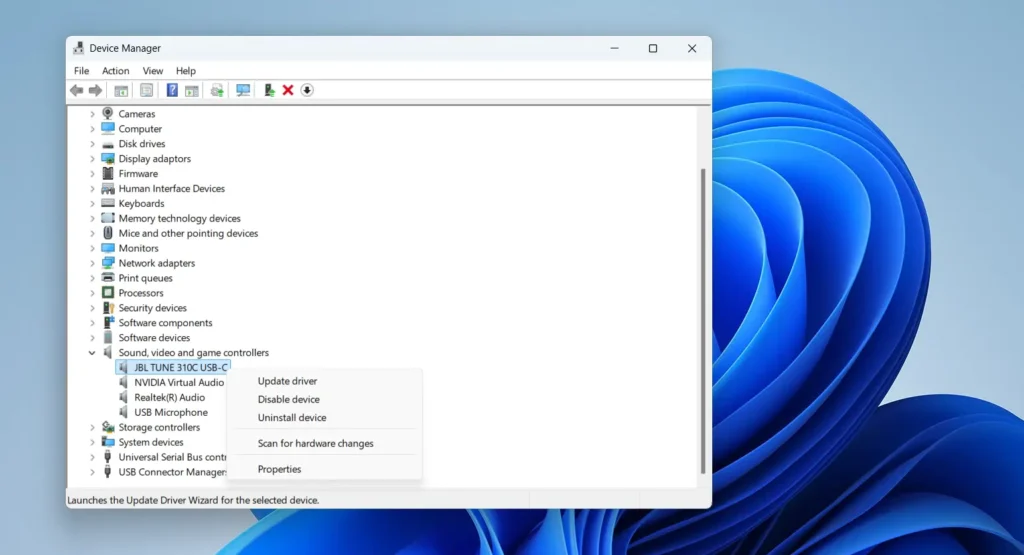
- Choose Search automatically for drivers.
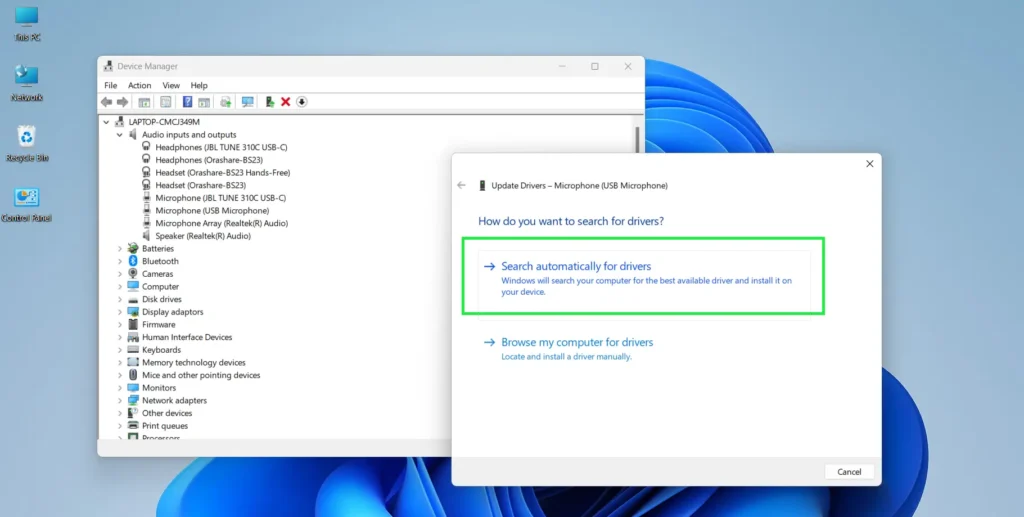
- If Windows does not find a better driver, go to the support page for your PC or motherboard model and download the recommended audio driver for your Windows version.
- Install it, restart the computer, and reconnect the headphones.
Reinstall a Corrupted Audio Device
- Right-click the audio device in Device Manager and choose Uninstall device.
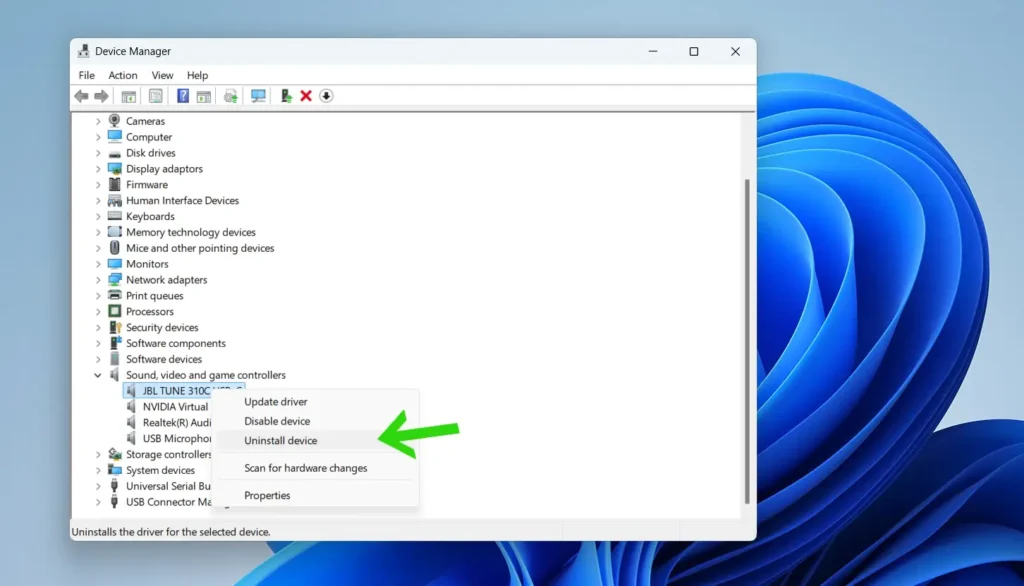
- If Windows offers an option to remove the driver package, use it only when you already have the correct replacement driver available from the manufacturer.
- Restart the PC.
- Install the manufacturer’s audio driver if Windows does not restore the correct one automatically.
Do not assume the Microsoft generic driver is always better than the OEM driver. Some laptops rely on manufacturer-specific audio components for combo-jack sensing, microphone routing, and pop-up detection. The best driver is the one intended for your exact hardware unless you are troubleshooting a confirmed driver conflict.
Fix 4: Headphone Jack Says “Not Plugged In” Even When Connected
If the plug is inserted but Windows still reports the headphone jack as disconnected, focus on jack sensing rather than volume or audio enhancements. On many laptops, the 3.5mm combo jack depends on the OEM audio driver and its companion audio software.
- Open Device Manager and confirm which audio controller is installed, such as Realtek Audio or another manufacturer-specific device.
- Install the audio driver from the laptop or motherboard manufacturer’s support page for your exact model.
- If your computer includes Realtek Audio Console, Waves MaxxAudio, or another OEM audio app, open it and look for connector or jack settings.
- If the software asks what was plugged in, select Headphones or Headset as appropriate.
- On a desktop, test the rear green audio output. If the rear jack works but the front jack does not, the problem may be the case front-panel cable, header connection, or front jack rather than Windows.
- If debris is visible inside the jack, power the PC off and use a short burst of compressed air. Do not insert metal objects into the port.
TRS and TRRS note: a standard stereo headphone plug and a headset combo plug are wired differently. A headset can still provide headphone audio through many combo jacks, but a PC with separate headphone and microphone sockets may require the correct splitter for both audio and microphone functions.
Fix 5: Headphones Stopped Being Detected After a Windows Update
If the headphones worked immediately before a Windows update, check the audio driver before changing many unrelated settings. An update can coincide with a driver change or expose a driver compatibility problem, but the cause should be confirmed rather than assumed.
- Open Device Manager → Sound, video and game controllers.
- Right-click the audio device → Properties → Driver.
- If Roll Back Driver is available and the problem began after a driver update, use it.
- Restart the PC and test the headphone jack again.
- If rollback is unavailable or does not help, install the current audio package from your PC or motherboard manufacturer.
- Only consider uninstalling a recent Windows update if you have a clear before-and-after link and the driver fixes above do not work. Reinstall normal security updates once the underlying driver issue is resolved.
Avoid permanently disabling all Windows driver updates as a first-line fix. If one specific driver version repeatedly causes the problem, use the PC manufacturer’s supported driver and follow that manufacturer’s guidance for your model.
Fix 6: Restart Windows Audio Services
If audio devices suddenly disappear or Windows audio stops responding, restart the services that manage audio playback and endpoints.
- Press Win + R, type
services.msc, and press Enter. - Find Windows Audio → right-click → Restart.
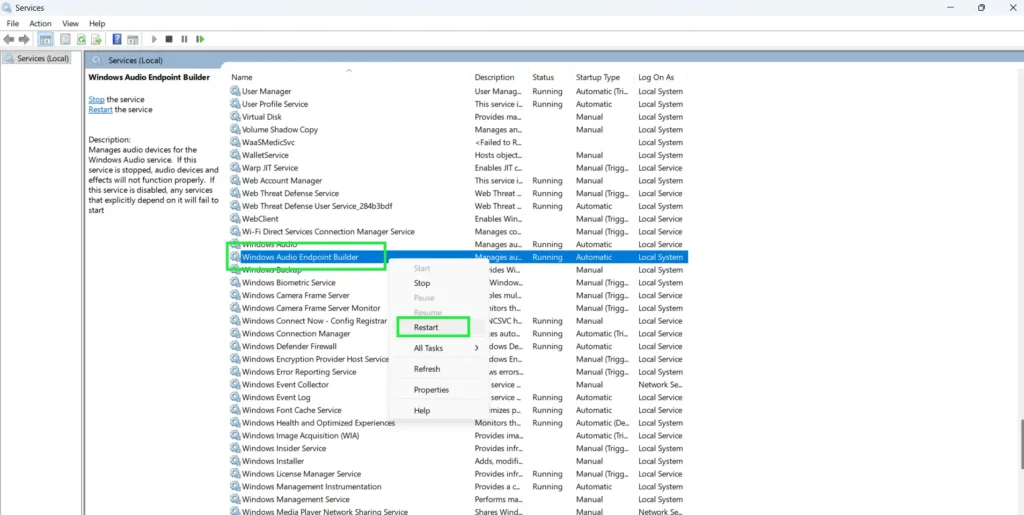
- Find Windows Audio Endpoint Builder and restart it too.
- Open the properties for both services and confirm they are not disabled.
- Reconnect the headphones and check Sound settings again.
If a service stops again immediately after you restart it, reinstall the audio driver and check Windows for system errors rather than repeatedly restarting the service.
Fix 7: Run the Windows Audio Troubleshooter
On current Windows 11 systems, use the automated audio troubleshooter in the Get Help app. It can check common audio configuration and device problems before you move to system-file repairs.
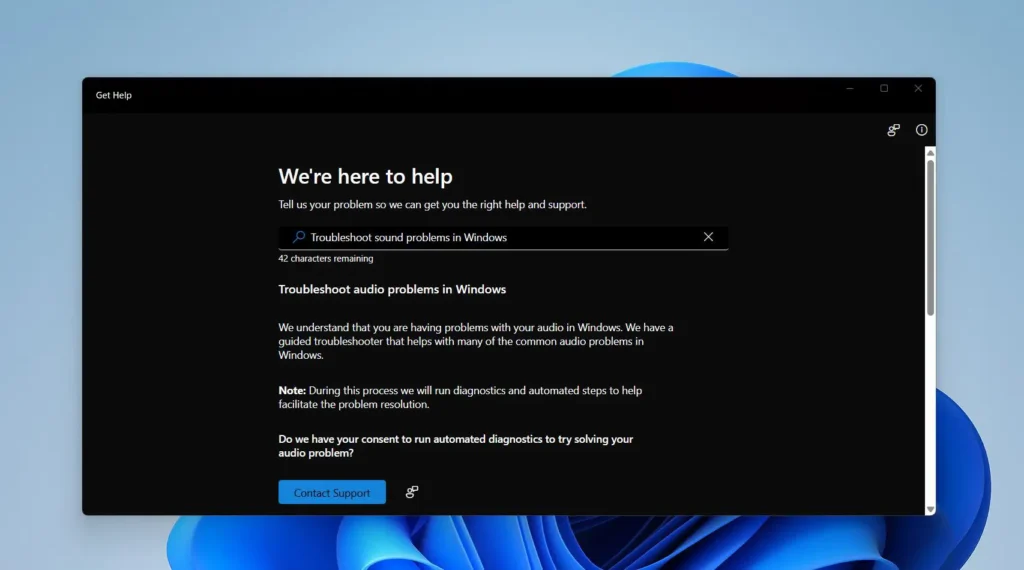
- Open Start and search for Get Help.
- Open Get Help and search for audio troubleshooter or describe that Windows is not detecting your headphones.
- Run the suggested audio diagnostics and apply fixes that match your device.
- Restart if prompted, then check whether the headphones appear under Output.
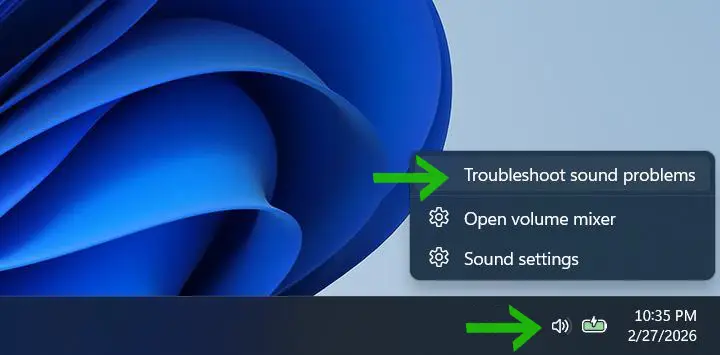
Depending on your Windows build, you may also see a sound troubleshooting shortcut from the taskbar or Sound settings.
Fix 8: USB or USB-C Headphones Not Detected
USB headphones are different from 3.5mm headphones because they normally appear as their own audio device. If a USB headset is missing, troubleshoot USB detection first rather than jack sensing.
- Connect directly to the PC. Temporarily bypass USB hubs, monitor hubs, docking stations, and extension cables.
- Try another USB port. If the headset works on one port but not another, the problem is the port, hub, controller, or power path rather than the headset’s Windows audio settings.
- Check Device Manager. Look under Sound, video and game controllers, Audio inputs and outputs, and Universal Serial Bus controllers for the headset or a warning icon.
- Scan for hardware changes. In Device Manager select Action → Scan for hardware changes.
- Reinstall the USB audio device if necessary. Right-click the headset → Uninstall device, disconnect it, restart Windows, and reconnect it.
- Check the manufacturer’s software or firmware. Gaming headsets and USB DACs may require their own firmware, driver, or control app.
- For USB-C to 3.5mm adapters, confirm that the adapter is compatible with PC audio and includes the electronics required by your port. Not every USB-C audio adapter behaves the same way on every computer.
Headphones Connected Through a Dock or USB-C Hub
- Plug the headphones directly into the laptop or desktop to separate a dock problem from a Windows problem.
- Check Sound settings for a separate output belonging to the dock.
- Update the dock firmware from the manufacturer’s support page.
- Power-cycle the dock by disconnecting its power and host connection, then reconnect it.
Fix 9: Bluetooth Headphones Not Detected
Bluetooth detection is separate from wired headphone detection. If the headphones do not appear when you search for Bluetooth devices, confirm pairing mode and remove connection conflicts before changing audio drivers.
1. Put the Headphones in Pairing Mode
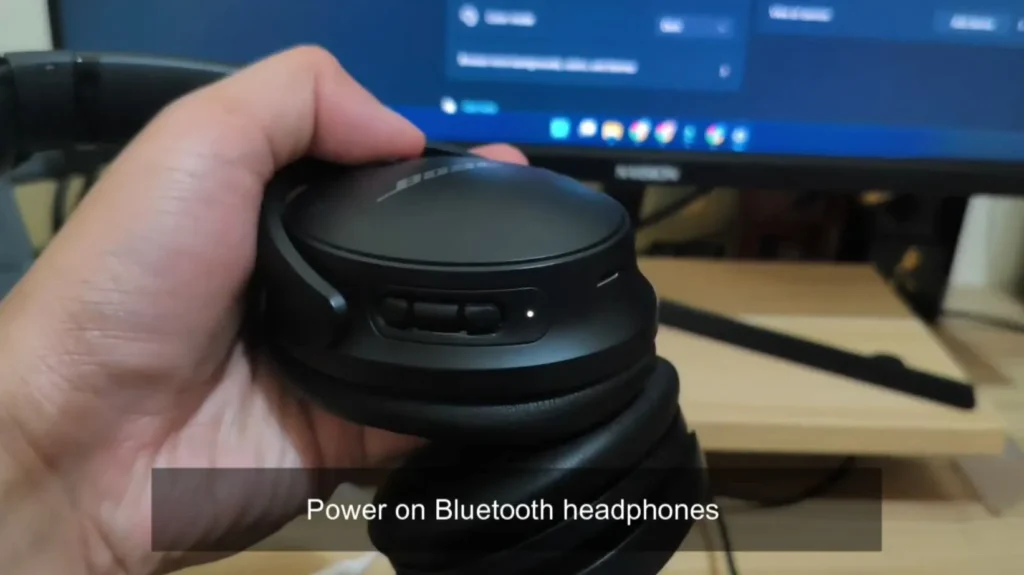
- Turn the headphones on.
- Use the manufacturer’s pairing procedure, usually by holding the Bluetooth or power button until the indicator flashes or a voice prompt confirms pairing mode.
2. Disconnect Other Devices Temporarily
If the headphones automatically reconnect to a nearby phone, tablet, TV, or another computer, disconnect them there first. Some models support multipoint connections, while others become difficult to discover when they are already actively connected.
3. Pair the Headphones in Windows
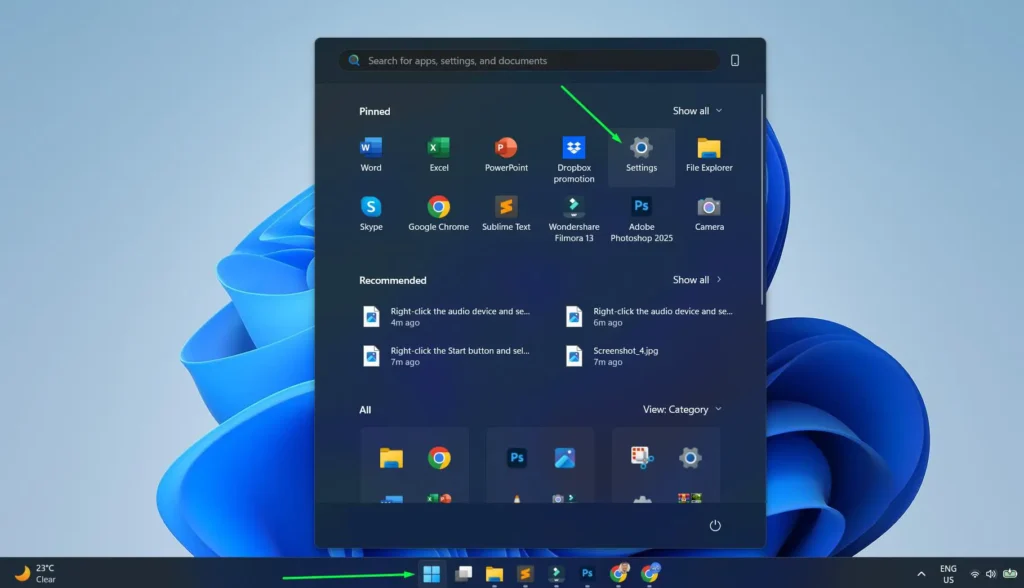
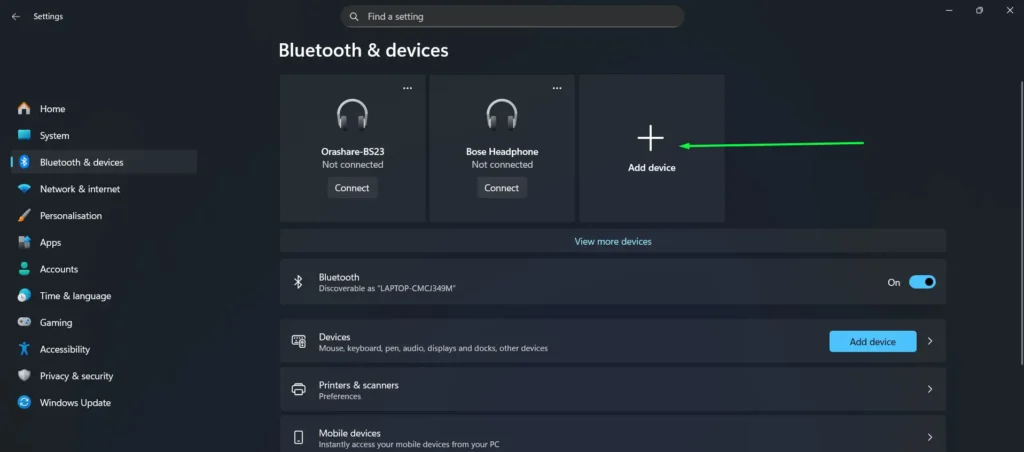
- Open Settings from the Start menu.
- Select Bluetooth and devices → toggle Bluetooth to On.
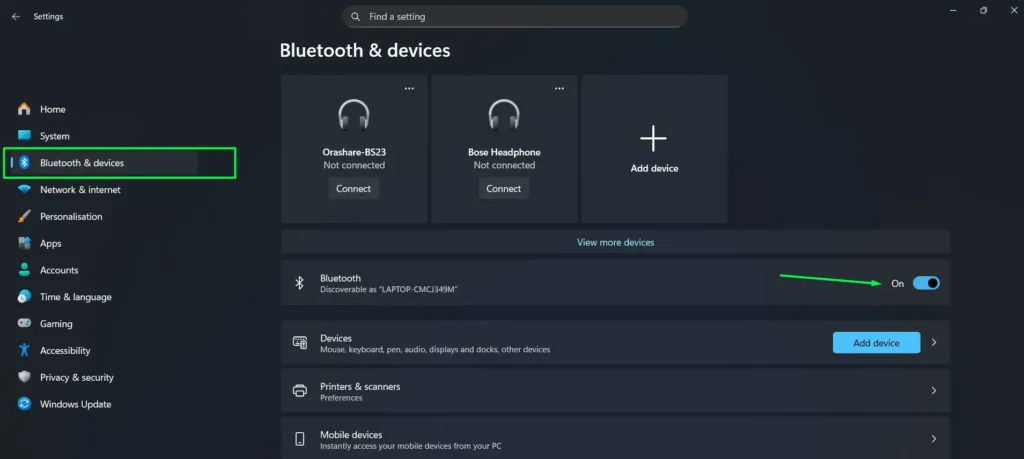
- Click Add device.
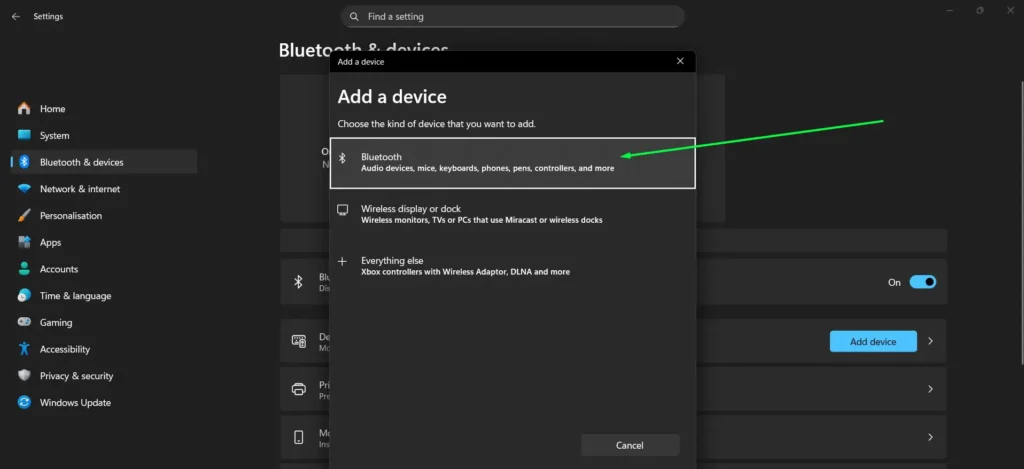
- Select Bluetooth from the device type options.
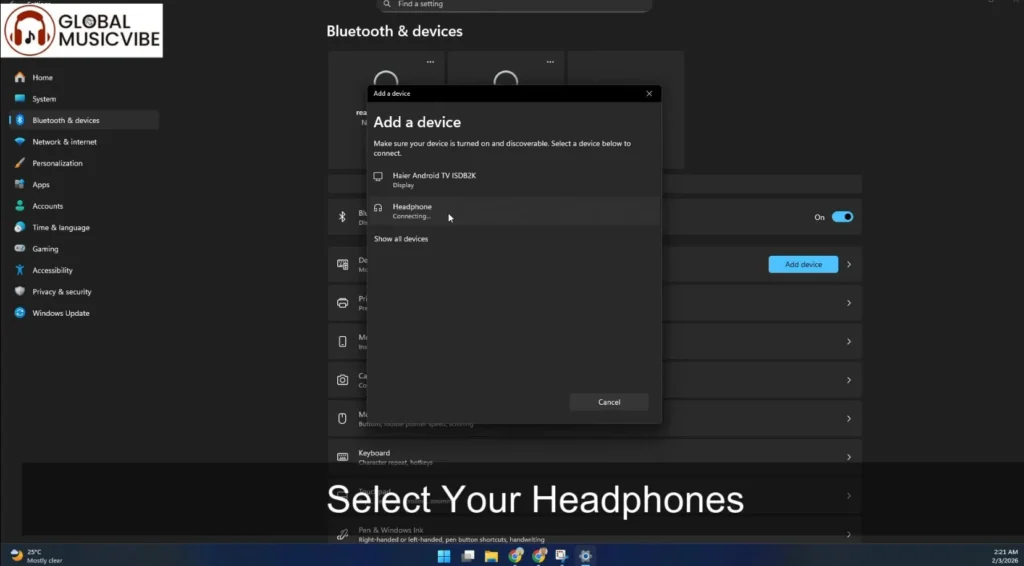
- Wait for the headphones to appear in the list → click to pair.
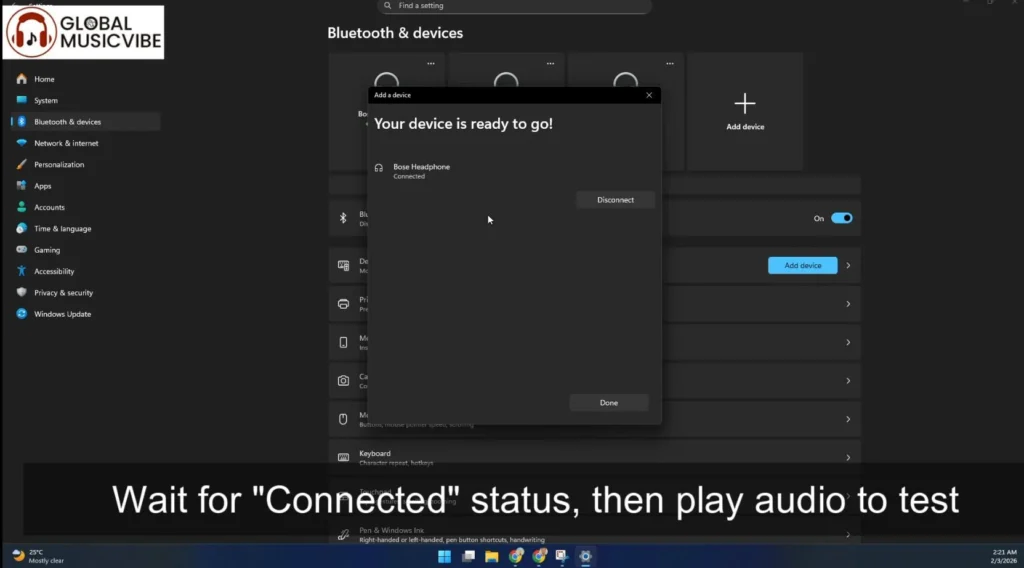
- Confirm the Connected status appears, then play audio to verify.
4. Remove the Pairing and Add It Again
- Remove the headphones from Windows Bluetooth devices.
- Turn Bluetooth off, wait a few seconds, and turn it back on.
- Return the headphones to pairing mode and add them again.
- If the headphones never appear, update the Bluetooth adapter driver from your PC or adapter manufacturer.
5. Check the Bluetooth Support Service
- Press Win + R, type
services.msc, and press Enter. - Find Bluetooth Support Service.
- If it is stopped, start it and try pairing again.
For model-specific Bluetooth problems, see our guides on the Bowers & Wilkins Px7 S3 not connecting to Bluetooth and Jabra Elite 4 touch controls not responding.
Headphones Detected but Sound Still Comes From the Speakers
If the headphones appear under Output, the detection problem is already solved. Windows may simply be routing audio to another device, such as the built-in speakers, a monitor over HDMI, a dock, or a virtual audio device.
Windows 11
- Click the speaker icon in the taskbar, then open the output-device selector.
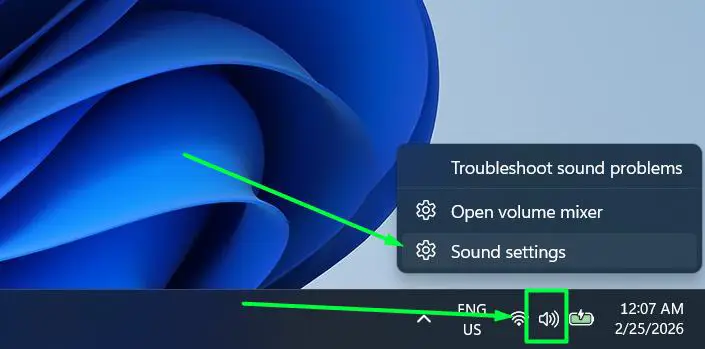
- Or go to Settings → System → Sound. Under Output, choose the headphones.
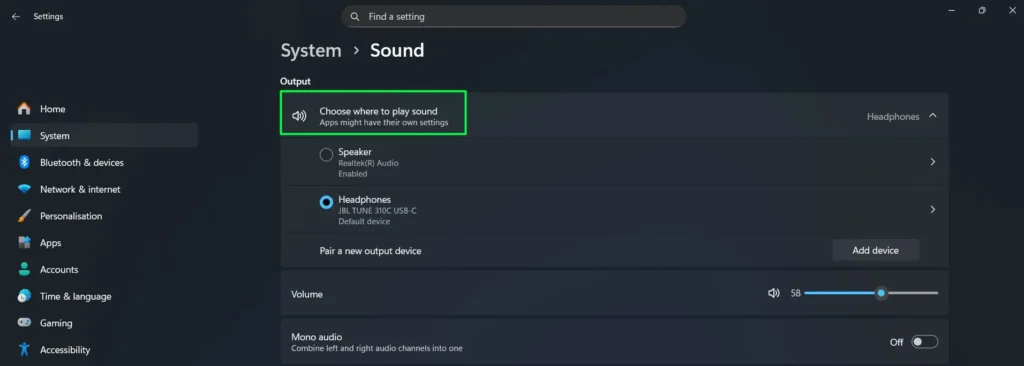
- Play audio again. If the headphones work, no driver reinstall is needed.
If a program still uses the wrong device, check that app’s own output setting. Discord, Teams, Zoom, OBS, DAWs, games, and virtual-audio software can use a device that is different from the Windows system default.
Headphones Detected but There Is No Sound
This is a playback problem rather than a detection problem. Keep the troubleshooting short and test after each change.
- Confirm the headphones are selected under Settings → System → Sound → Output.
- Check the Windows volume and the headphone’s own hardware volume, if it has one.
- Open the headphone device properties and turn Audio enhancements off temporarily. If your device uses the classic Properties window, you may see a Disable all enhancements option.
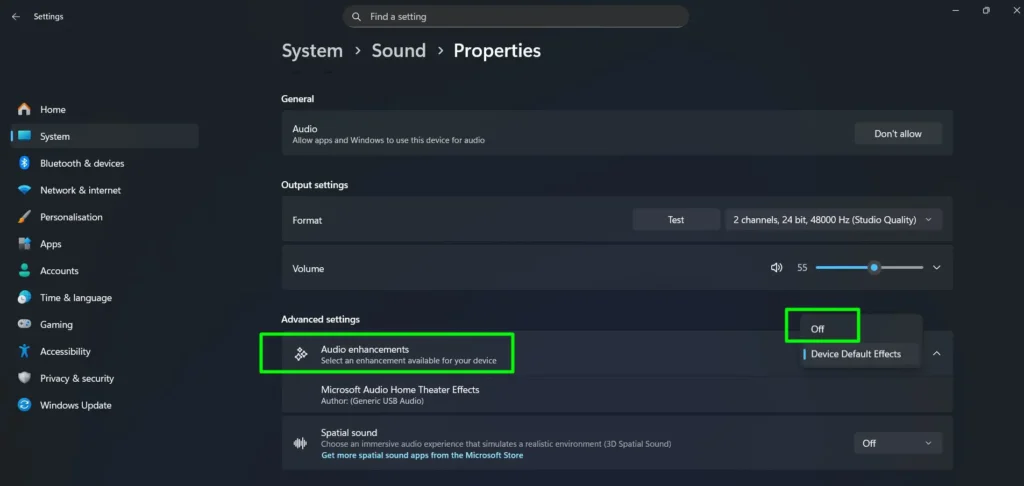
- Close apps that can take exclusive control of an audio device, then test again.
- If sound fails only in one app, change that app’s output device instead of reinstalling the Windows driver.
If the device is detected but audio is crackling, distorted, or only one side works, that is also outside the core detection problem. For a cable that cuts in and out, see our cable troubleshooting guide. If one earbud is unusually quiet, see how to fix low volume in one earbud.
Windows Says “No Audio Output Device Is Installed”
If Windows shows a red X or says no audio output device is installed, treat it as a broader audio-device problem rather than a headphone-only problem.
- Open Device Manager and expand Sound, video and game controllers.
- If the audio device is present but disabled, enable it.
- If it is missing, use View → Show hidden devices and Action → Scan for hardware changes.
- Install the latest supported audio driver from the PC, motherboard, or sound-device manufacturer.
- Run the Windows audio troubleshooter through Get Help.
- Restart the computer and check Sound settings again.
Avoid forcing legacy hardware into Device Manager unless you have specific manufacturer instructions for your hardware. If Windows cannot detect the audio controller after a hardware scan and the correct driver installation, check BIOS or UEFI audio settings on desktops and consider a hardware diagnosis.
If Windows Still Cannot Detect the Headphones
At this point, separate Windows corruption from a physical jack or controller fault.
- Try another known-working pair. If a second pair also fails in the same 3.5mm jack, the PC side becomes more likely.
- Try a different connection type. If USB headphones work but the built-in 3.5mm jack never detects anything, the internal jack, jack-sensing circuit, or its OEM driver is the likely area to investigate.
- Run System File Checker. Open Command Prompt as administrator and run
sfc /scannow. - If Windows component corruption is suspected, run
DISM /Online /Cleanup-Image /RestoreHealth, restart, and reinstall the correct OEM audio driver. - Check BIOS or UEFI on a desktop if the onboard audio controller is completely absent from Device Manager. Confirm onboard audio is enabled before assuming the motherboard audio hardware has failed.
If the built-in headphone jack is physically damaged, a compatible USB audio adapter can bypass it by creating a separate audio device. That is a workaround, not a repair of the original jack.
Verify the Fix
- Open Settings → System → Sound and confirm the headphones appear under Output.
- Select them and use the available Windows test control or play a known audio file.
- If you are using a headset, test the microphone separately. Our free online mic test can help confirm browser microphone input after Windows detects the device.
- Open the app where the problem originally occurred and confirm it is using the correct output device.
Windows 10 Note
The core checks in this guide still apply to Windows 10, including Sound settings, mmsys.cpl, Device Manager, audio drivers, Windows Audio services, USB detection, and Bluetooth pairing. However, Microsoft ended standard Windows 10 support on October 14, 2025. Windows 11 is therefore the primary reference for current menu paths and troubleshooting behavior in this guide.
Frequently Asked Questions
Why are my headphones not showing up in Windows 11?
If headphones are completely missing from Windows 11 Sound settings, check mmsys.cpl for disabled playback devices, then open Device Manager and use Show hidden devices and Scan for hardware changes. If the audio device is missing or has a driver problem, install the audio driver supplied for your PC or motherboard model.
Why does Windows say my headphones are not plugged in?
If a 3.5mm plug is inserted but Windows still reports the jack as disconnected, test another pair first, then reinstall the correct OEM audio driver and check the PC manufacturer’s audio or jack-detection software. On desktops, also compare the front jack with the rear motherboard output to rule out a front-panel wiring or jack problem.
Why did my headphones stop being detected after a Windows update?
A Windows update can coincide with an audio-driver change or expose a compatibility problem. Open Device Manager and check the audio driver’s date and version. If Roll Back Driver is available and the problem began immediately after the driver changed, try the rollback. Otherwise install the current audio package from the PC or motherboard manufacturer.
How can I tell if the headphone jack or Windows is the problem?
Test the headphones on another device and test a second known-working pair on the same PC. If multiple working headphones fail only in one PC jack while USB or Bluetooth audio works normally, the jack, jack-sensing hardware, or its driver is the likely area to investigate. If the same headphones fail on several devices, the headphones themselves are more likely to be faulty.