
Learning how to connect headphones to an audio interface takes only a minute once the right jack and volume knob are easy to spot. The process is simple: plug in the headphones, pick the interface as the sound output, and raise the level slowly.
Key Takeaways
- Plug wired headphones into the jack labeled Phones or Headphones, usually on the front panel.
- Use a 6.35 mm adapter if the headphones have a 3.5 mm plug and the interface has a larger jack.
- Turn the headphone knob down before plugging in, then raise it slowly.
- Select the audio interface as the output device on the computer or in the recording software.
Method 1: Connect Headphones to the Headphone Jack
This is the core process, and it works the same way on nearly every interface, from small USB models to larger studio units. Think of the headphone jack like the tap on a sink – it has its own handle, and it pays to keep that handle closed before turning things on.
- Step 1: Connect the audio interface to the computer with its USB cable and make sure the power light is on. Install the maker’s driver first if the brand provides one.
- Step 2: Check the plug on the headphones. Most studio headphones use a 3.5 mm plug with a screw-on 6.35 mm adapter, and many interfaces use a 6.35 mm jack.
- Step 3: Turn the headphone volume knob on the interface all the way down.
- Step 4: Push the plug firmly into the jack marked Phones or Headphones until it seats fully.
- Step 5: Play a song or a test sound on the computer, then raise the headphone knob slowly until the level feels comfortable.
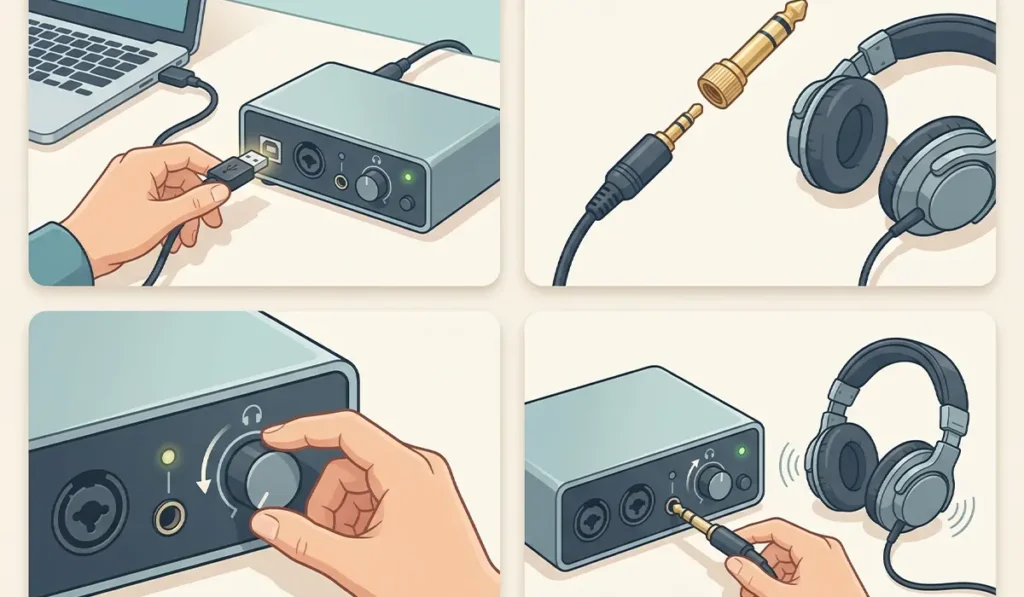
Pro-Tip: Always lower the headphone knob before plugging in. Many interfaces can drive headphones surprisingly loud, and a sudden blast is hard on both ears and drivers.
Method 2: Set the Audio Interface as the Sound Output
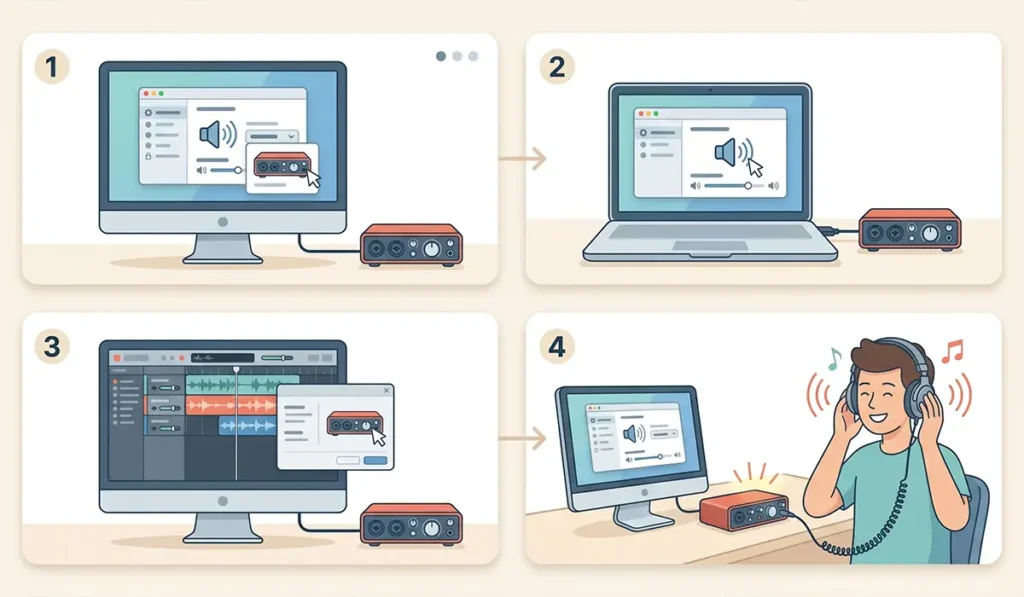
Plugging in is only half the job. The computer also needs to send sound to the interface, otherwise the headphones stay silent. This works best when the interface is selected before opening any recording or music software.
- Step 1: On Windows 11, open Settings, go to System, then Sound, and pick the audio interface under Output. The Windows 11 audio output settings guide covers this screen in more detail.
- Step 2: On a Mac, open System Settings, go to Sound, and choose the interface under Output.
- Step 3: In recording software, open the audio or playback preferences and select the interface as the device. Windows users commonly pick the ASIO driver from the interface maker, while Mac users pick Core Audio.
- Step 4: Play audio again and confirm the sound now comes through the headphones.
Tips for Better Headphone Monitoring
- Closed-back headphones are a popular choice for recording because they keep sound from leaking into the microphone. Open-back models are often preferred for mixing.
- Keep the headphone knob separate in mind. On most interfaces it is independent from the main output knob that controls studio speakers.
- When recording with a microphone, the guide to managing audio input devices helps confirm the interface is also chosen as the input.
- Pull the plug by the connector itself, not the cable, to protect the jack over time.
Pro-Tip: Keep the 6.35 mm adapter attached to the headphones permanently if the interface uses the larger jack. Loose adapters are easy to lose and tend to disappear right before a session.
Common Problems After Connecting Headphones
Fix 1: No Sound in the Headphones
Check that the headphone knob is turned up and that the interface is selected as the output device. On Windows, the headphone detection troubleshooting guide helps when the computer does not recognize the connection.
Fix 2: Sound Only in One Ear
Push the plug or adapter in all the way. A half-seated plug is the most common reason for one-sided audio.
Fix 3: Sound Is Too Loud or Distorted
Lower the headphone knob first. If the sound still distorts while recording, reduce the input gain on the interface.
Frequently Asked Questions
Can any wired headphones connect to an audio interface?
Yes. Any wired headphones work as long as the plug fits the jack. A 3.5 mm plug needs a 6.35 mm adapter when the interface has the larger jack.
What size is the headphone jack on an audio interface?
Most interfaces use a 6.35 mm jack, while some compact models use 3.5 mm. The size is printed in the specifications or visible on the jack itself.
Can Bluetooth headphones connect to an audio interface?
Most audio interfaces do not have Bluetooth, so wired headphones are the standard choice. Bluetooth headphones usually connect to the computer instead.
Do audio interfaces need drivers?
It depends on the model. Many interfaces work on a Mac without extra drivers, while Windows often needs the maker’s driver for low-latency ASIO performance.
Does the headphone knob control the speakers too?
On most interfaces the headphone level has its own knob, separate from the main output that feeds studio speakers. Check the manual for the exact model.
Can headphones and speakers be used at the same time?
Many interfaces keep both outputs active together. Some models include a switch or mute button to silence the speakers when headphones are in use.
Which headphones are best for an audio interface?
Closed-back headphones suit recording because they limit sound leakage, and open-back headphones are often chosen for mixing thanks to their wider sound.
Can earbuds be used with an audio interface?
Yes. Wired earbuds with a 3.5 mm plug work fine with an adapter, though studio headphones usually give a more detailed view of the sound.
Do high-impedance headphones work with an audio interface?
They can, but the interface needs enough headphone amplifier power to drive them. Check the interface specifications for its headphone output rating before buying.
Why does the interface show power but the headphones stay quiet?
The power light only confirms the interface is on. Sound still needs the correct output device selected on the computer and the headphone knob turned up.