
Jabra Elite 4 touch controls not responding is one of the most common complaints among owners of this earbud, especially after a firmware update or a long stretch of daily use. The good news is that most of these issues come down to a handful of fixable causes, and getting the buttons working again usually takes just a few minutes.
Key Takeaways
- Touch controls on the Elite 4 are actually a hybrid physical button, so dirt, moisture, or a loose fit can block a response.
- Low battery is one of the most overlooked reasons controls stop reacting.
- A quick restart or factory reset resolves the issue in the majority of cases.
- Firmware updates through the Jabra Sound+ app often fix bugs tied to unresponsive taps.
- Re-pairing the earbuds clears out stuck Bluetooth connections that can silently block controls.
Step-by-Step Guide to Fix Jabra Elite 4 Touch Controls Not Responding
Each fix below targets a specific and common cause. Working through them in order saves time, since the earlier fixes solve the issue for most people before anything more advanced is needed.
Fix 1: Clean the Button Surface on Each Earbud
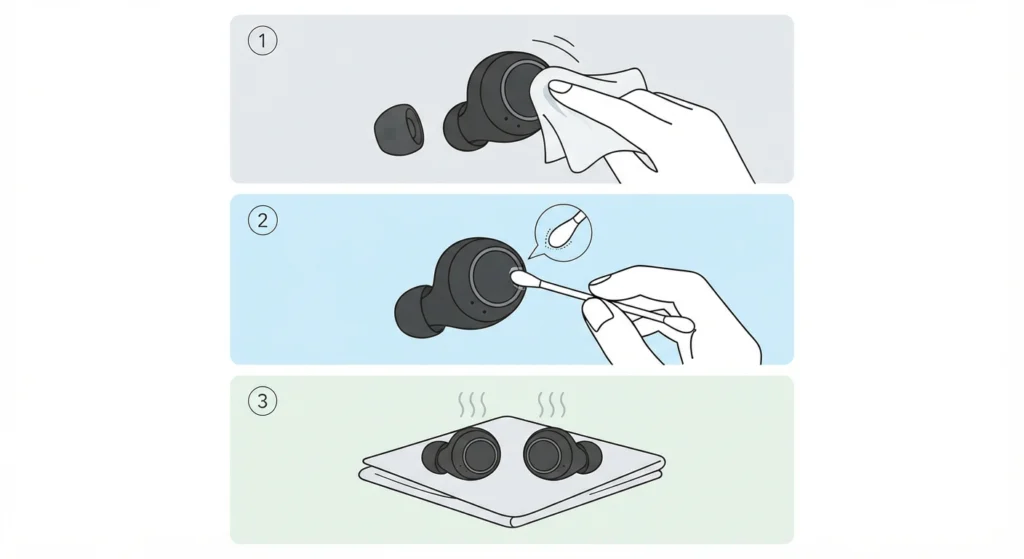
The Elite 4 uses a button with touch-style response on the outer face of each earbud, not a fully flat capacitive panel. Earwax, sweat, or moisture buildup around that button is often the reason taps stop registering. This is especially common after workouts or humid weather.
- Step 1: Remove the ear tips and gently wipe the outer surface of each earbud with a dry, lint-free cloth.
- Step 2: Use a soft, dry cotton swab to clear any residue from around the button area without pressing hard.
- Step 3: Let the earbuds air dry fully for a few minutes before testing the controls again.
Fix 2: Check the Ear Tip Fit and Placement
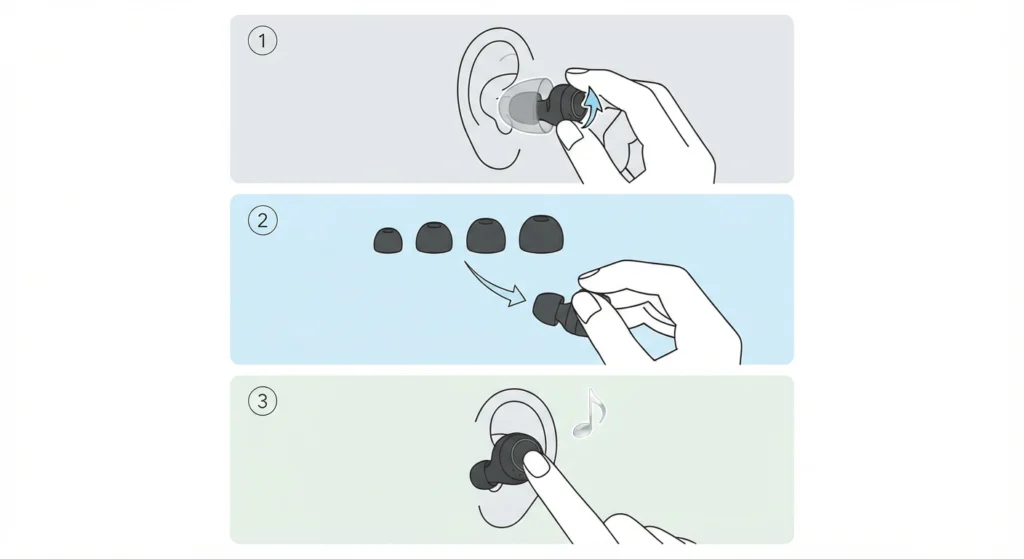
An earbud that sits loosely or at an odd angle can make it harder to apply the right amount of pressure to the button, which the earbud reads as an unintentional touch or no touch at all.
- Step 1: Remove the earbuds and reinsert them, twisting slightly until they feel snug and sealed.
- Step 2: If the fit still feels loose, swap to a different EarGel size from the ones included in the box.
- Step 3: Test a single tap for play or pause once the fit feels secure.
Fix 3: Confirm the Earbuds Are Charged
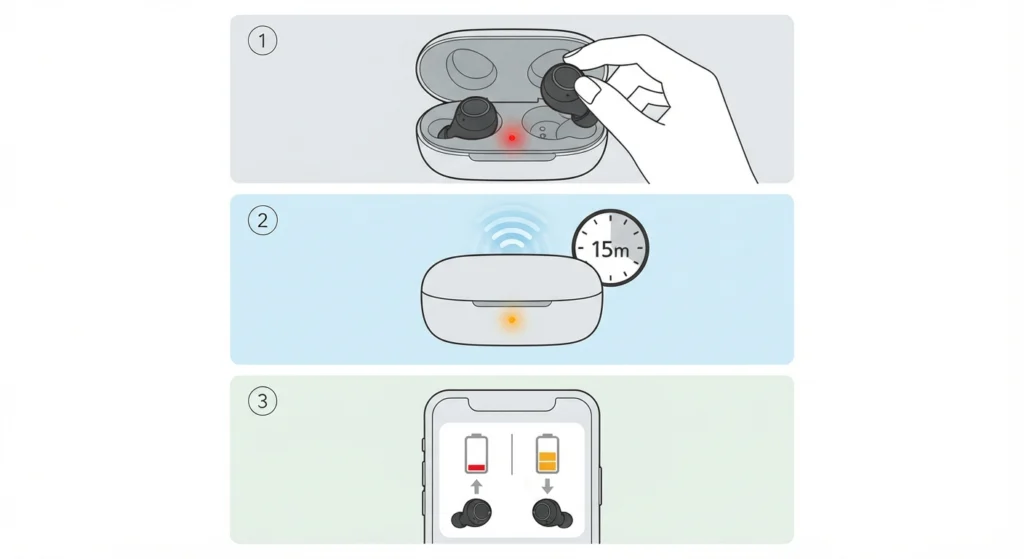
Most people don’t expect battery level to affect touch response, but a nearly drained earbud often ignores taps to conserve the little power it has left.
- Step 1: Place both earbuds back in the charging case and check the LED indicator for charge status.
- Step 2: Allow at least 15 to 20 minutes of charging before testing again.
- Step 3: Open the Jabra Sound+ app to view the exact battery percentage for each earbud.
Pro-Tip: Charging both earbuds evenly matters more than most people realize. A mismatched charge level between the left and right bud is a frequent, overlooked reason why only one side responds to taps.
Fix 4: Restart the Earbuds
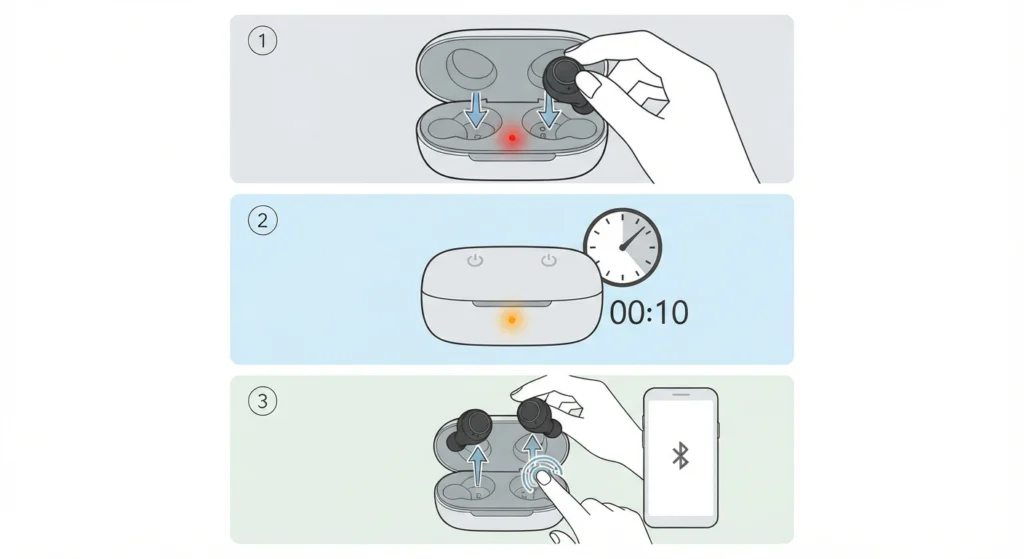
A simple restart clears temporary software glitches without touching any saved settings, and it is the fastest fix to try before moving to anything more involved.
- Step 1: Place both earbuds into the charging case.
- Step 2: Close the lid fully and wait about 10 seconds.
- Step 3: Open the case, take the earbuds out, and test the touch controls once they reconnect to the paired device.
Fix 5: Update the Firmware Through the Jabra Sound+ App
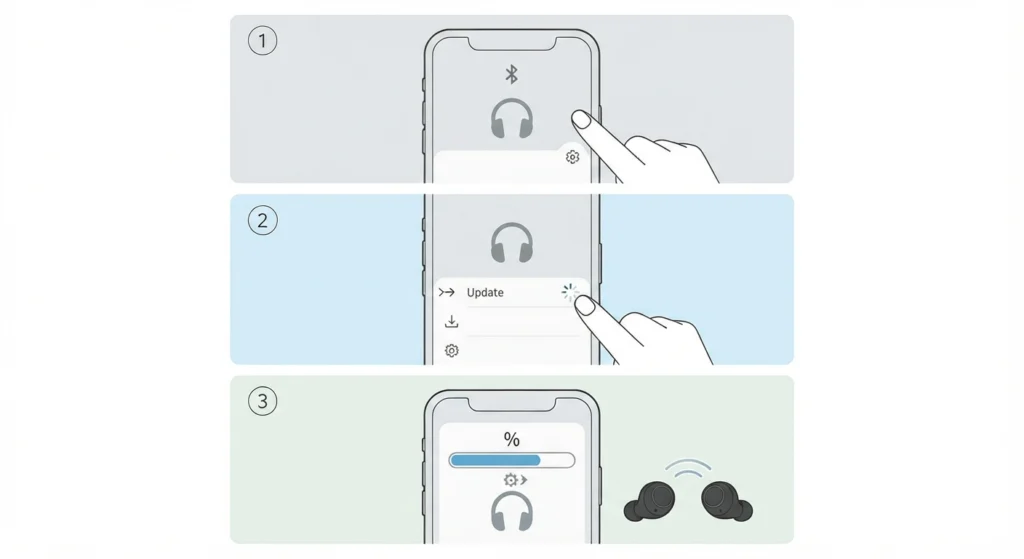
Outdated firmware is a common source of control bugs, and Jabra regularly ships updates that specifically address touch response issues.
- Step 1: Open the Jabra Sound+ app on a paired phone or tablet.
- Step 2: Go to the settings menu for the Elite 4 and check for available firmware updates.
- Step 3: Install any update found and keep the earbuds near the device until the process finishes.
Fix 6: Forget the Device and Re-Pair the Earbuds
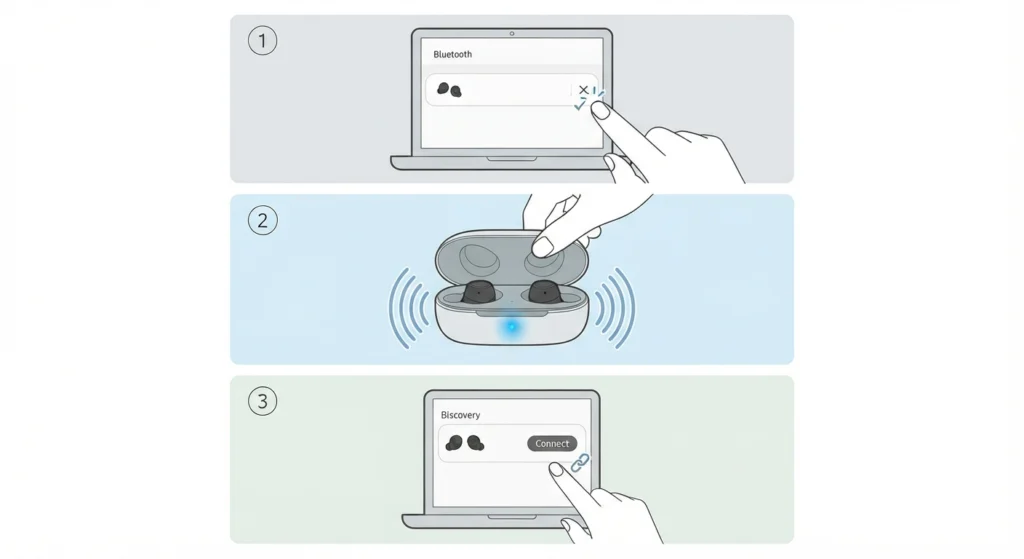
A corrupted Bluetooth connection can interfere with how commands are sent from the earbuds to the connected device, even when the earbuds themselves are working fine. This is especially common on Windows machines where multiple audio devices are competing for the connection. A clean way to re-pair Bluetooth earbuds for stereo sound on Windows often resolves control lag along with any audio balance issues.
- Step 1: Open Bluetooth settings on the connected device and remove or forget the Jabra Elite 4.
- Step 2: Place the earbuds back in the case, close it, then reopen it to trigger pairing mode.
- Step 3: Search for the earbuds again on the device and reconnect from scratch.
Fix 7: Reset the Jabra Elite 4 to Factory Settings
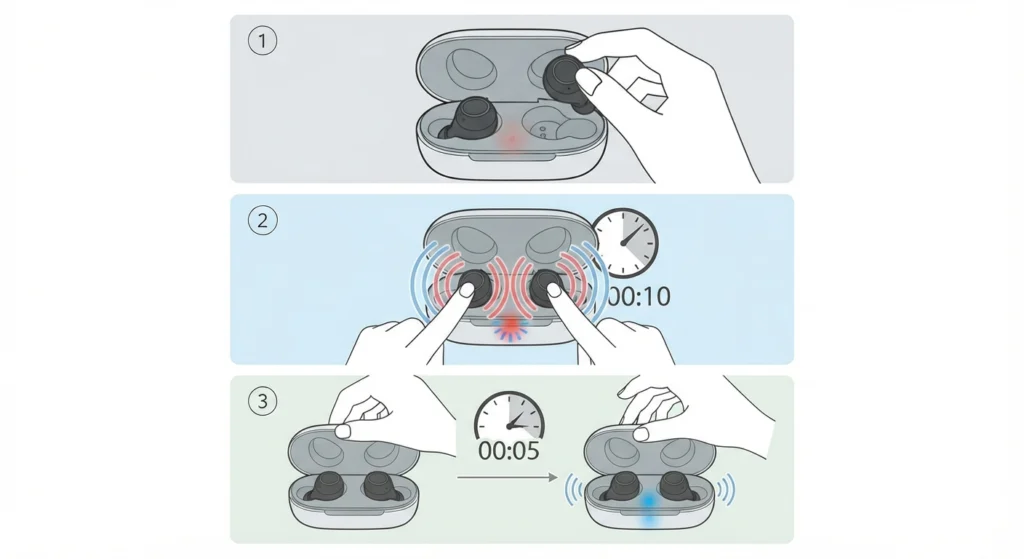
When none of the earlier fixes work, a factory reset clears out any corrupted settings tied to the touch controls. This step also helps when the earbuds have been paired and unpaired multiple times across different devices, which can sometimes scramble saved preferences. If the earbuds are mainly used on a Windows 11 system, it also helps to check the process for resetting audio settings on Windows 11 right after the reset, since leftover audio configurations can mimic a control problem that isn’t actually coming from the earbuds.
- Step 1: Place both earbuds in the case with the lid open.
- Step 2: Press and hold the buttons on both earbuds for around 10 seconds until the LED flashes.
- Step 3: Release, close the case for a few seconds, then reopen it and re-pair the earbuds as new devices.
Tips to Keep Touch Controls Working Reliably
- Wipe the earbuds down after every workout or humid commute to prevent sweat buildup around the buttons.
- Store the earbuds in the case when not in use rather than leaving them loose in a pocket or bag, where dust and lint can collect on the sensors.
- Keep the Jabra Sound+ app installed and check for firmware updates every few weeks.
- Avoid tapping with wet fingers, since moisture on the fingertip can cause missed or double inputs.
Common Problems and Troubleshooting
Only One Earbud Responds to Taps
This usually points to a charge imbalance or a Bluetooth connection issue affecting just one side. Fully charging both earbuds together and re-pairing them from scratch resolves this in most cases.
Controls Work Intermittently
Intermittent response is often tied to a poor ear tip seal or residue on the button. Cleaning the surface and confirming a snug fit usually clears this up within a few taps.
Controls Stopped Working After an Update
Occasionally, an interrupted firmware update leaves the earbuds in an unstable state. Restarting the earbuds and reinstalling the latest firmware through the Sound+ app typically fixes this.
Controls Work but Audio Settings Seem Off on Windows
Sometimes the touch controls themselves are working fine, but the connected computer isn’t routing commands correctly. Reviewing how to go about adjusting audio output settings on Windows 11 can rule out whether the issue is coming from the device rather than the earbuds.
Frequently Asked Questions
Why are the Jabra Elite 4 touch controls not responding at all?
The most common causes are a low battery, dirt or moisture on the button surface, or a poor ear tip fit. Working through cleaning, charging, and a restart resolves this for most users.
Does a factory reset erase paired devices on the Jabra Elite 4?
Yes, a factory reset clears all previously paired Bluetooth connections, so the earbuds need to be paired again as a new device afterward.
How long does it take to charge the Jabra Elite 4 fully?
A full charge from empty typically takes just under two hours, and a 10-minute fast charge provides roughly an hour of listening time.
Can a firmware update fix unresponsive touch controls?
Yes, firmware updates released through the Jabra Sound+ app frequently address bugs related to touch sensitivity and command recognition.
Why does only the left or right earbud respond to taps?
This is usually caused by uneven battery levels between the two earbuds or a connection issue affecting one side. Charging both fully and re-pairing usually fixes it.
Do the Jabra Elite 4 controls work the same on both iPhone and Android?
Yes, the tap controls function the same way regardless of the connected phone’s operating system, since the commands are handled by the earbuds themselves.
Is it possible to customize the Jabra Elite 4 touch controls?
Customization is limited compared to higher-end Jabra models. The Sound+ app only allows adjusting whether the ANC toggle cycles through the off setting, without full remapping of taps.
What does it mean if the earbud LED flashes but controls still don’t work?
A flashing LED usually indicates pairing or reset mode, which is normal during a restart or factory reset. Controls should resume working once the earbuds finish reconnecting to the paired device.
Can dirty ear tips affect touch control response?
Yes, buildup on the ear tips can shift how the earbud sits, which changes how much pressure reaches the button. Cleaning or replacing the tips often restores a proper fit and response.
How often should the Jabra Elite 4 be cleaned to avoid this issue?
Wiping the earbuds down after workouts and humid days, roughly two to three times a week for regular users, helps prevent buildup that leads to unresponsive controls.