
A HyperX Cloud III Wireless producing no sound on PS5 is a common issue that usually comes down to a connection glitch, a muted volume dial, or an audio output setting pointed at the wrong device. The good news is that most of these fixes take less than five minutes and do not require any technical background.
Key Takeaways
- Silent audio on this headset almost always traces back to power, pairing, or PS5 output settings.
- The USB-C wireless dongle must be plugged directly into the console, not into the controller.
- Checking the physical volume dial and mute button solves the problem more often than people expect.
- Updating the firmware clears up sound drops that happen after long periods of use.
- Every fix below can be completed without contacting support or opening the headset.
Fix 1: Check Headset Power and Connection
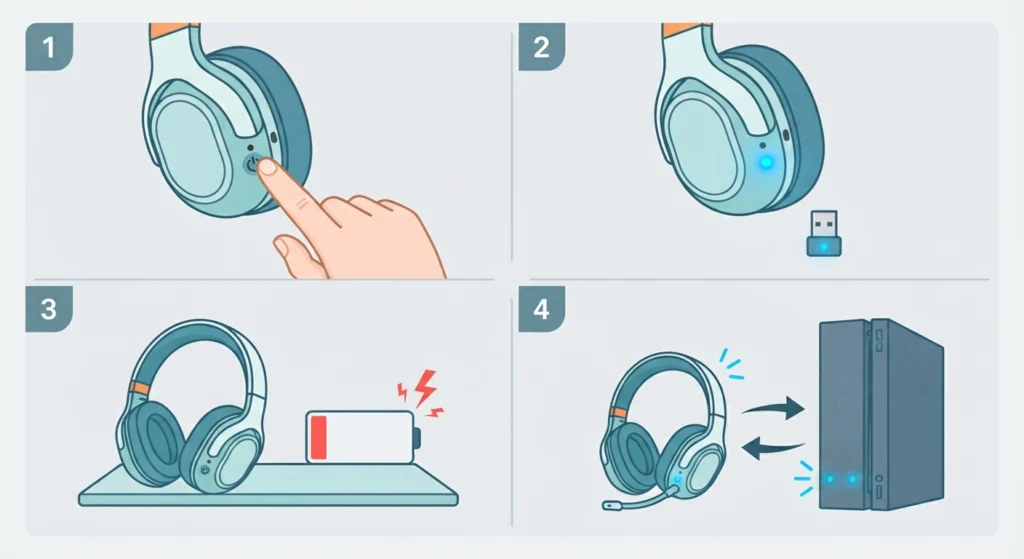
Before touching any settings, confirm that the headset itself is actually on and connected. This step gets skipped more often than expected, and it is the root cause behind a surprising number of ‘no sound’ reports.
- Step 1: Press and hold the power button on the left ear cup for two to three seconds until the LED lights up.
- Step 2: Wait for the LED to turn solid rather than blinking, which confirms a stable wireless connection to the dongle.
- Step 3: Check the battery level. A critically low battery can cause audio to cut out even when the headset appears powered on.
- Step 4: If the LED keeps blinking without stabilizing, move the console and headset closer together and try again.
Pro Tip: Thick walls, other 2.4GHz devices, or a crowded desk setup can weaken the wireless signal. Keeping the dongle within a few feet of the headset, with a clear line of sight, makes a noticeable difference in reliability.
Fix 2: Verify PS5 Audio Output Settings
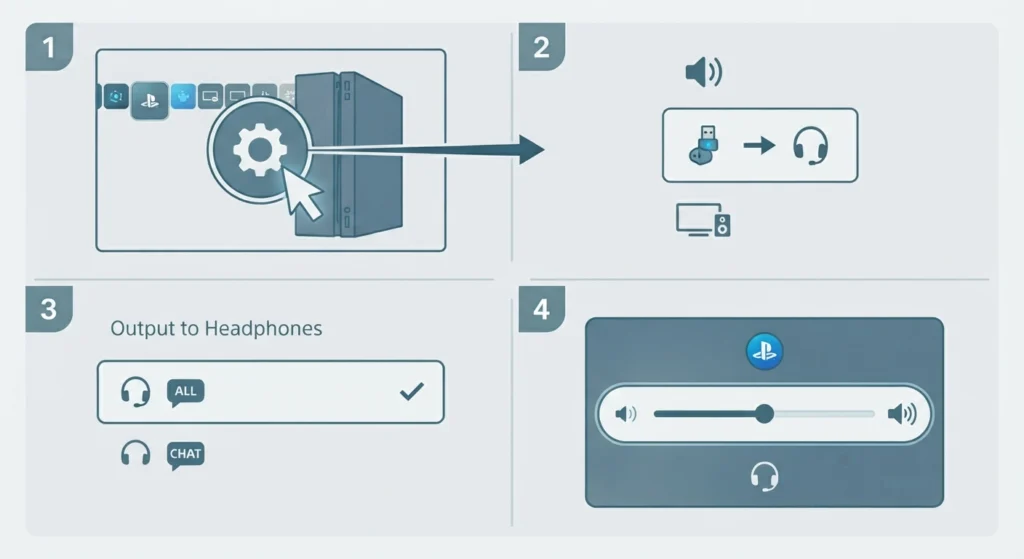
Even when the headset connects correctly, the PS5 sometimes keeps routing audio to the TV or a different output device by default. This is one of the most frequent reasons sound never reaches the headset in the first place.
- Step 1: Open Settings on the PS5 home screen and select Sound.
- Step 2: Go to Audio Output and choose USB Headset (Wireless Controller) as the output device.
- Step 3: Scroll down to Output to Headphones and set it to All Audio, not just Chat Audio.
- Step 4: Adjust the headset volume slider in the Control Center by pressing the PS button, then confirm it is not set to zero.
Those who split time between console and PC gaming often run into the same output confusion on a computer. For that scenario, the process of adjusting audio output settings on Windows 11 follows a similar logic and clears up mismatched device selection quickly.
Fix 3: Check the Volume Dial and Mute Button
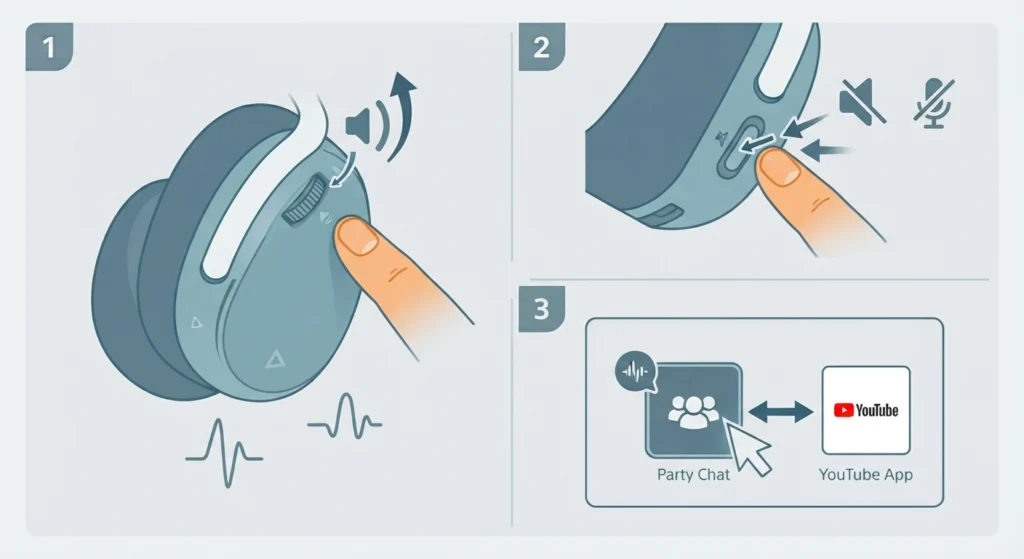
The Cloud III Wireless has a physical volume wheel on the ear cup, separate from the console’s software volume. It is easy to bump this dial down to zero without realizing it, especially when the headset gets tossed in a bag between sessions.
- Step 1: Locate the volume wheel and rotate it up while audio is playing to hear it change in real time.
- Step 2: Check the microphone mute button as well, since some models mute both mic and audio monitoring when toggled certain ways.
- Step 3: Test with a different audio source, such as a party chat or a YouTube app on PS5, to confirm the fix worked.
Fix 4: Reconnect the Wireless USB Dongle
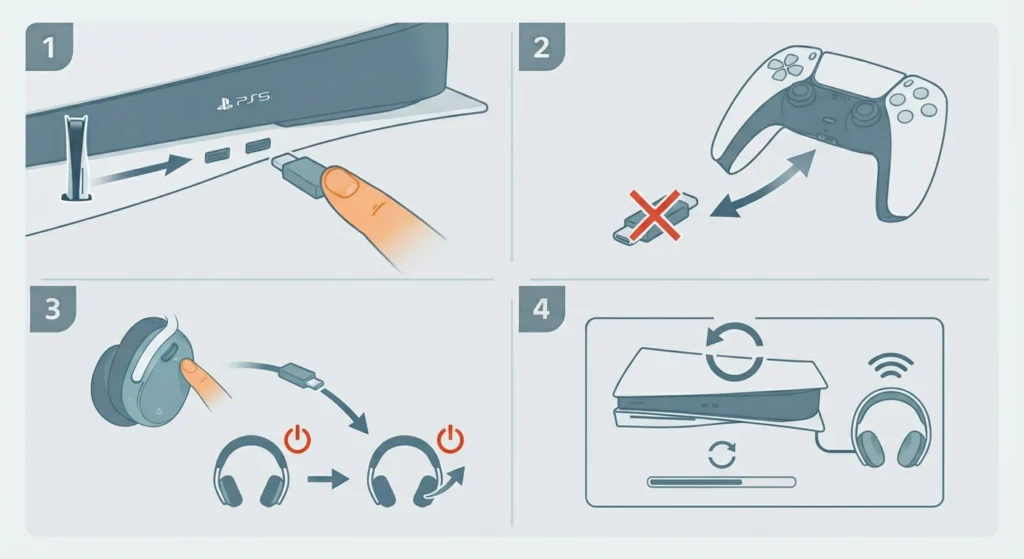
The dongle itself can lose its pairing after a system update, a power outage, or extended standby mode. Re-establishing the connection usually resolves this without needing to buy anything new.
- Step 1: Remove the USB-C dongle from the PS5 and plug it into a different USB port on the console.
- Step 2: Avoid plugging the dongle into the DualSense controller, since the headset requires a direct console connection to function properly.
- Step 3: Power the headset off and back on to force it to re-pair with the dongle.
- Step 4: Restart the PS5 fully rather than just closing and reopening a game, since a soft restart does not always refresh the audio driver.
Fix 5: Update the Headset Firmware
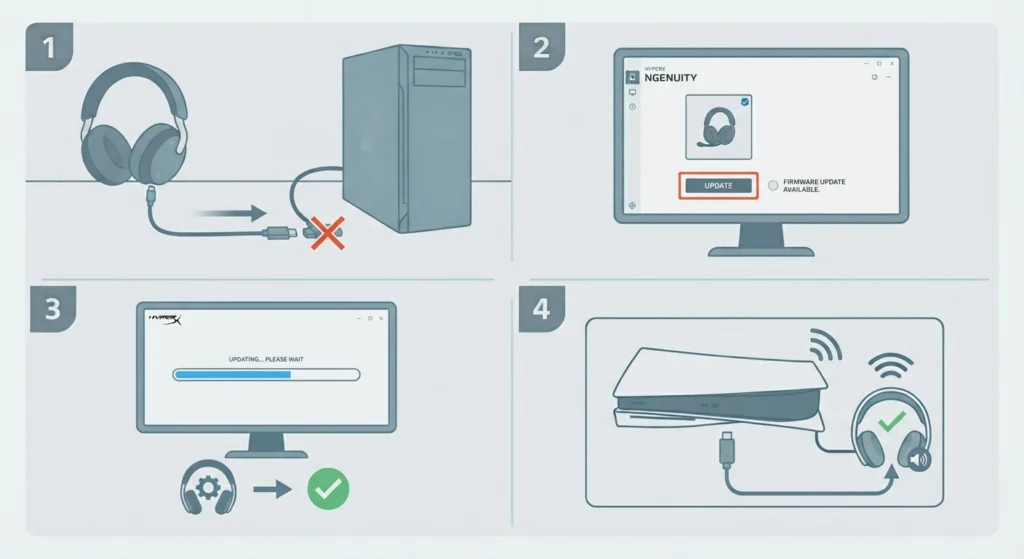
Firmware that has fallen behind can cause intermittent audio behavior, including complete silence after the headset wakes from sleep mode. HyperX pushes these updates through its NGENUITY software on PC, and running the update once carries over to how the headset performs on PS5.
- Step 1: Connect the headset to a PC using the included USB cable rather than the wireless dongle.
- Step 2: Open HyperX NGENUITY and check the device section for any available firmware update.
- Step 3: Install the update and wait for the software to confirm completion before disconnecting.
- Step 4: Reconnect the headset to the PS5 using the wireless dongle and test the sound again.
Tips for Better Sound Performance
A few habits go a long way toward preventing this issue from coming back. Charging the headset fully before long gaming sessions avoids the low-battery audio drop that catches a lot of players off guard. Keeping the dongle plugged into the same USB port each time also helps the console remember the connection more reliably.
For anyone who alternates this headset between a PS5 and a Windows 11 machine, keeping the input and output devices organized matters just as much. The guide on managing audio input devices is a useful reference for making sure the correct microphone and speaker stay selected after switching platforms.
Common Problems and Troubleshooting
Sound cutting out mid-game usually points back to signal interference rather than a broken headset. Moving other wireless devices, such as routers or smart speakers, away from the PS5 often resolves this on its own. A headset that connects but produces sound only in one ear typically signals a loose connection at the dongle rather than a hardware fault, so reseating the dongle is worth trying first.
If audio works through the TV speakers but never reaches the headset, that almost always traces back to the Output to Headphones setting mentioned earlier rather than the headset itself. Those coming from a PC setup with a similar problem may find the steps in resetting audio settings helpful for clearing out a stuck configuration on Windows 11.
Frequently Asked Questions
Why does the HyperX Cloud III Wireless have no sound on PS5 but work fine on PC?
This usually happens because the PS5 audio output setting is still pointed at the TV or a different device. Since PC audio routing works differently, the same headset can function correctly there while staying silent on console until the PS5 setting is corrected.
Does the HyperX Cloud III Wireless use Bluetooth or a USB dongle on PS5?
It connects to PS5 through the included USB-C wireless dongle rather than Bluetooth. Plugging the dongle directly into the console is required for the headset to function.
Can the wireless dongle be plugged into the DualSense controller instead of the console?
No. The dongle needs to stay connected to the PS5 console itself. Plugging it into the controller will not establish the audio connection the headset needs.
How long does the HyperX Cloud III Wireless battery last?
Battery life depends on volume level and whether the microphone is active, but a full charge typically lasts through several gaming sessions. Charging it before extended play prevents sudden audio cutouts.
Why does only one side of the headset produce sound?
A one-sided audio issue is most often caused by a loose dongle connection rather than a damaged driver. Removing and reinserting the dongle into a different USB port usually resolves it.
Is a firmware update necessary if the headset already works most of the time?
It is still worth checking. Firmware updates often fix subtle bugs, including audio that drops out after the headset wakes from standby, even if the issue does not happen every time.
What does it mean if the LED light keeps blinking instead of staying solid?
A blinking LED indicates the headset has not fully paired with the dongle. Moving the headset closer to the console and restarting both devices typically stabilizes the connection.
Does output to headphones need to be set to all audio or chat audio only?
All Audio should be selected for game sound and system audio to come through the headset. Chat Audio only routes party chat, which explains why some players hear voice chat but no game sound.
Can outdated PS5 system software cause this problem?
Yes, an outdated system can occasionally interfere with USB audio devices. Keeping the PS5 updated to the latest system software reduces the chance of compatibility issues with the headset.
Does the physical volume dial override the PS5 volume setting?
Both work together, but if the physical dial is turned all the way down, no amount of adjusting the console volume will produce sound. Checking the dial first saves time before digging into software settings.