
Huawei FreeBuds 6i sound cutting out is a common issue that happens when the Bluetooth connection gets interrupted, firmware runs outdated, or the earbuds pick up interference from nearby devices. This guide walks through the exact fixes that resolve the problem quickly, without wasting time on unrelated troubleshooting.
Key Takeaways
- Sound cutting out on the FreeBuds 6i is usually caused by Bluetooth interference, outdated firmware, or a weak connection.
- Resetting the earbuds and re-pairing them solves most cutting-out issues within minutes.
- Keeping the AI Life app and earbud firmware updated prevents this problem from returning.
- Dirty charging contacts and low battery levels are often overlooked causes of audio dropouts.
- Windows 11 users may need to adjust audio output settings for a stable connection.
Step-by-Step Guide to Fix Huawei FreeBuds 6i Sound Cutting Out
Fix 1: Reset the Earbuds
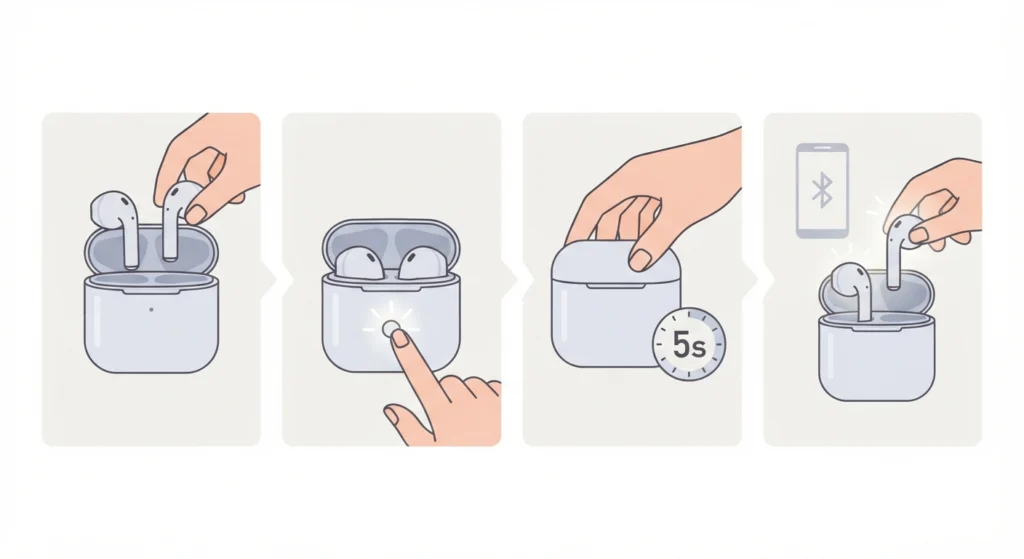
A simple reset clears any temporary connection glitch causing the sound to cut out. This is usually the fastest fix and should be tried first.
- Step 1: Place both earbuds back into the charging case.
- Step 2: Keep the case lid open and press and hold the button on the case for about 10 seconds until the indicator light flashes.
- Step 3: Close the lid, wait 5 seconds, then open it again and take the earbuds out.
- Step 4: Reconnect the earbuds to the paired device and test the audio.
Fix 2: Forget the Device and Re-Pair the Earbuds
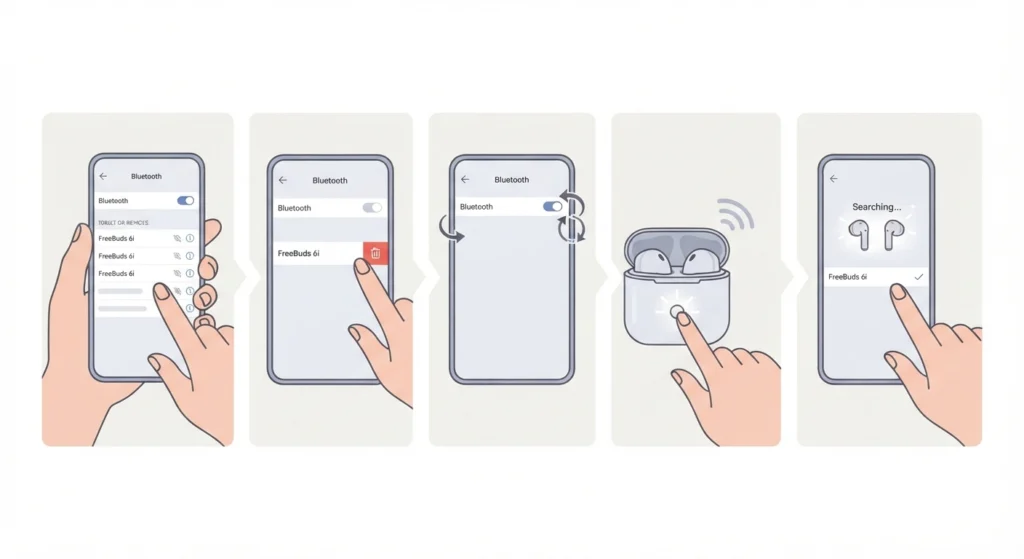
Bluetooth profiles sometimes get corrupted after a system update or a low-battery disconnection. Removing the old pairing and starting fresh often resolves audio stuttering completely. This step matters when reconnecting earbuds after a reset, similar to how users re-pair Bluetooth earbuds for stereo sound when the connection becomes unstable.
- Step 1: Open Bluetooth settings on the connected phone or laptop.
- Step 2: Locate FreeBuds 6i in the device list and select forget or remove.
- Step 3: Restart Bluetooth on the device.
- Step 4: Put the earbuds back in pairing mode by holding the case button until the light blinks.
- Step 5: Select FreeBuds 6i from the available devices list and confirm the connection.
Fix 3: Update the Firmware Through the AI Life App
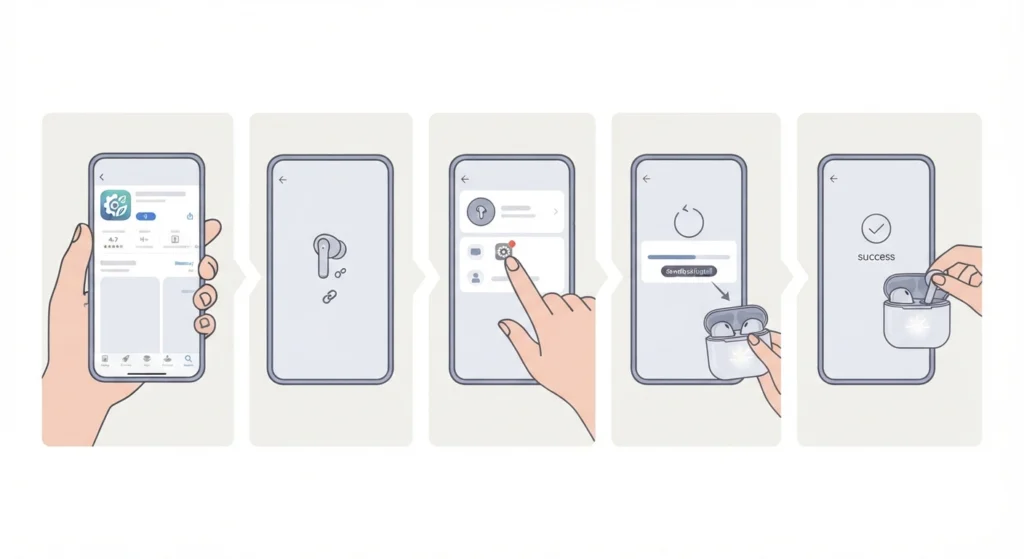
Outdated firmware is one of the leading causes of audio dropouts on Huawei earbuds. Huawei regularly releases updates that improve Bluetooth stability.
- Step 1: Download and open the Huawei AI Life app on a smartphone.
- Step 2: Connect the FreeBuds 6i to the app.
- Step 3: Tap on the device icon and check for a firmware update notification.
- Step 4: If an update is available, tap update and keep the earbuds close to the phone until it finishes.
- Step 5: Restart the earbuds once the update completes.
Pro-Tip: Never turn off Bluetooth or walk away from the phone while a firmware update is running. An interrupted update can cause the earbuds to lose sync entirely, which creates a more serious problem than the original cutting-out issue.
Fix 4: Clean the Charging Contacts and Check Battery Level
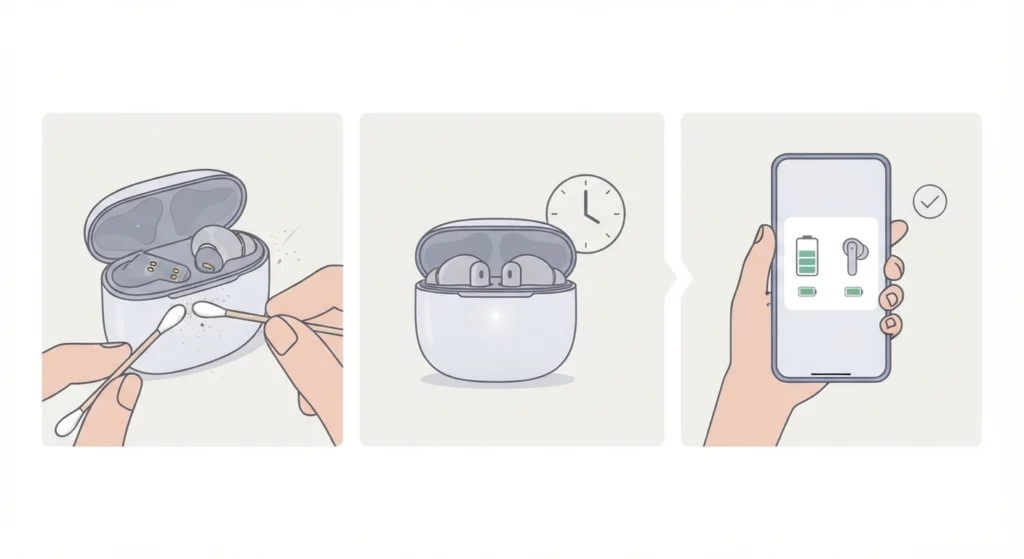
Dust or residue on the charging pins can prevent a full charge, and a low battery often triggers intermittent sound drops as a power-saving response.
- Step 1: Wipe the metal charging contacts on both earbuds and inside the case with a dry cotton swab.
- Step 2: Let the earbuds charge fully for at least 60 minutes.
- Step 3: Check the battery percentage through the AI Life app before using the earbuds again.
Fix 5: Reduce Bluetooth Interference
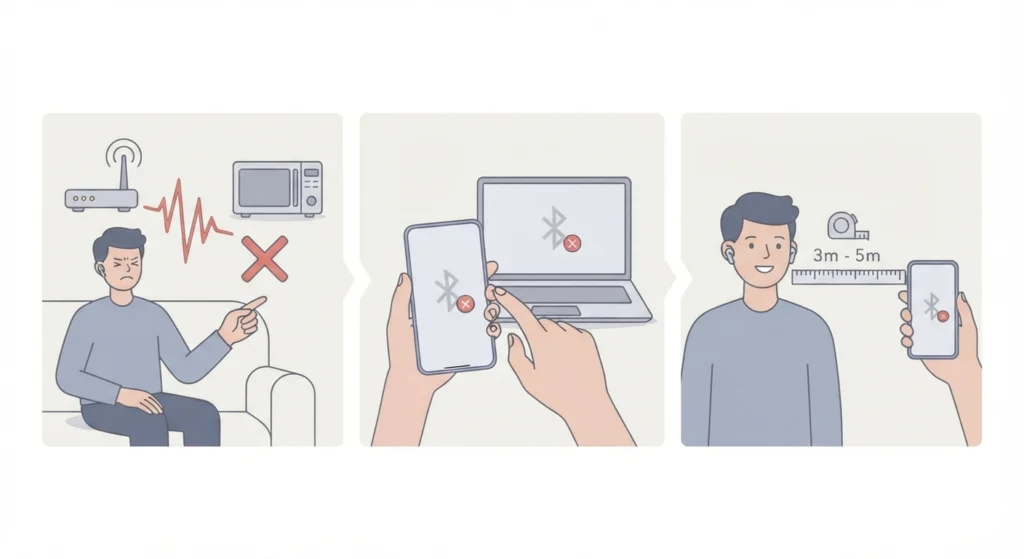
Wi-Fi routers, USB 3.0 devices, and other Bluetooth accessories operating on the same frequency range can cause sound to cut in and out, especially in crowded rooms or offices.
- Step 1: Move away from routers, microwaves, and other wireless devices while using the earbuds.
- Step 2: Turn off Bluetooth on other paired devices that are not currently in use.
- Step 3: Keep the connected phone or laptop within 3 to 5 meters of the earbuds.
Fix 6: Adjust Audio Output Settings on Windows 11

When the FreeBuds 6i are connected to a Windows 11 laptop, incorrect audio output configuration can cause choppy or cutting sound even with a strong Bluetooth signal. Reviewing and adjusting audio output settings on the system usually restores smooth playback.
- Step 1: Open Settings and go to System, then Sound.
- Step 2: Select FreeBuds 6i as the output device.
- Step 3: Click on the device properties and set the format to the recommended default sample rate.
- Step 4: Test playback with a music or video file to confirm the fix worked.
Tips to Prevent Sound Cutting Out in the Future
- Keep firmware updated through the AI Life app on a monthly basis.
- Store the earbuds in the case when not in use to keep the battery topped up.
- Avoid pairing the FreeBuds 6i with more than one device at the same time.
- Clean the earbud mesh and charging contacts every couple of weeks to maintain a stable connection.
- Disable unused Bluetooth accessories when using the earbuds for calls or music.
Common Problems and Troubleshooting
One Earbud Cuts Out More Than the Other
This usually points to a weak connection on that specific earbud rather than a general Bluetooth issue. Resetting the earbuds through Fix 1 typically resolves the imbalance, since it forces both earbuds to resync with the source device.
Sound Cuts Out Only During Calls
Calls use a different Bluetooth profile than music playback, which is more sensitive to interference. Reducing distance from the connected device and closing unnecessary Bluetooth-connected apps often solves this.
Sound Cuts Out After a Windows Update
System updates sometimes reset audio drivers or default device settings. Checking the audio input and output devices again after an update, similar to resetting audio settings on Windows 11, usually brings playback back to normal.
Frequently Asked Questions
Why does the Huawei FreeBuds 6i sound keep cutting out?
Sound cutting out is most often caused by Bluetooth interference, outdated firmware, low battery, or a weak connection between the earbuds and the paired device.
How often should the FreeBuds 6i firmware be updated?
Checking for updates once a month through the AI Life app is enough to keep the connection stable and avoid known bugs.
Does resetting the FreeBuds 6i delete saved settings?
A standard reset clears the Bluetooth pairing information but does not erase equalizer or app preferences, since those are stored in the AI Life app.
Can a low battery cause the sound to cut out?
Yes. When battery levels drop too low, the earbuds may enter a power-saving mode that causes brief audio interruptions.
Why does only one earbud lose sound while the other works fine?
This typically happens when one earbud loses sync with the source device. A full reset and re-pair usually fixes the imbalance.
Is the FreeBuds 6i cutting out issue covered under warranty?
If the issue persists after trying firmware updates and resets, and the earbuds are still within the warranty period, contacting Huawei support for a hardware check is recommended.
Does Bluetooth version affect sound cutting out?
Yes. Older Bluetooth versions on the connected phone or laptop can create a less stable connection, making dropouts more likely compared to devices with newer Bluetooth chipsets.
Can other Bluetooth devices interfere with the FreeBuds 6i?
Yes. Multiple active Bluetooth devices nearby can compete for the same frequency band, leading to intermittent sound drops.
What should be done if the sound cuts out only on one specific app?
This usually points to an app-level audio setting rather than a hardware issue. Checking the app’s own audio output selection often resolves it.
How long does a full firmware update take for the FreeBuds 6i?
A firmware update typically takes a few minutes, depending on connection speed between the earbuds and the phone running the AI Life app.