
Setting up the Sony WH-1000XM5 for the first time is straightforward, but getting every step right from the start makes a real difference. These flagship noise-canceling headphones pack impressive features – from multipoint Bluetooth pairing to the Sony Headphones Connect app – and a proper first-time setup ensures everything works exactly as it should from day one.
Quick Summary
- Charge the headphones fully before first use (about 3.5 hours)
- Power on and pair via Bluetooth to a smartphone or computer
- Install the Sony Headphones Connect app for full feature access
- Adjust noise cancellation, EQ, and touch controls through the app
- Enable multipoint connection to pair with two devices at once
Step-by-Step Setup Guide for Sony WH-1000XM5
Charging the Headphones Before First Use
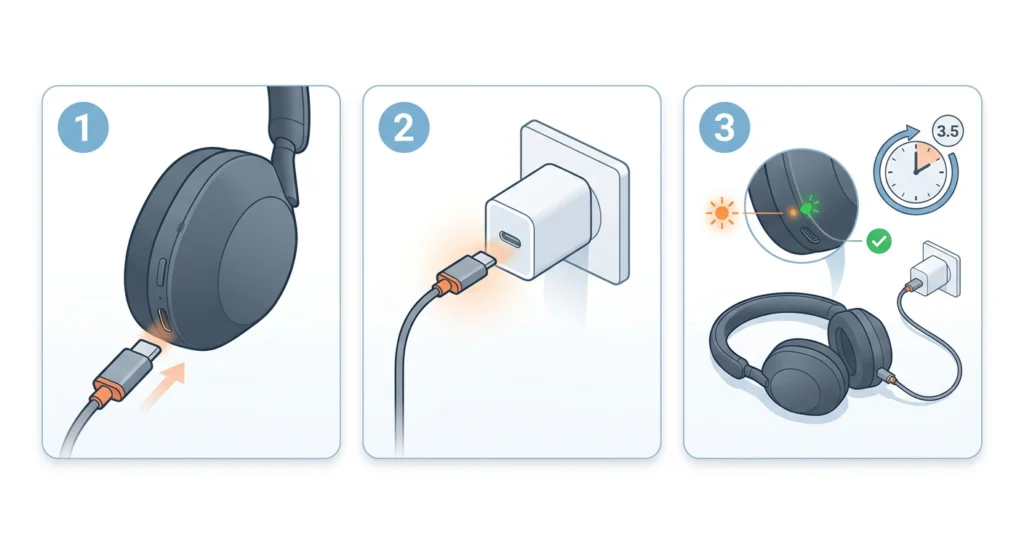
Before anything else, the headphones need a full charge. The WH-1000XM5 comes with a USB-C cable in the box. Plug it into any USB-C power source – a wall adapter, laptop, or power bank all work fine.
- Step 1: Connect the USB-C cable to the charging port on the right earcup.
- Step 2: Plug the other end into a power source.
- Step 3: Wait for a full charge – the indicator light turns off when complete (approximately 3.5 hours from empty).
A quick 10-minute charge gives around 5 hours of playback, which is handy if there is a need to use them sooner.
Powering On the WH-1000XM5
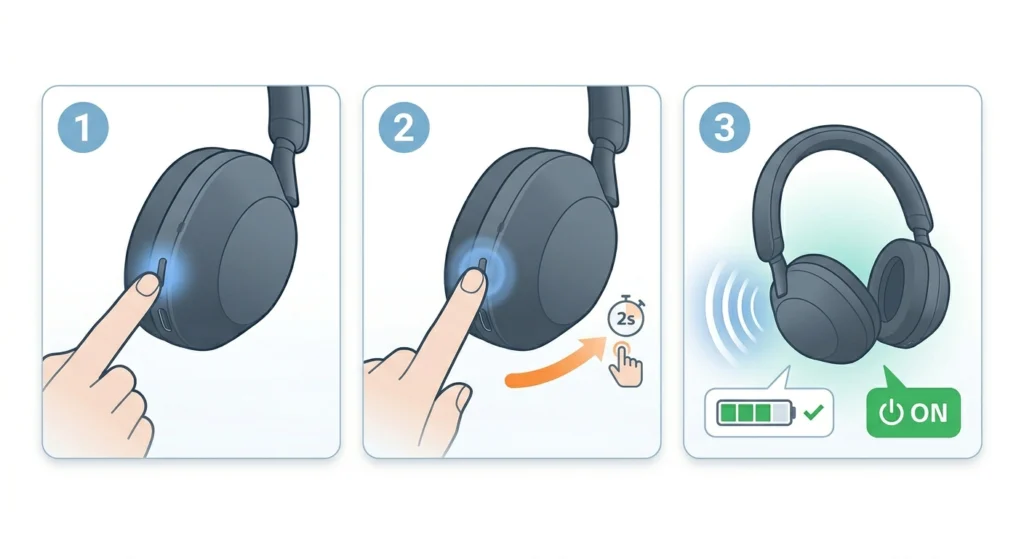
- Step 1: Locate the power button on the left earcup.
- Step 2: Press and hold the power button for about 2 seconds.
- Step 3: Listen for the voice prompt – it will say the current battery level and confirm the headphones are on.
When turning on for the first time, the headphones automatically enter pairing mode. The indicator light flashes blue rapidly to signal this.
Pairing with a Smartphone (Android or iPhone)
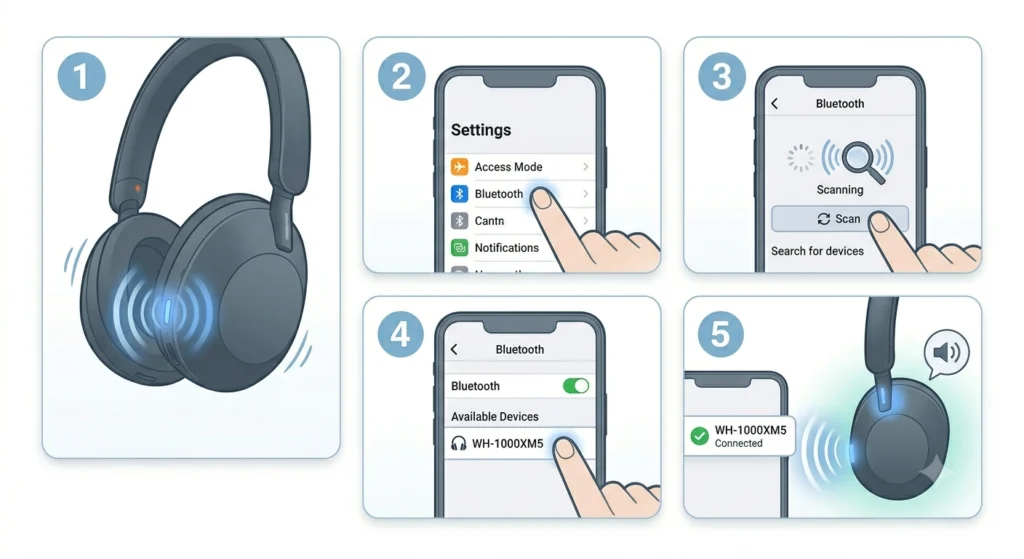
- Step 1: Make sure the headphones are powered on and in pairing mode (blue light flashing rapidly).
- Step 2: Open the Bluetooth settings on the phone.
- Step 3: Tap ‘Scan’ or ‘Search for devices.’
- Step 4: Select ‘WH-1000XM5’ from the list of available devices.
- Step 5: Wait for the connection confirmation – the headphones will announce ‘Bluetooth connected.’
If the headphones do not appear in the list, hold the power button for about 7 seconds until the voice prompt says ‘Bluetooth pairing’ – this manually triggers pairing mode.
Pairing with a Windows PC
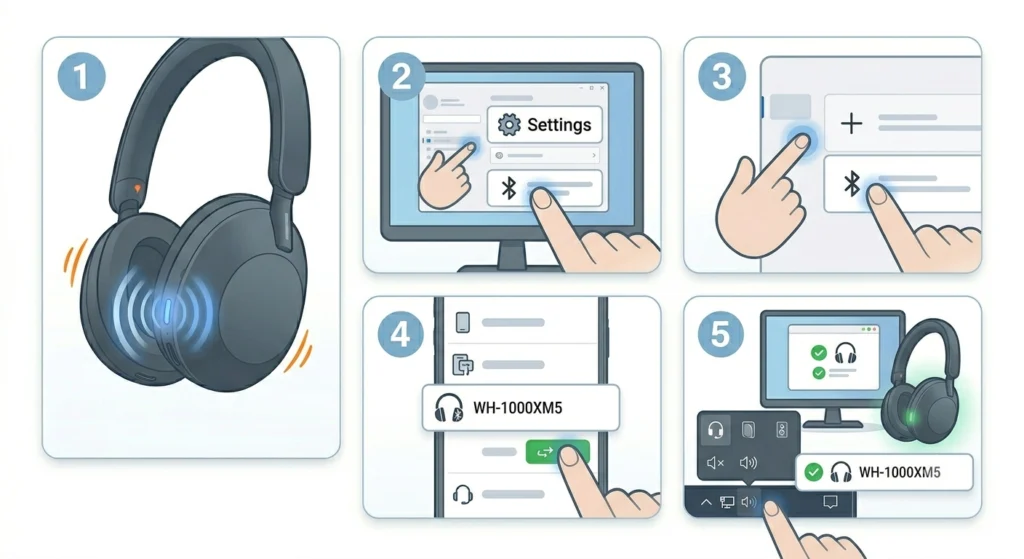
- Step 1: Power on the headphones and ensure they are in pairing mode.
- Step 2: On the PC, open Settings and go to Bluetooth and devices.
- Step 3: Click ‘Add device’ and select ‘Bluetooth.’
- Step 4: Choose ‘WH-1000XM5’ from the list and click ‘Connect.’
- Step 5: Once paired, set them as the default audio device in Windows sound settings.
For users who run into issues with audio routing on Windows, checking the audio output settings on Windows 11 can quickly resolve any misdirected sound.
Installing the Sony Headphones Connect App
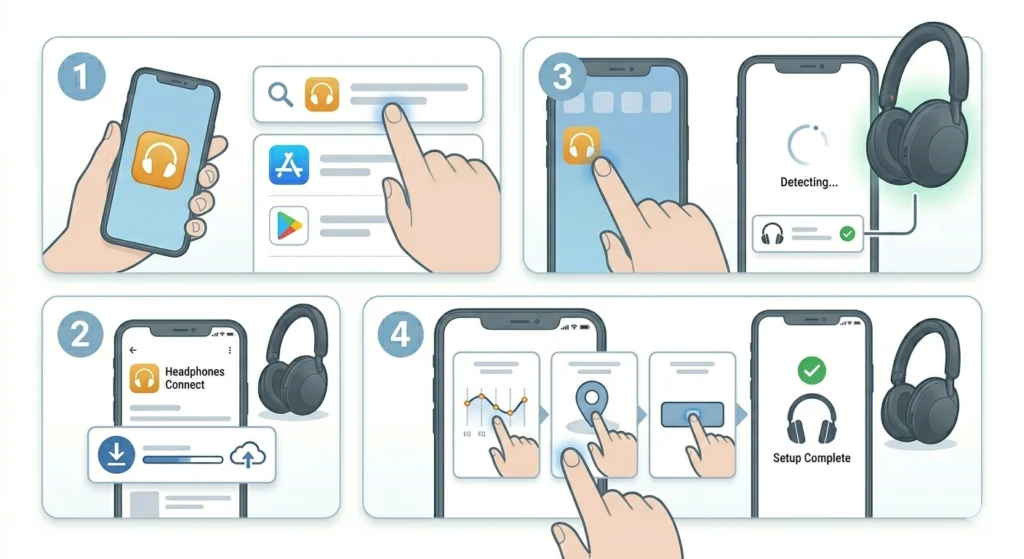
The Sony Headphones Connect app is where most of the real customization happens. This is not a required step to use the headphones, but it unlocks the full feature set.
- Step 1: Search for ‘Sony Headphones Connect’ on the App Store (iPhone) or Google Play Store (Android).
- Step 2: Download and install the app.
- Step 3: Open the app – it will automatically detect the connected WH-1000XM5.
- Step 4: Follow the in-app setup prompts to complete the initial configuration.
The app provides access to the equalizer, noise cancellation settings, touch control customization, and firmware updates all in one place.
Configuring Noise Cancellation
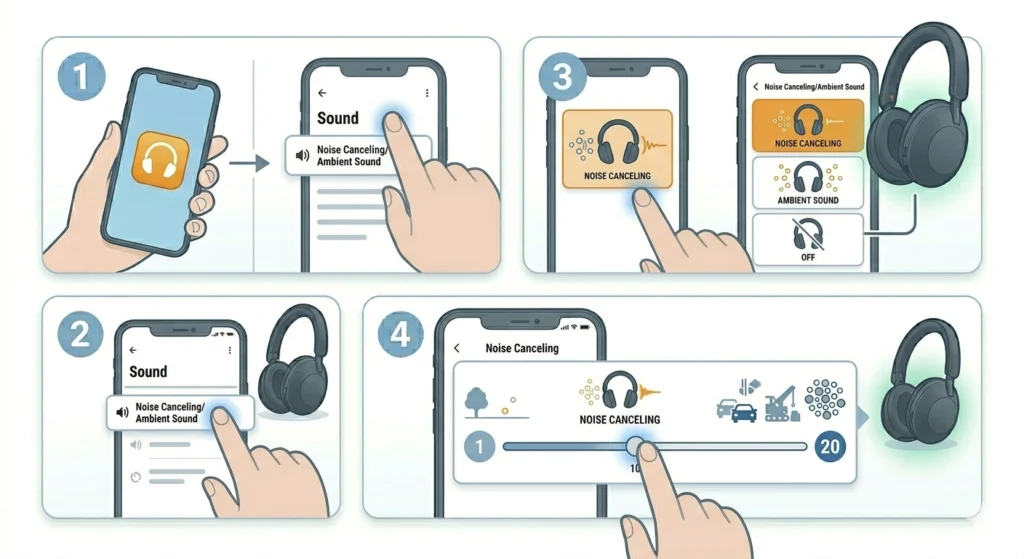
- Step 1: Open the Sony Headphones Connect app.
- Step 2: Tap ‘Sound’ and then ‘Noise Canceling/Ambient Sound.’
- Step 3: Choose between Noise Canceling, Ambient Sound, or Off.
- Step 4: For Noise Canceling, adjust the level from 1-20 based on the environment.
The ‘Adaptive Sound Control’ feature can be turned on to let the headphones automatically adjust noise canceling based on activity – walking, running, sitting, and so on. This works best when spending time in varied environments throughout the day.
Pro Tip: Run the ‘Personal NC Optimizer’ found under Noise Canceling settings in the app. It plays a short tone to analyze the shape of the ears and glasses (if worn) and calibrates noise cancellation specifically for the listener. Most people find this gives noticeably better ANC performance than the default setting.
Setting Up Multipoint Bluetooth Connection
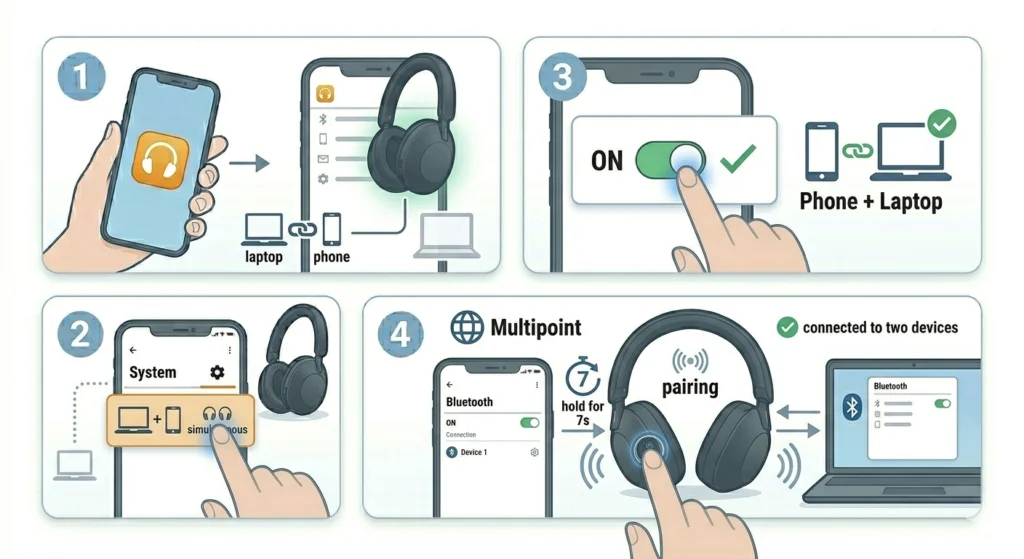
One of the standout features of the WH-1000XM5 is the ability to stay connected to two Bluetooth devices simultaneously – for example, a laptop and a phone at the same time.
- Step 1: Open the Sony Headphones Connect app.
- Step 2: Tap ‘System’ and then ‘Connect 2 Devices Simultaneously.’
- Step 3: Enable the toggle.
- Step 4: Pair the second device following the same Bluetooth pairing steps above (hold the power button for 7 seconds to trigger pairing mode while already connected to the first device).
Audio will automatically switch between connected devices when one starts playing. For users juggling a work laptop and a personal phone, this feature saves a lot of manual switching. If the second device is a Windows PC and audio is not routing correctly, reviewing the guide on managing audio input devices on Windows 11 can help set things straight.
Customizing Touch Controls
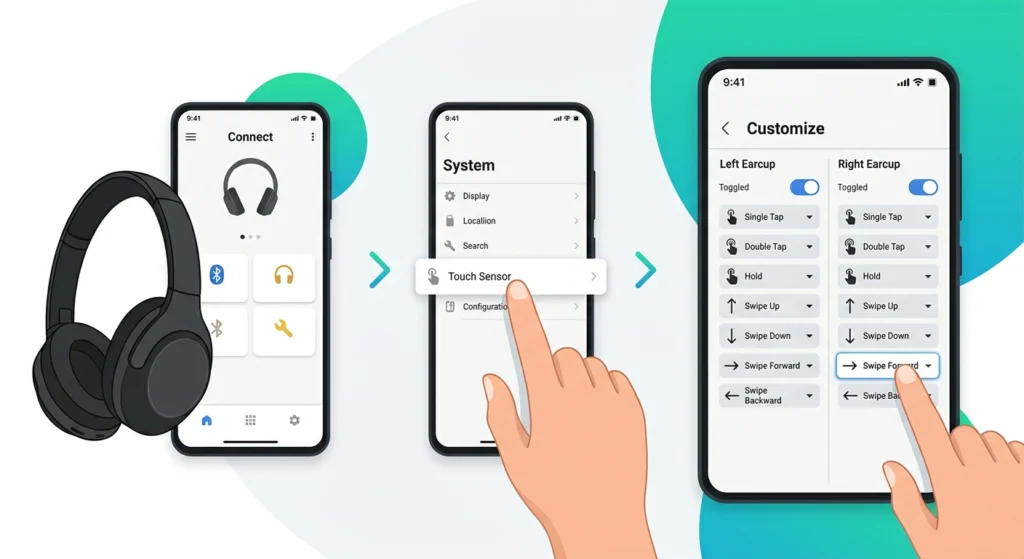
- Step 1: Open the Sony Headphones Connect app.
- Step 2: Tap ‘System’ and select ‘Touch Sensor.’
- Step 3: Customize what left and right swipes, taps, and holds do on each earcup.
The key is to map the most-used functions – like skipping tracks or activating the voice assistant – to the gestures that feel most natural.
Updating Firmware
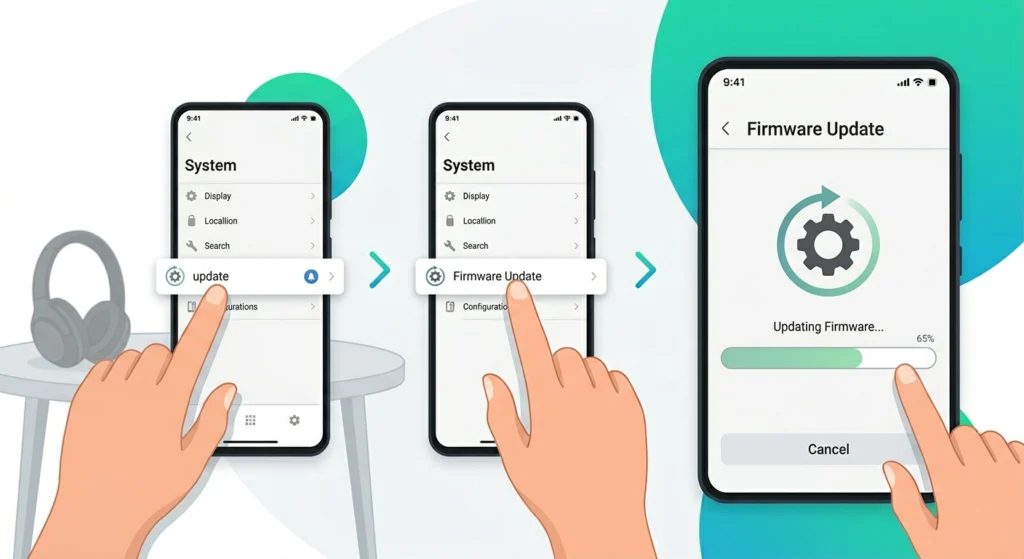
- Step 1: Open the Sony Headphones Connect app.
- Step 2: Tap the gear icon or go to ‘System.’
- Step 3: Select ‘Firmware Update’ and follow the on-screen instructions if an update is available.
Firmware updates often improve ANC performance and fix connectivity quirks, so it is worth checking right after the first setup.
Pro Tip: Keep the headphones at least 50% charged before starting a firmware update. A low battery mid-update can interrupt the process and cause issues that require a reset.
Tips for Getting the Best Experience
- Use the 360 Reality Audio feature in the app if streaming from compatible services like Tidal or Amazon Music for a more spatial sound experience.
- The ‘Speak-to-Chat’ feature automatically pauses music when talking – useful in quick conversations without touching the controls.
- Store the headphones in the included case to avoid unnecessary wear on the headband and earcups.
- For calls, the WH-1000XM5 uses beamforming microphones – positioning the headphones correctly on the head significantly improves call clarity for the person on the other end.
- When using LDAC for higher quality audio on Android, make sure the phone’s Bluetooth audio quality is set to ‘Best sound quality’ in Developer Options.
Common Problems and Fixes
Fix 1: Headphones Not Appearing in Bluetooth List
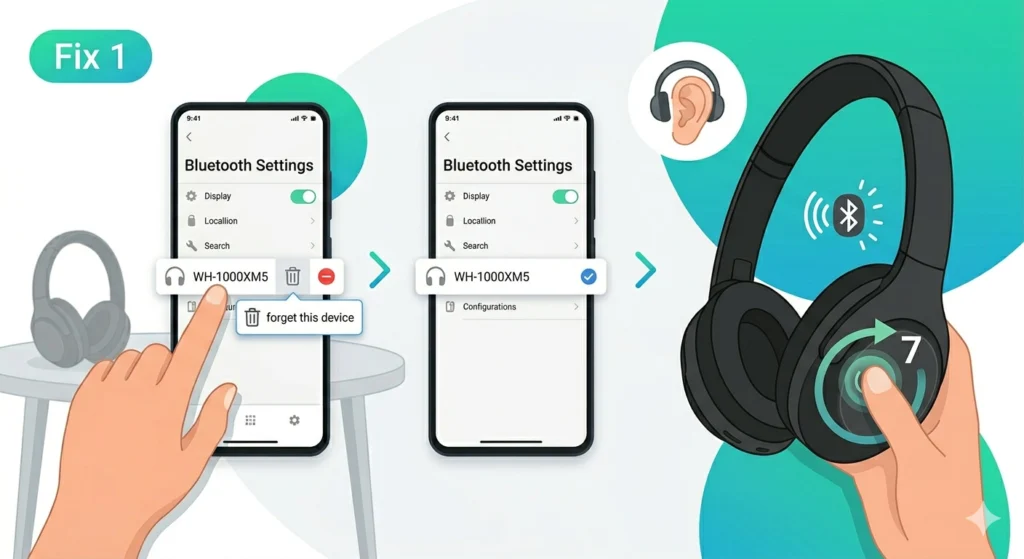
Hold the power button for 7 seconds to manually force pairing mode. The voice prompt will confirm it. On some phones, forgetting any old WH-1000XM5 pairings before scanning helps the device show up cleanly.
Fix 2: Audio Playing Through the Wrong Device on PC
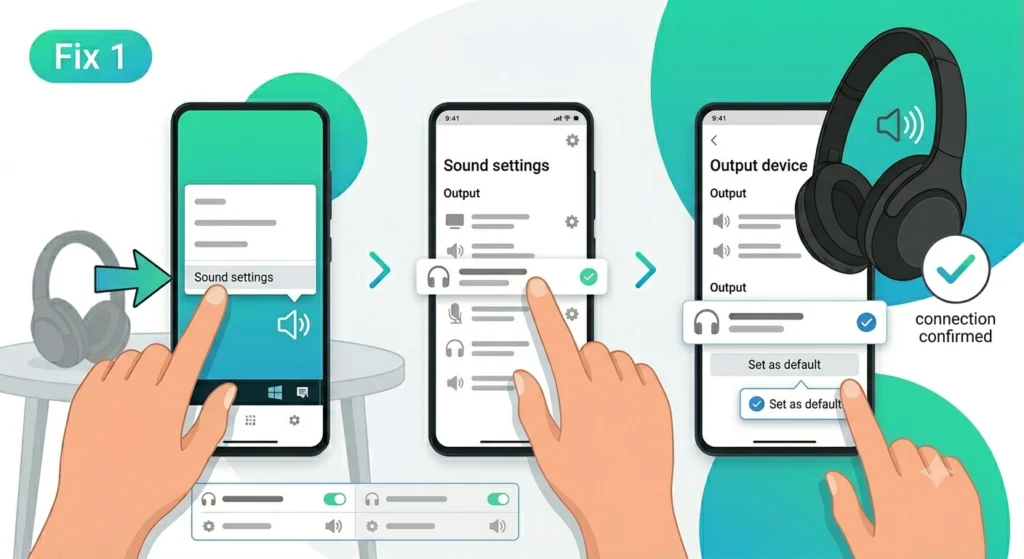
Windows sometimes defaults to a different playback device after a new Bluetooth connection. Right-click the speaker icon in the taskbar, open Sound settings, and manually set the WH-1000XM5 as the default output device.
Fix 3: One Earcup Has No Sound
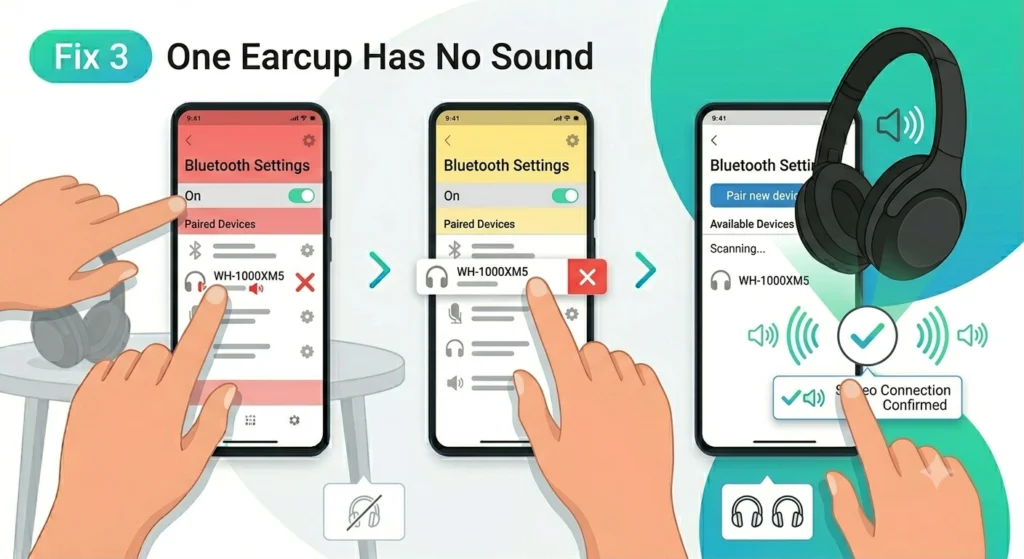
This usually points to a stereo pairing issue on certain Windows setups. Disconnecting and re-pairing the headphones typically resolves it. If the problem persists on a Windows machine, following a proper guide to re-pair Bluetooth headphones for stereo sound on Windows walks through the exact steps to fix it.
Fix 4: Noise Cancellation Feels Weak
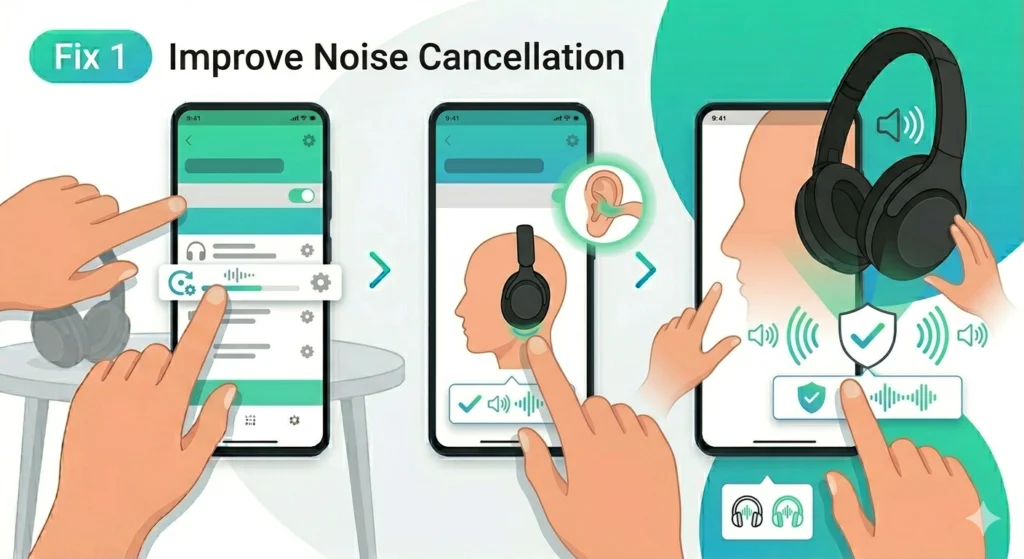
Run the Personal NC Optimizer in the Sony Headphones Connect app. Also make sure the earcups form a proper seal around the ears – a poor fit noticeably reduces ANC effectiveness.
Fix 5: App Not Detecting the Headphones
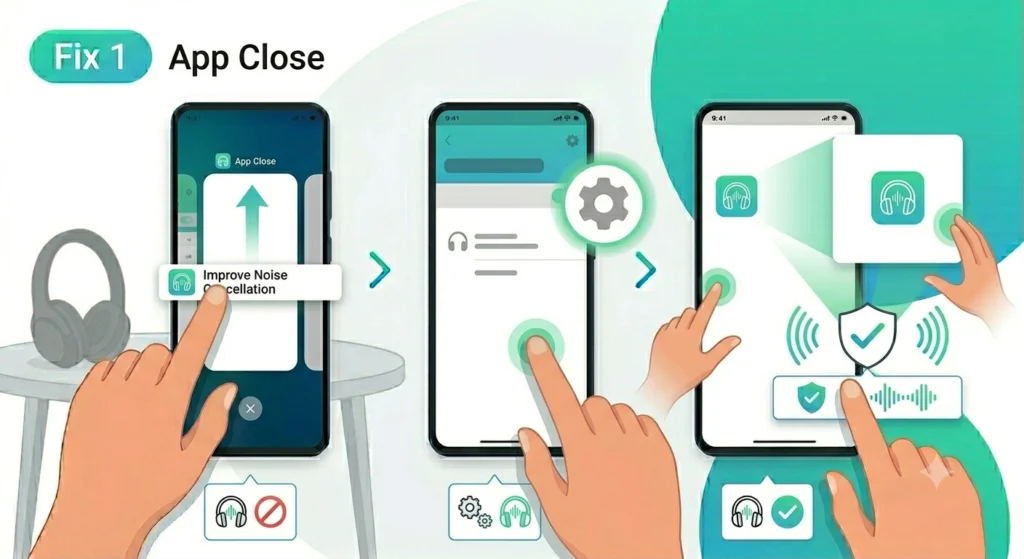
Close the app fully and reopen it with the headphones connected via Bluetooth. If the issue continues, toggling Bluetooth off and on again on the phone and reconnecting usually solves it.
Frequently Asked Questions
Does the Sony WH-1000XM5 need the app to work?
No. The headphones work as standard Bluetooth headphones without the Sony Headphones Connect app. However, the app is needed to access the EQ, noise cancellation levels, touch control customization, and firmware updates.
How long does it take to fully charge the WH-1000XM5?
A full charge takes approximately 3.5 hours via USB-C. A quick 10-minute charge provides around 5 hours of playback, which is useful in a pinch.
Can the WH-1000XM5 connect to two devices at the same time?
Yes. The multipoint Bluetooth connection feature allows connection to two devices simultaneously. This must be enabled in the Sony Headphones Connect app under System settings.
What is LDAC and should it be enabled?
LDAC is Sony’s high-resolution audio codec that transmits about three times more data than standard Bluetooth codecs. It delivers noticeably better audio quality on Android devices that support it. It is worth enabling on Android phones for music listening, though it may slightly reduce connection stability in congested wireless environments.
How do the touch controls work on the WH-1000XM5?
The right earcup has a touch-sensitive surface. Swiping forward or backward skips tracks, swiping up or down adjusts volume, a single tap plays or pauses, and holding activates the voice assistant. Controls can be customized through the app.
Can the WH-1000XM5 be used wired?
Yes. The headphones include a 3.5mm audio cable. When using the wired connection with the power off, the headphones function as passive headphones without noise cancellation.
What is the battery life of the WH-1000XM5?
Sony rates the WH-1000XM5 at up to 30 hours of battery life with noise cancellation on, or up to 40 hours with it turned off. Real-world usage at moderate volume generally lands close to these figures.
How do you reset the WH-1000XM5 to factory settings?
Press and hold both the power button and the custom button simultaneously for about 7 seconds until the indicator light flashes. This clears all pairing information and restores factory defaults.
Is the WH-1000XM5 compatible with Google Assistant and Amazon Alexa?
Yes. Both Google Assistant and Amazon Alexa are supported. The preferred assistant can be set in the Sony Headphones Connect app under System, and activated using the custom button on the left earcup.
Does noise cancellation work during calls?
Yes. The WH-1000XM5 applies noise cancellation to both incoming audio and outgoing voice pickup. The built-in beamforming microphones focus on the voice and reduce background noise for the person on the other end of the call.