
Knowing how to pair Bluetooth headphones that have no voice prompts matters because there is no friendly voice saying ‘pairing’ to confirm anything. It can feel a bit like using a doorbell that never chimes. The good news is that these headphones still give clear signals through LED lights, short tones, and the device list on a phone or computer.
Plenty of budget models, older designs, and compact earbuds skip the spoken guidance. This guide keeps things simple and covers only the steps needed to get connected.
Key Takeaways
- Pairing mode is shown by a flashing LED light or a short tone, not by a voice.
- Most headphones enter pairing mode when the power button is held for several seconds, usually between 3 and 7 seconds.
- Pairing is finished from the Bluetooth menu on a phone, Windows 11 PC, or Mac by selecting the headphone model name.
- Success is confirmed by a steady or slow-blinking light, a tone, and a Connected status on the device.
Step-by-Step Guide to Pair Bluetooth Headphones Without Voice Prompts
Method 1: Put the Headphones Into Pairing Mode
Every pairing starts here. Without a voice, the light on the headphones is the main clue, so keep it in view.
- Step 1: Make sure the headphones have some battery charge so the process is not interrupted halfway through.
- Step 2: Turn the headphones completely off.
- Step 3: Press and hold the power button, or the dedicated Bluetooth button if the model has one. Keep holding after the headphones turn on, usually for several seconds, until the LED starts flashing. A flashing blue light or alternating red and blue lights is common, though the exact pattern depends on the brand.
- Step 4: Release the button once the light flashes. A flashing light means the headphones are discoverable and ready to be found.
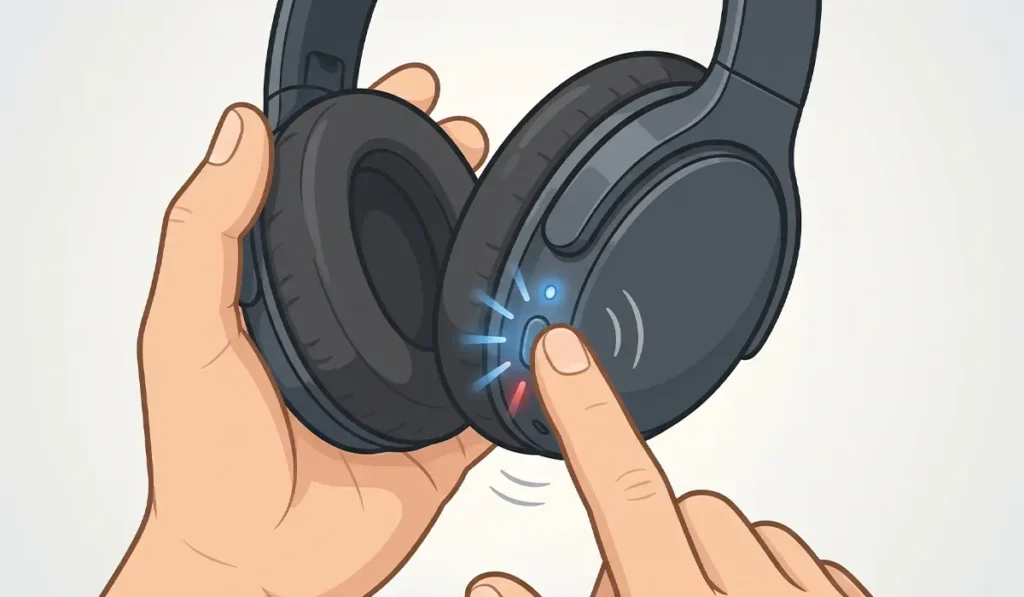
For true wireless earbuds, open the charging case with the earbuds inside. Many models enter pairing mode automatically the first time they are used. After that, a press and hold on the case button or on the earbud touch area is often needed.
Pro-Tip: Headphones that were paired before usually try to reconnect to the last device when turned on. If that old phone or laptop is nearby with Bluetooth on, the headphones may connect there instead of becoming discoverable. Turn off Bluetooth on the old device first, then start pairing mode again.
Method 2: Pair With an iPhone or Android Phone
This works best when the headphones are still flashing and sitting within about 3 feet of the phone, since pairing mode usually lasts only a limited time.
- Step 1: Keep the headphones in pairing mode with the light flashing.
- Step 2: On an iPhone, open Settings, then tap Bluetooth and make sure the toggle is on. On an Android phone, open Settings, then Connected devices, then Pair new device. Menu names differ a little between brands, and Samsung phones place Bluetooth under Connections.
- Step 3: Wait a few seconds for the list of available devices to fill in.
- Step 4: Tap the model name of the headphones. The name is usually printed on the box, the earcup, or in the manual.
- Step 5: Accept the pairing request. If a PIN is requested, 0000 is a common default, but the manual has the correct code.
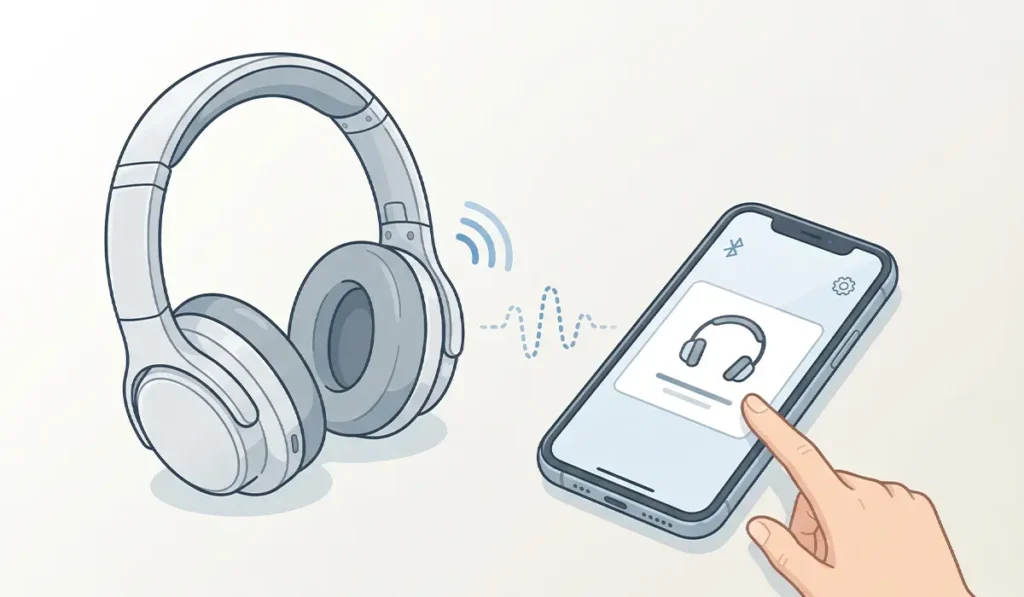
Pro-Tip: Note the exact model name from the box or earcup before starting. In a crowded area, the list can show many unfamiliar names, and knowing what to look for saves a lot of guessing.
Method 3: Pair With a Windows 11 PC
- Step 1: Put the headphones into pairing mode and watch for the flashing light.
- Step 2: Open Settings, then select Bluetooth and devices.
- Step 3: Make sure Bluetooth is turned on, then select Add device.
- Step 4: Choose Bluetooth from the list of device types.
- Step 5: Select the headphone model name when it appears, then wait for the message that the device is ready to go.
- Step 6: Select Done to finish.
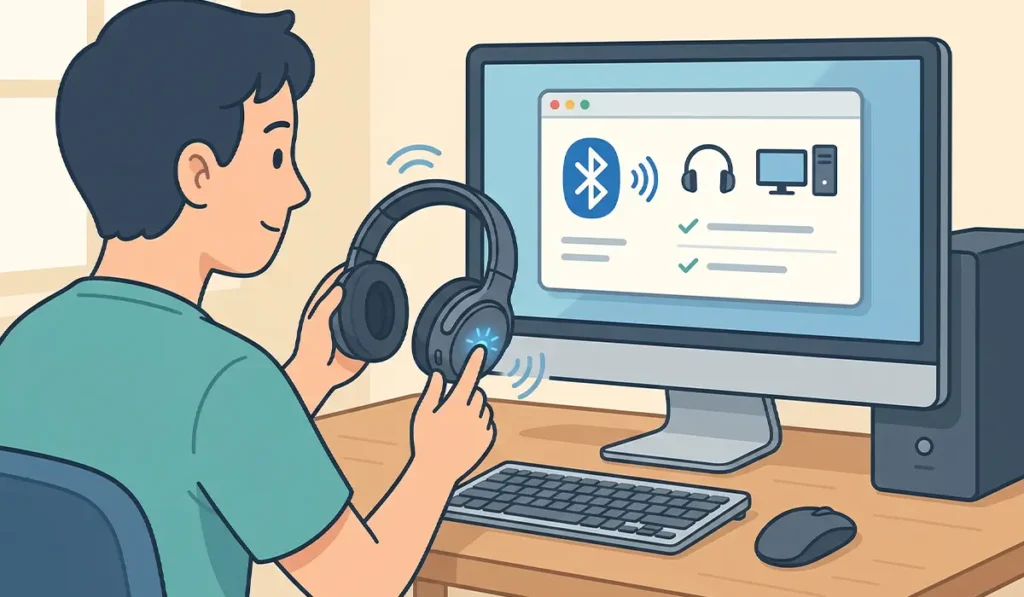
If the headphones never show up in the list, this guide on troubleshooting headphone detection on Windows walks through what to check next.
Method 4: Pair With a Mac
- Step 1: Put the headphones into pairing mode.
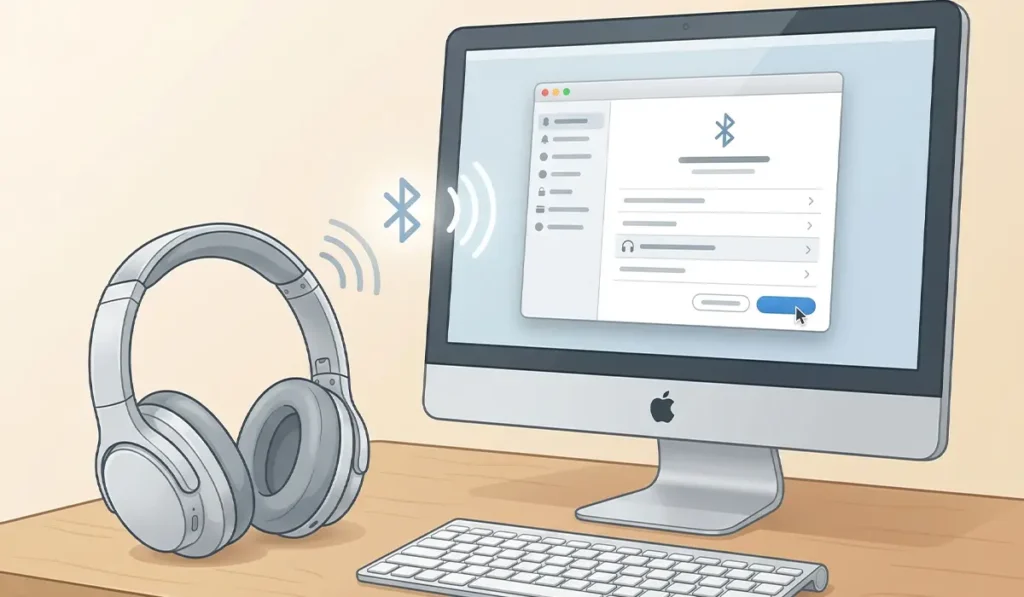
- Step 2: Open the Apple menu, then System Settings (System Preferences on older macOS versions), and select Bluetooth.
- Step 3: Wait for the headphones to appear under nearby devices.
- Step 4: Click Connect next to the headphone model name.
How to Confirm the Connection Without a Voice
With no spoken message, a few quiet signals show that pairing worked.
- The LED stops flashing quickly and turns steady or blinks slowly.
- A short tone plays in the headphones.
- The device lists the headphones as Connected.
- Audio played from the device comes through the headphones.
Quick Tips for Smoother Pairing
- Stay close to the device while pairing. Most people find that pairing fails more often when the headphones are across the room.
- Pair one device at a time. Switching on several Bluetooth gadgets nearby can crowd the list and cause confusion.
- Keep the manual or a photo of the light chart handy. Flash patterns vary by brand, and the chart is the quickest way to read them.
- Once paired, the headphones reconnect automatically in most cases when turned on and Bluetooth is active, so repeating the whole process is rarely needed.
- For earbuds used on a computer, this guide on how to re-pair Bluetooth earbuds for stereo sound on Windows is a useful reference.
Common Problems and Fixes
Fix 1: Headphones Do Not Appear in the Device List
Pairing mode may have timed out, or the headphones may have connected to an older device. Turn the headphones off, switch off Bluetooth on any nearby device they used before, and hold the button again until the light flashes. Then refresh the Bluetooth list.
Fix 2: Pairing Fails or Keeps Dropping
An old pairing entry can get in the way. Remove or forget the headphones in the Bluetooth settings of the phone or computer, turn the headphones off, and put them back into pairing mode for a fresh start. If the problem continues, the manual usually explains the manufacturer reset method for that model.
Fix 3: Connected but No Sound on a PC
The headphones may be paired but not selected as the sound output. On Windows 11, choose the headphones as the output device, and the guide on adjusting audio output settings shows where to find that option.
Frequently Asked Questions
How can pairing mode be recognized without voice prompts?
A flashing LED light is the most common sign. Many headphones flash blue or alternate between red and blue, and some also play a short tone. The manual lists the exact pattern for each model.
How long should the power button be held to start pairing?
Most headphones need several seconds, usually between 3 and 7. Keep holding after the headphones power on until the light begins to flash. Some models need slightly longer, so the manual is worth a quick check.
Why do the headphones turn on but never show up in the list?
They may be reconnecting to a previously paired device, pairing mode may have timed out, or the headphones may be too far from the phone or computer. Turn off Bluetooth on the old device and restart pairing mode close to the new one.
Can headphones with no voice prompts be paired with a phone and a computer?
Yes, both can be paired. Most headphones stay actively connected to one device at a time unless they support multipoint connection, so the second device may need to be connected manually.
What PIN is used if the device asks for one?
Most modern headphones pair without a code. When a PIN is requested, 0000 is a common default, but the manual or the manufacturer website has the correct number.
Do wireless earbuds pair the same way?
The process is very similar. Earbuds usually start pairing from the charging case, and many enter pairing mode automatically the first time they are used. Later pairings often require a press and hold on the case button or the earbud touch area.
How can a person tell the headphones connected successfully?
The light usually becomes steady or blinks slowly, a short tone may play, and the phone or computer shows the headphones as Connected. Playing a song confirms it right away.
What if the light pattern for pairing mode is unknown?
Flash patterns differ between brands. The printed manual or the manufacturer support page lists what each pattern means for that exact model.
Does pairing need to be repeated every time the headphones are used?
No. After the first successful pairing, the headphones usually reconnect on their own when turned on and Bluetooth is active on the device.