
Knowing how to forget and re-pair a Bluetooth headphone properly is the fastest way to clear an old, stuck connection and start fresh. The process takes about two minutes, and it works almost the same way on every device.
Key Takeaways:
- Forgetting a headphone only removes the saved connection from the phone or computer. The headphone itself is not damaged or erased.
- The headphone must be in pairing mode before it can be paired again.
- The steps differ slightly on Windows, Mac, iPhone, and Android, so pick the method that matches the device in hand.
- Keep the headphone charged and close to the device during pairing.
Step-by-Step Guide to Forget and Re-Pair a Bluetooth Headphone
Every method below follows the same pattern: remove the saved headphone, put the headphone in pairing mode, then connect again. Choose the device being used and follow the steps in order.
Method 1: Windows 11
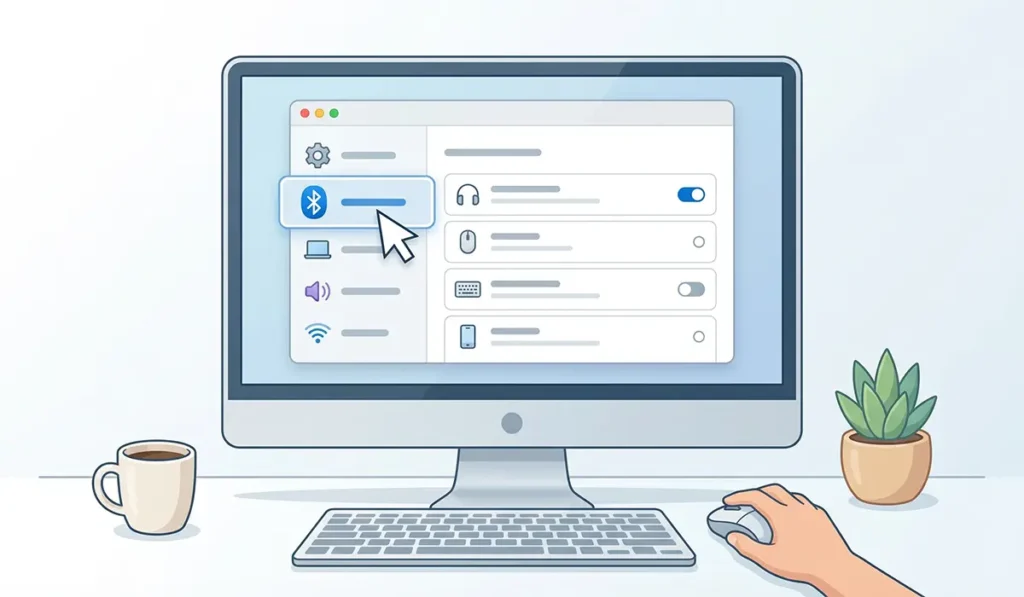
- Step 1: Open Settings and select Bluetooth & devices.
- Step 2: Click Devices and find the headphone in the list.
- Step 3: Click the three dots beside the headphone, then choose Remove device and confirm.
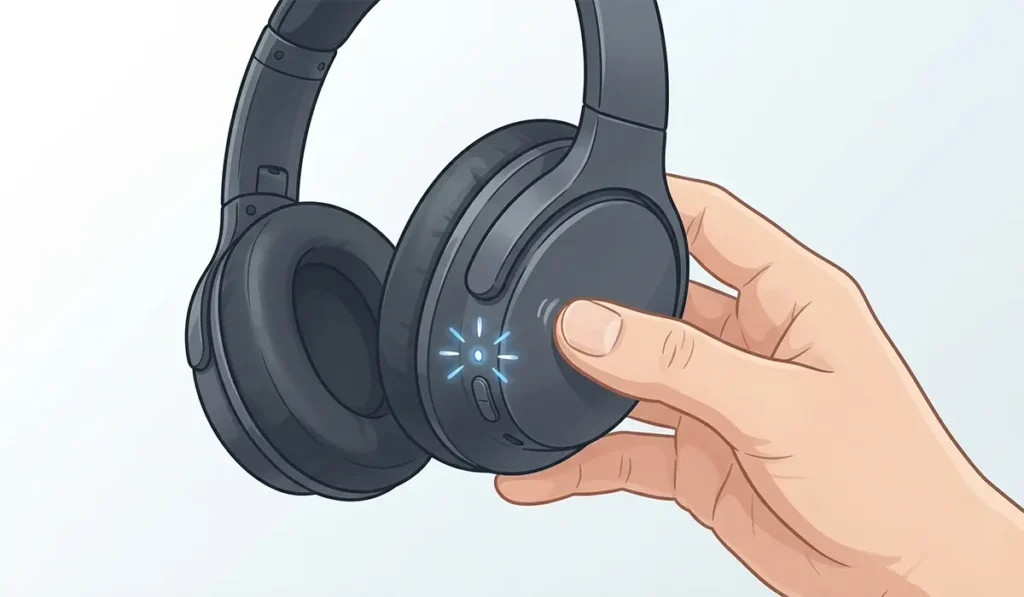
- Step 4: Turn the headphone off, then hold its power button until the light flashes to show pairing mode.
- Step 5: Back in Bluetooth & devices, click Add device, then choose Bluetooth.
- Step 6: Select the headphone from the list and wait for the connected confirmation.
Pro-Tip: Many headphones automatically reconnect to the last device they were paired with. Before pairing again, switch Bluetooth off on any nearby phone or tablet that still has the headphone saved. Otherwise the headphone may jump to that device and never appear on the computer.
Earbuds with two separate pieces can sometimes pair as two devices instead of one set. This re-pair guide for stereo sound on Windows covers that situation in detail.
Method 2: Windows 10
- Step 1: Open Settings, then select Devices and choose Bluetooth & other devices.
- Step 2: Click the headphone name, then select Remove device and confirm with Yes.
- Step 3: Put the headphone in pairing mode by holding the power button until the light flashes.
- Step 4: Select Add Bluetooth or other device, then choose Bluetooth.
- Step 5: Click the headphone name when it appears and wait for the connection to finish.
Method 3: Mac
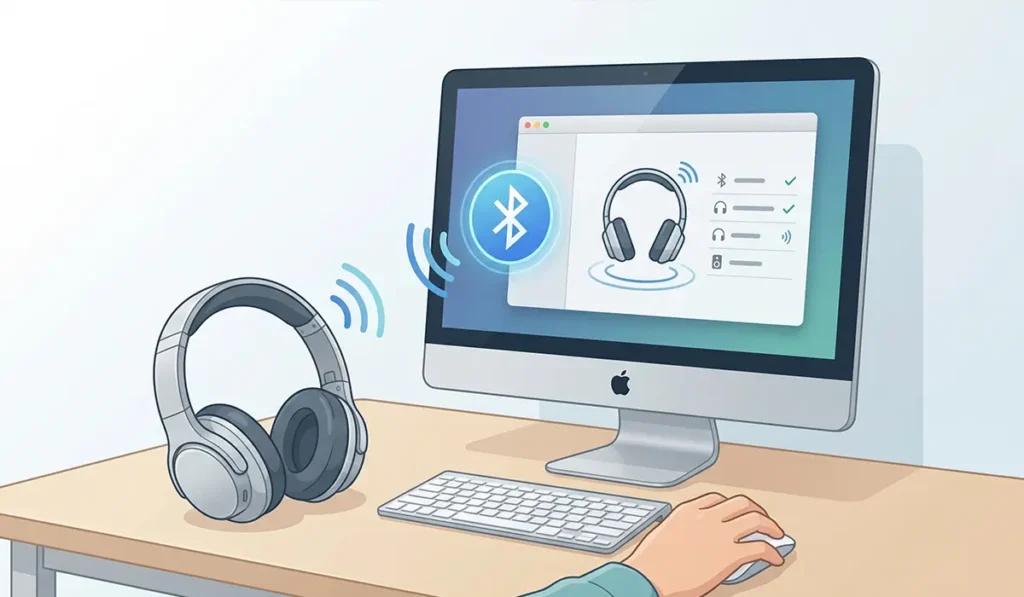
- Step 1: Click the Apple menu, then open System Settings and select Bluetooth.
- Step 2: Find the headphone under My Devices and click the info (i) button next to it.
- Step 3: Click Forget This Device and confirm.
- Step 4: Put the headphone in pairing mode.
- Step 5: When the headphone shows up under Nearby Devices, click Connect.
Method 4: iPhone and iPad
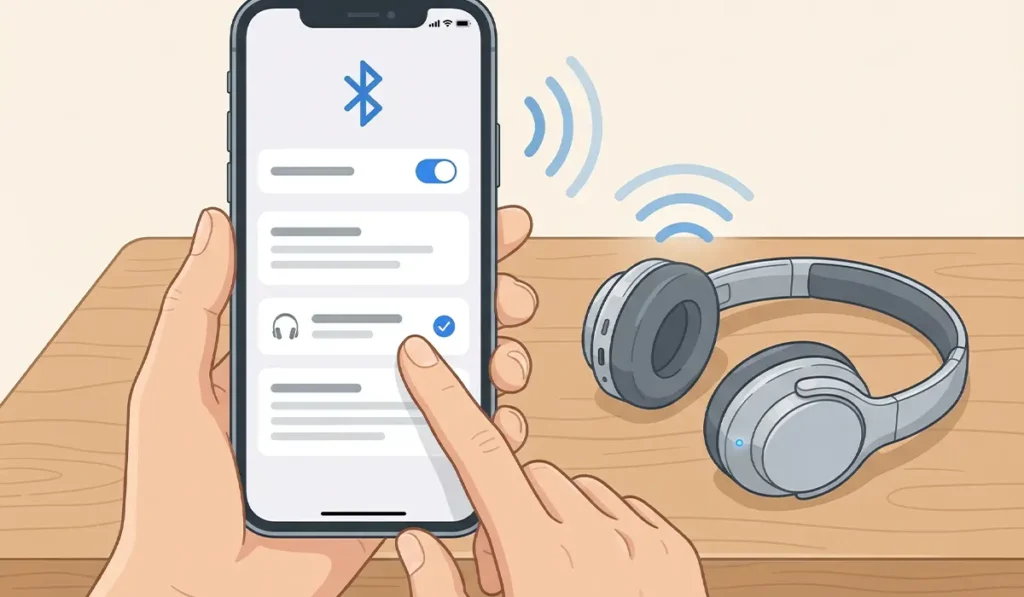
- Step 1: Open Settings and tap Bluetooth.
- Step 2: Tap the info (i) icon next to the headphone.
- Step 3: Tap Forget This Device, then confirm.
- Step 4: Put the headphone in pairing mode.
- Step 5: Tap the headphone name under Other Devices and wait for it to show Connected.
Method 5: Android
- Step 1: Open Settings and go to Connected devices (on Samsung phones, this is Connections), then tap Bluetooth.
- Step 2: Tap the gear icon next to the headphone.
- Step 3: Tap Forget (on Samsung phones, tap Unpair) and confirm.
- Step 4: Put the headphone in pairing mode.
- Step 5: Tap Pair new device, select the headphone, and tap Pair if prompted.
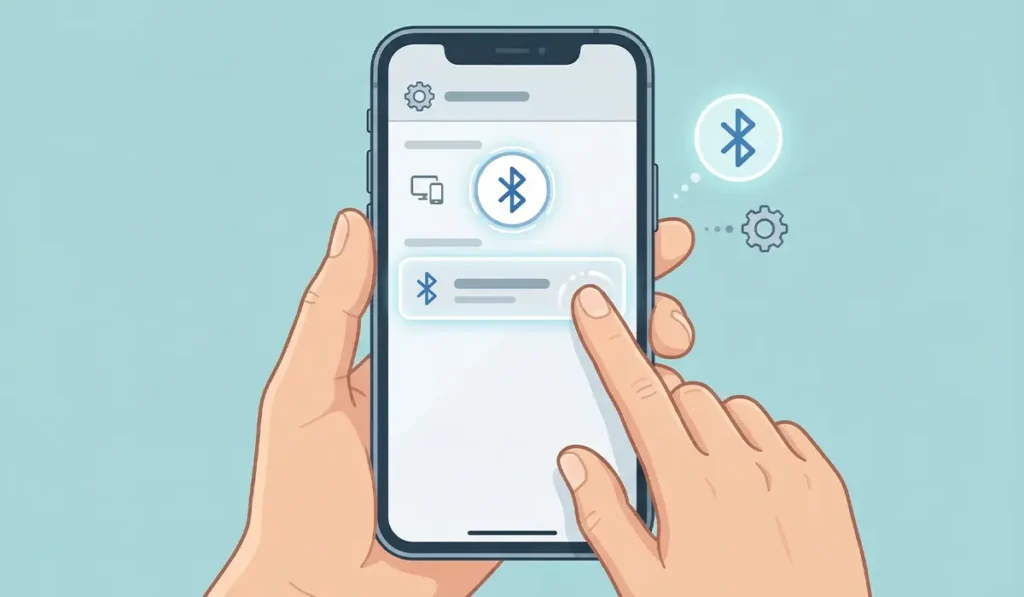
Menu names can vary a little between Android brands, but the forget or unpair option always sits inside the settings of the saved Bluetooth device.
Tips for a Clean Re-Pair
- Charge the headphone first. A very low battery can make pairing mode unreliable.
- Keep the headphone within about one meter of the device while pairing.
- Close any app that is playing audio before connecting, so the new connection starts clean.
- Check the headphone manual for the exact pairing mode button, because it differs between brands.
- Pair with one device at a time. Most people find that this avoids the headphone connecting to the wrong device.
Pro-Tip: A forgotten headphone is not factory reset. Forgetting only clears the saved link on the phone or computer. A full reset of the headphone itself is a separate process listed in the headphone manual.
Common Problems After Re-Pairing
Fix 1: The Headphone Does Not Appear in the List
Make sure the headphone is in pairing mode, with the light flashing, and that it is not still connected to another device. On Windows, this headphone detection guide explains what to check when the computer cannot see the device.
Fix 2: Connected but No Sound
The headphone may be paired but not selected as the output device. On Windows 11, this audio output settings guide shows how to choose it. On phones and Macs, pick the headphone from the audio output option.
Fix 3: Pairing Fails or Keeps Dropping
Remove the headphone again, turn Bluetooth off and on, and repeat the pairing steps from the start. Starting over from a clean state usually fixes a failed attempt.
Frequently Asked Questions
What does it mean to forget a Bluetooth device?
Forgetting a Bluetooth device removes its saved pairing information from the phone or computer. The headphone has to be paired again before it can connect.
Is forgetting a headphone the same as unpairing it?
Yes. Different devices use different words, such as Forget, Unpair, or Remove device, but all of them delete the saved connection.
Will forgetting a Bluetooth headphone damage it?
No. Forgetting only clears the saved connection on the device. The headphone stays in working condition.
Does forgetting a headphone factory reset it?
No. Forgetting a device does not factory reset the headphone. A full reset is a separate process and the steps are in the headphone manual.
How do I put a Bluetooth headphone in pairing mode?
Most headphones enter pairing mode when the power button is held for a few seconds while the headphone is off, and the light starts to flash. The exact button and light pattern differ by brand, so the manual is the best reference.
Why does the headphone not show up after forgetting it?
The most common reasons are that pairing mode is not active, the battery is low, or the headphone has reconnected to another nearby device. Turning off Bluetooth on those other devices usually solves it.
Can the same headphone be paired with the same phone again?
Yes. A headphone can be forgotten and paired with the same phone or computer as many times as needed.
Do I need to forget the headphone on every device?
No. Only the device that is having the connection problem needs the headphone removed and paired again.